
-
AutoCount Accounting Features
-
- Approval Workflow
- Audit Trail
- Auto Save in Draft Folder
- AutoCount Contra Account
- AutoCount License Setting Guide
- Deposit Tracking & Management
- Documents Numbering Format
- Full Transfer and Partial Transfer
- Import Data to AutoCount Accounting Using Excel
- Informative Charts and Analytical Data
- Layout Customization
- Multi Pricing
- Sales and Services Tax
- Schedule Backup
- Search Lookup Edit
- View Documents Flow
- AutoCount Feature Stock Take
- Show Remaining (2) Collapse
-
AutoCount Cloud Accounting
-
AutoCount E-Invoice
-
AutoCount HRMS User Guide
-
AutoCount Modules
-
- Activity Stream
- Advanced Financial Report
- Advanced Item
- Advanced Multi-UOM
- Advanced Quotation Module
- Basic Multi-UOM
- Budget Module
- Consignment
- Filter By Salesman
- FOC Quantity
- Formula
- Item Batch
- Item Package
- Landing Cost
- Multi-Currency
- Multi-Dimensional Analysis
- Multi-Location
- Project Account
- Recurrence
- Remote Credit Control Module
- Stock Assembly
- User Defined Fields (UDF)
- AutoCount SST Hidden Functions
- AutoCount SST Submission - Service Tax
- Show Remaining (9) Collapse
-
AutoCount Plugins
-
Form Template
-
Report Template
-
- Advance Quotation
- Cash Sale
- Consignment
- Consignment Movement
- Credit Note
- Debit Note
- Delivery Order
- FOC Quantity Analysis By Document Report
- Invoice
- Item Package Sales Report
- Monthly Sales Analysis
- Outstanding Sales Order Listing
- Profit And Loss Of Documents
- Quotation
- Sales Agent Contribution Report
- Sales Order
- Top/Bottom Sales Ranking
- Show Remaining (2) Collapse
-
- Available Stock Status Report
- Expired Item Batch Listing
- Inventory Physical Worksheet
- Stock Adjustment
- Stock Aging Report
- Stock Assembly
- Stock Assembly Order
- Stock Balance By Location
- Stock Balance Report
- Stock Card Report
- Stock Disassembly
- Stock Issue
- Stock Item Profit Margin
- Stock Movement Report
- Stock Receive
- Stock Take
- Stock Transfer
- Stock Write Off
- Show Remaining (3) Collapse
AutoCount Plugin: Intercompany Billing Plugin User Guide
Understanding the Intercompany Billing Plugin
The Intercompany Billing Plugin for AutoCount allows businesses with multiple subsidiaries or branches to automate intercompany transactions. When a sales invoice is created in the headquarters (HQ) account book, the plugin automatically generates a corresponding purchase invoice in the subsidiary's account book. This functionality simplifies transactions, increases productivity, minimizes errors, and ensures efficient, cost-effective intercompany billing.
What Is The Intercompany Billing Plugin?
AutoCount Intercompany Billing Plugin
This plugin streamlines the process of managing intercompany billing between a parent company (HQ) and its subsidiaries. It ensures that when an invoice is generated in the HQ’s account book, a corresponding purchase invoice is automatically created in the subsidiary’s account book. This reduces manual data entry, automates updates, and improves the accuracy of transactions.
Why it matters?
In businesses with multiple companies or subsidiaries, manual entry of intercompany transactions can lead to errors and inefficiency. The Intercompany Billing Plugin:
Automates the creation of corresponding invoices in subsidiary companies.
Reduces the time spent on manual entries.
Ensures consistency and accuracy between accounts in different company ledgers.
Key Features & Capabilities
Automated Invoices
Automatically generates a purchase invoice in the subsidiary’s account book upon creation of a sales invoice in the HQ account book.
Streamlined Transactions
Simplifies intercompany billing by ensuring transactions between companies are recorded consistently and automatically.
Real-Time Updates
Ensures that changes made in the HQ’s account book reflect immediately in the subsidiary’s account book.
Customizable Settings
Provides flexibility to select different subsidiaries, creditors, and debtors based on company needs.
Setting Up the Intercompany Billing Plugin
Installing the Plugin
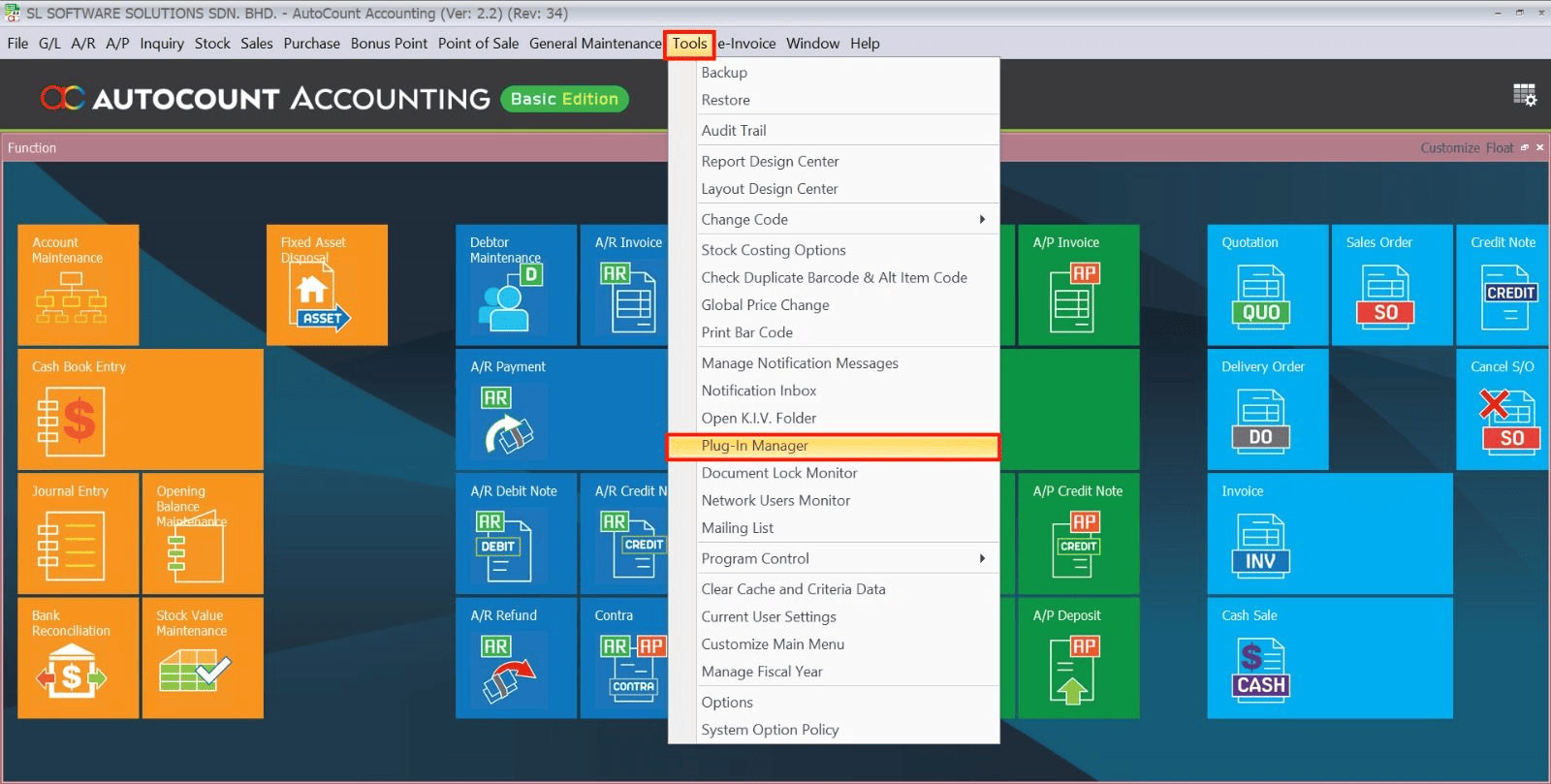
- Go to Tools > Plug-In Manager.
- Click on Install.
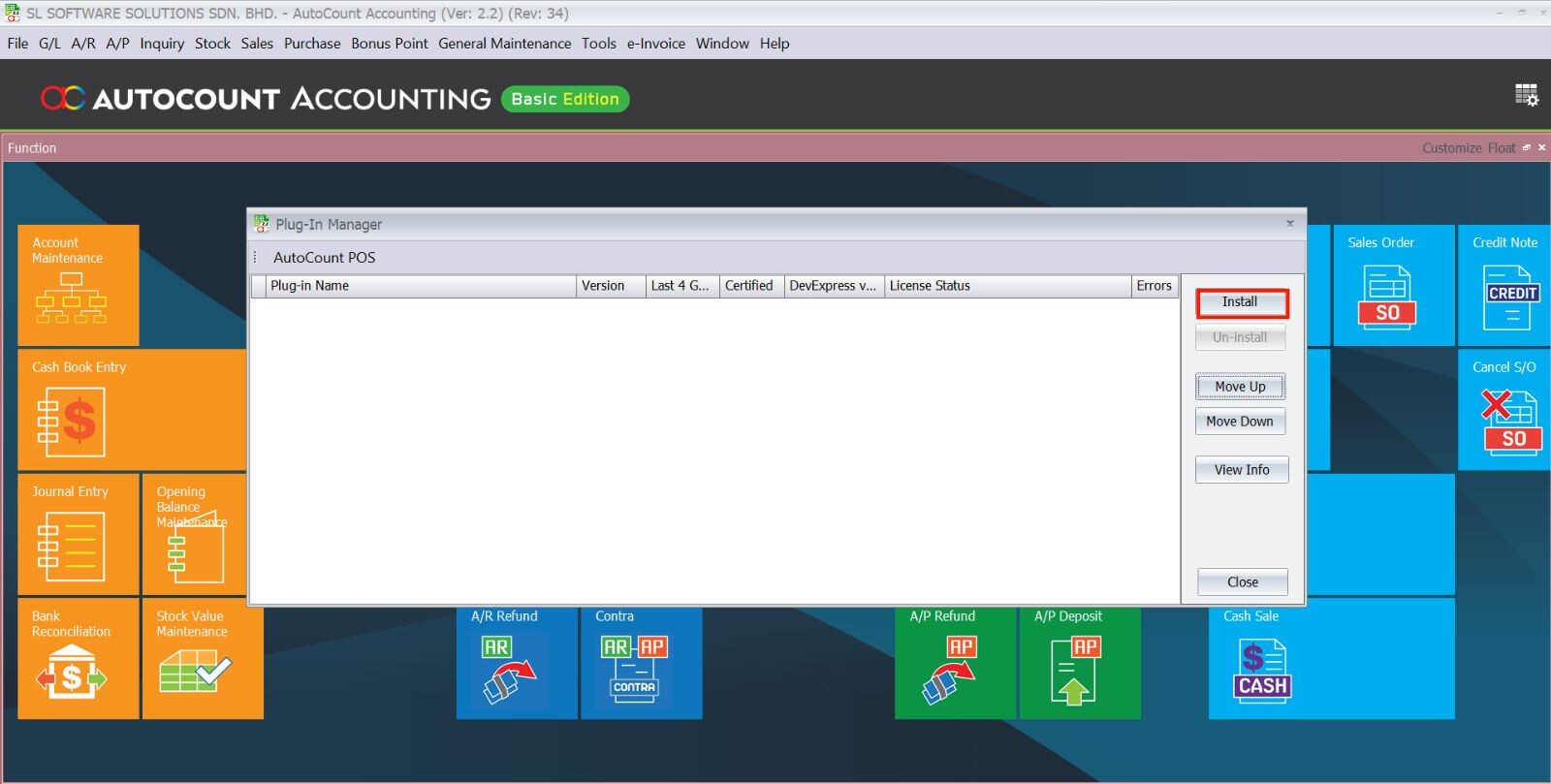
- Browse and select the Intercompany Billing Plugin installation file.
- A confirmation window will appear with plugin details.
- Click Install to proceed.
- After installation, click Yes to confirm the plugin installation.
- A success message will appear, confirming the plugin has been installed.
Setting Up the Account Books
- Create Two Account Books:
- One for HQ and another for the subsidiary (e.g., Ipoh Company).
- Ensure the HQ and subsidiary companies have their respective account books set up in AutoCount.
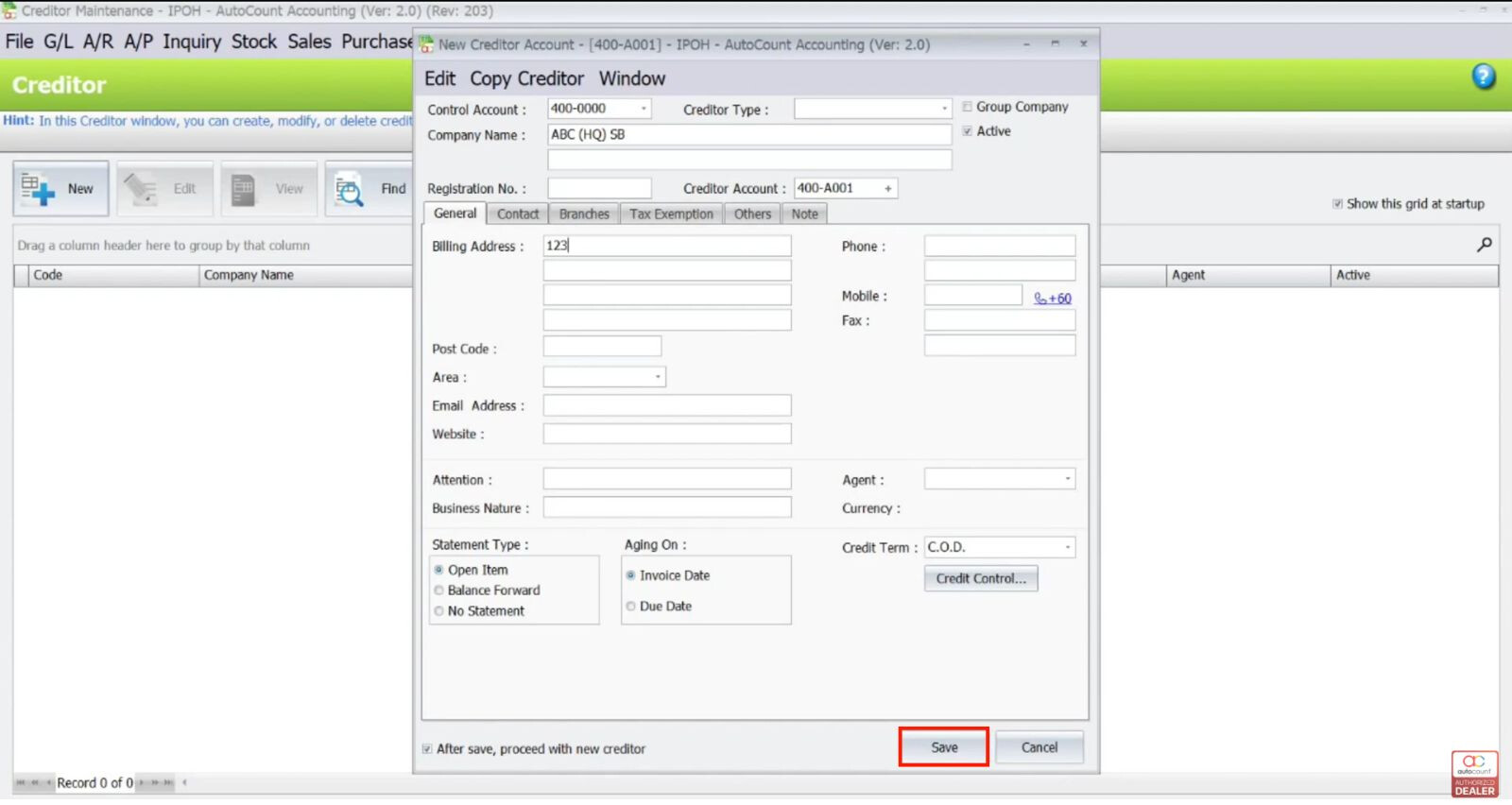
Setting Up Creditor in Subsidiary's Account Book
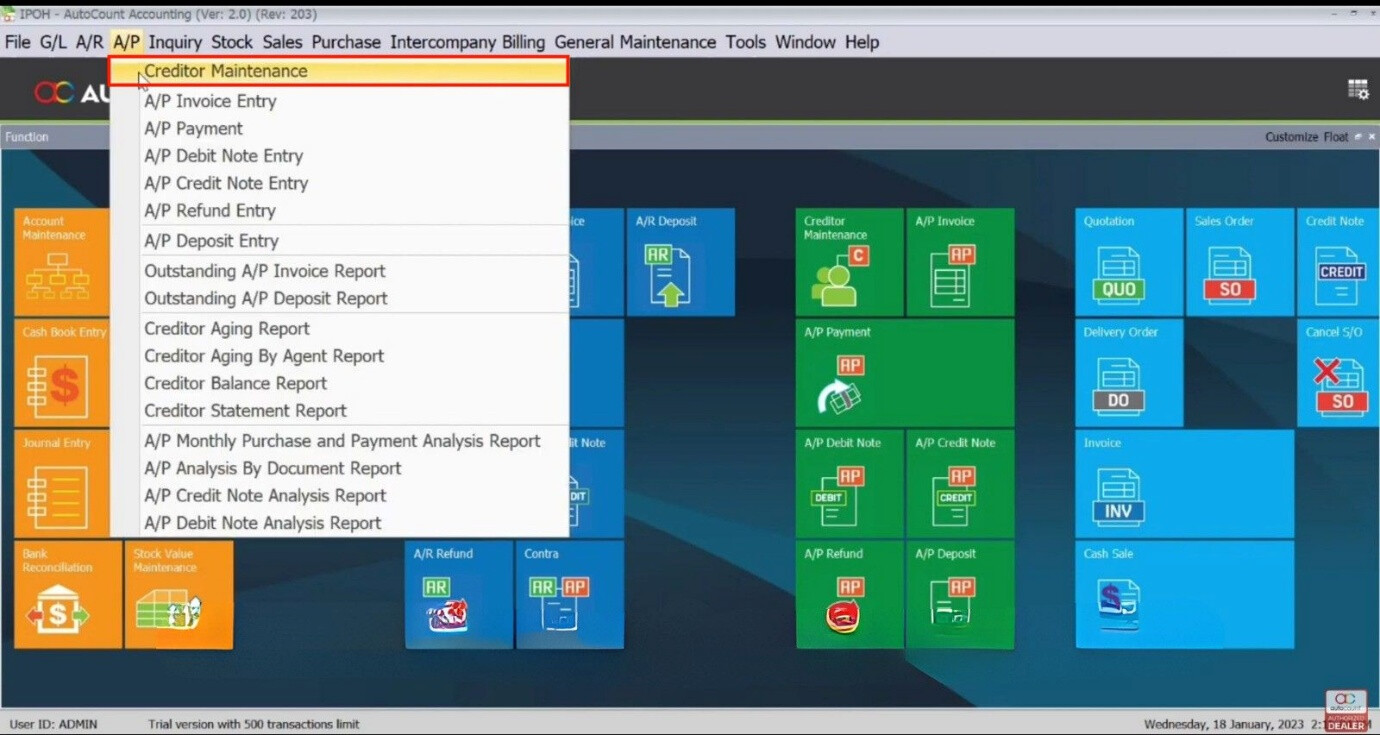
- Go to AP > Creditor Maintenance in the subsidiary’s account book.
- Click New.
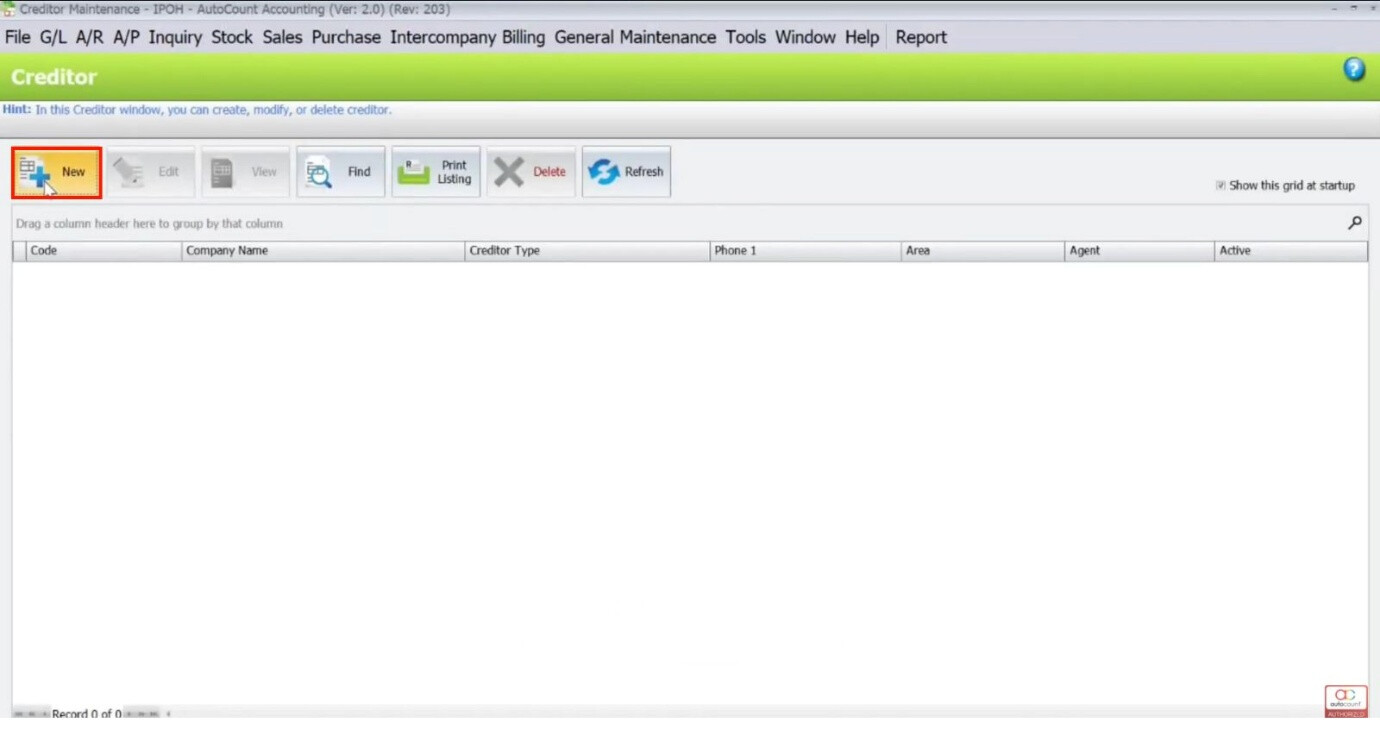
- Enter the Creditor Name (e.g., ABC HQ).
- Enter the Creditor Account and address.
- Save the creditor.
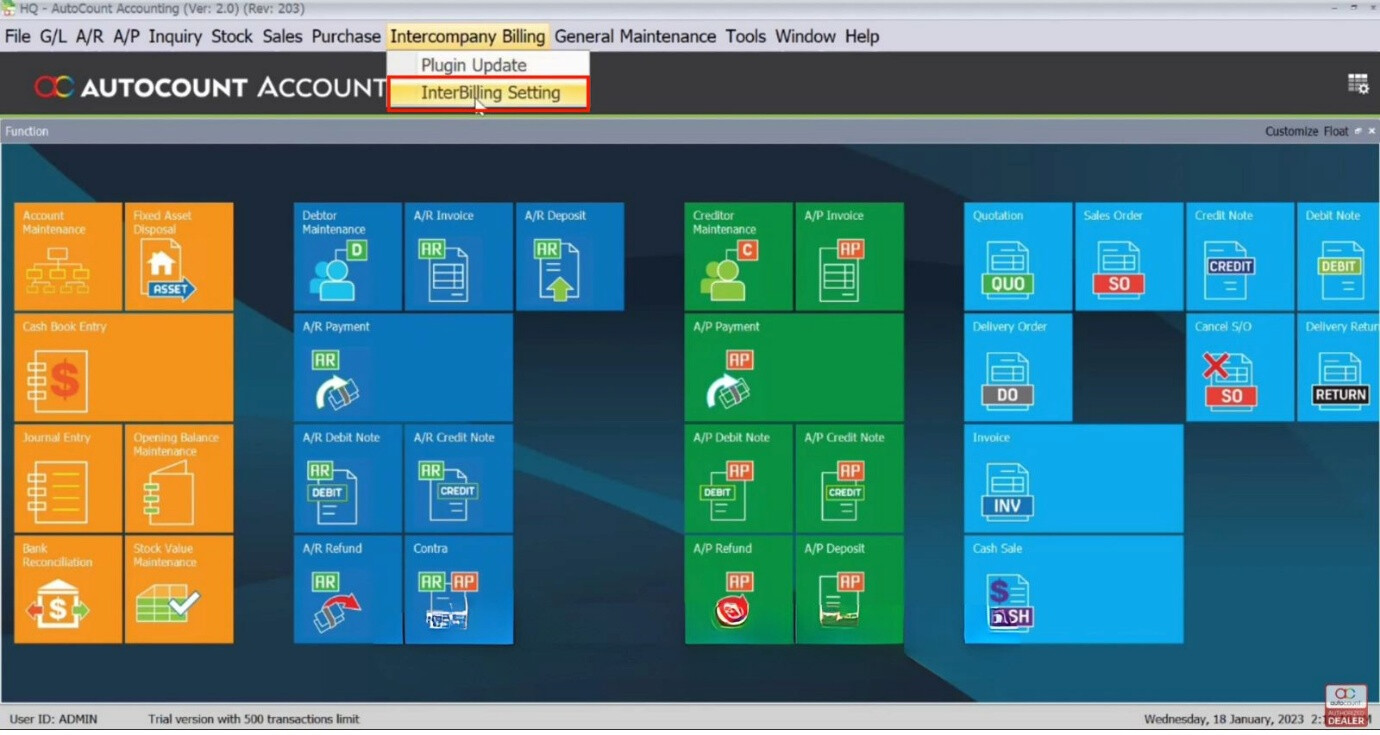
Setting Up Intercompany Billing in HQ
- Go to Intercompany Billing > Interbilling Setting in the HQ account book.
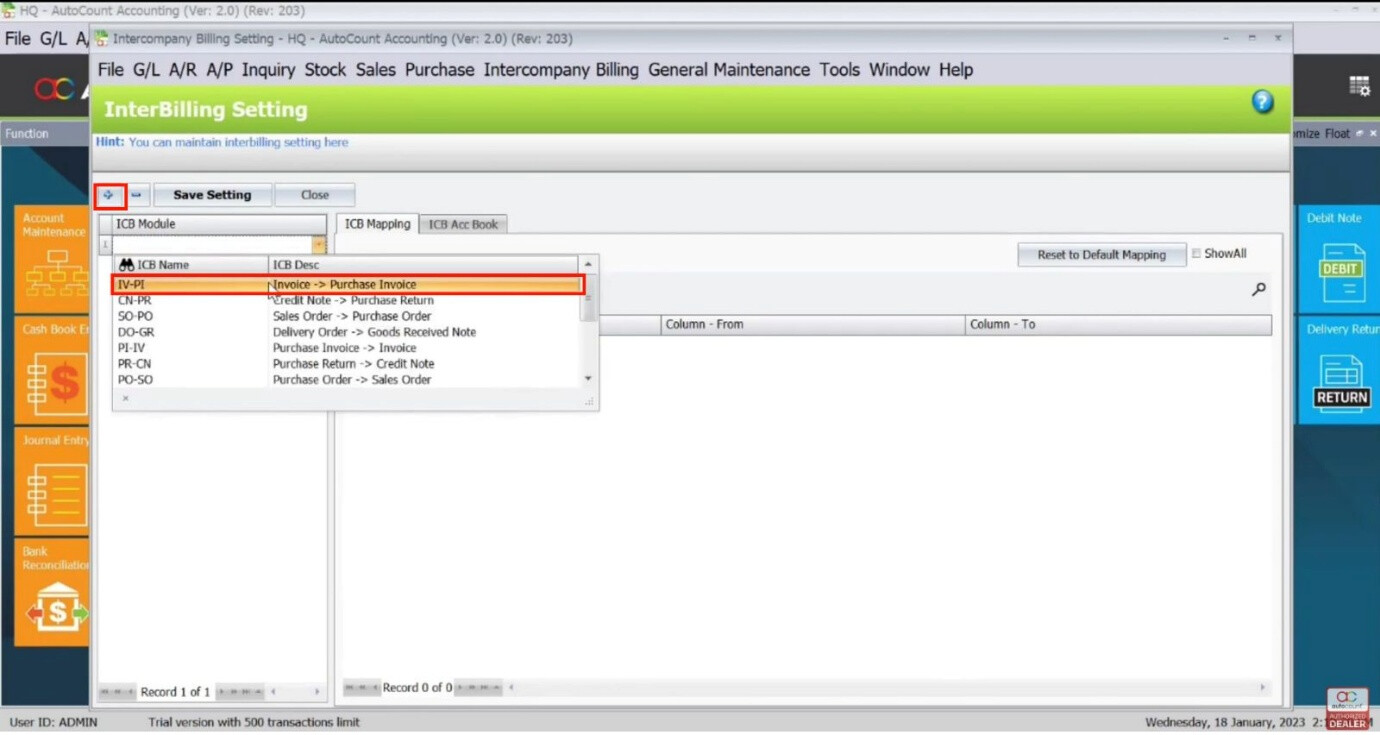
- Click the + button and select Invoice to Purchase Invoice.
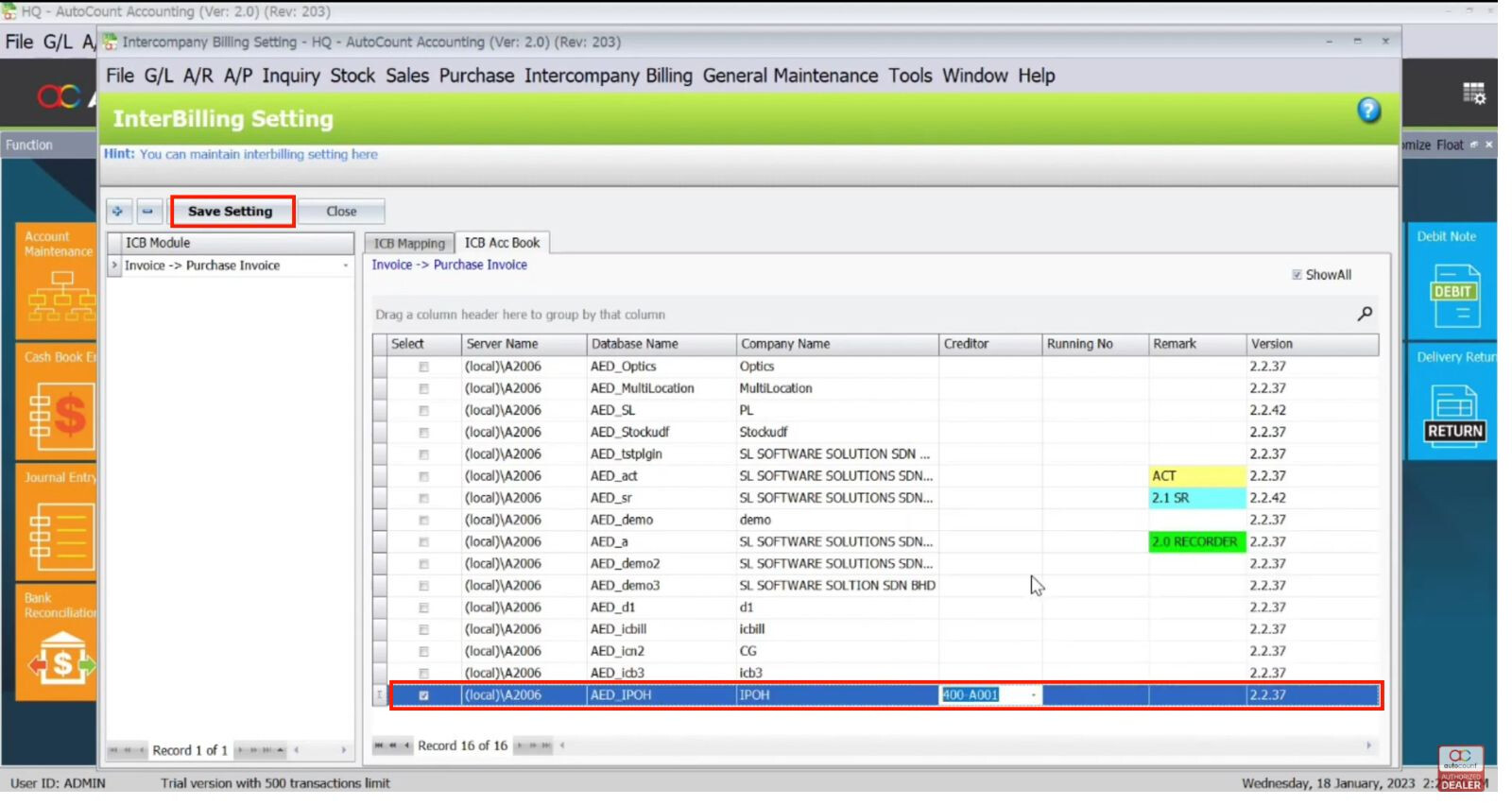
- Choose the Ipoh Company as the subsidiary account book.
- Select the corresponding Creditor (e.g., ABC HQ).
- Click Save Setting.
Setting Up Debtor in HQ Account Book
- Go to AR > Debtor Maintenance in the HQ account book.
- Click New.
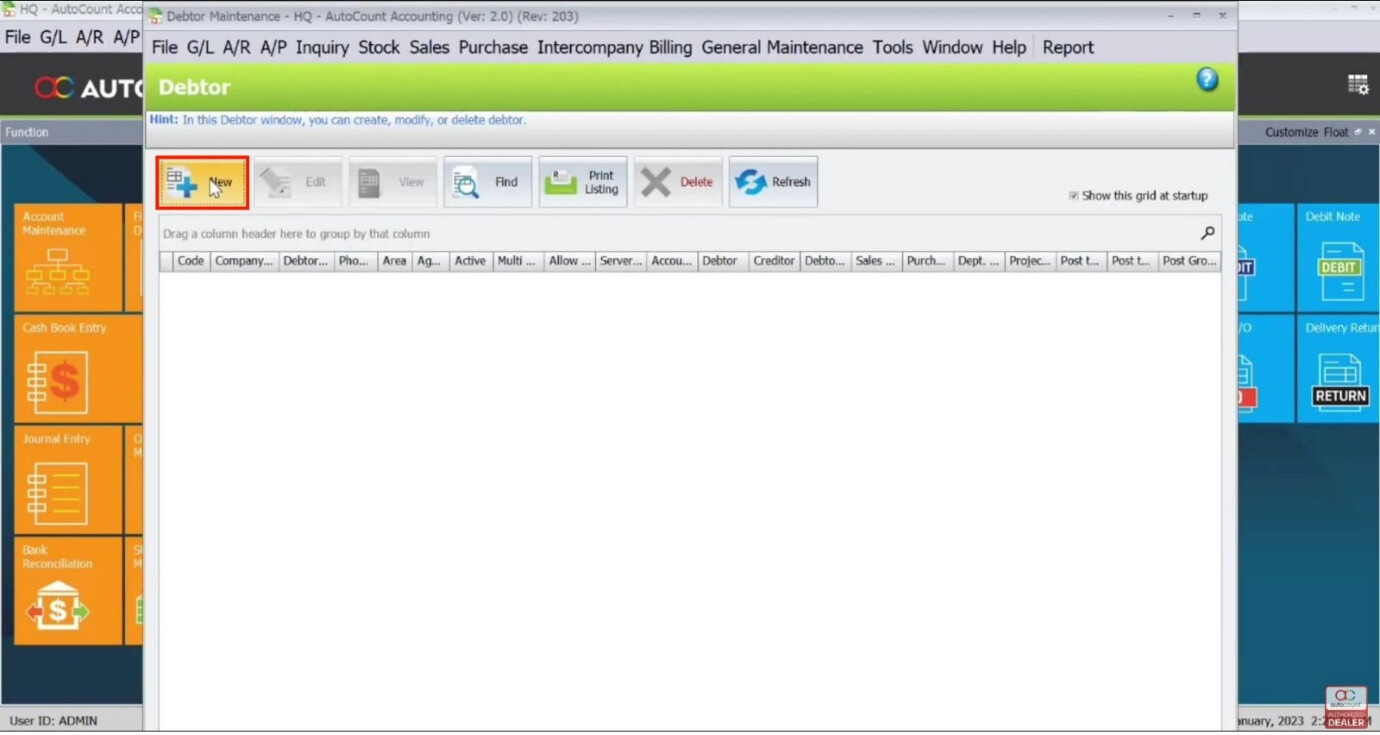
- Enter the Debtor Name (e.g., ABC Ipoh).
- Enter the Debtor Account and address.
- In User Defined Field, key in the account book name (e.g., AED/Ipoh).
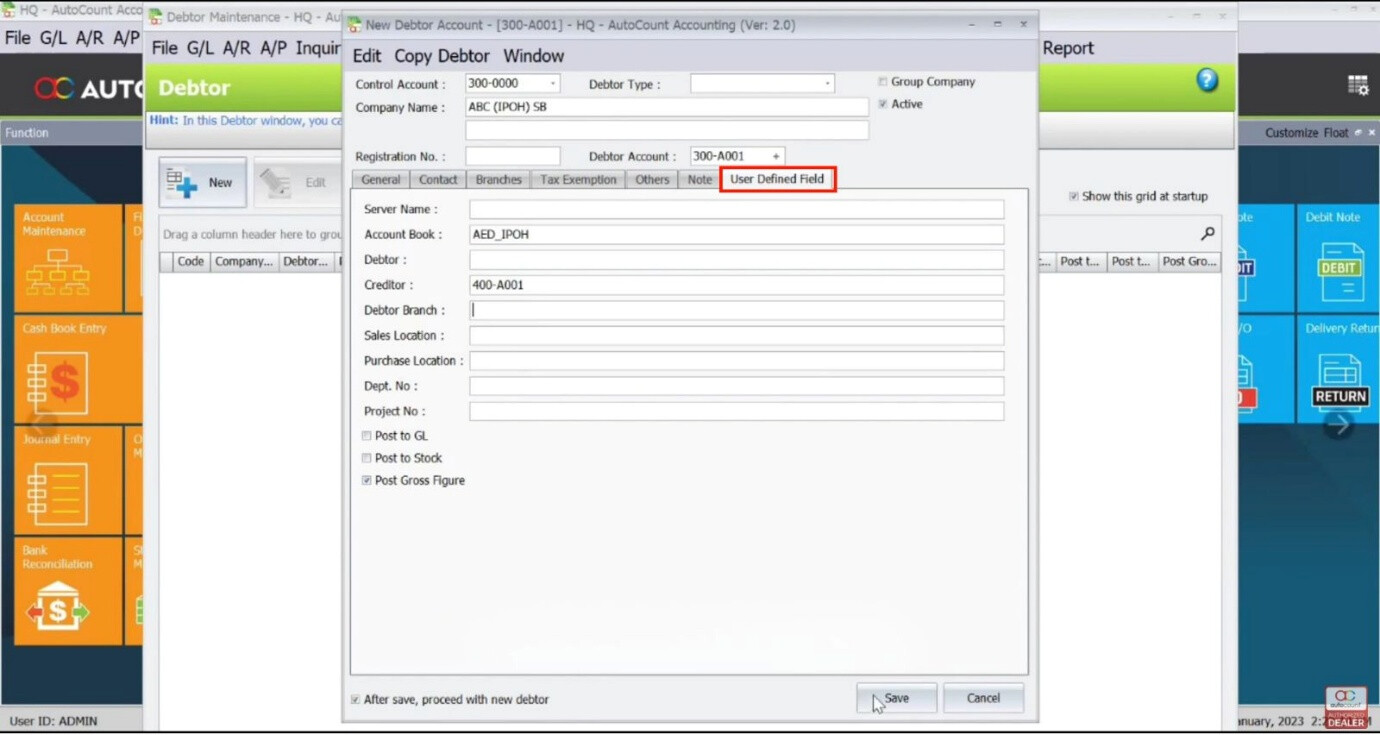
- Click Save.
Creating a Sales Invoice in HQ
- Go to Invoice in the HQ account book.
- Select the Debtor and items for the invoice.
- Enter the quantity and price.
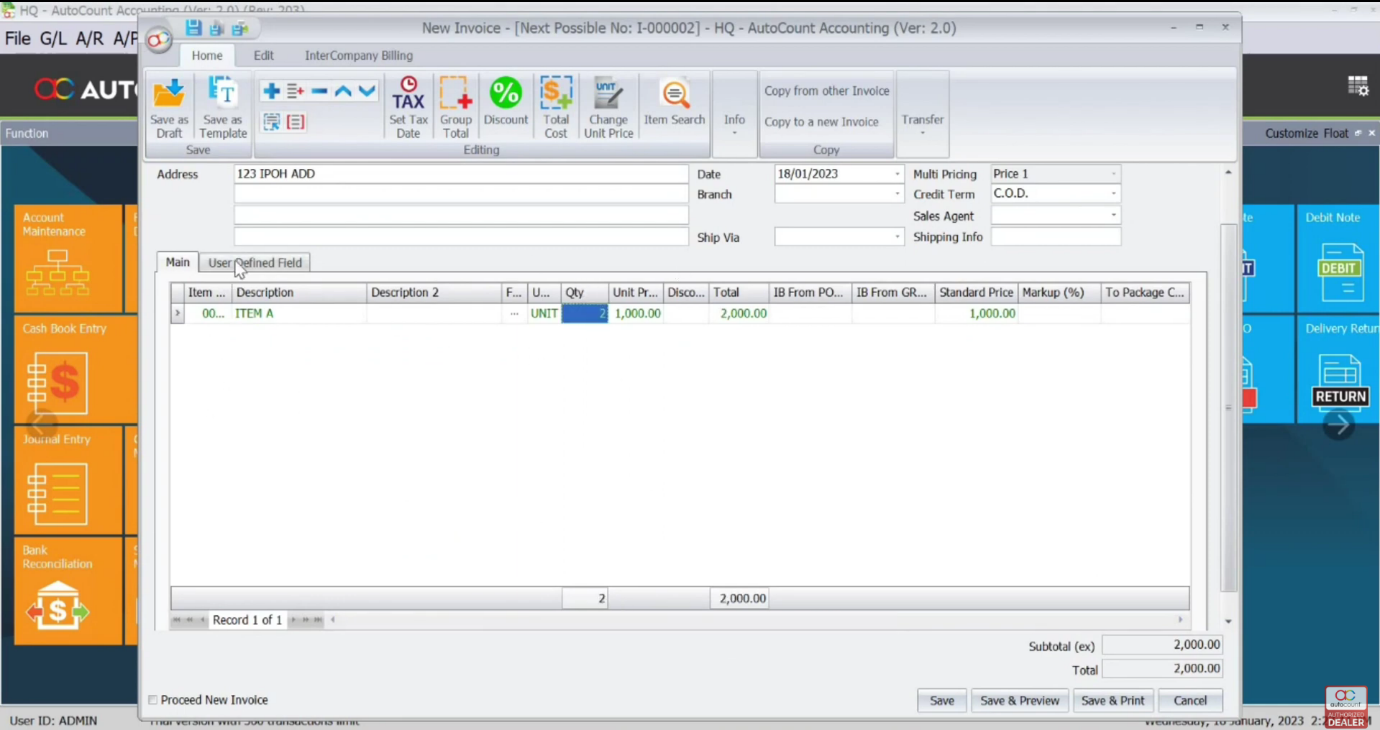
- Click Intercompany Billing and then Info.
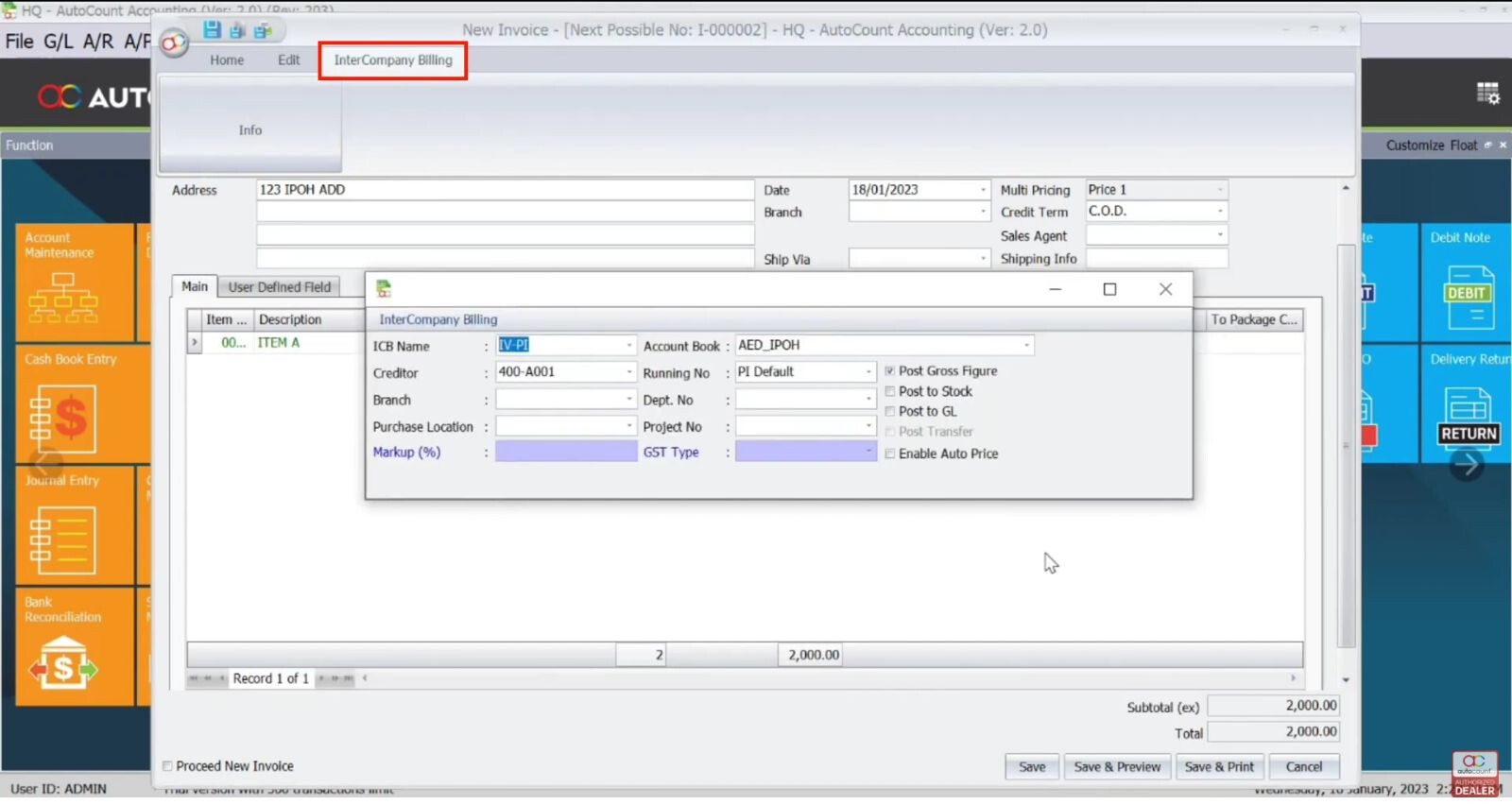
- Verify that the ICB Name, Account Book, Creditor, and Bank Number are automatically generated.
- If needed, select Post to Stock and Post to GL.
- Click Save.
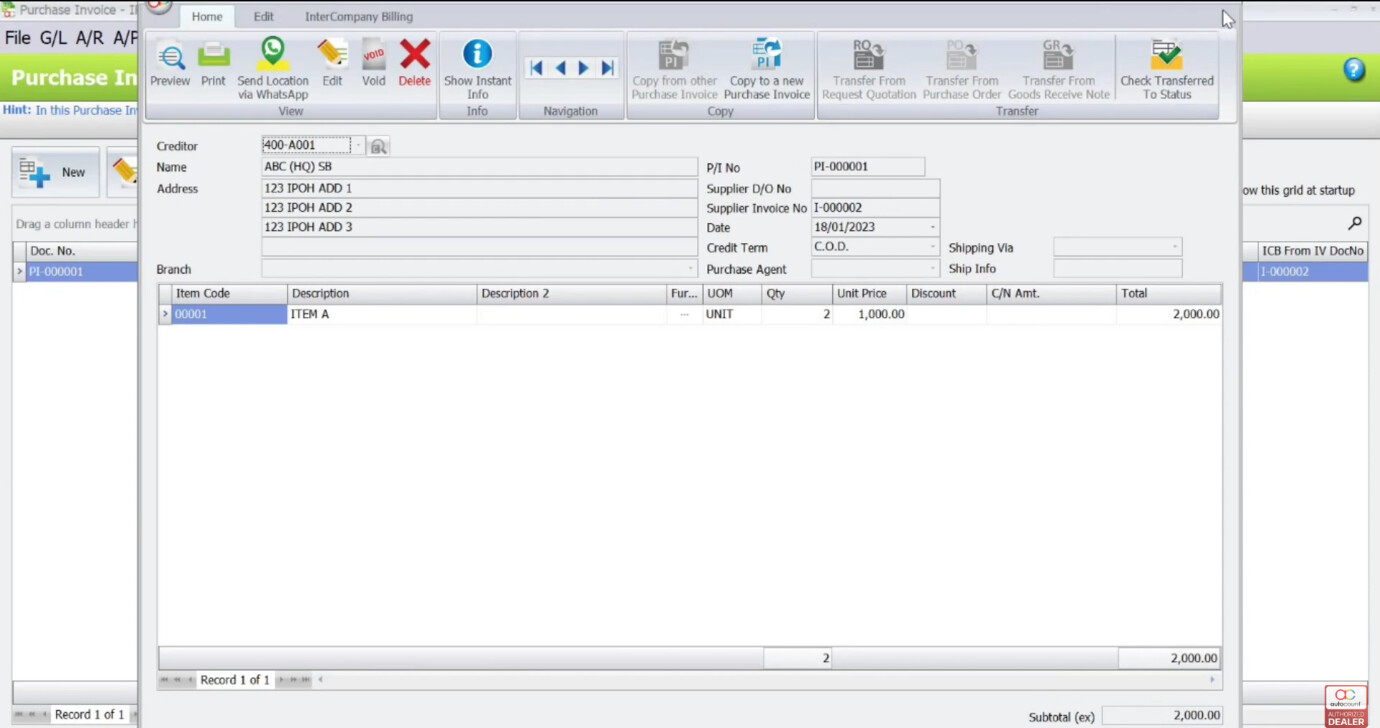
Check Purchase Invoice in Subsidiary's Account Book
- Go to Purchase Invoice in the subsidiary account book (e.g., Ipoh Company).
- A new invoice will appear automatically generated by the system from the HQ’s sales invoice.
Benefits of Using the Intercompany Billing Plugin
Increased Productivity
Automates intercompany billing, reducing manual data entry and errors.
Simplified Transactions
Automatically creates corresponding invoices in the subsidiary account book, simplifying the intercompany transaction process.
Cost-Effective
Streamlines operations between headquarters and subsidiary companies, making the process more efficient.
Improved Accuracy
Ensures consistency and accuracy across multiple companies’ accounts.
Conclusion
The AutoCount Intercompany Billing Plugin enhances operational efficiency by automating the intercompany billing process. It simplifies transactions, ensures accuracy, and reduces manual work, benefiting businesses with multiple subsidiaries or branches. By syncing data in real-time, this plugin makes managing intercompany transactions seamless and accurate.
Frequently Asked Questions
How do I install the Intercompany Billing Plugin?
Go to Tools > Plug-In Manager in AutoCount, click Install, browse for the Intercompany Billing Plugin installation file, and follow the prompts.
What happens after I create a sales invoice in HQ?
The plugin will automatically generate a corresponding purchase invoice in the subsidiary’s account book.
Can I integrate multiple subsidiaries using the plugin?
Yes, the plugin supports intercompany billing between the HQ and multiple subsidiaries by mapping data between them.
How do I handle errors during the invoice creation process?
Errors are logged in the Error Log. You can review the error description and manually fix the issue, then retry the import.
Can I use the plugin with multiple currencies?
Yes, the plugin supports multi-currency transactions, ensuring correct exchange rates are applied during the intercompany billing process.
Interested in Getting AutoCount for your Business?
Contact our sales team today to explore pricing options and get started with the perfect solution for you.