
-
AutoCount Accounting Features
-
- Approval Workflow
- Audit Trail
- Auto Save in Draft Folder
- AutoCount Contra Account
- AutoCount License Setting Guide
- Deposit Tracking & Management
- Documents Numbering Format
- Full Transfer and Partial Transfer
- Import Data to AutoCount Accounting Using Excel
- Informative Charts and Analytical Data
- Layout Customization
- Multi Pricing
- Sales and Services Tax
- Schedule Backup
- Search Lookup Edit
- View Documents Flow
- AutoCount Feature Stock Take
- Column Chooser
- Show Remaining (3) Collapse
-
AutoCount Cloud Accounting
-
AutoCount E-Invoice
-
AutoCount HRMS User Guide
-
AutoCount Modules
-
- Activity Stream
- Advanced Financial Report
- Advanced Item
- Advanced Multi-UOM
- Advanced Quotation Module
- Basic Multi-UOM
- Budget Module
- Consignment
- Filter By Salesman
- FOC Quantity
- Formula
- Item Batch
- Item Package
- Landing Cost
- Multi-Currency
- Multi-Dimensional Analysis
- Multi-Location
- Project Account
- Recurrence
- Remote Credit Control Module
- Stock Assembly
- User Defined Fields (UDF)
- AutoCount SST Hidden Functions
- AutoCount SST Submission - Service Tax
- AutoCount Scripting Module User Guide
- AutoCount Bonus Point Module User Guide
- Show Remaining (11) Collapse
-
AutoCount Plugins
-
- Fixed Assets Management
- Goldsmith
- TD Ordering Mobile Apps
- TD Stock Mobile Apps
- Universal Import Plugin
- DMS Import Plugin
- AutoCount Item Scope Plugin
- AutoCount Easy Knock Off Plugin
- AutoCount Pick List Plugin User Guide
- AutoCount Agent Validation Plugin User Guide
- AutoCount Barcode Generator Plugin User Guide
- AutoCount Bill Remark Plugin User Guide
- AutoCount Easy Batch Number Entry Plugin User Guide
- AutoCount Recurring Invoice Plugin User Guide
- AutoCount Easy Photo 2.0 User Guide
- AutoCount Pain Tracker User Guide
- AutoCount Credit Memo Plugin User Guide
- Show Remaining (2) Collapse
-
- AutoCount Easy Recurrence Plugin
- AutoCount Recurring Billing Plugin
- Event Management System
- AutoCount To-Do List Plugin
- AutoCount AutoBank Reconciliation Plugin
- Intercompany Billing Plugin User Guide
- AutoCount Basket Plugin User Guide
- Lead Management 2.0 Plugin
- AutoCount Service Contract Plugin User Guide
- Autocount Repacking Plugin
- AutoCount Scale Barcode Plugin User Guide
- AutoCount Progressive Billing
- AutoCount Optical Plugin
- AutoCount Meter Reading Plugin User Guide
- AutoCount Car Tint Film Plugin
- AutoCount Leasing Plugin User Guide
- AutoCount Integrator Plugin
- AutoCount Procurement Planning Plugin
- Show Remaining (3) Collapse
-
-
Form Template
-
Report Template
-
- Advance Quotation
- Cash Sale
- Consignment
- Consignment Movement
- Credit Note
- Debit Note
- Delivery Order
- FOC Quantity Analysis By Document Report
- Invoice
- Item Package Sales Report
- Monthly Sales Analysis
- Outstanding Sales Order Listing
- Profit And Loss Of Documents
- Quotation
- Sales Agent Contribution Report
- Sales Order
- Top/Bottom Sales Ranking
- Show Remaining (2) Collapse
-
- Available Stock Status Report
- Expired Item Batch Listing
- Inventory Physical Worksheet
- Stock Adjustment
- Stock Aging Report
- Stock Assembly
- Stock Assembly Order
- Stock Balance By Location
- Stock Balance Report
- Stock Card Report
- Stock Disassembly
- Stock Issue
- Stock Item Profit Margin
- Stock Movement Report
- Stock Receive
- Stock Take
- Stock Transfer
- Stock Write Off
- Show Remaining (3) Collapse
AutoCount Accounting: Auto Save in Draft Folder
Introduction to AutoCount's Auto Save Feature
Firstly, AutoCount's auto save feature is a crucial tool. Its design protect your ongoing work by automatically saving documents into a draft folder. As a result, this feature ensures that in the event of an unexpected interruption—such as a power outage or system crash—your data is preserved and can be easily recovered. In addition, the auto save function in AutoCount is akin to the auto-save capabilities found in popular software like Microsoft Word and Excel. However, it is specifically tailored to meet the needs of business users who rely on AutoCount for their daily operations.
The Importance of Auto Save in Business Applications
Firstly, in any business environment, the loss of data can have serious consequences. In other words, whether it's due to accidental closure of the software, a system crash, or a sudden power failure, unsaved work can lead to significant delays and financial losses. However, the auto save feature in AutoCount mitigates these risks by automatically saving your work at regular intervals. Therefore, this means that even if an interruption occurs, you can have a peace of mind. The Auto Save feature protects and making sure your data is safe. As a result, you can also easily retrieve all those data.
AutoCount Auto Save as Draft Video Guide
- AutoCount Auto Save as Draft (EN)
Auto Save as Draft Setup
Integration & Auto Save as Draft Setup
- AutoCount Auto Save as Draft (CN)
自动保存为草稿设置
集成和自动保存为草稿设置
How the Auto Save Process Works in AutoCount?
Firstly, the Auto Save feature in AutoCount continuously protects your work by automatically saving drafts of your active documents at regular intervals. In addition, this seamless process operates in the background. Thus, allowing you to recover unsaved work easily in case of interruptions. So, here’s a step-by-step outline of how the Auto Save process works to safeguard your data.
Configuring Auto Save in AutoCount
1. Accessing Auto Save Settings
- Firstly, navigate to the Tools menu.
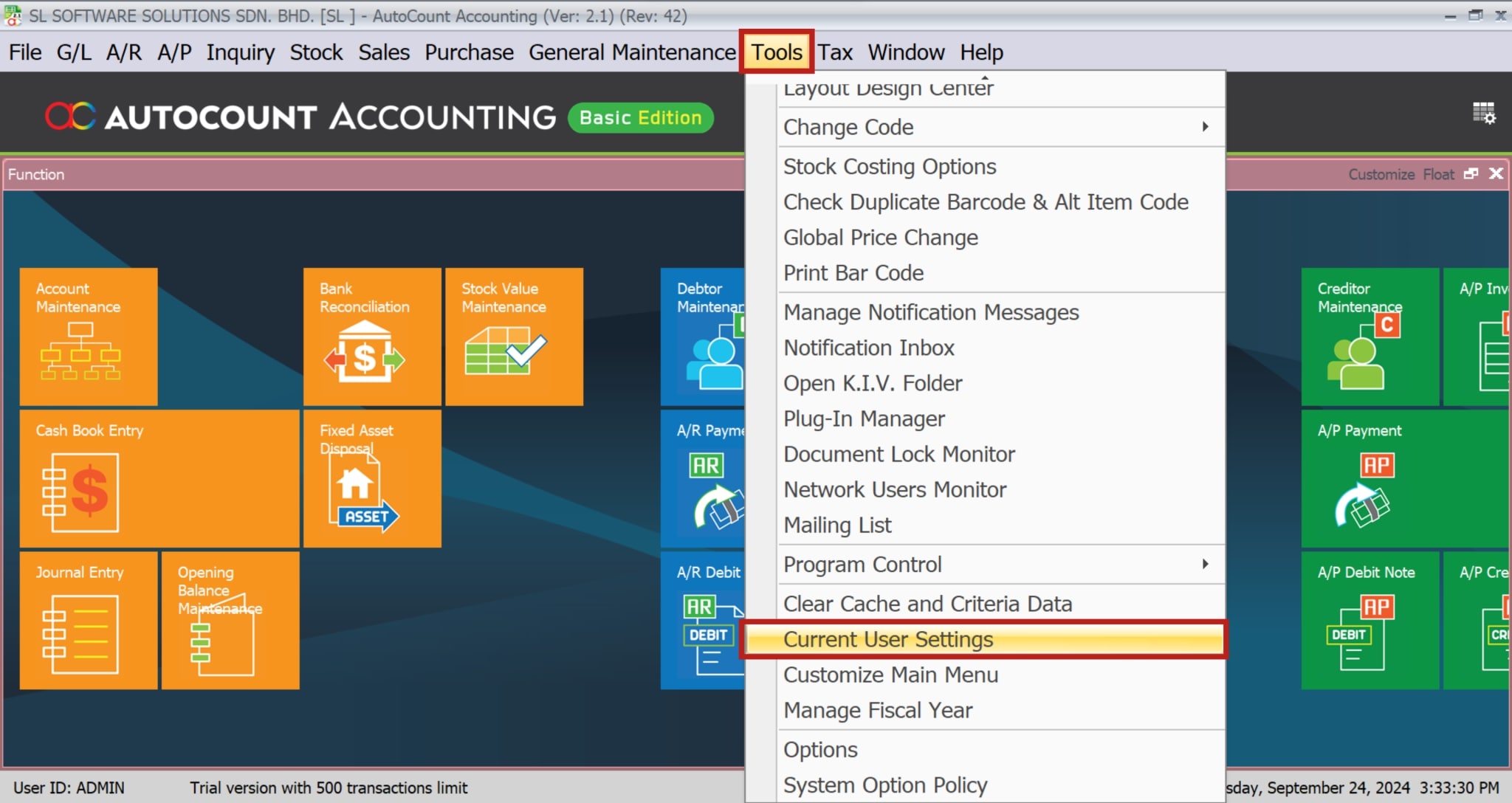
- Secondly, select Current User Settings.
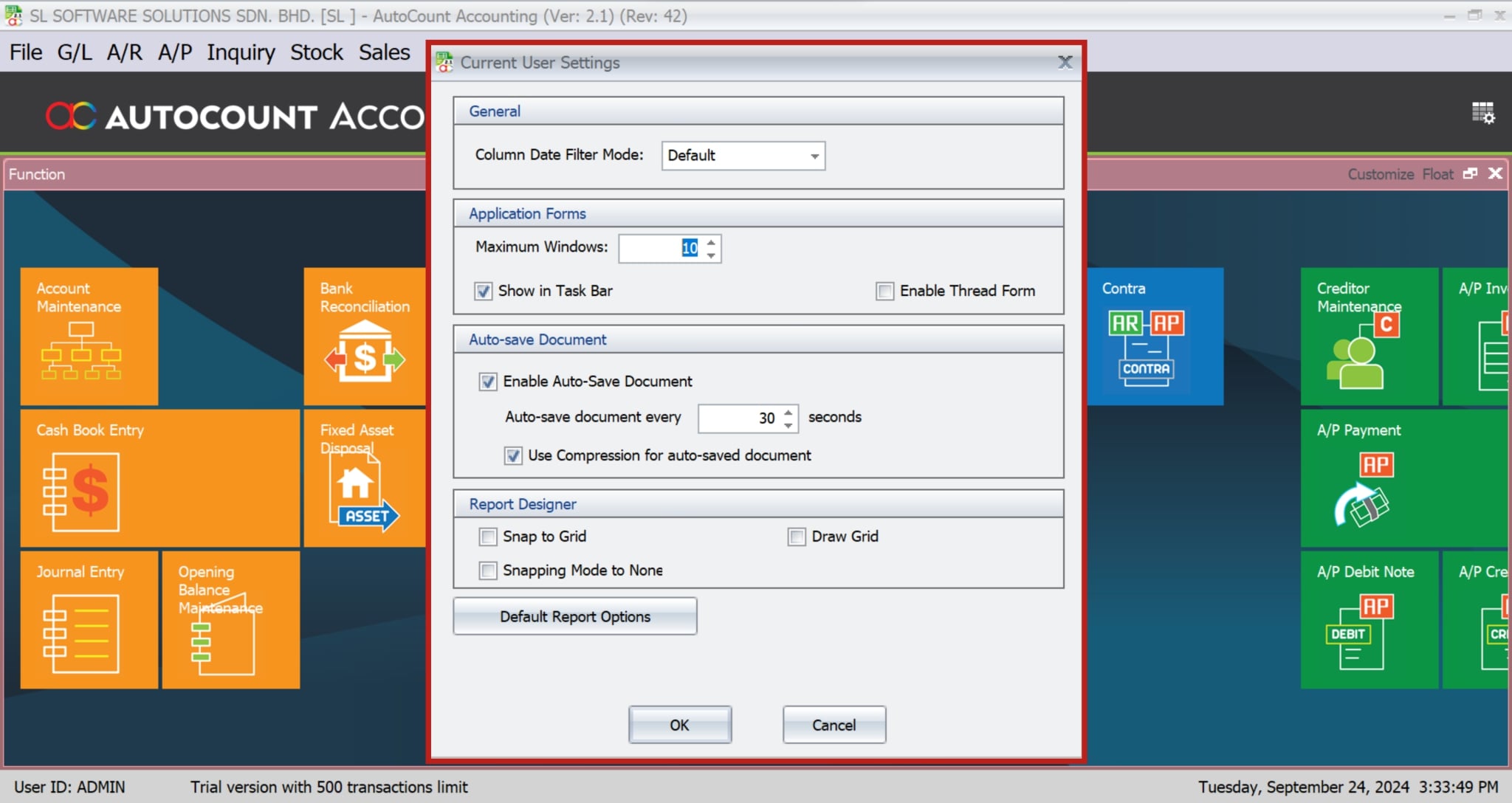
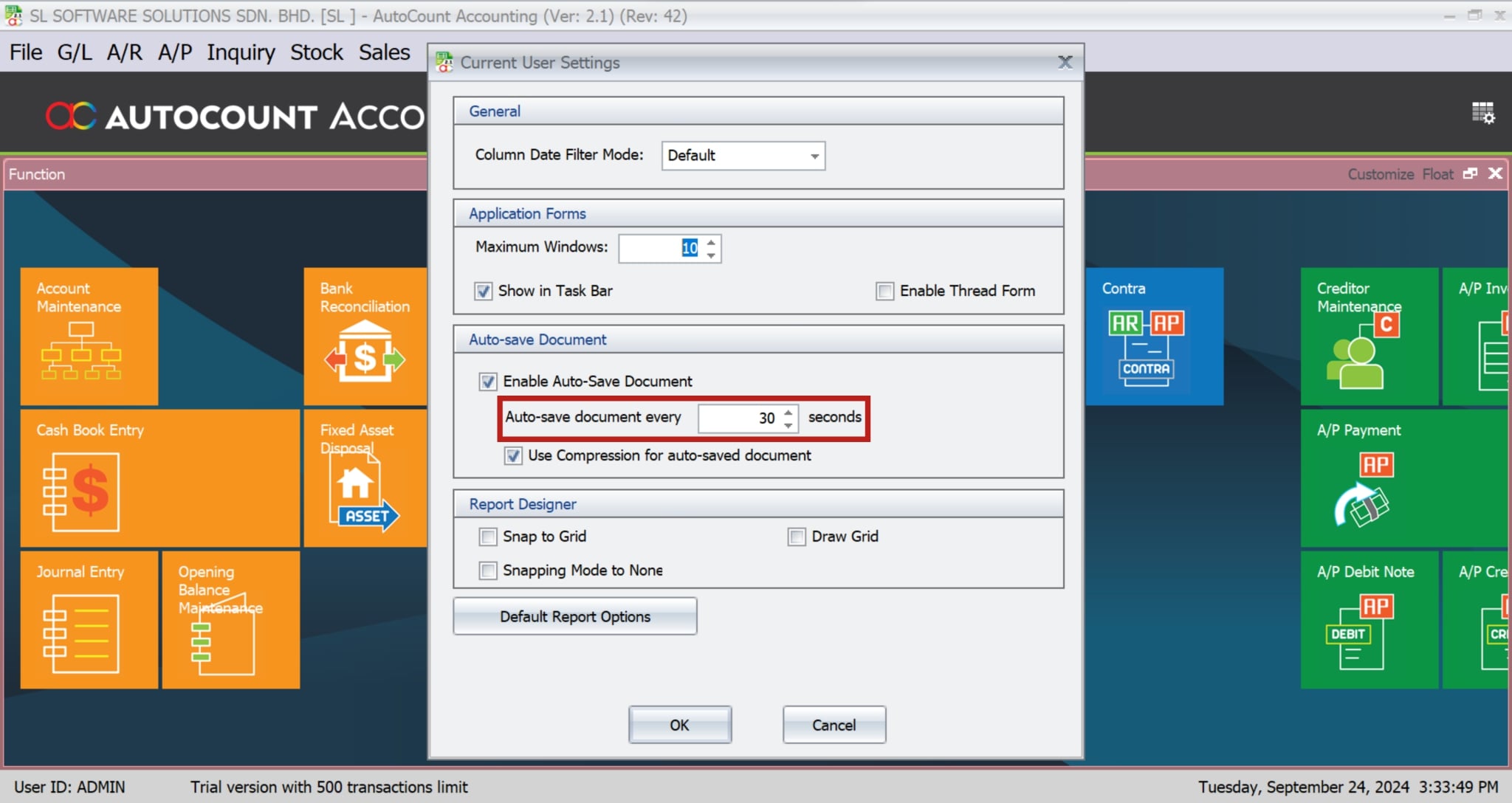
- Thirdly, locate the options related to Auto save.

- After that, configure the Auto save settings according to your preferences.
2. Enabling Auto Save for Specific Users
To clarify, Auto save in AutoCount can be enabled or disabled on a per-user basis. As a result, this allows administrators to control who has access to the auto save feature and ensures that only authorized users can make changes to auto-saved documents. In addition, this level of control is particularly useful in environments where multiple users may be working on the same documents.
Compressing Auto-Saved Documents
1. The Advantages of Compression
Reduced storage space
Firstly, compressing documents lowers the amount of storage required.
Improved Performance
Secondly, compression speeds up the process of saving and retrieving files.
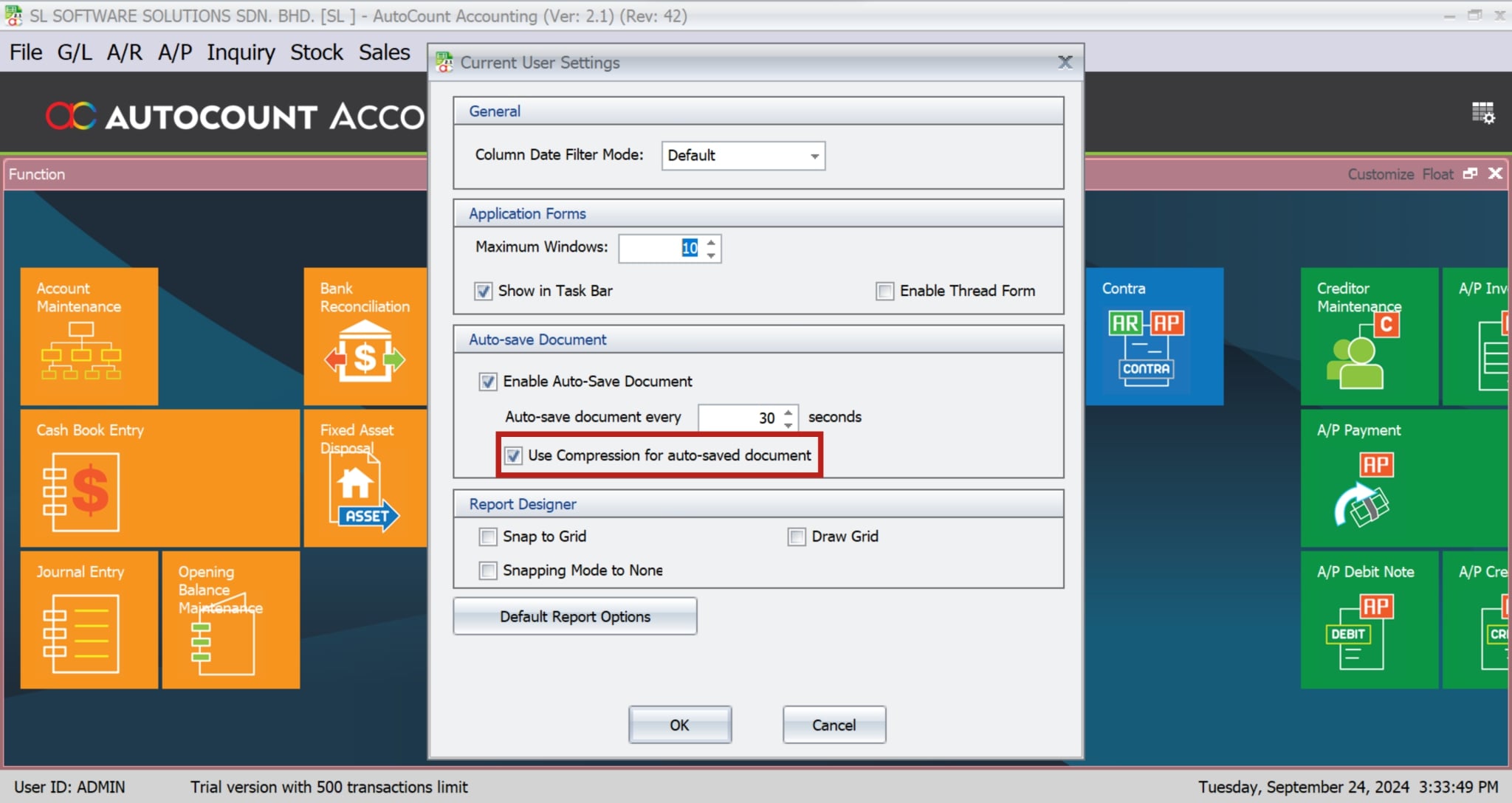
2. Setting Up Document Compression
To enable compression for auto-saved documents, navigate to the auto save settings and select the option to compress documents. After that, you can adjust the compression settings to balance between file size and processing power, depending on the needs of your organization.
Manual Save vs. Auto Save: Understanding the Differences
1. Key Differences
2. When to Use Manual Save
Manual save is particularly useful when you are making significant changes to a document or when you want to finalize a document before closing it. On the other hand, auto save is ideal for ongoing work where you want to ensure a continuous save on all your progress.
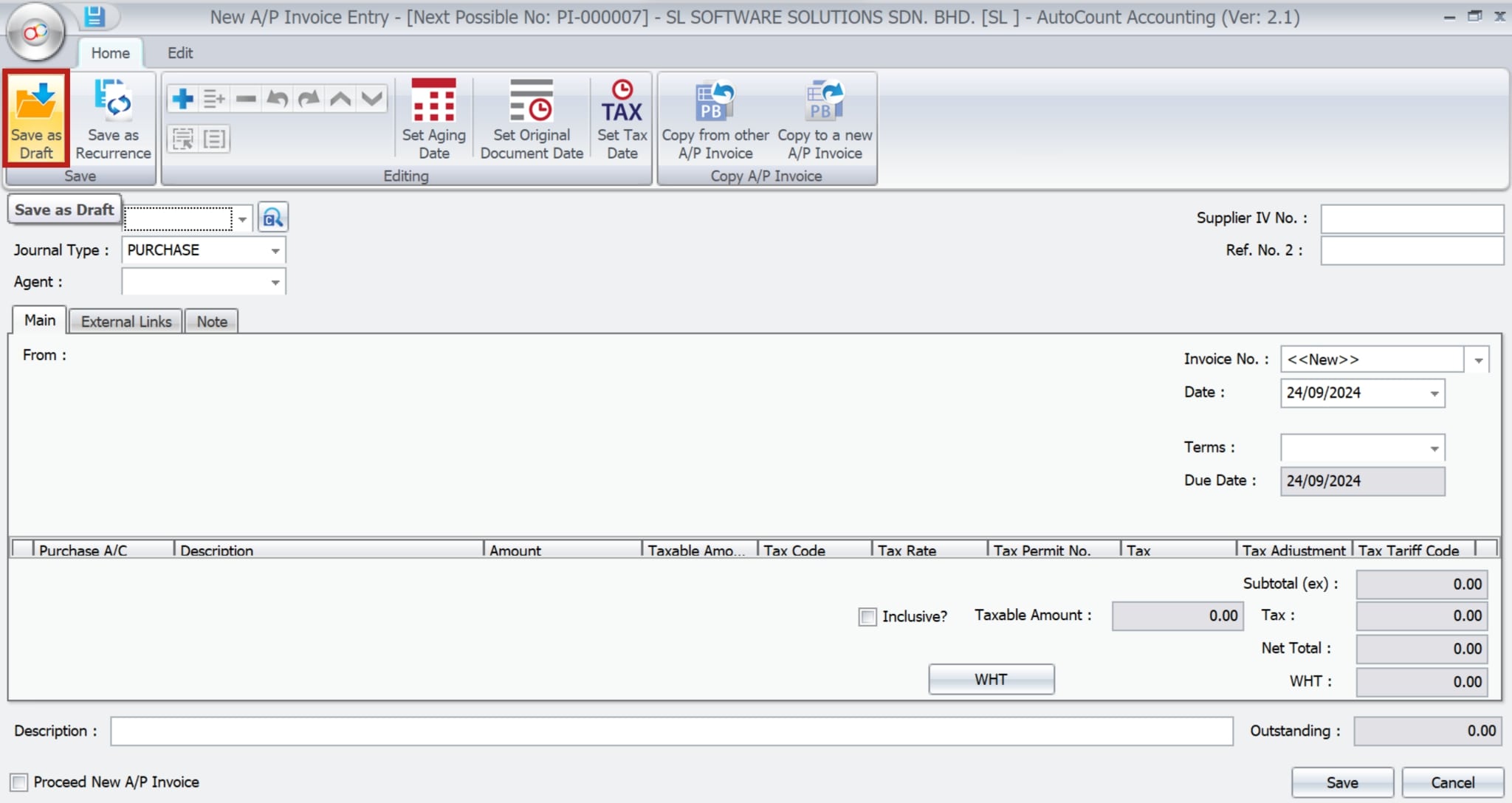
Retrieving Auto-Saved Documents
1. Accessing the K.I.V Folder
AutoCount stores all auto-saved documents in a designated folder known as the K.I.V (Keep In View) Folder. To access this folder, navigate to the Tools menu and select the option to open the K.I.V Folder. This folder contains all drafts that have been automatically saved by the system.
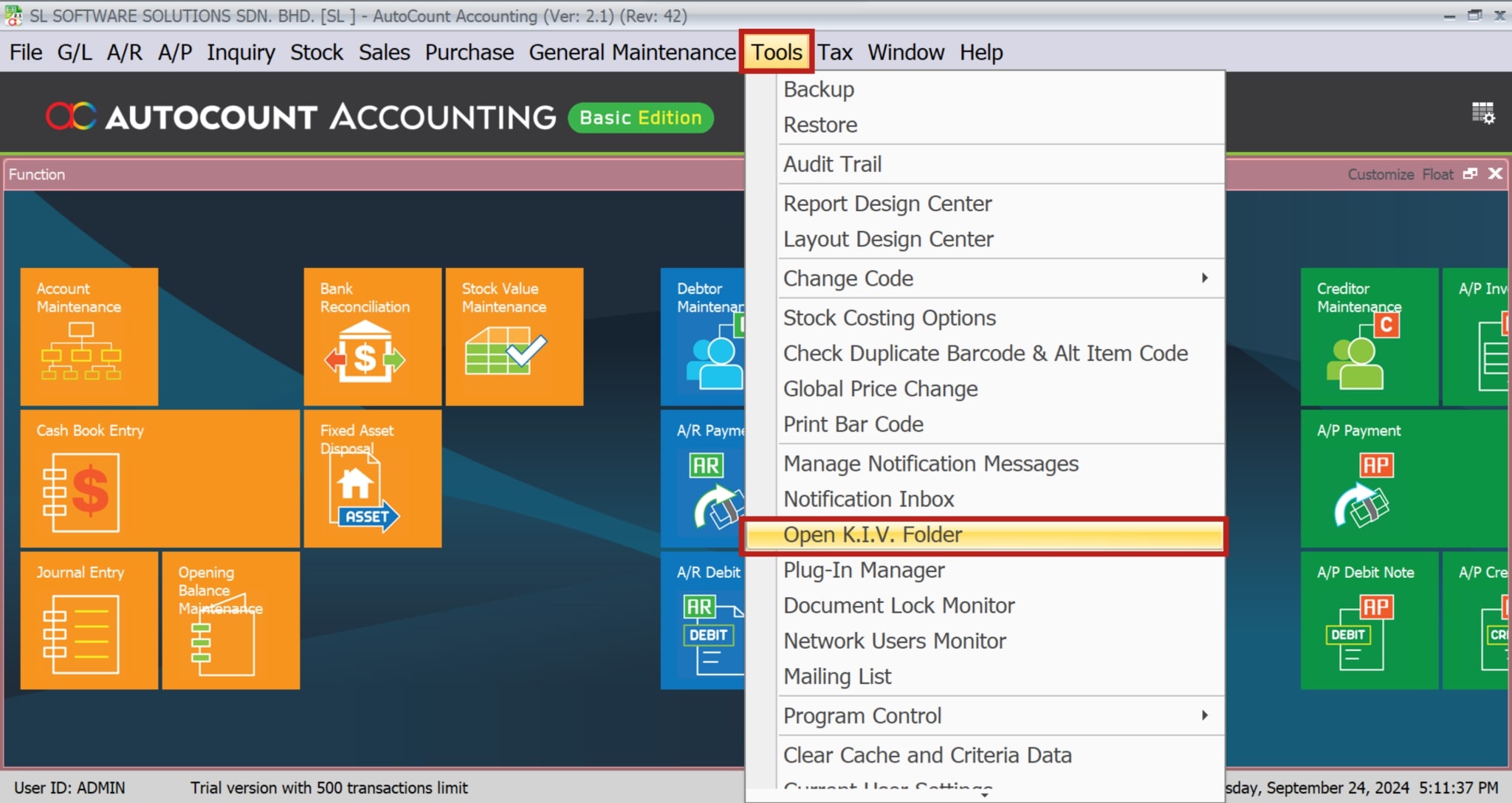
2. Retrieve Your Documents
Once you have opened the K.I.V Folder, you can easily retrieve your auto-saved documents. Simply select the document you wish to open and click “Open.” This will restore the document to its last auto-saved state, allowing you to pick up right where you left off.
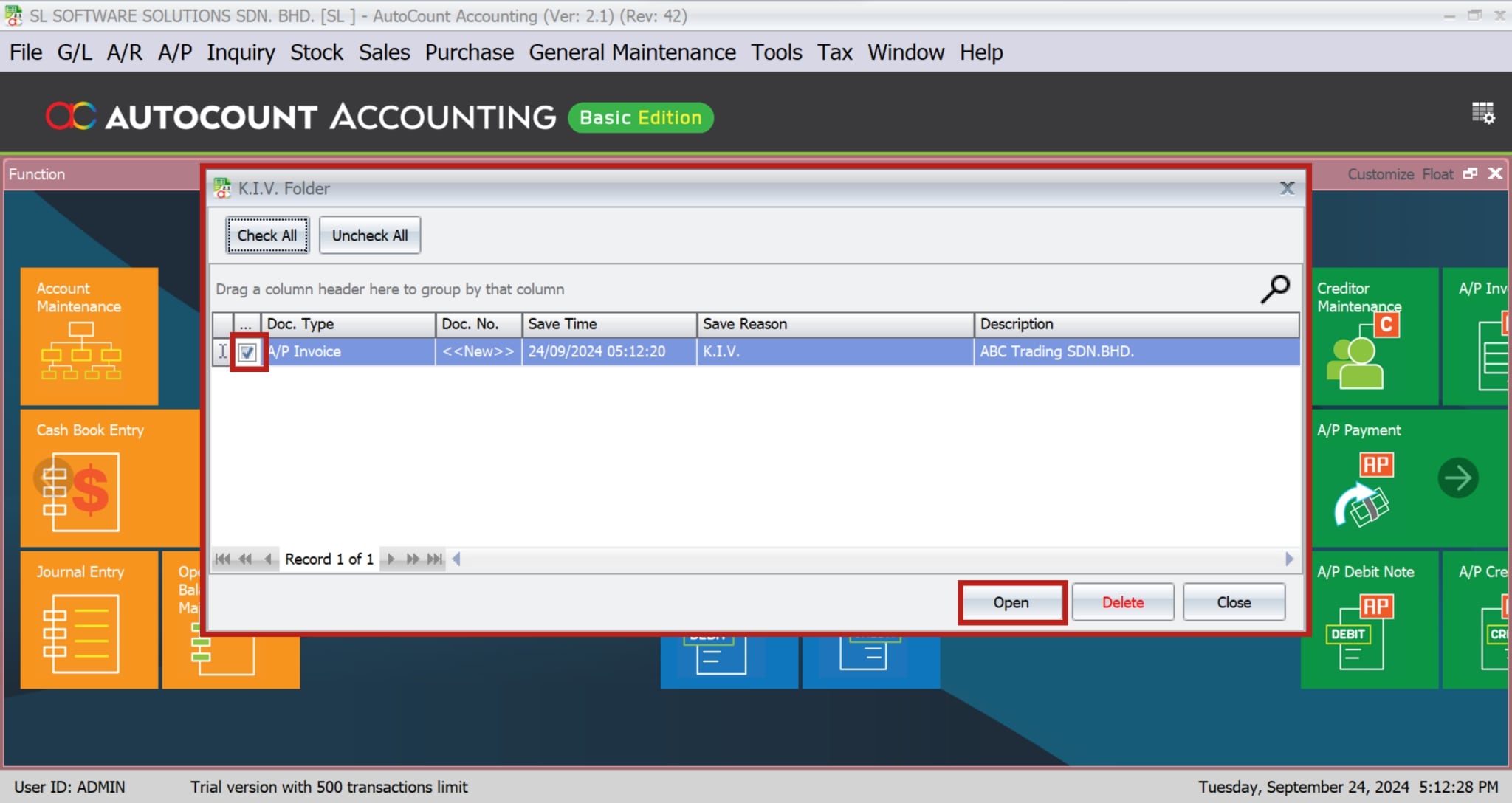
Managing Auto-Saved Documents
Comparing AutoCount’s Auto Save with Other Software
Similarities with Microsoft Office
AutoCount’s auto save feature operates in a similar manner to the auto-save functions found in Microsoft Word and Excel. Both systems periodically save your work to prevent data loss in the event of an unexpected interruption. However, AutoCount’s version is specifically designed for business users and integrates seamlessly with the other features of the software.
Unique Features of AutoCount’s Auto Save
Unlike generic auto save features, AutoCount’s auto save is integrated with its business modules, providing additional functionalities such as user-specific settings, document compression, and advanced retrieval options.
Frequently Asked Questions
What is the Auto Save feature in AutoCount?
Auto Save automatically saves your work in progress into a draft folder to prevent data loss in case of an unexpected interruption.
How can I enable Auto Save in AutoCount?
Auto Save can be enabled through the Tools menu by accessing the Current User Settings and adjusting the Auto Save options.
Where are auto-saved documents stored in AutoCount?
Auto-saved documents are stored in the K.I.V Folder, which can be accessed through the Tools menu.
Can auto-saved documents be compressed?
Yes, AutoCount allows for the compression of auto-saved documents before they are sent to the database server.
Is it possible to retrieve a document if Auto Save fails?
If Auto Save fails, you can try retrieving the document from the K.I.V Folder or contact AutoCount support for assistance.
What happens if multiple users are working on the same document?
AutoCount tracks changes by user ID, ensuring that each user’s contributions are saved and identifiable.
Interested in Getting AutoCount for your Business?
Contact our sales team today to explore pricing options and get started with the perfect solution for you.