
-
AutoCount Accounting Features
-
- Approval Workflow
- Audit Trail
- Auto Save in Draft Folder
- AutoCount Contra Account
- AutoCount License Setting Guide
- Deposit Tracking & Management
- Documents Numbering Format
- Full Transfer and Partial Transfer
- Import Data to AutoCount Accounting Using Excel
- Informative Charts and Analytical Data
- Layout Customization
- Multi Pricing
- Sales and Services Tax
- Schedule Backup
- Search Lookup Edit
- View Documents Flow
- AutoCount Feature Stock Take
- Column Chooser
- Show Remaining (3) Collapse
-
AutoCount Cloud Accounting
-
AutoCount E-Invoice
-
AutoCount HRMS User Guide
-
AutoCount Modules
-
- Activity Stream
- Advanced Financial Report
- Advanced Item
- Advanced Multi-UOM
- Advanced Quotation Module
- Basic Multi-UOM
- Budget Module
- Consignment
- Filter By Salesman
- FOC Quantity
- Formula
- Item Batch
- Item Package
- Landing Cost
- Multi-Currency
- Multi-Dimensional Analysis
- Multi-Location
- Project Account
- Recurrence
- Remote Credit Control Module
- Stock Assembly
- User Defined Fields (UDF)
- AutoCount SST Hidden Functions
- AutoCount SST Submission - Service Tax
- AutoCount Scripting Module User Guide
- AutoCount Bonus Point Module User Guide
- AutoCount Service Management Plugin User Guide
- Show Remaining (12) Collapse
-
AutoCount Plugins
-
- Fixed Assets Management
- Goldsmith
- TD Ordering Mobile Apps
- TD Stock Mobile Apps
- Universal Import Plugin
- DMS Import Plugin
- AutoCount Pick List Plugin User Guide
- AutoCount Credit Memo Plugin User Guide
- AutoCount Lock Price Plugin
- AutoCount Progressive Billing
- AutoCount Easy Recurrence Plugin
- Batch Update Unit Price Plugin
- AutoCount Production order
- AutoCount Car Tint Film Plugin
-
- Event Management System
- AutoCount To-Do List Plugin
- AutoCount AutoBank Reconciliation Plugin
- Intercompany Billing Plugin User Guide
- Lead Management 2.0 Plugin
- AutoCount Service Contract Plugin User Guide
- AutoCount Optical Plugin
- AutoCount Integrator Plugin
- AutoCount Procurement Planning Plugin
- Cage Management Plugin
- AutoCount Vehicle Plugin
- AutoCount Agent Validation Plugin User Guide
- AutoCount Barcode Generator Plugin User Guide
- AutoCount Easy Batch Number Entry Plugin User Guide
- Warranty 2.0 Plugin
- AutoCount Easy Photo 2.0 User Guide
- AutoCount Recurring Invoice Plugin User Guide
- AutoCount Scale Barcode Plugin User Guide
- AutoCount Recurrence Late Interest Plugin
- AutoCount Item Visibility Control
- AutoCount Bill Remark Plugin User Guide
- AutoCount Pain Tracker User Guide
- AutoCount Easy Payment
- AutoCount Easy Deposit Plugin
- AutoCount Easy Knock Off Plugin
- AutoCount Daily Collection Summary Plugin
- Timber Log Plugins
- Batch Transfer SODO Plugin
- AutoCount Vege Basket Plugin Guide
- AutoCount Fruit Basket Plugin Guide
- Referral Management Plugin
- AutoCount Migrator Plugin
- AutoCount Email & WhatsApp Plugin
- AutoCount Multi Company Knock Off Plugin
- AutoCount Advance Aging Format Plugin
- AutoCount Payment Request Plugin
- AutoCount Vehicle Master Plugin
- AutoCount Advance Deposit Plugin
- AutoCount IC Checker Plugin
- AutoCount RMA Plugin
- AutoCount Historical Outstanding DO Listing Plugin
- AutoCount Project Department Visibility Control Plugin
- AutoCount MRP Order Plugin
- AutoCount GridToExcel Plugin
- AutoCount Stock Availability Report Plugin
- AutoCount Batch Transfer SO DO Plugin
- AutoCount Centralized Kitchen Management Plugin
- SL AutoCount API
- AutoCount InterCompany Billing Plugin
- AutoCount Sales Commission Plugin
- AutoCount Advanced Credit Term Plugin
- AutoCount Advanced Stock Assembly Plugin
- AutoCount Shipment Plugin
- AutoCount Tour Plugin
- AutoCount Smart Analysis
- AutoCount Rental Management
- Show Remaining (41) Collapse
-
-
Form Template
-
Report Template
-
- Advance Quotation
- Cash Sale
- Consignment
- Consignment Movement
- Credit Note
- Debit Note
- Delivery Order
- FOC Quantity Analysis By Document Report
- Invoice
- Item Package Sales Report
- Monthly Sales Analysis
- Outstanding Sales Order Listing
- Profit And Loss Of Documents
- Quotation
- Sales Agent Contribution Report
- Sales Order
- Top/Bottom Sales Ranking
- Show Remaining (2) Collapse
-
- Available Stock Status Report
- Expired Item Batch Listing
- Inventory Physical Worksheet
- Stock Adjustment
- Stock Aging Report
- Stock Assembly
- Stock Assembly Order
- Stock Balance By Location
- Stock Balance Report
- Stock Card Report
- Stock Disassembly
- Stock Issue
- Stock Item Profit Margin
- Stock Movement Report
- Stock Receive
- Stock Take
- Stock Transfer
- Stock Write Off
- Show Remaining (3) Collapse
-
B2B ORDERING
-
AutoCount AI Agent
AutoCount Module: Scripting Module User Guide
Understanding AutoCount Scripting Module
The AutoCount Scripting Module is an advanced customization tool that allows users to tailor and enhance the behavior of the AutoCount Accounting application to suit specific business requirements. With this module, you can write and manage custom scripts that modify screens, automate processes, and extend standard functionality across your AutoCount workspace.
What Is The AutoCount Scripting Module?
This module enables users to create, maintain, and apply custom scripts within AutoCount Accounting and its Management Studio environment. It gives businesses the flexibility to implement on‑screen customizations, personalized workflows, and additional automation that goes beyond built‑in features.
Why This Matters?
In many business environments, standard accounting software behavior may not fully match the way a company operates. The AutoCount Scripting Module helps:
Automate repetitive tasks without manual effort
Customize forms, fields, or reports to fit business logic
Apply advanced business rules and workflows
Reuse scripts between account books for consistent behavior
This customization capability makes the software more efficient, adaptable, and aligned with unique business processes.
Key Features & Capabilities
Login to Management Studio
Access AutoCount Accounting Management Studio to edit and manage scripts.
Add / Maintain Scripting
Write or modify scripts for specific entities (e.g., Sales Order, Invoice). Scripts can be written in languages like C# or VB.
Export and Import Scripts
Move scripts and UDFs between account books to reuse customizations. Makes it easier to apply the same enhancements across multiple company books.
Custom Report Printing
Modify report behavior (e.g., print both Invoice and Delivery Order in sequence). Helps extend reporting beyond default templates.
Setting Up and Using Scripting
Enable the Scripting Module
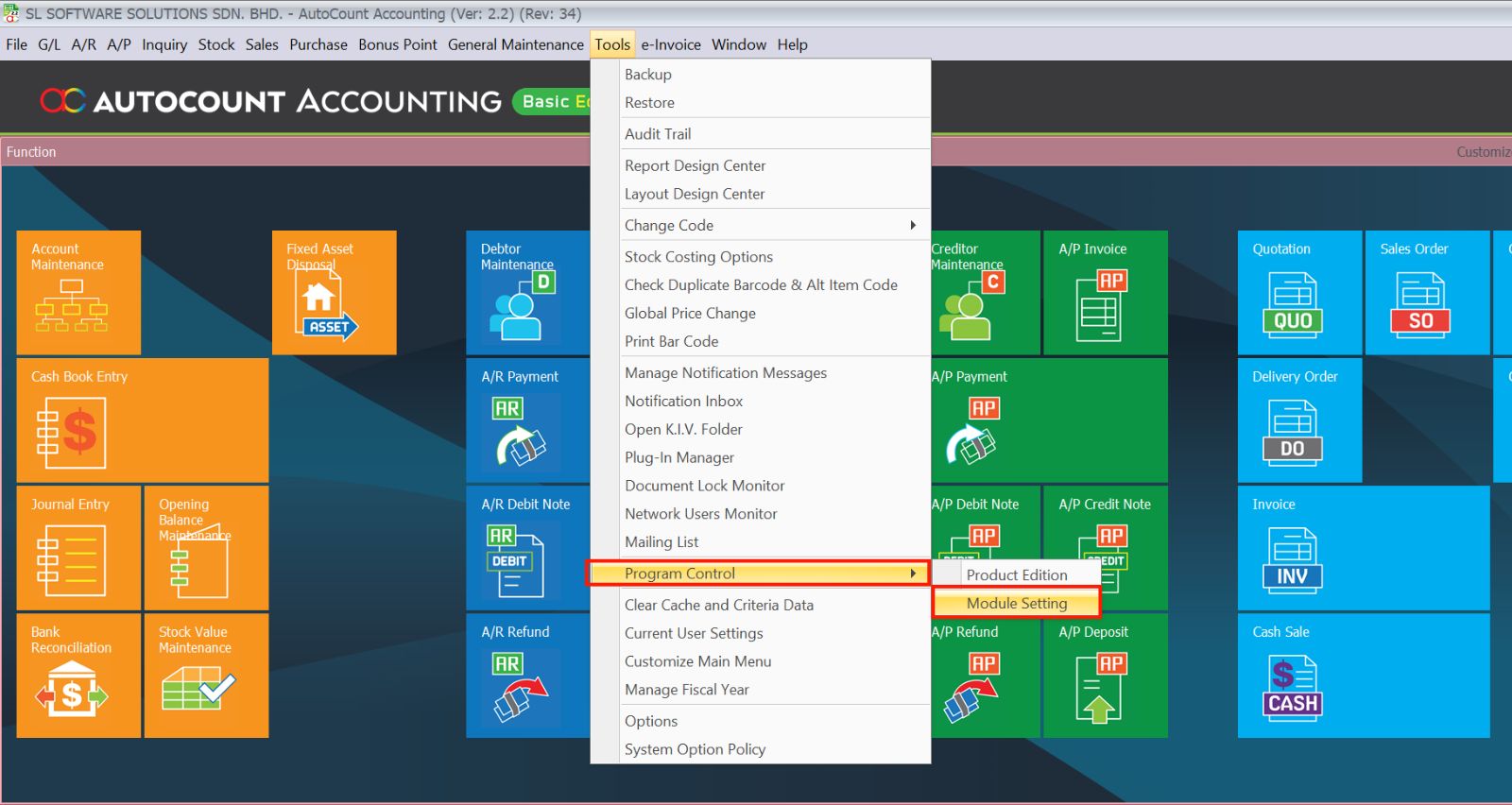
- Go to Tools > Program Control > Module Setting.
- Tick Scripting to enable the module.
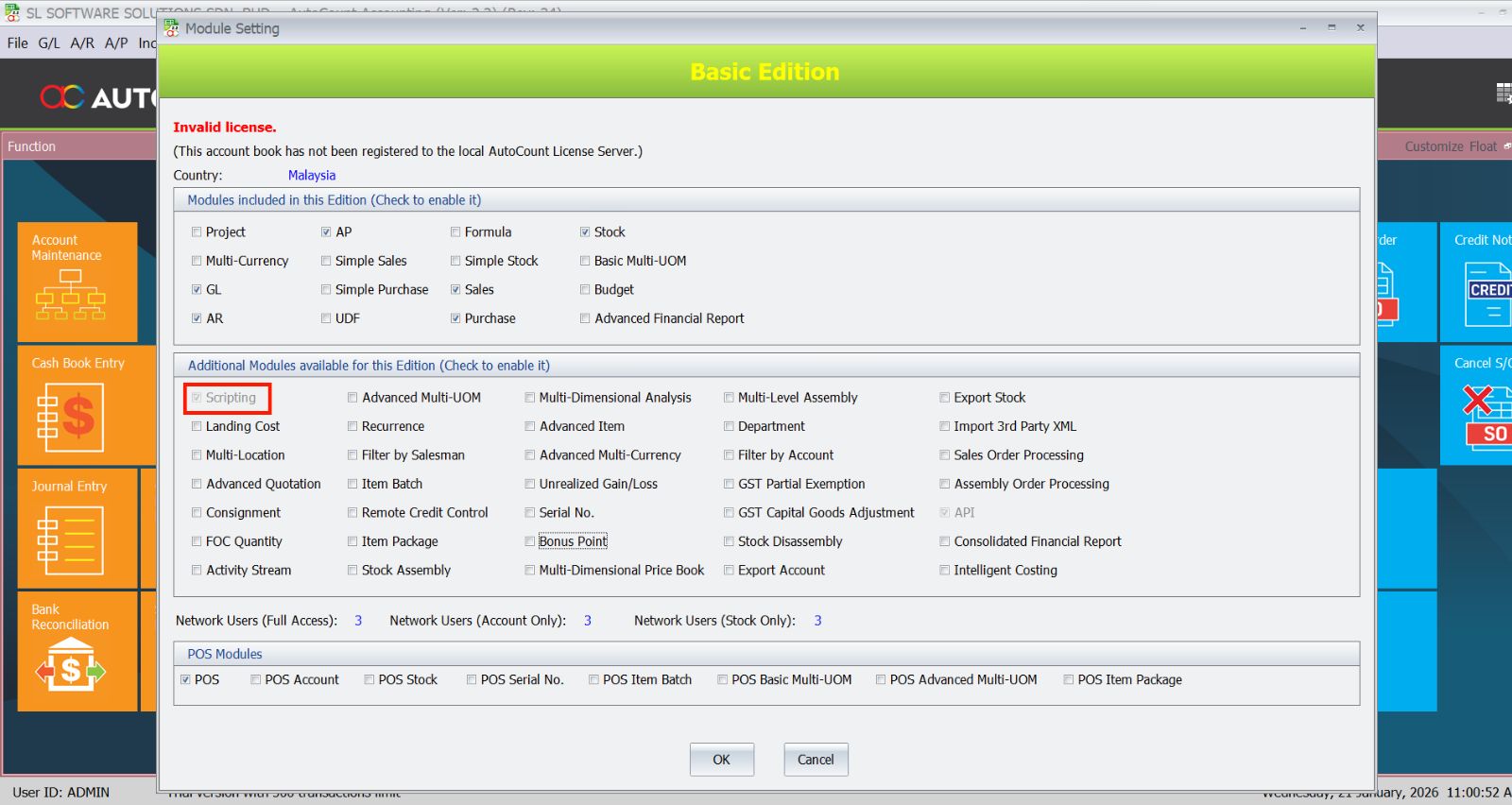
- Click OK.
This activates scripting functionality in AutoCount.
Login to Management Studio
- Go to Start > All Programs > AutoCount Accounting 2.0.
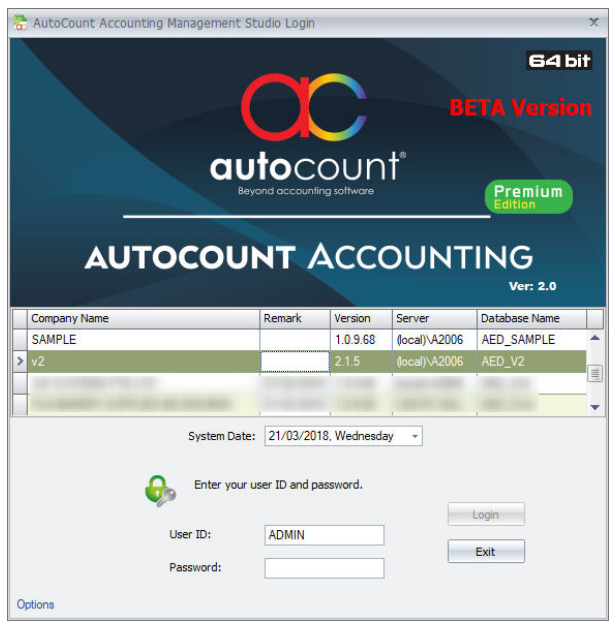
- Open AutoCount Accounting Management Studio 2.0.
Use this interface to edit and manage scripts.
Add / Maintain Scripting
- In Management Studio, go to Tools > Scripting.
- Highlight the entity you want to script (e.g., Sales Order, Invoice).
- Click Edit Script.
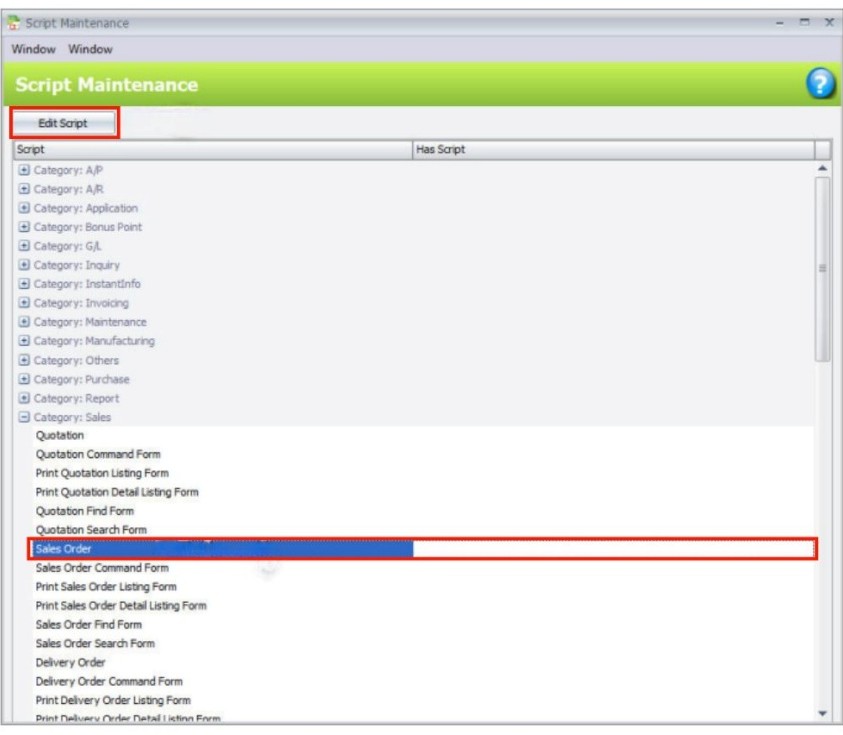
- Choose your Script Language (default is C#).
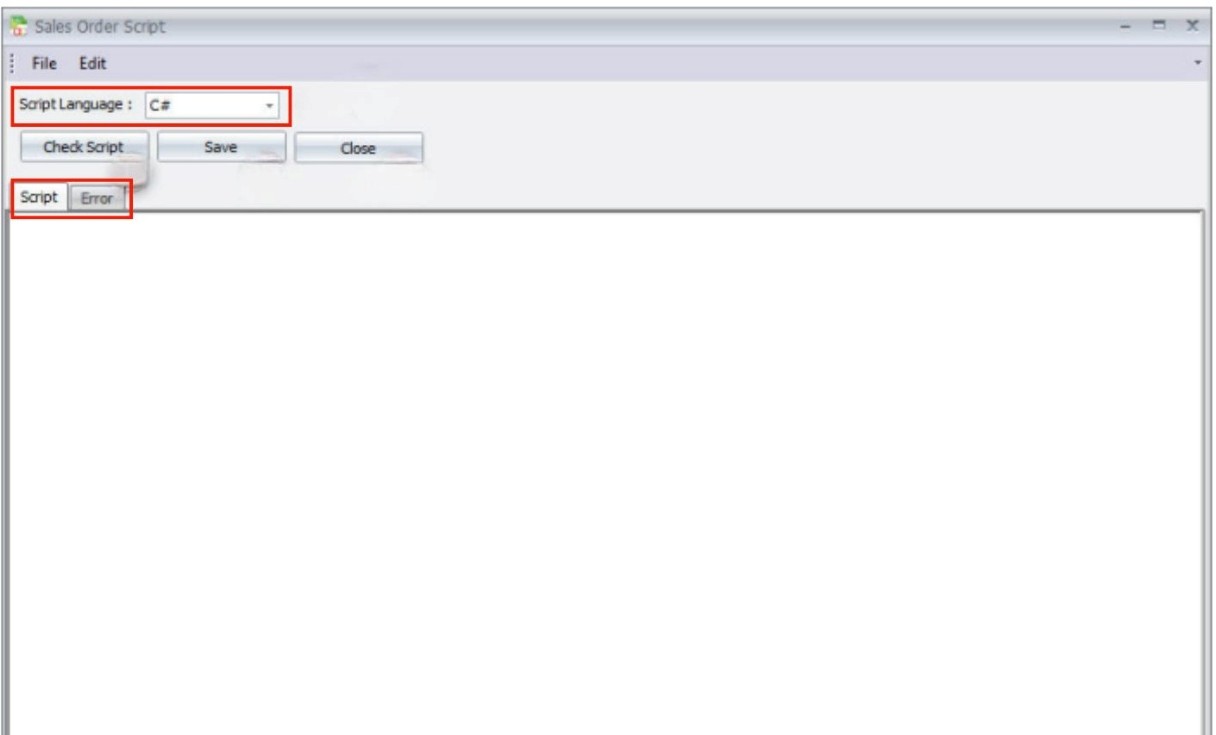
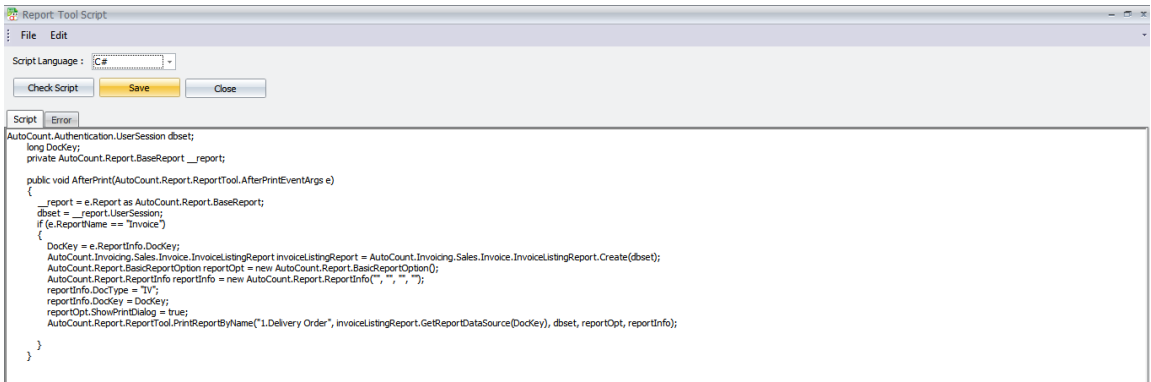
- Write or paste your script into the blank editing area.
- Check your script for syntax or logic errors and fix if any.
- Click Save when done.
- Close the scripting screen.
Scripts can modify system behavior or add automated logic.
How to Export Script
- Open AutoCount Accounting Management Studio (source account book).
- Go to Tools > Export User Defined Field and Scripting.
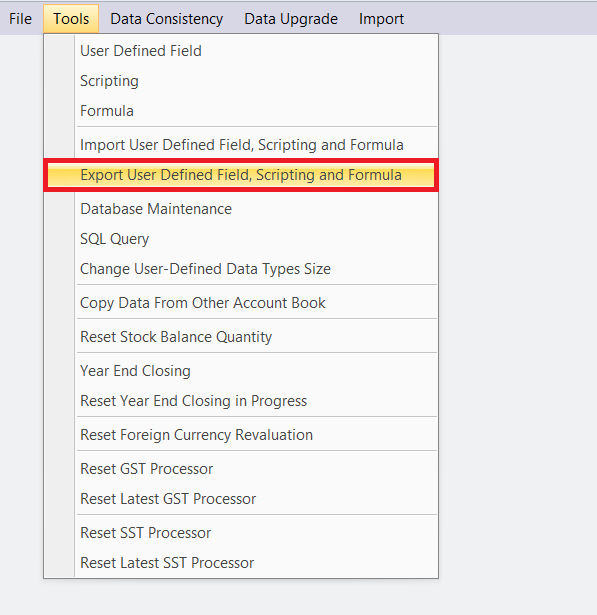
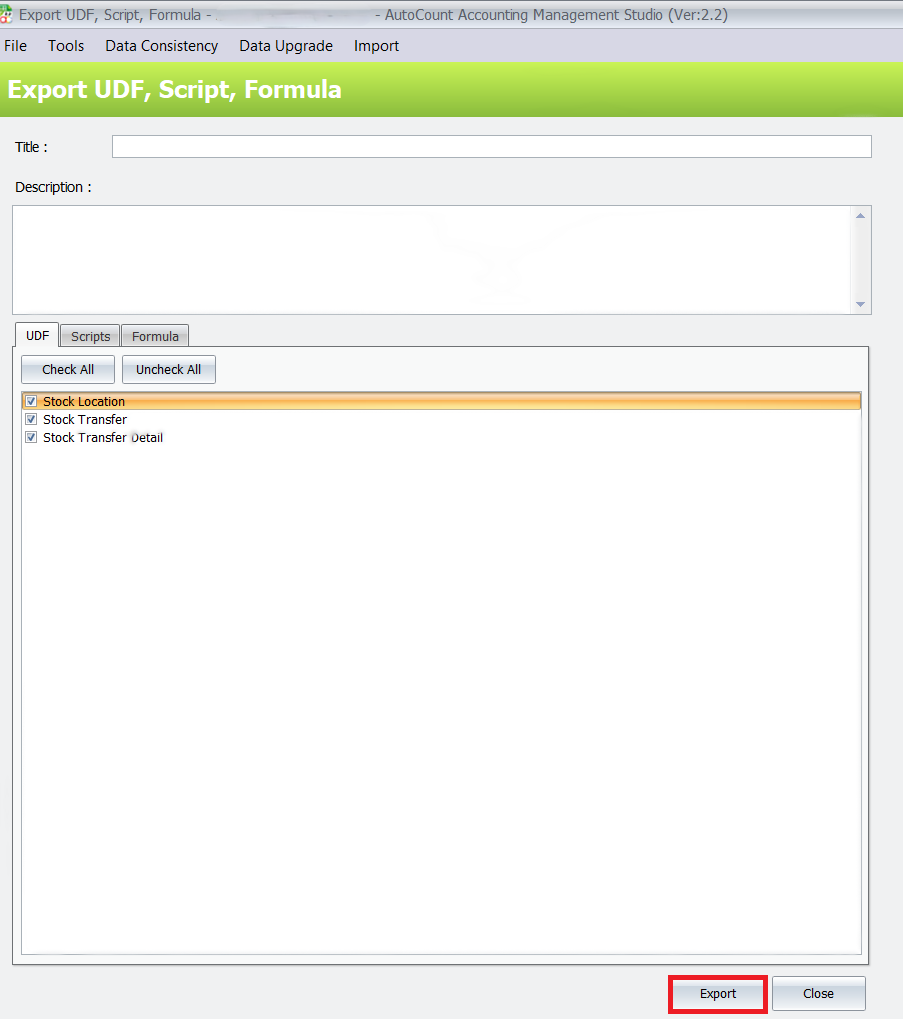
- Select the UDFs and scripts you wish to export.
- Run the export.
This allows you to reuse scripts in another account book.
Custom Print Example – Print Invoice Twice
- Login into AutoCount Management Studio.
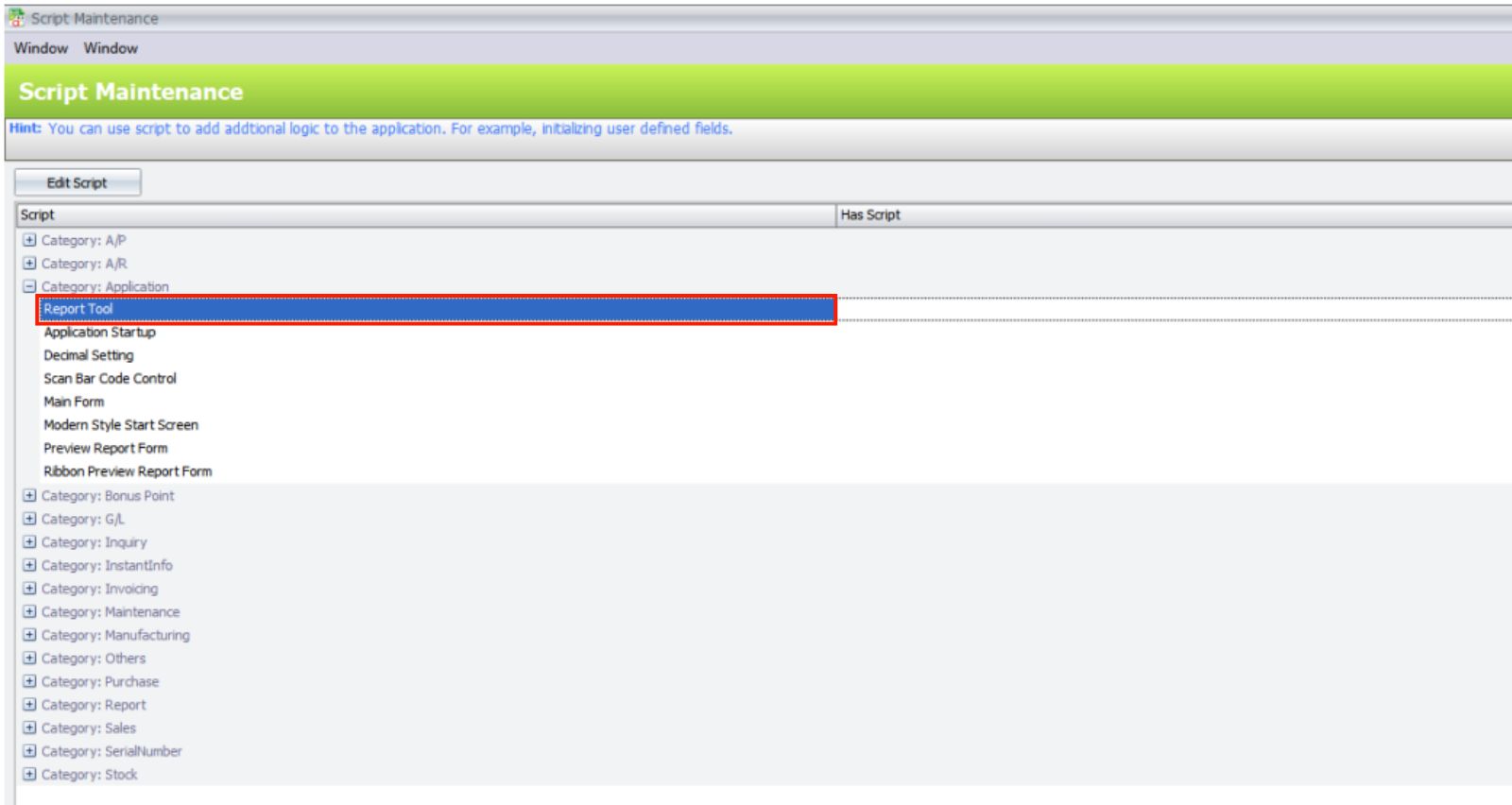
- Go to Tools > Scripting.
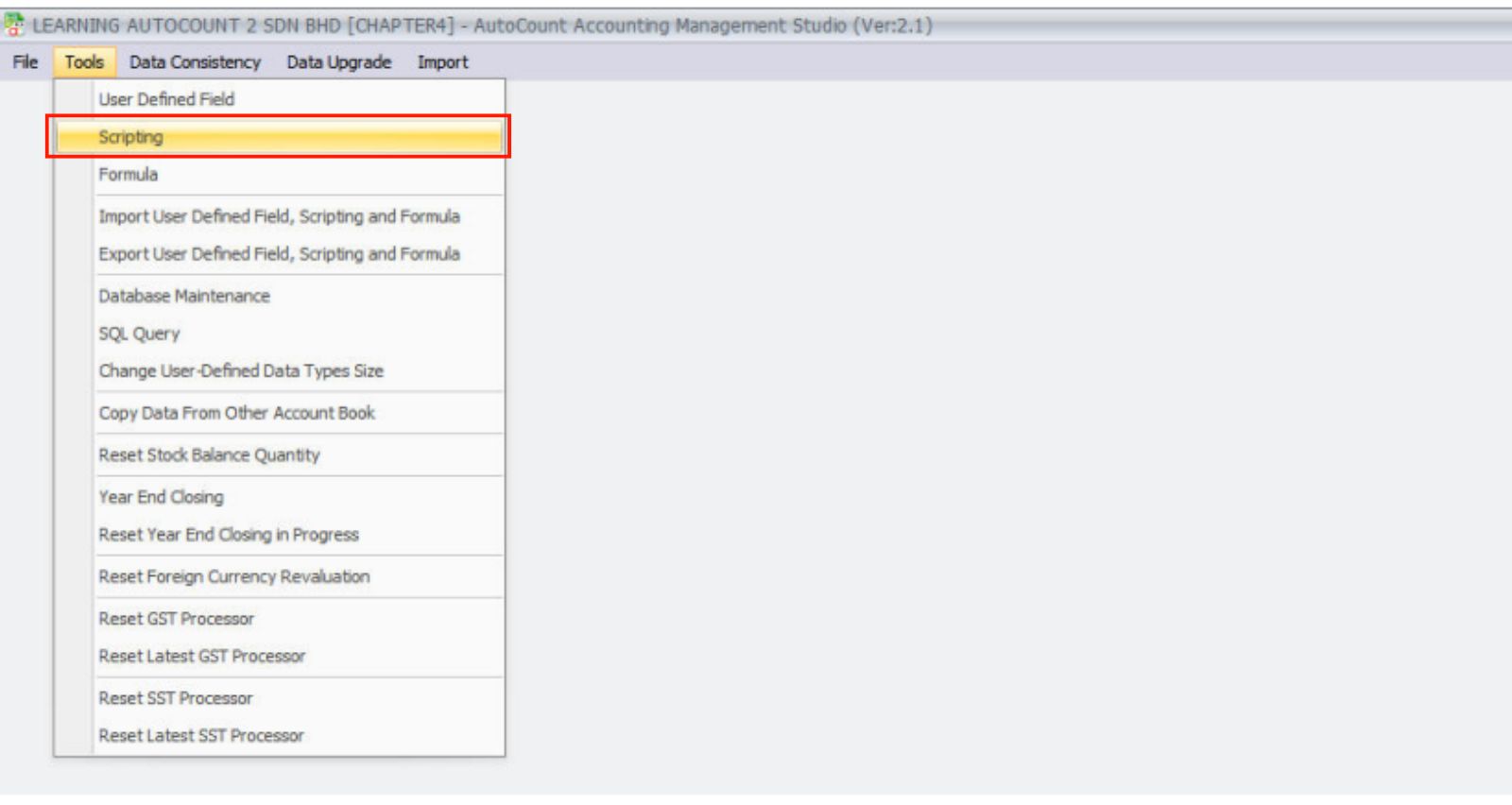
- Select Application > Report Tool.
- Insert the sample script provided (paste in editor).
- Click Save.
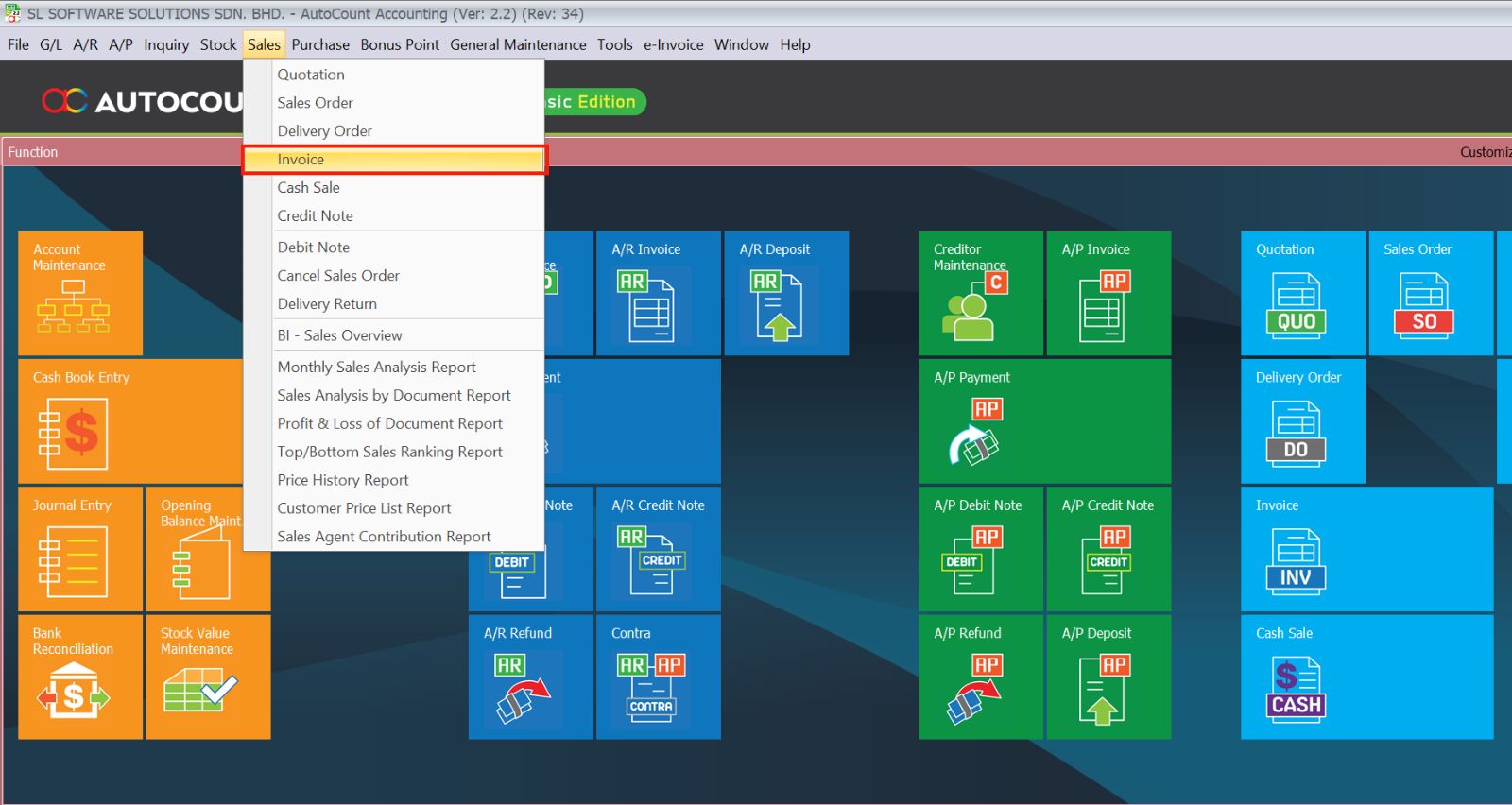
- In AutoCount Accounting:
- Go to Sales > Invoice.
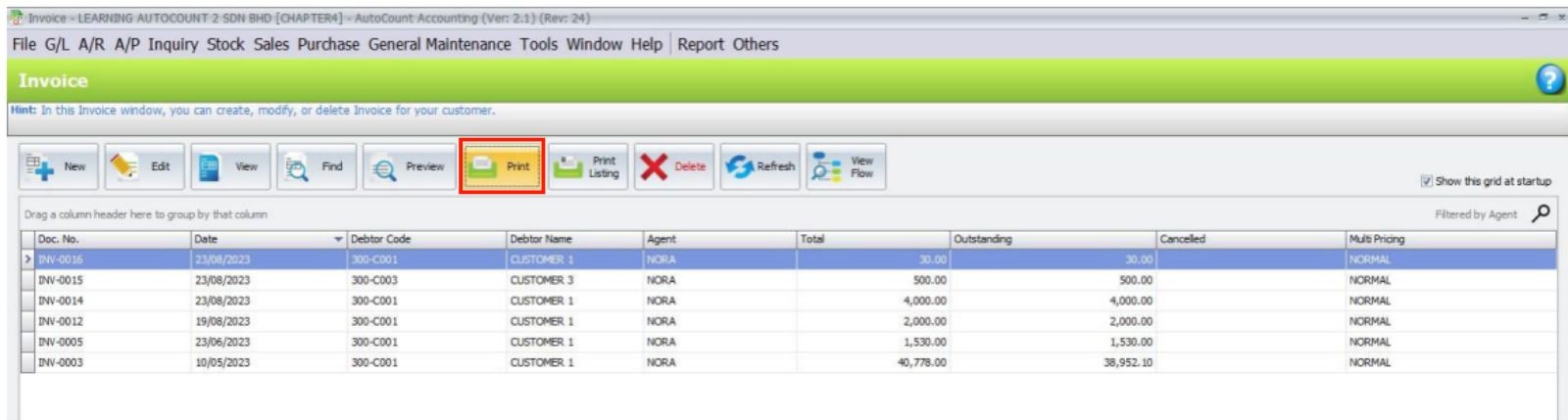
- Click Print and OK.
- Save or print the PDF (Invoice).
- Print or save the Delivery Order.
This script prints/exports both documents consecutively.
Benefits of Using AutoCount Scripting Module
Enhanced Customization
Personalize how the software behaves to match your business processes.
Improved Efficiency
Automate repetitive or complex tasks that are not covered by default features.
Reusable Logic
Export and reuse scripts between different account books for consistent behavior.
Extend Reporting & Output
Tailor reports or printing sequences that are not possible via standard settings.
Conclusion
The AutoCount Scripting Module provides advanced users and developers with the ability to tailor and extend AutoCount Accounting far beyond its default configuration. Whether you’re automating tasks, customizing screens, or modifying report behavior, scripting makes the system more powerful and aligned to your business needs — saving time and reducing manual work.
Frequently Asked Questions
How do I activate the Scripting Module?
Go to Tools > Program Control > Module Setting and tick Scripting to enable the module.
What language do scripts use?
Scripting supports languages like C# and VB, with C# often the default within the editor.
How can I reuse scripts in another account book?
Export the script and UDF using Tools > Export User Defined Field and Scripting and import it into another book.
Can scripting modify report printing behavior?
Yes — you can script reports to print or save multiple documents consecutively (e.g., both invoice and delivery orders).
Do I need scripting for everyday AutoCount use?
No — scripting is optional and intended for businesses with advanced or custom needs.
Interested in Getting AutoCount for your Business?
Contact our sales team today to explore pricing options and get started with the perfect solution for you.