
-
AutoCount Accounting Features
-
- Approval Workflow
- Audit Trail
- Auto Save in Draft Folder
- AutoCount Contra Account
- AutoCount License Setting Guide
- Deposit Tracking & Management
- Documents Numbering Format
- Full Transfer and Partial Transfer
- Import Data to AutoCount Accounting Using Excel
- Informative Charts and Analytical Data
- Layout Customization
- Multi Pricing
- Sales and Services Tax
- Schedule Backup
- Search Lookup Edit
- View Documents Flow
- AutoCount Feature Stock Take
- Column Chooser
- Show Remaining (3) Collapse
-
AutoCount Cloud Accounting
-
AutoCount E-Invoice
-
AutoCount HRMS User Guide
-
AutoCount Modules
-
- Activity Stream
- Advanced Financial Report
- Advanced Item
- Advanced Multi-UOM
- Advanced Quotation Module
- Basic Multi-UOM
- Budget Module
- Consignment
- Filter By Salesman
- FOC Quantity
- Formula
- Item Batch
- Item Package
- Landing Cost
- Multi-Currency
- Multi-Dimensional Analysis
- Multi-Location
- Project Account
- Recurrence
- Remote Credit Control Module
- Stock Assembly
- User Defined Fields (UDF)
- AutoCount SST Hidden Functions
- AutoCount SST Submission - Service Tax
- AutoCount Scripting Module User Guide
- AutoCount Bonus Point Module User Guide
- Show Remaining (11) Collapse
-
AutoCount Plugins
-
- Fixed Assets Management
- Goldsmith
- TD Ordering Mobile Apps
- TD Stock Mobile Apps
- Universal Import Plugin
- DMS Import Plugin
- AutoCount Item Scope Plugin
- AutoCount Easy Knock Off Plugin
- AutoCount Pick List Plugin User Guide
- AutoCount Agent Validation Plugin User Guide
- AutoCount Barcode Generator Plugin User Guide
- AutoCount Bill Remark Plugin User Guide
- AutoCount Easy Batch Number Entry Plugin User Guide
- AutoCount Recurring Invoice Plugin User Guide
- AutoCount Easy Photo 2.0 User Guide
- AutoCount Pain Tracker User Guide
- AutoCount Credit Memo Plugin User Guide
- Show Remaining (2) Collapse
-
- AutoCount Easy Recurrence Plugin
- AutoCount Recurring Billing Plugin
- Event Management System
- AutoCount To-Do List Plugin
- AutoCount AutoBank Reconciliation Plugin
- Intercompany Billing Plugin User Guide
- AutoCount Basket Plugin User Guide
- Lead Management 2.0 Plugin
- AutoCount Service Contract Plugin User Guide
- Autocount Repacking Plugin
- AutoCount Scale Barcode Plugin User Guide
- AutoCount Progressive Billing
- AutoCount Optical Plugin
- AutoCount Meter Reading Plugin User Guide
- AutoCount Car Tint Film Plugin
- AutoCount Leasing Plugin User Guide
- AutoCount Integrator Plugin
- AutoCount Procurement Planning Plugin
- Show Remaining (3) Collapse
-
-
Form Template
-
Report Template
-
- Advance Quotation
- Cash Sale
- Consignment
- Consignment Movement
- Credit Note
- Debit Note
- Delivery Order
- FOC Quantity Analysis By Document Report
- Invoice
- Item Package Sales Report
- Monthly Sales Analysis
- Outstanding Sales Order Listing
- Profit And Loss Of Documents
- Quotation
- Sales Agent Contribution Report
- Sales Order
- Top/Bottom Sales Ranking
- Show Remaining (2) Collapse
-
- Available Stock Status Report
- Expired Item Batch Listing
- Inventory Physical Worksheet
- Stock Adjustment
- Stock Aging Report
- Stock Assembly
- Stock Assembly Order
- Stock Balance By Location
- Stock Balance Report
- Stock Card Report
- Stock Disassembly
- Stock Issue
- Stock Item Profit Margin
- Stock Movement Report
- Stock Receive
- Stock Take
- Stock Transfer
- Stock Write Off
- Show Remaining (3) Collapse
Automating AutoCount Credit Memos for Rapid E-Invoice Compliance and Reduced Manual Errors
What is AutoCount Credit Memo Plugin?
The AutoCount Credit Memo Plugin is designed to simplify and streamline the credit memo process for businesses. It helps you manage returns, discounts, and adjustments efficiently by automating the credit memo creation and integration process. This plugin integrates seamlessly with AutoCount, ensuring smooth operations across all relevant modules.
(EN) AutoCount Credit Memo plugin Video Guide
Why You Should Use Credit Memo Plugin?
This plugin is designed to elevate your workflow by addressing common challenges faced during credit memo management:
Streamlined Workflow
By automating credit memo creation and processing, it eliminates the need for manual entry, allowing your team to focus on more critical tasks.
Consistent Accuracy
With the plugin handling the application of credit adjustments, you can ensure that all credits are applied correctly every time—minimizing errors that could disrupt your accounting.
Faster Operations
With automated processes, credit memos are handled in a fraction of the time, reducing administrative bottlenecks and speeding up your overall operations.
Features of the Credit Memo Plugin
Credit Memo Creation
Automatically generates credit memos based on sales transactions or returns.
Integration with Sales and Accounts
Seamlessly integrates with AutoCount’s sales and accounting modules.
Customizable Credit Memo Templates
Customize the appearance of credit memos with your company’s branding and layout preferences.
Credit Application
Automatically applies credit memos to open invoices.
Multiple Credit Memo Types
Supports both partial and full credit memos for different transaction types.
Who This Plugin is For
Retailers Managing Returns
For businesses that deal with product returns frequently, this plugin helps efficiently process credit memos for returned goods, ensuring that inventory and financial records are always accurate.
Distributors Processing Refunds or Adjustments
Distributors often need to handle returns or adjustments on bulk orders. This plugin ensures that credit memos are accurately applied to the correct invoices, making the process of refunds and adjustments seamless.
Service-Based Companies Handling Credit Notes or Discounts
Service industries, such as consulting or repair services, may issue credit memos for discounted services or billing corrections. This plugin helps manage and track such credit transactions with ease, ensuring your financial records stay consistent.
How AutoCount Credit Memo Plugin works
1. Initial Setup & Configuration
Before creating credit memos, configure the essential settings for proper organization and processing:
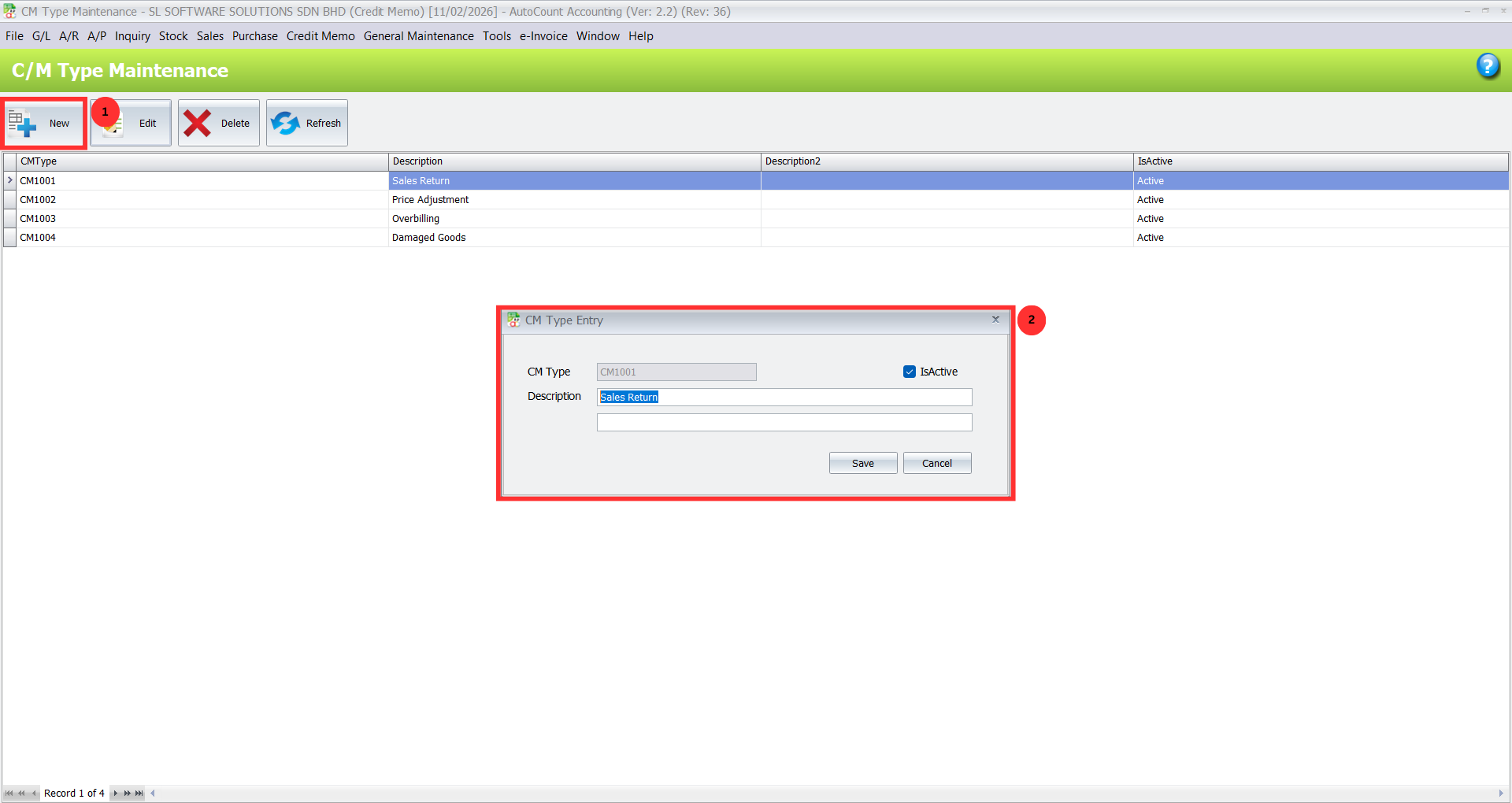
- Create Credit Memo Types:
- Navigate to Credit Memo > C/M Type Maintenance.
- Click New to create a new type or Edit an existing one.
- Input a C/M Type Code and provide a Description (e.g., “Damaged Goods Return”).
- Click Save to finalize the setup. This categorization is crucial for consistent reporting and tracking.
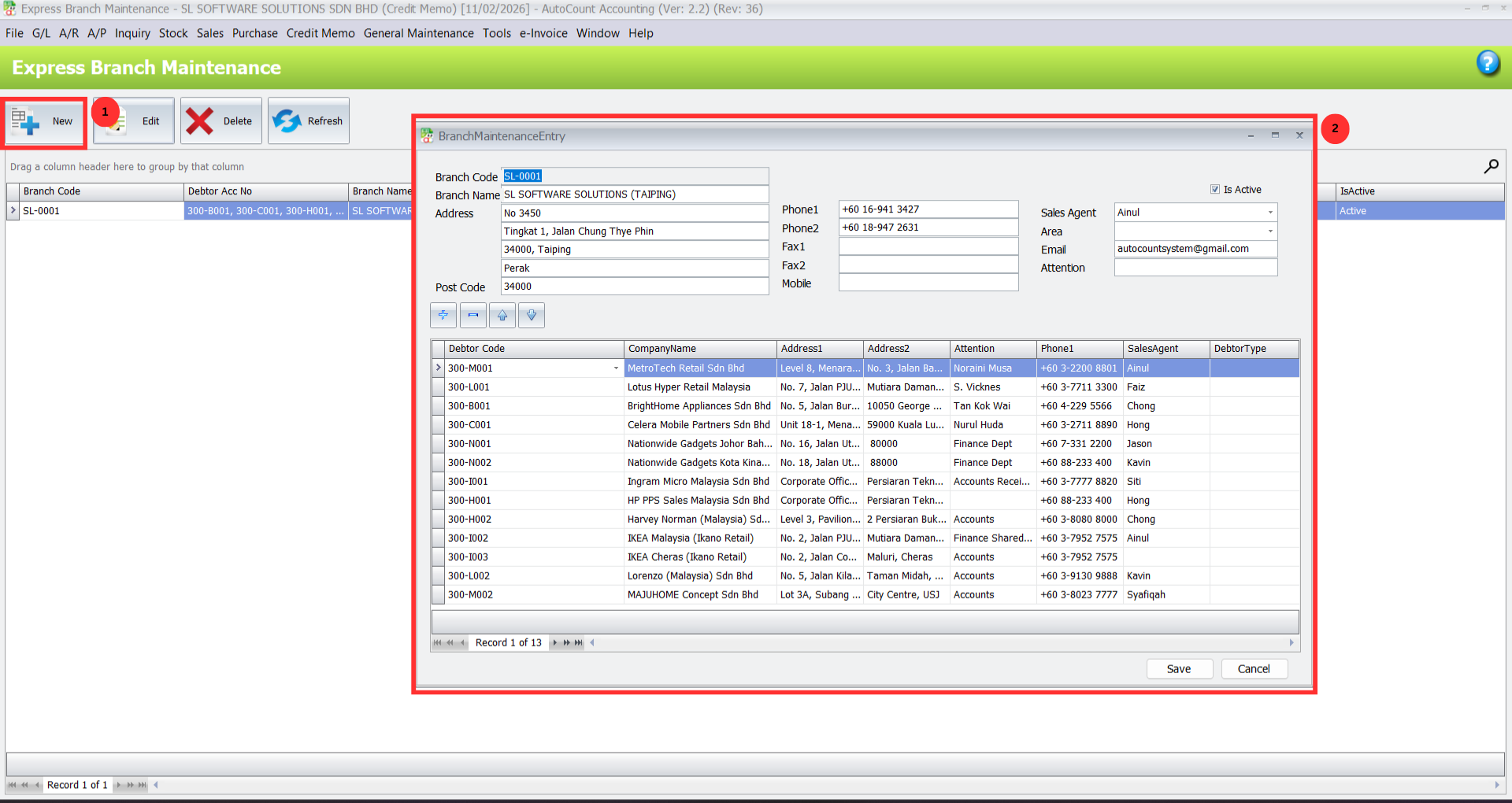
- Set Up Express Branches for Customers:
- Navigate to Credit Memo > Express Branch Maintenance.
- Click New or Edit an existing branch.
- Enter branch details like Branch Code, Name, and Address. To quickly assign multiple customers, click the plus (+) sign in the Debtor grid and select debtors from your master list.
- Click Save to complete this setup. This allows you to group customers efficiently under a single branch.
Pro Tip:
Regularly update Credit Memo Types and Express Branches to match changes in your business operations.
2. Creating a Credit Memo
Now that the system is configured, you can create credit memos to record refunds, returns, or adjustments.
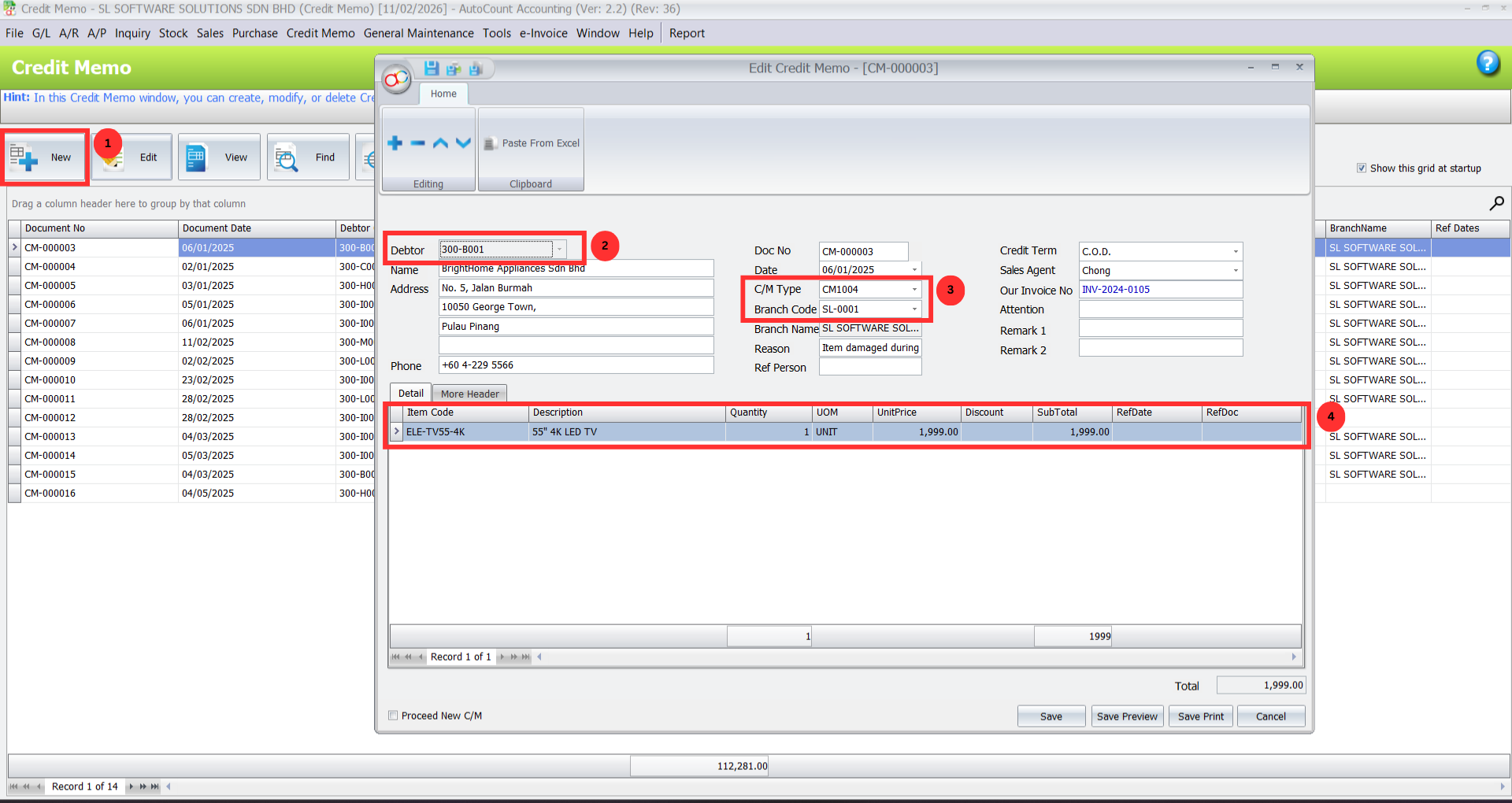
Create a Credit Memo:
Navigate to Credit Memo > Credit Memo and click New.
Select the Debtor (Customer) and the relevant Credit Memo Type.
Choose the appropriate Branch Code and input the items for return or adjustment in the grid, including Quantity and other necessary details.
Click Save to save the memo as an outstanding document, which will be ready for final review and approval before posting to the general ledger.
Pro Tip:
For faster processing, pre-define common Credit Memo Types for your most frequent transactions.
3. Converting Memos to Official Credit Notes
Once a credit memo is approved, convert it to a formal Credit Note that impacts your financial system.
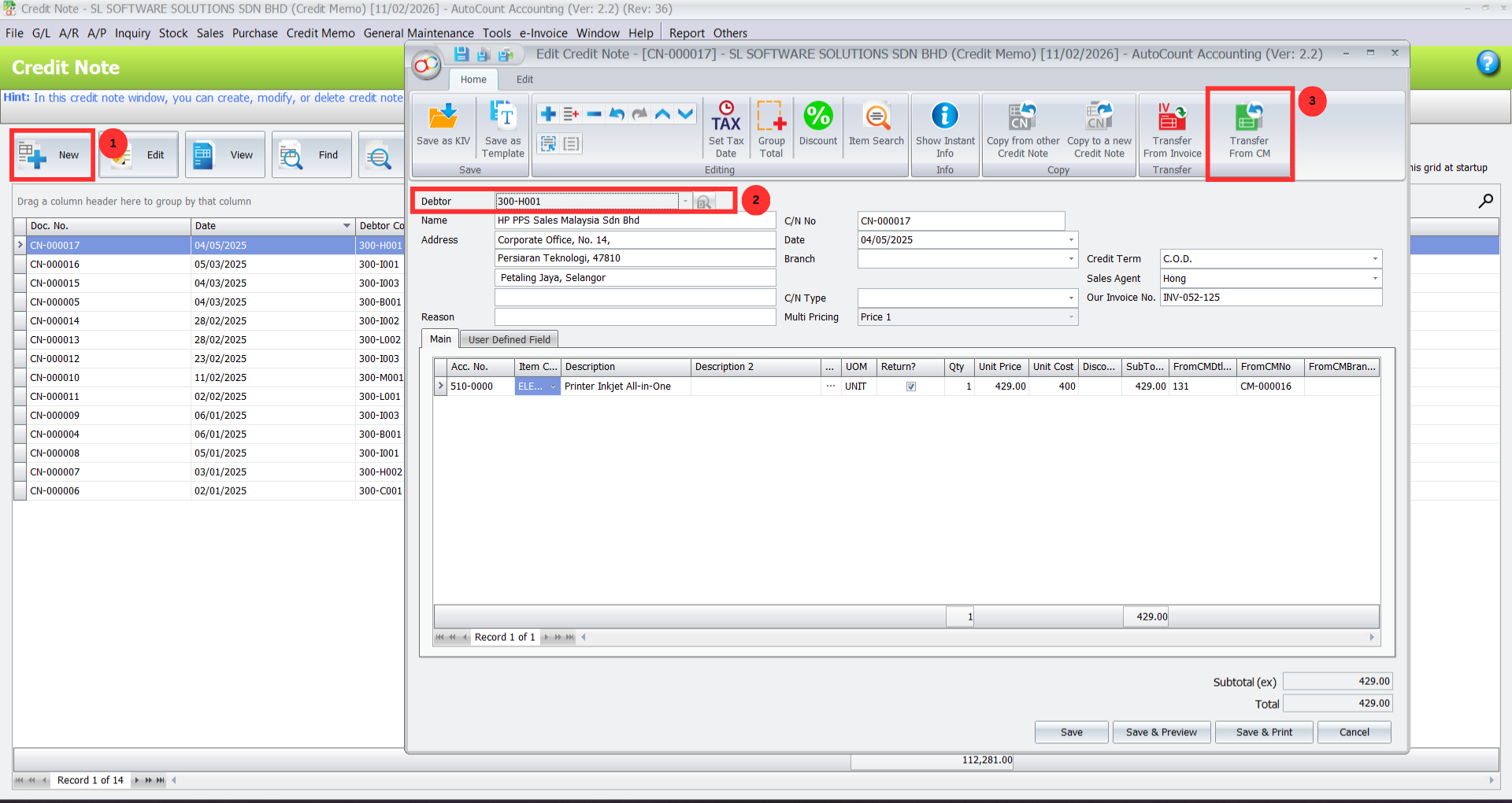
- Convert Credit Memo to Credit Note:
- Go to Sales > Credit Note and click New.
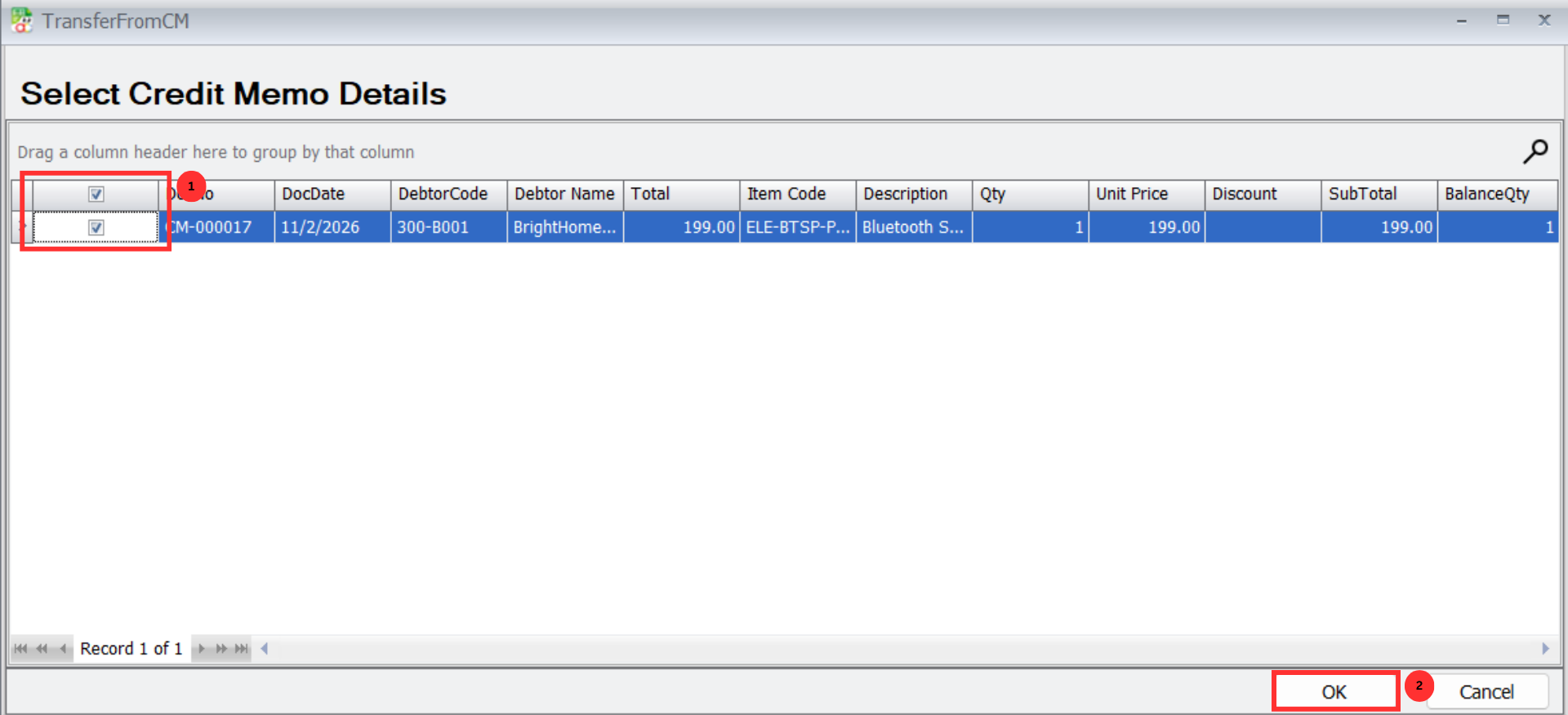
- Select the Debtor and click the “Transfer from CM” button.
- Check the box to view and select all outstanding credit memos for the customer.
- Choose the specific memos to convert and click OK to transfer the full details into the Credit Note.
- In the Credit Note, select the correct Account Type (e.g., “Sales Returns” or “Discount Allowed”).
- Click Save to post the transaction officially. The original credit memos are now marked as completed and removed from the outstanding list.
- Check the box to view and select all outstanding credit memos for the customer.
- Choose the specific memos to convert and click OK to transfer the full details into the Credit Note.
- In the Credit Note, select the correct Account Type (e.g., “Sales Returns” or “Discount Allowed”).
- Click Save to post the transaction officially. The original credit memos are now marked as completed and removed from the outstanding list.
Pro Tip:
Ensure that all Credit Memos are thoroughly reviewed before conversion to avoid posting errors.
4. Reporting & Analysis
For tracking and analysis, you can generate detailed reports to monitor credit memo activity.
Run the Outstanding Credit Memo Report:
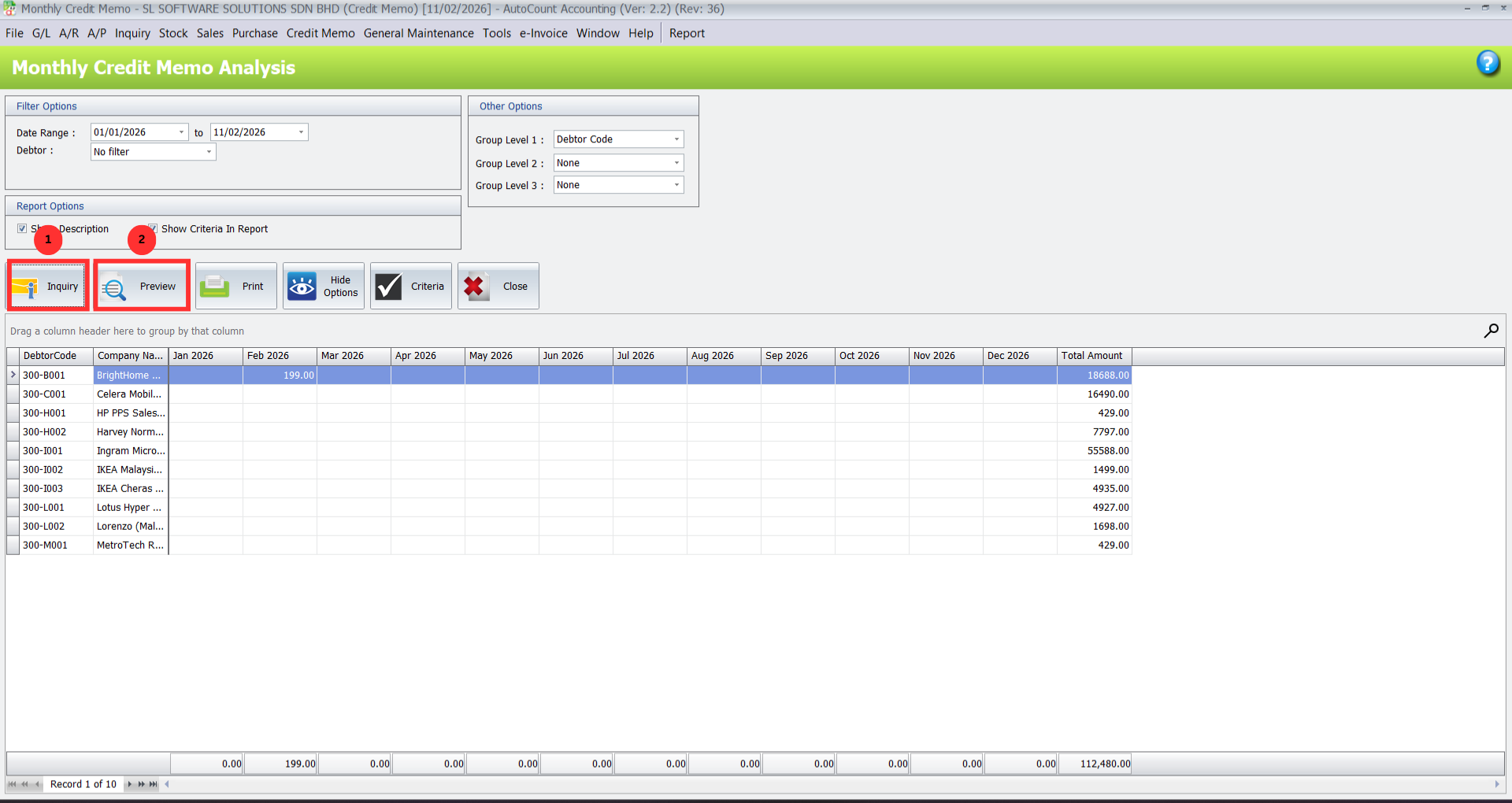
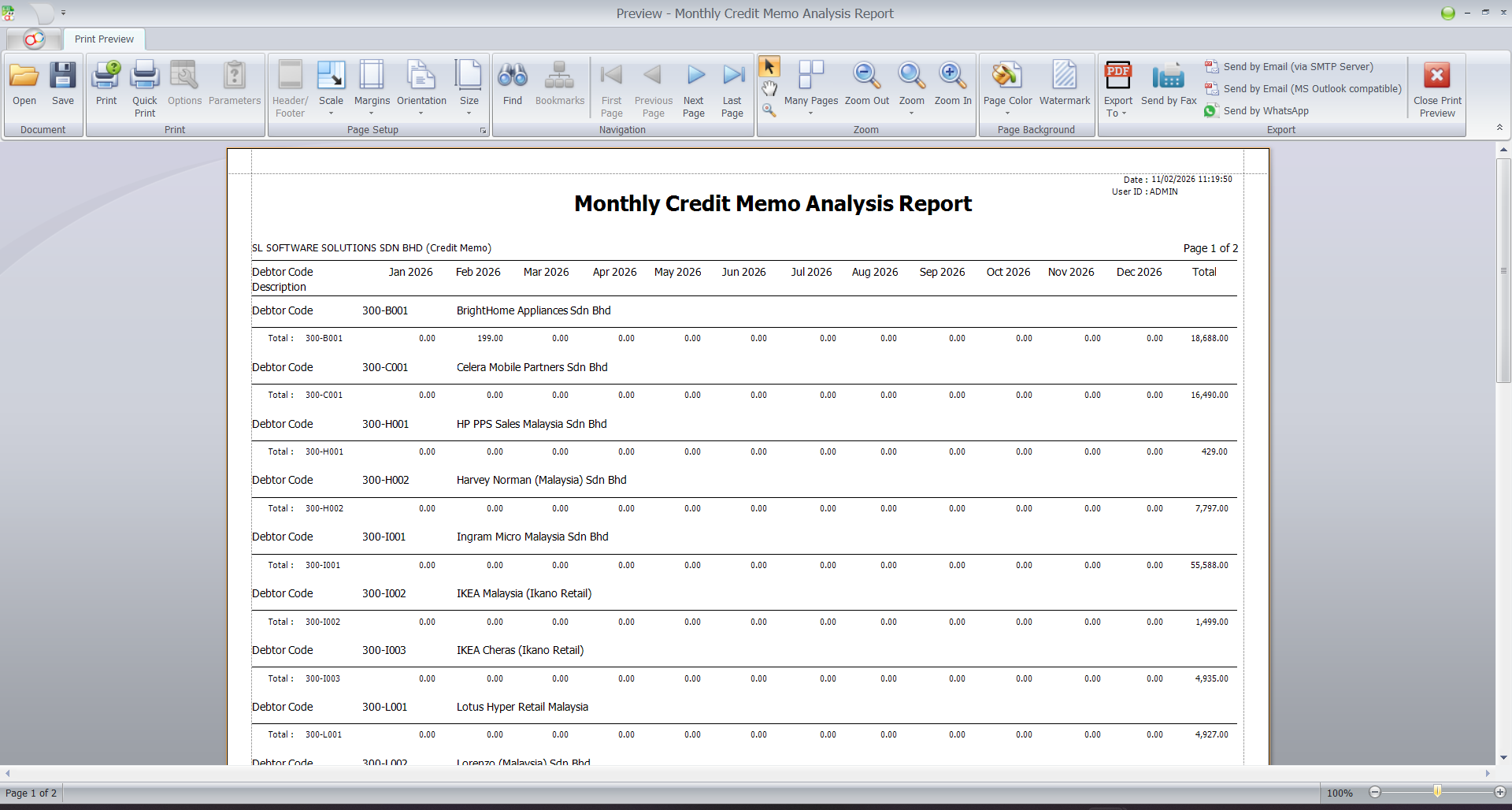
Navigate to Credit Memo > Monthly Credit Memo Analysis Report.
Click Inquiry to generate a detailed view of memo activity.
Use filters such as Type, Branch, or Status to analyze the data.
Pro Tip:
Use the Monthly Credit Memo Analysis Report to review the total value of credit memos and identify trends or areas requiring attention.
Benefits of Using Credit Memo Plugin
Increased Efficiency
Automates repetitive tasks, reducing manual work.
Improved Accuracy
Ensures accurate financial records by automating credit applications and adjustments.
Time-Saving
The bulk actions allow you to process many credit memos in less time, reducing administrative overhead.
Seamless Integration
Works directly with your existing AutoCount system, ensuring smooth operations across modules like Sales, Inventory, and Accounting.
Best Practices for Using Credit Memo Plugin
Update Credit Memo Templates Regularly
Keep templates current to reflect your business processes and branding for each scenario (returns, adjustments, discounts).
Automate Credit Applications
Use the automated feature to apply credit memos to invoices, reducing manual errors and ensuring accuracy.
Train Employees and Set Permissions
Train your team on how to use the plugin, and set user access to prevent unauthorized changes or mistakes.
Conclusion
The Credit Memo Plugin significantly enhances your accounting workflow by automating the creation and application of credit memos, ensuring greater accuracy and efficiency. With seamless integration into AutoCount Accounting, it reduces manual errors and streamlines the management of returns, adjustments, and refunds. This makes it an indispensable tool for businesses looking to improve their financial processes, save time, and maintain smooth operations across departments.
Frequently Asked Questions
What is the difference between a Credit Memo and a Credit Note in AutoCount?
A Credit Memo is a preliminary document created within this plugin to record and approve a credit. A Credit Note is the formal accounting document that posts to your sales ledger and general ledger. The plugin allows you to convert a Memo into a Note.
Can I edit a Credit Memo Type or Branch Code after creation?
You cannot edit the CM Type or Branch Code directly in their maintenance screens. However, you can use the Change Code feature (Credit Memo > Change Code) to update these codes if necessary.
Who can create or transfer Credit Memos?
Only users with the specific Access Rights granted for the Credit Memo plugin can use its functions. This is managed in General Maintenance > Access Right Maintenance.
How do I track Credit Memos that haven't been converted yet?
Run the Outstanding Credit Memo Report (Credit Memo > Credit Memo, select the report option). This shows all memos that are still pending conversion to Credit Notes.
Is data from this plugin included in AutoCount's standard reports?
Run the Outstanding Credit Memo Report (Credit Memo > Credit Memo, select the report option). This shows all memos that are still pending conversion to Credit Notes.
Transform Your Credit Management with Structured Control
Take command of your customer refunds, returns, and credit adjustments. Implement the AutoCount Credit Memo Plugin to replace informal, error-prone processes with a clear, auditable, and automated workflow. Ensure every credit is properly authorized, tracked, and accounted for—directly within your trusted AutoCount system.