
-
AutoCount Accounting Features
-
- Approval Workflow
- Audit Trail
- Auto Save in Draft Folder
- AutoCount Contra Account
- AutoCount License Setting Guide
- Deposit Tracking & Management
- Documents Numbering Format
- Full Transfer and Partial Transfer
- Import Data to AutoCount Accounting Using Excel
- Informative Charts and Analytical Data
- Layout Customization
- Multi Pricing
- Sales and Services Tax
- Schedule Backup
- Search Lookup Edit
- View Documents Flow
- AutoCount Feature Stock Take
- Column Chooser
- Show Remaining (3) Collapse
-
AutoCount Cloud Accounting
-
AutoCount E-Invoice
-
AutoCount HRMS User Guide
-
AutoCount Modules
-
- Activity Stream
- Advanced Financial Report
- Advanced Item
- Advanced Multi-UOM
- Advanced Quotation Module
- Basic Multi-UOM
- Budget Module
- Consignment
- Filter By Salesman
- FOC Quantity
- Formula
- Item Batch
- Item Package
- Landing Cost
- Multi-Currency
- Multi-Dimensional Analysis
- Multi-Location
- Project Account
- Recurrence
- Remote Credit Control Module
- Stock Assembly
- User Defined Fields (UDF)
- AutoCount SST Hidden Functions
- AutoCount SST Submission - Service Tax
- AutoCount Scripting Module User Guide
- AutoCount Bonus Point Module User Guide
- AutoCount Service Management Plugin User Guide
- Show Remaining (12) Collapse
-
AutoCount Plugins
-
- Fixed Assets Management
- Goldsmith
- TD Ordering Mobile Apps
- TD Stock Mobile Apps
- Universal Import Plugin
- DMS Import Plugin
- AutoCount Pick List Plugin User Guide
- AutoCount Credit Memo Plugin User Guide
- AutoCount Lock Price Plugin
- AutoCount Progressive Billing
- AutoCount Easy Recurrence Plugin
- Batch Update Unit Price Plugin
- AutoCount Production order
- AutoCount Car Tint Film Plugin
-
- Event Management System
- AutoCount To-Do List Plugin
- AutoCount AutoBank Reconciliation Plugin
- Intercompany Billing Plugin User Guide
- Lead Management 2.0 Plugin
- AutoCount Service Contract Plugin User Guide
- AutoCount Optical Plugin
- AutoCount Integrator Plugin
- AutoCount Procurement Planning Plugin
- Cage Management Plugin
- AutoCount Vehicle Plugin
- AutoCount Agent Validation Plugin User Guide
- AutoCount Barcode Generator Plugin User Guide
- AutoCount Easy Batch Number Entry Plugin User Guide
- Warranty 2.0 Plugin
- AutoCount Easy Photo 2.0 User Guide
- AutoCount Recurring Invoice Plugin User Guide
- AutoCount Scale Barcode Plugin User Guide
- AutoCount Recurrence Late Interest Plugin
- AutoCount Item Visibility Control
- AutoCount Bill Remark Plugin User Guide
- AutoCount Pain Tracker User Guide
- AutoCount Easy Payment
- AutoCount Easy Deposit Plugin
- AutoCount Easy Knock Off Plugin
- AutoCount Daily Collection Summary Plugin
- Timber Log Plugins
- Batch Transfer SODO Plugin
- AutoCount Vege Basket Plugin Guide
- AutoCount Fruit Basket Plugin Guide
- Referral Management Plugin
- AutoCount Migrator Plugin
- AutoCount Email & WhatsApp Plugin
- AutoCount Multi Company Knock Off Plugin
- AutoCount Advance Aging Format Plugin
- AutoCount Payment Request Plugin
- AutoCount Vehicle Master Plugin
- AutoCount Advance Deposit Plugin
- AutoCount IC Checker Plugin
- AutoCount RMA Plugin
- AutoCount Historical Outstanding DO Listing Plugin
- AutoCount Project Department Visibility Control Plugin
- AutoCount MRP Order Plugin
- AutoCount GridToExcel Plugin
- AutoCount Stock Availability Report Plugin
- AutoCount Batch Transfer SO DO Plugin
- AutoCount Centralized Kitchen Management Plugin
- SL AutoCount API
- AutoCount InterCompany Billing Plugin
- AutoCount Sales Commission Plugin
- AutoCount Advanced Credit Term Plugin
- AutoCount Advanced Stock Assembly Plugin
- AutoCount Shipment Plugin
- AutoCount Tour Plugin
- AutoCount Smart Analysis
- AutoCount Rental Management
- Show Remaining (41) Collapse
-
-
Form Template
-
Report Template
-
- Advance Quotation
- Cash Sale
- Consignment
- Consignment Movement
- Credit Note
- Debit Note
- Delivery Order
- FOC Quantity Analysis By Document Report
- Invoice
- Item Package Sales Report
- Monthly Sales Analysis
- Outstanding Sales Order Listing
- Profit And Loss Of Documents
- Quotation
- Sales Agent Contribution Report
- Sales Order
- Top/Bottom Sales Ranking
- Show Remaining (2) Collapse
-
- Available Stock Status Report
- Expired Item Batch Listing
- Inventory Physical Worksheet
- Stock Adjustment
- Stock Aging Report
- Stock Assembly
- Stock Assembly Order
- Stock Balance By Location
- Stock Balance Report
- Stock Card Report
- Stock Disassembly
- Stock Issue
- Stock Item Profit Margin
- Stock Movement Report
- Stock Receive
- Stock Take
- Stock Transfer
- Stock Write Off
- Show Remaining (3) Collapse
-
B2B ORDERING
-
AutoCount AI Agent
AutoCount Plugin: AutoCount To-Do List Plugin
What is AutoCount To-Do List Plugin?
The AutoCount To-Do List Plugin is an advanced task management solution designed to enhance team productivity and collaboration. With features like task prioritization, calendar integration, and user permissions, it helps users organize their daily responsibilities efficiently.
(EN) AutoCount To-Do List Plugin Video Guide
(CN) AutoCount To-Do List Plugin Video Guide
Why Use the AutoCount To-Do List Plugin?
Enhanced Task Management
Firstly, the plugin provides a centralized system for creating, categorizing, and prioritizing tasks. Thus leading to better organization and improved productivity.
Increased Accountability with Reminders
Secondly, automated reminders notify users of due tasks. Thus, minimizing the risk of missed deadlines.
Better Planning with Calendar View
Thirdly, the calendar view offers a visual representation of deadlines. Thus, improving task visibility and scheduling efficiency.
Customizable Access Control
In addition, user permissions can be tailored to match roles. Thus, ensuring sensitive tasks are only visible to the appropriate personnel.
Improved Team Collaboration
Next, assigning tasks to team members with permission-based roles fosters smooth teamwork while allowing managers to oversee all activities.
Streamlined Workflow with Historical Data
Finally, completed tasks and their statuses can be accessed for performance reviews and future planning.
Who Can Benefit from This Plugin?
1. Construction
Use Case: Manage multiple tasks like scheduling foundation work, painting, and installations. The plugin keeps track of deadlines and assigns responsibilities.
2. Software Development
Use Case: Break down complex projects into smaller tasks, such as coding, bug fixing, and testing, ensuring the team delivers projects on schedule.
3. Retail
Use Case: Assign tasks like updating products, managing orders, and scheduling promotions. This ensures smooth coordination between team members.
4. Healthcare
Use Case: Assign and monitor duties for doctors, nurses, and admin staff. Keep track of appointments, treatments, and other critical tasks.
Construction
Manage multiple tasks like scheduling foundation work, painting, and installations. The plugin keeps track of deadlines and assigns responsibilities.
Software Development
Break down complex projects into smaller tasks, such as coding, bug fixing, and testing, ensuring the team delivers projects on schedule.
Retail
Assign tasks like updating products, managing orders, and scheduling promotions. This ensures smooth coordination between team members.
Healthcare
Assign and monitor duties for doctors, nurses, and admin staff. Keep track of appointments, treatments, and other critical tasks.
Marketing
Oversee campaigns with tasks like brainstorming ideas, designing content, and client meetings. The plugin ensures deadlines are met efficiently.
How to Use the To-Do List Plugin?
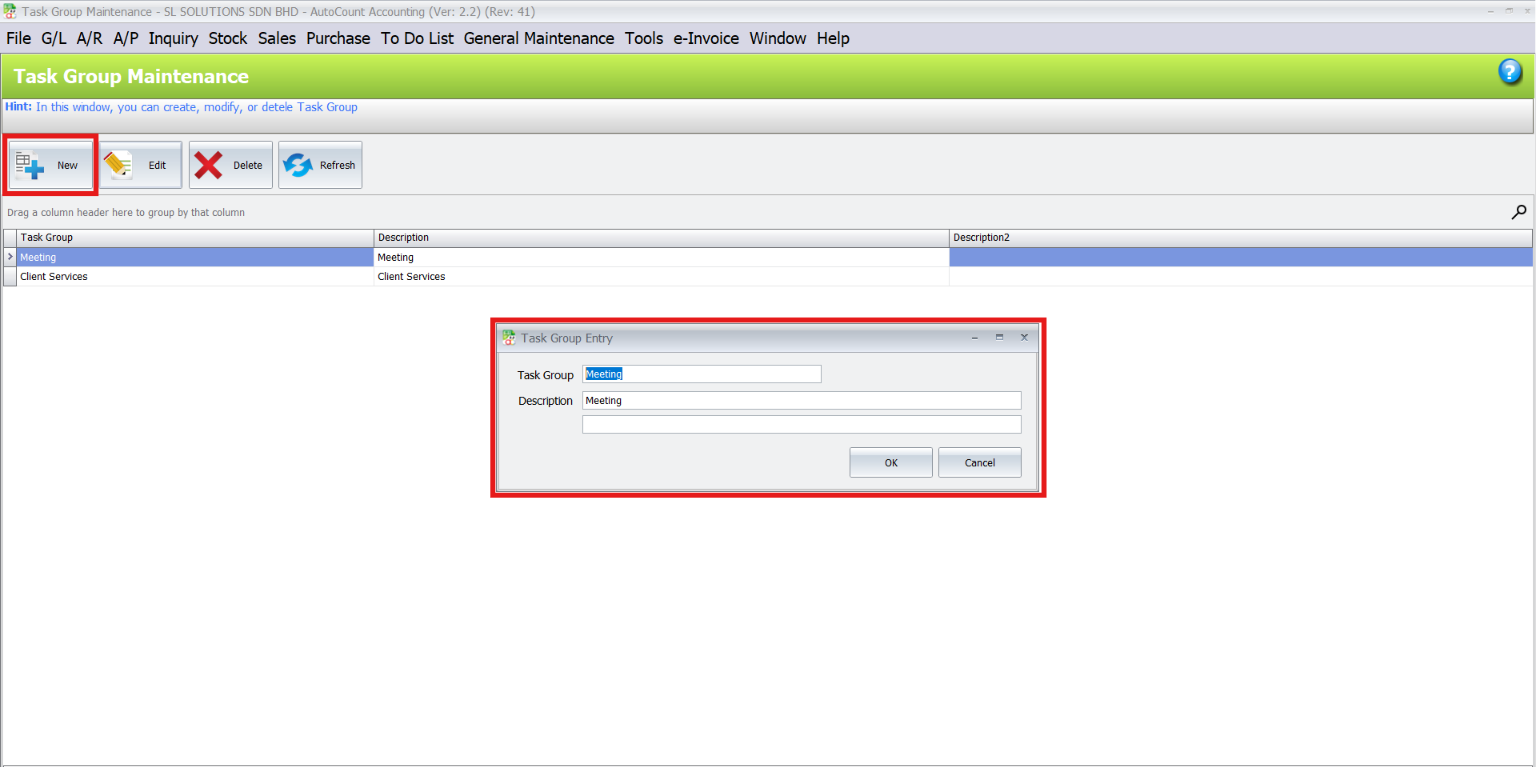
1. Task Group Maintenance
- Navigate to To-Do List > Task Group Maintenance.
- Click New to create a task group.
- Enter details and save the task group.
2. Creating Tasks
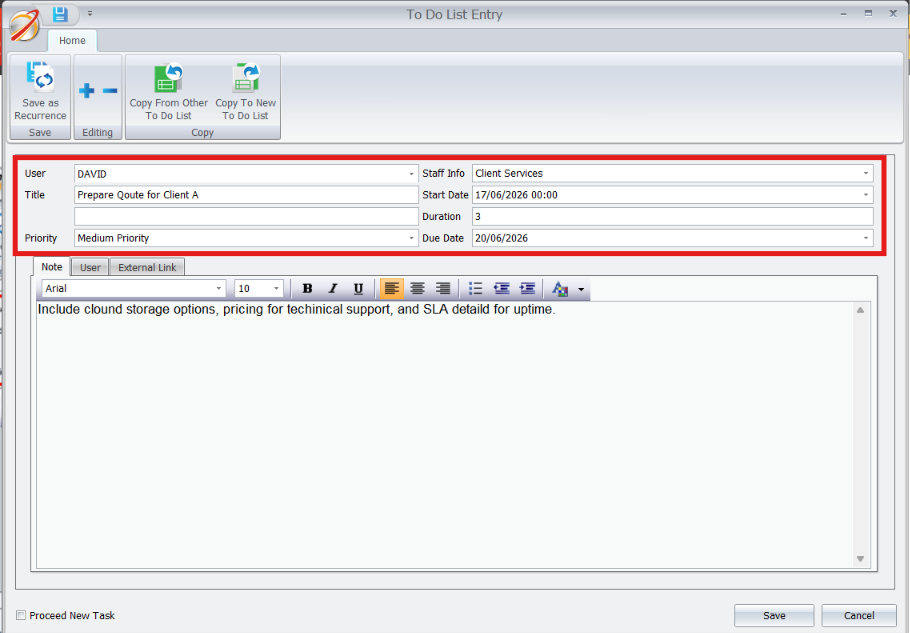
- Go to To-Do List > Task List and click New.
- Fill in task details like description, assigned user, start/due dates, and priority.
Detailed Information
- Task Details: Includes description, assigned user, start date (with time), duration (auto-sets due date), or manually set due date.
- Priority Levels(Row color indicates urgency.):
- Black (Low), Orange (Medium), Red (High)
- Targeted Completion Date:
- Yellow: On the due date.
- Red: After the due date.
- Normal: Before the due date.
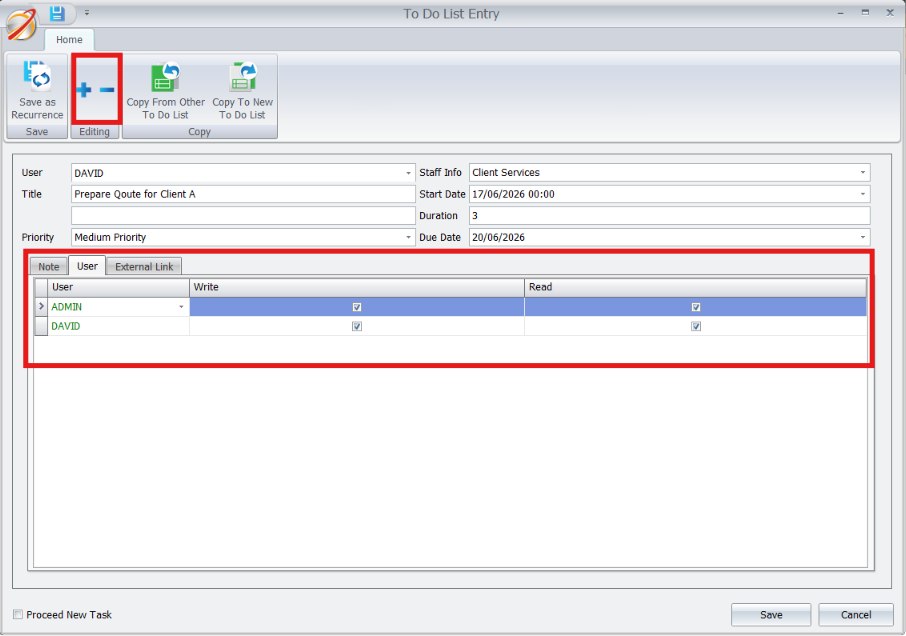
- Assign permissions to team members (read or write access).
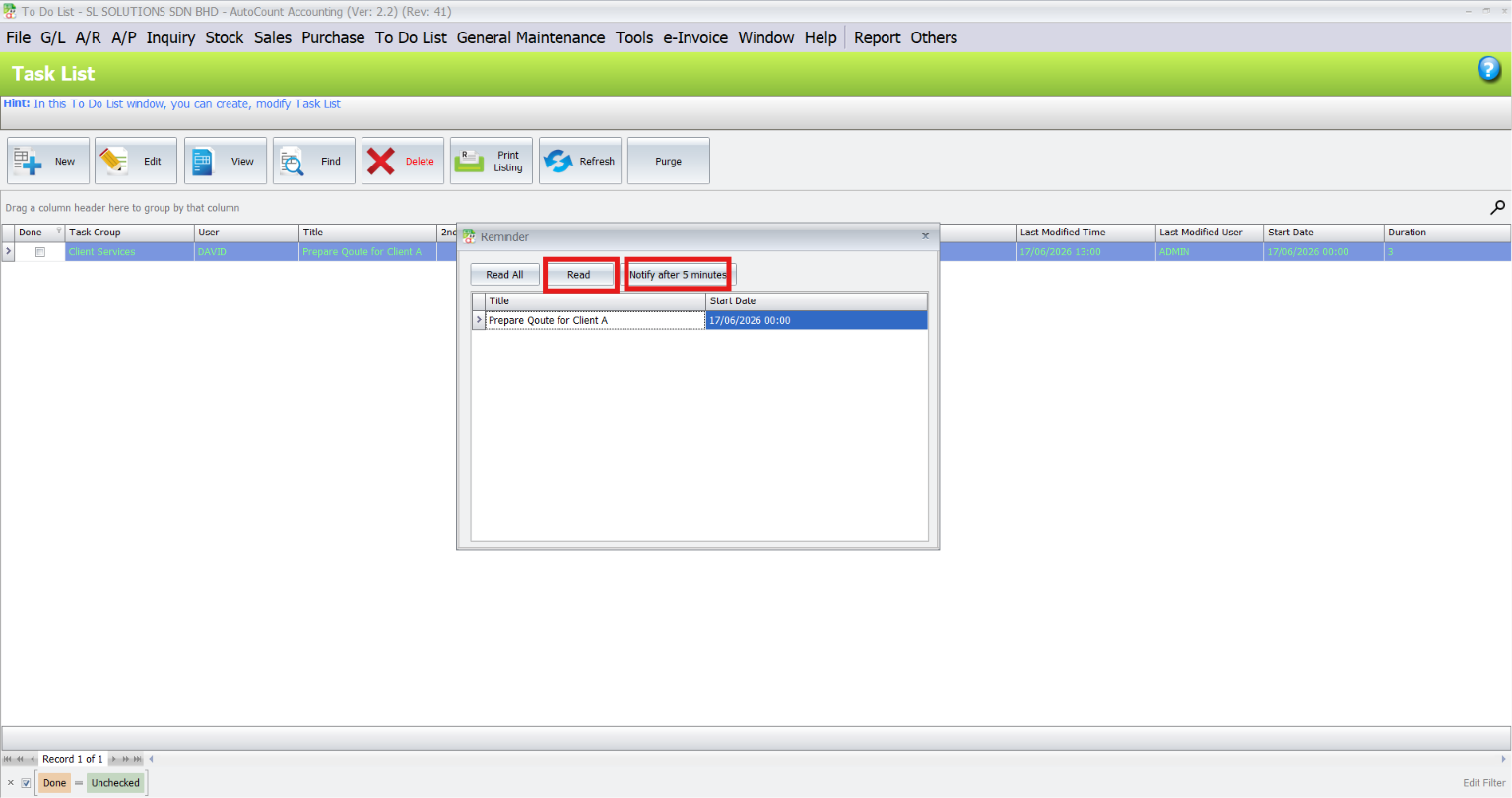
- Save the task. A reminder will notify assigned users upon login.
Note:
If the user is occupied with other tasks (e.g., processing invoices), they can select the “Notify After 5 Minutes” option. This temporarily defers the reminder, which will reappear after 5 minutes, ensuring the task remains on their radar.
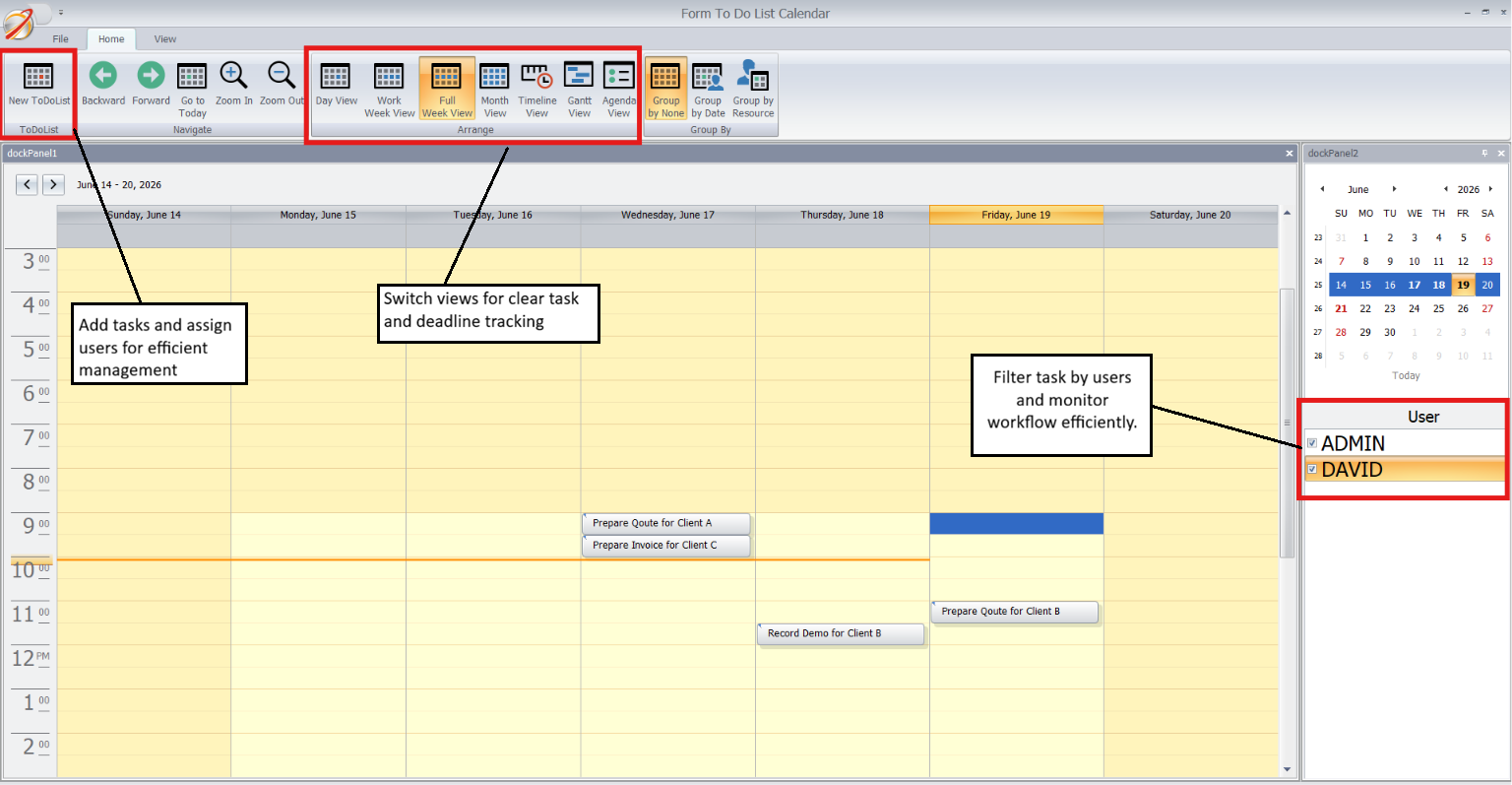
3. Calendar View
- Navigate to To-Do List > Calendar.
- Use the calendar to view tasks and deadlines or assign new tasks visually.
4. Managing Completed Tasks
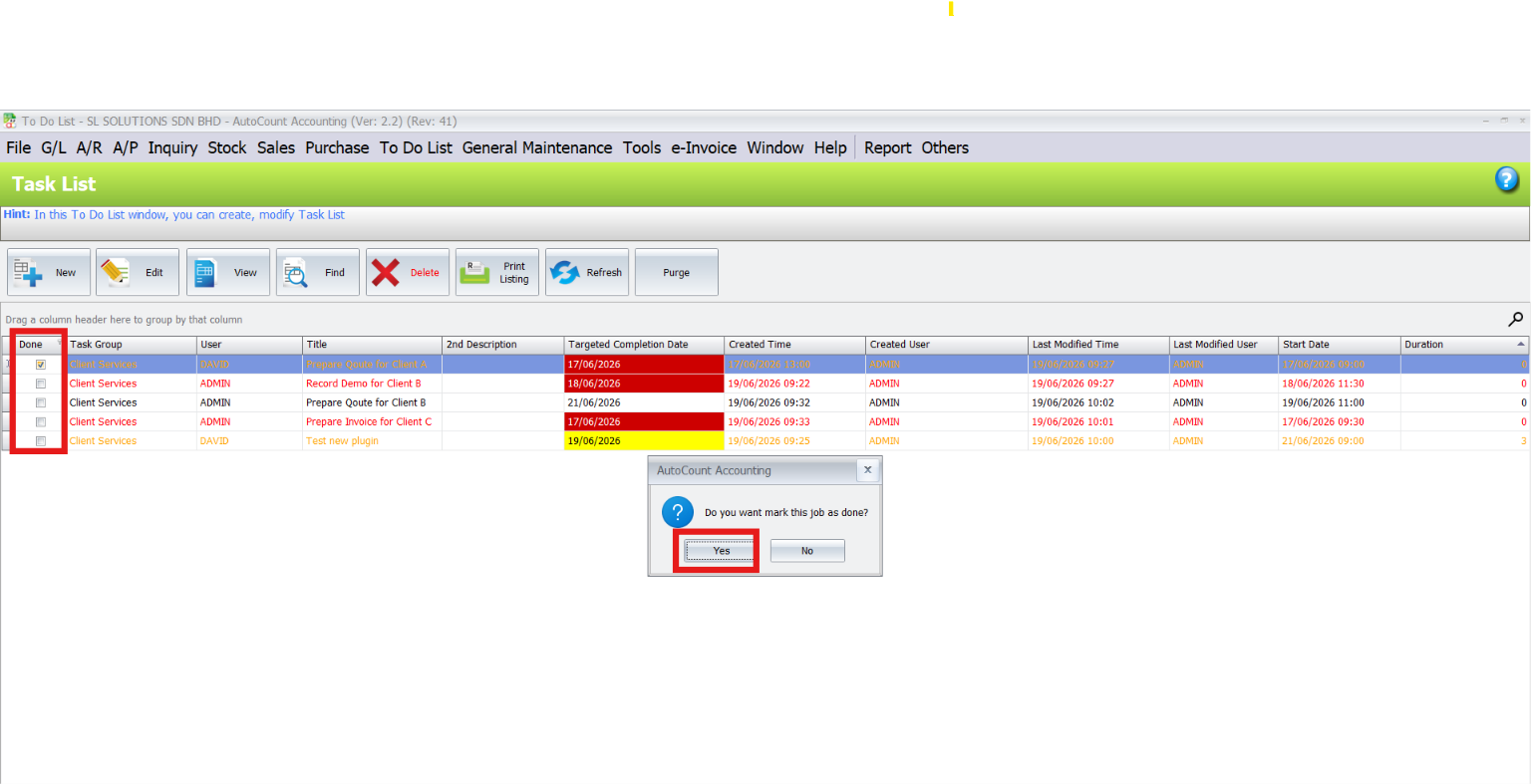
- Temporary Purge: Mark tasks as complete to remove them from the active list.
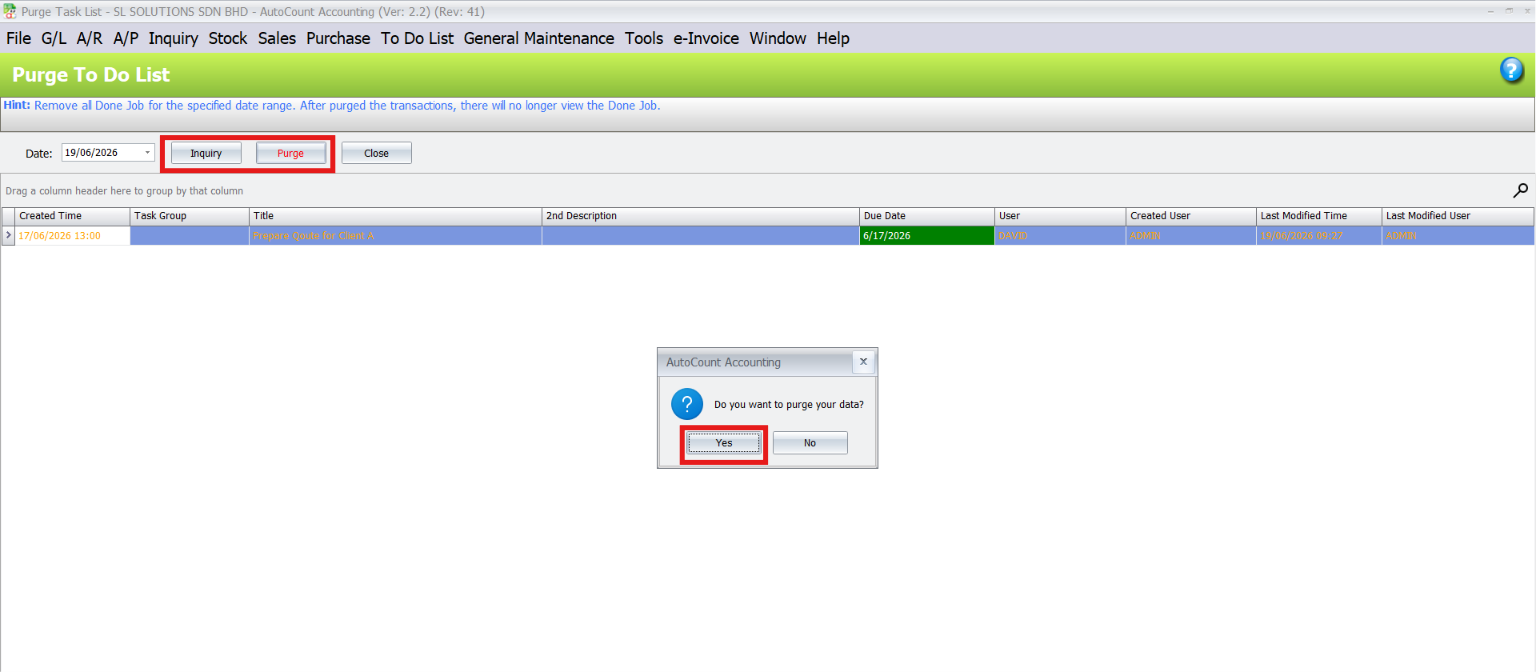
- Permanent Deletion: Use the Purge function to permanently remove old tasks.
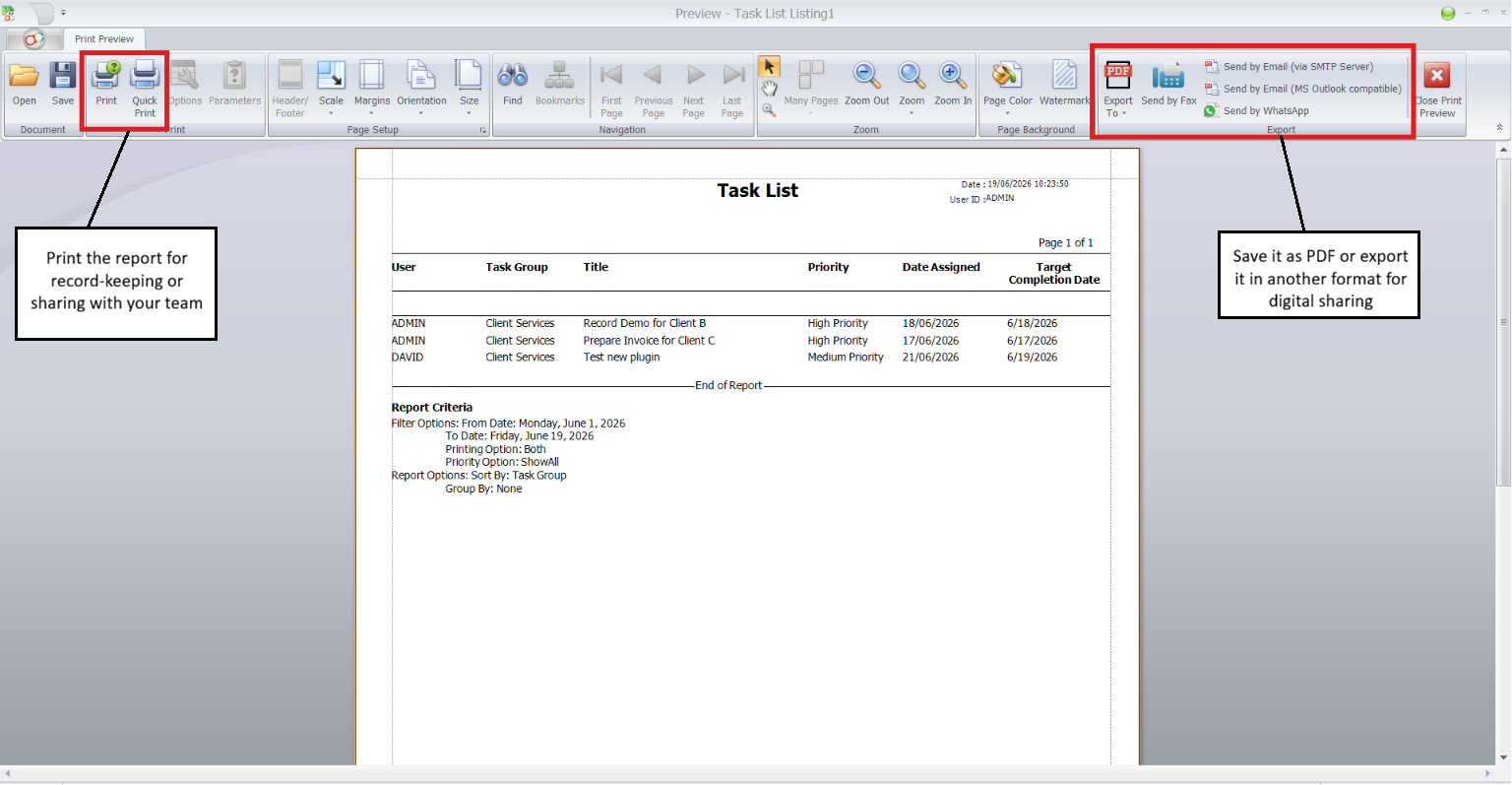
5. Reporting and Analytics
- Navigate to To-Do List > Print Listing.
- Filter by user, priority, or completion status.
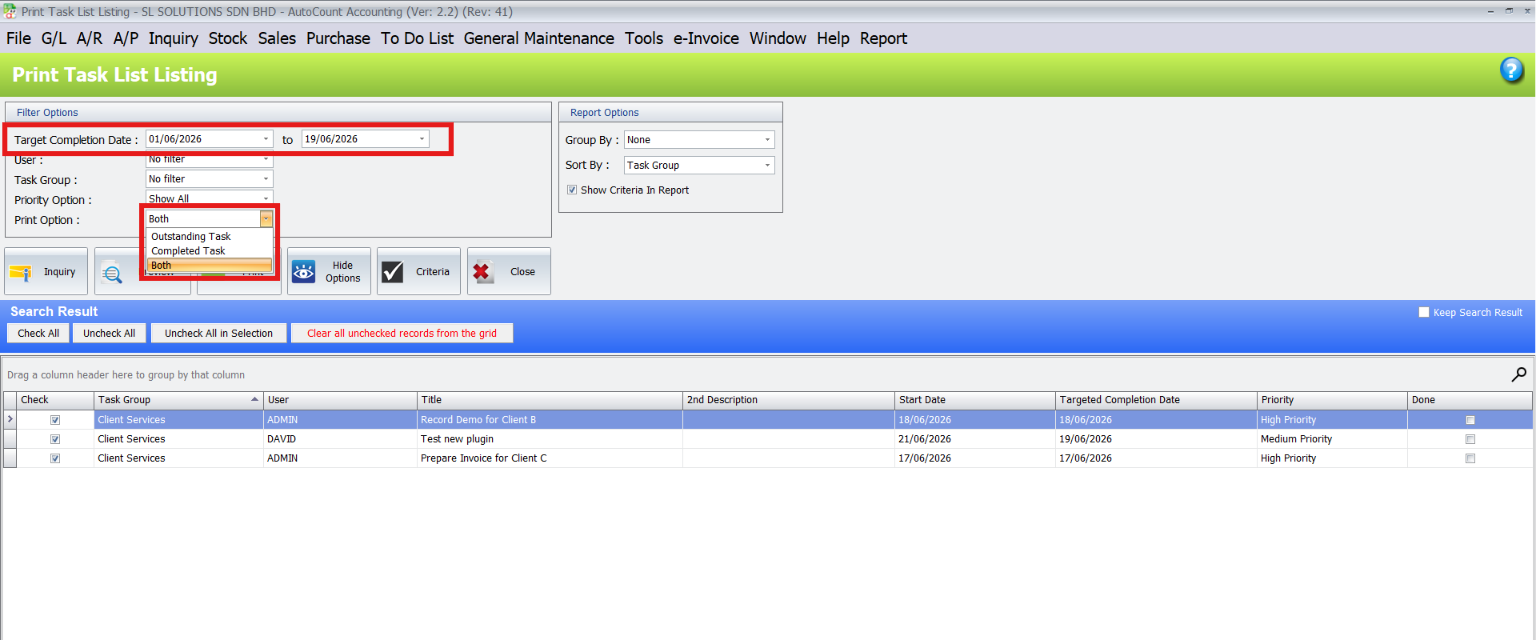
- Click Preview to generate reports for outstanding, completed, or all tasks.
6. Access Rights Management
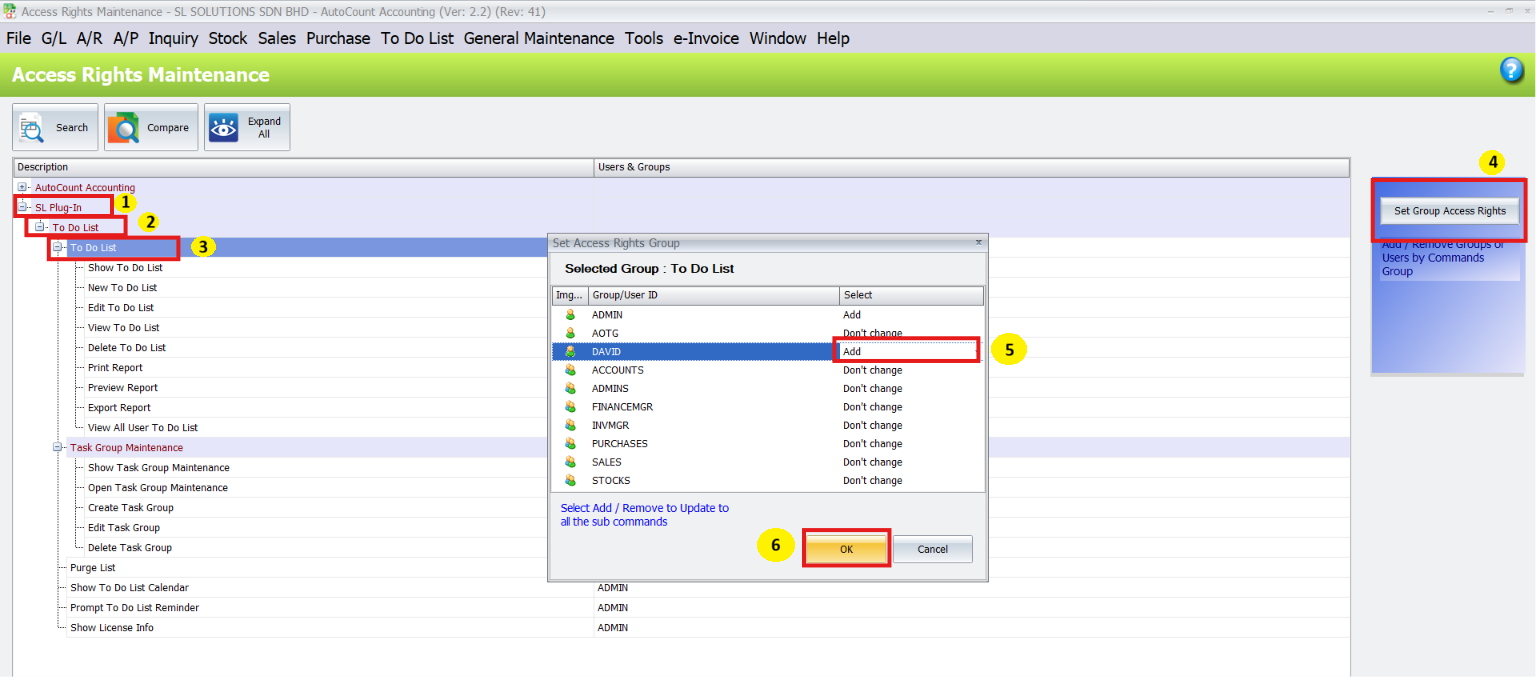
- Go to General Maintenance > Access Right Maintenance.
- Assign view or edit permissions to specific users or groups.
Note:
Supervisors can see and manage all tasks. Regular users can only view their tasks unless additional permissions are given.
Benefits in Day-to-Day Operations
For Managers
Gain a bird’s-eye view of all tasks and deadlines.
For Employees
Understand individual responsibilities clearly and meet deadlines efficiently.
For Teams
Collaborate effectively with synchronized task updates and shared responsibilities.
Conclusion
The AutoCount To-Do List Plugin simplifies task management, making it an invaluable tool for businesses of all sizes. Whether managing a team of five or fifty, the plugin ensures tasks are organized, deadlines are met, and productivity is optimized.
Frequently Asked Questions
Can I assign tasks to specific users?
Yes, you can assign tasks to individual users and set their access rights (read or write) so each person sees only relevant tasks.
Does the plugin send reminders for tasks?
Yes, once a task is assigned, assigned users receive reminders when they log in. They can even delay the reminder by 5 minutes if they’re busy with urgent work.
What priority levels are available for tasks?
Tasks can be marked as Low (black), Medium (orange), or High (red), with visual colour coding in lists and calendar views.
Can I view tasks on a calendar?
Yes, the plugin lets you see tasks by date on a calendar, so scheduling and deadline planning are much easier.
How do reminders work if a user is busy?
When a reminder pops up during other work (like processing invoices), users can choose “Notify After 5 Minutes” so the alert returns shortly without interrupting their workflow
Can completed tasks be removed?
Yes. You can mark tasks complete to remove them from your active list, or permanently purge old tasks using the purge function.
Is reporting supported?
Yes. You can generate printable task reports by filtering lists based on user, priority, or completion status.
Interested in Getting AutoCount for your Business?
Contact our sales team today to explore pricing options and get started with the perfect solution for you.