
-
AutoCount Accounting Features
-
- Approval Workflow
- Audit Trail
- Auto Save in Draft Folder
- AutoCount Contra Account
- AutoCount License Setting Guide
- Deposit Tracking & Management
- Documents Numbering Format
- Full Transfer and Partial Transfer
- Import Data to AutoCount Accounting Using Excel
- Informative Charts and Analytical Data
- Layout Customization
- Multi Pricing
- Sales and Services Tax
- Schedule Backup
- Search Lookup Edit
- View Documents Flow
- AutoCount Feature Stock Take
- Column Chooser
- Show Remaining (3) Collapse
-
AutoCount Cloud Accounting
-
AutoCount E-Invoice
-
AutoCount HRMS User Guide
-
AutoCount Modules
-
- Activity Stream
- Advanced Financial Report
- Advanced Item
- Advanced Multi-UOM
- Advanced Quotation Module
- Basic Multi-UOM
- Budget Module
- Consignment
- Filter By Salesman
- FOC Quantity
- Formula
- Item Batch
- Item Package
- Landing Cost
- Multi-Currency
- Multi-Dimensional Analysis
- Multi-Location
- Project Account
- Recurrence
- Remote Credit Control Module
- Stock Assembly
- User Defined Fields (UDF)
- AutoCount SST Hidden Functions
- AutoCount SST Submission - Service Tax
- AutoCount Scripting Module User Guide
- AutoCount Bonus Point Module User Guide
- AutoCount Service Management Plugin User Guide
- Show Remaining (12) Collapse
-
AutoCount Plugins
-
- Fixed Assets Management
- Goldsmith
- TD Ordering Mobile Apps
- TD Stock Mobile Apps
- Universal Import Plugin
- DMS Import Plugin
- AutoCount Pick List Plugin User Guide
- AutoCount Credit Memo Plugin User Guide
- AutoCount Lock Price Plugin
- AutoCount Progressive Billing
- AutoCount Easy Recurrence Plugin
- Batch Update Unit Price Plugin
- AutoCount Production order
- AutoCount Car Tint Film Plugin
-
- Event Management System
- AutoCount To-Do List Plugin
- AutoCount AutoBank Reconciliation Plugin
- Intercompany Billing Plugin User Guide
- Lead Management 2.0 Plugin
- AutoCount Service Contract Plugin User Guide
- AutoCount Optical Plugin
- AutoCount Integrator Plugin
- AutoCount Procurement Planning Plugin
- Cage Management Plugin
- AutoCount Vehicle Plugin
- AutoCount Agent Validation Plugin User Guide
- AutoCount Barcode Generator Plugin User Guide
- AutoCount Easy Batch Number Entry Plugin User Guide
- Warranty 2.0 Plugin
- AutoCount Easy Photo 2.0 User Guide
- AutoCount Recurring Invoice Plugin User Guide
- AutoCount Scale Barcode Plugin User Guide
- AutoCount Recurrence Late Interest Plugin
- AutoCount Item Visibility Control
- AutoCount Bill Remark Plugin User Guide
- AutoCount Pain Tracker User Guide
- AutoCount Easy Payment
- AutoCount Easy Deposit Plugin
- AutoCount Easy Knock Off Plugin
- AutoCount Daily Collection Summary Plugin
- Timber Log Plugins
- Batch Transfer SODO Plugin
- AutoCount Vege Basket Plugin Guide
- AutoCount Fruit Basket Plugin Guide
- Referral Management Plugin
- AutoCount Migrator Plugin
- AutoCount Email & WhatsApp Plugin
- AutoCount Multi Company Knock Off Plugin
- AutoCount Advance Aging Format Plugin
- AutoCount Payment Request Plugin
- AutoCount Vehicle Master Plugin
- AutoCount Advance Deposit Plugin
- AutoCount IC Checker Plugin
- AutoCount RMA Plugin
- AutoCount Historical Outstanding DO Listing Plugin
- AutoCount Project Department Visibility Control Plugin
- AutoCount MRP Order Plugin
- AutoCount GridToExcel Plugin
- AutoCount Stock Availability Report Plugin
- AutoCount Batch Transfer SO DO Plugin
- AutoCount Centralized Kitchen Management Plugin
- SL AutoCount API
- AutoCount InterCompany Billing Plugin
- AutoCount Sales Commission Plugin
- AutoCount Advanced Credit Term Plugin
- AutoCount Advanced Stock Assembly Plugin
- AutoCount Shipment Plugin
- AutoCount Tour Plugin
- AutoCount Smart Analysis
- AutoCount Rental Management
- Show Remaining (41) Collapse
-
-
Form Template
-
Report Template
-
- Advance Quotation
- Cash Sale
- Consignment
- Consignment Movement
- Credit Note
- Debit Note
- Delivery Order
- FOC Quantity Analysis By Document Report
- Invoice
- Item Package Sales Report
- Monthly Sales Analysis
- Outstanding Sales Order Listing
- Profit And Loss Of Documents
- Quotation
- Sales Agent Contribution Report
- Sales Order
- Top/Bottom Sales Ranking
- Show Remaining (2) Collapse
-
- Available Stock Status Report
- Expired Item Batch Listing
- Inventory Physical Worksheet
- Stock Adjustment
- Stock Aging Report
- Stock Assembly
- Stock Assembly Order
- Stock Balance By Location
- Stock Balance Report
- Stock Card Report
- Stock Disassembly
- Stock Issue
- Stock Item Profit Margin
- Stock Movement Report
- Stock Receive
- Stock Take
- Stock Transfer
- Stock Write Off
- Show Remaining (3) Collapse
-
B2B ORDERING
-
AutoCount AI Agent
AutoCount Plugin : Scale Barcode Plugin
What is the Scale Barcode Plugin
The Scale Barcode Plugin helps AutoCount read barcodes printed from weighing scales. Once the barcode is scanned into supported AutoCount transaction screens, the system decodes the barcode and inserts the correct item into the transaction row. The plugin supports two barcode formats: Price Format and Qty Format. Users can configure the flag digits, item code positions, price or quantity positions, and decimal places based on the barcode format used by their scale.
AutoCount Scale Barcode Plugin Video Guide
- AutoCount Scale Barcode Plugin (EN)
Scale Barcode Plugin Setup
Integration & Scale Barcode Setup
- AutoCount Scale Barcode Plugin (CN)
条形码插件设置
集成和条形码设置
Why You Should Use Scale Barcode Plugin?
Reduce Human Error
The plugin helps reduce mistakes when keying in item code, price, or quantity by reading the barcode based on the configured format.
Faster Counter Workflow
Suitable for businesses that weigh, pack, label, and sell fresh items. Cashiers can scan the label and continue the transaction more quickly.
Works in Supported AutoCount Screens
The barcode scanning function works in AutoCount transaction screens where the Bar Code field is available and enabled, such as Invoice and other supported sales screens.
Key Features & Capabilities of AutoCount Scale Barcode Plugin
Scale Barcode Reading
Scan barcodes printed from weighing scales and let AutoCount decode the barcode automatically.
Price and Qty Barcode Modes
Supports two formats: one for price and one for quantity.
Customizable Barcode Structure
Configure the 13-digit barcode format by setting flag digits, item code positions, price or quantity positions, and decimal places.
Instant Transaction Entry
After scanning, the system inserts the item into the transaction detail row and fills in the relevant price or quantity based on the barcode.
How AutoCount Scale Barcode Plugin works
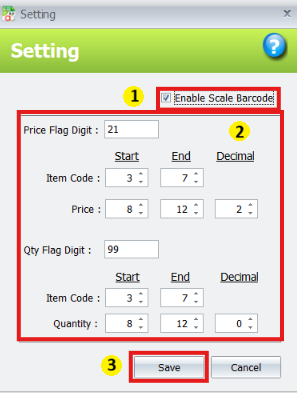
1. Barcode Format Setup
- Go to ScaleBarcode > Scale Barcode Setting.
- Tick Enable Scale Barcode to activate the plugin.
Set the barcode format according to your weighing scale label format.
Pro Tip:
Use a consistent barcode format from your weighing scale. The flag digit, item code position, and price or quantity position must match the label printed by the scale.
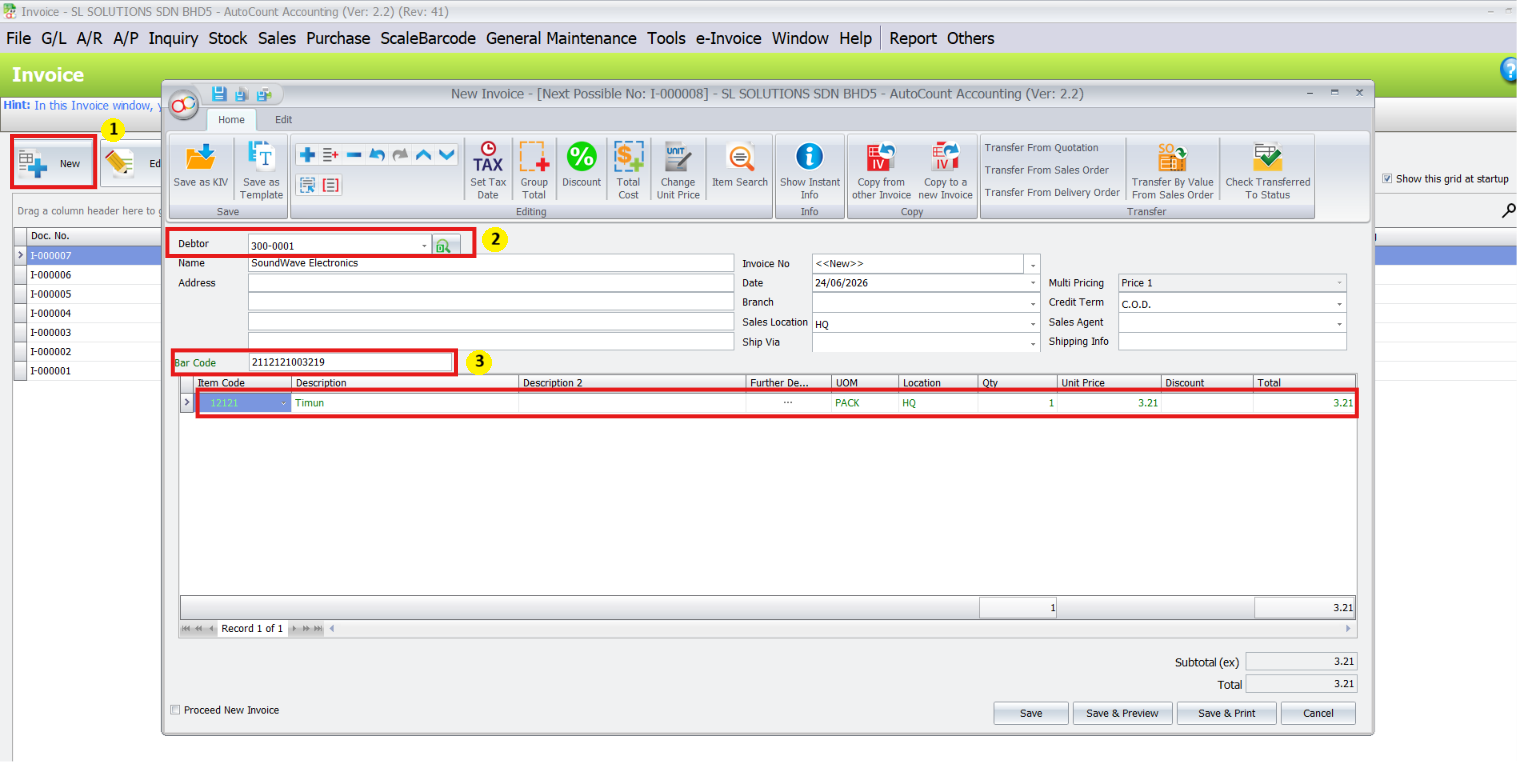
2. Scan Price Format Barcode in Invoice
- Go to Sales > Invoice
- Select the correct Debtor.
- Click the Bar Code field.
- Scan or enter the scale barcode.
- When a Price Format barcode is scanned, AutoCount identifies the item and fills the price value into the transaction row.
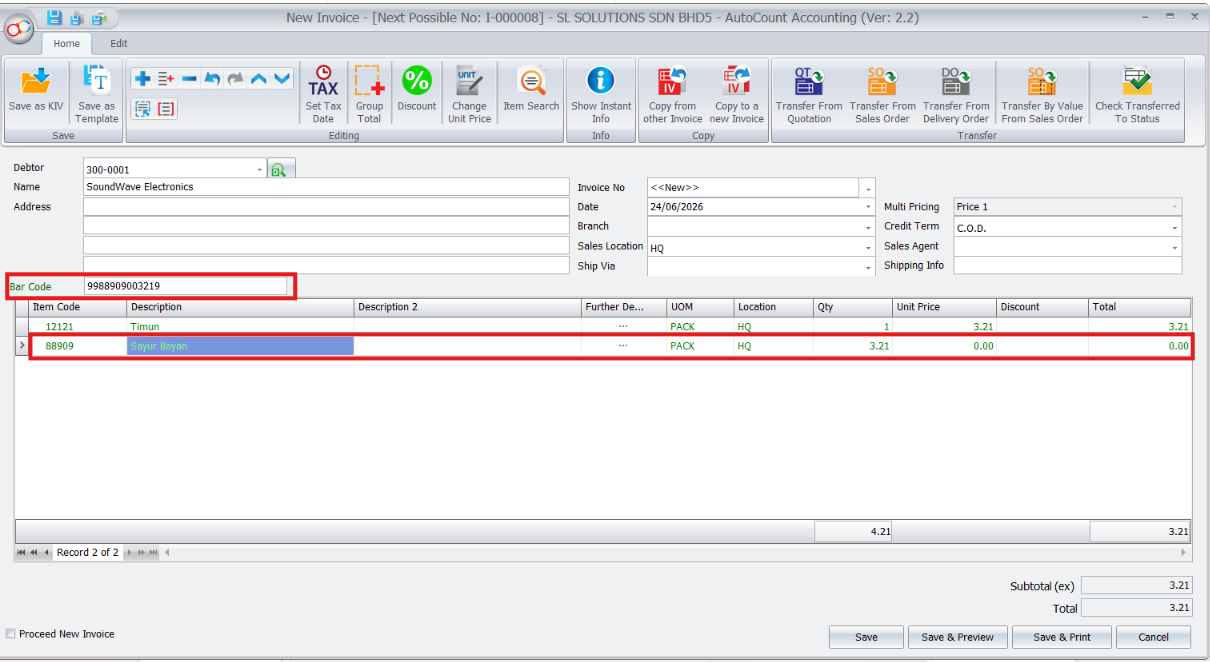
3. Scan Qty Format Barcode in Invoice
a Qty Format barcode is scanned, AutoCount identifies the item and fills the quantity value into the Qty field.
In this example, the barcode inserts item 88909 – Sayur Bayan and fills the quantity as 3.21.
Important:
For qty barcodes, the unit price may need to come from AutoCount item pricing, or the user may need to key in the unit price manually
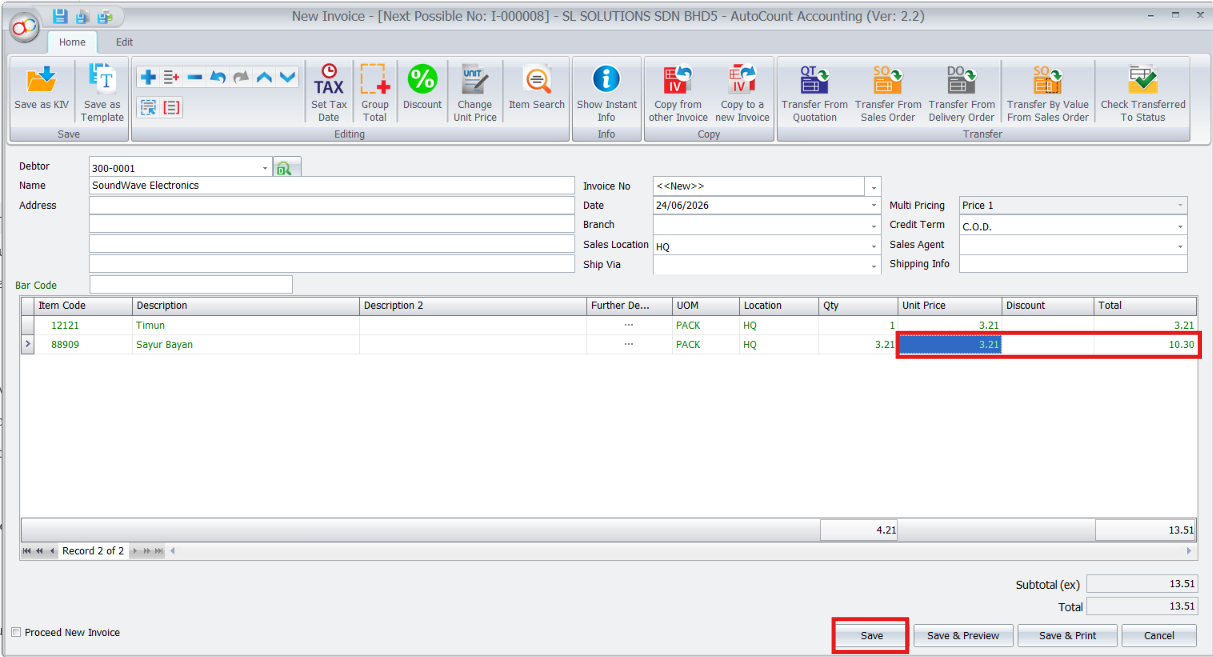
4. Check Unit Price, Total & Save
After scanning, review the transaction details carefully.
Check that:
- The correct item is inserted
- The qty is correct
- The unit price is correct
- The total amount is correct
Once everything is correct, click Save.
Barcode Settings
The setting screen tells AutoCount how to read the 13-digit barcode printed by the weighing scale.
Flag Digit
The Flag Digit is the starting number of the barcode. It tells the plugin which barcode format is being used.
For example:
- 21 = Price Format
- 99 = Qty Format
When the barcode is typed or scanned, the plugin checks the flag digit first. If the barcode starts with the price flag digit, the system reads it as a price barcode. If it starts with the qty flag digit, the system reads it as a qty barcode.
Item Code Start / End
This defines which part of the barcode contains the item code.
For example, if the item code starts at digit 3 and ends at digit 7, AutoCount reads digits 3 to 7 as the item code.
Price Start / End and Decimal
This applies to Price Format
Price Start and Price End define which part of the barcode contains the price value. The Decimal setting tells AutoCount how many decimal places to apply to the price
Example:
If the price digits are 00321 and Decimal is 2, AutoCount reads it as 3.21.
Quantity Start / End and Decimal
This applies to Qty Format.
Quantity Start and Quantity End define which part of the barcode contains the quantity value. The Decimal setting tells AutoCount how many decimal places to apply to the quantity.
Example:
If the quantity digits are 00321 and Decimal is 0, AutoCount reads it as 321.
If Decimal is 2, AutoCount reads it as 3.21.
Last digit, not used by the plugin. It can be a random digit or check digit from the scale barcode.
Who This Plugin is For ?
Retail Stores
Suitable for stores that sell items using scale-printed barcode labels.
Fresh Food and Grocery Businesses
Useful for businesses selling fresh food such as vegetables, meat, seafood, fruits, frozen food, or other weighed and packed items.
Counter Sales Teams
Helpful for cashiers who need to process labelled items quickly without manually typing item codes, prices, or quantities
Efficiency-Focused Businesses
Ideal for businesses that want to reduce manual entry, improve checkout speed, and keep AutoCount transaction details more consistent.
Core Benefits of the Scale Barcode Plugin
Flexible Barcode Setup
Supports configurable 13-digit scale barcode formats, including flag digit, item code position, price or quantity position, and decimal places.
Reduce Manual Errors
Scan scale barcodes directly into AutoCount to reduce mistakes in item code, quantity, price, and total entry.
Faster Transaction Entry
Users can process items faster without manually selecting items or typing price and quantity details.
Conclusion
The AutoCount Scale Barcode Plugin is a practical tool for businesses that use scale-printed barcodes. It helps replace manual item, price, and quantity entry with a faster barcode scanning process.
By reading scale-generated barcodes directly inside AutoCount, the plugin helps improve transaction speed, reduce key-in errors, and keep transaction records more accurate
Frequently Asked Questions
What kind of weighing scales are compatible?
The plugin supports most digital scales that can interface with a PC via standard connections like USB, RS-232 serial port, or Ethernet. Consult the AutoCount hardware compatibility list for recommended models.
Can I use both "By Price" and "By Quantity" formats?
Yes. You can set up multiple format profiles and select the appropriate one based on the item or the intended use (e.g., retail sale vs. warehouse transfer).
How does this plugin differ from the AutoCount Barcode Generator Plugin?
The Barcode Generator Plugin is for creating sequential barcodes for pre-packaged items. The Scale Barcode Plugin is specifically designed to generate variable-weight barcodes in real-time based on live scale input. They are complementary tools for different business needs.
Is my existing scale data lost after integration?
No. The plugin works in real-time. Historical data remains in your AutoCount system. The plugin simply ensures all future weighed transactions are automated and accurate.
Do I need special label printers?
You need a thermal label printer compatible with AutoCount. Common brands like Zebra, Godex, and TSC are widely supported and work seamlessly with the plugin.
Ready to Transform Your Weighing and Checkout Process?
Stop letting manual weighing and pricing slow you down and introduce errors. The AutoCount Scale Barcode Plugin provides the automation, accuracy, and seamless integration you need to manage your weighed goods professionally and efficiently.