
-
AutoCount Accounting Features
-
- Approval Workflow
- Audit Trail
- Auto Save in Draft Folder
- AutoCount Contra Account
- AutoCount License Setting Guide
- Deposit Tracking & Management
- Documents Numbering Format
- Full Transfer and Partial Transfer
- Import Data to AutoCount Accounting Using Excel
- Informative Charts and Analytical Data
- Layout Customization
- Multi Pricing
- Sales and Services Tax
- Schedule Backup
- Search Lookup Edit
- View Documents Flow
- AutoCount Feature Stock Take
- Column Chooser
- Show Remaining (3) Collapse
-
AutoCount Cloud Accounting
-
AutoCount E-Invoice
-
AutoCount HRMS User Guide
-
AutoCount Modules
-
- Activity Stream
- Advanced Financial Report
- Advanced Item
- Advanced Multi-UOM
- Advanced Quotation Module
- Basic Multi-UOM
- Budget Module
- Consignment
- Filter By Salesman
- FOC Quantity
- Formula
- Item Batch
- Item Package
- Landing Cost
- Multi-Currency
- Multi-Dimensional Analysis
- Multi-Location
- Project Account
- Recurrence
- Remote Credit Control Module
- Stock Assembly
- User Defined Fields (UDF)
- AutoCount SST Hidden Functions
- AutoCount SST Submission - Service Tax
- AutoCount Scripting Module User Guide
- AutoCount Bonus Point Module User Guide
- AutoCount Service Management Plugin User Guide
- Show Remaining (12) Collapse
-
AutoCount Plugins
-
- Fixed Assets Management
- Goldsmith
- TD Ordering Mobile Apps
- TD Stock Mobile Apps
- Universal Import Plugin
- DMS Import Plugin
- AutoCount Pick List Plugin User Guide
- AutoCount Credit Memo Plugin User Guide
- AutoCount Lock Price Plugin
- AutoCount Progressive Billing
- AutoCount Easy Recurrence Plugin
- Batch Update Unit Price Plugin
- AutoCount Production order
- AutoCount Car Tint Film Plugin
-
- Event Management System
- AutoCount To-Do List Plugin
- AutoCount AutoBank Reconciliation Plugin
- Intercompany Billing Plugin User Guide
- Lead Management 2.0 Plugin
- AutoCount Service Contract Plugin User Guide
- AutoCount Optical Plugin
- AutoCount Integrator Plugin
- AutoCount Procurement Planning Plugin
- Cage Management Plugin
- AutoCount Vehicle Plugin
- AutoCount Agent Validation Plugin User Guide
- AutoCount Barcode Generator Plugin User Guide
- AutoCount Easy Batch Number Entry Plugin User Guide
- Warranty 2.0 Plugin
- AutoCount Easy Photo 2.0 User Guide
- AutoCount Recurring Invoice Plugin User Guide
- AutoCount Scale Barcode Plugin User Guide
- AutoCount Recurrence Late Interest Plugin
- AutoCount Item Visibility Control
- AutoCount Bill Remark Plugin User Guide
- AutoCount Pain Tracker User Guide
- AutoCount Easy Payment
- AutoCount Easy Deposit Plugin
- AutoCount Easy Knock Off Plugin
- AutoCount Daily Collection Summary Plugin
- Timber Log Plugins
- Batch Transfer SODO Plugin
- AutoCount Vege Basket Plugin Guide
- AutoCount Fruit Basket Plugin Guide
- Referral Management Plugin
- AutoCount Migrator Plugin
- AutoCount Email & WhatsApp Plugin
- AutoCount Multi Company Knock Off Plugin
- AutoCount Advance Aging Format Plugin
- AutoCount Payment Request Plugin
- AutoCount Vehicle Master Plugin
- AutoCount Advance Deposit Plugin
- AutoCount IC Checker Plugin
- AutoCount RMA Plugin
- AutoCount Historical Outstanding DO Listing Plugin
- AutoCount Project Department Visibility Control Plugin
- AutoCount MRP Order Plugin
- AutoCount GridToExcel Plugin
- AutoCount Stock Availability Report Plugin
- AutoCount Batch Transfer SO DO Plugin
- AutoCount Centralized Kitchen Management Plugin
- SL AutoCount API
- AutoCount InterCompany Billing Plugin
- AutoCount Sales Commission Plugin
- AutoCount Advanced Credit Term Plugin
- AutoCount Advanced Stock Assembly Plugin
- AutoCount Shipment Plugin
- AutoCount Tour Plugin
- AutoCount Smart Analysis
- AutoCount Rental Management
- Show Remaining (41) Collapse
-
-
Form Template
-
Report Template
-
- Advance Quotation
- Cash Sale
- Consignment
- Consignment Movement
- Credit Note
- Debit Note
- Delivery Order
- FOC Quantity Analysis By Document Report
- Invoice
- Item Package Sales Report
- Monthly Sales Analysis
- Outstanding Sales Order Listing
- Profit And Loss Of Documents
- Quotation
- Sales Agent Contribution Report
- Sales Order
- Top/Bottom Sales Ranking
- Show Remaining (2) Collapse
-
- Available Stock Status Report
- Expired Item Batch Listing
- Inventory Physical Worksheet
- Stock Adjustment
- Stock Aging Report
- Stock Assembly
- Stock Assembly Order
- Stock Balance By Location
- Stock Balance Report
- Stock Card Report
- Stock Disassembly
- Stock Issue
- Stock Item Profit Margin
- Stock Movement Report
- Stock Receive
- Stock Take
- Stock Transfer
- Stock Write Off
- Show Remaining (3) Collapse
-
B2B ORDERING
-
AutoCount AI Agent
AutoCount Lead Management 2.0 Plugin Setup Guide
AutoCount Lead Management Video Guide
- AutoCount Lead Management Plugin (EN)
Lead Management Plugin Setup
Easily track every opportunity and improve sales conversion efficiency.
- AutoCount Lead Management Plugin (cn)
潜在客户管理插件设置
轻松追踪每个商机,提升销售转化效率
Benefits of Using the Lead Management 2.0 Plugin
Improves organization of customer lead data
Enhances sales agent accountability
Reduces manual record-keeping errors
Provides better visibility and reporting for management
Supports more effective sales analysis and planning
How AutoCount Lead Management 2.0 Plugin Works
1. Access Rights Management
Set up user permissions to control who can access lead data and commission settings. Assign access rights in General Maintenance > Access Right Maintenance to define which users can create leads or view specific Sales Agent activities.
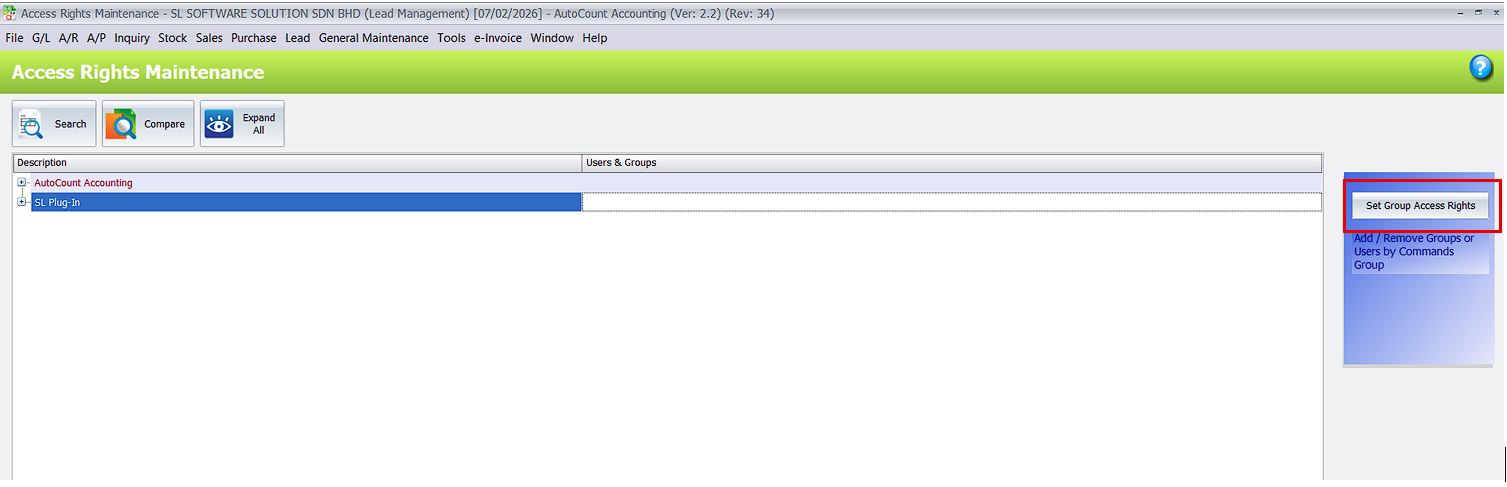

2. Lead Status and Stage Maintenance
Configure your sales pipeline by defining Lead Statuses and Stages. Under Lead > Lead Status Maintenance, you can create custom categories to track exactly where a lead stands, from “New” to “Closed.”
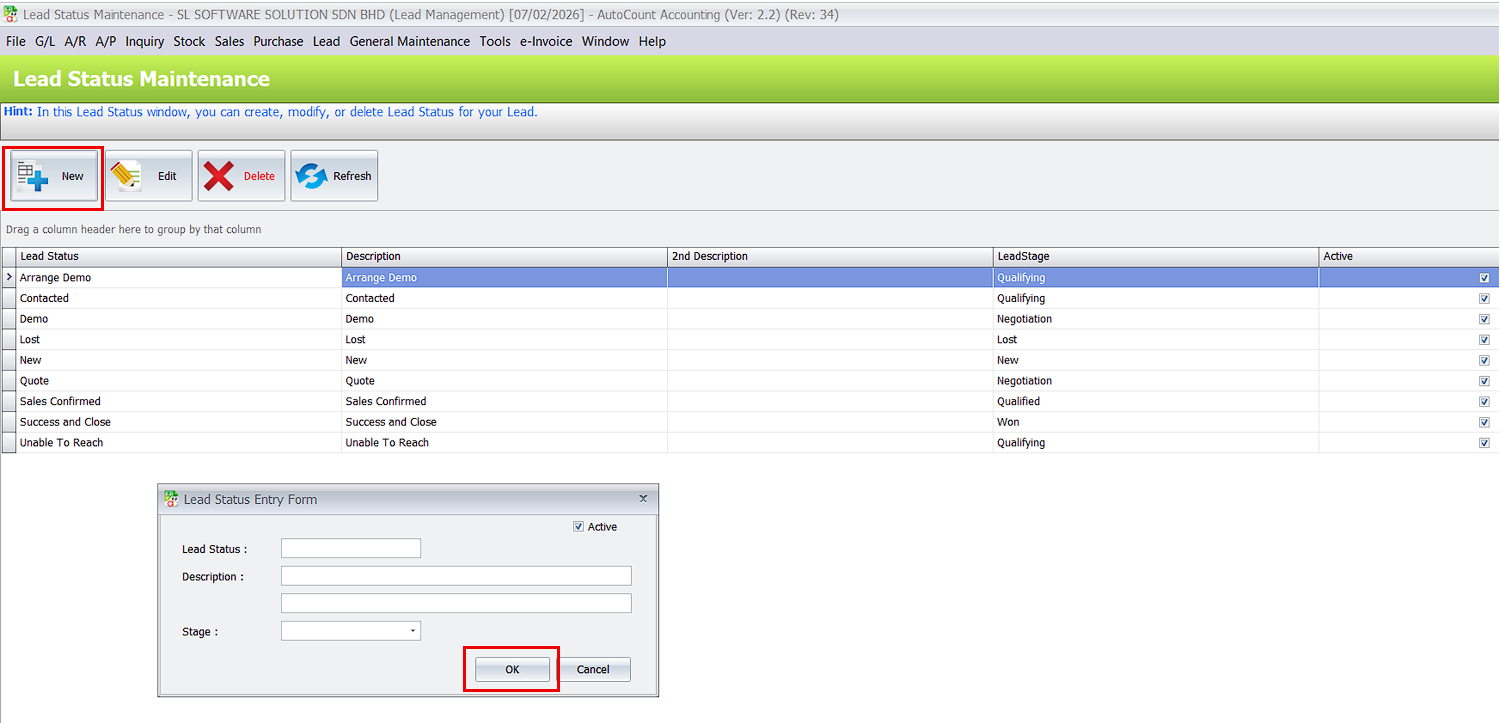
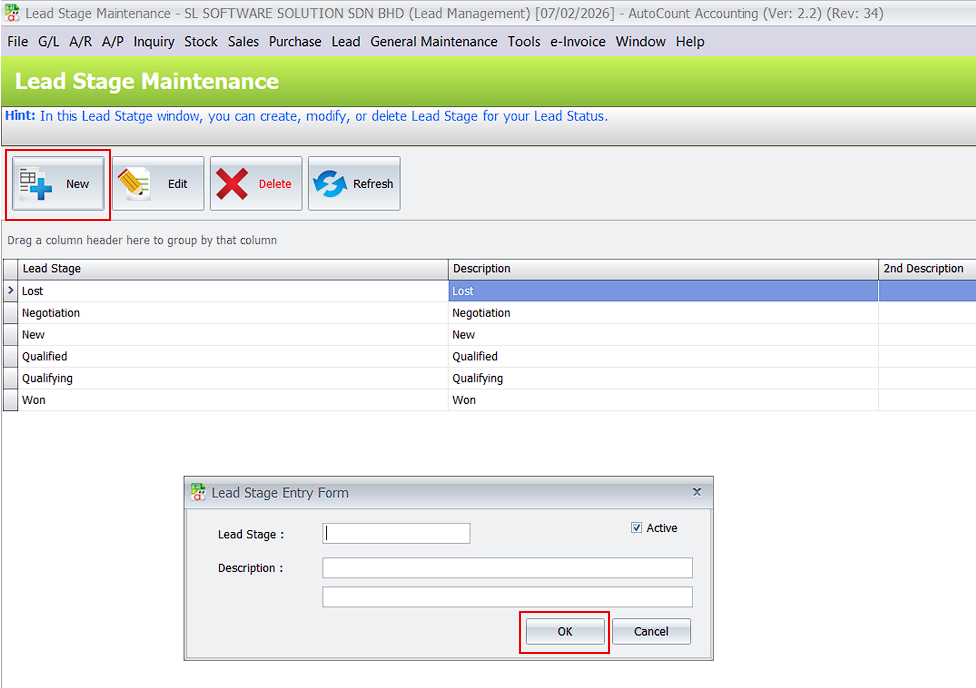
3. Lead Source and Referral Maintenance
Identify the origin of your business by setting up Lead Sources. You can record detailed referral partner information in Lead > Lead Source Maintenance, making it easy to track which channels or partners provide the best results.
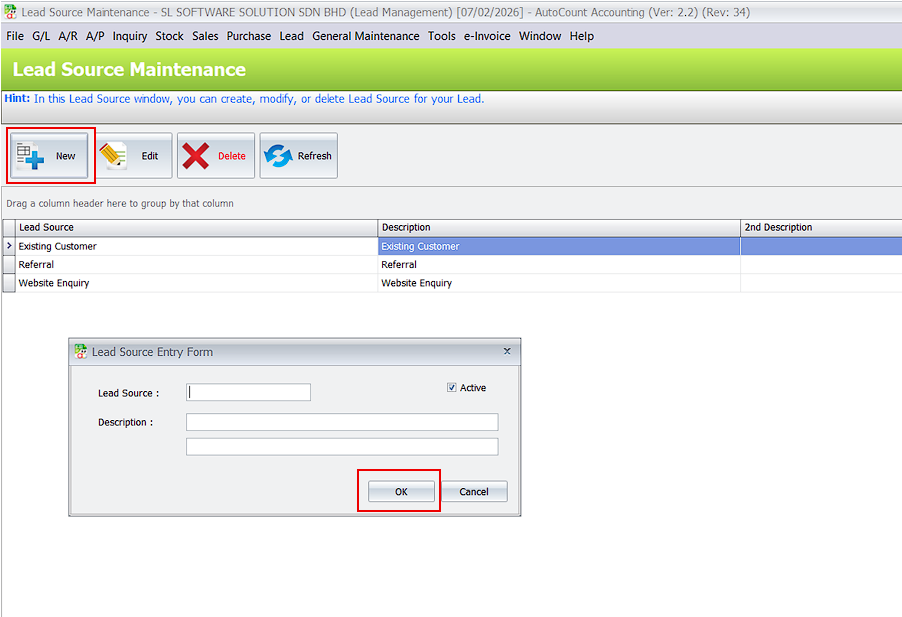
4. Sales Agent Filtering
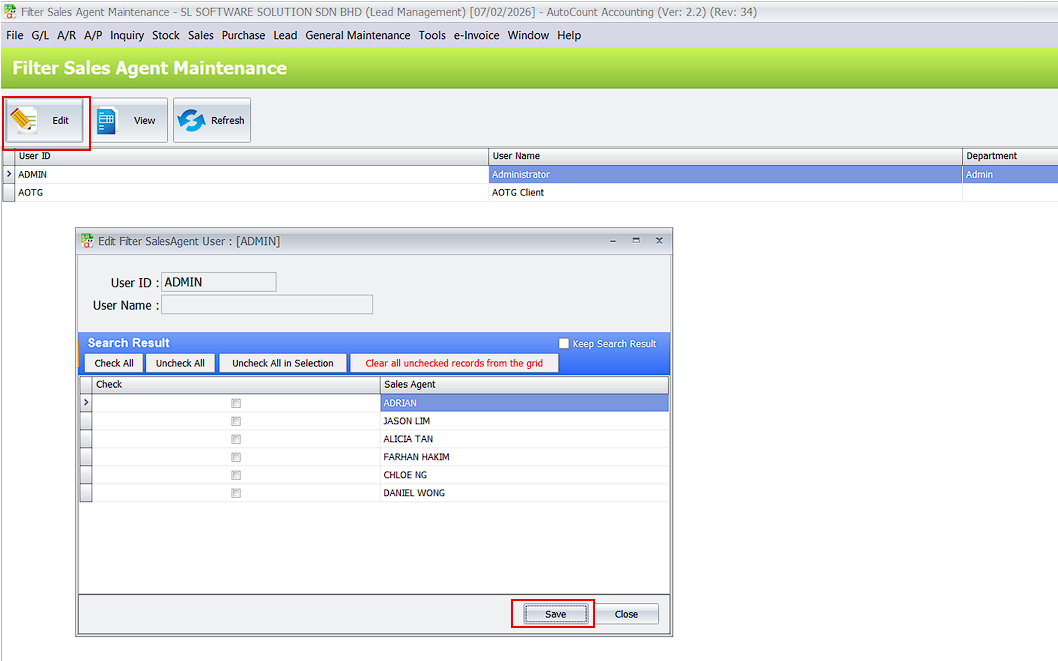
Control data visibility by using Filter Sales Agent Maintenance. This feature allows admins to restrict users so they can only see leads belonging to specific agents, ensuring privacy and a more organized workspace for your sales team.
5. Lead Entry and Management
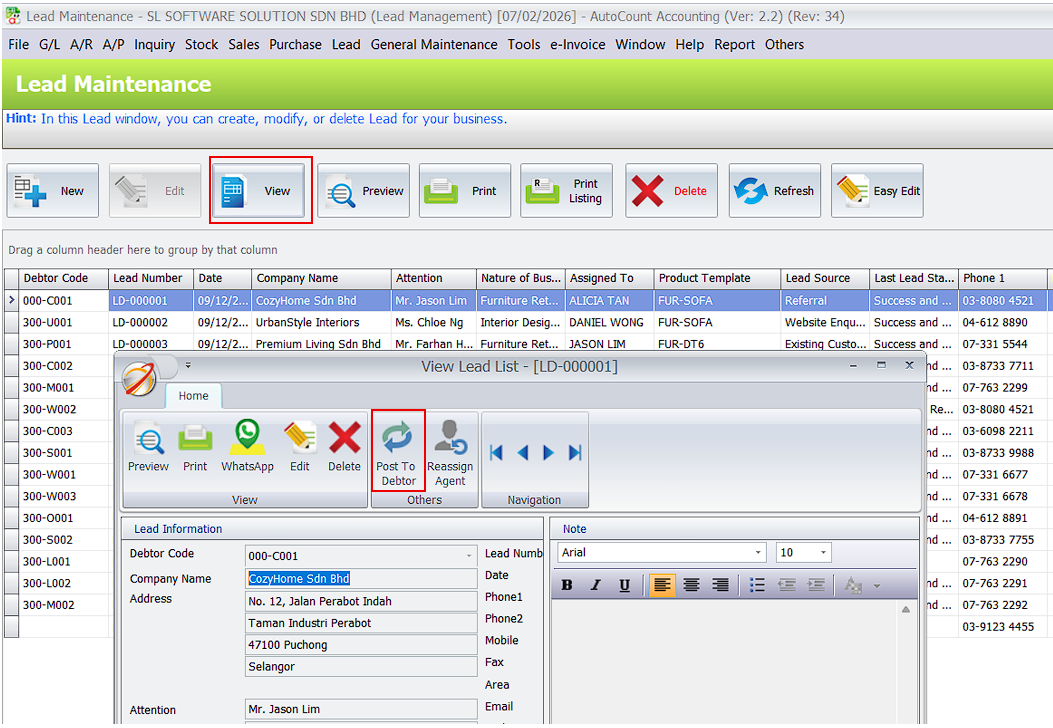
Use Lead > Lead Maintenance to capture all potential customer information. This centralized hub allows you to assign agents, update progress, and maintain a history of interactions for every potential sale.
6. Commission Payment Processing
Manage agent incentives once a lead is successfully converted. Through the Lead Maintenance screen, you can use the “Pay Commission” button to track and confirm payments to your sales team for their successful conversions.

7. Dashboard and Multi-Dimensional Analysis
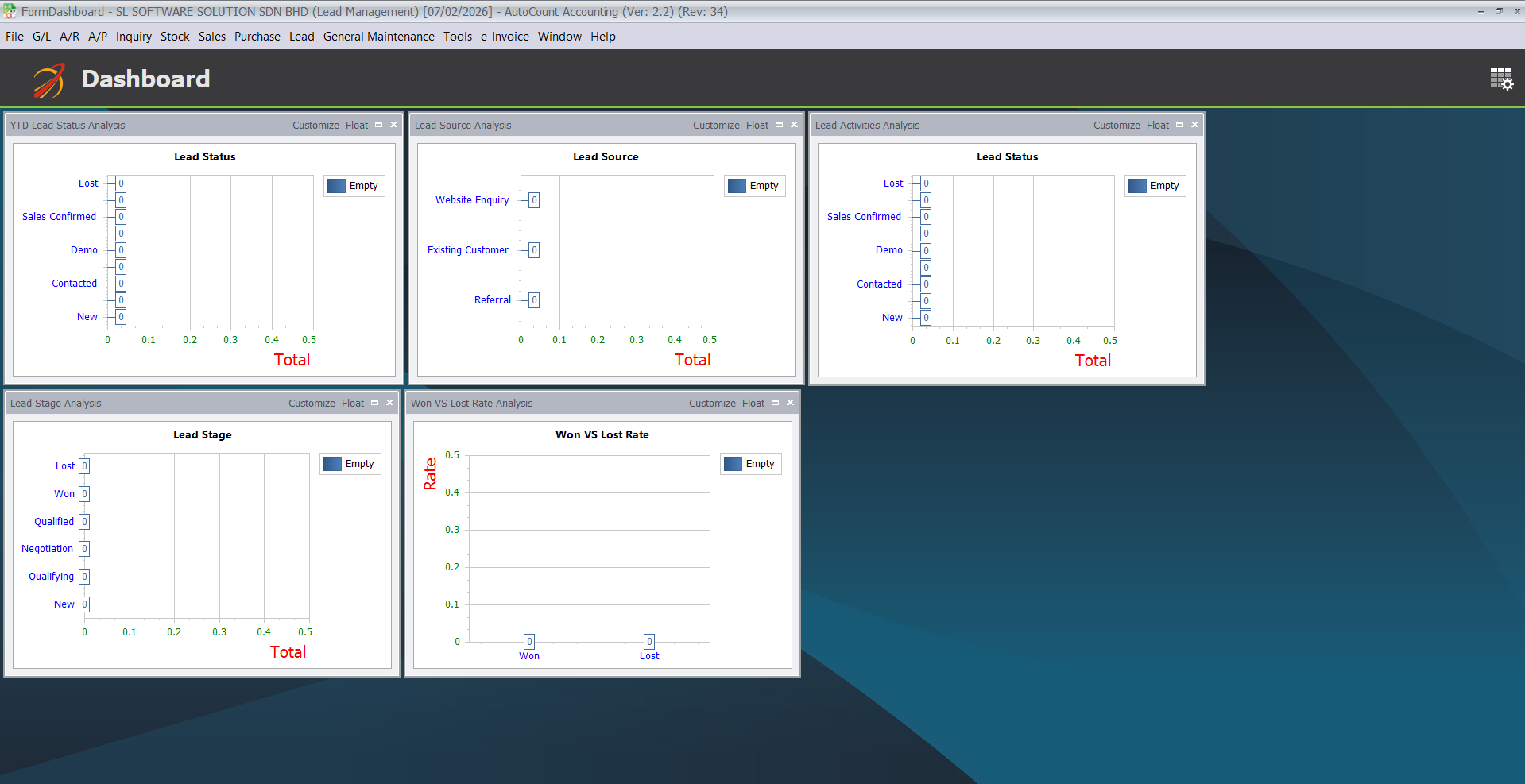
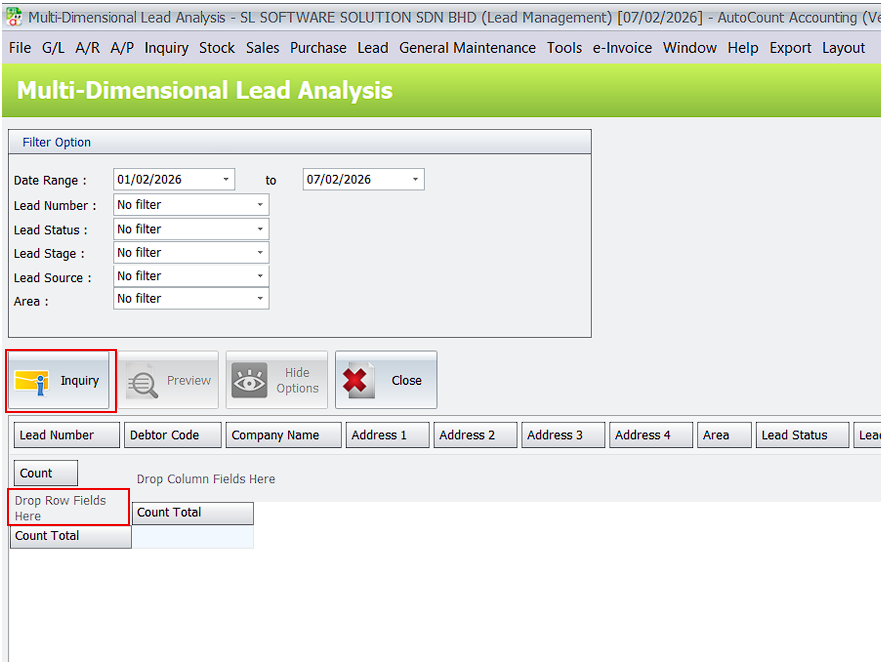
Gain visual insights into your sales performance with the Lead Dashboard. For more detailed reporting, use Multi-Dimensional Lead Analysis to customize data views by dragging columns, helping you analyze trends by agent, source, or status.
Dashboard
Multi-Dimensional Lead Analysis
Key Features & Capabilities
Lead Management & Tracking
The Lead Plug-In lets users easily manage leads and track their progress from initial contact to conversion or closure.
Sales Agent Assignment & Control
Leads can be assigned or reassigned to sales agents, with access filtered so users only see relevant leads.
Lead Source & Status Configuration
Users can customize lead sources, statuses, and stages to better organize leads and standardize sales processes.
Conversion & Commission Handling
Confirmed leads can be posted to debtor accounts, with commission tracking to manage agent incentives.
Reporting, Dashboard & Analysis
The dashboard and analysis tools provide insights into lead performance by agent, source, status, and time period.
Frequently Asked Questions
What does the AutoCount Lead Management 2.0 Plugin do?
It helps users record, track, and manage sales leads in AutoCount.
Why should I use the Lead Management 2.0 Plugin?
It makes it easier to follow up on customers and manage sales activities.
How do I install the Lead Plugin?
You can install it through Tools > Plug-In Manager in AutoCount.
How do I add a new lead?
Go to Lead Maintenance and click New to enter lead details.
Can I assign a sales agent to a lead?
Yes, you can assign or change the sales agent for each lead.