
-
AutoCount Accounting Features
-
- Approval Workflow
- Audit Trail
- Auto Save in Draft Folder
- AutoCount Contra Account
- AutoCount License Setting Guide
- Deposit Tracking & Management
- Documents Numbering Format
- Full Transfer and Partial Transfer
- Import Data to AutoCount Accounting Using Excel
- Informative Charts and Analytical Data
- Layout Customization
- Multi Pricing
- Sales and Services Tax
- Schedule Backup
- Search Lookup Edit
- View Documents Flow
- AutoCount Feature Stock Take
- Column Chooser
- Show Remaining (3) Collapse
-
AutoCount Cloud Accounting
-
AutoCount E-Invoice
-
AutoCount HRMS User Guide
-
AutoCount Modules
-
- Activity Stream
- Advanced Financial Report
- Advanced Item
- Advanced Multi-UOM
- Advanced Quotation Module
- Basic Multi-UOM
- Budget Module
- Consignment
- Filter By Salesman
- FOC Quantity
- Formula
- Item Batch
- Item Package
- Landing Cost
- Multi-Currency
- Multi-Dimensional Analysis
- Multi-Location
- Project Account
- Recurrence
- Remote Credit Control Module
- Stock Assembly
- User Defined Fields (UDF)
- AutoCount SST Hidden Functions
- AutoCount SST Submission - Service Tax
- AutoCount Scripting Module User Guide
- AutoCount Bonus Point Module User Guide
- Show Remaining (11) Collapse
-
AutoCount Plugins
-
- Fixed Assets Management
- Goldsmith
- TD Ordering Mobile Apps
- TD Stock Mobile Apps
- Universal Import Plugin
- DMS Import Plugin
- AutoCount Item Scope Plugin
- AutoCount Easy Knock Off Plugin
- AutoCount Pick List Plugin User Guide
- AutoCount Agent Validation Plugin User Guide
- AutoCount Barcode Generator Plugin User Guide
- AutoCount Bill Remark Plugin User Guide
- AutoCount Easy Batch Number Entry Plugin User Guide
- AutoCount Recurring Invoice Plugin User Guide
- AutoCount Easy Photo 2.0 User Guide
- AutoCount Pain Tracker User Guide
- AutoCount Credit Memo Plugin User Guide
- Show Remaining (2) Collapse
-
- AutoCount Easy Recurrence Plugin
- AutoCount Recurring Billing Plugin
- Event Management System
- AutoCount To-Do List Plugin
- AutoCount AutoBank Reconciliation Plugin
- Intercompany Billing Plugin User Guide
- AutoCount Basket Plugin User Guide
- Lead Management 2.0 Plugin
- AutoCount Service Contract Plugin User Guide
- Autocount Repacking Plugin
- AutoCount Scale Barcode Plugin User Guide
- AutoCount Progressive Billing
- AutoCount Optical Plugin
- AutoCount Meter Reading Plugin User Guide
- AutoCount Car Tint Film Plugin
- AutoCount Leasing Plugin User Guide
- AutoCount Integrator Plugin
- AutoCount Procurement Planning Plugin
- Show Remaining (3) Collapse
-
-
Form Template
-
Report Template
-
- Advance Quotation
- Cash Sale
- Consignment
- Consignment Movement
- Credit Note
- Debit Note
- Delivery Order
- FOC Quantity Analysis By Document Report
- Invoice
- Item Package Sales Report
- Monthly Sales Analysis
- Outstanding Sales Order Listing
- Profit And Loss Of Documents
- Quotation
- Sales Agent Contribution Report
- Sales Order
- Top/Bottom Sales Ranking
- Show Remaining (2) Collapse
-
- Available Stock Status Report
- Expired Item Batch Listing
- Inventory Physical Worksheet
- Stock Adjustment
- Stock Aging Report
- Stock Assembly
- Stock Assembly Order
- Stock Balance By Location
- Stock Balance Report
- Stock Card Report
- Stock Disassembly
- Stock Issue
- Stock Item Profit Margin
- Stock Movement Report
- Stock Receive
- Stock Take
- Stock Transfer
- Stock Write Off
- Show Remaining (3) Collapse
AutoCount Module: Consignment & Item Package
Introduction to AutoCount Consignment + Item Package
Managing inventory becomes significantly more challenging during peak seasons. When you are creating festive hampers, gift sets, or promotional kits and sending them to agents on consignment, tracking stock manually can lead to errors and lost revenue. The AutoCount Consignment Module combined with the Item Package Module offers a seamless solution. This integrated system allows you to build product bundles while maintaining detailed consignment tracking. You get full visibility of your stock—from the individual components in a package to the status of goods placed with retail partners.
AutoCount Consignment + Item Package Module Video Guide
- AutoCount Consignment + Item Package (EN)
Consignment + Item Package Setup
Integration & Consignment + Item Package Setup
- AutoCount Consignment + Item Package (CN)
寄售 + 物品包装设置
集成与寄售 + 商品包装设置
What Is the Consignment + Item Package Module?
This powerful integration bridges the gap between inventory packaging and consignment sales management. It allows you to create bundled products (packages) and track them through the consignment lifecycle. Instead of simply tracking a "Hamper" as a single unit, the system tracks the movement and sale of the individual components within that hamper. This ensures your inventory counts remain accurate, even when products are sold as part of a bundle or returned unsold from a consignee.
Key Concepts Explained
To understand how this module works, it helps to know the core components:
Item Packages
These are bundles created in the system (e.g., "Chinese New Year Hamper"). You define the package by selecting individual stock items and specifying the quantity of each included
Consignment Notes
This is the document used when you send goods to an agent. You select the package (or individual items) and the quantity, officially recording the transfer of goods to the consignee's possession.
Outstanding Listing
This is your control panel. It generates a real-time report showing exactly what stock is still with the agent, what has been sold, and what is due to be returned.
Sub-Item Inventory Tracking
A crucial feature. The system ignores the package code for stock valuation and updates the stock balance of each sub‑item within the package. This provides granular inventory accuracy.
Key Features of the Integrated Module
Intuitive Item Package Setup
Easily build complex bundles. Navigate to Stock > Item Package Maintenance to create new packages. You can assign multiple stock items, set the quantities, and define a selling price. The system automatically calculates the total package value based on the components.
Detailed Consignment Entry
The consignment process is straightforward. Go to Sales > Consignment, select your consignee, and start adding items. You can select a pre-defined Item Package or add loose components, giving you full flexibility for every shipment.
Comprehensive Outstanding Consignment Listing
Generate reports to analyze consignment performance. This feature provides a clear breakdown of sold versus unsold stock. You can customize the view to show package-level summaries or drill down into the specific sub‑items that are still outstanding.
Customizable Reporting Views
Tailor your reports to match your workflow. The flexible presentation settings let you choose whether to display reports showing the package name followed by its sub‑items, or to list only the sub‑items for a more detailed, component-focused view.
Real Time Sub-Item Stock Tracking
Inventory accuracy is maintained at the most granular level. When a package is sent out on consignment, the system reduces the available stock of each sub‑item. When a sale is reported or a package is returned, those sub‑item quantities are updated instantly.
How to Set Up Consignment and Item Packages
Implementing this system in your AutoCount account is simple. Follow these instructions to get started.
Step 1: Enable the Required Modules
Before you can use these features, you must activate them.
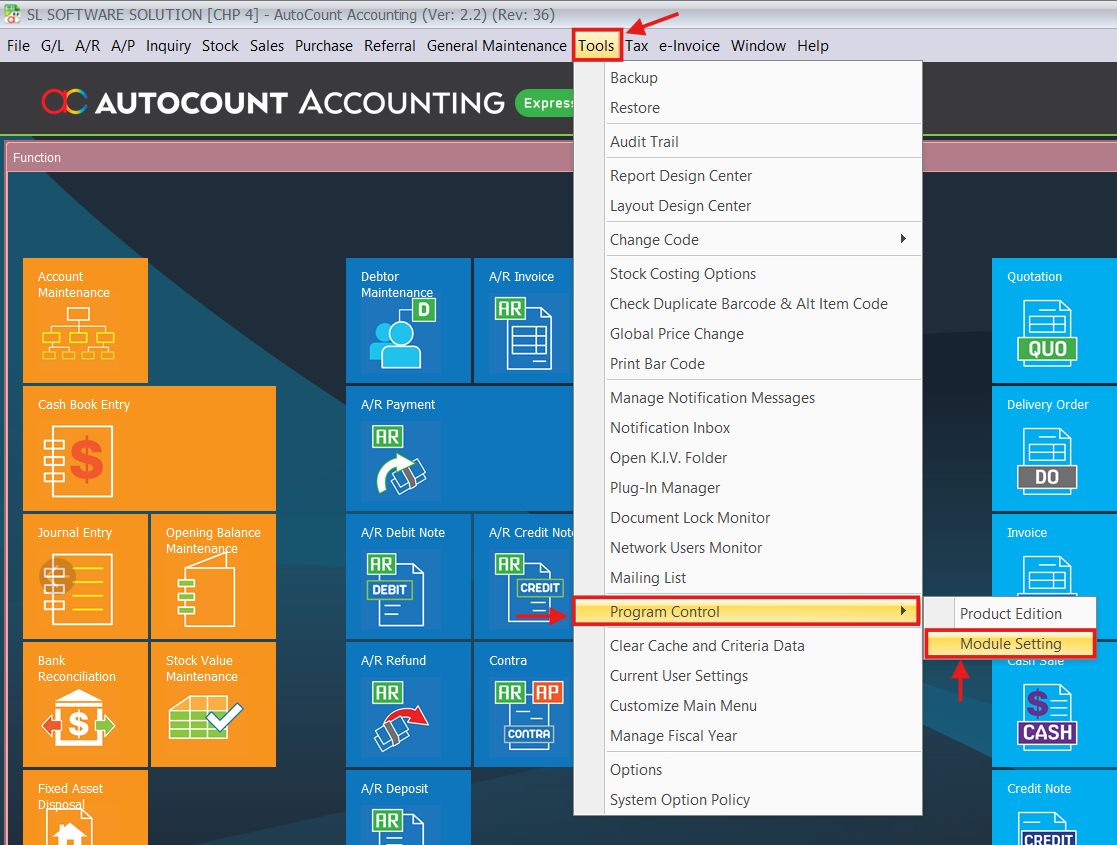
- Navigate to Tools > Program Control > Module Setting.
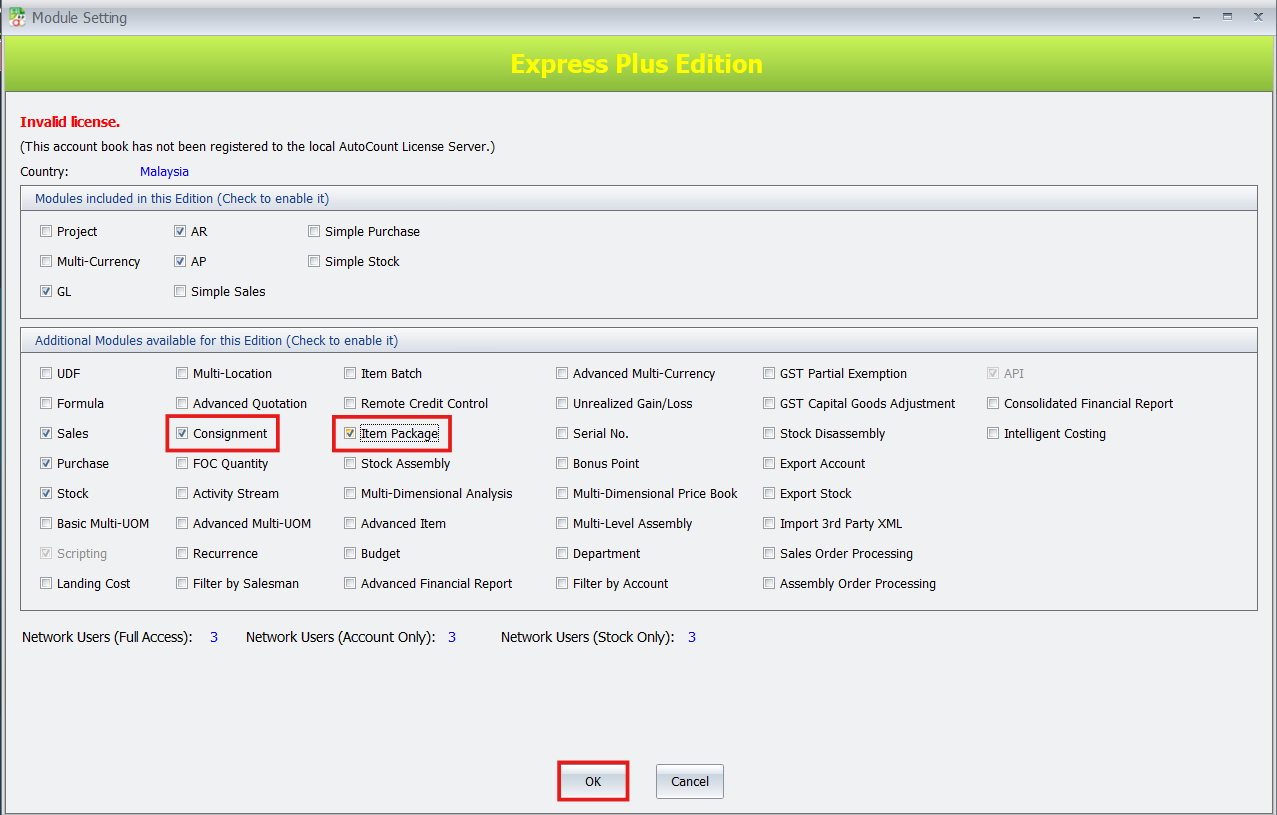
- In the list, find and check the boxes for Consignment and Item Package.
- Click OK to save your changes. This enables the functionality in your current account book.
- In the list, find and check the boxes for Consignment and Item Package.
- Click OK to save your changes. This enables the functionality in your current account book.
Step 2: Create Your First Item Package
Now, define your bundled product.
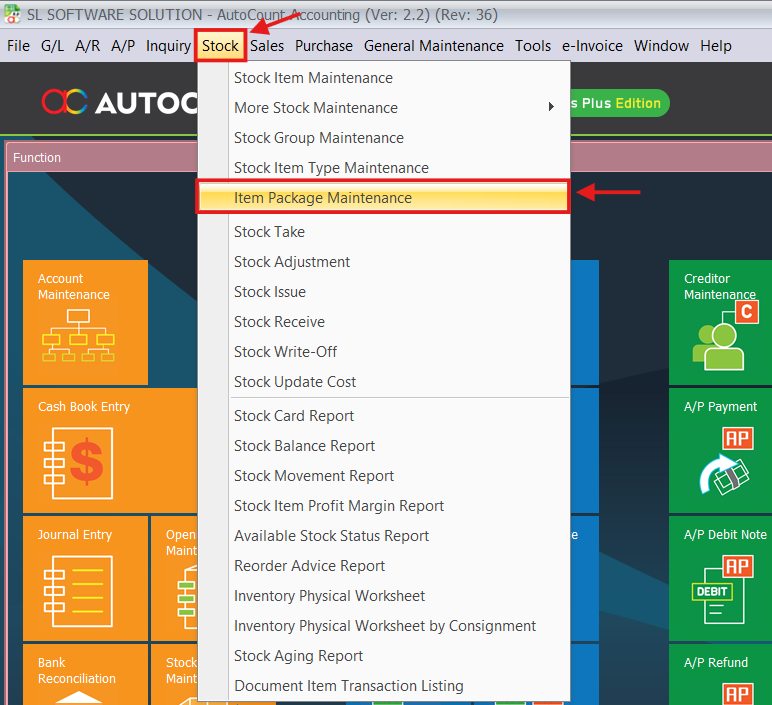
- Go to Stock > Item Package Maintenance.
- Click the New button to create a package.
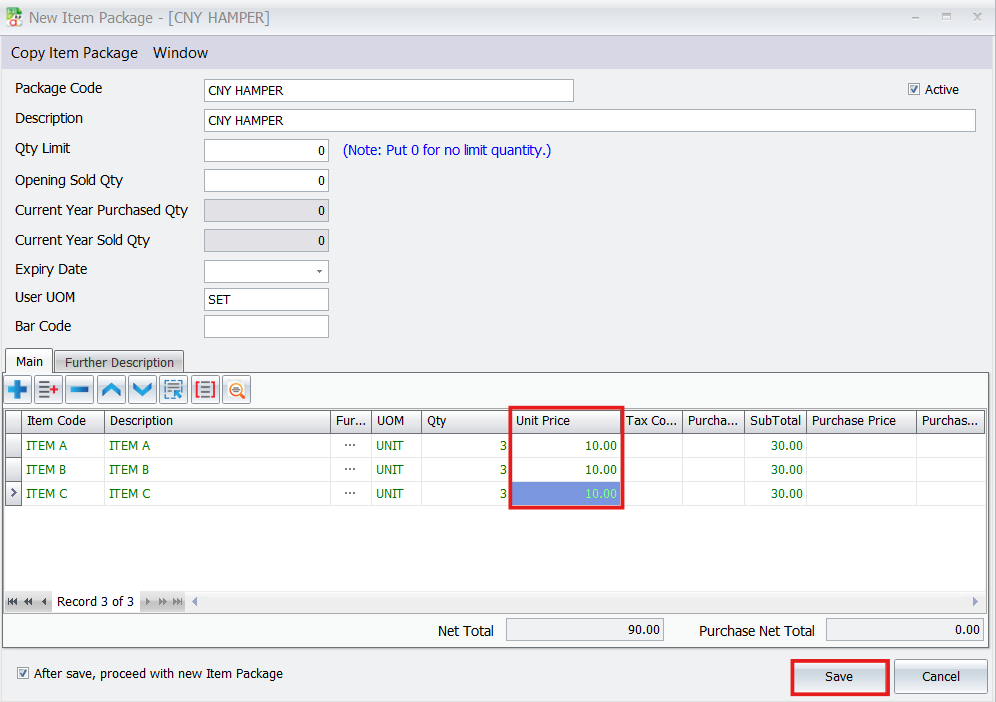
- Enter a unique Package Code and a description (e.g., “CNY Hamper”)
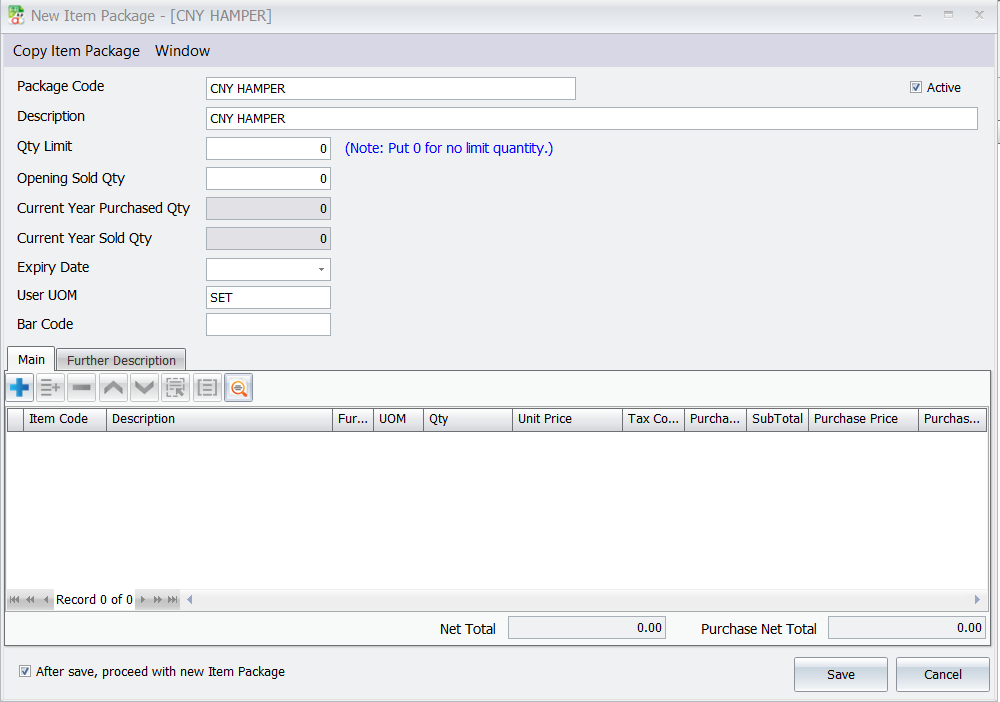
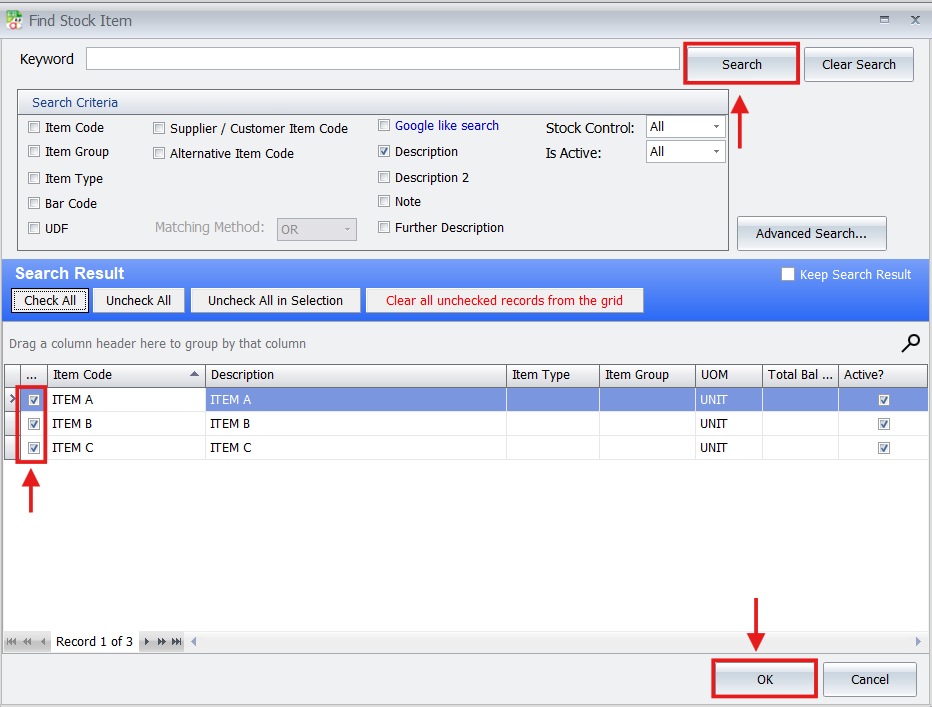
- Use the Item Search function to find and add the sub‑items that make up your bundle.
- For each sub‑item, specify the quantity included in the package.
- Input the Unit Prices. The system will total the package value for you.
- Save the package.
Step 3: Issue a Consignment Note
With your package created, you can now send it to a partner.
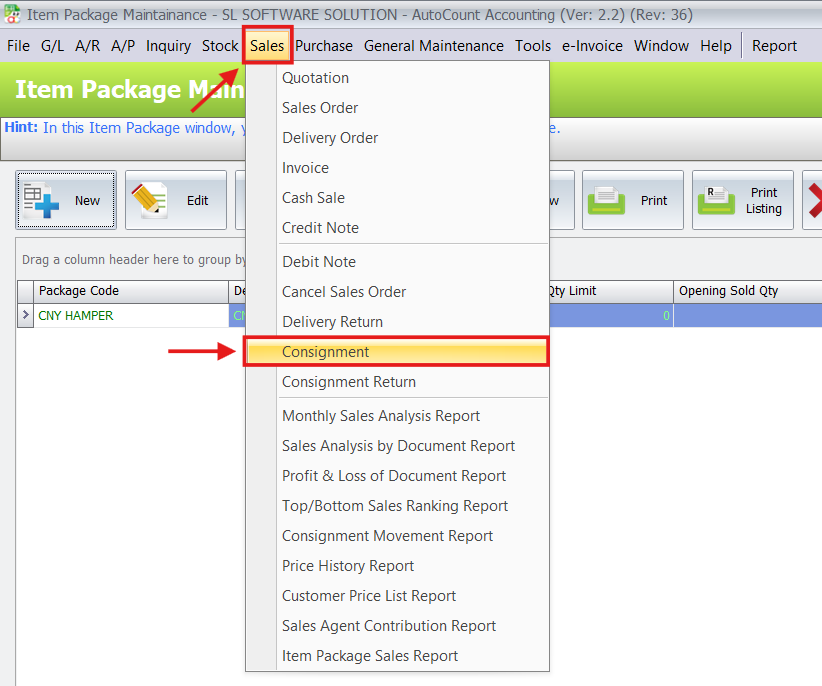
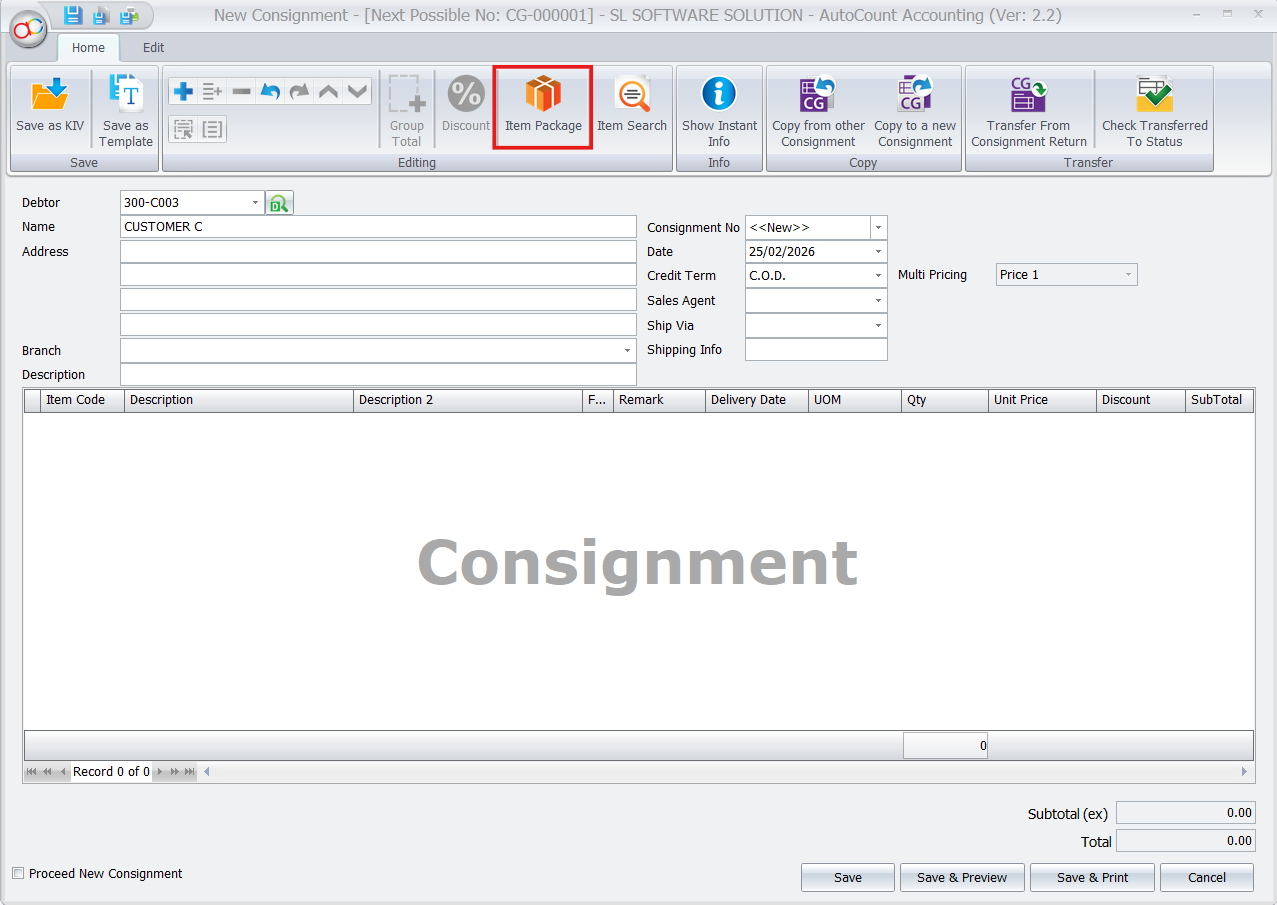
- Go to Sales > Consignment to open a new consignment note.
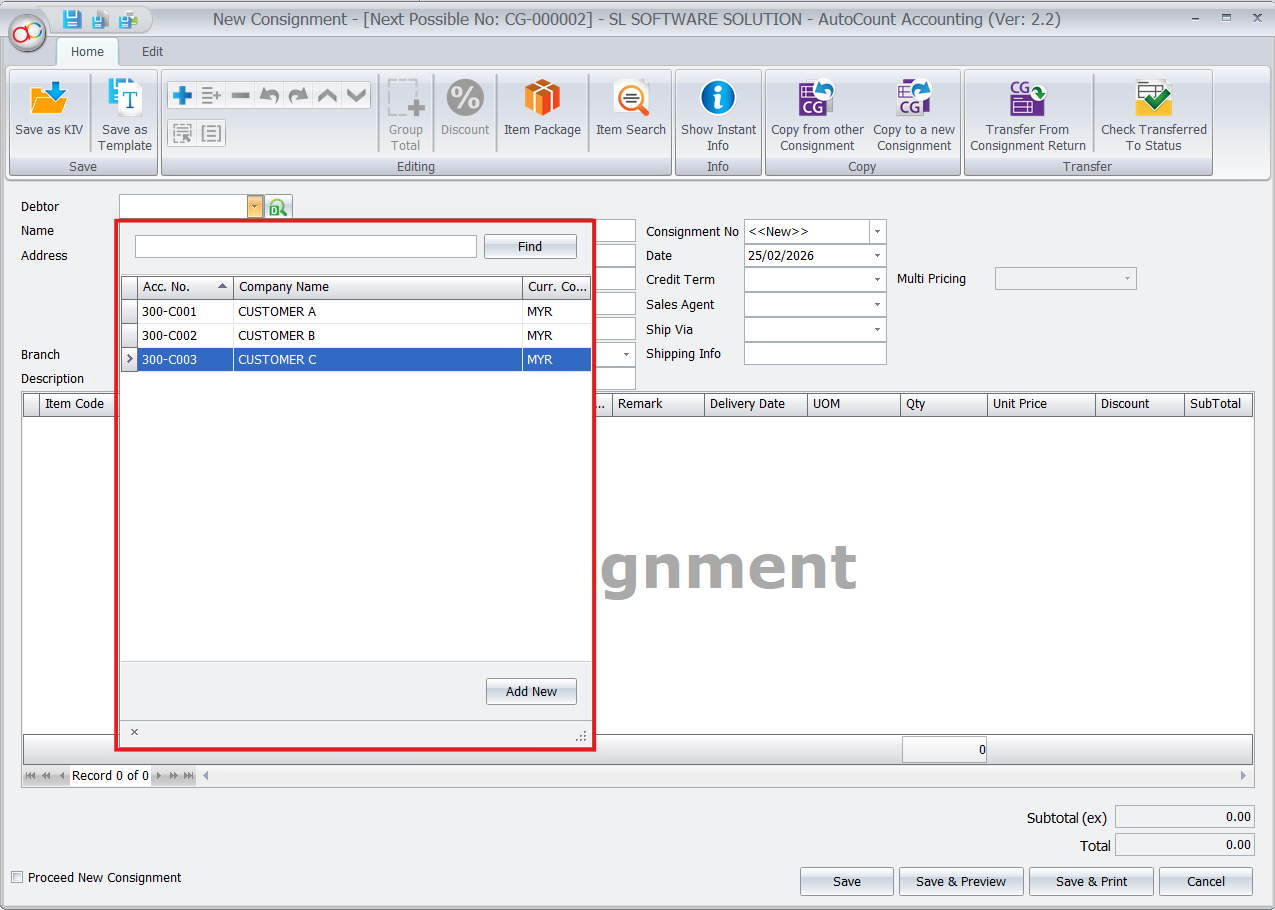
- Select the debtor from your list.
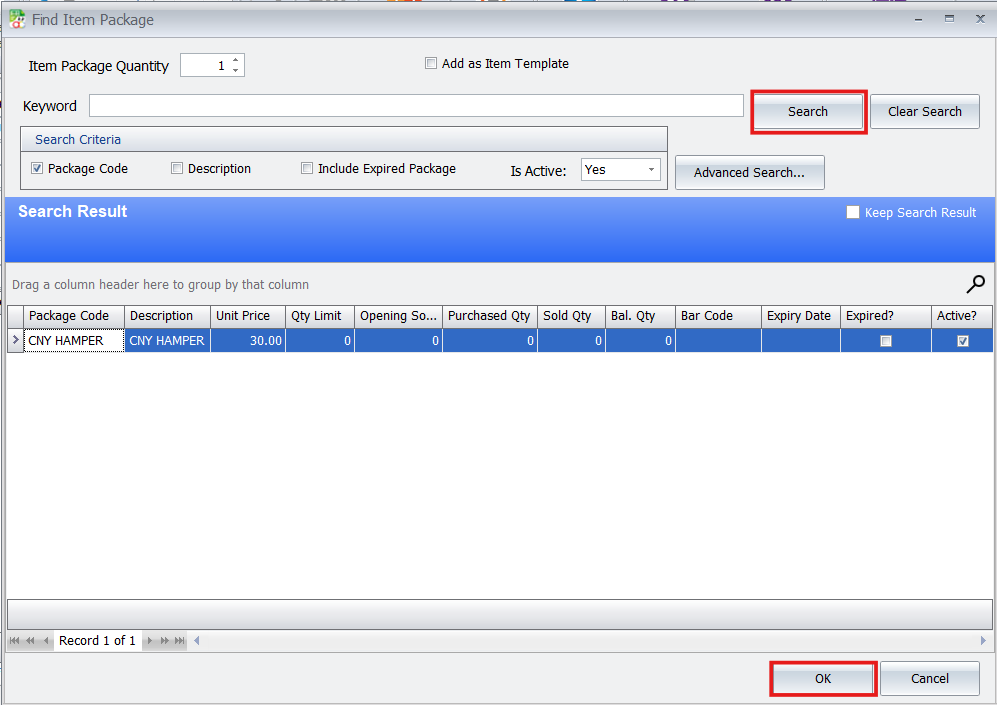
- Click the Item Package, search for and select the Package you just created.
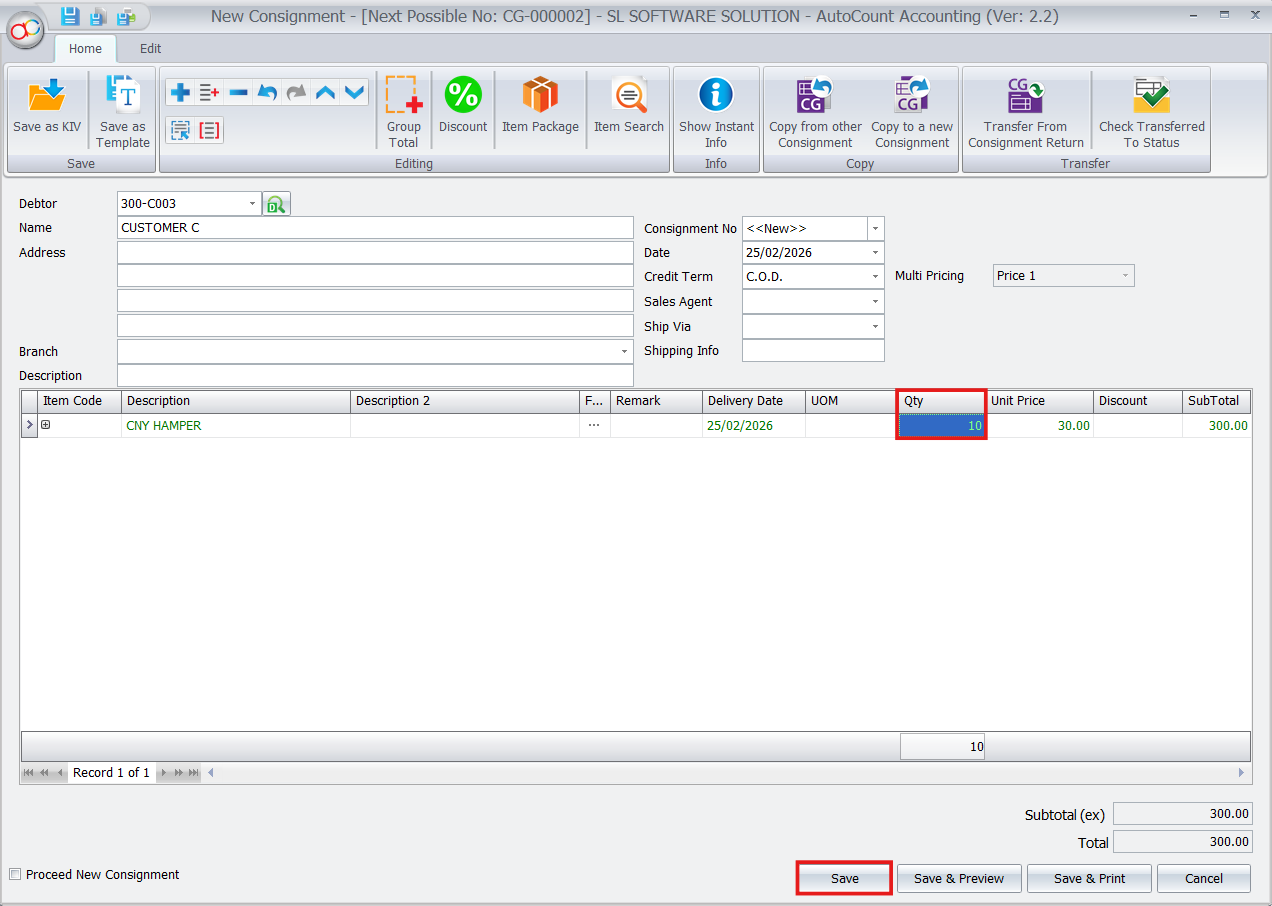
- Enter the Quantity Consigned (e.g., “10” for ten hampers).
- Review the details and save the consignment note. The stock of the sub‑items is now allocated to the consignee.
Step 4: Review Outstanding Stock
To track the performance of your consigned goods:
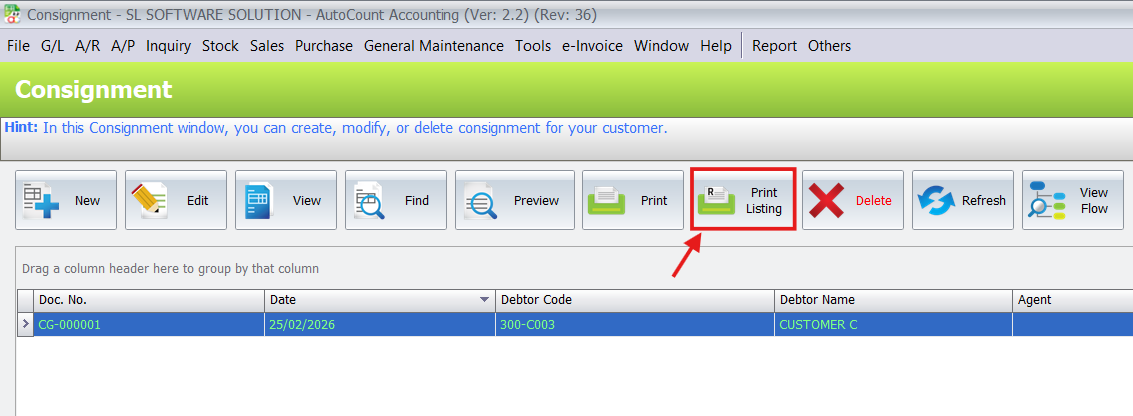
From the consignment menu, run the Outstanding Consignment Listing report.
Filter by consignee or date range as needed.
Review the report to see exactly how many packages and individual components remain.
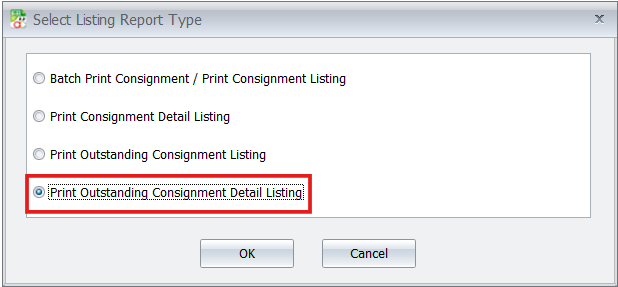
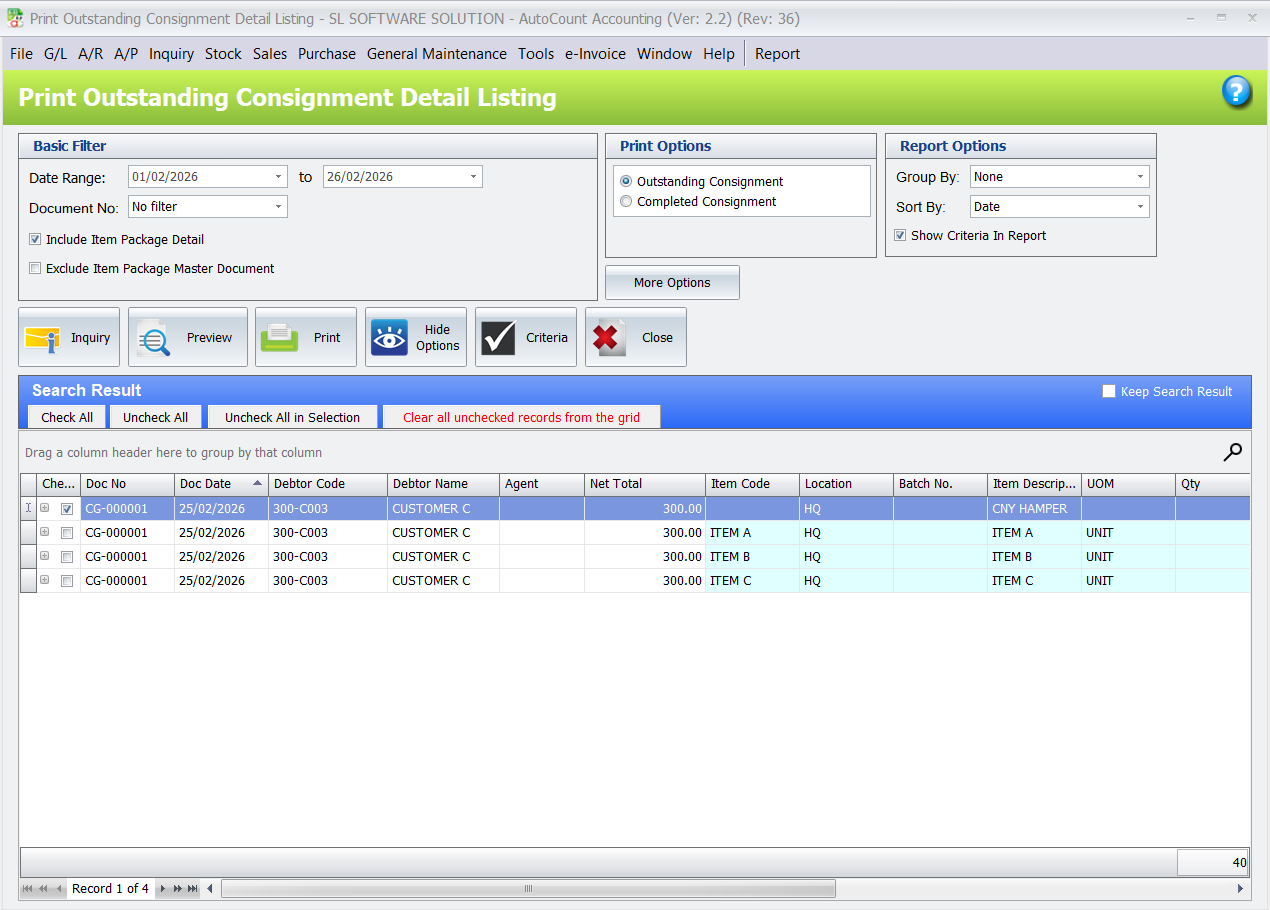
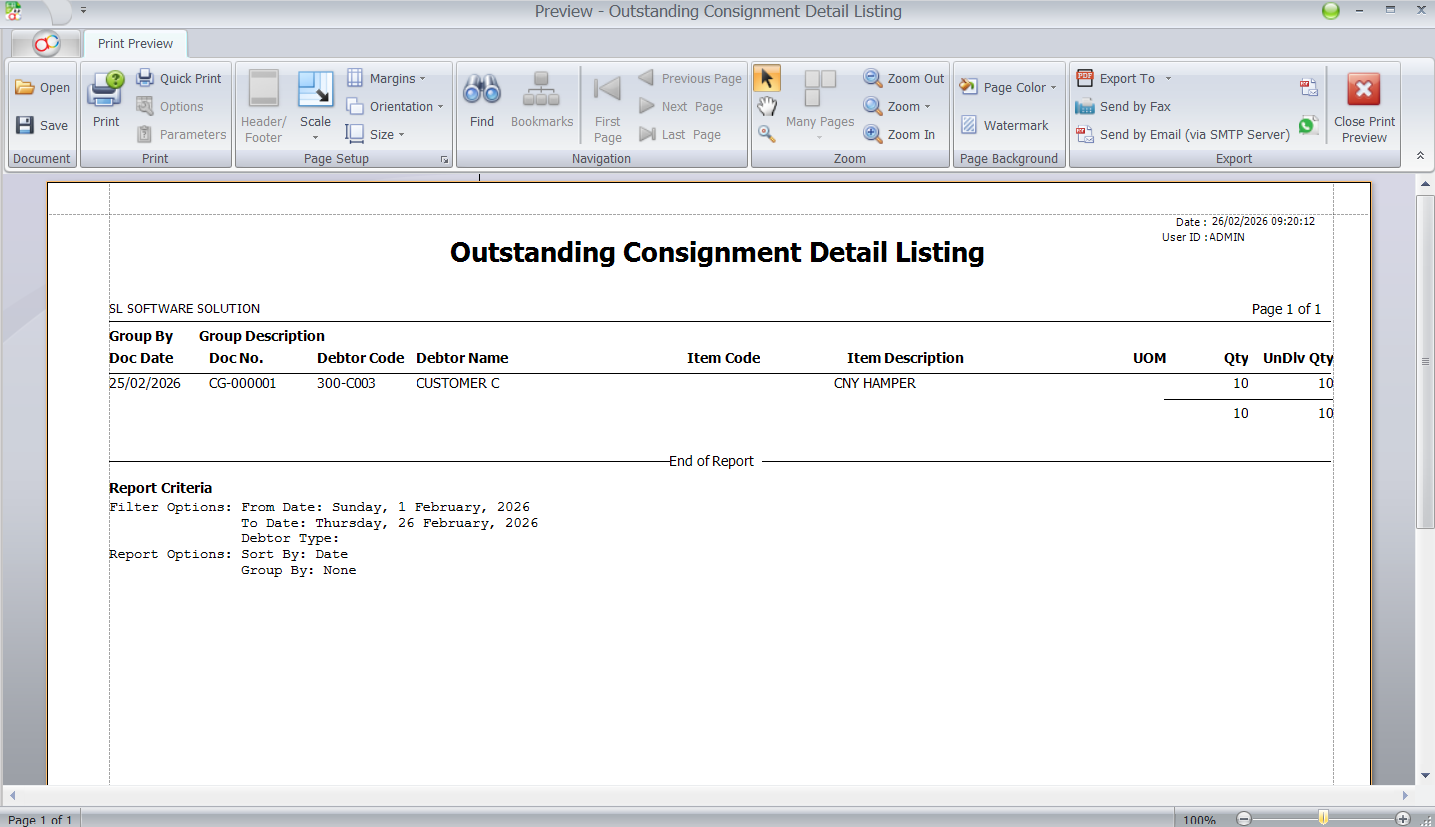
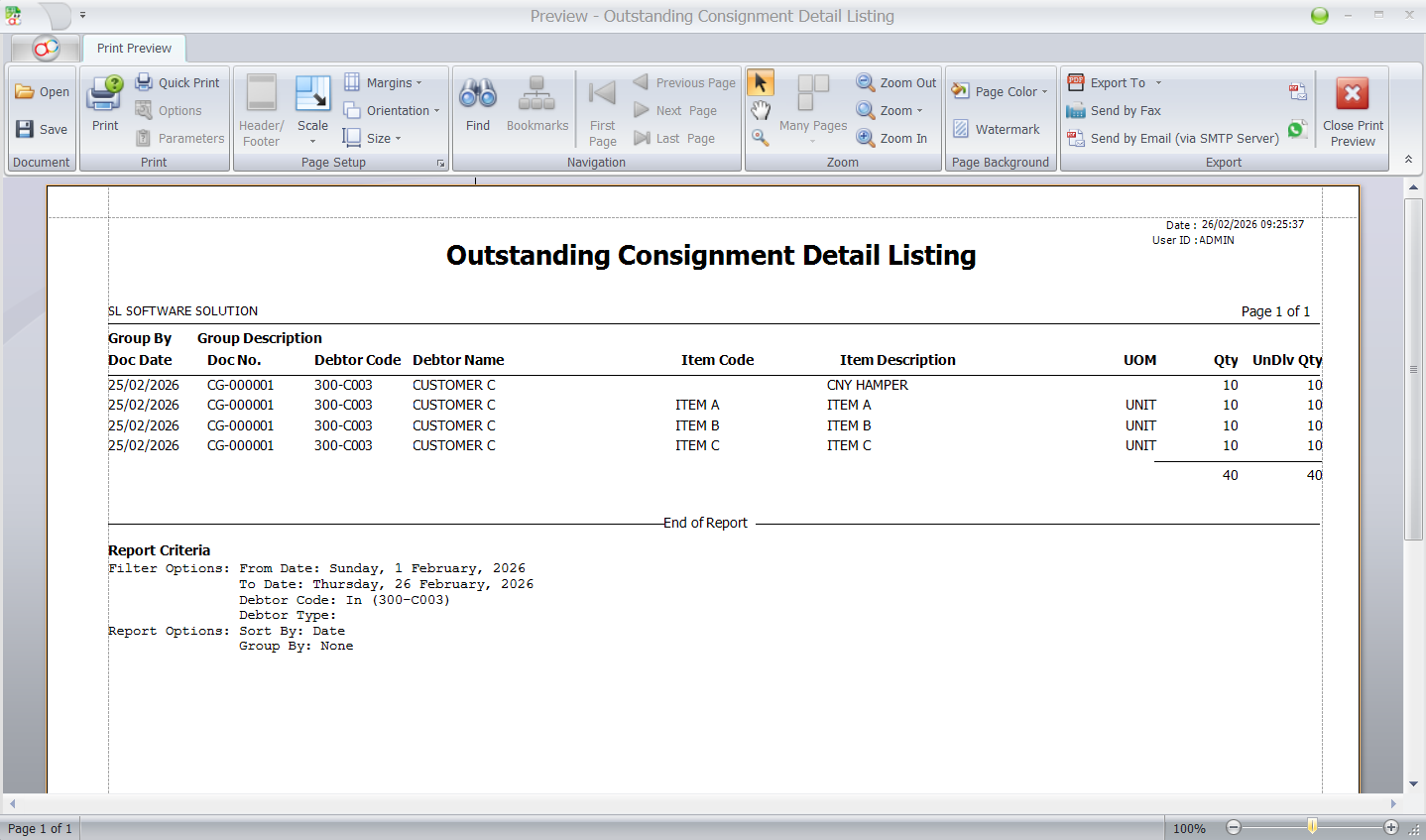
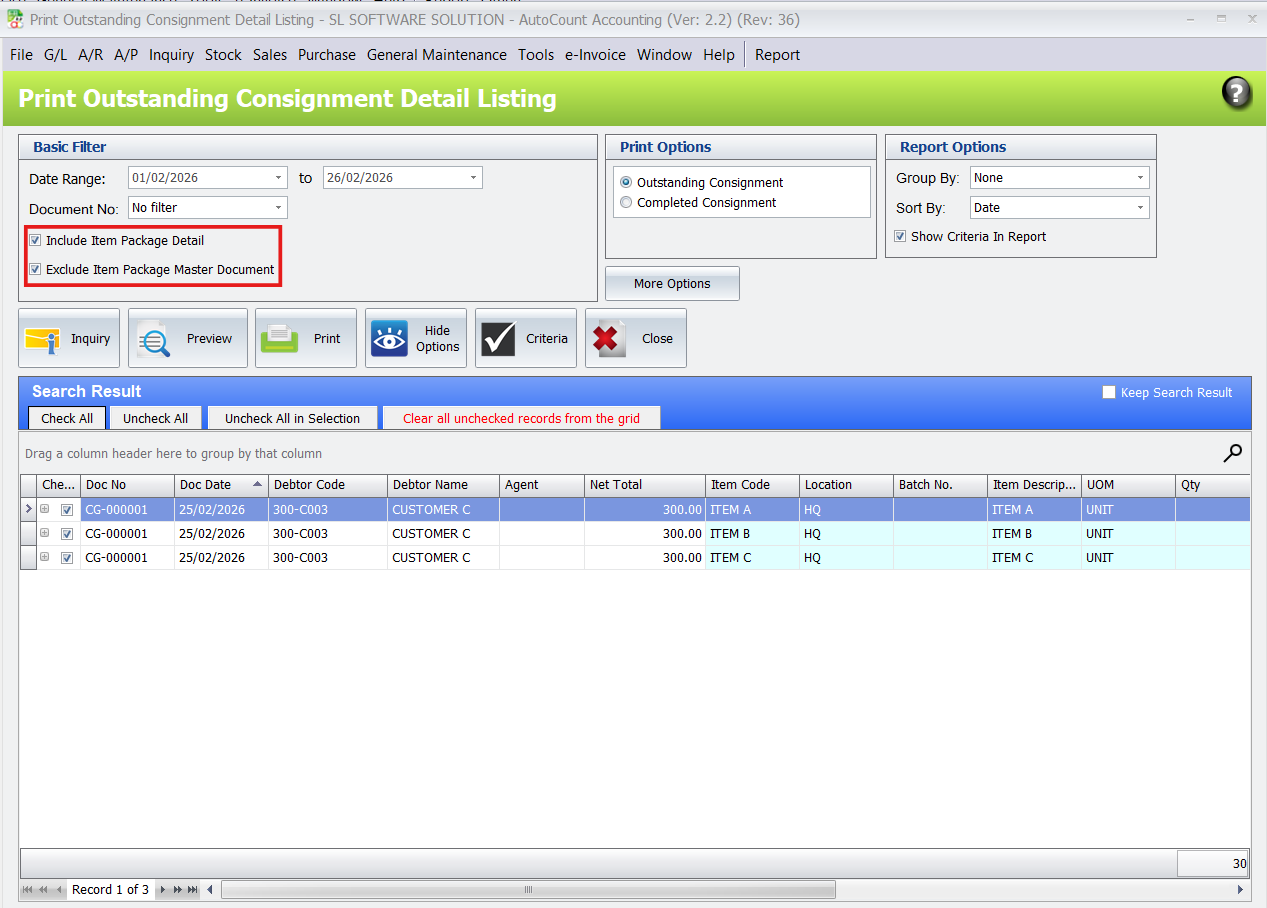
When viewing these outstanding reports, the way your Item Package details appear is flexible. You can configure the display to suit your preference:
Option A: Package Name + Sub-Items
The report will show the main package name (e.g., “Chinese New Year Hamper”) followed by a detailed list of its individual sub-items. This view is useful for understanding which bundles are still outstanding.
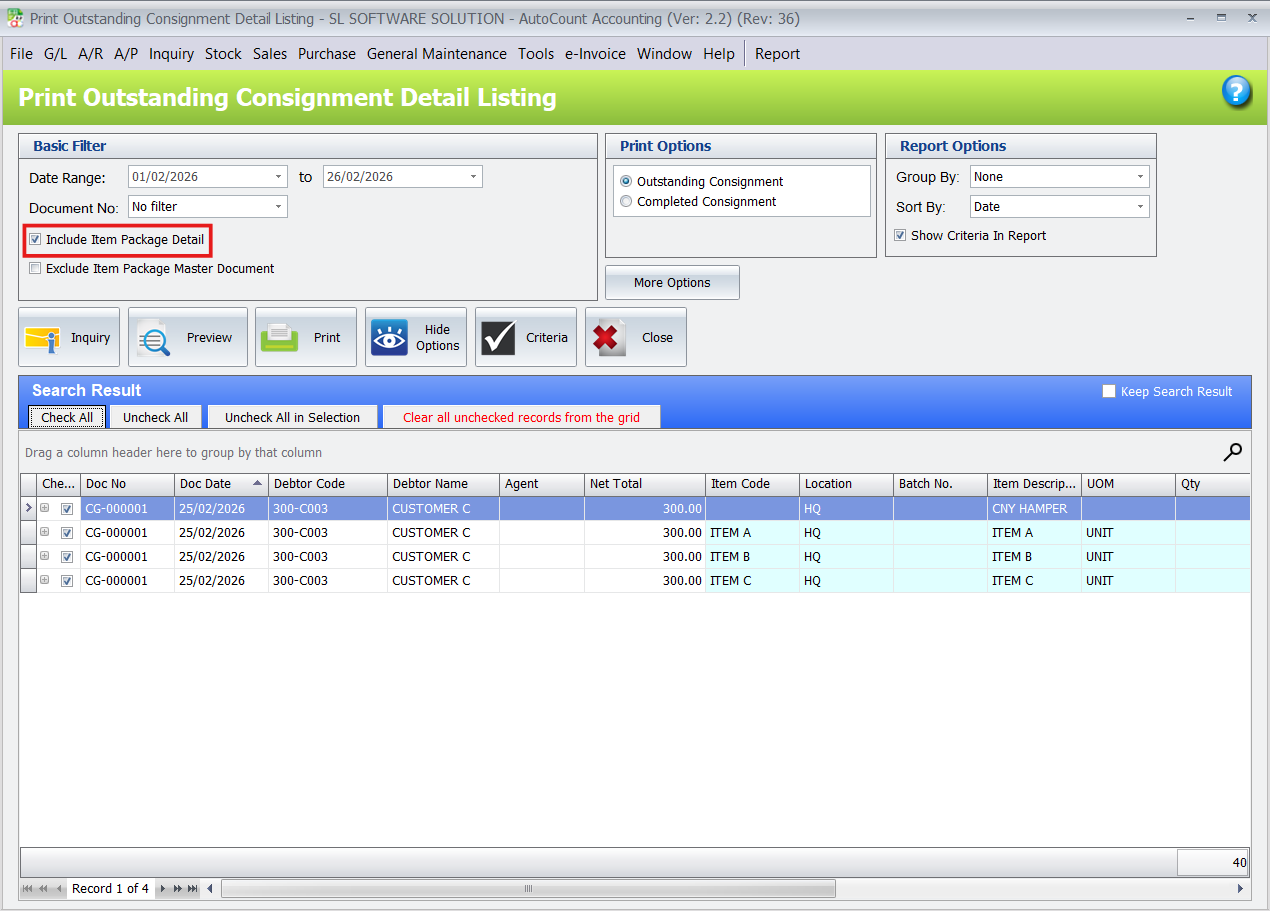
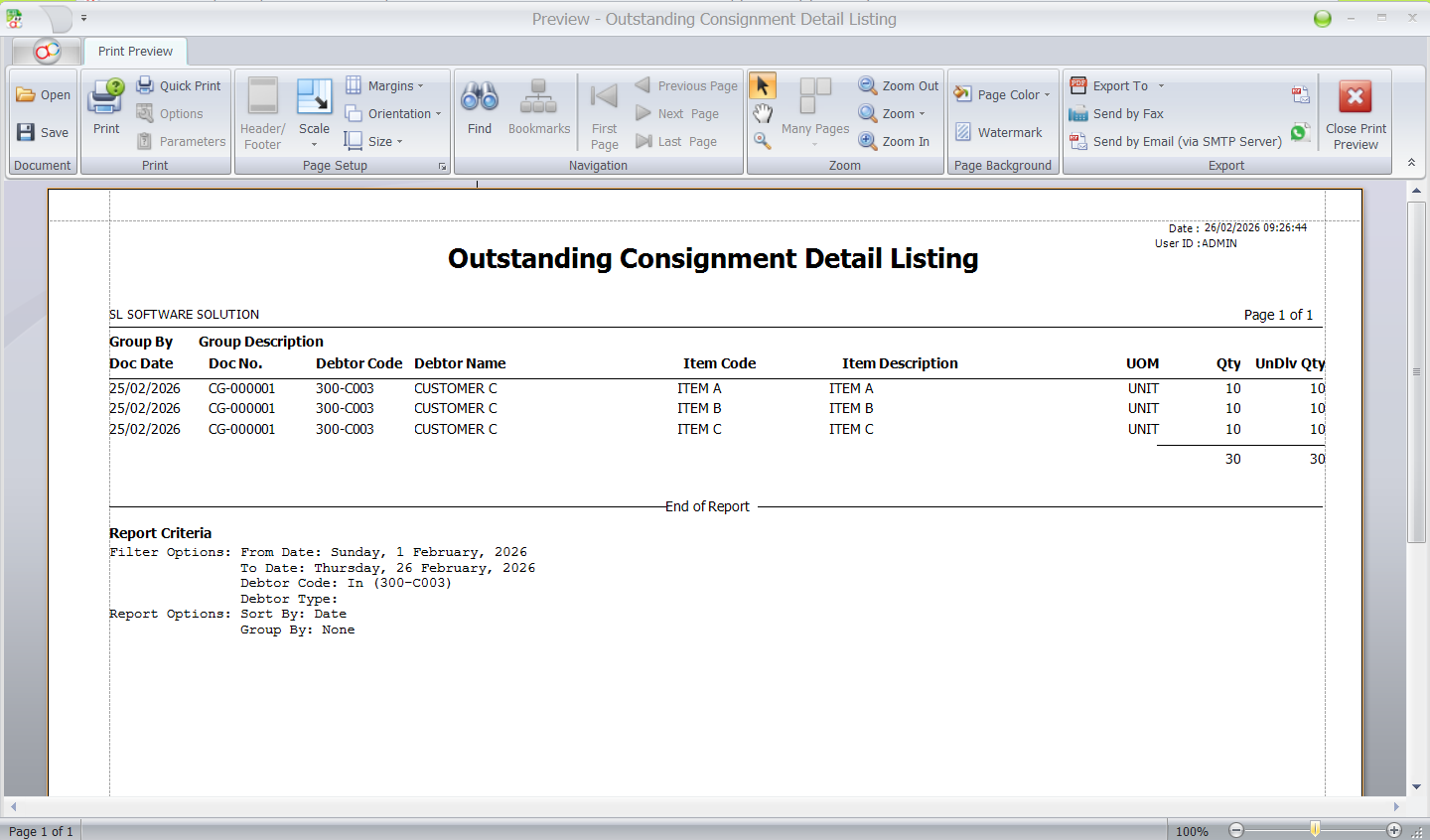
- Option B: Sub-Items Only
The report will list only the individual sub-items without showing the main package name. This provides a more granular, component-focused view of your outstanding stock.
You can easily test these different presentation settings in the system to see which format best supports your workflow.
A Crucial Note on Inventory Tracking
When managing stock through this integrated module, it is vital to remember that the system tracks inventory at the Sub-Item level only. Currently, AutoCount does not support tracking stock specifically by the "Item Package" code itself. This means if you need to check the balance of fully assembled hampers that are currently with a consignee, you should not look at a general stock report. Instead, you must refer to the Outstanding Consignment Listing report for that specific consignee to see how many complete packages are still outstanding.
Business Benefits: Why Use This Module?
Adopting the Consignment + Item Package Module transforms how you handle complex inventory scenarios.
Enhanced Inventory Accuracy
Eliminate guesswork. Gain clear visibility into the stock levels of individual components, even when they are temporarily bundled and sent out for consignment.
Streamlined Operations
Move away from manual spreadsheets. Automate the tracking of consignment sales, returns, and outstanding balances, saving time and reducing errors.
Seasonal Agility
Perfect for businesses with fluctuating inventory needs. Manage festive promotions, seasonal kits, and limited-time offers with ease, knowing you can efficiently handle unsold returns and restocking
Data-Driven Decisions
Use actionable reports to analyze which bundles are performing well. The outstanding consignment data helps you forecast demand and manage stock replenishment effectively.
Conclusion
The AutoCount Consignment + Item Package Module is an essential tool for any business dealing with bundled products and consignment partners. It automates complex tracking, provides deep inventory insights, and gives you the confidence to manage seasonal peaks without administrative chaos. By integrating these modules, you move from manual, error-prone processes to a streamlined, accurate, and efficient workflow.
Frequently Asked Questions
Does the system track the inventory of the package itself?
No. Inventory is tracked strictly at the sub‑item level. The package is a framework for sales and consignment, but the actual stock movement affects the individual components.
Can my reports show both the package and its contents?
Yes, you have control over the display. You can configure reports to show the package name with its sub-items listed underneath, or you can opt to show only the sub‑items for a more detailed breakdown.
How can I tell what has been sold by my consignee versus what is still with them?
The Outstanding Consignment Listing is the tool for this. It compares quantities sent via consignment notes against sales reports to provide a clear picture of sold and unsold stock.
Is the inventory updated in real-time?
Yes. Any transaction involving a consignment package—whether it’s a sale, a return, or a stock adjustment—immediately updates the stock balances of the associated sub‑items.
Interested in Getting AutoCount for your Business?
Contact our sales team today to explore pricing options and get started with the perfect solution for you.