
-
AutoCount Accounting Features
-
- Approval Workflow
- Audit Trail
- Auto Save in Draft Folder
- AutoCount Contra Account
- AutoCount License Setting Guide
- Deposit Tracking & Management
- Documents Numbering Format
- Full Transfer and Partial Transfer
- Import Data to AutoCount Accounting Using Excel
- Informative Charts and Analytical Data
- Layout Customization
- Multi Pricing
- Sales and Services Tax
- Schedule Backup
- Search Lookup Edit
- View Documents Flow
- AutoCount Feature Stock Take
- Column Chooser
- Show Remaining (3) Collapse
-
AutoCount Cloud Accounting
-
AutoCount E-Invoice
-
AutoCount HRMS User Guide
-
AutoCount Modules
-
- Activity Stream
- Advanced Financial Report
- Advanced Item
- Advanced Multi-UOM
- Advanced Quotation Module
- Basic Multi-UOM
- Budget Module
- Consignment
- Filter By Salesman
- FOC Quantity
- Formula
- Item Batch
- Item Package
- Landing Cost
- Multi-Currency
- Multi-Dimensional Analysis
- Multi-Location
- Project Account
- Recurrence
- Remote Credit Control Module
- Stock Assembly
- User Defined Fields (UDF)
- AutoCount SST Hidden Functions
- AutoCount SST Submission - Service Tax
- AutoCount Scripting Module User Guide
- AutoCount Bonus Point Module User Guide
- Show Remaining (11) Collapse
-
AutoCount Plugins
-
- Fixed Assets Management
- Goldsmith
- TD Ordering Mobile Apps
- TD Stock Mobile Apps
- Universal Import Plugin
- DMS Import Plugin
- AutoCount Item Scope Plugin
- AutoCount Easy Knock Off Plugin
- AutoCount Pick List Plugin User Guide
- AutoCount Agent Validation Plugin User Guide
- AutoCount Barcode Generator Plugin User Guide
- AutoCount Bill Remark Plugin User Guide
- AutoCount Easy Batch Number Entry Plugin User Guide
- AutoCount Recurring Invoice Plugin User Guide
- AutoCount Easy Photo 2.0 User Guide
- AutoCount Pain Tracker User Guide
- AutoCount Credit Memo Plugin User Guide
- Show Remaining (2) Collapse
-
- AutoCount Easy Recurrence Plugin
- AutoCount Recurring Billing Plugin
- Event Management System
- AutoCount To-Do List Plugin
- AutoCount AutoBank Reconciliation Plugin
- Intercompany Billing Plugin User Guide
- AutoCount Basket Plugin User Guide
- Lead Management 2.0 Plugin
- AutoCount Service Contract Plugin User Guide
- Autocount Repacking Plugin
- AutoCount Scale Barcode Plugin User Guide
- AutoCount Progressive Billing
- AutoCount Optical Plugin
- AutoCount Meter Reading Plugin User Guide
- AutoCount Car Tint Film Plugin
- AutoCount Leasing Plugin User Guide
- AutoCount Integrator Plugin
- AutoCount Procurement Planning Plugin
- Show Remaining (3) Collapse
-
-
Form Template
-
Report Template
-
- Advance Quotation
- Cash Sale
- Consignment
- Consignment Movement
- Credit Note
- Debit Note
- Delivery Order
- FOC Quantity Analysis By Document Report
- Invoice
- Item Package Sales Report
- Monthly Sales Analysis
- Outstanding Sales Order Listing
- Profit And Loss Of Documents
- Quotation
- Sales Agent Contribution Report
- Sales Order
- Top/Bottom Sales Ranking
- Show Remaining (2) Collapse
-
- Available Stock Status Report
- Expired Item Batch Listing
- Inventory Physical Worksheet
- Stock Adjustment
- Stock Aging Report
- Stock Assembly
- Stock Assembly Order
- Stock Balance By Location
- Stock Balance Report
- Stock Card Report
- Stock Disassembly
- Stock Issue
- Stock Item Profit Margin
- Stock Movement Report
- Stock Receive
- Stock Take
- Stock Transfer
- Stock Write Off
- Show Remaining (3) Collapse
AutoCount Module: Item Package and Serial Number Module
Introduction
The Item Package with Serial Number in AutoCount integration combines two key modules—Item Packages and Serial Number tracking—to help businesses that sell kits or sets. It ensures you can enjoy the efficiency of bundle sales without losing traceability on your high-value, serialized parts. This integrated approach delivers accurate inventory tracking, a smoother sales process, and complete visibility from purchase to sale, all within a single workflow.
AutoCount Item Package and Serial Number Module Video Guide
- AutoCount Item Package and Serial Number (EN)
Item Package and Serial Number Setup
Integration & Item Package and Serial Number Setup
- AutoCount Item Package and Serial Number (CN)
寄售和序列号设置
集成、寄售和序列号设置
What is the Package and Serial Number Module in AutoCount?
The Item Package with Serial Number module is a feature combo in AutoCount designed for businesses that sell product bundles containing both serialized and non-serialized items. It allows you to:
Create Product Bundles
Define packages (e.g., a "Gaming PC Set") that group multiple individual stock items under one code for easy selling.
Control Serialized Components
Automatically manage serial numbers for items within a package that require it, such as CPUs, monitors, or other electronics.
Streamline Sales and Inventory
Sell the entire package with one entry, and the system intelligently prompts for serial number selection only for the relevant components
Enhance Traceability
Easily search and generate reports on serial numbers to see which package and customer they were sold to
Key Features of the Integrated Module
This module provides a robust set of tools to take control of your most valuable inventory.
Intelligent Package Bundling
Create packages with any mix of items. You can bundle a serial-number-controlled laptop with a non-controlled mouse and bag. The system understands the difference and handles each item type correctly.
Automated Serial Number Prompting
When you add a package to a sales invoice, AutoCount automatically detects any serial-controlled sub-items. It then prompts you to select or input the specific serial numbers for those components, ensuring accuracy at the point of sale.
Real-Time Inventory Management
Selling a package doesn't just reduce the package quantity; it updates the stock levels of each individual component in real-time. Serial numbers are also instantly reserved and assigned to the sale, maintaining precise inventory control.
Comprehensive Serial Tracking
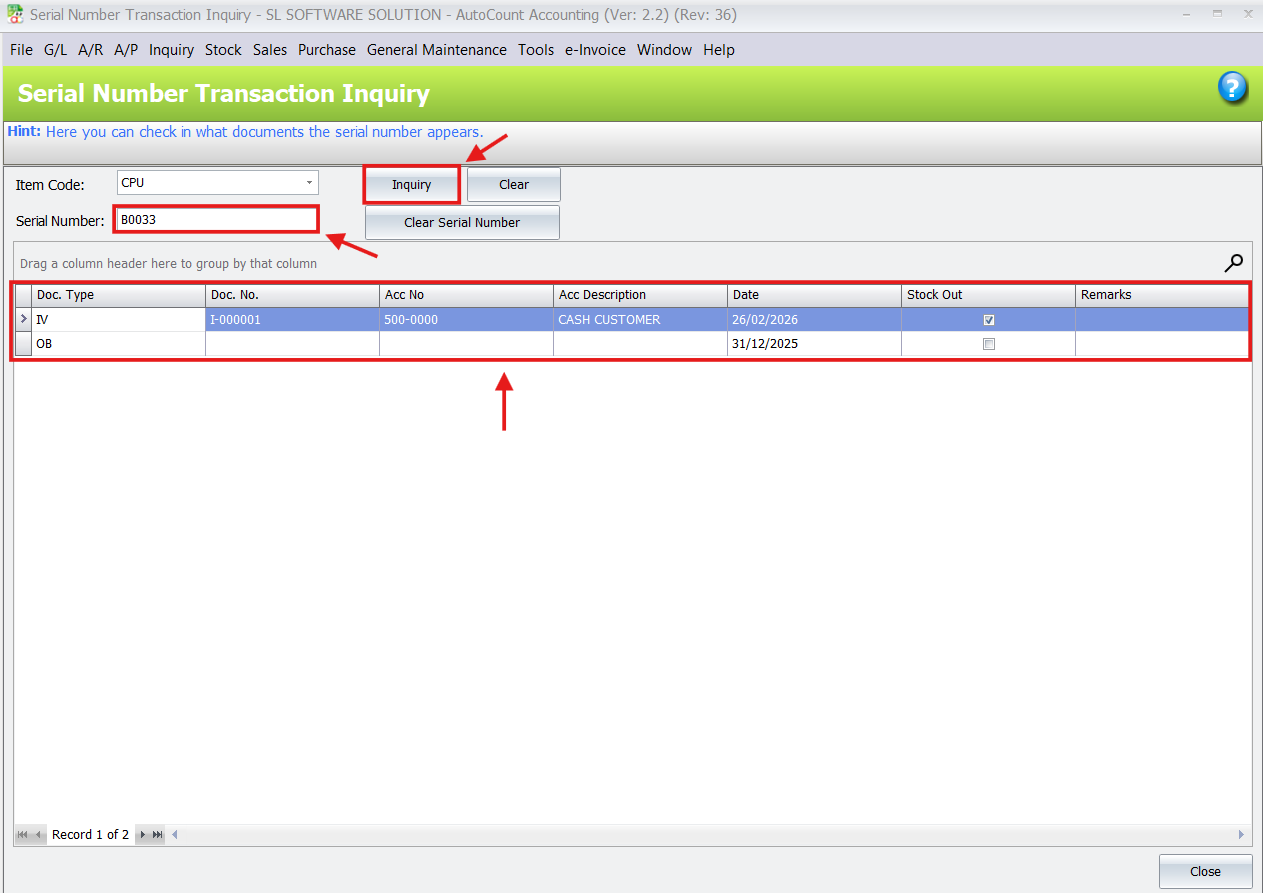
Go beyond just knowing a serial number was sold. Use the Serial Number Transaction Inquiry tool to search for a specific serial and instantly see its entire history, including the package it was part of, the invoice date, and the customer.
Detailed Reporting
Access reports that provide insights into both package performance and individual item movement. You can trace exactly which serial numbers were tied to which package transactions, aiding in warranty claims and customer service.
How to Set Up and Use the Consignment and Serial Number Module
1. Enable Serial Number Control on Individual Items
First, you must designate which components require serial tracking.
- Navigate to Stock > Stock Item Maintenance.
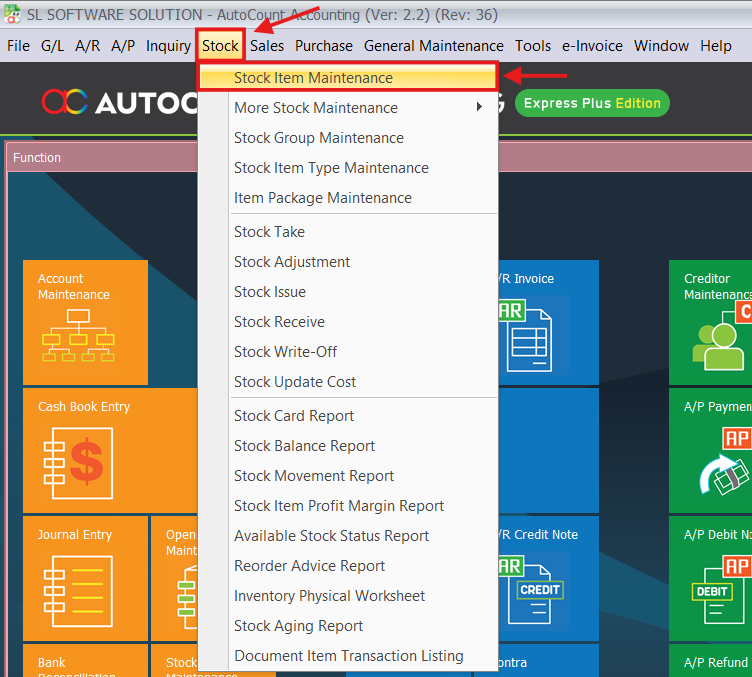
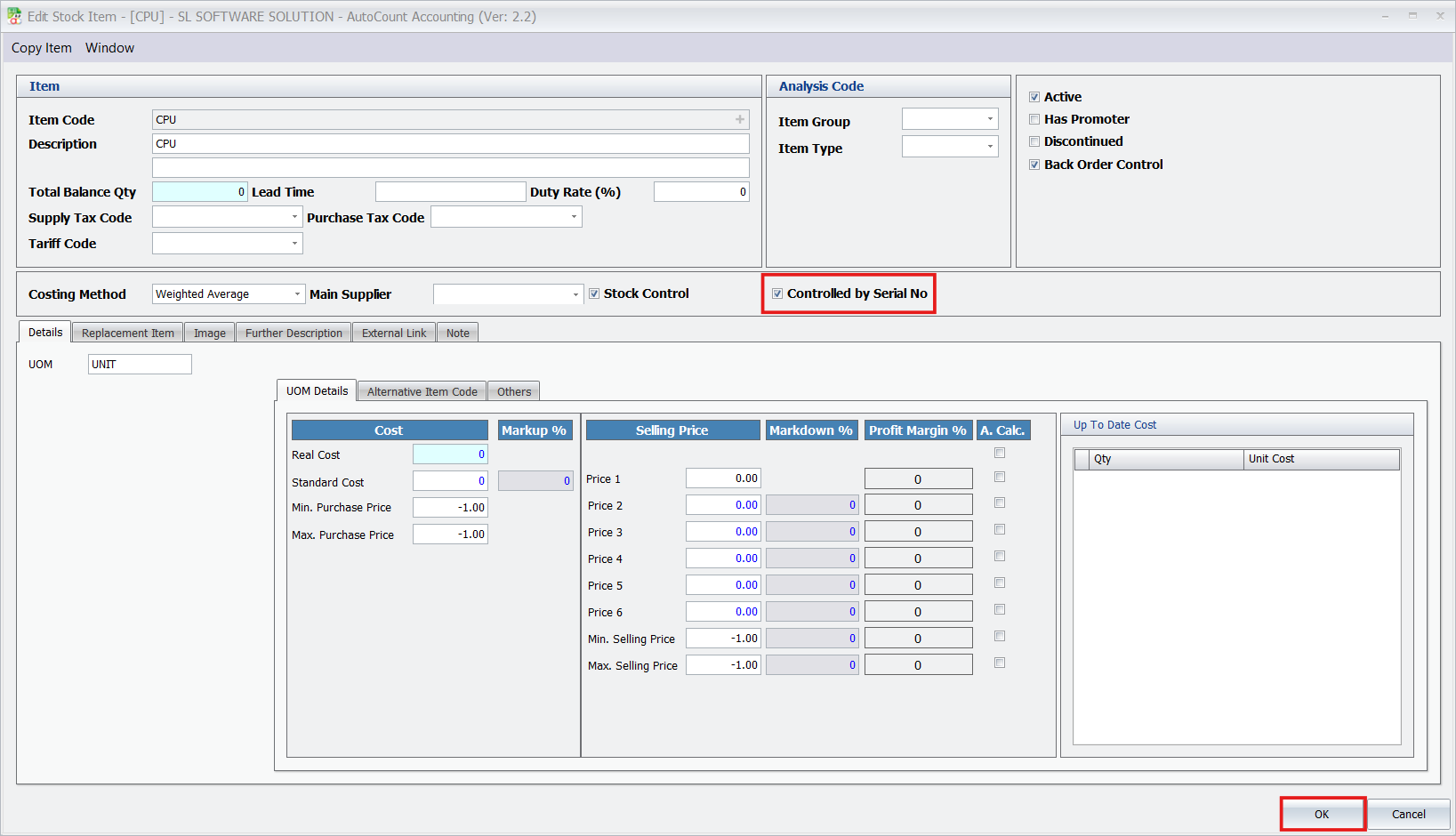
- Open the item record for a component you want to track (e.g., CPU).
- Check the box labeled Controlled by Serial No. and save the item. Repeat this for all serialized components.
2. Create Your Item Package
Now, bundle your items together.
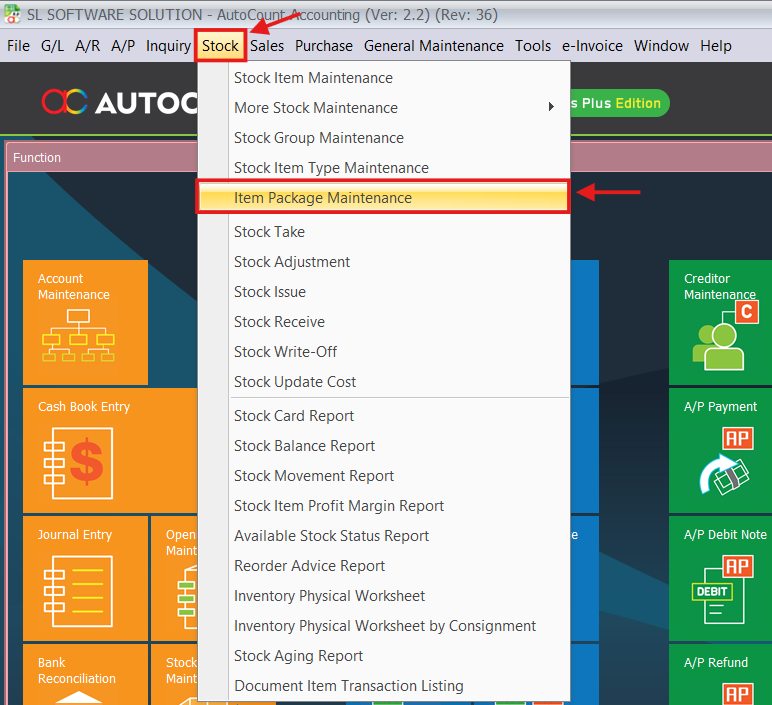
- Go to Stock > Item Package Maintenance.
- Click New to create a package.
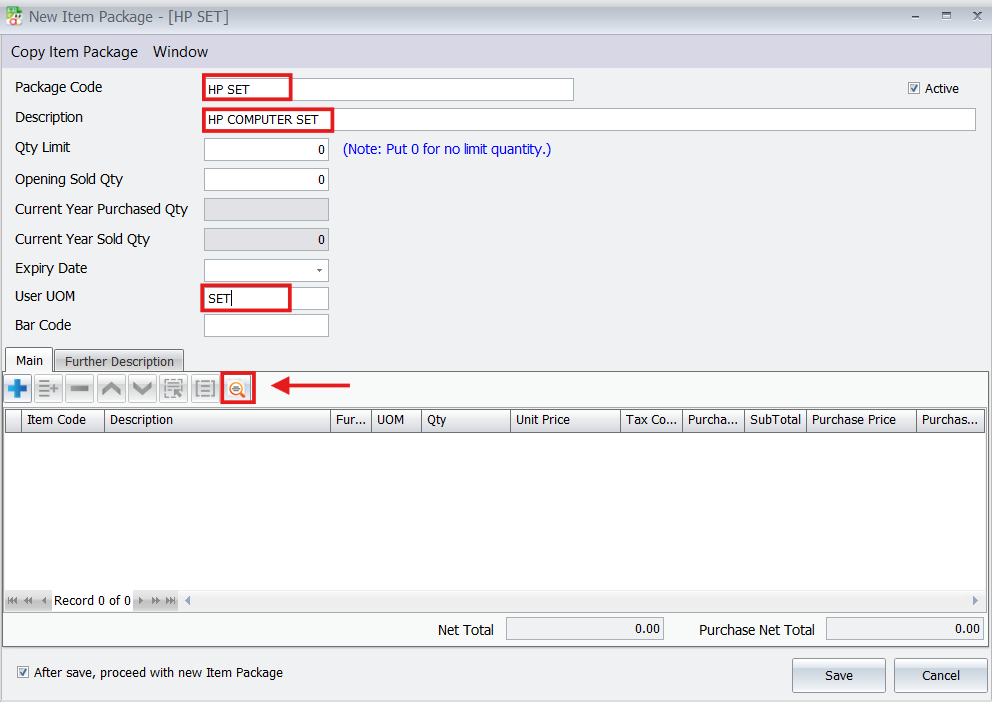
- Enter a Package Code (e.g., “HP SET”) and a Description.
- Add the component items to the package, including both serial-controlled and non-controlled items.
- Define the Unit Price for each sub-item if necessary for costing.
- Save the new package.
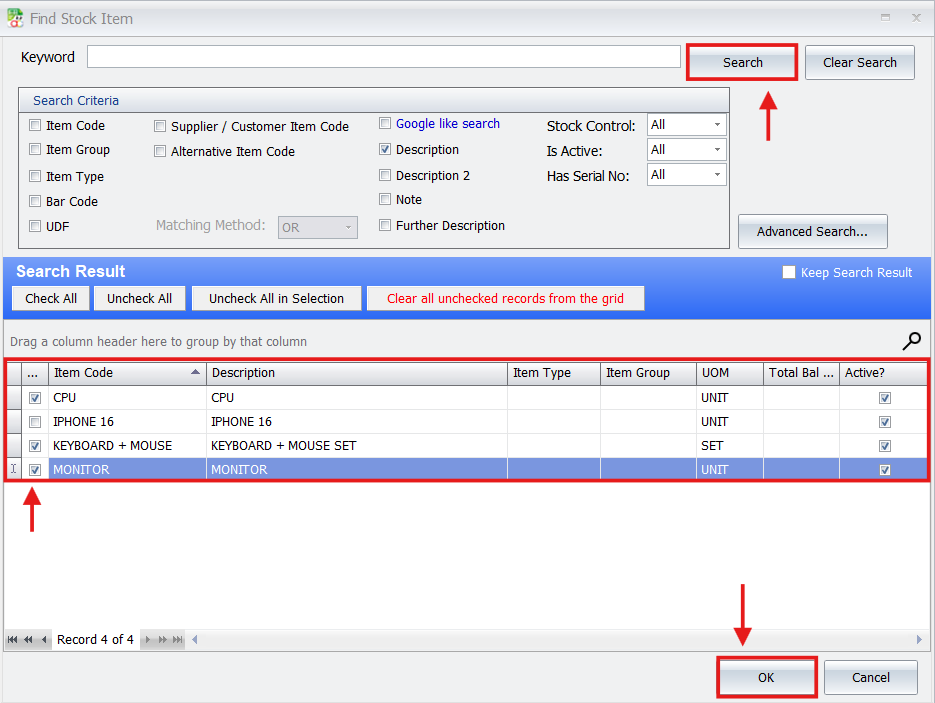
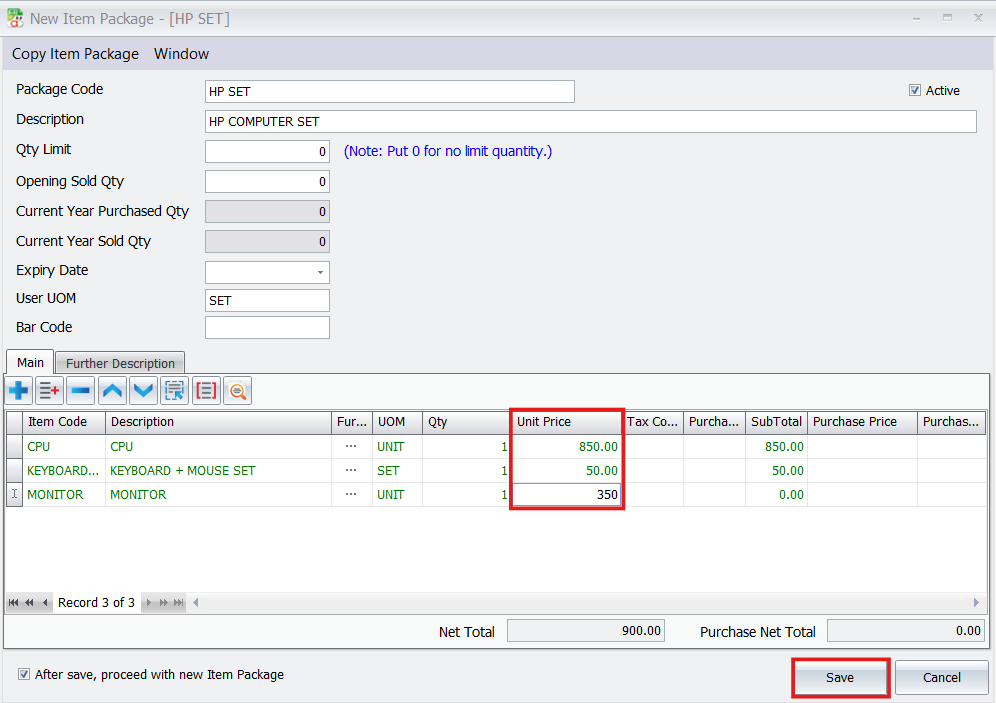
3. Process a Sales Invoice with the Package
This is where the integration becomes visible.
- Go to Sales > Invoice and create a new document.
- Add your newly created Item Package code to the invoice.
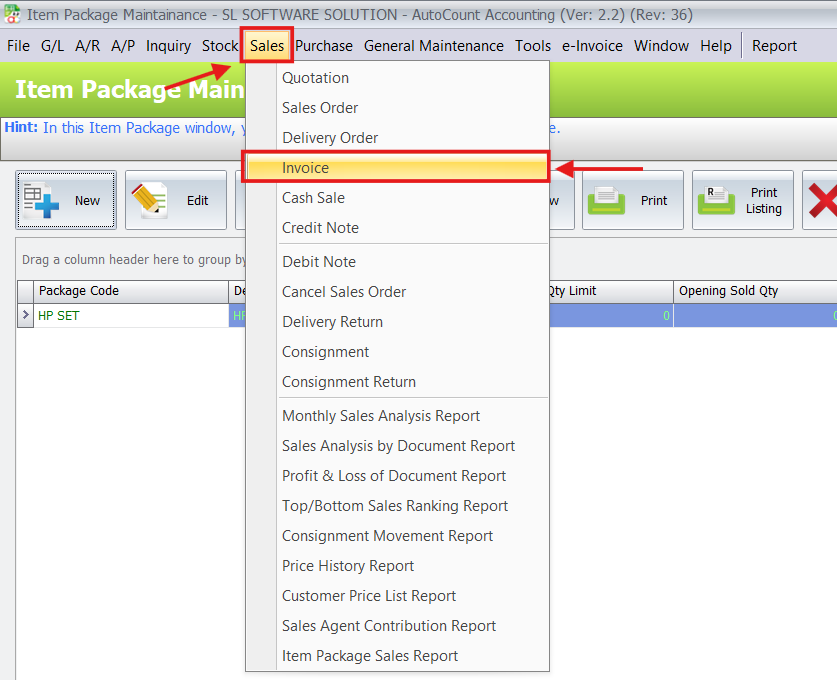
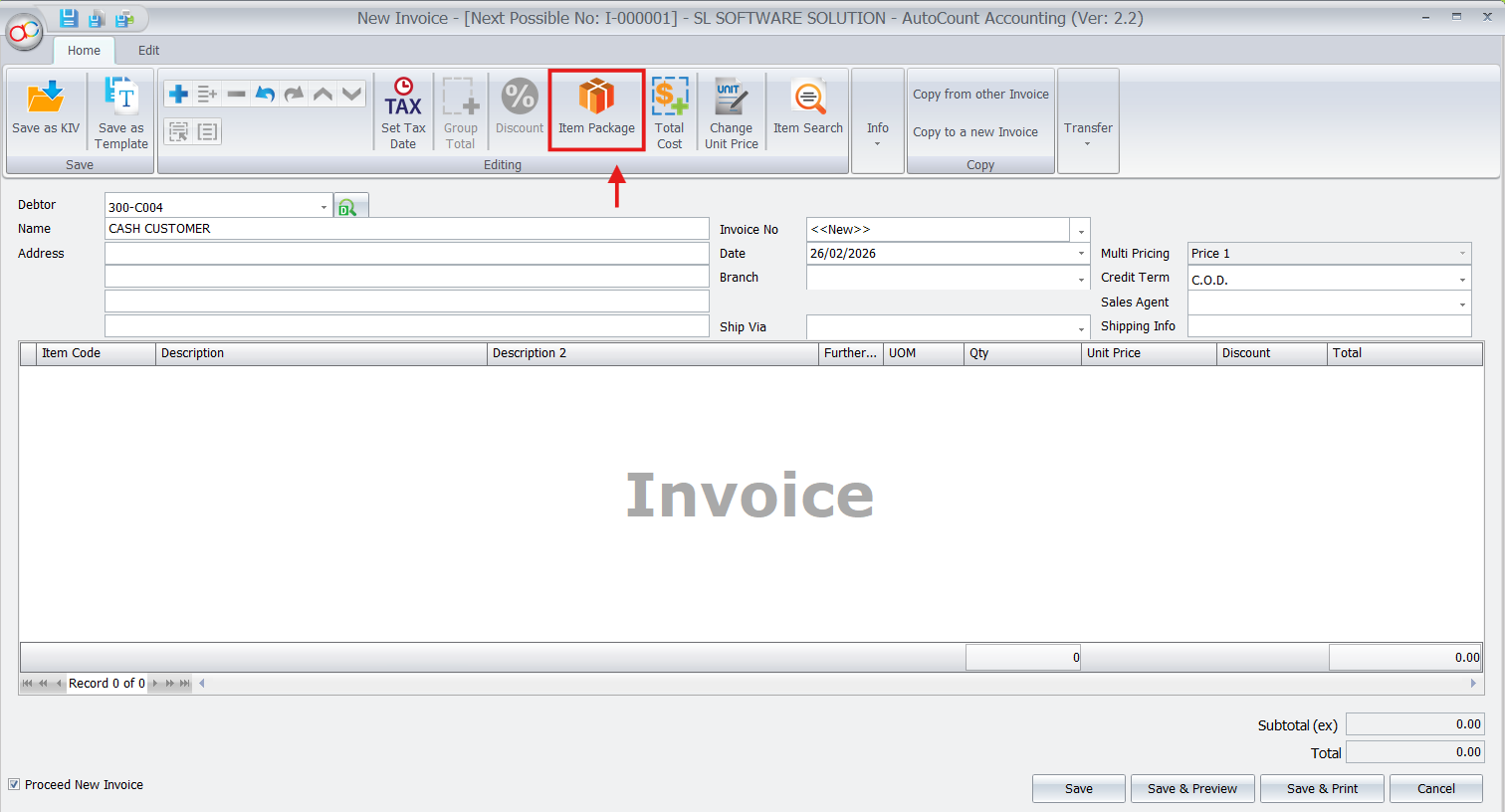
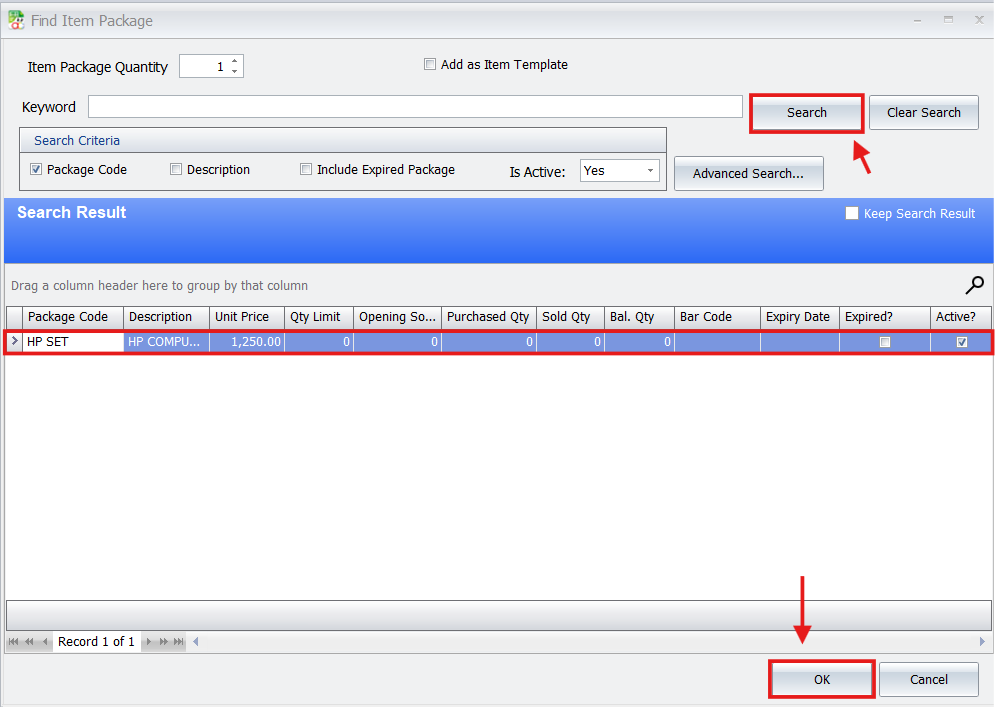
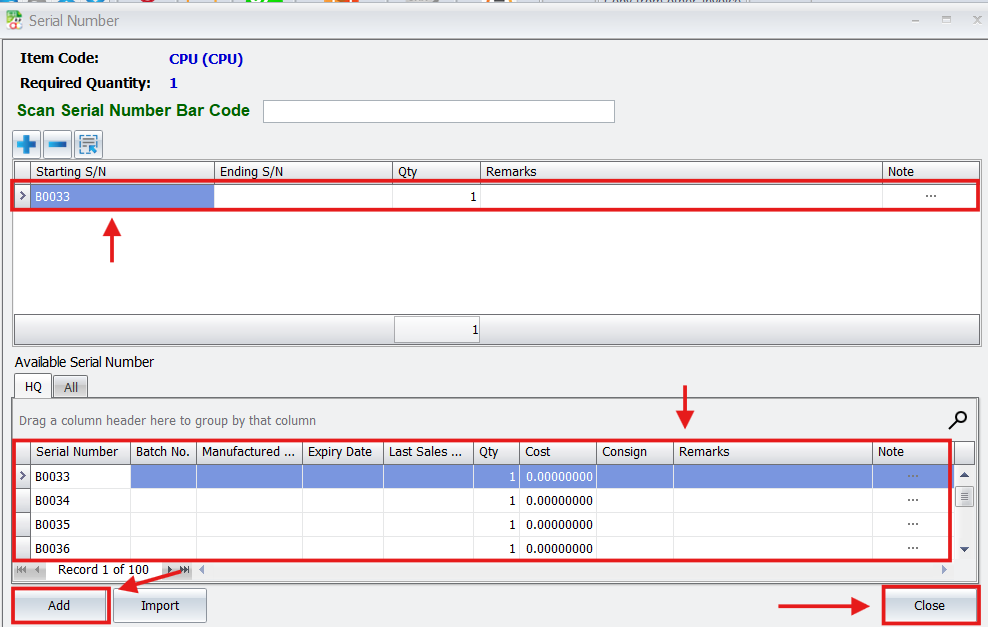
- AutoCount will automatically detect the serial-controlled items within the package and open a prompt window for you to select the specific serial numbers from stock.
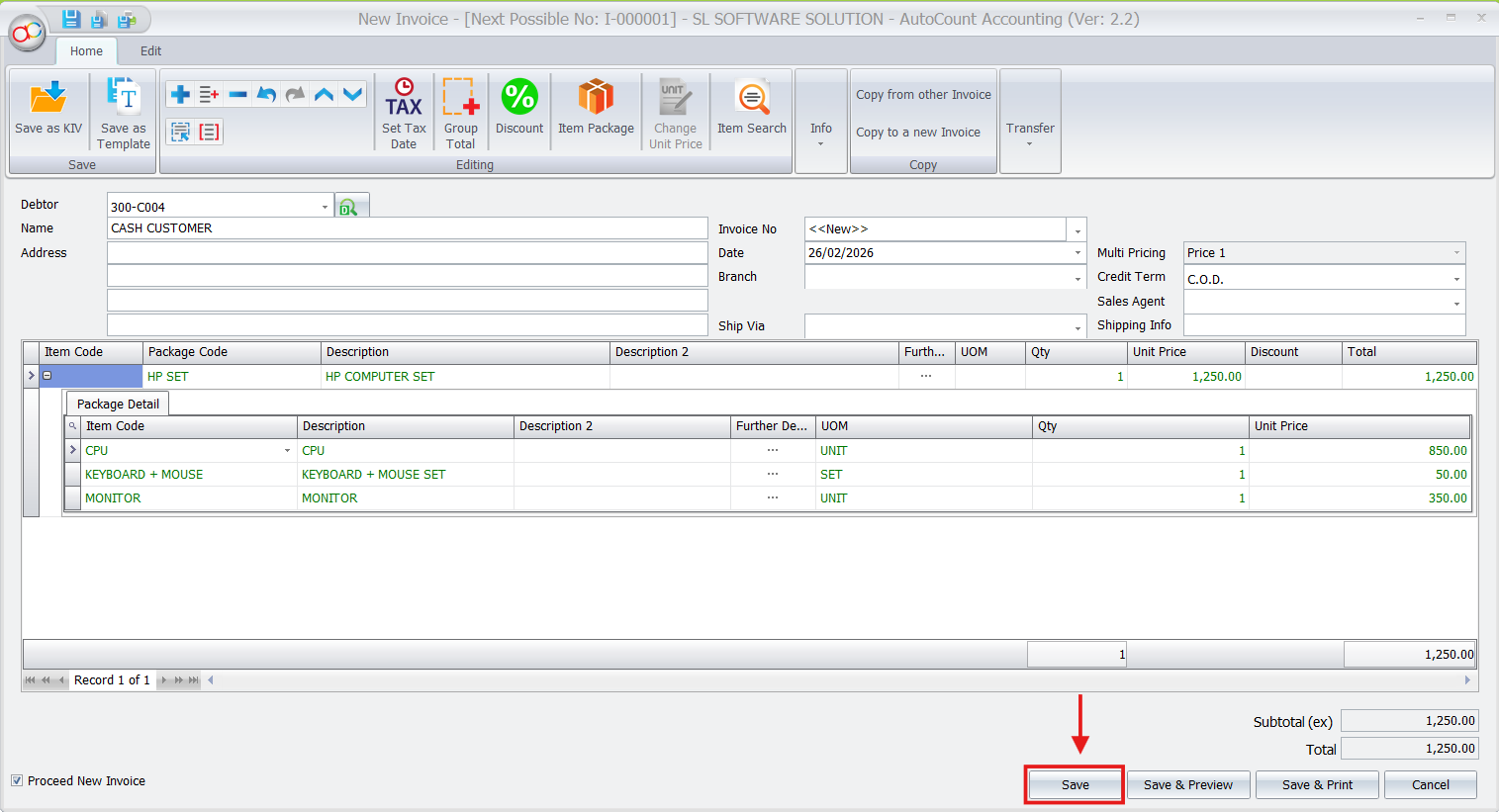
- Complete the invoice as usual. The system will update inventory for all components and assign the serial numbers to this transaction.
Note on Printing Invoices:
By default, the serial numbers you just selected might not appear on the standard printed invoice layout. However, this can be customized. Your AutoCount dealer can design a custom layout for you—for example, listing the serial numbers directly under each item or in a specific section at the bottom of the invoice. This ensures your customers receive a detailed receipt that includes all serial information for their records.
4. Trace Serial Numbers from Packages
To track where a serialized item ended up:
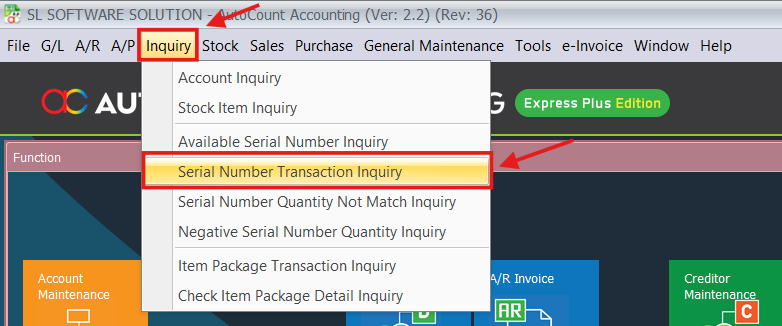
- Go to Inquiry > Serial Number Transaction Inquiry.
- Enter the serial number you want to trace.
- The inquiry will show you the sales document (invoice) it was linked to, including the package item sold.
Benefits for Your Business
Faster, More Accurate Sales
Sales staff can quickly sell a pre-defined package without manual data entry. The system handles the complexity of serial number selection, reducing errors and saving time at the counter.
Uncompromised Inventory Control
You get the best of both worlds: the simplicity of package sales and the precision of serial number tracking. This ensures your stock levels for both bundles and individual components are always accurate.
Superior Traceability and Warranty Management
Instantly access the complete sales history of any serialized component. This is invaluable for handling warranty claims, returns, and customer inquiries about specific items, building trust and efficiency.
Actionable Business Insights
Gain a clearer understanding of which bundles are selling best. With serial tracking integrated, you can also analyze the performance of specific batches of serialized components within those bundles.
Conclusion
Integrating the Item Package with Serial Number in AutoCount transforms how you manage and sell complex inventory. It eliminates the trade-off between sales efficiency and inventory accuracy, providing a streamlined workflow that saves time, reduces errors, and gives you complete visibility over your serialized assets.
Frequently Asked Questions
What if only one item in my package has a serial number?
The system prompts you to select a serial number only for that specific controlled item. The other items in the package are processed normally without any prompt.
Can I print the serial numbers on the customer's invoice?
The standard invoice layout may not display serial numbers by default. However, you can request a custom invoice layout from your AutoCount dealer to include serial numbers under their respective package items.
How can I find out which customer bought a specific serialized item?
Use the Serial Number Transaction Inquiry function. Enter the serial number, and the system will display the invoice and customer details associated with it.
Is this feature only for electronics stores?
While it’s a perfect fit for electronics (computer sets, audio systems), it’s also ideal for any business selling bundles that include items with unique IDs, such as machinery parts, tools, or medical equipment.
Interested in Getting AutoCount for your Business?
Contact our sales team today to explore pricing options and get started with the perfect solution for you.