
-
AutoCount Accounting Features
-
- Approval Workflow
- Audit Trail
- Auto Save in Draft Folder
- AutoCount Contra Account
- AutoCount License Setting Guide
- Deposit Tracking & Management
- Documents Numbering Format
- Full Transfer and Partial Transfer
- Import Data to AutoCount Accounting Using Excel
- Informative Charts and Analytical Data
- Layout Customization
- Multi Pricing
- Sales and Services Tax
- Schedule Backup
- Search Lookup Edit
- View Documents Flow
- AutoCount Feature Stock Take
- Column Chooser
- Show Remaining (3) Collapse
-
AutoCount Cloud Accounting
-
AutoCount E-Invoice
-
AutoCount HRMS User Guide
-
AutoCount Modules
-
- Activity Stream
- Advanced Financial Report
- Advanced Item
- Advanced Multi-UOM
- Advanced Quotation Module
- Basic Multi-UOM
- Budget Module
- Consignment
- Filter By Salesman
- FOC Quantity
- Formula
- Item Batch
- Item Package
- Landing Cost
- Multi-Currency
- Multi-Dimensional Analysis
- Multi-Location
- Project Account
- Recurrence
- Remote Credit Control Module
- Stock Assembly
- User Defined Fields (UDF)
- AutoCount SST Hidden Functions
- AutoCount SST Submission - Service Tax
- AutoCount Scripting Module User Guide
- AutoCount Bonus Point Module User Guide
- AutoCount Service Management Plugin User Guide
- Show Remaining (12) Collapse
-
AutoCount Plugins
-
- Fixed Assets Management
- Goldsmith
- TD Ordering Mobile Apps
- TD Stock Mobile Apps
- Universal Import Plugin
- DMS Import Plugin
- AutoCount Pick List Plugin User Guide
- AutoCount Credit Memo Plugin User Guide
- AutoCount Lock Price Plugin
- AutoCount Progressive Billing
- AutoCount Easy Recurrence Plugin
- Batch Update Unit Price Plugin
- AutoCount Production order
- AutoCount Car Tint Film Plugin
-
- Event Management System
- AutoCount To-Do List Plugin
- AutoCount AutoBank Reconciliation Plugin
- Intercompany Billing Plugin User Guide
- Lead Management 2.0 Plugin
- AutoCount Service Contract Plugin User Guide
- AutoCount Optical Plugin
- AutoCount Integrator Plugin
- AutoCount Procurement Planning Plugin
- Cage Management Plugin
- AutoCount Vehicle Plugin
- AutoCount Agent Validation Plugin User Guide
- AutoCount Barcode Generator Plugin User Guide
- AutoCount Easy Batch Number Entry Plugin User Guide
- Warranty 2.0 Plugin
- AutoCount Easy Photo 2.0 User Guide
- AutoCount Recurring Invoice Plugin User Guide
- AutoCount Scale Barcode Plugin User Guide
- AutoCount Recurrence Late Interest Plugin
- AutoCount Item Visibility Control
- AutoCount Bill Remark Plugin User Guide
- AutoCount Pain Tracker User Guide
- AutoCount Easy Payment
- AutoCount Easy Deposit Plugin
- AutoCount Easy Knock Off Plugin
- AutoCount Daily Collection Summary Plugin
- Timber Log Plugins
- Batch Transfer SODO Plugin
- AutoCount Plugin: Vege Basket Plugin
- AutoCount Plugin: Fruit Basket Plugin
- Show Remaining (15) Collapse
-
-
Form Template
-
Report Template
-
- Advance Quotation
- Cash Sale
- Consignment
- Consignment Movement
- Credit Note
- Debit Note
- Delivery Order
- FOC Quantity Analysis By Document Report
- Invoice
- Item Package Sales Report
- Monthly Sales Analysis
- Outstanding Sales Order Listing
- Profit And Loss Of Documents
- Quotation
- Sales Agent Contribution Report
- Sales Order
- Top/Bottom Sales Ranking
- Show Remaining (2) Collapse
-
- Available Stock Status Report
- Expired Item Batch Listing
- Inventory Physical Worksheet
- Stock Adjustment
- Stock Aging Report
- Stock Assembly
- Stock Assembly Order
- Stock Balance By Location
- Stock Balance Report
- Stock Card Report
- Stock Disassembly
- Stock Issue
- Stock Item Profit Margin
- Stock Movement Report
- Stock Receive
- Stock Take
- Stock Transfer
- Stock Write Off
- Show Remaining (3) Collapse
-
B2B ORDERING
-
AutoCount AI Agent
- Coming soon
AutoCount Plugin: Fixed Assets Management Plugin
Introduction to AutoCount Fixed Assets Management Plugin
First of all, in the business world, efficiency and precision are vital. So, having the right tools to manage your fixed assets is essential. Therefore, the AutoCount Fixed Assets Management Plugin will be an advanced solution that can transform how you handle asset tracking and management. Moreover, this article delves into the comprehensive features and benefits of this innovative plugin. Thus, guiding you on how it can enhance your business operations.
AutoCount Fixed Assets Management Plugin Video Guide
These video provides a comprehensive understanding of the AutoCount Fixed Management Plugin, detailing its features.
- AutoCount Fixed Assets Management Plugin (EN)
Fixed Assets Management Plugin Setup
Integration & Fixed Assets Management Setup
- AutoCount Fixed Assets Management Plugin (CN)
固定资产管理插件安装
集成与固定资产管理设置
What is Fixed Assets Management?
Firstly, fixed assets management involves tracking and managing a company’s physical assets. For example, machinery, equipment, and buildings. In addition, this process includes monitoring the lifecycle of assets from acquisition to disposal. Thus, ensuring accurate depreciation calculation. Moreover, it also helps in maintaining compliance with financial regulations.
Asset Types
Asset Types are broad classifications of fixed assets based on their nature and usage in the business. They help in grouping similar kinds of assets, making it easier to apply consistent accounting treatments and manage them effectively.
Examples of Asset Types:
- Vehicles
- Machinery
- Furniture & Fittings
- Office Equipment
- Buildings
Asset Category
Asset category are specific subdivisions within an Asset Type. These category provide a finer level of classification, allowing for detailed tracking and management of assets.
Examples of Asset category under Furniture & Fittings:
- Tables
- Chairs
- Desks
- Cabinets
Importance of Fixed Assets Management in Business
Maximizing Asset Utilization
Firstly, it ensures that assets are used effectively and efficiently. Thus, allowing you to maximize utilization of your assets.
Financial Accuracy
Secondly, it provides accurate financial records by tracking asset values and depreciation. Thus, helps in ensuring financial accuracy and integrity.
Regulatory Compliance
Thirdly, it helps in adhering to financial regulations and reporting standards. Thus, allowing business to process assets while ensuring compliance with laws and regulations.
Risk Management
Finally, reduces the risk of asset loss or theft through proper tracking and monitoring. Thus, ensuring no assets would be lost and also allowing business to be at a peace of mind.
Overview of AutoCount Fixed Assets Management Plugin
The AutoCount Fixed Assets Management Plugin is a comprehensive tool designed to simplify the management of fixed assets. To clarify, it offers a range of features to help businesses track, manage, and report on their assets efficiently. In addition, this plugin is integrated with AutoCount accounting software. Thus, providing a seamless experience for users.
Benefits of Using AutoCount Fixed Assets Management Plugin
Increased Efficiency
- Firstly, by automating asset tracking and management tasks, the AutoCount Fixed Assets Management Plugin reduces manual work. Thus, saving time and minimizing errors
Improved Asset Utilization
- Secondly, the plugin helps businesses ensure that their assets are used to their full potential. Thus, maximizing return on investment
Enhanced Compliance and Reporting
With detailed tracking and reporting features, businesses can easily comply with financial regulations and generate accurate reports. Thus, allowing business to generate report with higher accuracy and integrity.
Better Financial Control
- Next, accurate depreciation calculation and asset tracking provide better financial oversight. Thus, helping businesses make informed decisions.
Streamlined Operations
- Finally, by consolidating asset management tasks into one system, businesses can streamline their operations. Thus, allowing them to improve overall productivity.
How to Implement AutoCount Fixed Assets Management Plugin in Your Business?
Implementing the AutoCount Fixed Assets Management Plugin is simple and straightforward. First, start by assessing your current asset management processes and identifying areas for improvement. Next, set up the plugin according to your business needs and train your staff to ensure smooth adoption. Thirdly, regularly update the system and use its reporting features to continuously optimize your asset management practices.
Setting UP Asset Types
1. Navigate to the Asset Register Module
Lorem ipsum dolor sit amet, consectetur adipiscing elit. Ut elit tellus, luctus nec ullamcorper mattis, pulvinar dapibus leo.
- Open AutoCount Accounting.
- Go to the Asset Register module.

2. Access Asset Type Maintenance
- In the Asset Register module, select “Asset Type Maintenance” from the menu.

3. Create a New Asset Type
- Click on “New” to create a new asset type.
- Fill in the details as follows:
- Code: OF
- Short Code: OF
- Depreciation: OFFICE EQUIPMENT
- Depreciation Method: Straight Line
- Salvage/Residual Value: 1
- Calculate By: Rate
- Number of Years: 10


4. Set Account Codes
- Fill in the details as follows:
-
- Asset Acct Code: 200-3000 (OFFICE EQUIPMENT)
- Accum. Deprn Acct Code: 200-3005 (ACCUM. DEPRN. – OFFICE EQUIPMENT)
- Depreciation Acct Code: 903-0000 (Depreciation of Fixed Assets)
- Profit/Loss Acct Code: 916-0000 (Loss on Disposal of Fixed Assets)
- Asset Write Off Acct Code: 917-0000 (Write Off of Fixed Assets)

5. Save the Asset Type
- After filling in all the necessary details, click “Save” to store the new asset type.

Setting Up Asset Category
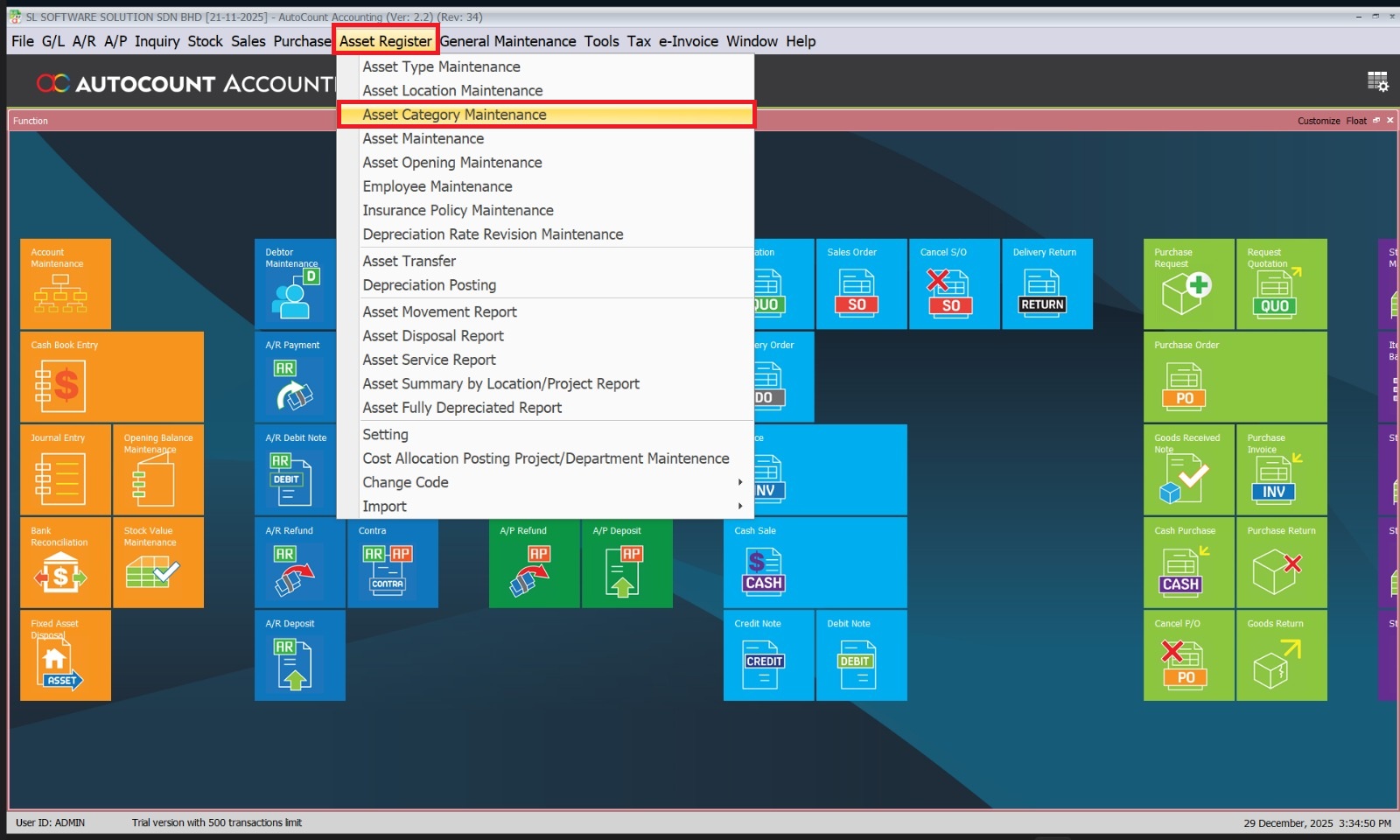
1. Navigate to Asset Category Maintenance
- In the Asset Register module, select “Asset Category Maintenance” from the menu.
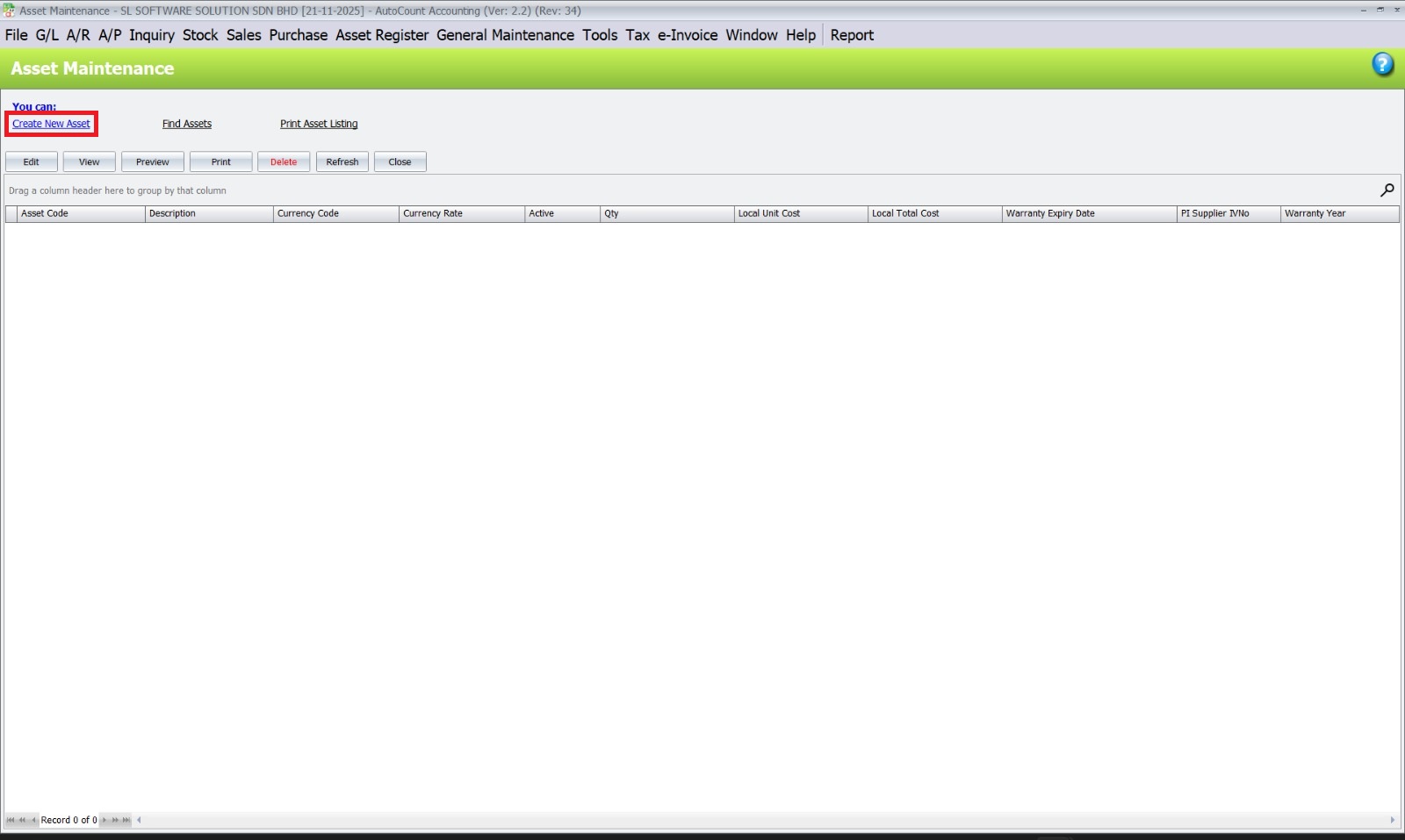
2. Create a New Asset Category
- Click on “New” to create a new asset category.
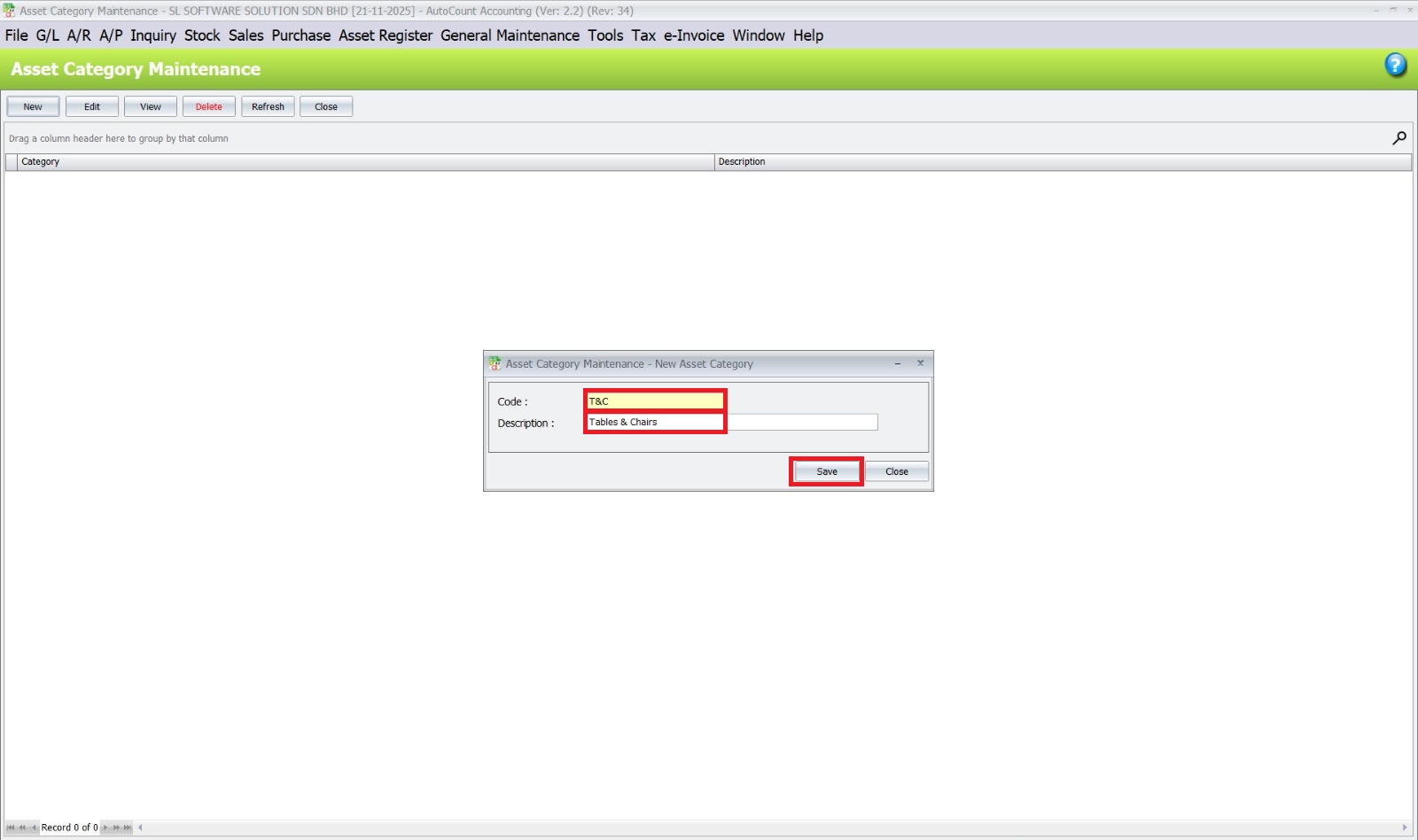
- Fill in the details as follows:
- Code: “T&C” or “TC”
- Description: Tables & Chairs
3. Link to Asset Type
- Ensure that the asset category is linked to the correct asset type. This may be set during the asset creation process or through a linking function, depending on your AutoCount setup.
4. Save the Asset Category
- After filling in all the necessary details, click “Save” to store the new asset category.
Industry examples
Example 1: Manufacturing Company
- Asset Type: Machinery
- Asset Category:
- CNC Machines
- Injection Molding Machines
- Assembly Line Robots
- Packaging Machines
- Asset Category:
- Asset Type: Buildings
- Asset Category:
- Production Plants
- Warehouses
- Office Buildings
- Asset Category:
- Asset Type: Vehicles
- Asset Category:
- Forklifts
- Delivery Trucks
- Company Cars
- Asset Category:
Example 2: Retail Business
- Asset Type: Office Equipment
- Asset Category:
- Computers
- Printers
- Telephones
- Office Furniture
- Asset Category:
- Asset Type: Store Fixtures
- Asset Category:
- Display Racks
- Checkout Counters
- Shelving Units
- Asset Category:
- Asset Type: Vehicles
- Asset Category:
- Delivery Vans
- Company Cars
- Asset Category:
Example 3: IT Services Company
- Asset Type: IT Equipment
- Asset Category:
- Servers
- Network Routers
- Workstations
- Laptops
- Asset Category:
- Asset Type: Software
- Asset Category:
- Operating Systems
- Productivity Software
- Development Tools
- Accounting / ERP Software
- Security Software
- Asset Category:
- Asset Type: Office Equipment
- Asset Category:
- Desks
- Chairs
- Conference Room Equipment
- Asset Category:
Example 4: Construction Company
- Asset Type: Heavy Equipment
- Asset Category:
- Excavators
- Cranes
- Bulldozers
- Backhoes
- Asset Category:
- Asset Type: Vehicles
- Asset Category:
- Construction Trucks
- Service Vans
- Employee Transport Buses
- Asset Category:
- Asset Type: Office Equipment
- Asset Category:
- Computers
- Printers
- Office Furniture
- Asset Category:
Example 5: Hospitality Business (Hotel)
- Asset Type: Property
- Asset Category:
- Hotel Buildings
- Resort Facilities
- Asset Category:
- Asset Type: Furniture and Fixtures
- Asset Category:
- Guest Room Furniture
- Lobby Furniture
- Dining Room Fixtures
- Asset Category:
- Asset Type: Equipment
- Asset Category:
- Kitchen Equipment
- Laundry Equipment
- Maintenance Tools
- Asset Category:
Setting Up Asset Location
1. Navigate to Asset Location Maintenance
- In the Asset Register module, select “Asset Location Maintenance” from the menu

2. Create a New Asset Location
- Click on “New” to create a new asset location.
- Fill in the details as follows:
- Code: IPOH
- Description: IPOH
- After fill in the details, click “Save” to store the new asset location
- Once the details are entered, click on “New” again to add another asset location
- Fill in the details as follows:
- Code: TAIPING
- Description: TAIPING
- After fill in the details, click “Save” to store the new asset location


Setting
1. Configure the Fixed Assets Settings
- In the Asset Register module, select “Setting” from the menu

2. Configure General Settings
- In the Settings window, under the General Setting tab:
-
- Set the Posting Journal Type
- Choose the Posting Journal Method
- Choose the Disposal Double Entry, select
- Under Depreciation Calculation:
- Define the Depreciate Opening Date
- Select the Rounding Method
- Click Save to apply the settings

Asset Maintenance
1. Navigate to Asset Maintenance
- Go to the “Asset Register” menu at the top.
- Select “Asset Maintenance” from the dropdown list.

2. Open the "Create New Asset" Form
- In the “Asset Maintenance” screen, click “Create New Asset”.

3. Fill in the Asset Details
- Description
- Purchase Date
- Currency Code
- Currency Rate
- Quantity
- Unit Cost
4. Under Analysis Code
- Choose the asset’s location

5. Click the Other Info
- Enter the supplier’s invoice number

6. Configure Depreciation Details
- Enter the date depreciation starts
-
Then, select the appropriate type of asset
7. Save the Asset Details
- After ensuring all required fields are filled, click the Save button at the bottom of the form

Asset Opening Maintenance
1. Navigate to the menu bar and select
- Asset Register > Asset Opening Maintenance

2. Update Asset Details
- Enter the values under the “Actual Financial Accumulated Depreciation B/F” column.
3. Save Changes
- Click the “Save” button at the bottom right of the window
- A confirmation dialog box will appear with the message:
“Record Saved.” - Then, click “OK” to confirm the changes.


Depreciation Posting
1. Access the Depreciation Posting Menu
- Navigate to the top menu bar and select Asset Register
- From the drop down menu, click on Depreciation Posting

2. Set Criteria for Depreciation Posting
- Set the Financial Date.
3. Click the Inquiry button

4. Review and Select Assets
- After clicking Inquiry, a list of assets eligible for depreciation posting will be displayed.
- To select all assets in the list, click the “Check All” button. This will automatically check all items in the list.

5. Complete the Depreciation Posting
- Click “Save & Post to Journal” button
- A confirmation message will appear: “Are you sure to Post selected record?”
- Click “Yes” button to proceed
- Upon successful posting, a confirmation message will be displayed: “Post journal successfully. New journal no: JV-000001. Do you wish to view the journal?”
- Choose one of the following:
- Click Yes to view the journal
- Click No does not viewing the journal


Importance of Proper Setup
- Accurate Financial Reporting: Proper classification ensures accurate tracking of asset costs, depreciation, and disposals, leading to precise financial statements.
- Efficient Asset Management: Grouping assets by type and category helps in managing maintenance schedules, replacements, and budgeting.
- Compliance: Ensures compliance with accounting standards and regulatory requirements by applying consistent accounting treatments.
Case Studies and Success Stories
Many businesses have successfully implemented the AutoCount Fixed Assets Management Plugin, resulting in increased efficiency and improved asset utilization. For example, a manufacturing company reported a 25% reduction in asset tracking errors and a 15% improvement in asset utilization within the first year of using the plugin.
Comparing AutoCount Fixed Assets Management Plugin with Other Solutions
While there are several fixed assets management solutions available, AutoCount Fixed Assets Management Plugin stands out due to its comprehensive features, user-friendly interface. In addition, its robust support is another reason why it stands out.. Moreover, unlike some competitors, it offers seamless integration with AutoCount accounting software. Thus, providing a unified experience for users.
Common Challenges and Solutions
Training Staff
Challenge – Ensuring that all staff members are proficient with the new software.
Solution – Our team provides two-day hands-on classes every month at our office and offers an e-learning portal for customer self-learning. Thus ensuring that all staff members can become proficient with the new software quickly and efficiently.
Data Migration
Challenge – Migrating data from old systems to the new software.
Solution – We assist customers in migrating their data from their old systems to AutoCount software using Excel. In addition, our support team is available to ensure a seamless migration process.
Streamlining Scheduling with AutoCount Plugin
Fixed asset management involves tracking, maintaining, and optimizing assets throughout their lifecycle. To clarify, this is to ensure efficient use, compliance, and accurate financial reporting. In addition, this process includes asset tracking, depreciation, maintenance, and disposal, with software tools. Thus, it helps in enhancing accuracy and decision-making.
Conclusion
The AutoCount Fixed Assets Management Plugin is an essential tool for any business looking to enhance its asset management practices. Moreover, with its comprehensive features and user-friendly interface, you can track, manage, and report on your assets more effectively. As a result, you can stay ahead of the competition. In addition, you can ensure the success of your business by integrating the AutoCount Fixed Assets Management Plugin today.
Frequently Asked Questions
What is the AutoCount Fixed Assets Management Plugin?
The AutoCount Fixed Assets Management Plugin is a specialized tool designed to help businesses manage their fixed assets more efficiently.
How can this plugin improve my business operations?
The plugin automates asset tracking, improves asset utilization, enhances compliance and reporting. Thus, providing better financial control.
Is the plugin easy to use?
Yes, the plugin features a user-friendly interface. In addition, the team offers comprehensive support and training. Thus, ensuring easy adoption by your staff.
Can the plugin integrate with other systems?
The plugin is designed to work seamlessly with AutoCount accounting software. Thus, providing a unified experience for users.
What kind of support is available for users?
Users have access to comprehensive support, including training sessions, documentation, and a dedicated support team to assist with any issues or questions.
Interested in Getting AutoCount for your Business?
Contact our sales team today to explore pricing options and get started with the perfect solution for you.