
-
AutoCount Accounting Features
-
- Approval Workflow
- Audit Trail
- Auto Save in Draft Folder
- AutoCount Contra Account
- AutoCount License Setting Guide
- Deposit Tracking & Management
- Documents Numbering Format
- Full Transfer and Partial Transfer
- Import Data to AutoCount Accounting Using Excel
- Informative Charts and Analytical Data
- Layout Customization
- Multi Pricing
- Sales and Services Tax
- Schedule Backup
- Search Lookup Edit
- View Documents Flow
- AutoCount Feature Stock Take
- Column Chooser
- Show Remaining (3) Collapse
-
AutoCount Cloud Accounting
-
AutoCount E-Invoice
-
AutoCount HRMS User Guide
-
AutoCount Modules
-
- Activity Stream
- Advanced Financial Report
- Advanced Item
- Advanced Multi-UOM
- Advanced Quotation Module
- Basic Multi-UOM
- Budget Module
- Consignment
- Filter By Salesman
- FOC Quantity
- Formula
- Item Batch
- Item Package
- Landing Cost
- Multi-Currency
- Multi-Dimensional Analysis
- Multi-Location
- Project Account
- Recurrence
- Remote Credit Control Module
- Stock Assembly
- User Defined Fields (UDF)
- AutoCount SST Hidden Functions
- AutoCount SST Submission - Service Tax
- AutoCount Scripting Module User Guide
- AutoCount Bonus Point Module User Guide
- Show Remaining (11) Collapse
-
AutoCount Plugins
-
- Fixed Assets Management
- Goldsmith
- TD Ordering Mobile Apps
- TD Stock Mobile Apps
- Universal Import Plugin
- DMS Import Plugin
- AutoCount Item Scope Plugin
- AutoCount Easy Knock Off Plugin
- AutoCount Pick List Plugin User Guide
- AutoCount Agent Validation Plugin User Guide
- AutoCount Barcode Generator Plugin User Guide
- AutoCount Bill Remark Plugin User Guide
- AutoCount Easy Batch Number Entry Plugin User Guide
- AutoCount Recurring Invoice Plugin User Guide
- AutoCount Easy Photo 2.0 User Guide
- AutoCount Pain Tracker User Guide
- AutoCount Credit Memo Plugin User Guide
- Show Remaining (2) Collapse
-
- AutoCount Easy Recurrence Plugin
- AutoCount Recurring Billing Plugin
- Event Management System
- AutoCount To-Do List Plugin
- AutoCount AutoBank Reconciliation Plugin
- Intercompany Billing Plugin User Guide
- AutoCount Basket Plugin User Guide
- Lead Management 2.0 Plugin
- AutoCount Service Contract Plugin User Guide
- Autocount Repacking Plugin
- AutoCount Scale Barcode Plugin User Guide
- AutoCount Progressive Billing
- AutoCount Optical Plugin
- AutoCount Meter Reading Plugin User Guide
- AutoCount Car Tint Film Plugin
- AutoCount Leasing Plugin User Guide
- AutoCount Integrator Plugin
- AutoCount Procurement Planning Plugin
- Show Remaining (3) Collapse
-
-
Form Template
-
Report Template
-
- Advance Quotation
- Cash Sale
- Consignment
- Consignment Movement
- Credit Note
- Debit Note
- Delivery Order
- FOC Quantity Analysis By Document Report
- Invoice
- Item Package Sales Report
- Monthly Sales Analysis
- Outstanding Sales Order Listing
- Profit And Loss Of Documents
- Quotation
- Sales Agent Contribution Report
- Sales Order
- Top/Bottom Sales Ranking
- Show Remaining (2) Collapse
-
- Available Stock Status Report
- Expired Item Batch Listing
- Inventory Physical Worksheet
- Stock Adjustment
- Stock Aging Report
- Stock Assembly
- Stock Assembly Order
- Stock Balance By Location
- Stock Balance Report
- Stock Card Report
- Stock Disassembly
- Stock Issue
- Stock Item Profit Margin
- Stock Movement Report
- Stock Receive
- Stock Take
- Stock Transfer
- Stock Write Off
- Show Remaining (3) Collapse
Handling Pro-Rated Recurring Invoices for Professional Service Retainers in AutoCount
What Is The AutoCount Recurring Invoice Plugin?
The AutoCount Recurring Invoice Plugin is designed to simplify the process of billing customers at regular intervals, automating recurring payments and invoices. It helps businesses streamline their invoicing process, reduce administrative overhead, and ensure timely payments, all while integrating seamlessly with the rest of the AutoCount system. Whether you're managing subscription-based services, rent collections, or maintenance contracts, this plugin ensures that you never miss an invoicing cycle again.
AutoCount Recurring Invoice plugin Video Guide
- AutoCount Recurring Invoice Plugin (EN)
Recurring Invoice Setup
Integration & Configuration
- AutoCount Recurring Invoice Plugin (CN)
定期发票插件设置
集成与配置
Why You Should Use Recurring Invoice Plugin?
This plugin offers significant benefits by automating the invoicing process, which can:
Increase Efficiency
Set up invoices once and let the system handle the recurring cycles automatically.
Enhance Accuracy
Reduces the chances of errors related to manual entries or missed invoices.
Save Time
Automation means that repetitive invoicing tasks are handled by the system, freeing up time for more important tasks.
Key Features & Capabilities
Recurring Invoice Creation
Automatically generates invoices on a predefined schedule (e.g., daily, weekly, monthly, etc.).
Flexible Billing Cycles
Choose from multiple billing frequencies to suit your business model.
Invoice Customization
Customize invoice details like payment terms, taxes, and more to reflect your business’s unique needs.
Payment Reminders
Set automatic reminders to alert clients about upcoming or overdue payments.
Seamless Integration
Integrates smoothly with AutoCount’s accounting, sales, and payment modules for a unified experience.
Who Can Benefit from This Plugin?
Subscription-based models
Automates invoicing for services billed on a regular schedule, such as software subscriptions, with no manual effort required.
Recurring services
Ensures timely and accurate billing for ongoing services like maintenance, cleaning, or memberships.
Rent or lease invoicing
Ideal for landlords or businesses renting properties or assets, allowing for automated monthly rent or lease invoicing.
Multiple customers
Streamlines the billing process across a large or small customer base, ensuring every client is invoiced on time and with ease.
How AutoCount Recurring Invoice Plugin works
1. Assign Customers for Recurrence
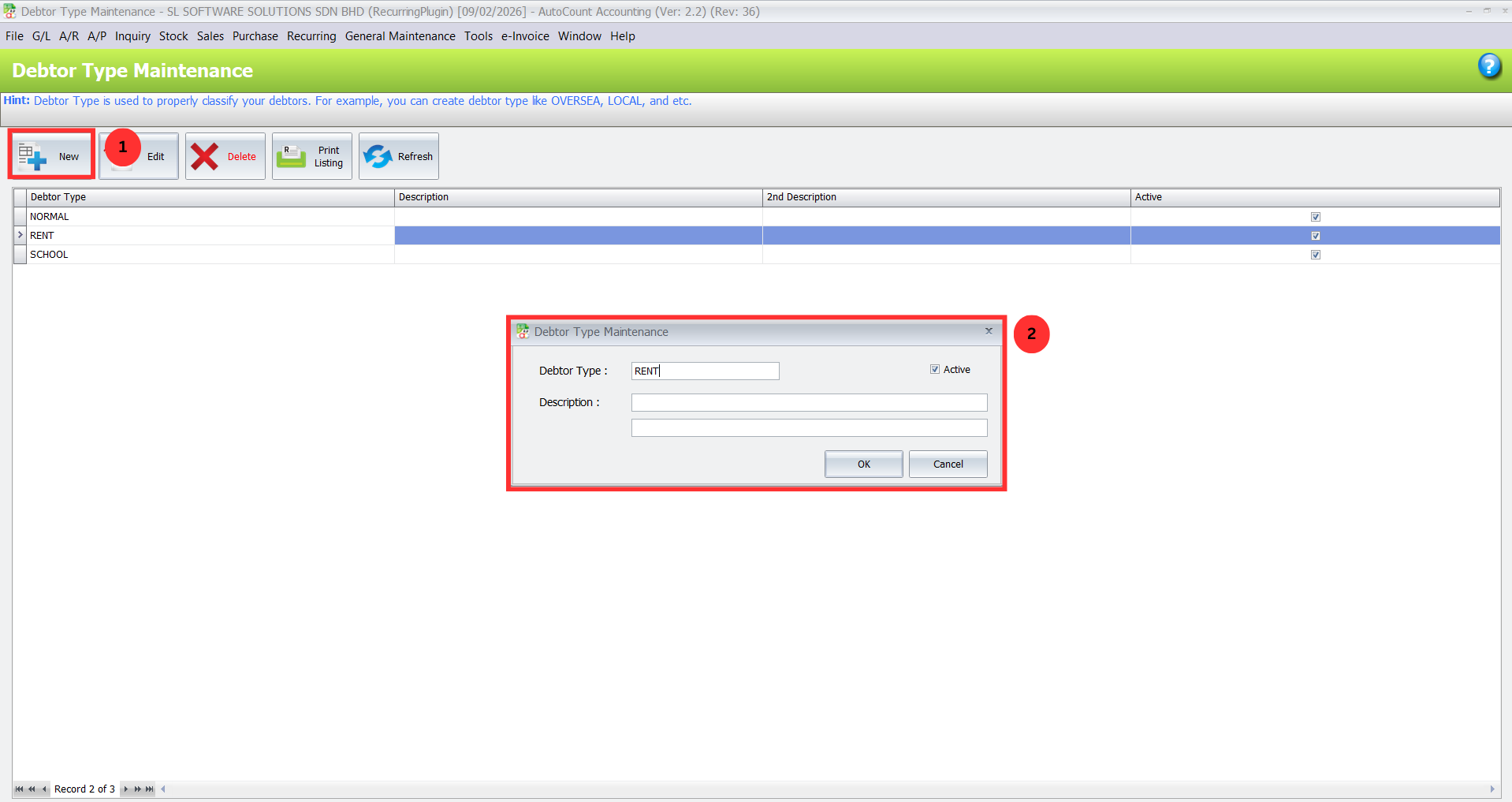
Create Customer Categories:
Go to General Maintenance > Debtor Type Maintenance to define categories like “Rent” for tenants or “Subscription” for service clients.
This step helps organize your customers into logical groups, making it easier to filter them for recurring invoices.
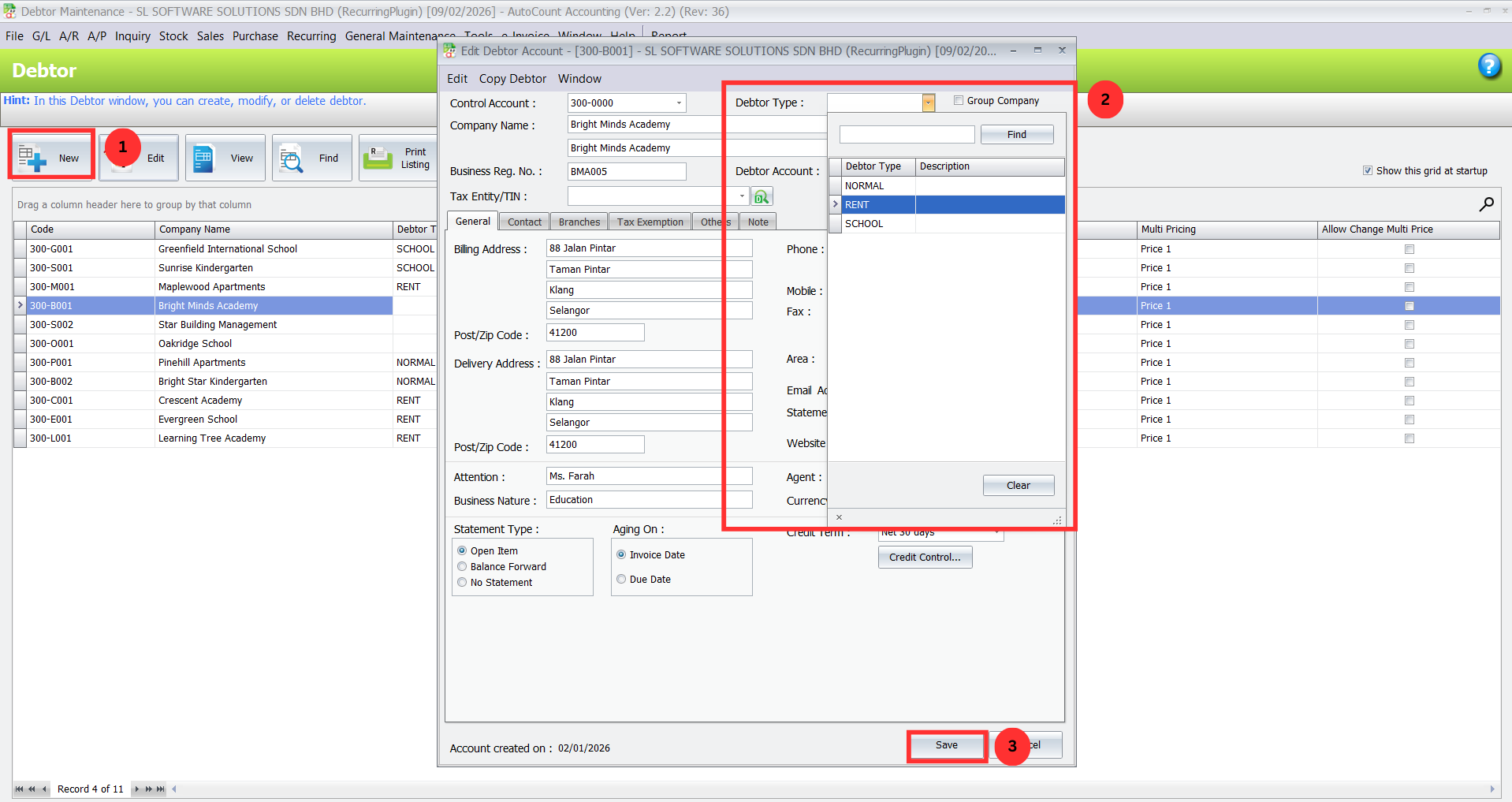
- Assign Customers to Categories:
Go to A/R > Debtor Maintenance and edit individual customer records.
Assign each customer to the relevant debtor type (e.g., “Rent” or “Subscription”).
Pro Tip:
Regularly review and update debtor types as your business grows or offers new services to ensure organized and accurate billing.
2. Access the Recurring Function & Filter Customers
Navigate to Sales > Invoice:
Access the standard invoicing screen where you can initiate the recurring invoice process.
Create an Invoice Template:
Create a standard invoice that serves as a template for future recurring charges.
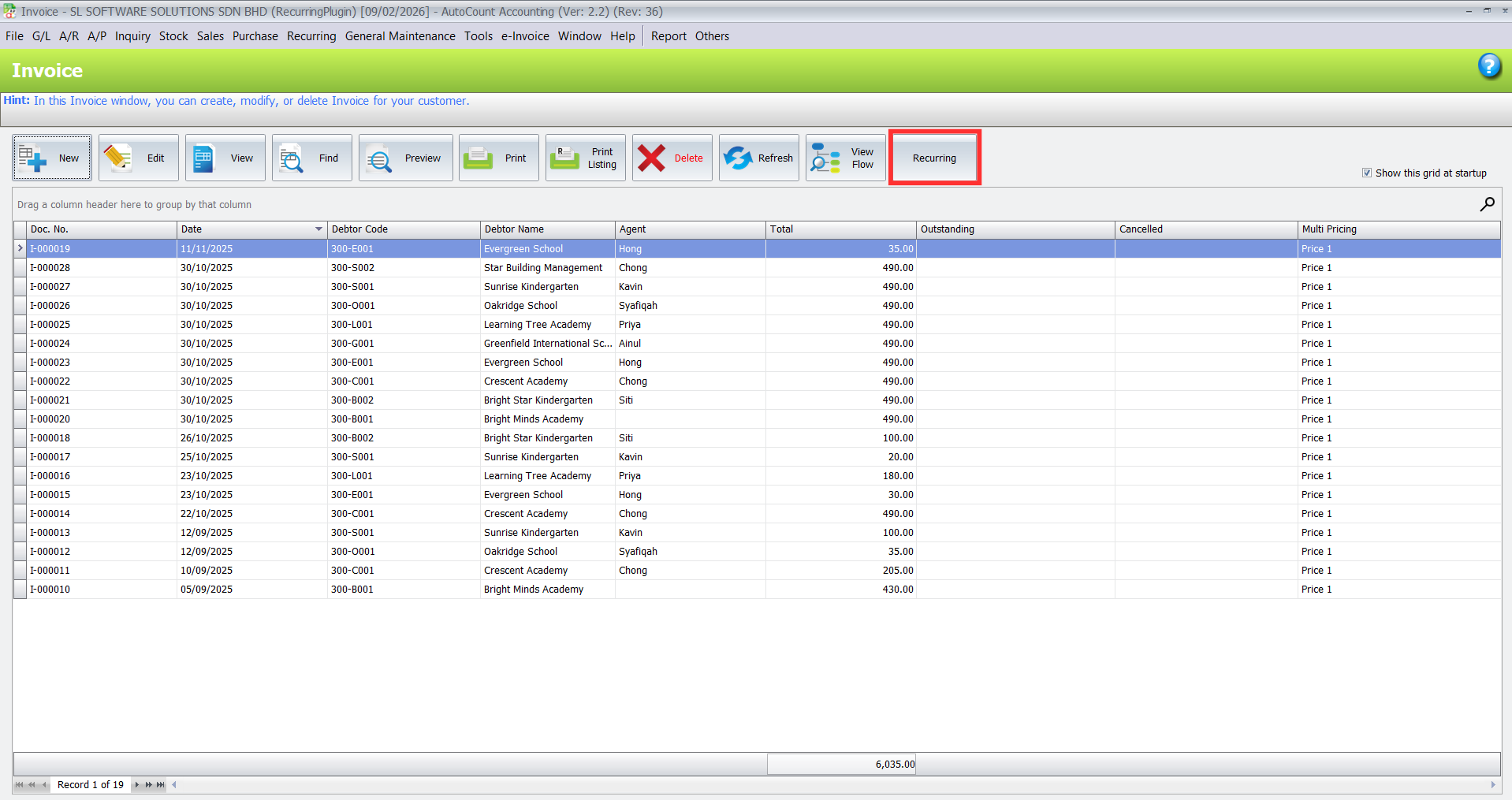
Activate the Recurring Feature:
On the invoice screen, locate and click the new “Recurring” button added by the plugin.
A dialog box will appear where you can select a customer filter (e.g., “Rent” debtor type).
Click Inquiry, and the system will display a list of customers within that debtor type group.
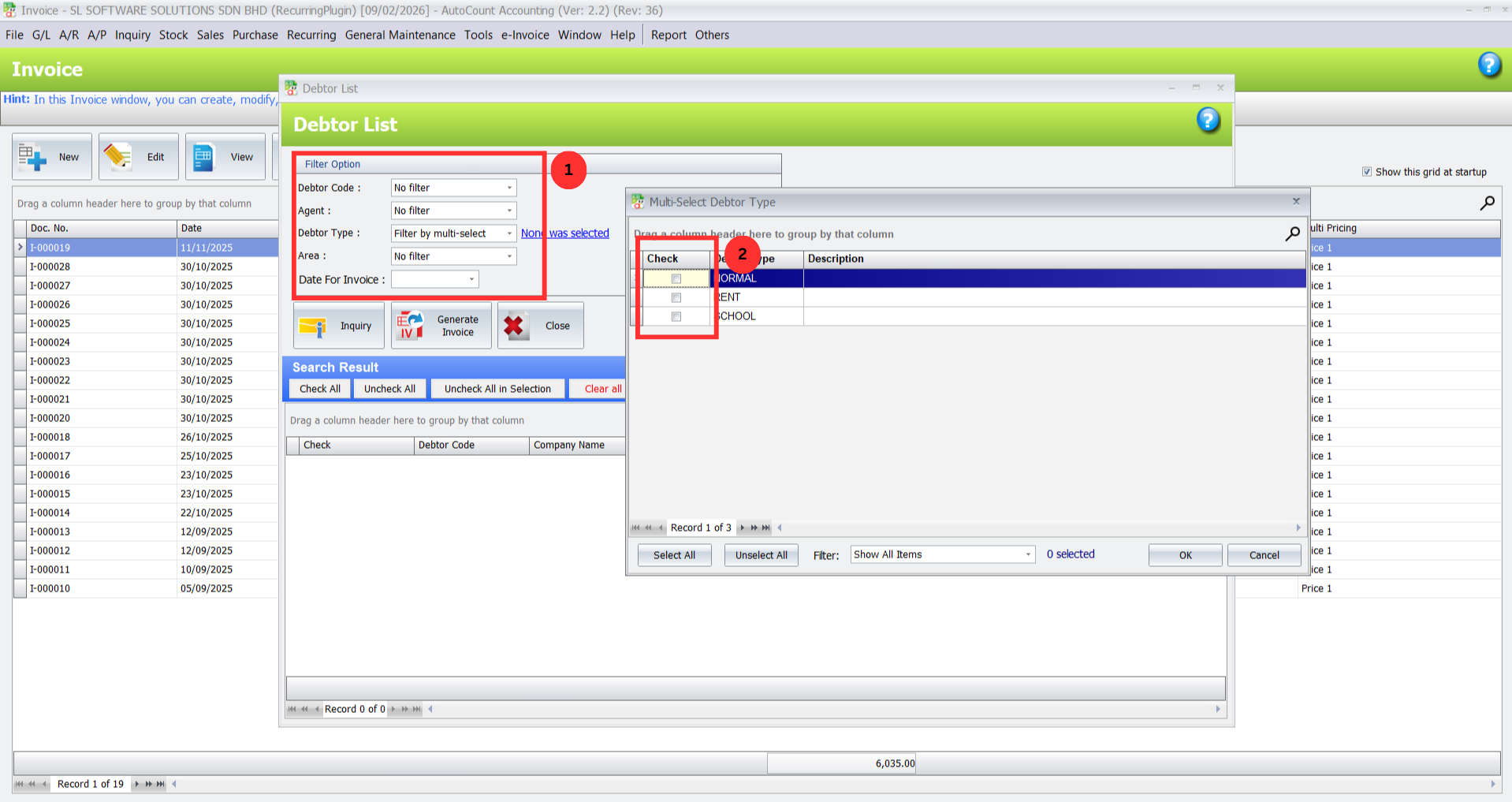
Pro Tip:
Using debtor types to filter customers speeds up the process and helps avoid mistakes by only showing relevant clients for each billing cycle.
3. Set Date & Generate Invoices
Select Invoice Date:
After filtering, set the Date for Invoice, such as the 5th of the upcoming month.
Select All Customers:
Use the “Check All” option to select every customer in the filtered list.
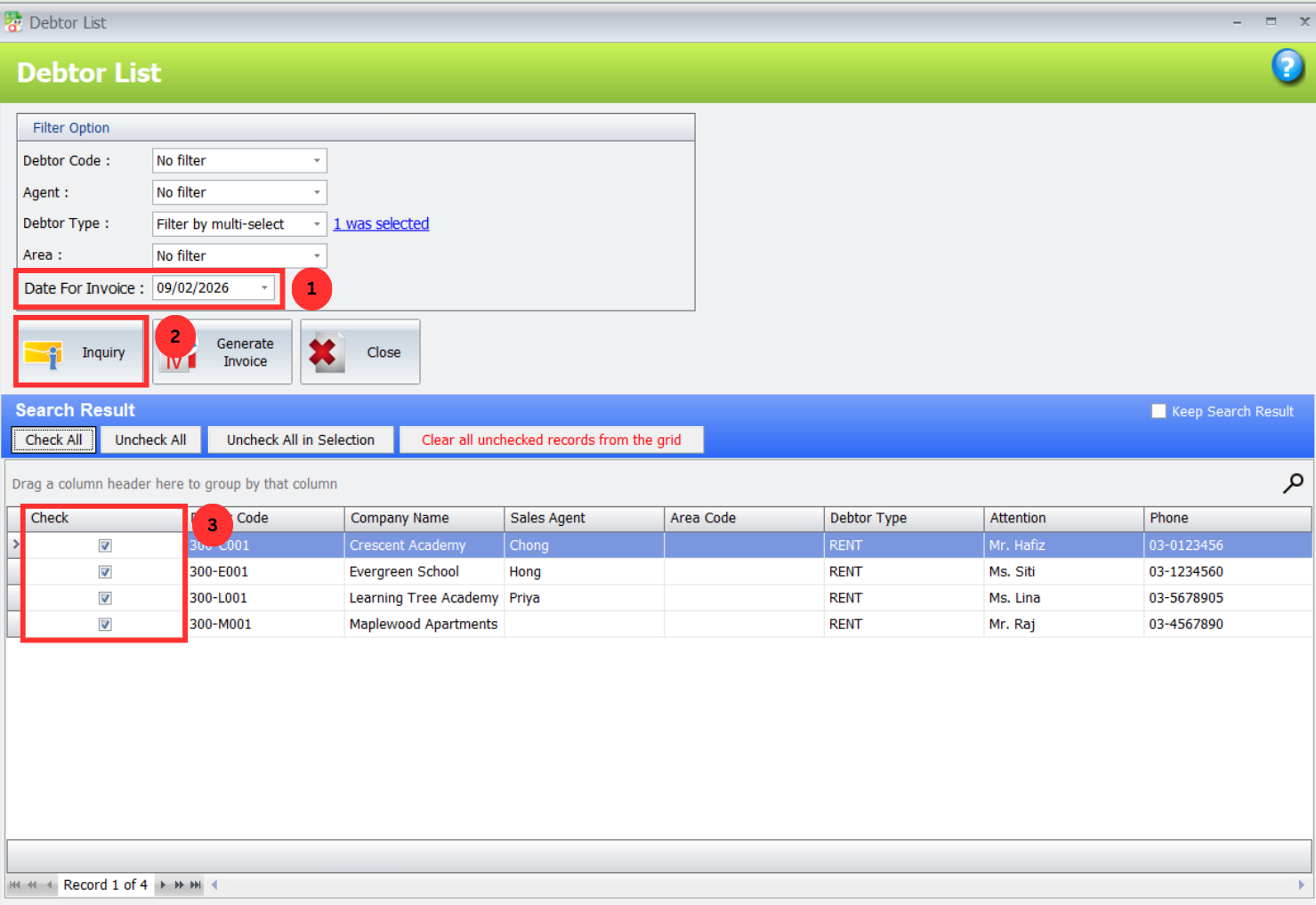
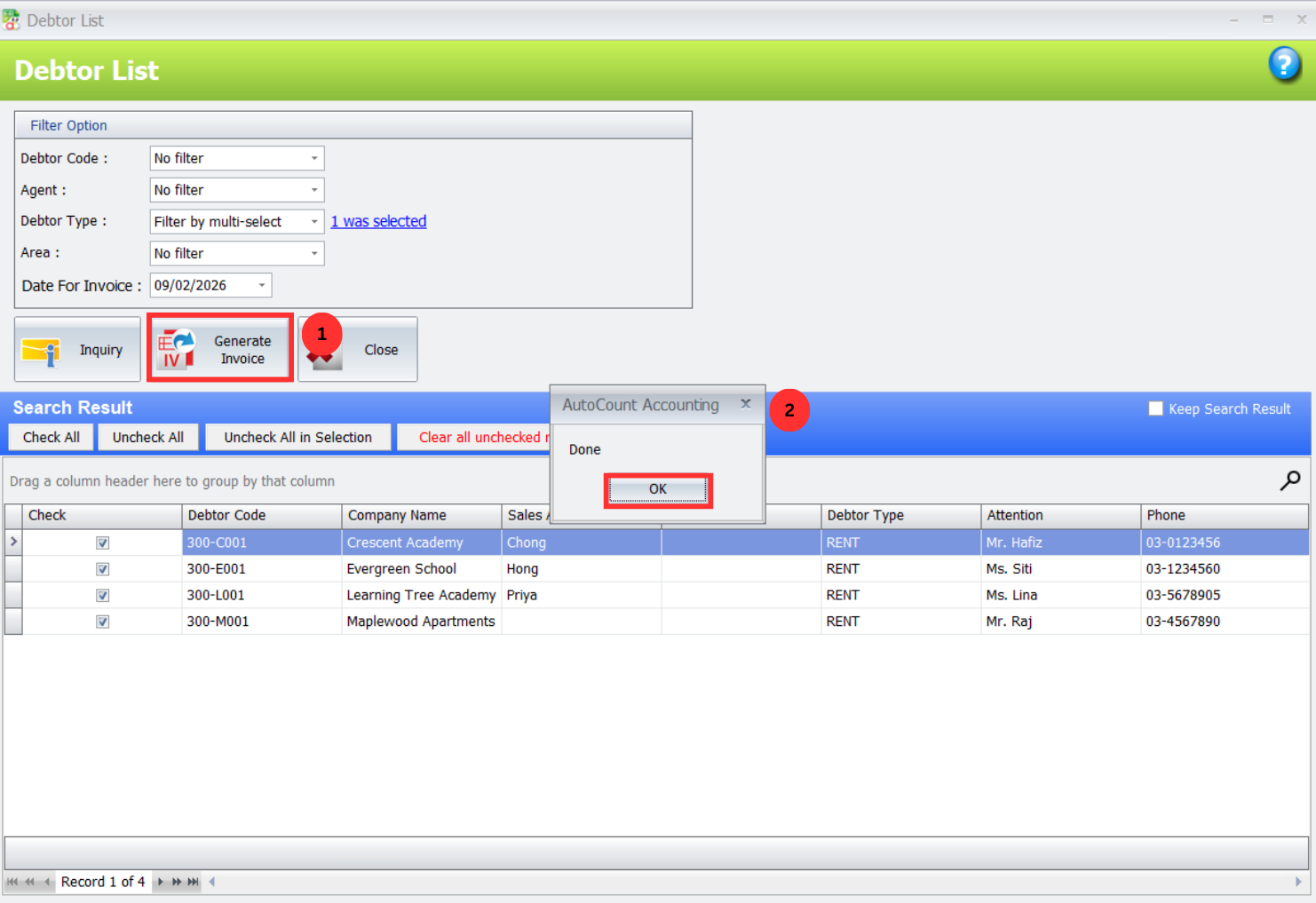
- Generate Invoices:
Click Generate Invoice, and the plugin will automatically create individual invoices for each selected customer based on the specified date.
These invoices will be finalized, preventing duplicate billing for future cycles
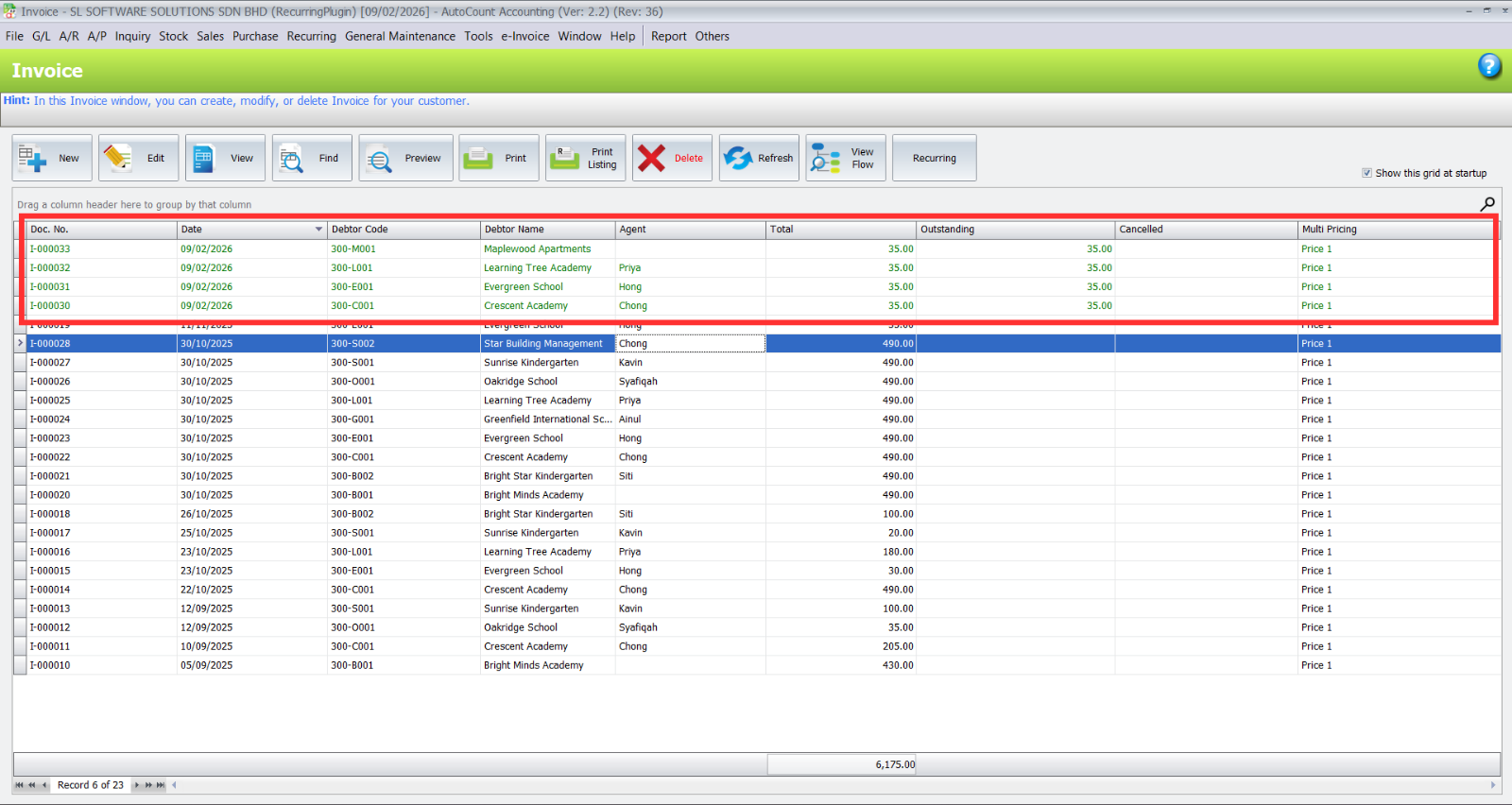
Pro Tip:
By automatically creating finalized sales invoices, the plugin prevents errors like double billing and maintains a clean workflow for future periods.
Benefits of Using Recurring Invoice Plugin
Increased Efficiency
Eliminate manual billing tasks by automating recurring invoice creation.
Accuracy
Automates invoicing based on preset data, reducing the risk of errors and missed invoices.
Time-Saving
Set it and forget it—no need to manually create invoices for each cycle.
Flexibility
Adjust billing cycles, invoice amounts, and customize the payment reminders.
Best Practices for Using Reccuring Invoice Plugin
Update Customer Groups Regularly
Keep customer categories (e.g., "Rent," "Subscription") current to ensure accurate billing and minimize errors as your business grows.
Automate Payment Reminders
Set up automatic email reminders for upcoming or overdue payments to improve cash flow and reduce late payments.
Use Billing Templates
Create reusable templates for different billing cycles to standardize and speed up invoicing, while reducing manual errors.
Conclusion
The AutoCount Recurring Invoice Plugin enhances your invoicing efficiency by automating the creation, tracking, and management of recurring invoices. Whether you’re managing subscriptions, services, or rentals, this plugin offers flexibility, accuracy, and time savings. Integrated with AutoCount Accounting, it streamlines your financial workflows and ensures seamless data synchronization. For optimal performance, regularly review your configurations, ensure your integrations are active, and leverage batch actions for bulk processing.
Frequently Asked Questions
Can I generate invoices for a select group of customers?
Absolutely. The plugin allows you to filter your debtor list using various criteria, enabling you to generate invoices for a specific segment of your customer base, such as those on a particular payment plan or service tier.
How far in advance can I schedule recurring invoices?
You can set future posting dates as needed during the setup process. This allows you to prepare your billing for the entire month, quarter, or even year in advance, ensuring no invoice is ever missed.
Will the plugin work with my existing AutoCount data?
Yes, it integrates directly. It uses your current Debtor (customer) and Item records, so there’s no need for duplicate data entry or migration.
Is the process reversible if I make a mistake?
It is always advisable to review your selection before clicking “Generate.” Once generated, the invoices appear in your AutoCount system as regular sales invoices. You would manage any corrections (like deletion or credit notes) through the standard AutoCount accounting procedures.
Can I use different master invoices for different customer groups?
Yes. You can create multiple “master” invoice templates for different services or customer types. During the generation step, you would select the appropriate template for the group of customers you are billing.
Elevate Your Subscription and Billing Business with Automated Invoicing.
Stop letting manual, repetitive billing cycles slow you down and introduce errors. The AutoCount Recurring Invoice Plugin provides the automation, consistency, and control you need to manage your recurring revenue streams professionally and reliably.