
-
AutoCount Accounting Features
-
- Approval Workflow
- Audit Trail
- Auto Save in Draft Folder
- AutoCount Contra Account
- AutoCount License Setting Guide
- Deposit Tracking & Management
- Documents Numbering Format
- Full Transfer and Partial Transfer
- Import Data to AutoCount Accounting Using Excel
- Informative Charts and Analytical Data
- Layout Customization
- Multi Pricing
- Sales and Services Tax
- Schedule Backup
- Search Lookup Edit
- View Documents Flow
- AutoCount Feature Stock Take
- Column Chooser
- Show Remaining (3) Collapse
-
AutoCount Cloud Accounting
-
AutoCount E-Invoice
-
AutoCount HRMS User Guide
-
AutoCount Modules
-
- Activity Stream
- Advanced Financial Report
- Advanced Item
- Advanced Multi-UOM
- Advanced Quotation Module
- Basic Multi-UOM
- Budget Module
- Consignment
- Filter By Salesman
- FOC Quantity
- Formula
- Item Batch
- Item Package
- Landing Cost
- Multi-Currency
- Multi-Dimensional Analysis
- Multi-Location
- Project Account
- Recurrence
- Remote Credit Control Module
- Stock Assembly
- User Defined Fields (UDF)
- AutoCount SST Hidden Functions
- AutoCount SST Submission - Service Tax
- AutoCount Scripting Module User Guide
- AutoCount Bonus Point Module User Guide
- Show Remaining (11) Collapse
-
AutoCount Plugins
-
- Fixed Assets Management
- Goldsmith
- TD Ordering Mobile Apps
- TD Stock Mobile Apps
- Universal Import Plugin
- DMS Import Plugin
- AutoCount Item Scope Plugin
- AutoCount Easy Knock Off Plugin
- AutoCount Pick List Plugin User Guide
- AutoCount Agent Validation Plugin User Guide
- AutoCount Barcode Generator Plugin User Guide
- AutoCount Bill Remark Plugin User Guide
- AutoCount Easy Batch Number Entry Plugin User Guide
- AutoCount Recurring Invoice Plugin User Guide
- AutoCount Easy Photo 2.0 User Guide
- AutoCount Pain Tracker User Guide
- AutoCount Credit Memo Plugin User Guide
- Show Remaining (2) Collapse
-
- AutoCount Easy Recurrence Plugin
- AutoCount Recurring Billing Plugin
- Event Management System
- AutoCount To-Do List Plugin
- AutoCount AutoBank Reconciliation Plugin
- Intercompany Billing Plugin User Guide
- AutoCount Basket Plugin User Guide
- Lead Management 2.0 Plugin
- AutoCount Service Contract Plugin User Guide
- Autocount Repacking Plugin
- AutoCount Scale Barcode Plugin User Guide
- AutoCount Progressive Billing
- AutoCount Optical Plugin
- AutoCount Meter Reading Plugin User Guide
- AutoCount Car Tint Film Plugin
- AutoCount Leasing Plugin User Guide
- AutoCount Integrator Plugin
- AutoCount Procurement Planning Plugin
- Show Remaining (3) Collapse
-
-
Form Template
-
Report Template
-
- Advance Quotation
- Cash Sale
- Consignment
- Consignment Movement
- Credit Note
- Debit Note
- Delivery Order
- FOC Quantity Analysis By Document Report
- Invoice
- Item Package Sales Report
- Monthly Sales Analysis
- Outstanding Sales Order Listing
- Profit And Loss Of Documents
- Quotation
- Sales Agent Contribution Report
- Sales Order
- Top/Bottom Sales Ranking
- Show Remaining (2) Collapse
-
- Available Stock Status Report
- Expired Item Batch Listing
- Inventory Physical Worksheet
- Stock Adjustment
- Stock Aging Report
- Stock Assembly
- Stock Assembly Order
- Stock Balance By Location
- Stock Balance Report
- Stock Card Report
- Stock Disassembly
- Stock Issue
- Stock Item Profit Margin
- Stock Movement Report
- Stock Receive
- Stock Take
- Stock Transfer
- Stock Write Off
- Show Remaining (3) Collapse
Advanced AutoCount Plugin Setup For Streamline Tint Shop Invoicing Using the AutoCount Car Tint Film
(EN) AutoCount Car Tint Film Plugin Video Guide
Why You Should Use It?
Precision in Documentation
Eliminates guesswork by maintaining accurate records of tinted window unit quantities for every car type.
Inventory Accuracy
Automatically calculates and deducts stock (film/coating) based on the vehicle’s specific dimensions.
Streamlined Billing
Integrates vehicle information directly into the invoicing system for a professional and transparent customer experience.
Consistency
Preset "Default Coatings" ensure that every job meets your business's quality standards without manual data entry.
Who This Plugin is For?
Car Tinting Specialists looking to track film wastage and usage.
Paint Protection Film (PPF) Centers needing to manage high-value material stock.
Automotive Service Centers that offer coating and window treatment as part of their service package.
Key Features & Capabilities
Car Type & Measurement Maintenance
This is the core setup where you define vehicle categories (like SUV, Sedan, Coupe) and their window film measurements. Once configured, the system knows how much material to use for each car model.
Intelligent Stock Deduction ("Is Tinted" Attribute)
When a stock item is marked “Is Tinted,” the plugin links it to the vehicle’s measurements and automatically calculates material use during sales, updating inventory accurately and eliminating manual errors.
Automated Industry Documentation
The system creates professional outputs like Job Order Forms (with car layout diagrams) and Product Warranty Cards that connect the specific film used to the customer’s vehicle
Step-by-Step Configuration
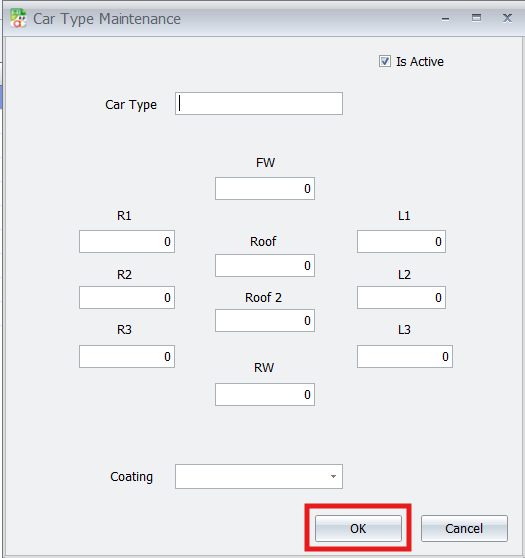
1. Car Type Maintenance
- Define Vehicle Measurements: Go to CarTintFilm > Car Type Maintenance to input the specific window unit quantities for different car models (e.g., “BMW”).
- Set Default Coatings: Standardize your process by selecting a default coating type for each specific vehicle model.
Pro Tip:
If you need to update measurements for a newer car model, simply edit the existing Car Type record. Any future invoices using this template will reflect the updated unit requirements immediately.
2. Stock Item Configuration
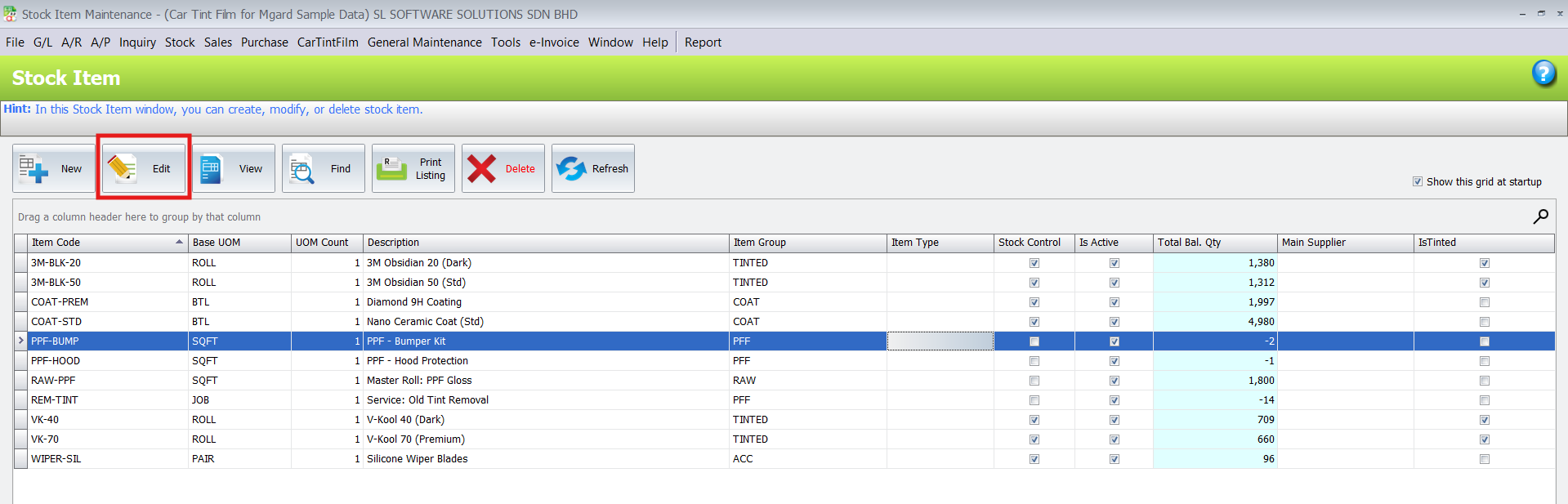
- Enable Tinted Items: Navigate to Stock > Stock Item Maintenance, select your tint film, and tick the “Is Tinted” checkbox in the User Defined Field tab.
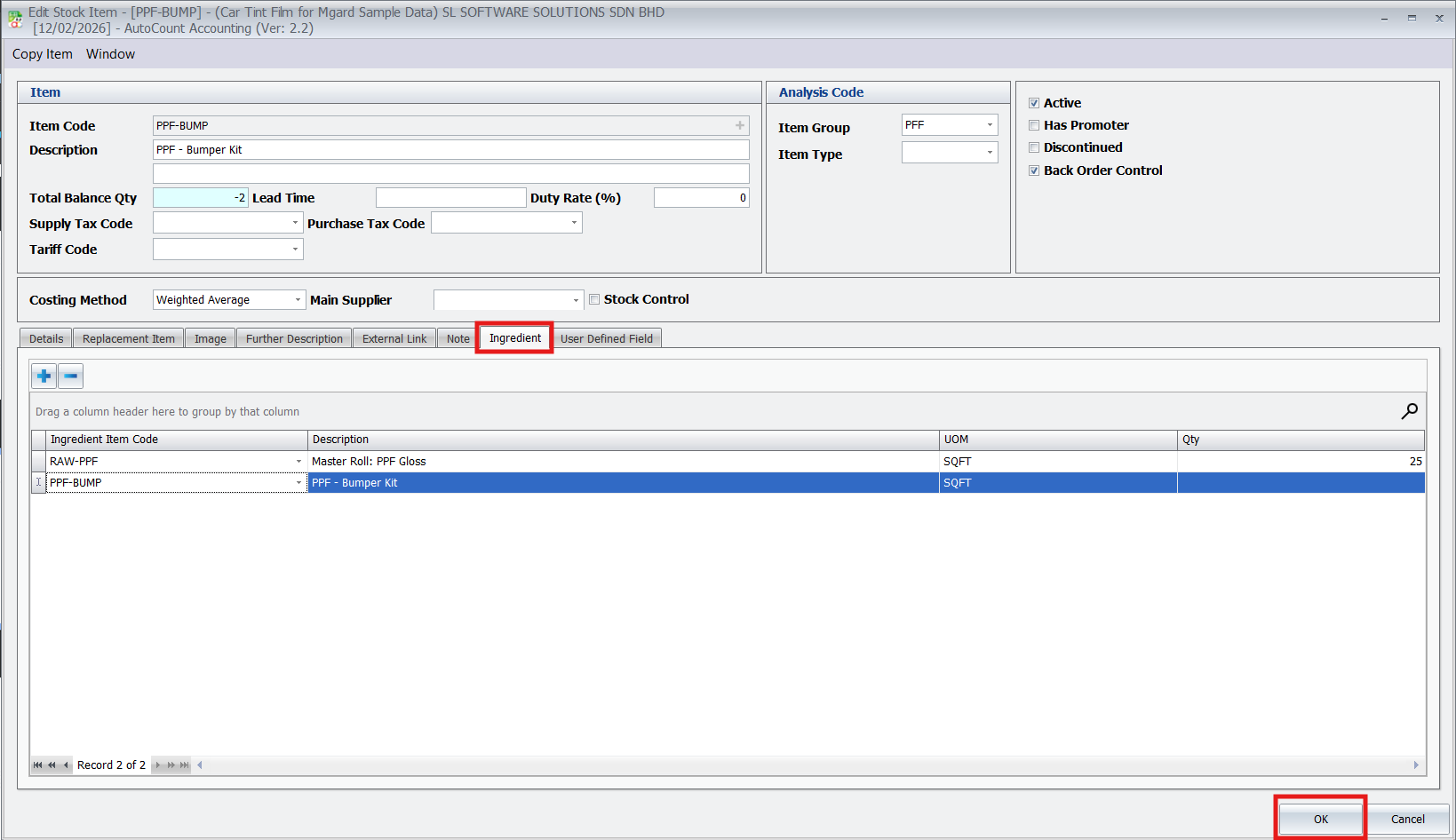
- Configure PPF Ingredients: For Paint Protection Film, use the “Ingredient” tab to set the square footage (Qty) for specific parts like door knobs or bumpers.
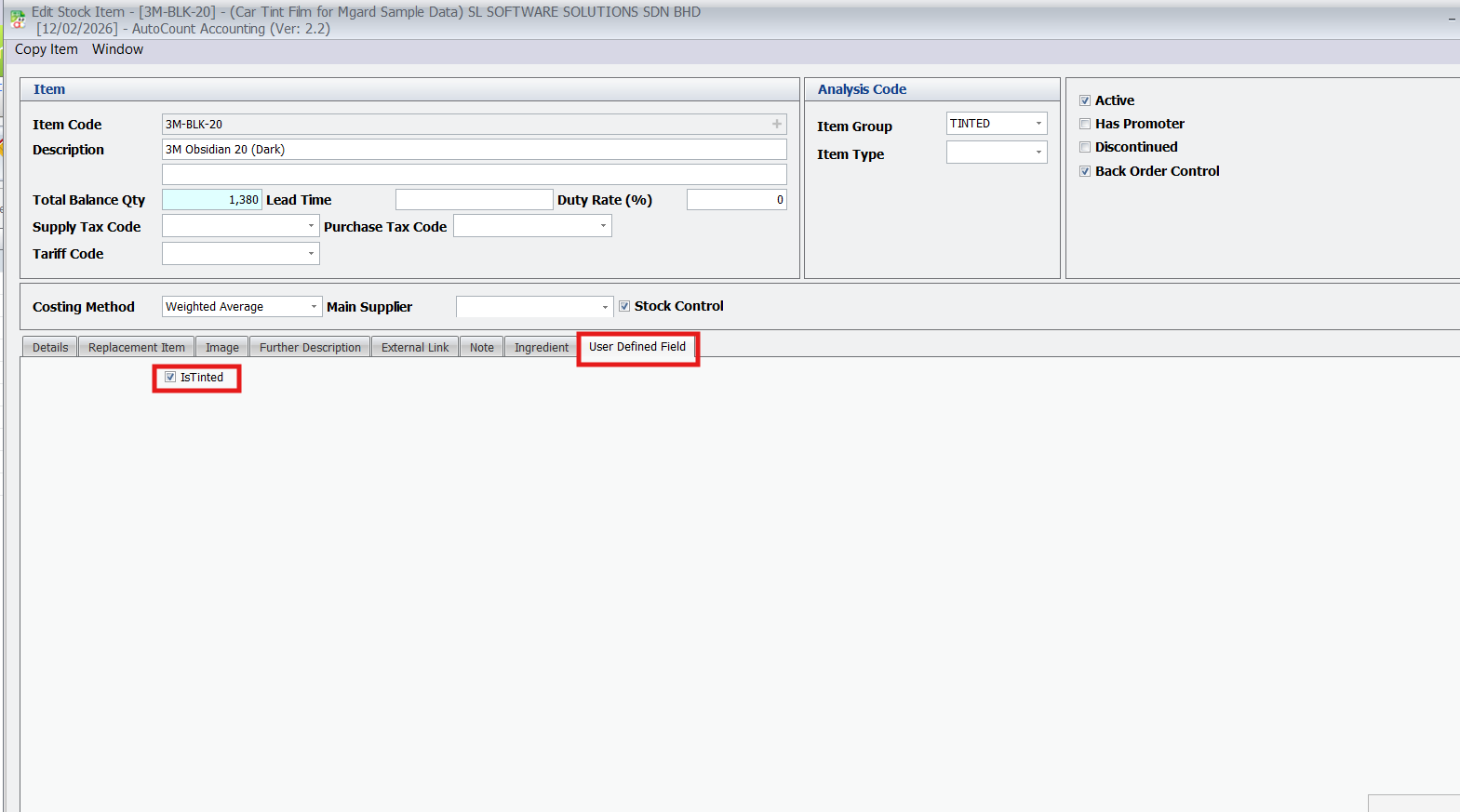
Pro Tip:
Enabling “IsTinted” allows the system to recognize that this item should trigger the automatic unit calculation based on the vehicle type during a transaction.
3. Printing or Generating Outputs
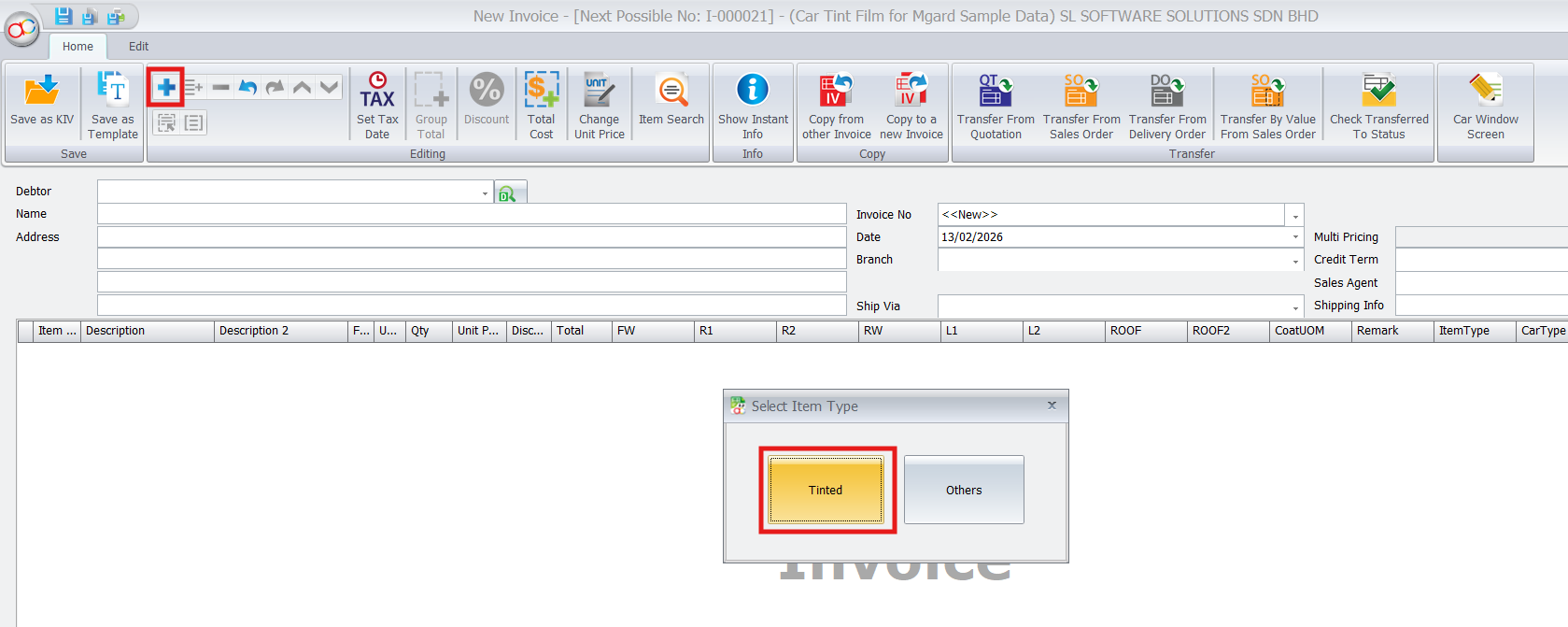
Capture Vehicle Details: In the Sales > Invoice, enter the customer and vehicle information (Chassis No, Car Model).
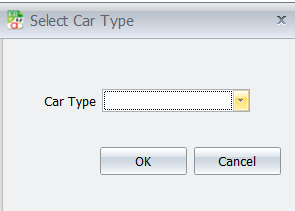
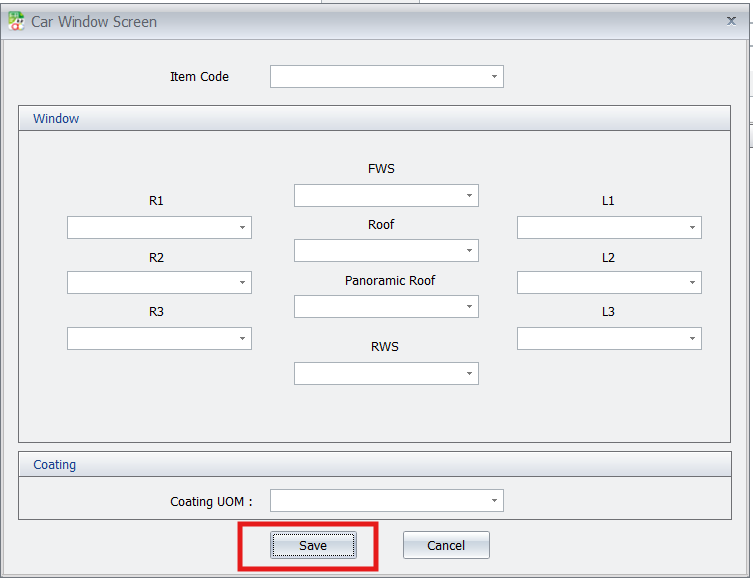
Configure Windows: Click the “Tinted” button to open the Car Window Screen. Select the car type and assign specific film brands to each window (e.g., FWS, R1, RWS).
Pro Tip:
If a specific tint package isn’t pre-configured in your stock, you can manually key in the unit price and cost directly within the configuration screen.
4. PPF Invoicing
Select PPF Parts: For paint protection services, click the “Others” button in the invoice grid to choose specific PPF Item Codes.
Set Costs: Ensure the cost value for each selected PPF item is accurate to maintain correct profit margins.
Pro Tip:
Use the “Others” button specifically for non-window film items like door handle cups, headlamps, or bonnet protection.
5. Generating Specialized Reports
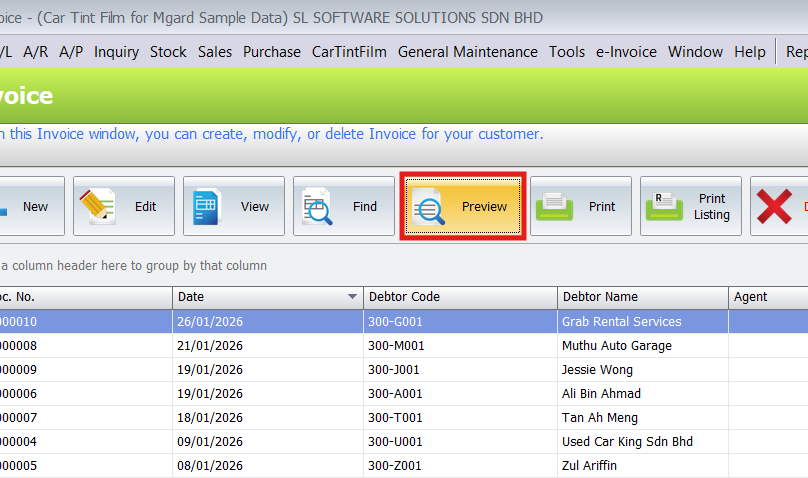
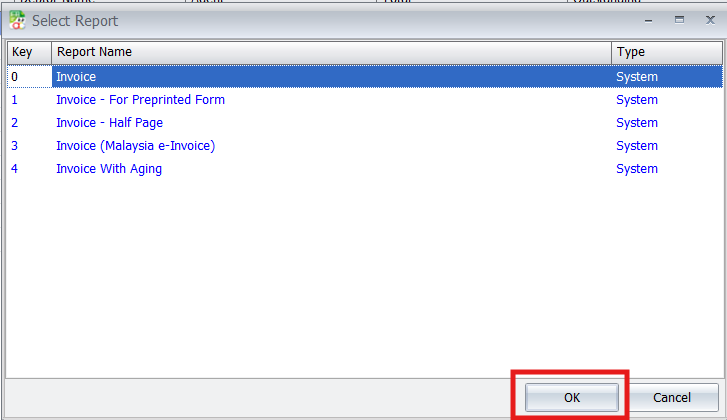
- Professional Documentation: Use the “Preview” button in the Invoice screen to select from specialized formats like the Job Order Form or Product Warranty Card.
- Visual Job Orders: The Job Order Form includes item info and car layout images to help your technicians visualize the work required.
Pro Tip:
Always print the “Invoice – Client Copy” for your customers as it includes the full breakdown of which film was applied to which window.
6. Monitoring Stock Balance
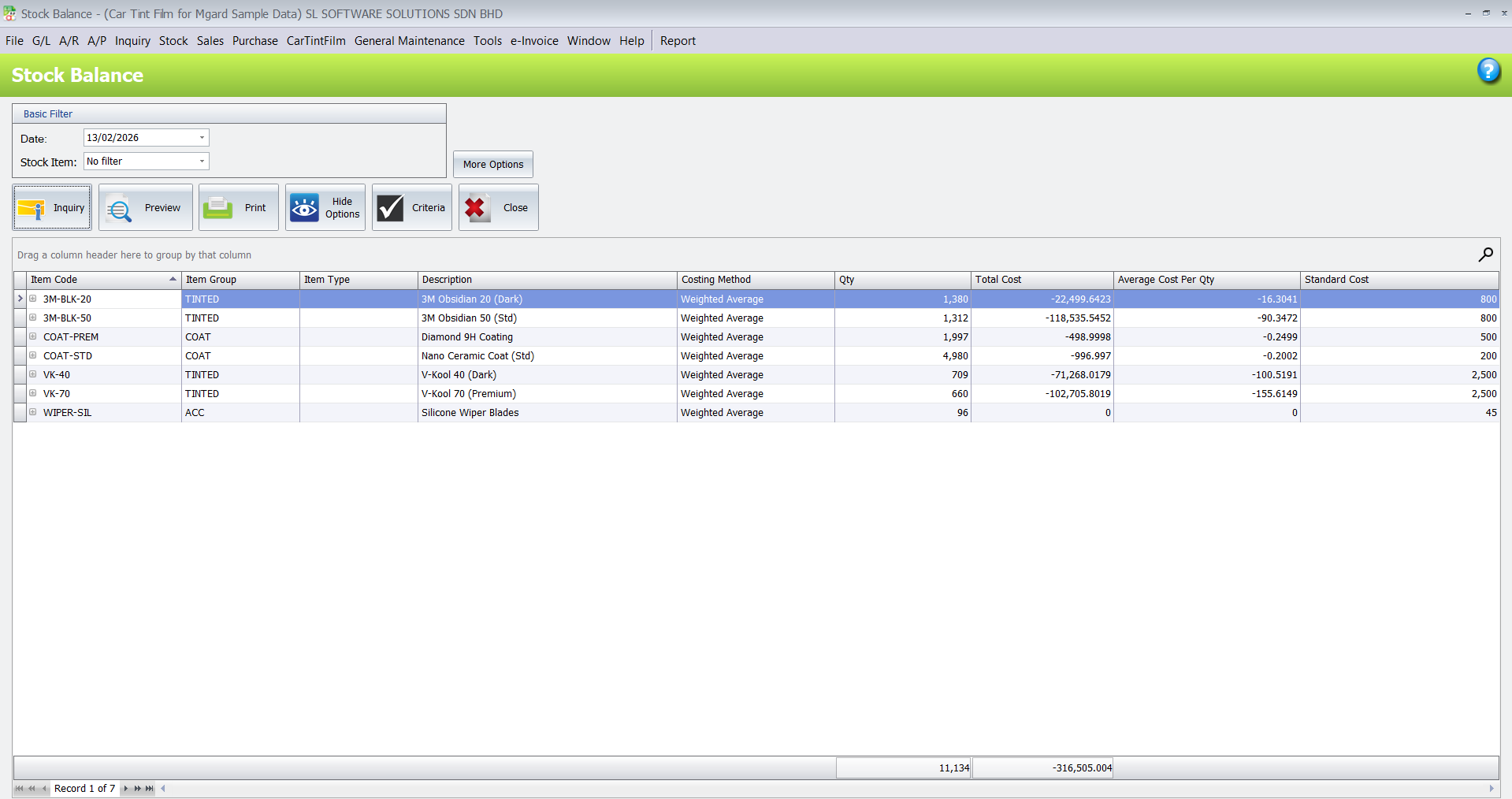
Track Inventory Levels: Visit Stock > Stock Balance Report to view real-time levels of your tint films (measured in units/length), PPF, and coatings.
Multi-Location Tracking: Monitor stock levels across different branches or HQ to ensure you never run out of popular film types.
Pro Tip:
Regularly check your “Smallest Bal. Qty” to identify which films are running low and need reordering.
Benefits Of Car Tint Film Plugin
Conclusion
The AutoCount Car Tint Plugin simplifies specialized automotive management, making it an invaluable tool for tinting businesses of all sizes. Whether managing a small workshop or a large service center, the plugin ensures tasks are organized, stock is accurate, and productivity is optimized.
Frequently Asked Questions
Can I set different window measurements for different car models?
Yes. Through Car Type Maintenance, you can create unique profiles for various car models (e.g., BMW, Honda) and input the specific tinted window unit quantities for every window, including front, rear, and side panels.
Does the plugin support Paint Protection Film (PPF)?
Yes. You can view this by going to Sales Order > Print Listing. This helps you see which portions of the project have not yet been invoiced.
Can I handle different UOMs for coatings?
es. When configuring the Car Window Screen during invoicing, you can select the preferred Coating UOM (e.g., Litre or ML) to ensure accurate usage tracking
How do I know if the plugin is installed correctly?
Check your top menu bar in AutoCount; you should see a specific menu labeled “CarTintFilm”.
Interested in Getting AutoCount for your Business?
Contact our sales team today to explore pricing options and get started with the perfect solution for you.