
-
AutoCount Accounting Features
-
- Approval Workflow
- Audit Trail
- Auto Save in Draft Folder
- AutoCount Contra Account
- AutoCount License Setting Guide
- Deposit Tracking & Management
- Documents Numbering Format
- Full Transfer and Partial Transfer
- Import Data to AutoCount Accounting Using Excel
- Informative Charts and Analytical Data
- Layout Customization
- Multi Pricing
- Sales and Services Tax
- Schedule Backup
- Search Lookup Edit
- View Documents Flow
- AutoCount Feature Stock Take
- Column Chooser
- Show Remaining (3) Collapse
-
AutoCount Cloud Accounting
-
AutoCount E-Invoice
-
AutoCount HRMS User Guide
-
AutoCount Modules
-
- Activity Stream
- Advanced Financial Report
- Advanced Item
- Advanced Multi-UOM
- Advanced Quotation Module
- Basic Multi-UOM
- Budget Module
- Consignment
- Filter By Salesman
- FOC Quantity
- Formula
- Item Batch
- Item Package
- Landing Cost
- Multi-Currency
- Multi-Dimensional Analysis
- Multi-Location
- Project Account
- Recurrence
- Remote Credit Control Module
- Stock Assembly
- User Defined Fields (UDF)
- AutoCount SST Hidden Functions
- AutoCount SST Submission - Service Tax
- AutoCount Scripting Module User Guide
- AutoCount Bonus Point Module User Guide
- Show Remaining (11) Collapse
-
AutoCount Plugins
-
- Fixed Assets Management
- Goldsmith
- TD Ordering Mobile Apps
- TD Stock Mobile Apps
- Universal Import Plugin
- DMS Import Plugin
- AutoCount Item Scope Plugin
- AutoCount Easy Knock Off Plugin
- AutoCount Pick List Plugin User Guide
- AutoCount Agent Validation Plugin User Guide
- AutoCount Barcode Generator Plugin User Guide
- AutoCount Bill Remark Plugin User Guide
- AutoCount Easy Batch Number Entry Plugin User Guide
- AutoCount Recurring Invoice Plugin User Guide
- AutoCount Easy Photo 2.0 User Guide
- AutoCount Pain Tracker User Guide
- AutoCount Credit Memo Plugin User Guide
- Show Remaining (2) Collapse
-
- AutoCount Easy Recurrence Plugin
- AutoCount Recurring Billing Plugin
- Event Management System
- AutoCount To-Do List Plugin
- AutoCount AutoBank Reconciliation Plugin
- Intercompany Billing Plugin User Guide
- AutoCount Basket Plugin User Guide
- Lead Management 2.0 Plugin
- AutoCount Service Contract Plugin User Guide
- Autocount Repacking Plugin
- AutoCount Scale Barcode Plugin User Guide
- AutoCount Progressive Billing
- AutoCount Optical Plugin
- AutoCount Meter Reading Plugin User Guide
- AutoCount Car Tint Film Plugin
- AutoCount Leasing Plugin User Guide
- AutoCount Integrator Plugin
- AutoCount Procurement Planning Plugin
- Show Remaining (3) Collapse
-
-
Form Template
-
Report Template
-
- Advance Quotation
- Cash Sale
- Consignment
- Consignment Movement
- Credit Note
- Debit Note
- Delivery Order
- FOC Quantity Analysis By Document Report
- Invoice
- Item Package Sales Report
- Monthly Sales Analysis
- Outstanding Sales Order Listing
- Profit And Loss Of Documents
- Quotation
- Sales Agent Contribution Report
- Sales Order
- Top/Bottom Sales Ranking
- Show Remaining (2) Collapse
-
- Available Stock Status Report
- Expired Item Batch Listing
- Inventory Physical Worksheet
- Stock Adjustment
- Stock Aging Report
- Stock Assembly
- Stock Assembly Order
- Stock Balance By Location
- Stock Balance Report
- Stock Card Report
- Stock Disassembly
- Stock Issue
- Stock Item Profit Margin
- Stock Movement Report
- Stock Receive
- Stock Take
- Stock Transfer
- Stock Write Off
- Show Remaining (3) Collapse
Automating Utility Billing Invoices Using AutoCount Accounting Meter Reading Plugins
What Is The AutoCount Recurring Invoice Plugin?
The Meter Reading Plugin helps businesses streamline tracking and reporting of utility meters (like electricity, water, gas, etc.). It integrates seamlessly with AutoCount, allowing businesses to automate the recording of meter readings, improve accuracy, and generate insightful reports.
(EN) AutoCount Meter Reading plugin Video Guide
Why You Should Use Meter Reading Plugin?
This plugin automates meter reading processes, reduces human errors in data entry, and ensures accurate billing and usage tracking. With real-time reporting and integration, it makes managing utilities more efficient and transparent.
Who Can Benefit from This Plugin?
This plugin is perfect for businesses that need to track utility usage and manage it efficiently. It helps them record meter readings, generate reports, and even link the data to billing or operations. This includes
Hotels
Track electricity, water, and gas usage for different rooms or facilities to help with cost allocation or guest billing.
Apartment Complexes / Property Management
Monitor individual unit utility consumption so each tenant can be billed correctly and fairly.
Manufacturing Plants
Keep accurate records of utility usage for production lines or machinery to control energy costs and measure efficiency.
Commercial Offices
Record and analyse utility use across multiple departments or floors to budget and reduce waste.
Retail Chains
Track usage in multiple store locations to identify high‑consumption periods and optimise costs.
Factories / Warehouses
Measure utility draw from equipment or facilities to plan maintenance and reduce operational costs.
Educational Institutions
Log readings for buildings or departments to enforce accountability and save on utility expenses.
Printing Machine Industry
Monitor energy and resource consumption (like electricity or gas) for press machines, dryers, and other equipment — helping to reduce waste, improve job costing, and maintain production efficiency.
Key Features & Capabilities
Automated Reading Retrieval
The plugin automatically fetches the last meter reading (P_Reading) for a specific debtor, branch, and item combination, so you only need to enter the current reading (C_Reading).
Minimum Copy Enforcement
Set and enforce minimum copy or usage quantities per item for each client directly in their Debtor record. The plugin automatically applies these minimums during invoicing.
Intelligent Quantity Calculation
The system automatically calculates the billed quantity (Current Reading – Previous Reading). It then intelligently compares this result to the pre-set minimum copy requirement, ensuring the correct, contract-compliant quantity is billed.
Dedicated Meter Reading Report
Generate professional invoices that clearly display both the previous and current meter readings, providing full transparency to your customers and serving as a perfect audit trail.
Seamless Sales Integration
The functionality is fully integrated into Invoice and Cash Sales entries in AutoCount, requiring no switching between modules or complex procedures.
How AutoCount Meter Reading Plugin works
1. Set Minimum Copies in Debtor Maintenance
Go to A/R > Debtor Maintenance in AutoCount Accounting.
Open an existing debtor or create a new one.
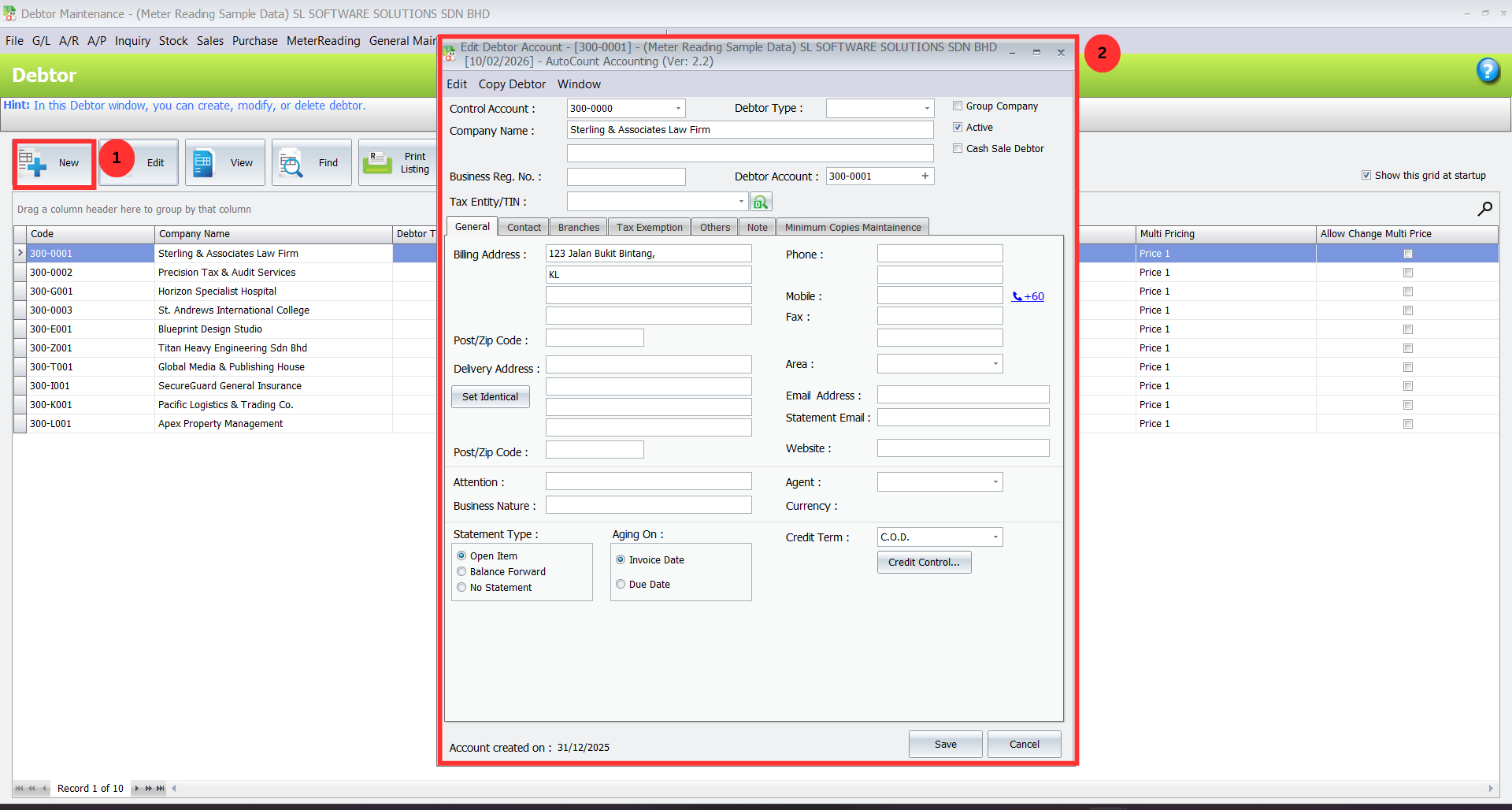
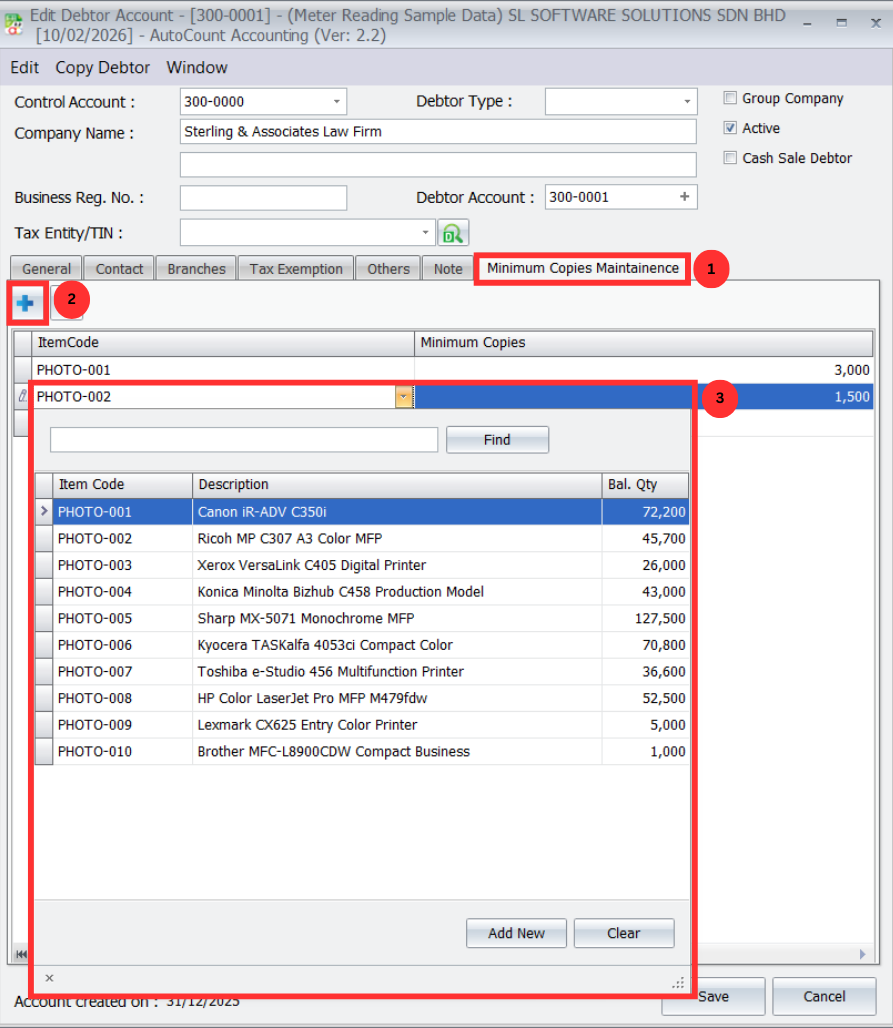
Click the “Minimum Copies Maintenance” tab.
Click “+” to add a new minimum rule.
Select the Item Code that you’ll bill based on meter readings.
Enter the Minimum Copies quantity agreed with the client.
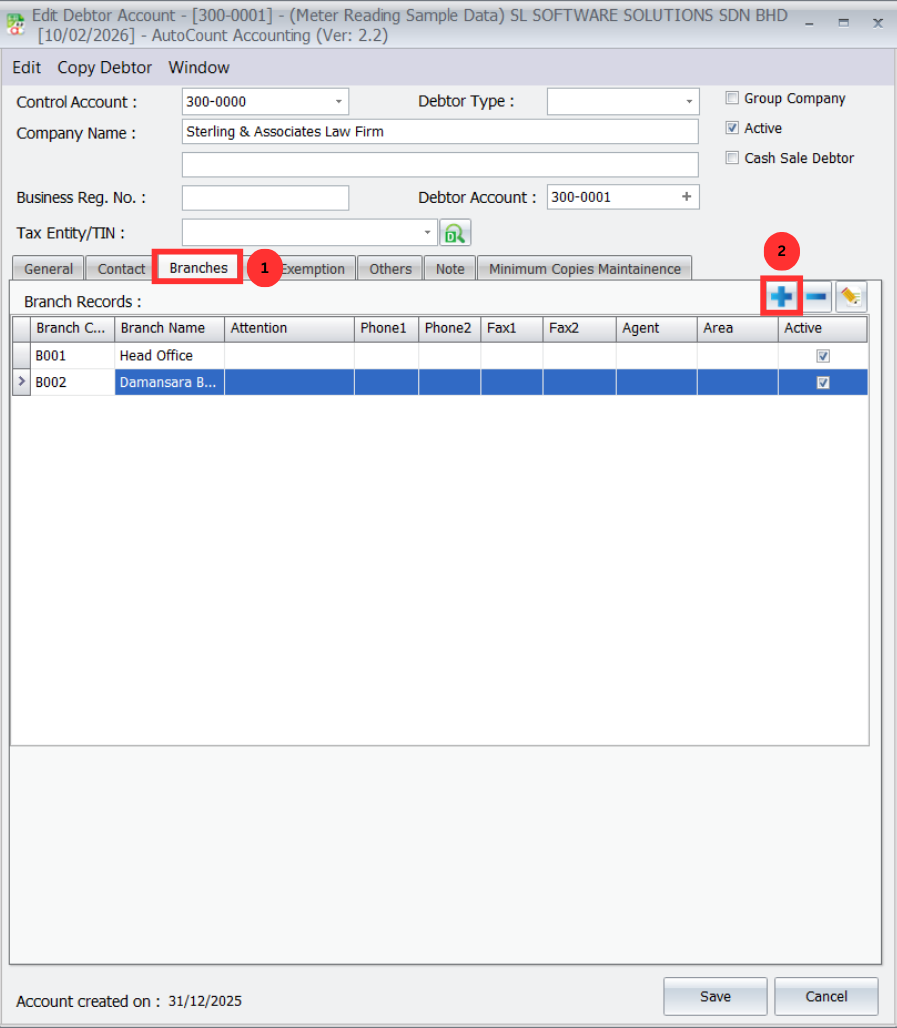
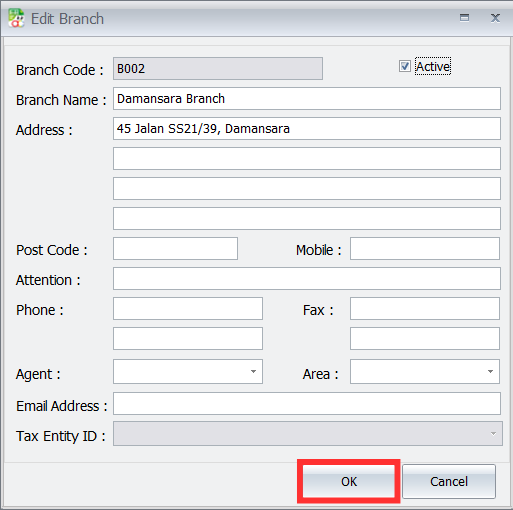
Make sure the debtor’s Branch info is filled in properly — the plugin uses debtor + branch + item to apply rules accurately.
Click Save to store these billing rules.
Pro Tip:
Double‑check the branch info — incorrect branch entries can cause the system to fetch the wrong previous reading.
2. Create an Invoice with Meter Reading
Go to Sales > Invoice and create a new invoice.
Select the Debtor and the correct Branch from the dropdowns.
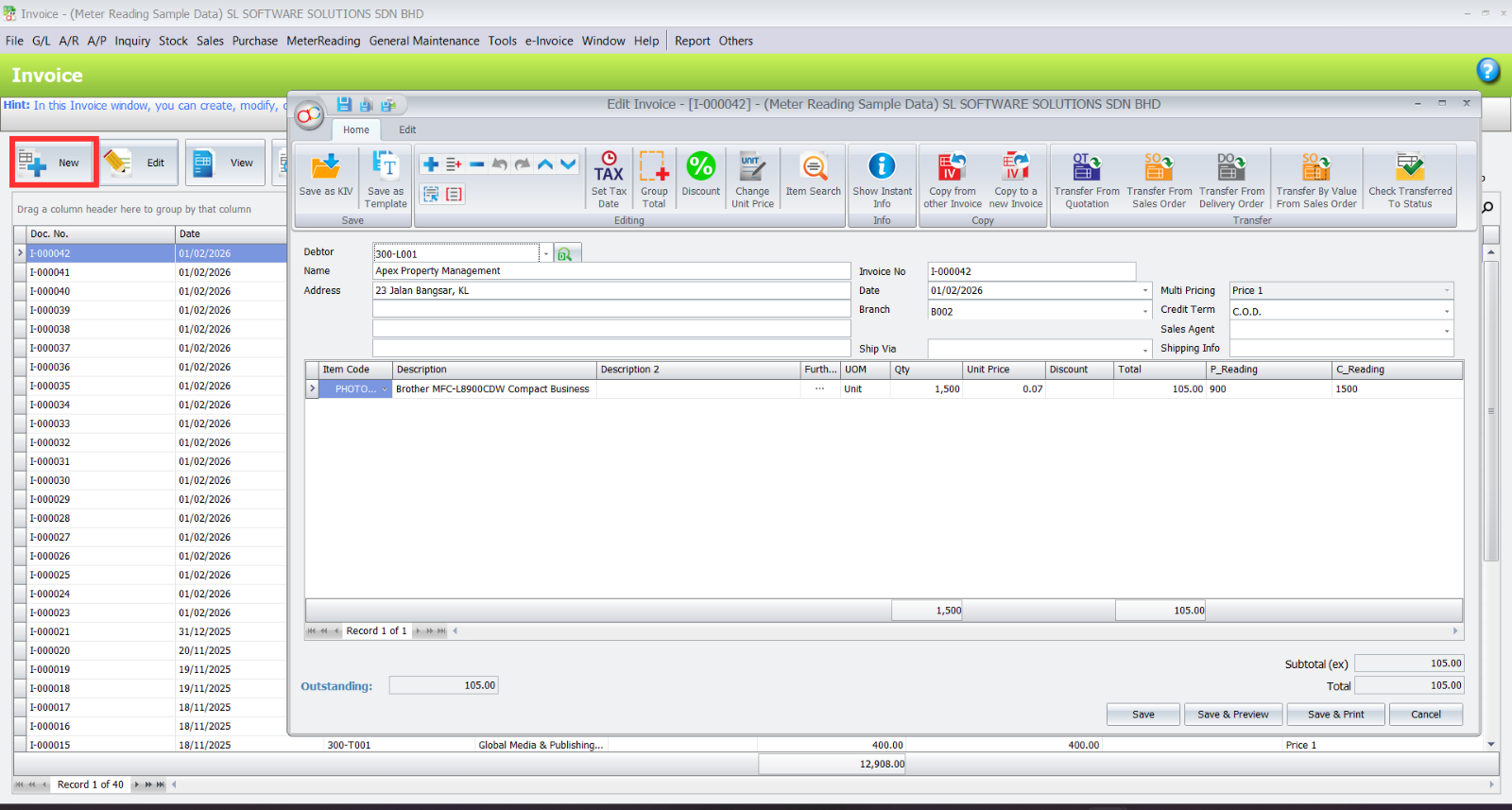
Add the service or rental Item you’re billing for.
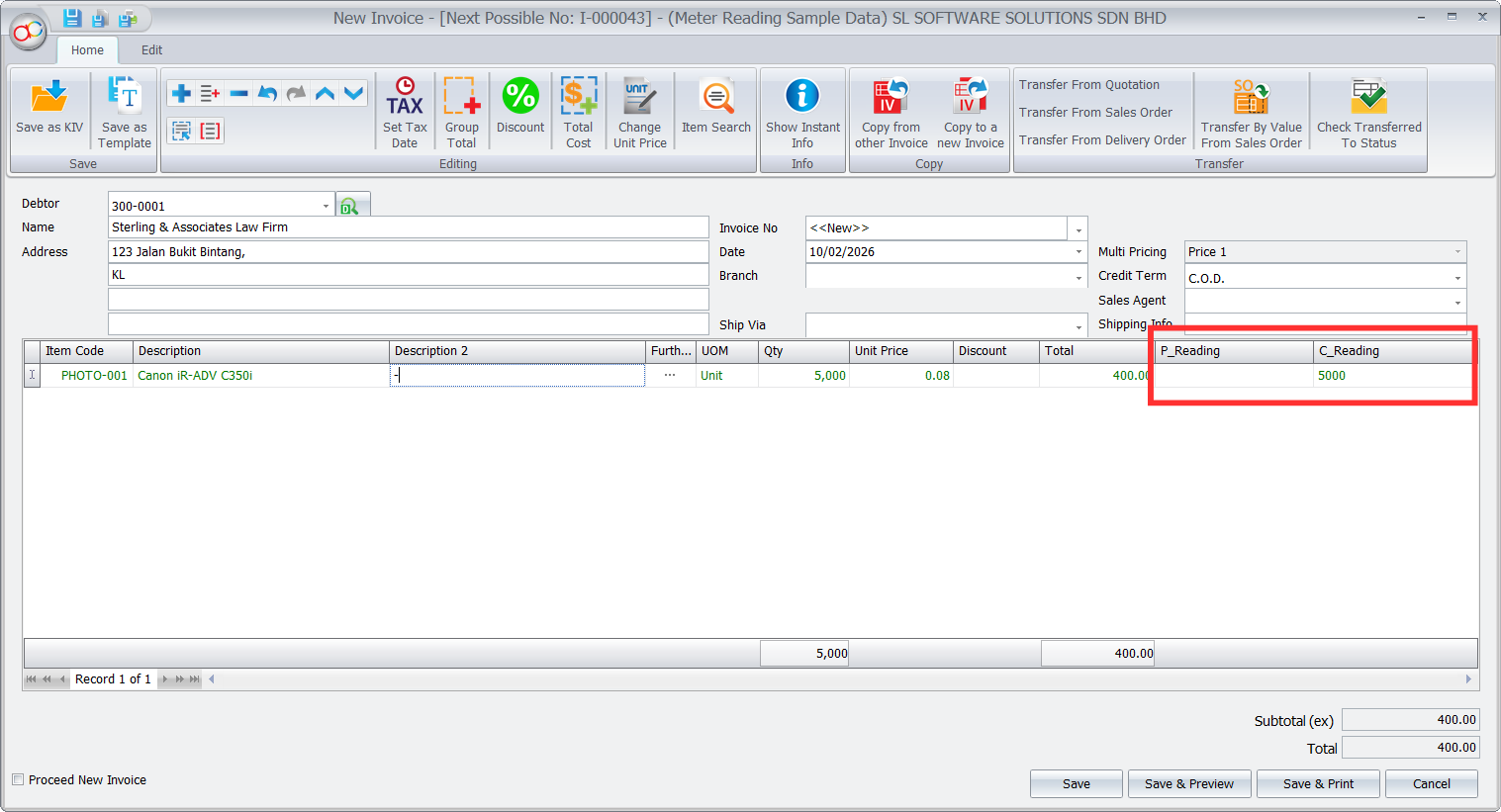
The plugin will now show two extra columns:
P_Reading (Previous Reading)
C_Reading (Current Reading)
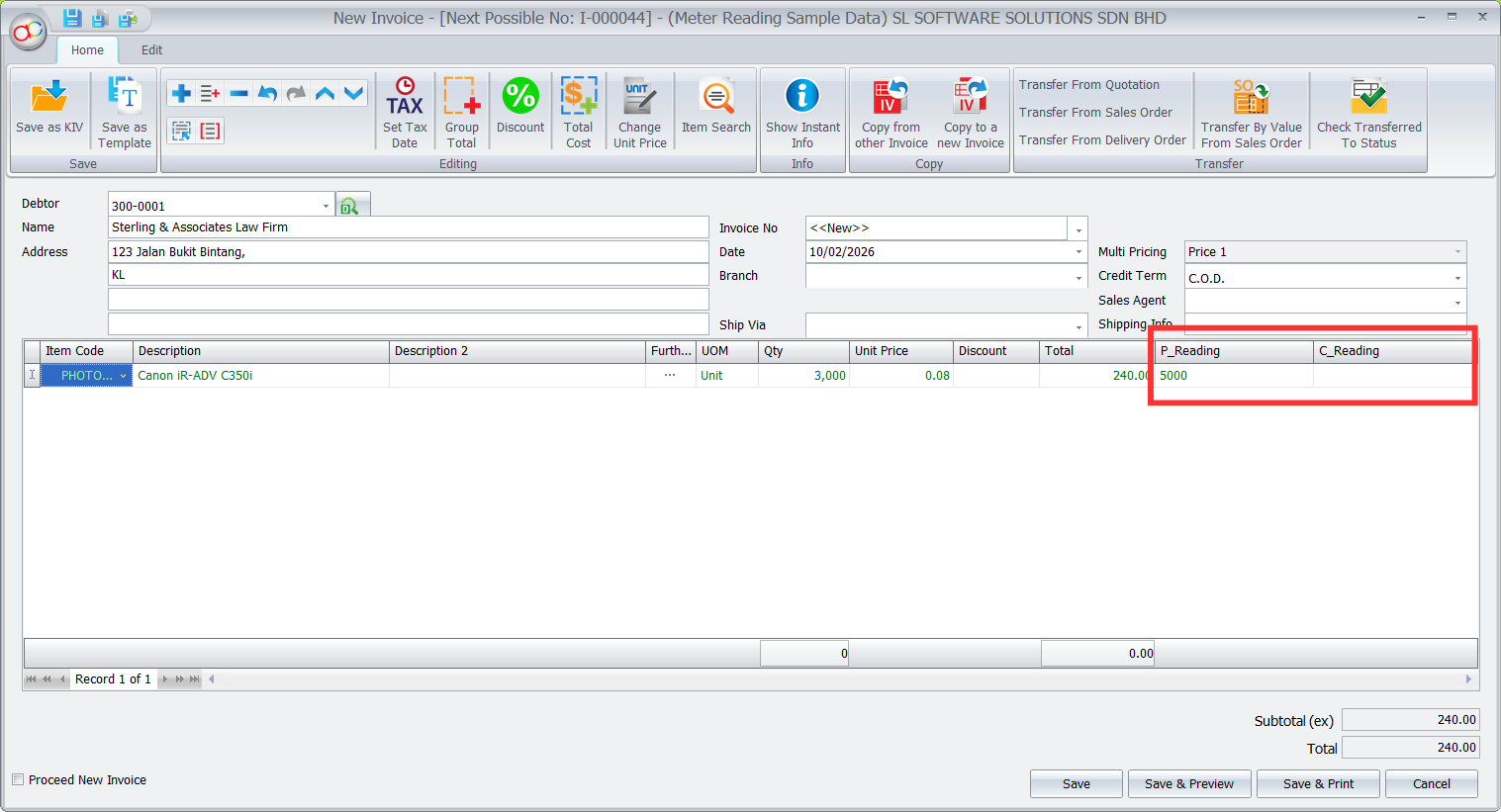
The P_Reading will auto‑fill with the last recorded reading for this debtor‑branch‑item.
Enter the C_Reading from the actual meter.
The system instantly calculates:
Qty = Current Reading – Previous Reading
and then checks against the minimum copy rule you set earlier
Pro Tip:
If the calculated quantity is below the minimum, the plugin will automatically use the minimum copy value instead of the actual difference — enforcing contract terms without extra work.
3. Generate the Meter Reading Report
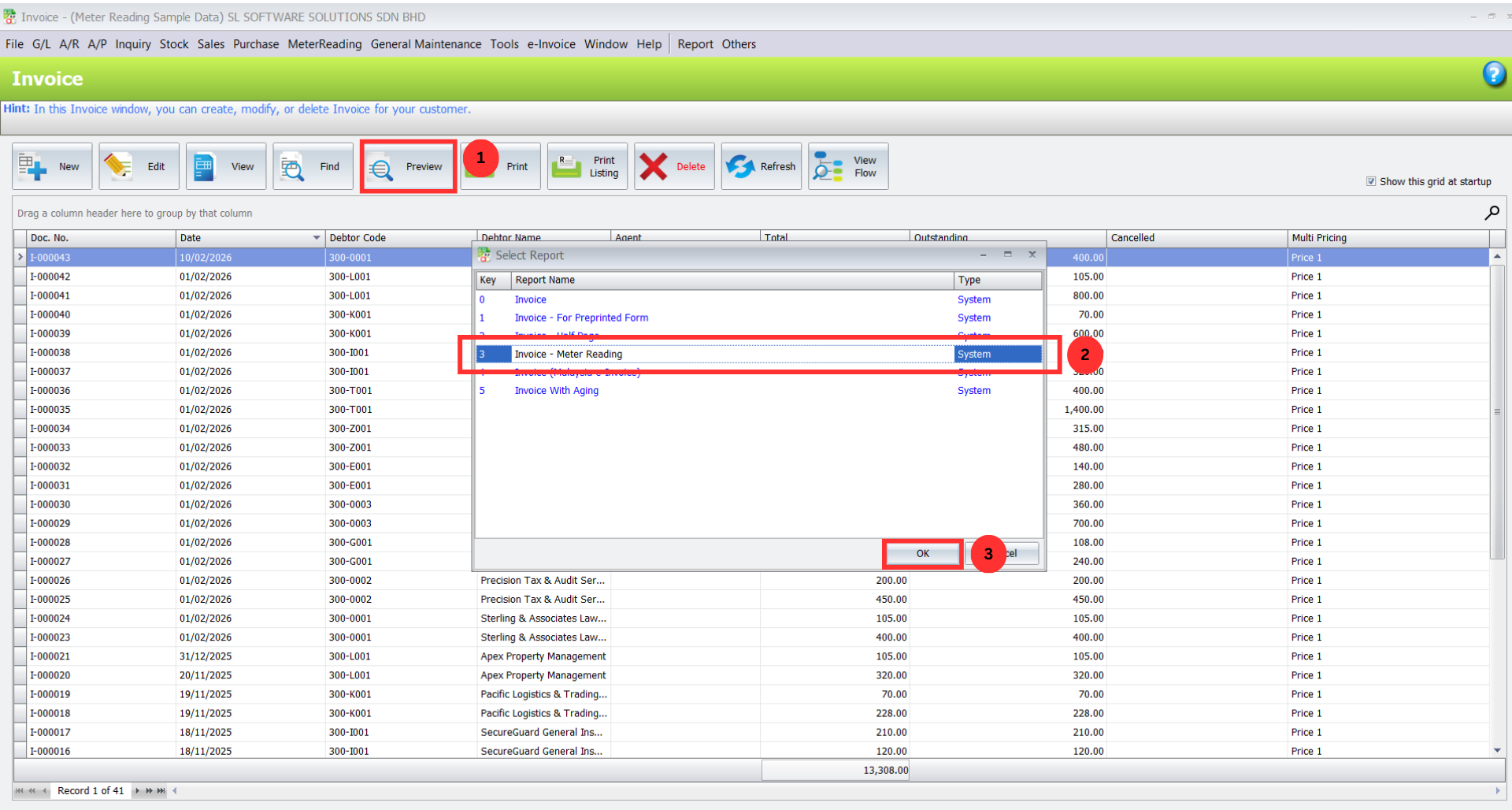
After saving the invoice or cash sales entry, click Preview.
In the report selection window, choose “- Meter Reading” as the report format.
Click OK. The system will generate a professional invoice showing:
Previous Reading
Current Reading
Billed Quantity & Charges
clearly for each metered item.
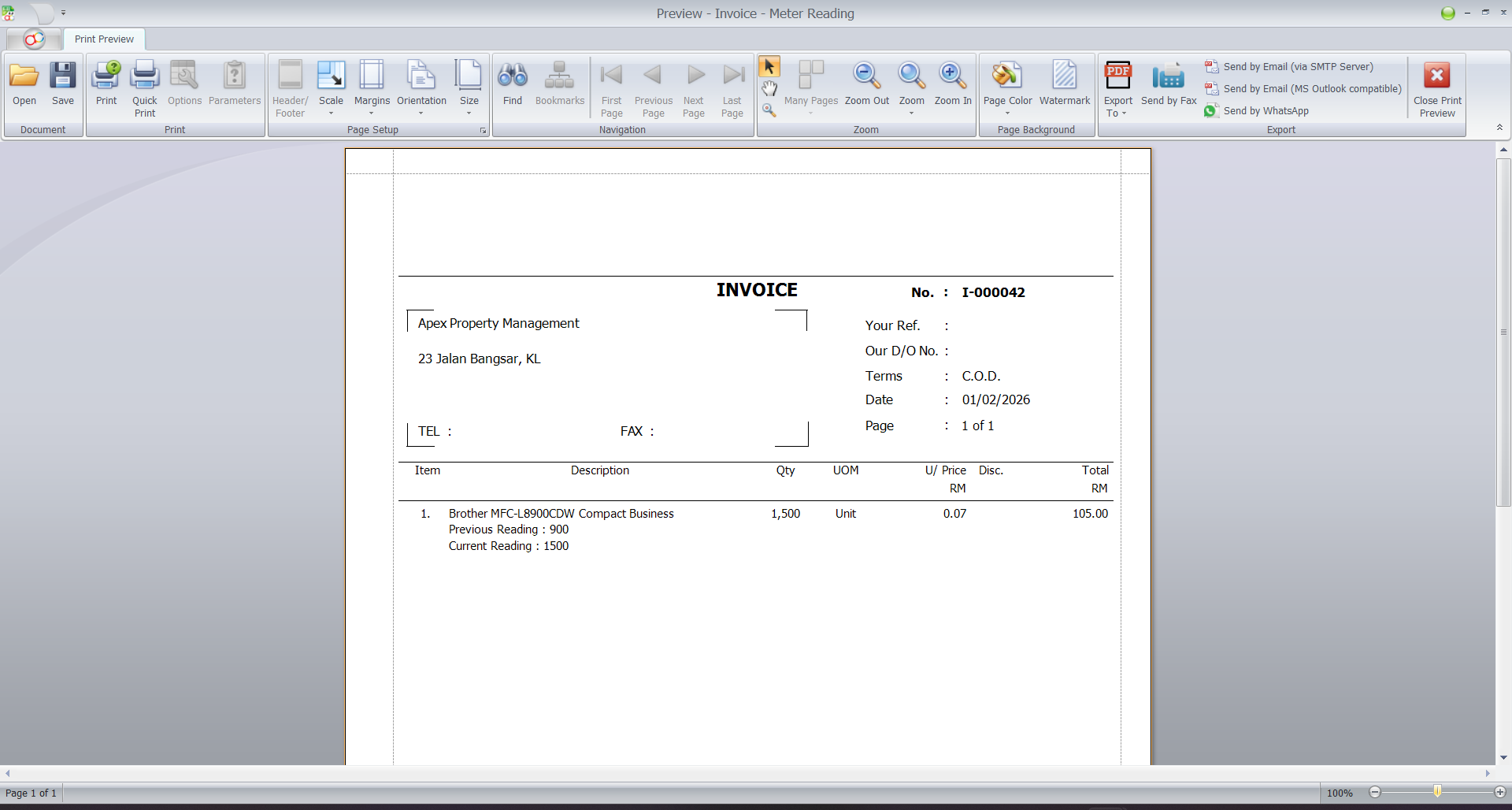
Pro Tip:
This report provides an audit trail that helps avoid disputes — customers can see exactly how the usage was calculated.
Benefits of Using Meter Reading Plugin
Efficiency
Reduces manual data entry, saving time and improving productivity.
Accuracy
Minimizes human error, ensuring correct readings and reports.
Integration
Syncs meter readings with other AutoCount systems for seamless operations.
Automation
Automatic reading capture and reporting reduce the need for manual intervention.
Best Practices for Managing Service Contracts
Schedule Regular Readings
Keep meter entries consistent (daily/weekly/monthly) to ensure accurate tracking.
Verify with Physical Checks
Spot‑check actual meters occasionally to avoid data errors.
Train Users & Control Access
Make sure only trained staff enter readings and edit settings.
Conclusion
The Meter Reading Plugin simplifies utility management by delivering greater accuracy, improved efficiency, and seamless integration with other AutoCount Accounting systems. Automate tasks, reduce errors, and ensure smooth daily operations with this powerful tool designed for modern business workflows.
Frequently Asked Questions
What types of businesses need this plugin?
This plugin is ideal for any business that bills based on usage meters. This includes photocopier/printer service and rental companies, industrial equipment lessors, and certain utility or subscription services.
Can I set different minimum copies for the same client at different branches?
Yes. The minimum copy setting is specific to the combination of Debtor, Branch, and Item Code. You can set different rules for each branch a client operates from.
Does the plugin work with both Invoice and Cash Sales?
Absolutely. The meter reading functionality is fully available in both Invoice and Cash Sales transaction types within AutoCount.
What happens if I don't set a minimum copy for a debtor/item?
If no minimum copy is set, the plugin will simply bill the exact calculated usage (Current Reading – Previous Reading). The minimum copy enforcement only activates if a quantity is defined in the Debtor Maintenance tab.
Elevate Your Billing Operations with Precision Automation
Stop letting manual processes hold your business back. The AutoCount Meter Reading Plugin is the definitive solution to eliminate billing errors, guarantee contract compliance, and ensure flawless invoices. Transform your meter-based billing from a manual chore into an automated advantage.