
-
AutoCount Accounting Features
-
- Approval Workflow
- Audit Trail
- Auto Save in Draft Folder
- AutoCount Contra Account
- AutoCount License Setting Guide
- Deposit Tracking & Management
- Documents Numbering Format
- Full Transfer and Partial Transfer
- Import Data to AutoCount Accounting Using Excel
- Informative Charts and Analytical Data
- Layout Customization
- Multi Pricing
- Sales and Services Tax
- Schedule Backup
- Search Lookup Edit
- View Documents Flow
- AutoCount Feature Stock Take
- Column Chooser
- Show Remaining (3) Collapse
-
AutoCount Cloud Accounting
-
AutoCount E-Invoice
-
AutoCount HRMS User Guide
-
AutoCount Modules
-
- Activity Stream
- Advanced Financial Report
- Advanced Item
- Advanced Multi-UOM
- Advanced Quotation Module
- Basic Multi-UOM
- Budget Module
- Consignment
- Filter By Salesman
- FOC Quantity
- Formula
- Item Batch
- Item Package
- Landing Cost
- Multi-Currency
- Multi-Dimensional Analysis
- Multi-Location
- Project Account
- Recurrence
- Remote Credit Control Module
- Stock Assembly
- User Defined Fields (UDF)
- AutoCount SST Hidden Functions
- AutoCount SST Submission - Service Tax
- AutoCount Scripting Module User Guide
- AutoCount Bonus Point Module User Guide
- Show Remaining (11) Collapse
-
AutoCount Plugins
-
- Fixed Assets Management
- Goldsmith
- TD Ordering Mobile Apps
- TD Stock Mobile Apps
- Universal Import Plugin
- DMS Import Plugin
- AutoCount Item Scope Plugin
- AutoCount Easy Knock Off Plugin
- AutoCount Pick List Plugin User Guide
- AutoCount Agent Validation Plugin User Guide
- AutoCount Barcode Generator Plugin User Guide
- AutoCount Bill Remark Plugin User Guide
- AutoCount Easy Batch Number Entry Plugin User Guide
- AutoCount Recurring Invoice Plugin User Guide
- AutoCount Easy Photo 2.0 User Guide
- AutoCount Pain Tracker User Guide
- AutoCount Credit Memo Plugin User Guide
- Show Remaining (2) Collapse
-
- AutoCount Easy Recurrence Plugin
- AutoCount Recurring Billing Plugin
- Event Management System
- AutoCount To-Do List Plugin
- AutoCount AutoBank Reconciliation Plugin
- Intercompany Billing Plugin User Guide
- AutoCount Basket Plugin User Guide
- Lead Management 2.0 Plugin
- AutoCount Service Contract Plugin User Guide
- Autocount Repacking Plugin
- AutoCount Scale Barcode Plugin User Guide
- AutoCount Progressive Billing
- AutoCount Optical Plugin
- AutoCount Meter Reading Plugin User Guide
- AutoCount Car Tint Film Plugin
- AutoCount Leasing Plugin User Guide
- AutoCount Integrator Plugin
- AutoCount Procurement Planning Plugin
- Show Remaining (3) Collapse
-
-
Form Template
-
Report Template
-
- Advance Quotation
- Cash Sale
- Consignment
- Consignment Movement
- Credit Note
- Debit Note
- Delivery Order
- FOC Quantity Analysis By Document Report
- Invoice
- Item Package Sales Report
- Monthly Sales Analysis
- Outstanding Sales Order Listing
- Profit And Loss Of Documents
- Quotation
- Sales Agent Contribution Report
- Sales Order
- Top/Bottom Sales Ranking
- Show Remaining (2) Collapse
-
- Available Stock Status Report
- Expired Item Batch Listing
- Inventory Physical Worksheet
- Stock Adjustment
- Stock Aging Report
- Stock Assembly
- Stock Assembly Order
- Stock Balance By Location
- Stock Balance Report
- Stock Card Report
- Stock Disassembly
- Stock Issue
- Stock Item Profit Margin
- Stock Movement Report
- Stock Receive
- Stock Take
- Stock Transfer
- Stock Write Off
- Show Remaining (3) Collapse
AutoCount Plugin: AutoCount Easy Photo 2.0 Plugin User Guide
What is AutoCount Easy Photo 2.0 Plugin?
The AutoCount Easy Photo 2.0 Plugin is designed to help retail and inventory-focused businesses seamlessly integrate photographs into their AutoCount accounting and business documents. By allowing users to attach photos directly to transaction entries, this plugin transforms standard documents into visual, detailed records that enhance accuracy, clarity, and operational efficiency. It is the perfect solution for shops, distributors, and warehouses where a visual reference for products, conditions, or project stages is crucial for business management.
What Is The AutoCount Easy Photo Plugin?
AutoCount Easy Photo 2.0 Plugin
The Easy Photo 2.0 Plugin is an enhancement for AutoCount that simplifies visual documentation. It enables you to upload and store images directly within document entry forms—such as Sales Invoices, Purchase Orders, and Delivery Notes—linking them permanently to the transaction. This eliminates the need for separate photo files and manual matching, ensuring that your visual evidence is always connected to the correct business record.
(EN) AutoCount Easy Photo 2.0 Plugin Video Guide
Why It Matters?
Managing product images separately from your accounting data creates inefficiencies and risks. Without an integrated photo system, you may face:
Disorganized Records
Photos stored in folders or emails are easily disconnected from their related invoices or items.
Increased Errors
Sales or warehouse staff may pick or ship the wrong item due to unclear text descriptions.
Slower Processes
Manually attaching images to emails or reports for customer verification wastes valuable time.
Key Features & Capabilities
Selective Document Configuration
Choose exactly which document types (e.g., Quotation, Invoice, GRN) should have the photo upload feature enabled, keeping your interface clean and relevant to your workflow.
One-Click Photo Upload
Easily attach photos by simply right-clicking in the photo panel of any enabled document and selecting “Load Photo” from your computer.
Seamless AutoCount Integration
The plugin works natively within your familiar AutoCount interface. Photos are stored within your AutoCount database, ensuring data integrity and easy backup.
Enhanced Inventory & Sales Clarity
Ideal for businesses with physical products. Attach photos to item masters or sales documents to aid in identification, picking, and providing customers with visual confirmation.
Who This Plugin Is For?
Perfect for businesses that:
Retailers and wholesalers
Who handle physical products and want product photos tied directly to sales orders, invoices and quotations.
Warehouses and logistics teams
Need photo confirmation of goods before delivery or receipt.
Sales and service teams
Benefit from sending customers documents that include item visuals.
How AutoCount Easy Photo 2.0 Plugin Works
1. Plugin Installation Process
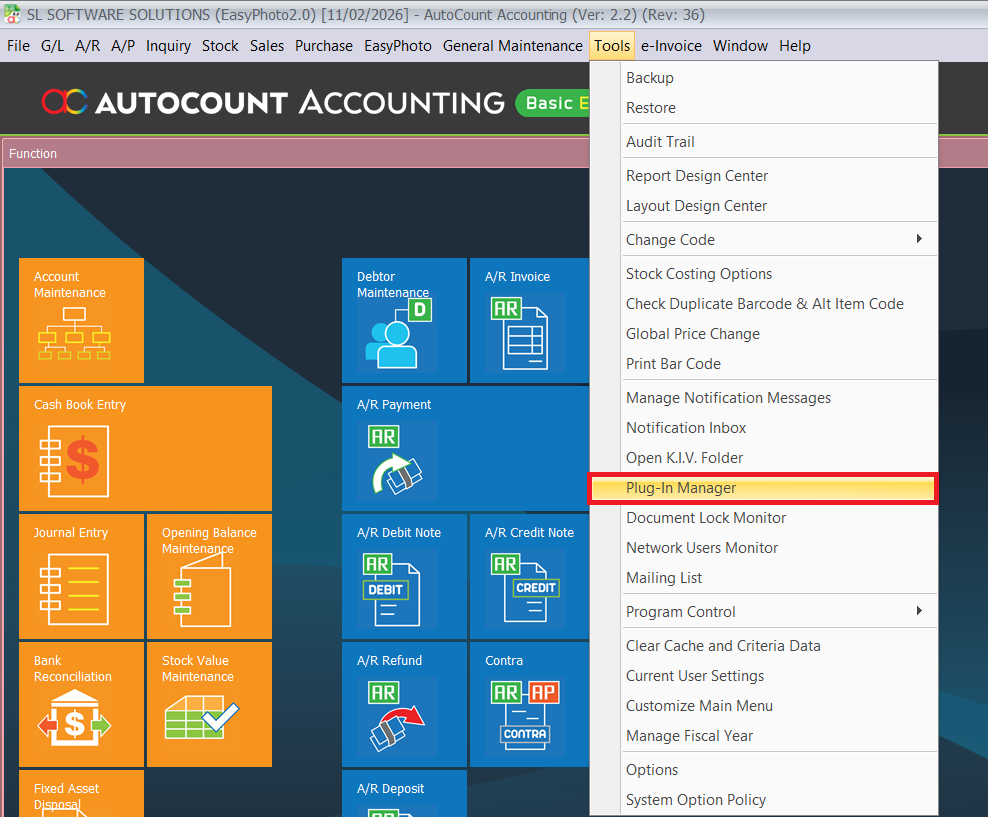
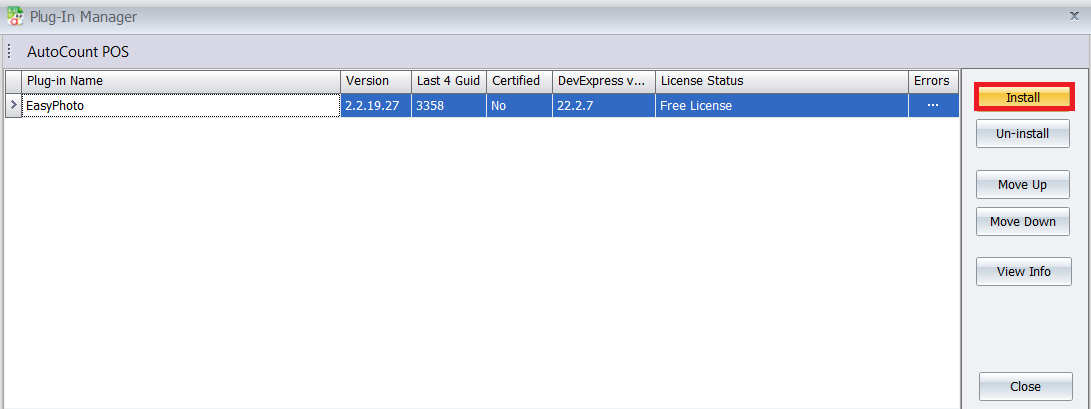
Install the plugin via Tools > Plug-In Manager in your AutoCount system. Click “Install,” browse for the provided EasyPhoto.app file, review the details, and confirm the installation. A success message will appear once complete.
- Navigate to Tools > Plug‑In Manager.
- Browse for the EasyPhoto 2.0 plug‑in file and install it.
- Confirm the success message.
Pro Tip:
Restart AutoCount after installation if the plugin doesn’t appear right away.
2. Access Rights Management
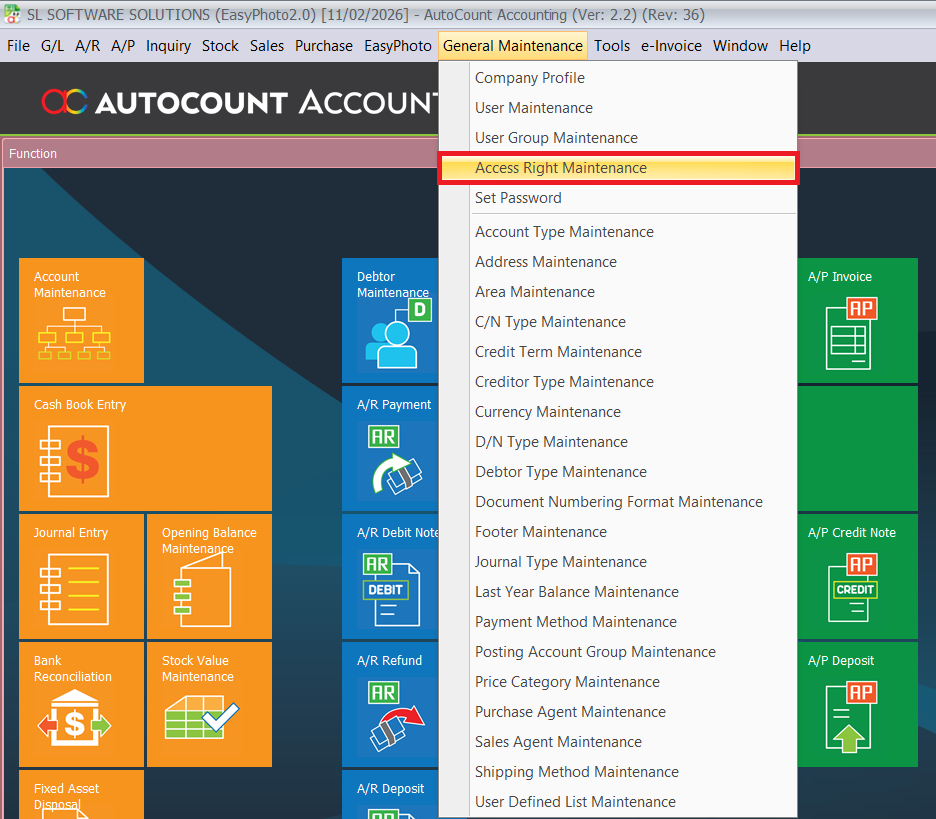
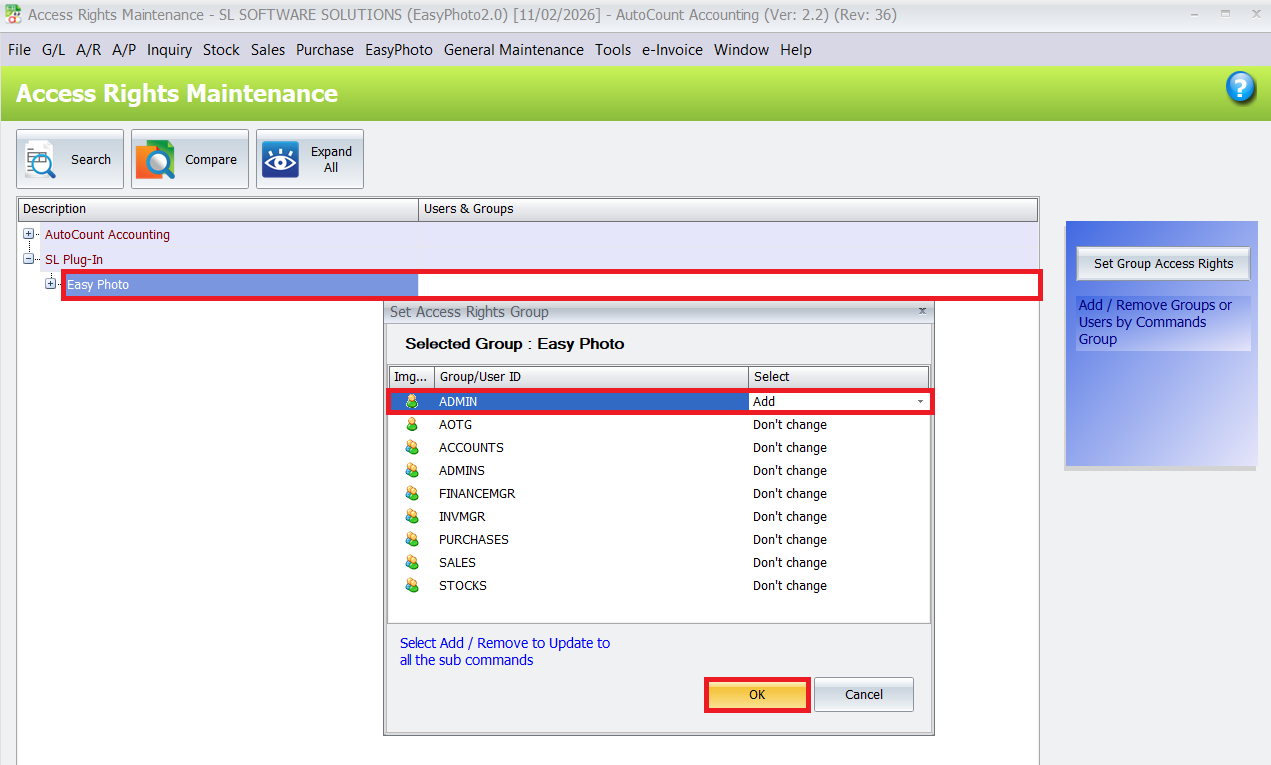
First, ensure the right staff have permission to use the plugin. In AutoCount, go to General Maintenance > Access Right Maintenance. Navigate to the relevant plugin section (often under SL Plug-Ins or similar), find “Easy Photo,” and set the appropriate access rights (e.g., Add, Edit) for the required user groups.
Grant proper permissions so users can add/edit photos:
• Go to General Maintenance > Access Right Maintenance.
• Find the “Easy Photo 2.0” section and tick permissions like Add/Edit for the right user groups.
Pro Tip:
Check access rights before training staff — if they can’t use the feature, they won’t know it exists!
3. Plugin Configuration
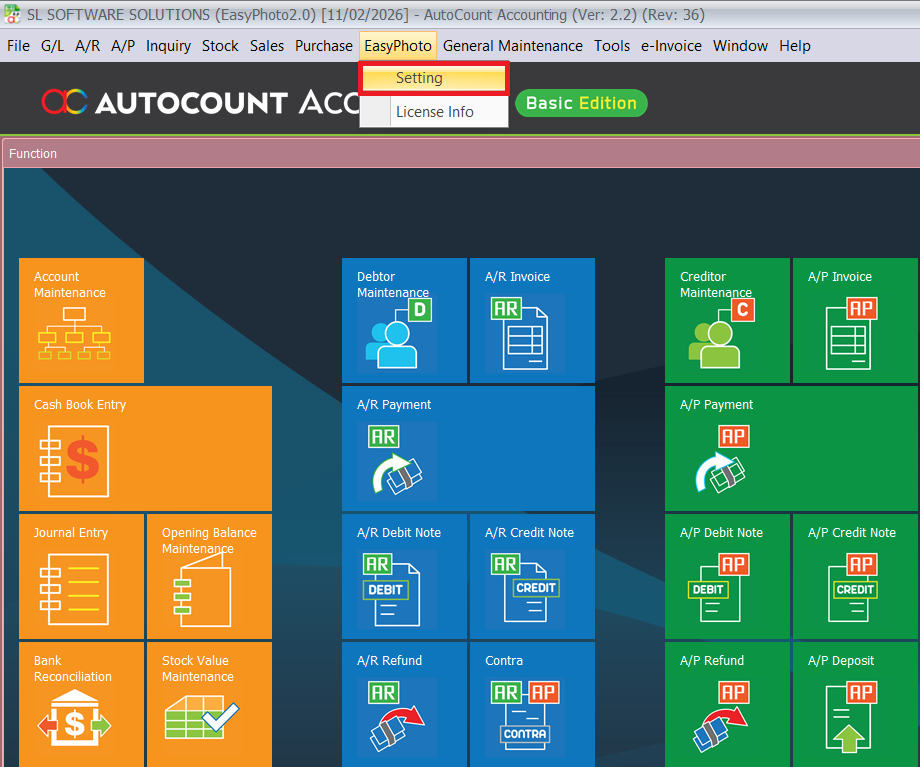
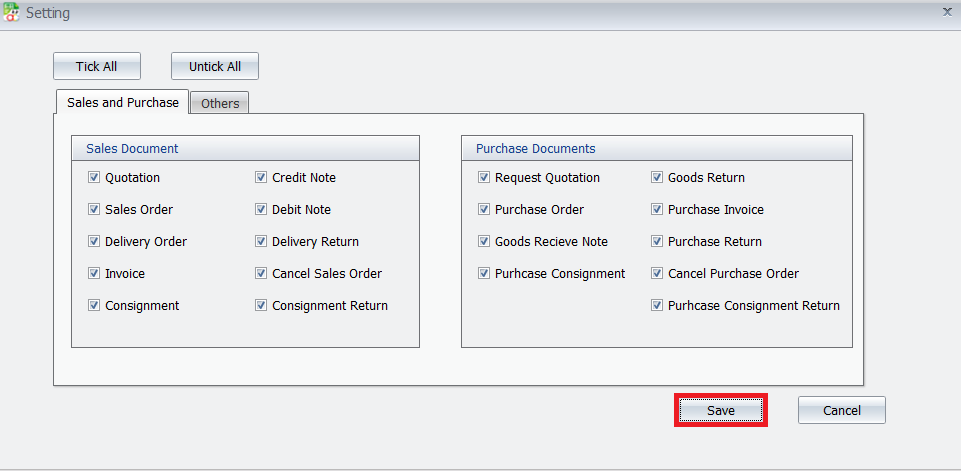
After installation, configure the plugin to activate the photo feature for your preferred documents. Navigate to the EasyPhoto > Setting, select the specific document types you want to enable (like Sales Invoice or Purchase Order), and save your settings.
- Go to EasyPhoto > Setting within AutoCount.
- Select which document type should allow photo uploads (e.g., Sales Invoice, PO).
- Save your settings.
Pro Tip:
Turn on photos for Sales Order and Delivery Notes if you want visuals for order picking
4. Attaching Photos in a Document
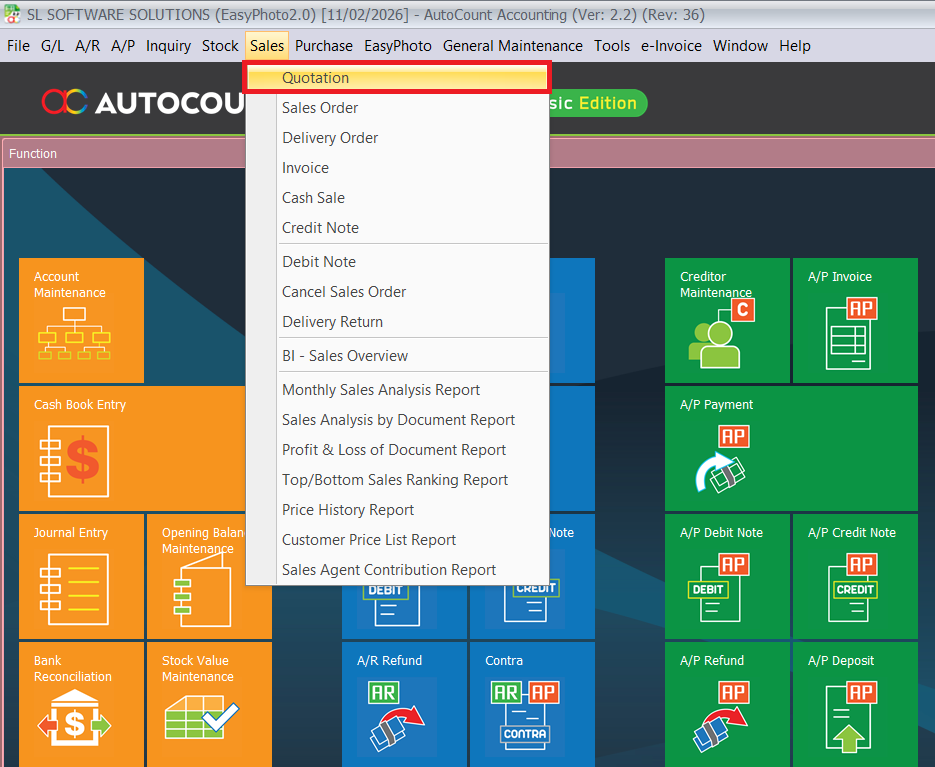
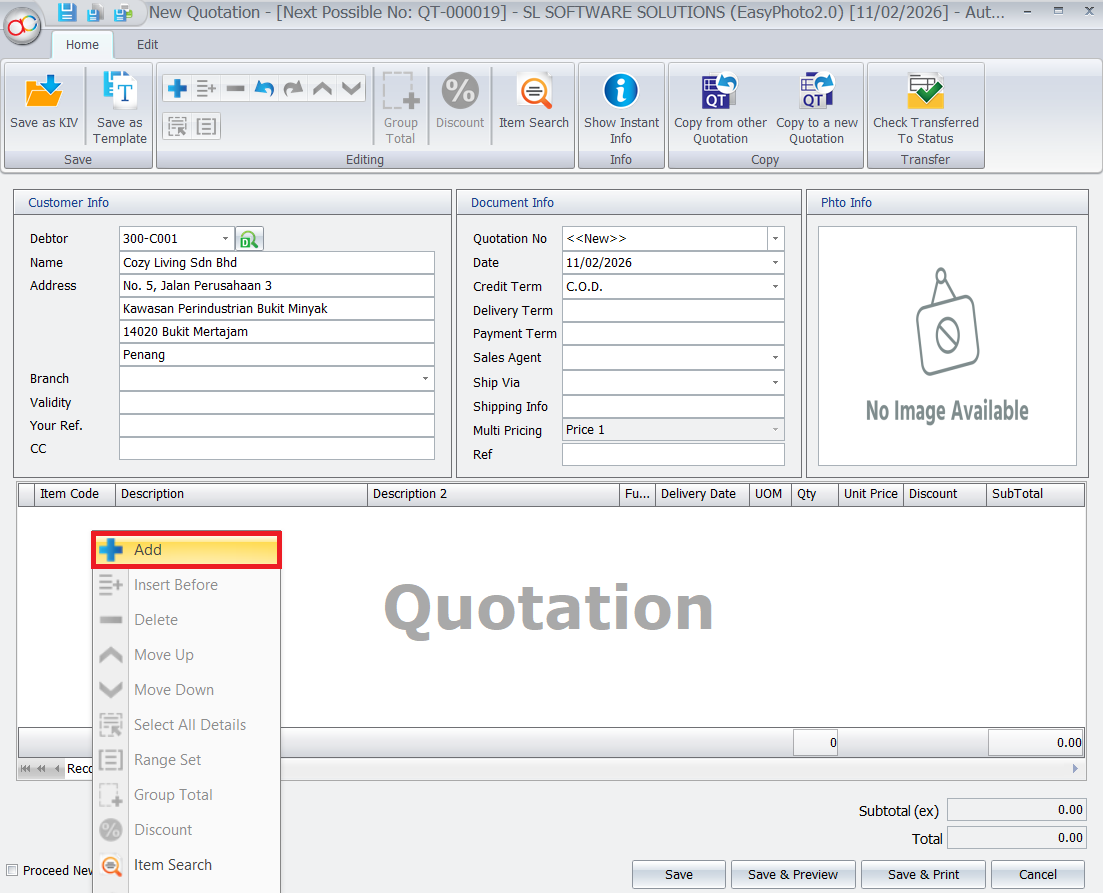
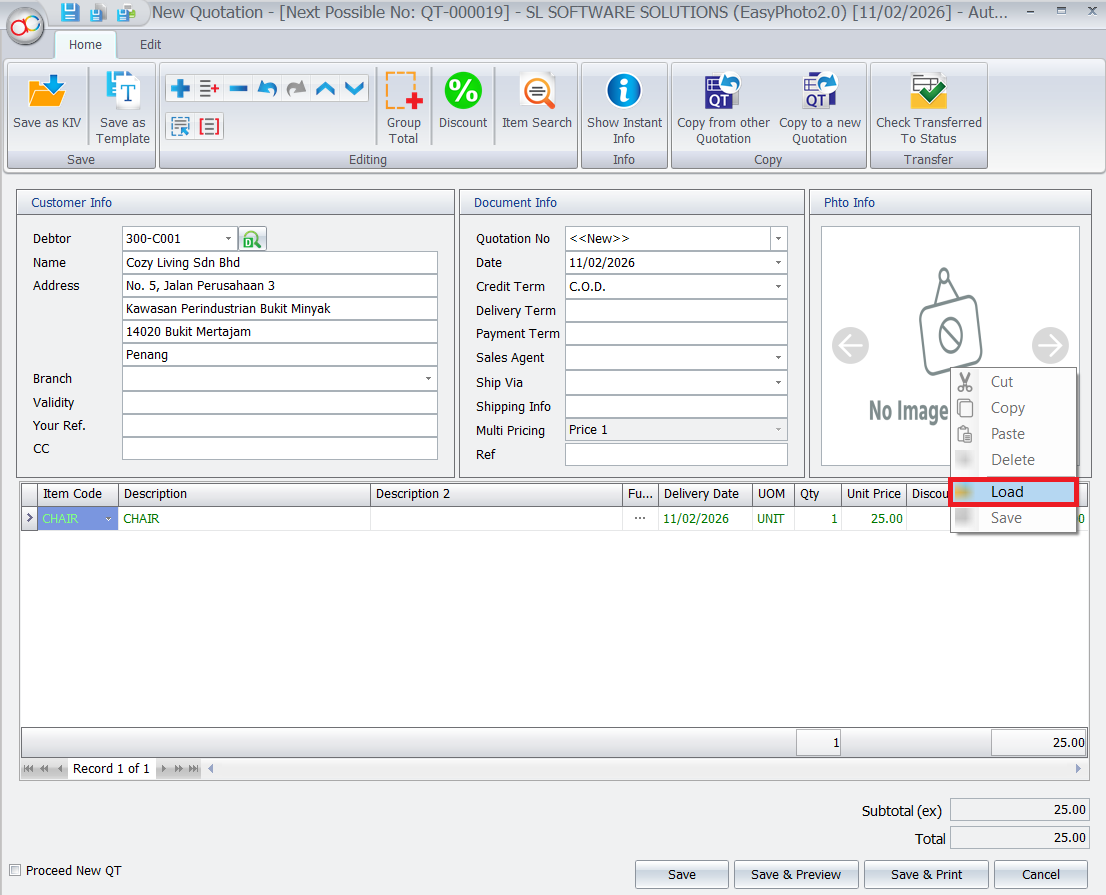
To embed a photo in your document, first create or open one, such as a new Sales Quotation. Add your line items as usual. Then, in the photo panel for a specific item, right-click and select “Load Photo.” Finally, choose the image file from your computer, and it will instantly appear embedded in that line.
- Open or create a document (e.g., Invoice).
- In the photo panel, right‑click > Load Photo.
- Choose your image and it’s now embedded in that entry.
Pro tip:
Use consistent naming so photos are easy to remember (e.g., “Product‑SKU123.jpg”).
5. Reviewing Documents and preview report with Photos
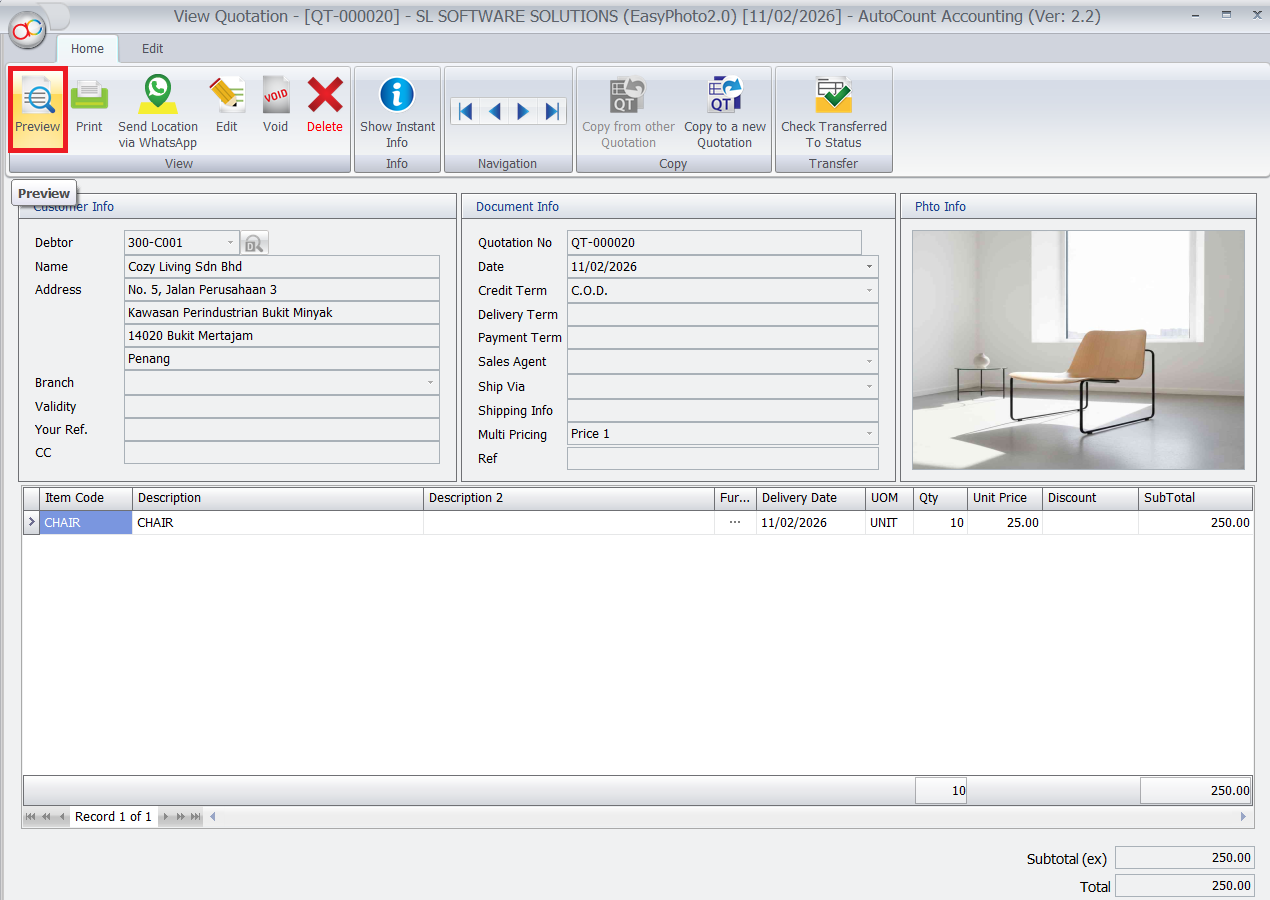
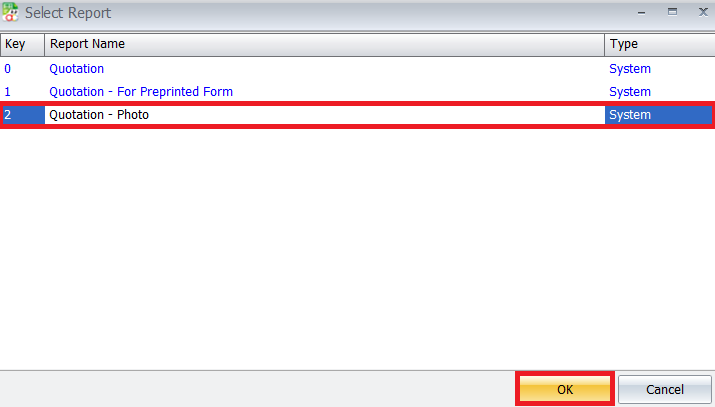
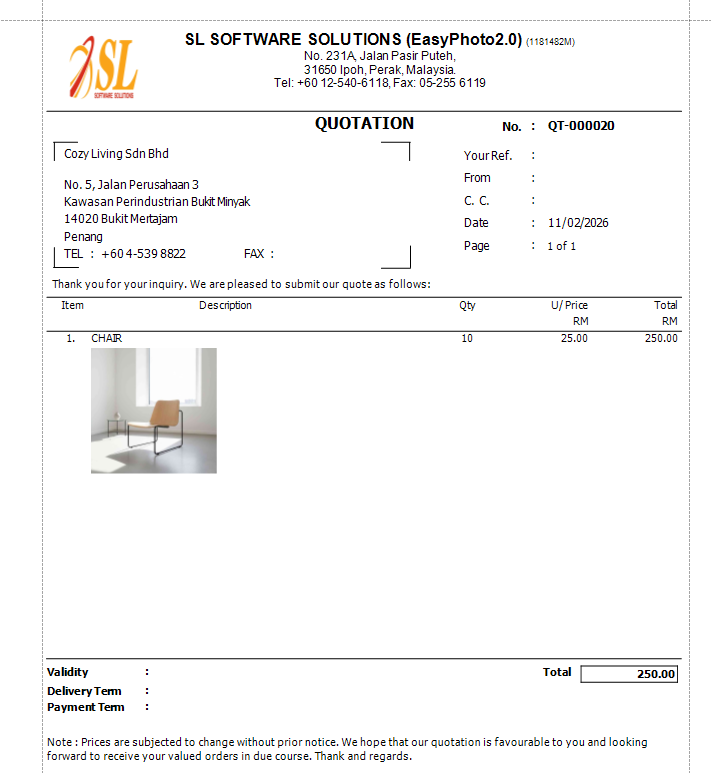
Once saved, the photo becomes a permanent part of the document record. You can reopen any past invoice or order to view the attached images, providing instant visual reference during audits, customer inquiries, and internal reviews.After that, click Preview, select the required report type (for example, With Photo), and then click OK. The report will be generated and displayed on screen.
- Once photos are attached and saved, they become part of the document’s history.
- When printing or previewing reports, select options like With Photo to include visuals
Pro Tip:
Showing photos in invoices boosts customer confidence and reduces disputes
Benefits of Using AutoCount Easy Photo 2.0 Plugin
Improved Accuracy and Reduced Errors
Visual confirmation directly on the document minimizes misunderstandings and mistakes in ordering, picking, and fulfillment.
Streamlined Operations and Professionalism
Save time by eliminating the manual process of matching photos to documents. Deliver clear, photo-backed invoices and orders to customers, enhancing your professional image.
Enhanced Audit and Compliance
Maintain a verifiable visual trail attached directly to transactions. This simplifies internal audits, quality checks, and resolving customer disputes with concrete evidence.
Better Inventory and Sales Management
Build a visual product catalog within your item master file. This aids in training, quality control, and helps sales teams showcase products accurately.
Conclusion
The AutoCount Easy Photo 2.0 Plugin is a simple yet transformative tool that bridges the gap between your financial data and visual reality. By embedding photos directly into your transactional workflow, it creates clearer records, prevents errors, and elevates the professionalism of your documentation. For any business that deals with physical goods, it is an essential upgrade for efficient and accurate operations.
Frequently Asked Questions
Who is the ideal user for this plugin?
This plugin is ideal for retail stores, wholesale distributors, equipment suppliers, warehouses, and any business that needs to visually document product conditions, styles, or project milestones directly within their sales or purchase documents.
Does attaching photos slow down my AutoCount system?
Using optimized images (e.g., web-friendly sizes) ensures minimal impact on database size and system performance. The plugin is designed for efficiency within the AutoCount environment.
Can I add multiple photos to one document?
The core functionality allows for one relevant photo per document line item. For multiple views, you can combine them into a single composite image before uploading.
What image file formats are supported?
The plugin typically supports common formats like JPG, PNG, and BMP. For specific format details, please refer to the official plugin documentation.
Can I use this plugin with AutoCount Accounting 2.1?
Yes, the Easy Photo 2.0 Plugin is designed to be compatible with mainstream versions of AutoCount, including Accounting 2.1. Always ensure both your AutoCount software and the plugin are kept up to date.
Interested in Getting AutoCount for your Business?
Contact our sales team today to explore pricing options and get started with the perfect solution for you.