
-
AutoCount Accounting Features
-
- Approval Workflow
- Audit Trail
- Auto Save in Draft Folder
- AutoCount Contra Account
- AutoCount License Setting Guide
- Deposit Tracking & Management
- Documents Numbering Format
- Full Transfer and Partial Transfer
- Import Data to AutoCount Accounting Using Excel
- Informative Charts and Analytical Data
- Layout Customization
- Multi Pricing
- Sales and Services Tax
- Schedule Backup
- Search Lookup Edit
- View Documents Flow
- AutoCount Feature Stock Take
- Column Chooser
- Show Remaining (3) Collapse
-
AutoCount Cloud Accounting
-
AutoCount E-Invoice
-
AutoCount HRMS User Guide
-
AutoCount Modules
-
- Activity Stream
- Advanced Financial Report
- Advanced Item
- Advanced Multi-UOM
- Advanced Quotation Module
- Basic Multi-UOM
- Budget Module
- Consignment
- Filter By Salesman
- FOC Quantity
- Formula
- Item Batch
- Item Package
- Landing Cost
- Multi-Currency
- Multi-Dimensional Analysis
- Multi-Location
- Project Account
- Recurrence
- Remote Credit Control Module
- Stock Assembly
- User Defined Fields (UDF)
- AutoCount SST Hidden Functions
- AutoCount SST Submission - Service Tax
- AutoCount Scripting Module User Guide
- AutoCount Bonus Point Module User Guide
- Show Remaining (11) Collapse
-
AutoCount Plugins
-
- Fixed Assets Management
- Goldsmith
- TD Ordering Mobile Apps
- TD Stock Mobile Apps
- Universal Import Plugin
- DMS Import Plugin
- AutoCount Item Visibility Control
- AutoCount Easy Knock Off Plugin
- AutoCount Pick List Plugin User Guide
- AutoCount Agent Validation Plugin User Guide
- AutoCount Barcode Generator Plugin User Guide
- AutoCount Bill Remark Plugin User Guide
- AutoCount Easy Batch Number Entry Plugin User Guide
- AutoCount Recurring Invoice Plugin User Guide
- AutoCount Easy Photo 2.0 User Guide
- AutoCount Pain Tracker User Guide
- AutoCount Credit Memo Plugin User Guide
- AutoCount Daily Collection Summary Plugin
- AutoCount Lock Price Plugin
- Show Remaining (4) Collapse
-
- AutoCount Easy Recurrence Plugin
- AutoCount Recurring Billing Plugin
- Event Management System
- AutoCount To-Do List Plugin
- AutoCount AutoBank Reconciliation Plugin
- Intercompany Billing Plugin User Guide
- AutoCount Basket Plugin User Guide
- Lead Management 2.0 Plugin
- AutoCount Service Contract Plugin User Guide
- Autocount Repacking Plugin
- AutoCount Scale Barcode Plugin User Guide
- AutoCount Progressive Billing
- AutoCount Optical Plugin
- AutoCount Meter Reading Plugin User Guide
- AutoCount Car Tint Film Plugin
- AutoCount Leasing Plugin User Guide
- AutoCount Integrator Plugin
- AutoCount Procurement Planning Plugin
- Cage Management Plugin
- AutoCount Service Management Plugin User Guide
- AutoCount Vehicle Plugin
- Show Remaining (6) Collapse
-
-
Form Template
-
Report Template
-
- Advance Quotation
- Cash Sale
- Consignment
- Consignment Movement
- Credit Note
- Debit Note
- Delivery Order
- FOC Quantity Analysis By Document Report
- Invoice
- Item Package Sales Report
- Monthly Sales Analysis
- Outstanding Sales Order Listing
- Profit And Loss Of Documents
- Quotation
- Sales Agent Contribution Report
- Sales Order
- Top/Bottom Sales Ranking
- Show Remaining (2) Collapse
-
- Available Stock Status Report
- Expired Item Batch Listing
- Inventory Physical Worksheet
- Stock Adjustment
- Stock Aging Report
- Stock Assembly
- Stock Assembly Order
- Stock Balance By Location
- Stock Balance Report
- Stock Card Report
- Stock Disassembly
- Stock Issue
- Stock Item Profit Margin
- Stock Movement Report
- Stock Receive
- Stock Take
- Stock Transfer
- Stock Write Off
- Show Remaining (3) Collapse
AutoCount Vehicle Plugin: Revolutionizing Customer Relationship Management in Dealerships
(CN) AutoCount Vehicle Plugin Video Guide
Why You Should Use It?
Predictive Maintenance
No more guessing when the next service is. The system tells you exactly how many kilometers are left.
Audit Readiness
Instantly generate a full history of any vehicle if you are selling it or undergoing a safety audit.
Financial Clarity
Know exactly which vehicles are "money pits" (costing more in repairs than they earn).
Who This Plugin is For?
Logistics & Cold Chain Operators
Construction & Engineering Firms
Automotive Workshops & Service Centers
Features of the Plugin
Vehicle Profile Maintenance
A central database to store Chassis No, Engine No, Plate No, and specific technical specs (like tire size or oil type) for every asset.
Multi-Trigger Reminders
Set service alerts based on Mileage (Odometer), Time (Date), or Operating Hours—whichever comes first.
Document Expiry Tracking
Dedicated fields to track and alert you on the expiry of Road Tax, Insurance, and Safety Permits.
How AutoCount Vehicle Plugin Works
1. Installation & Access Permissions
- Install Plugin: Go to the Plug-In Manager, click Install, and browse for the vehicle
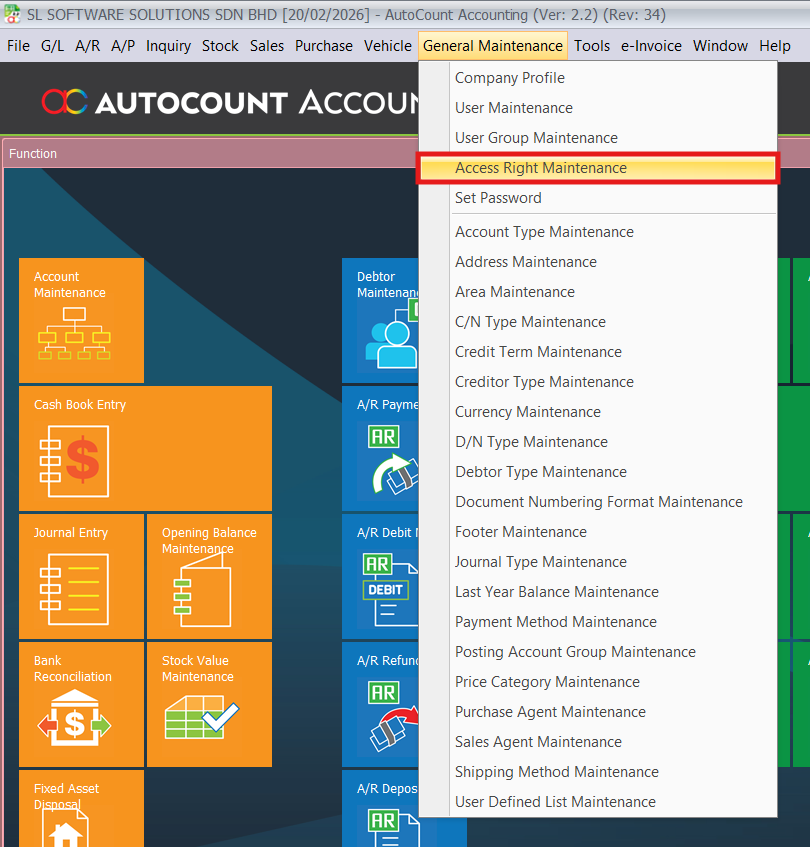
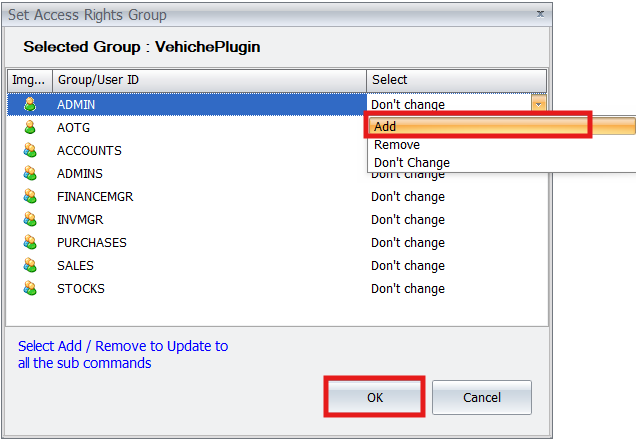
.appfile. - Grant Access Rights: Navigate to General Maintenance > Access Right Maintenance and locate the Vehicle group.
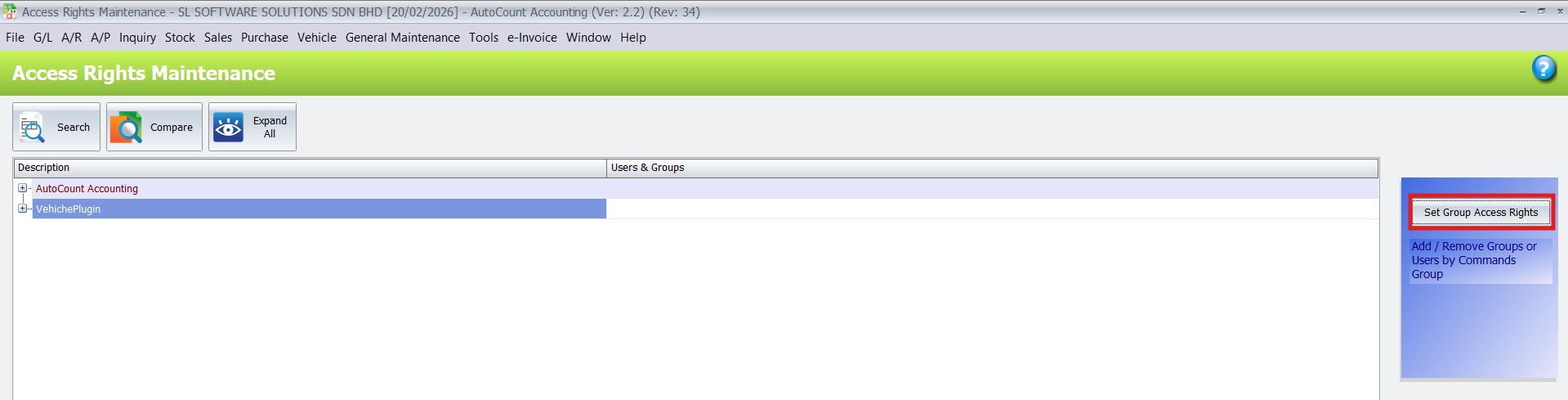
- Assign User Groups: Highlight the Vehicle Maintenance commands and assign the relevant user groups (e.g., Admin).
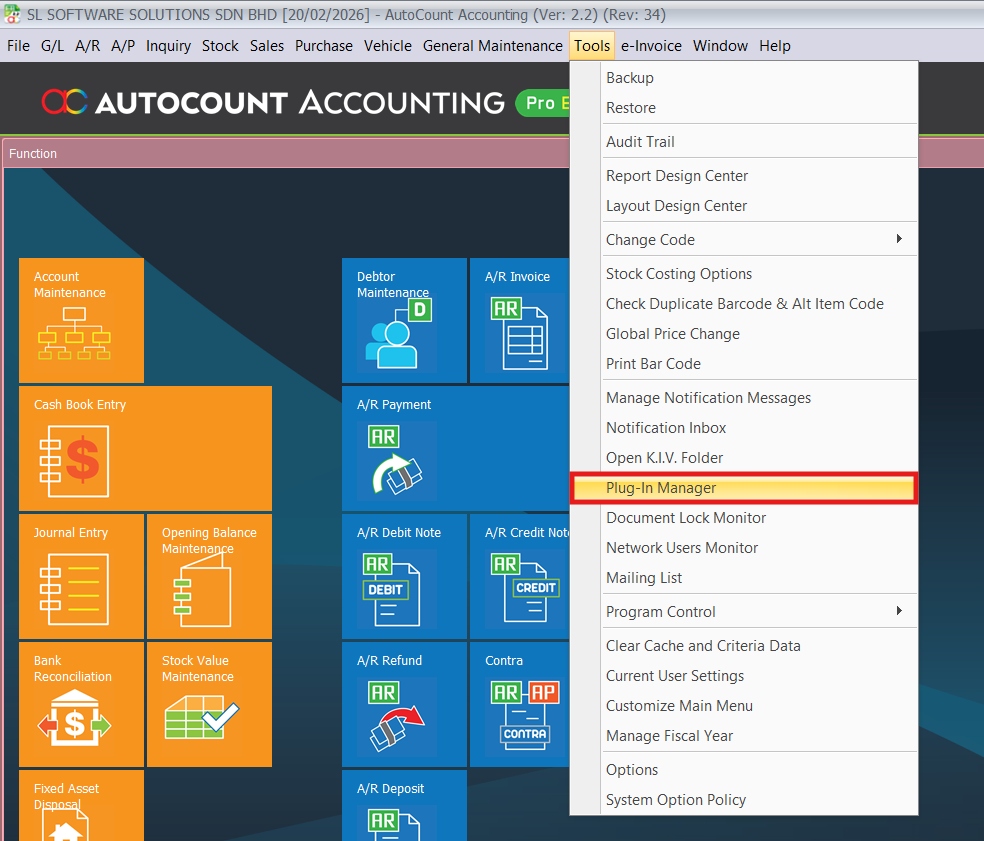
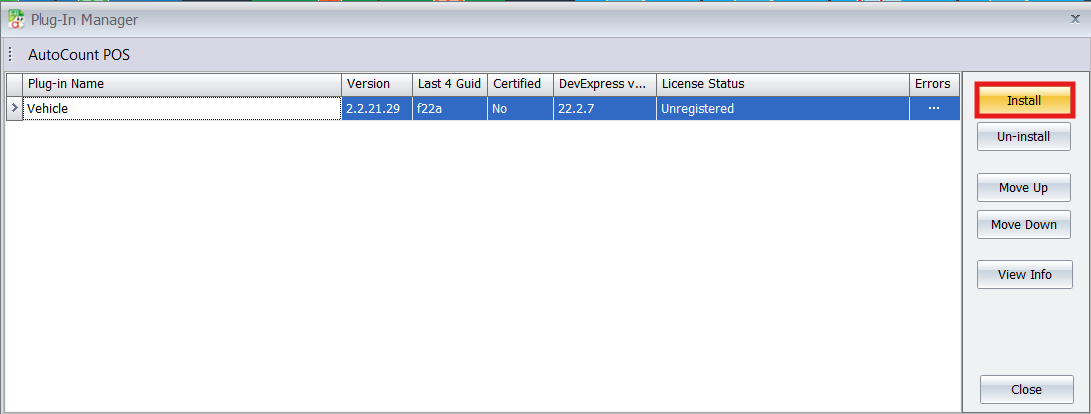
Grant Access Rights
Pro Tip:
When assigning rights, always apply to “rest of sub commands” to ensure your team can access deeper features like foreman reports and service history.
2. Vehicle & Foreman Setup
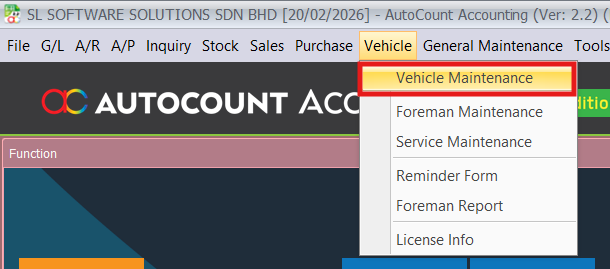
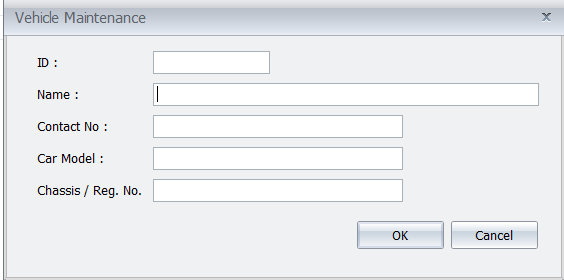
- Register Vehicles: Open the Vehicle > Vehicle Maintenance menu to create master records for customer cars, including Plate No and Model.
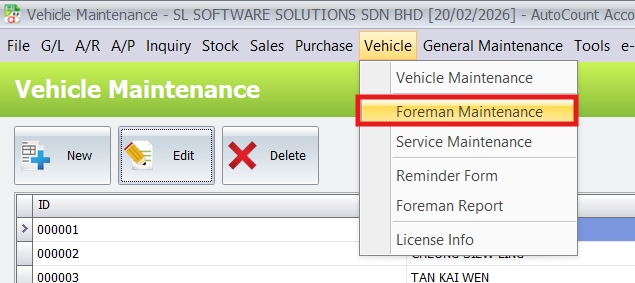
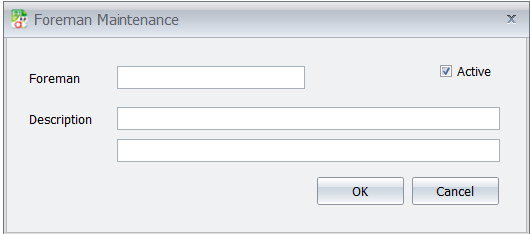
- Manage Foremen: Access the Foreman Maintenance screen to add your internal mechanics or external service providers.
- Input Technical Data: Use dedicated fields for Chassis Number and Engine Number to ensure accurate vehicle identification.
Manage Foremen
In the Foreman Maintenance feature, users are able to mange foreman information within the system. Within this feature, users are able to create, edit, and delete records related to each individual foreman. Such information includes the name and ID of the foreman respectively.
Pro Tip:
Scan the vehicle’s registration card and attach it directly to the Vehicle Maintenance record as a digital backup for the workshop team.
3. Configuring Service Reminders
- Define Services: Use the Service Maintenance menu to set up “Top Level” services and detailed “Sub-Services”.
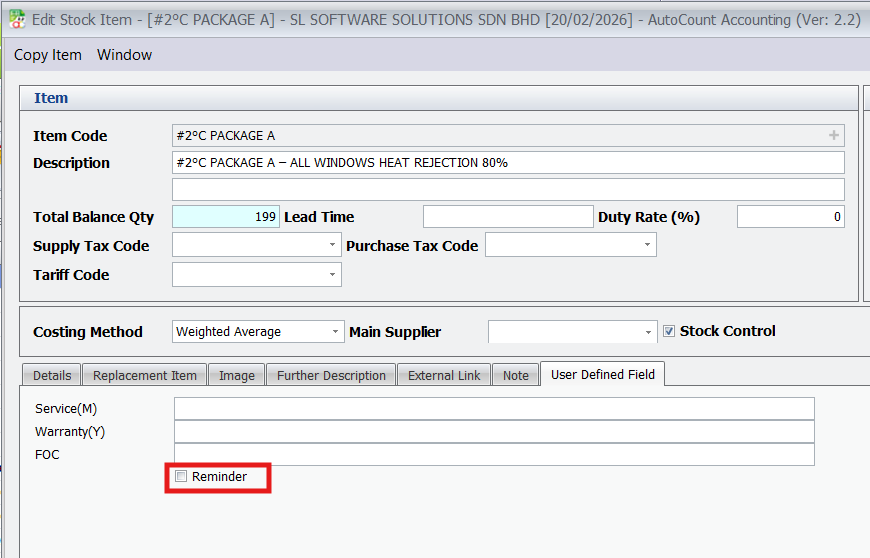
- Enable Reminders: Navigate to Stock > Stock Item Maintenance, select a service item, click “Edit” and tick the Reminder checkbox in the UDF tab.
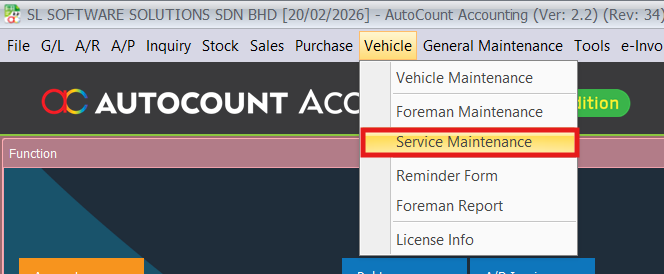
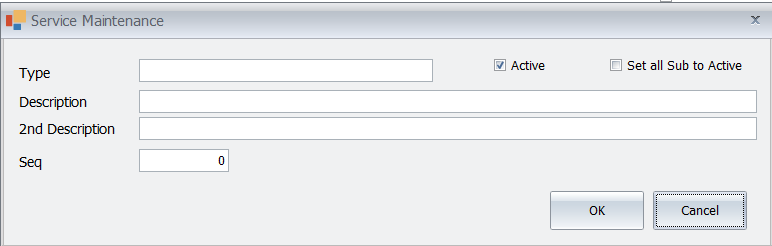
By clicking the “New Top Level Service” button located in the “Service Maintenance” page, age, users can
easily configure the top level service, serving as the primary service category. This feature allows automobile
businesses to define and organize their main services efficiently, providing a clear and structured hierarchy
for their service offerings.
Enable Reminders
Pro Tip:
For service packages, utilize the “FOC” field to define exactly how many free maintenance sessions a customer is entitled to.
4. Generating the Service Schedule
- Open Reminder Form: Go to the Vehicle > Reminder Form menu.
- Select Vehicle & Item: Choose the target Vehicle ID and the specific Item Code that has reminders enabled.
- Generate Schedule: Set the First Date of service and click Generate to create the full future schedule.
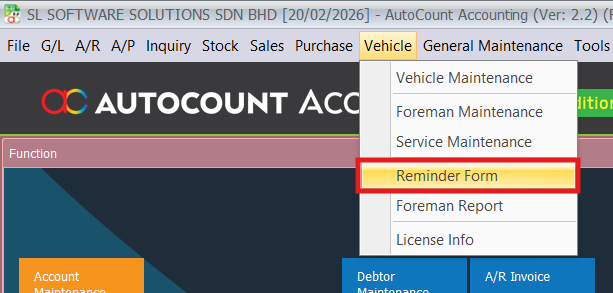
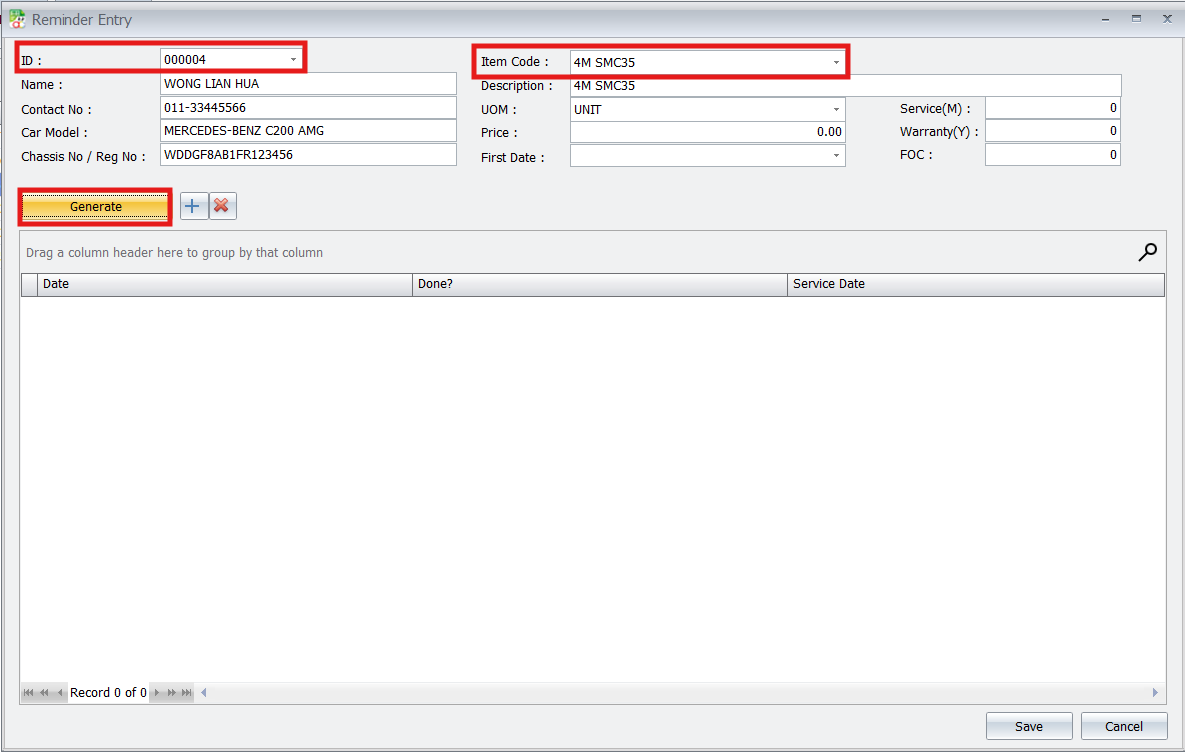
The Reminder feature allows users to document vehicle information, service records, expected service dates,completion dates of service, purchased packages, and more. The primary purpose of this Reminder feature is to prompt users when it is time for a particular customer’s vehicle to undergo its scheduled service check.
Pro Tip:
Always double-check the “First Date” against the customer’s last actual service to ensure the automated cycle remains accurate.
5. Processing Transactions & Assignments
- Create Invoice: Open the standard Sales > Invoice menu and select your customer.
- Link Vehicle Info: Use the Vehicle Info section within the invoice to select the car and input current mileage.
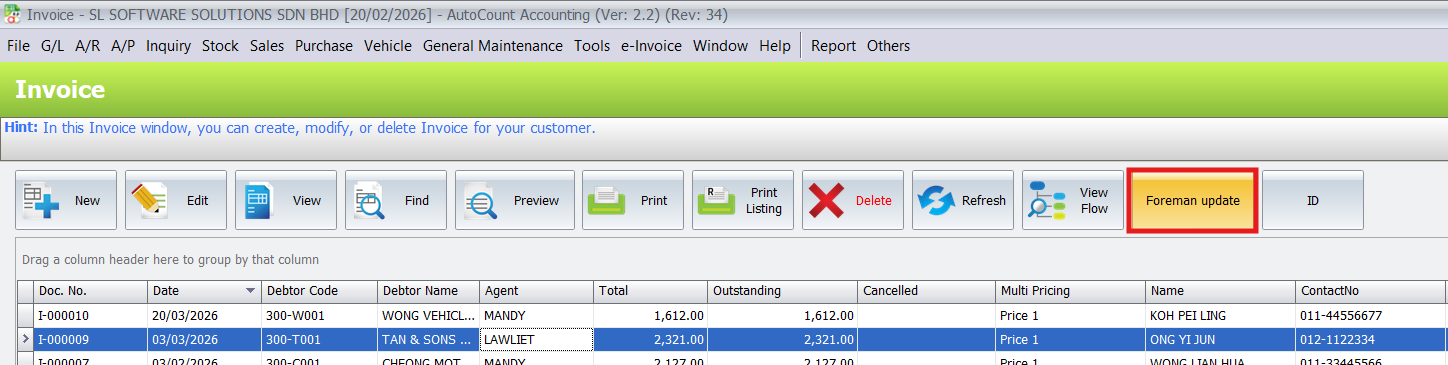
- Assign Foreman: In the invoice grid, assign a specific Foreman to each service line to track labor.

Assign Foreman
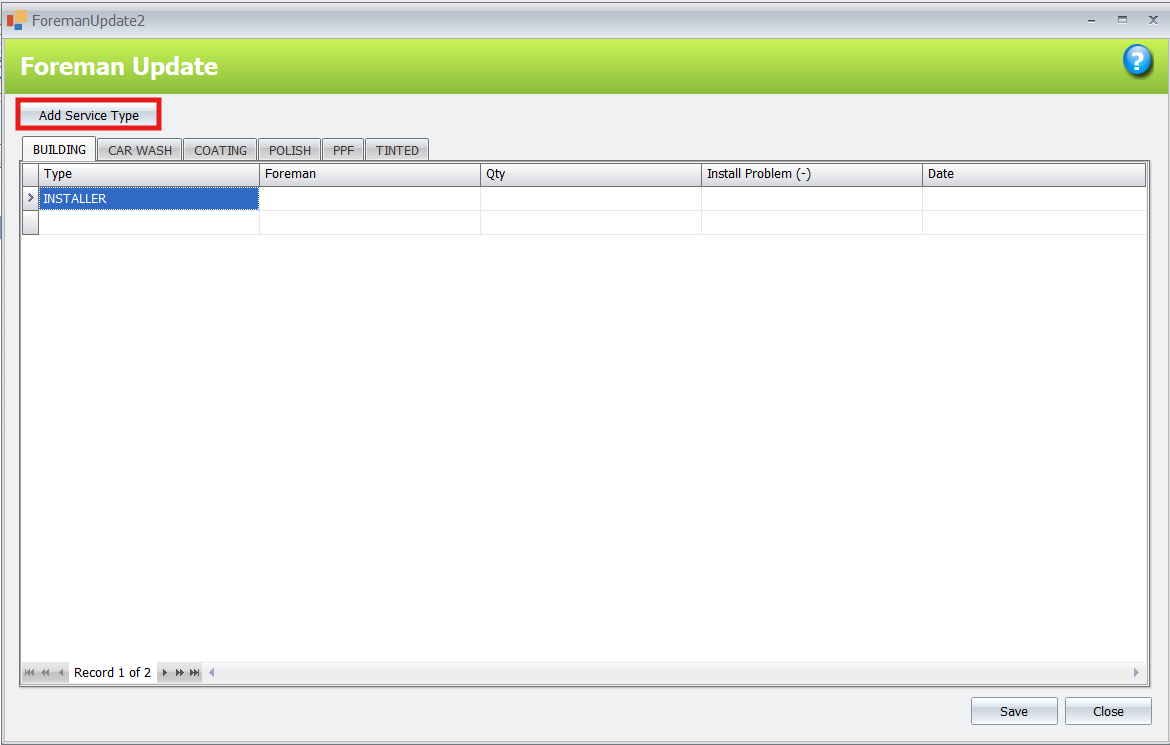
The “Foreman Update” button provides users with the functionality to assign an existing service Foreman to available services. This feature also grants users the flexibility to change the selected Foreman to another
one if needed. By utilizing this button, businesses in the automotive service or car tinting industry can easily
manage and reassign Foremen to various services.
Pro Tip:
If a car is not yet in the system, use the “ID” button directly inside the Invoice screen to create a new vehicle record on the fly.
6. Auditing & Performance Tracking
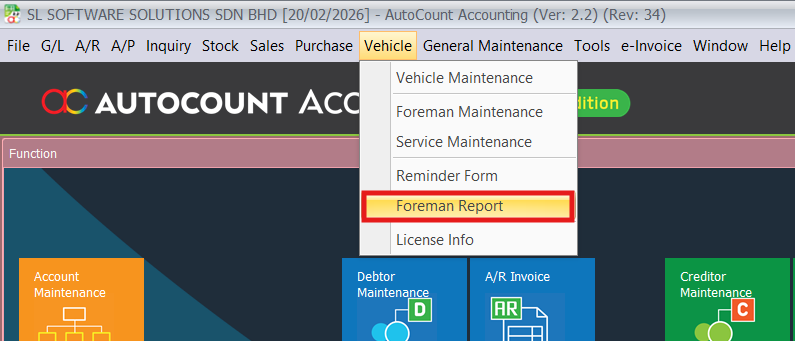
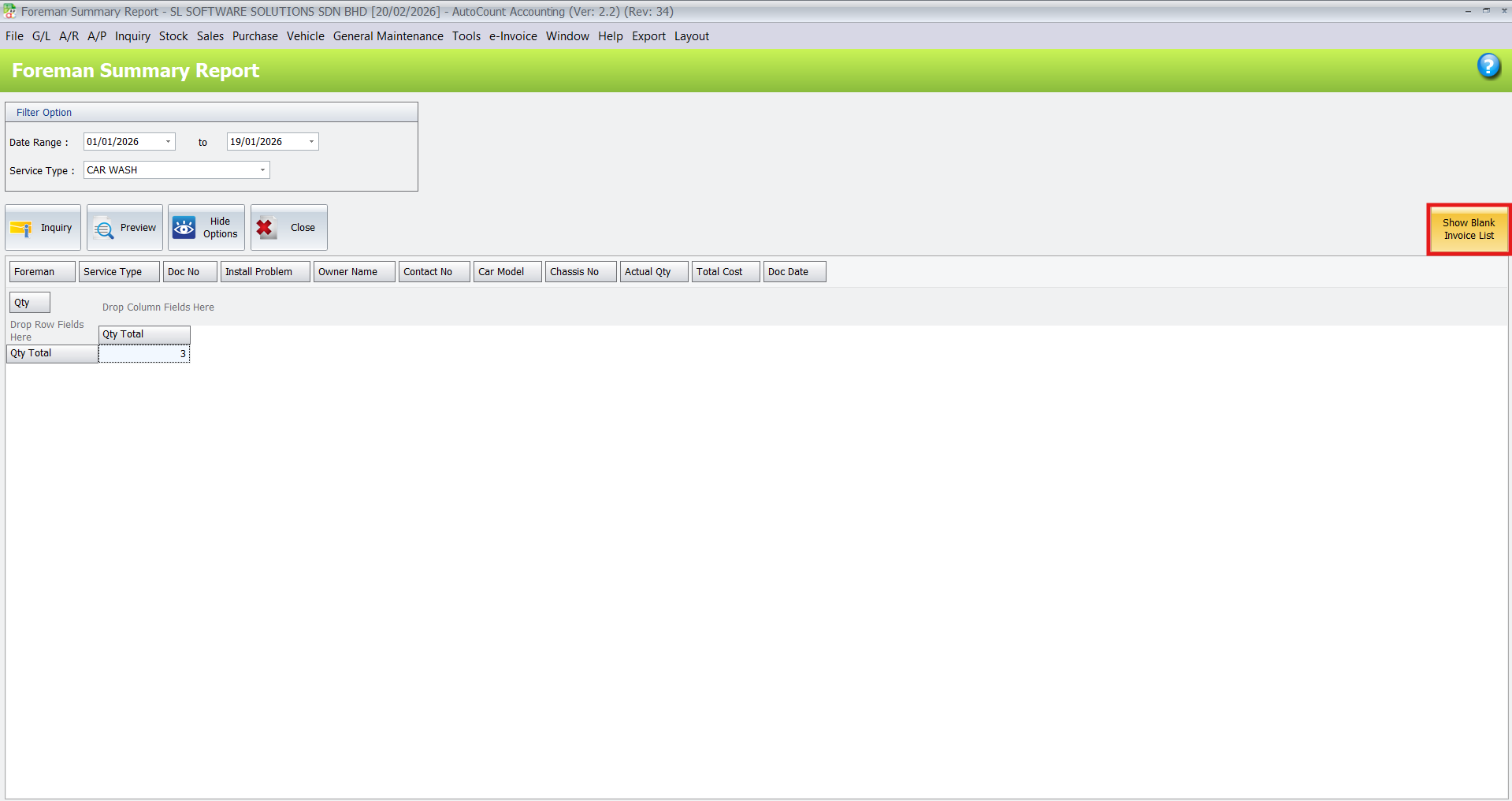
- View Foreman Report: Access the Vehicle > Foreman Report to see a summary of all completed service jobs.
- Filter Data: Narrow down the results by Date Range or specific Foreman Name to calculate wages.
- Assign Missed Jobs: Use the “Show Blank Invoice List” button to find and fix invoices where a mechanic was not assigned.
Pro Tip:
Regularly run the Foreman Report to identify unassigned jobs before the end of the month to ensure all staff incentives are calculated correctly.
Benefits Of AutoCount Vehicle Plugin
Conclusion
The AutoCount Vehicle Plugin simplifies vehicle management, service scheduling, and foreman wage calculations, making it an invaluable tool for the automotive industry. Whether tracking vehicle history or managing service reminders, the plugin ensures records are accurate, workflows are faster, and business productivity is optimized. Choose the AutoCount Vehicle Plugin to enhance your operational efficiency and provide superior customer service.
Frequently Asked Questions
How do I give users permission to use the plugin?
Navigate to General Maintenance > Access Right Maintenance, find the Vehicle Plugin section, and use Set Group Access Rights to assign “Add” or “Edit” permissions to specific user groups like “Admin”.
How do I add a new foreman to the system?
Go to Vehicle > Foreman Maintenance, click New, and enter the foreman’s name and ID.
How do I calculate a foreman’s salary or performance?
Use the Foreman Report (Vehicle > Foreman Report). You can filter by date and service type to see all services performed by a specific foreman, which helps in performance and salary evaluation.
Can I categorize my services?
Yes. You can create Top Level Services (main categories) and Sub-Services (specific detailed offerings) under Vehicle > Service Maintenance.
Interested in Getting AutoCount for your Business?
Contact our sales team today to explore pricing options and get started with the perfect solution for you.