
-
AutoCount Accounting Features
-
- Approval Workflow
- Audit Trail
- Auto Save in Draft Folder
- AutoCount Contra Account
- AutoCount License Setting Guide
- Deposit Tracking & Management
- Documents Numbering Format
- Full Transfer and Partial Transfer
- Import Data to AutoCount Accounting Using Excel
- Informative Charts and Analytical Data
- Layout Customization
- Multi Pricing
- Sales and Services Tax
- Schedule Backup
- Search Lookup Edit
- View Documents Flow
- AutoCount Feature Stock Take
- Column Chooser
- Show Remaining (3) Collapse
-
AutoCount Cloud Accounting
-
AutoCount E-Invoice
-
AutoCount HRMS User Guide
-
AutoCount Modules
-
- Activity Stream
- Advanced Financial Report
- Advanced Item
- Advanced Multi-UOM
- Advanced Quotation Module
- Basic Multi-UOM
- Budget Module
- Consignment
- Filter By Salesman
- FOC Quantity
- Formula
- Item Batch
- Item Package
- Landing Cost
- Multi-Currency
- Multi-Dimensional Analysis
- Multi-Location
- Project Account
- Recurrence
- Remote Credit Control Module
- Stock Assembly
- User Defined Fields (UDF)
- AutoCount SST Hidden Functions
- AutoCount SST Submission - Service Tax
- AutoCount Scripting Module User Guide
- AutoCount Bonus Point Module User Guide
- AutoCount Service Management Plugin User Guide
- Show Remaining (12) Collapse
-
AutoCount Plugins
-
- Fixed Assets Management
- Goldsmith
- TD Ordering Mobile Apps
- TD Stock Mobile Apps
- Universal Import Plugin
- DMS Import Plugin
- AutoCount Pick List Plugin User Guide
- AutoCount Credit Memo Plugin User Guide
- AutoCount Lock Price Plugin
- AutoCount Progressive Billing
- AutoCount Easy Recurrence Plugin
- Batch Update Unit Price Plugin
- AutoCount Production order
- AutoCount Car Tint Film Plugin
-
- Event Management System
- AutoCount To-Do List Plugin
- AutoCount AutoBank Reconciliation Plugin
- Intercompany Billing Plugin User Guide
- Lead Management 2.0 Plugin
- AutoCount Service Contract Plugin User Guide
- AutoCount Optical Plugin
- AutoCount Integrator Plugin
- AutoCount Procurement Planning Plugin
- Cage Management Plugin
- AutoCount Vehicle Plugin
- AutoCount Agent Validation Plugin User Guide
- AutoCount Barcode Generator Plugin User Guide
- AutoCount Easy Batch Number Entry Plugin User Guide
- Warranty 2.0 Plugin
- AutoCount Easy Photo 2.0 User Guide
- AutoCount Recurring Invoice Plugin User Guide
- AutoCount Scale Barcode Plugin User Guide
- AutoCount Recurrence Late Interest Plugin
- AutoCount Item Visibility Control
- AutoCount Bill Remark Plugin User Guide
- AutoCount Pain Tracker User Guide
- AutoCount Easy Payment
- AutoCount Easy Deposit Plugin
- AutoCount Easy Knock Off Plugin
- AutoCount Daily Collection Summary Plugin
- Timber Log Plugins
- Batch Transfer SODO Plugin
- AutoCount Vege Basket Plugin Guide
- AutoCount Fruit Basket Plugin Guide
- Referral Management Plugin
- AutoCount Migrator Plugin
- AutoCount Email&WhatsApp Plugin
- AutoCount Multi Company Knock Off Plugin
- AutoCount Advance Aging Format Plugin
- AutoCount Payment Request Plugin
- AutoCount Vehicle Master Plugin
- AutoCount Advance Deposit Plugin
- AutoCount IC Checker Plugin
- AutoCount RMA Plugin
- AutoCount Historical Outstanding DO Listing Plugin
- AutoCount Project Department Visibility Control Plugin
- AutoCount MRP Order Plugin
- AutoCount GridToExcel Plugin
- AutoCount Stock Availability Report Plugin
- AutoCount Batch Transfer SO DO Plugin
- AutoCount Centralized Kitchen Management Plugin
- SL AutoCount API
- AutoCount InterCompany Billing Plugin
- AutoCount Sales Commission Plugin
- AutoCount Advanced Credit Term Plugin
- AutoCount Advanced Stock Assembly Plugin
- AutoCount Shipment Plugin
- AutoCount Tour Plugin
- AutoCount Smart Analysis
- AutoCount Rental Management
- Show Remaining (41) Collapse
-
-
Form Template
-
Report Template
-
- Advance Quotation
- Cash Sale
- Consignment
- Consignment Movement
- Credit Note
- Debit Note
- Delivery Order
- FOC Quantity Analysis By Document Report
- Invoice
- Item Package Sales Report
- Monthly Sales Analysis
- Outstanding Sales Order Listing
- Profit And Loss Of Documents
- Quotation
- Sales Agent Contribution Report
- Sales Order
- Top/Bottom Sales Ranking
- Show Remaining (2) Collapse
-
- Available Stock Status Report
- Expired Item Batch Listing
- Inventory Physical Worksheet
- Stock Adjustment
- Stock Aging Report
- Stock Assembly
- Stock Assembly Order
- Stock Balance By Location
- Stock Balance Report
- Stock Card Report
- Stock Disassembly
- Stock Issue
- Stock Item Profit Margin
- Stock Movement Report
- Stock Receive
- Stock Take
- Stock Transfer
- Stock Write Off
- Show Remaining (3) Collapse
-
B2B ORDERING
-
AutoCount AI Agent
AutoCount Cage Management Plugin User Guide
What Is AutoCount Cage Management Plugin?
AutoCount Cage Management Plugin helps poultry, livestock, agriculture and logistics businesses calculate cage weight, gross weight, net weight, cage quantity, bird quantity and price details directly in AutoCount Delivery Order. It reduces manual calculation and helps businesses prepare more accurate weight-based billing.
AutoCount Cage Management Plugin Video Guide
- AutoCount Cage Management Plugin (EN)
Cage Management Plugin Setup
AutoCount Cage Management Plugin Setup
- AutoCount Cage Management Plugin (CN)
笼子管理插件安装
AutoCount 笼子管理插件设置
Why Use AutoCount Cage Management Plugin?
Many businesses still calculate net weight manually by subtracting container weight, which is time‑consuming and prone to mistakes. This plugin automates that process so you can:
Ensure accurate net weight calculations
Streamline weighing and invoicing
Reduce disputes with customers
Save time on manual calculations
Who Should Use AutoCount Cage Management Plugin?
Poultry Suppliers and Wholesalers
Helps record cage weight, gross weight, net weight, cage quantity, and bird quantity during sales.
Poultry Buyers and Distributors
Helps check accurate net weight before receiving stock or confirming supplier delivery.
Livestock and Agriculture Businesses
Useful for businesses that need to record cage details, weight information, and delivery records directly inside AutoCount documents.
Businesses Selling or Purchasing by Cage Weight
Helps businesses calculate cage weight, net weight, total bird quantity, and pricing more accurately during sales or purchases.
Key Features of AutoCount Cage Management Plugin
Automated Net Weight Calculation
Cage Weight Deduction
Cage Quantity and Bird Quantity Tracking
Delivery Order Weight-Based Billing
How AutoCount Cage Management Plugin Works
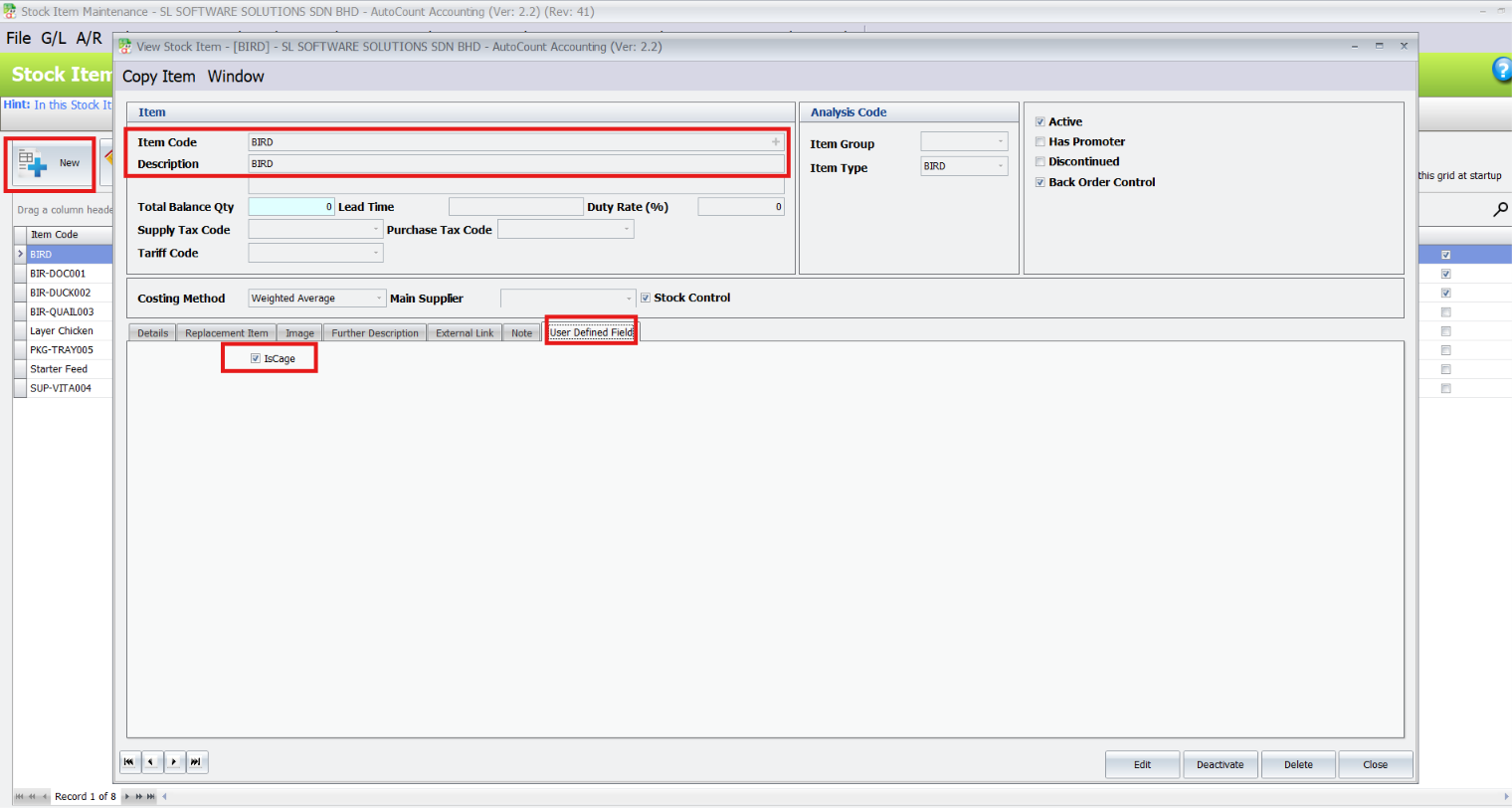
1. Set Up Cage Item
Create or update the stock item that requires cage weight calculation
- Go to Stock > Stock Item Maintenance
- Click New or edit an existing item
- Enter the Item Code and Description
- Go to the User Defined Field tab
- Tick IsCage
- Save the stock item
2. Create Delivery Order
Go to Sales > Delivery Order and click New.
- Select the debtor/customer.
- Add the cage item.
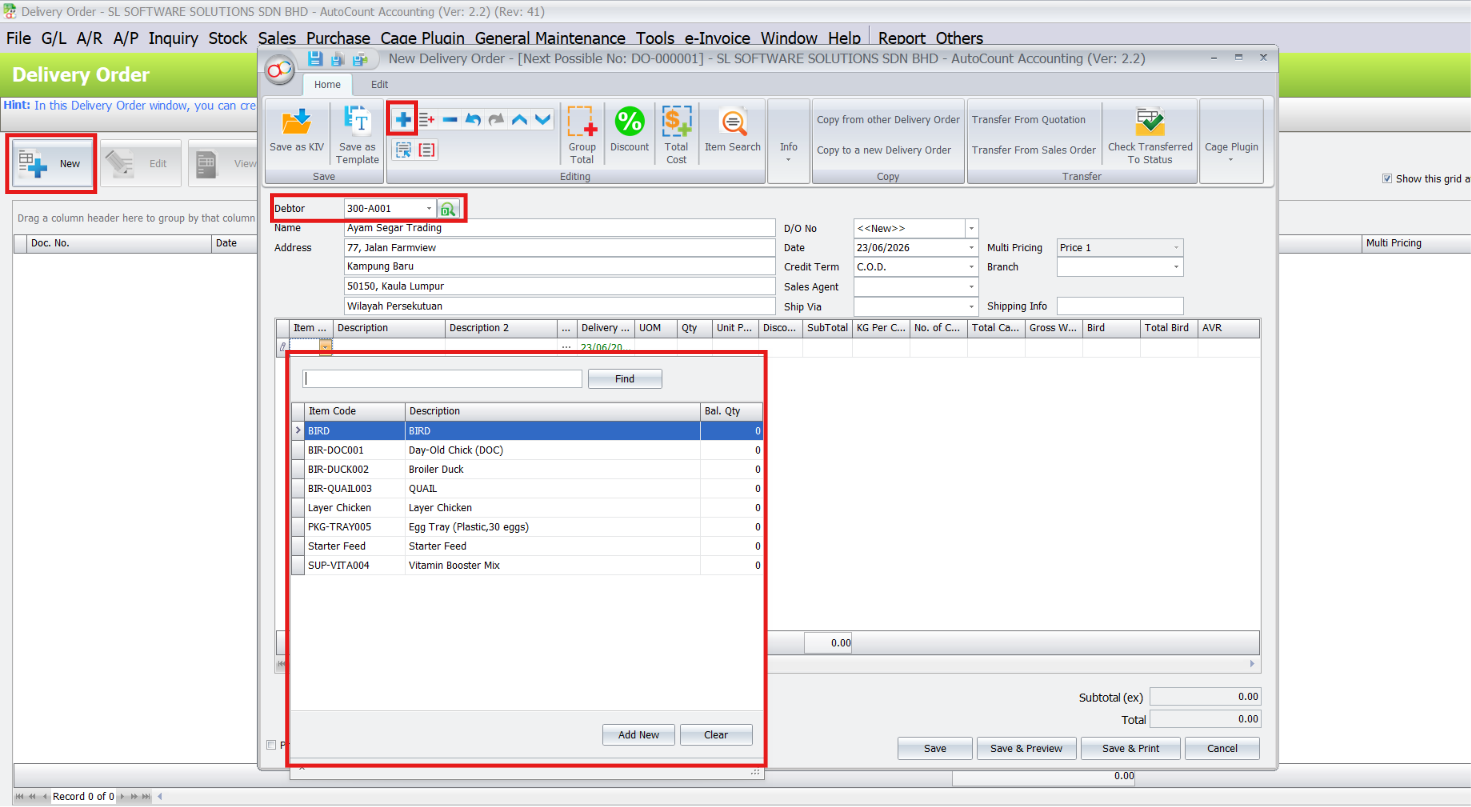
When a cage item is selected, the Cage Info window can be used to enter cage weight and bird information.
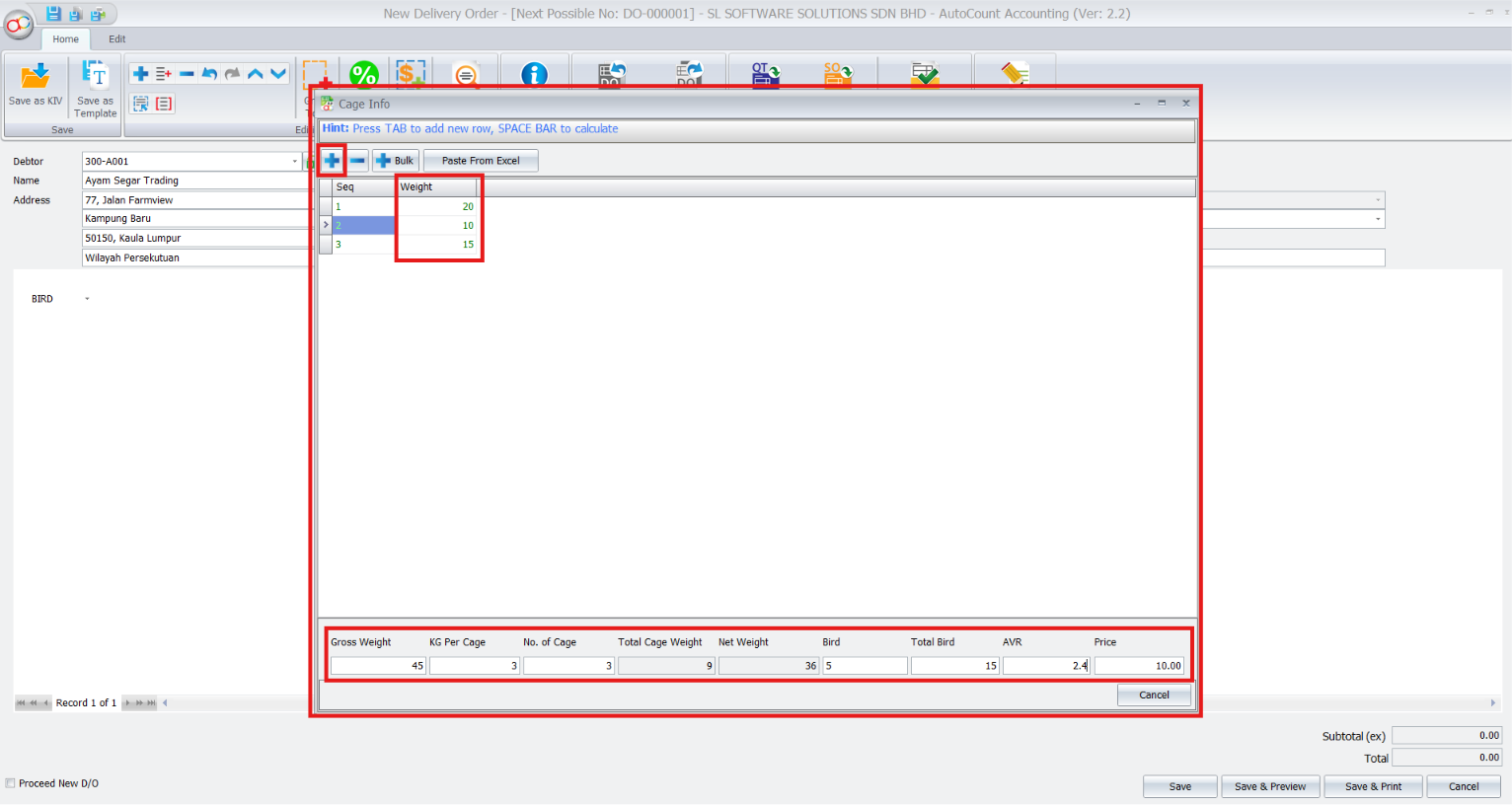
3. Enter Cage Details
Click Add to add a new cage weight row
Enter the weight for each cage
Use Bulk if you need to add many rows at once
Use Paste From Excel if the cage weights are copied from Excel.
The system will calculate the Gross Weight as 45.
Then enter: KG Per Cage, No. of Cage, Total Bird, Price
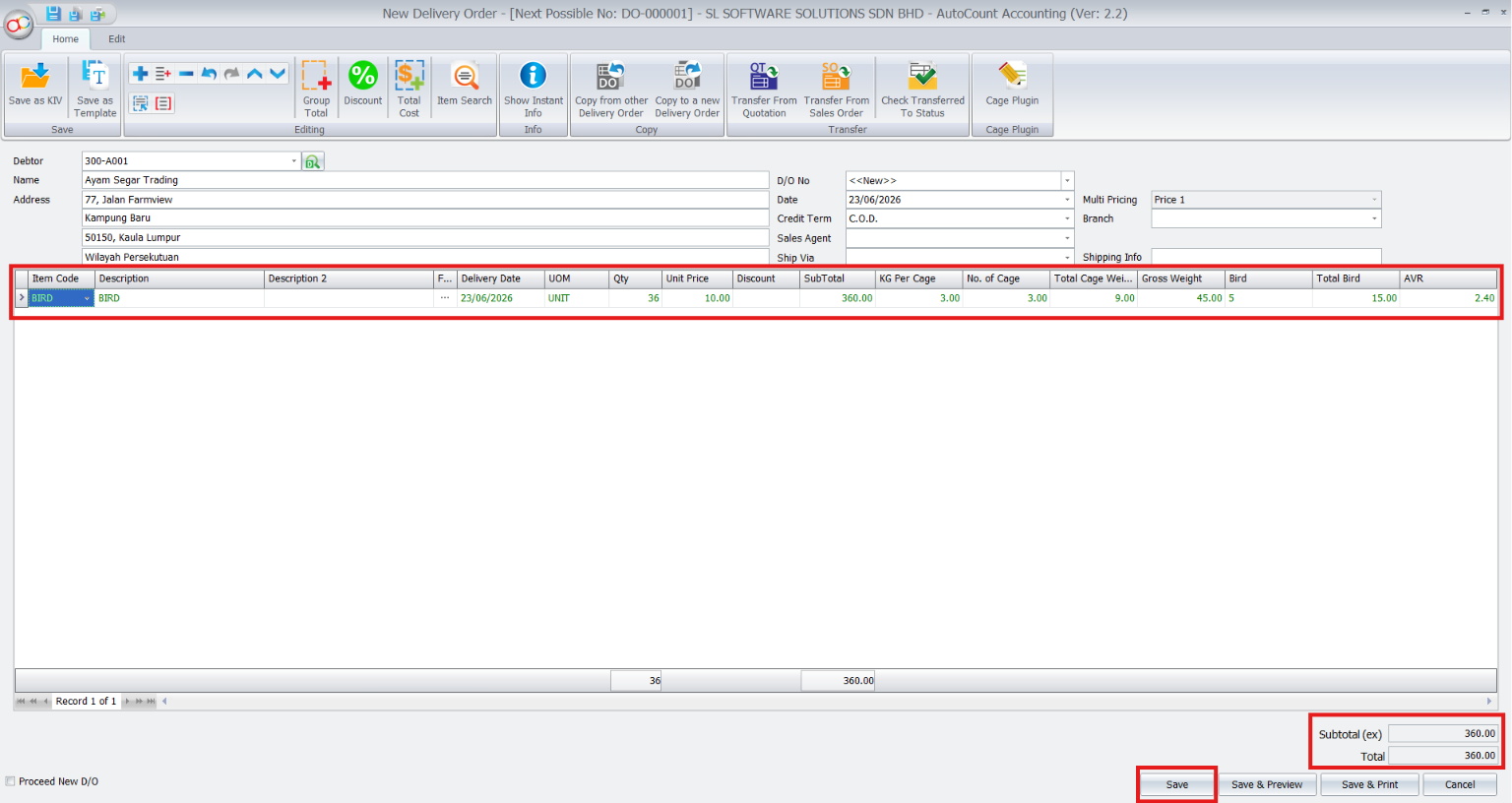
4. Checking Calculated Details & Save
- After closing the Cage Info window, the calculated values will appear in the document Grid Column.
- After confirming the details, click Save.
AutoCount will save the Delivery Order together with the cage information.
Benefits of AutoCount Cage Management Plugin
Using this plugin brings multiple advantages:
Faster Processing
No more manual weight deduction — calculations are done instantly.
Better Accuracy
Reduces human errors from manual subtraction of container weight.
Clearer Invoicing
Invoices show correct net weights, reducing customer disputes.
Industry‑Specific Support
Ideal for businesses that handle caged or containerized products.
Conclusion
The AutoCount Cage Management Plugin automates net weight calculation by using container/cage weight, saving time, improving accuracy, and minimizing disputes. It’s a practical tool for businesses dealing with containerized products that need precise weight‑based billing and reporting.
Frequently Asked Questions
What does AutoCount Cage Management Plugin calculate?
It takes the gross weight and container weight to automatically compute the net product weight.
Which industries benefit most from Cage Management Plugin?
Poultry farms, livestock transport, agricultural packing, logistics companies — anywhere products are weighed with containers.
Does Cage Management Plugin integrate with inventory and invoicing?
Yes — once net weight is calculated, it can feed directly into inventory movement and invoicing modules for accurate billing.
Ready to simplify your weight calculations?
Install the AutoCount Cage Management Plugin now to eliminate manual weight deductions, boost accuracy, and speed up your operations.