
-
AutoCount Accounting Features
-
- Approval Workflow
- Audit Trail
- Auto Save in Draft Folder
- AutoCount Contra Account
- AutoCount License Setting Guide
- Deposit Tracking & Management
- Documents Numbering Format
- Full Transfer and Partial Transfer
- Import Data to AutoCount Accounting Using Excel
- Informative Charts and Analytical Data
- Layout Customization
- Multi Pricing
- Sales and Services Tax
- Schedule Backup
- Search Lookup Edit
- View Documents Flow
- AutoCount Feature Stock Take
- Column Chooser
- Show Remaining (3) Collapse
-
AutoCount Cloud Accounting
-
AutoCount E-Invoice
-
AutoCount HRMS User Guide
-
AutoCount Modules
-
- Activity Stream
- Advanced Financial Report
- Advanced Item
- Advanced Multi-UOM
- Advanced Quotation Module
- Basic Multi-UOM
- Budget Module
- Consignment
- Filter By Salesman
- FOC Quantity
- Formula
- Item Batch
- Item Package
- Landing Cost
- Multi-Currency
- Multi-Dimensional Analysis
- Multi-Location
- Project Account
- Recurrence
- Remote Credit Control Module
- Stock Assembly
- User Defined Fields (UDF)
- AutoCount SST Hidden Functions
- AutoCount SST Submission - Service Tax
- AutoCount Scripting Module User Guide
- AutoCount Bonus Point Module User Guide
- AutoCount Service Management Plugin User Guide
- Show Remaining (12) Collapse
-
AutoCount Plugins
-
- Fixed Assets Management
- Goldsmith
- TD Ordering Mobile Apps
- TD Stock Mobile Apps
- Universal Import Plugin
- DMS Import Plugin
- AutoCount Pick List Plugin User Guide
- AutoCount Credit Memo Plugin User Guide
- AutoCount Lock Price Plugin
- AutoCount Progressive Billing
- AutoCount Easy Recurrence Plugin
- Batch Update Unit Price Plugin
- AutoCount Production order
- AutoCount Car Tint Film Plugin
-
- Event Management System
- AutoCount To-Do List Plugin
- AutoCount AutoBank Reconciliation Plugin
- Intercompany Billing Plugin User Guide
- Lead Management 2.0 Plugin
- AutoCount Service Contract Plugin User Guide
- AutoCount Optical Plugin
- AutoCount Integrator Plugin
- AutoCount Procurement Planning Plugin
- Cage Management Plugin
- AutoCount Vehicle Plugin
- AutoCount Agent Validation Plugin User Guide
- AutoCount Barcode Generator Plugin User Guide
- AutoCount Easy Batch Number Entry Plugin User Guide
- Warranty 2.0 Plugin
- AutoCount Easy Photo 2.0 User Guide
- AutoCount Recurring Invoice Plugin User Guide
- AutoCount Scale Barcode Plugin User Guide
- AutoCount Recurrence Late Interest Plugin
- AutoCount Item Visibility Control
- AutoCount Bill Remark Plugin User Guide
- AutoCount Pain Tracker User Guide
- AutoCount Easy Payment
- AutoCount Easy Deposit Plugin
- AutoCount Easy Knock Off Plugin
- AutoCount Daily Collection Summary Plugin
- Timber Log Plugins
- Batch Transfer SODO Plugin
- AutoCount Vege Basket Plugin Guide
- AutoCount Fruit Basket Plugin Guide
- Referral Management Plugin
- AutoCount Migrator Plugin
- AutoCount Email & WhatsApp Plugin
- AutoCount Multi Company Knock Off Plugin
- AutoCount Advance Aging Format Plugin
- AutoCount Payment Request Plugin
- AutoCount Vehicle Master Plugin
- AutoCount Advance Deposit Plugin
- AutoCount IC Checker Plugin
- AutoCount RMA Plugin
- AutoCount Historical Outstanding DO Listing Plugin
- AutoCount Project Department Visibility Control Plugin
- AutoCount MRP Order Plugin
- AutoCount GridToExcel Plugin
- AutoCount Stock Availability Report Plugin
- AutoCount Batch Transfer SO DO Plugin
- AutoCount Centralized Kitchen Management Plugin
- SL AutoCount API
- AutoCount InterCompany Billing Plugin
- AutoCount Sales Commission Plugin
- Advanced Credit Term Management Software for AutoCount
- AutoCount Advanced Stock Assembly Plugin
- AutoCount Shipment Plugin
- AutoCount Tour Plugin
- AutoCount Smart Analysis
- AutoCount Rental Management
- Show Remaining (41) Collapse
-
-
Form Template
-
Report Template
-
- Advance Quotation
- Cash Sale
- Consignment
- Consignment Movement
- Credit Note
- Debit Note
- Delivery Order
- FOC Quantity Analysis By Document Report
- Invoice
- Item Package Sales Report
- Monthly Sales Analysis
- Outstanding Sales Order Listing
- Profit And Loss Of Documents
- Quotation
- Sales Agent Contribution Report
- Sales Order
- Top/Bottom Sales Ranking
- Show Remaining (2) Collapse
-
- Available Stock Status Report
- Expired Item Batch Listing
- Inventory Physical Worksheet
- Stock Adjustment
- Stock Aging Report
- Stock Assembly
- Stock Assembly Order
- Stock Balance By Location
- Stock Balance Report
- Stock Card Report
- Stock Disassembly
- Stock Issue
- Stock Item Profit Margin
- Stock Movement Report
- Stock Receive
- Stock Take
- Stock Transfer
- Stock Write Off
- Show Remaining (3) Collapse
-
B2B ORDERING
-
AutoCount AI Agent
AutoCount Integrator Plugin User Guide
What is AutoCount Integrator Plugin?
The AutoCount Integrator Plugin helps businesses connect AutoCount with third-party systems using File Drop, API, or Direct Access methods. It is useful for companies that need automated data synchronization, scheduled imports, CSV or Excel file imports, FTP configuration, and import error tracking.
AutoCount Integrator Plugin Video Guide
- AutoCount Integrator Plugin (EN)
Integrator Plugin Setup
Integration & Synchronization Setup
- AutoCount Integrator Plugin (CN)
集成插件设置
集成与同步设置
Why Use AutoCount Integrator Plugin?
The AutoCount Integrator Plugin is essential for streamlining business processes by automating data synchronization across multiple AutoCount modules and external systems. It reduces manual data entry, minimizes errors, and enhances operational efficiency. The plugin integrates seamlessly with the existing AutoCount setup, enabling smoother workflows, faster transaction processing, and more accurate reporting. By automating repetitive tasks and ensuring data consistency, it saves time, boosts productivity, and improves overall business performance.
Who Should Use AutoCount Integrator Plugin?
Businesses Seeking Automation
Ideal for companies looking to automate data synchronization and streamline workflows across multiple systems, reducing manual entry and errors.
SMEs Using AutoCount
Perfect for small and medium-sized enterprises that rely on AutoCount for accounting, inventory, and sales, and want to integrate these modules seamlessly for improved efficiency.
Organizations with Multiple Platforms
Suitable for businesses needing to integrate AutoCount with other software or external systems to ensure consistent and accurate data flow across platforms.
Key Features of AutoCount Integrator Plugin
Seamless Data Synchronization
Customizable Integration
Automation of Repetitive Tasks
Real-Time Reporting and Analytics
How to Set Up AutoCount Integrator Plugin
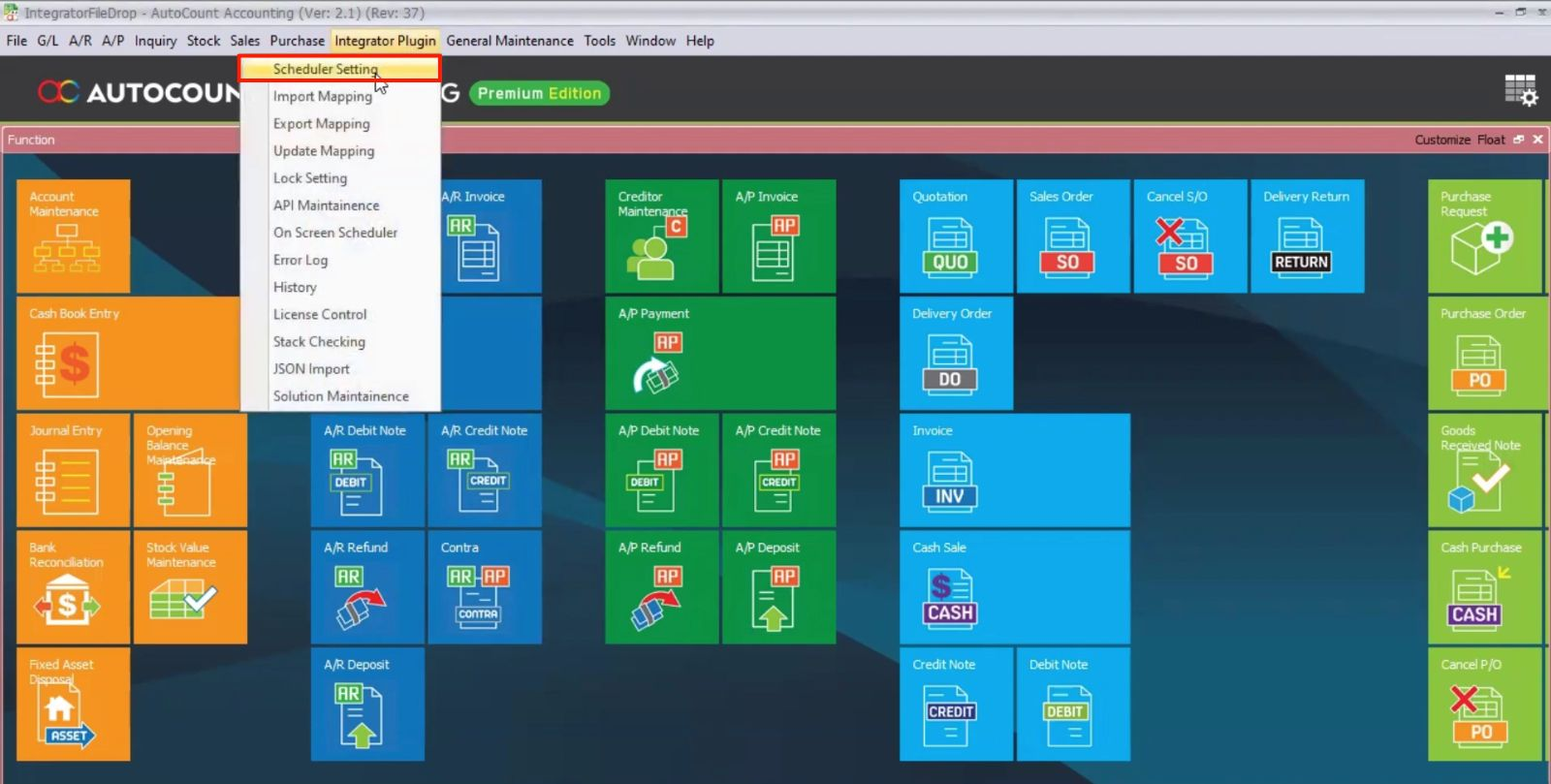
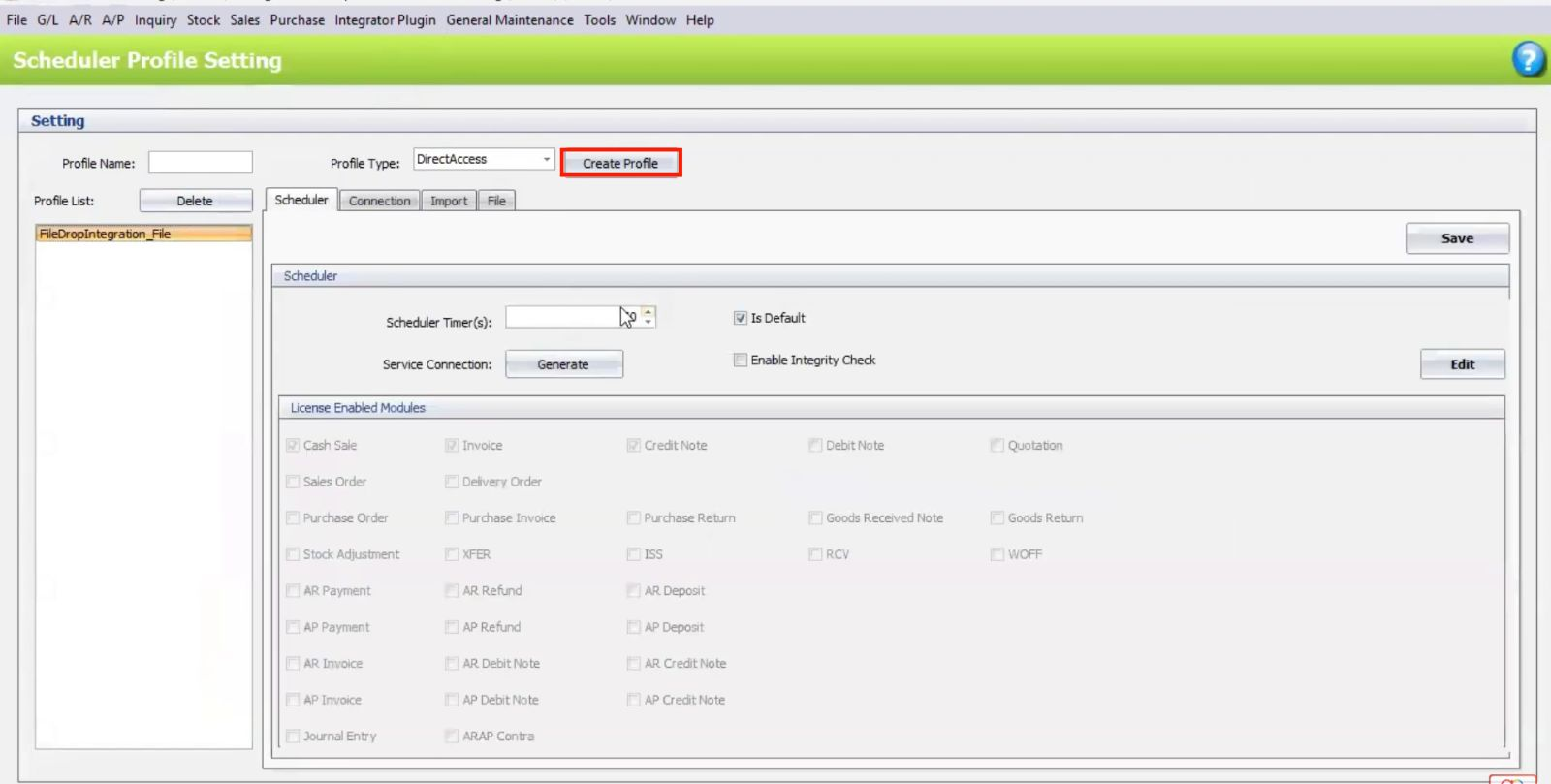
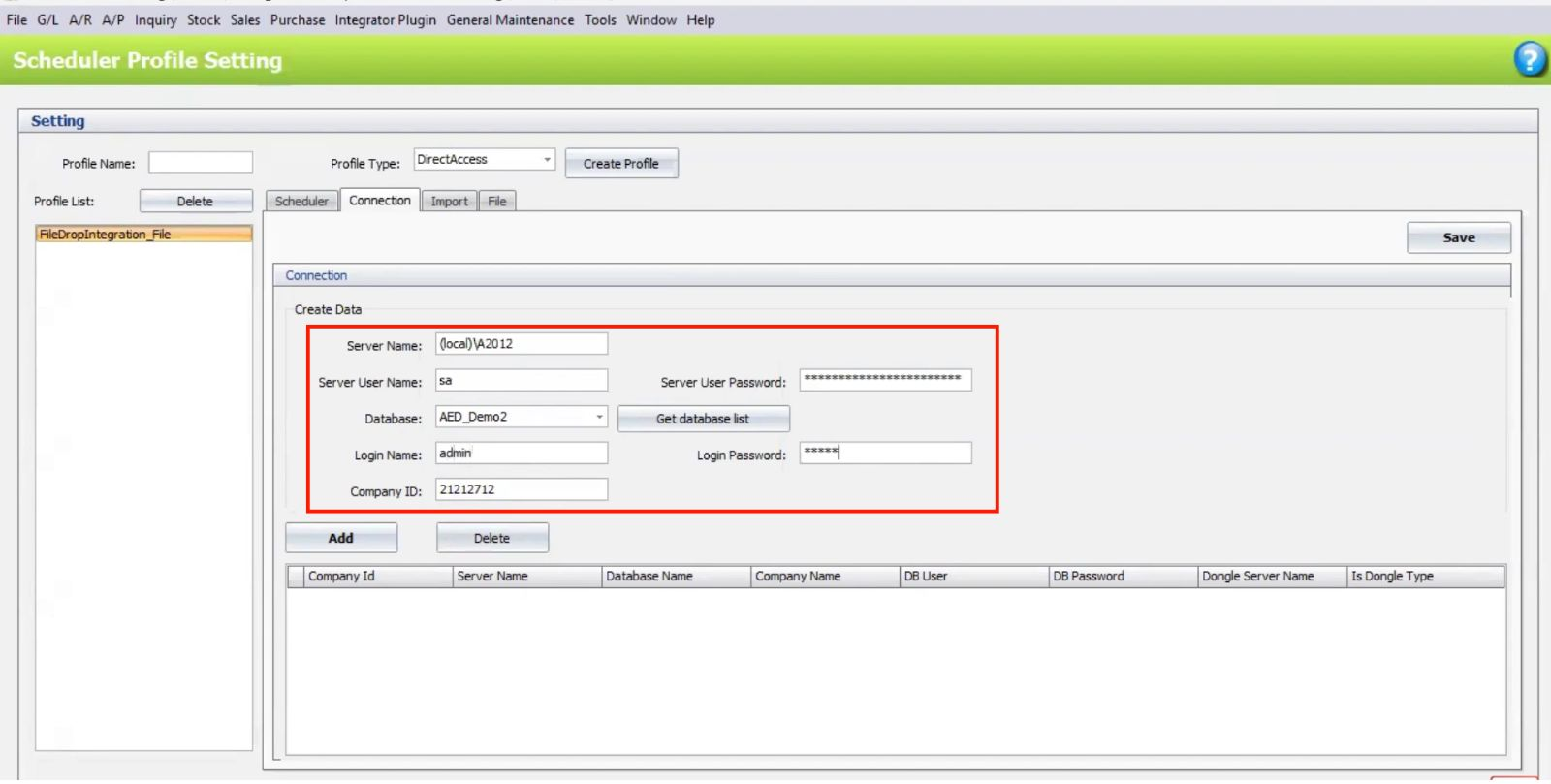
1. Set Up Scheduler
- Go to Integrator Plugin > Scheduler Setting.
- Create Profile and set the Profile Type (e.g., Direct Access or File Drop).
- Configure Server Name, User Info, and Database Details.
2. Select the Integration Method
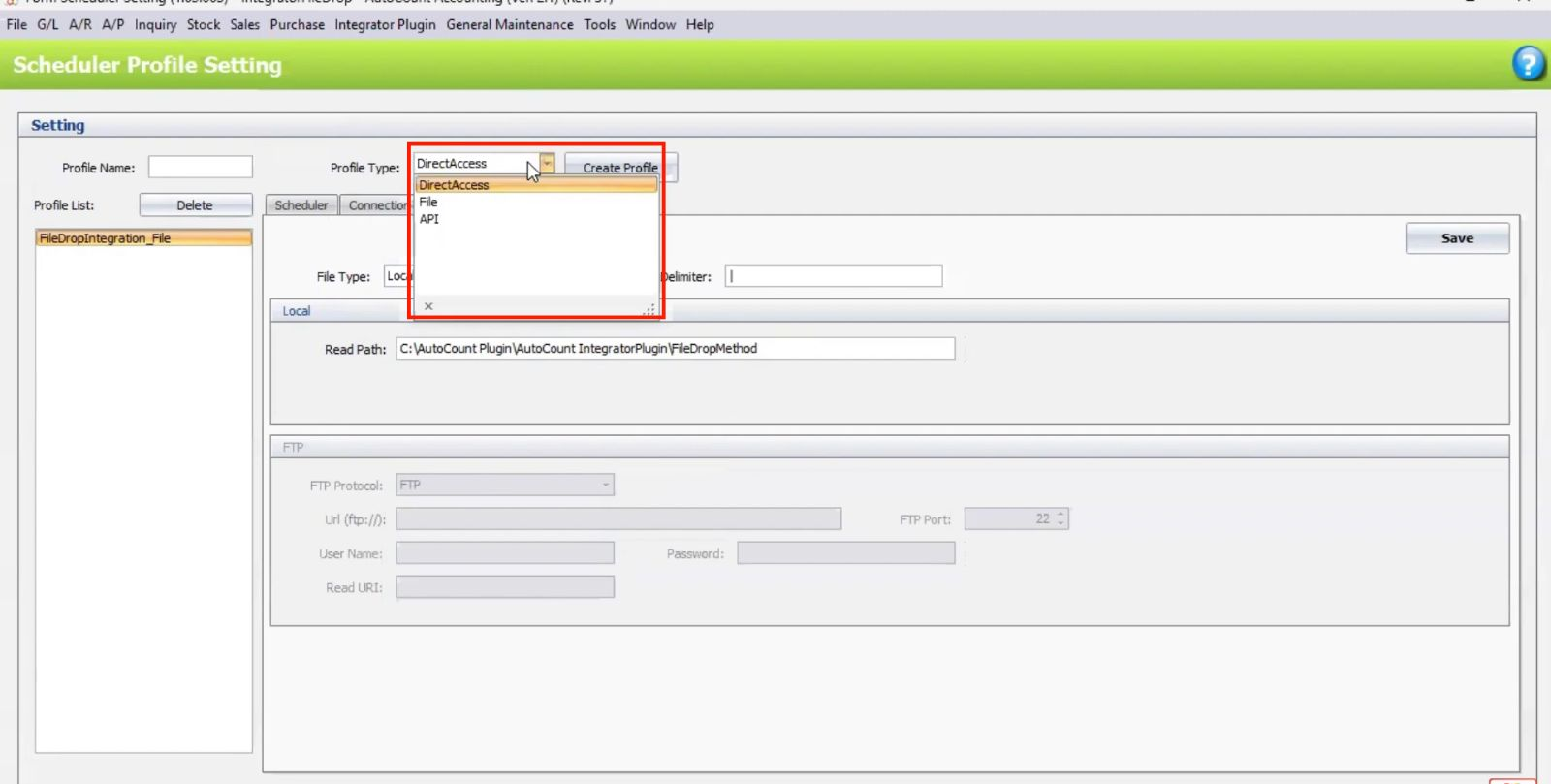
Choose between File Drop, API, or Direct Access depending on your integration setup.
- File Drop: Select a directory or FTP server for file imports.
- API: Enter the external system’s API credentials.
- Direct Access: Set up temporary tables for data import.
How AutoCount Integrator Plugin Works
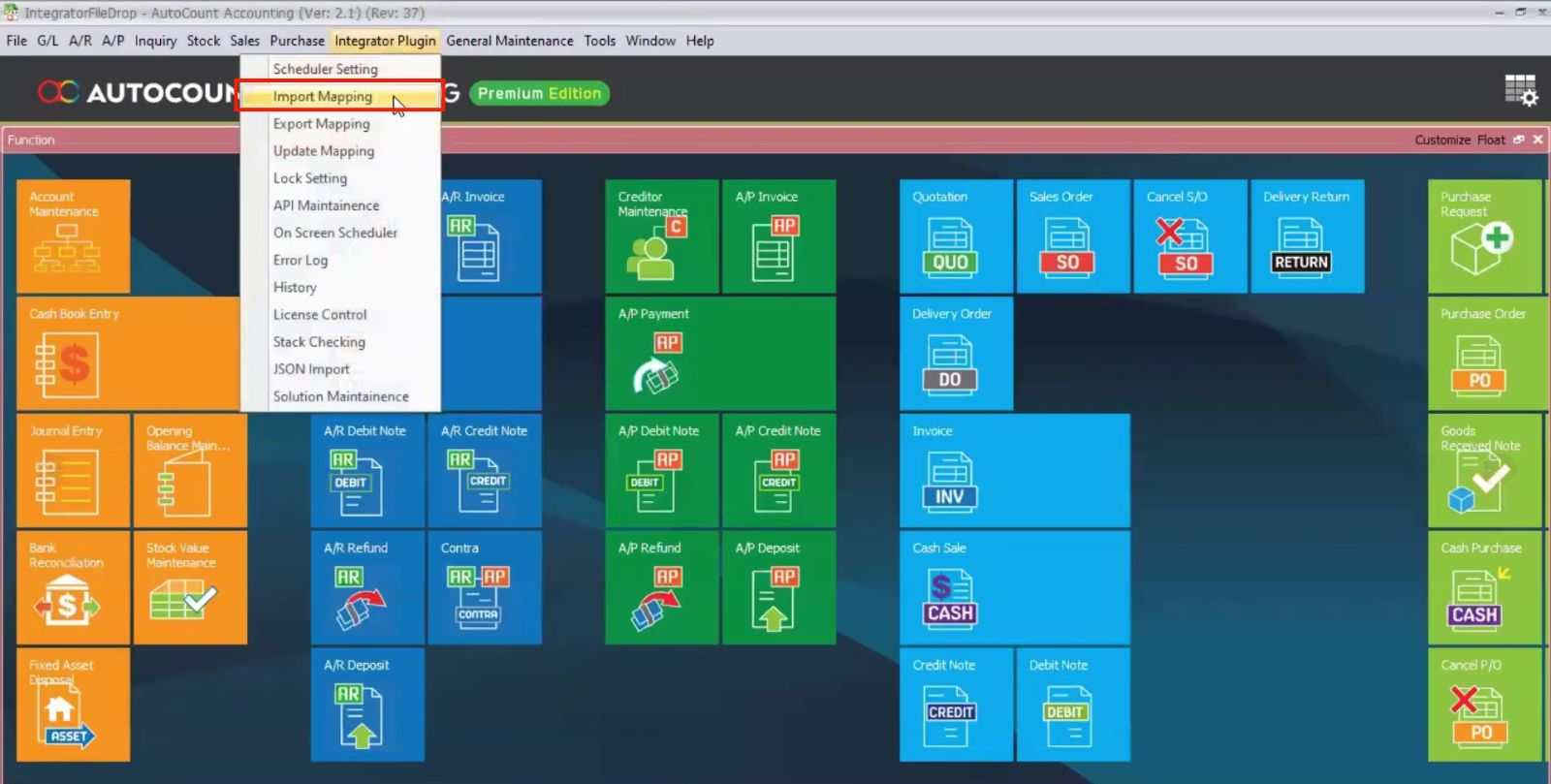
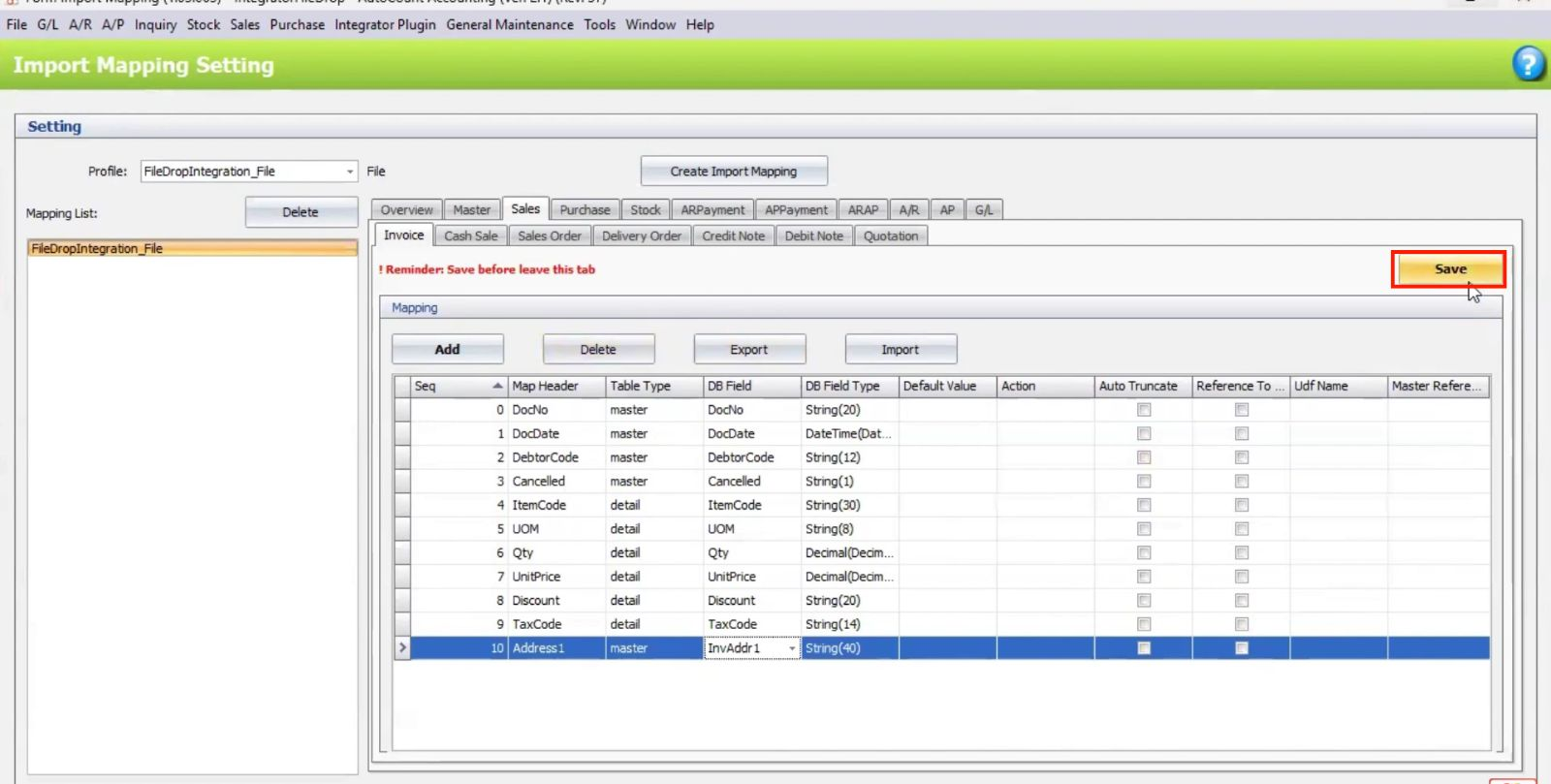
1. Map Data for Import
Go to Import Mapping.
Map the source file fields (e.g., Customer Code, Item Code) to corresponding fields in AutoCount.
Save the mapping template for future use.
2. Configure File Drop and FTP
- Set the directory path or FTP folder for incoming files.
- Configure file delimiter (e.g., CSV delimiter).
- Optionally set up FTP credentialsfor file imports from external servers.
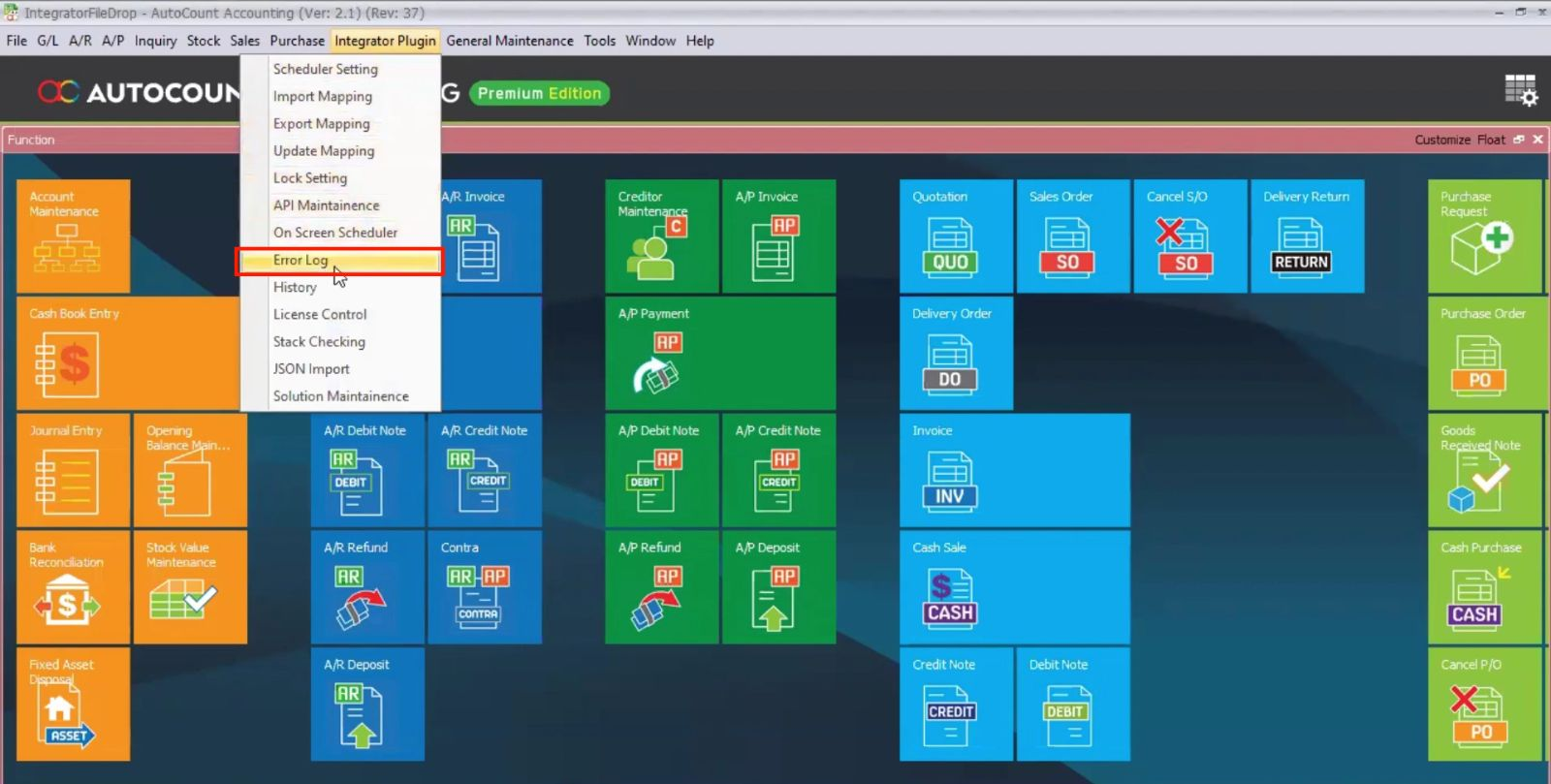
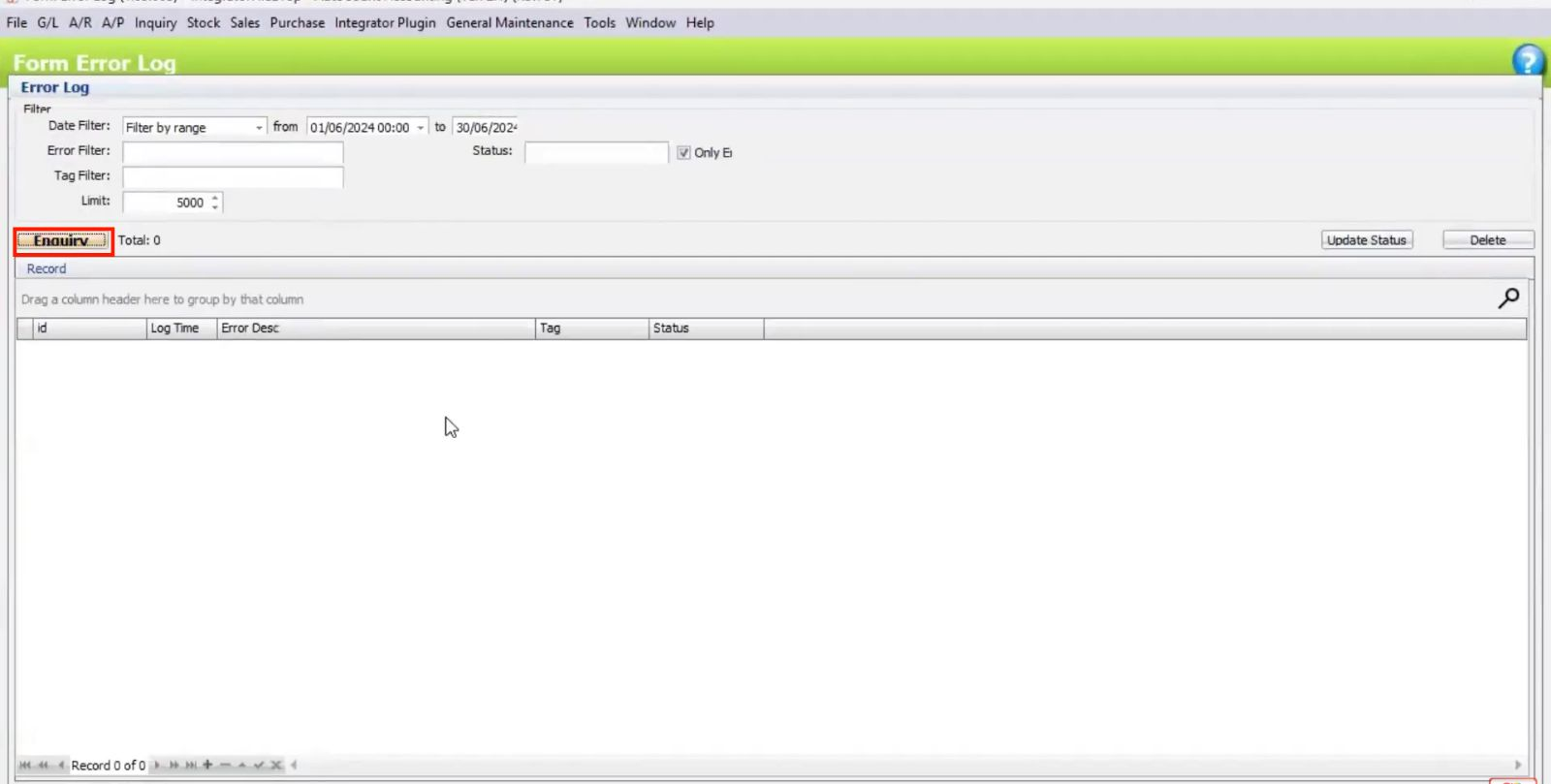
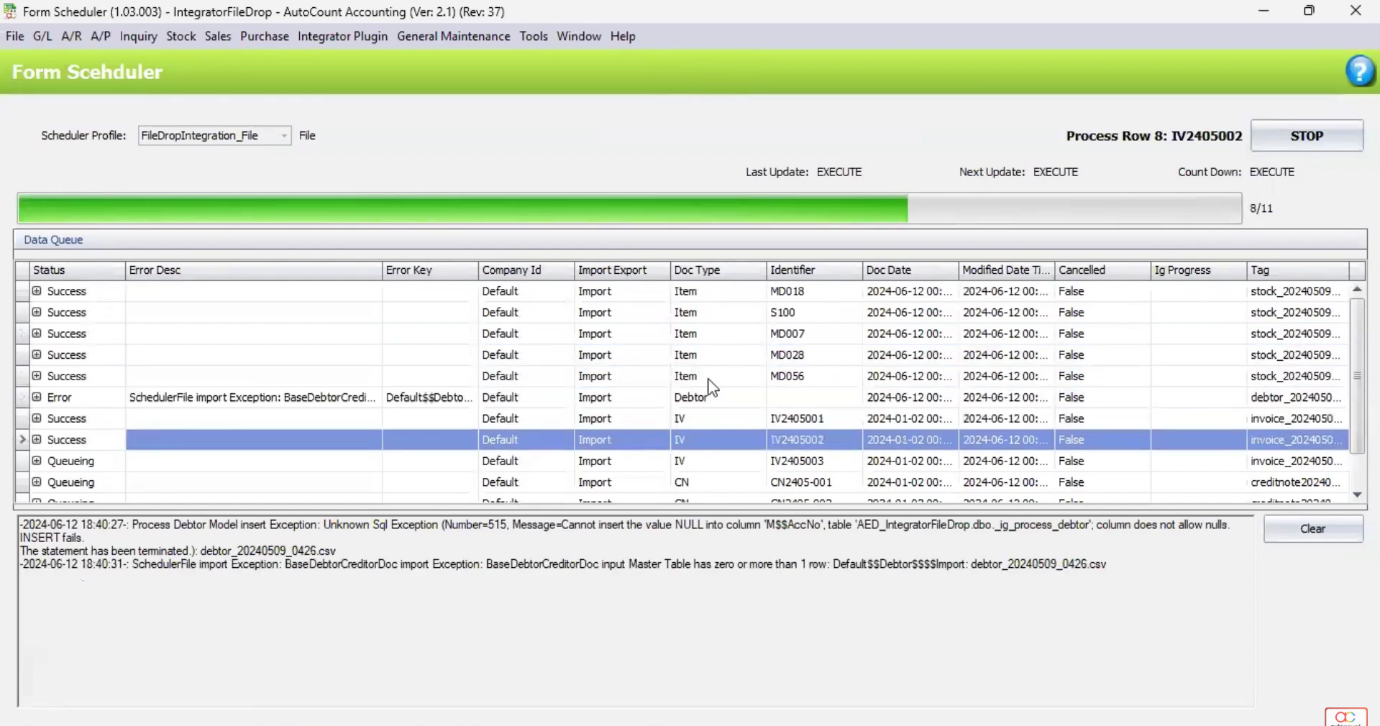
3. Check Error Log and Fix Import Issues
- Go to Error Log to check import issues.
- Manually resolve file issues (e.g., fixing incorrect formatting or data) and place corrected files in the import folder.
- Retry the import — the plugin will automatically process fixed files.
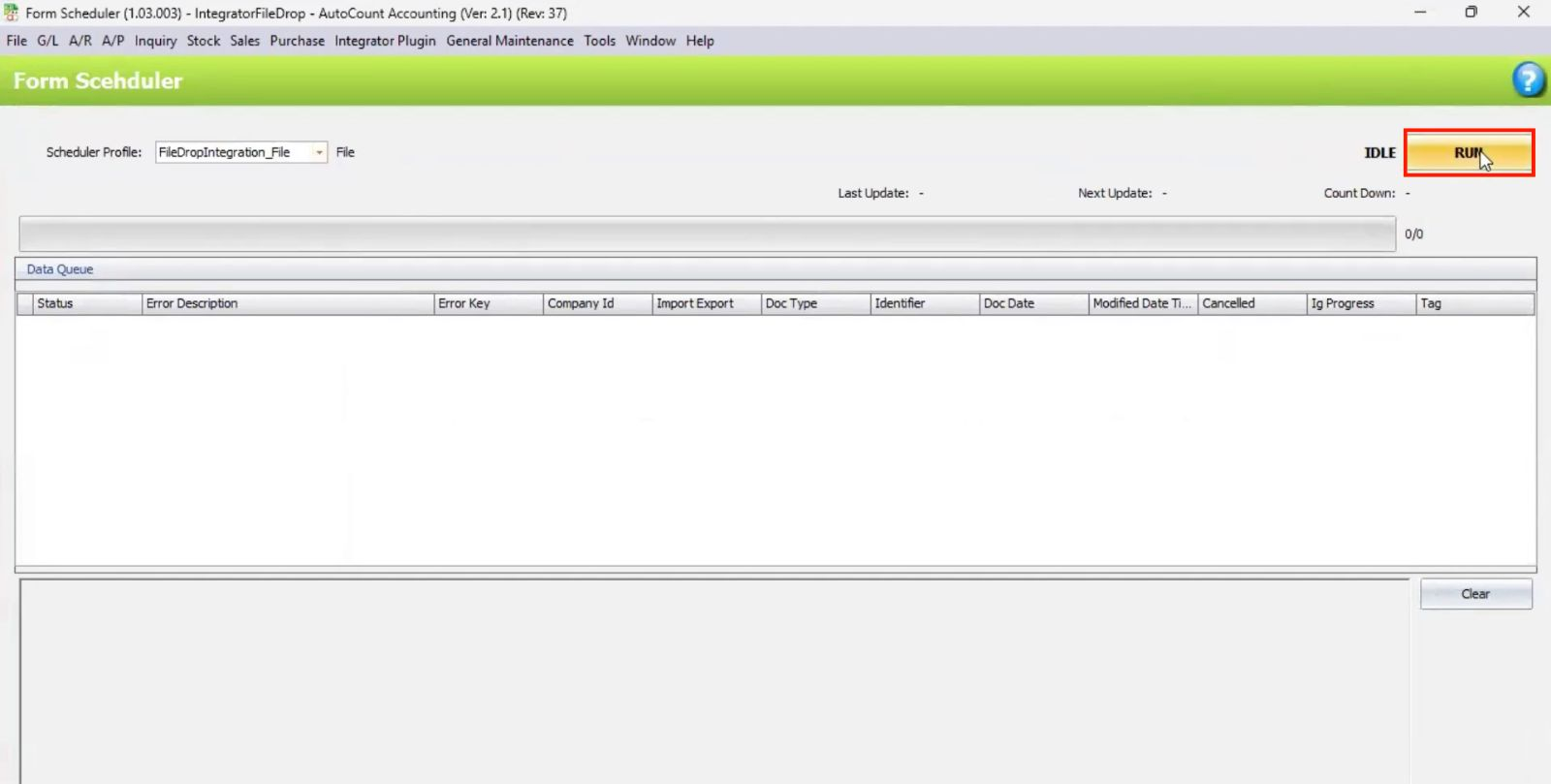
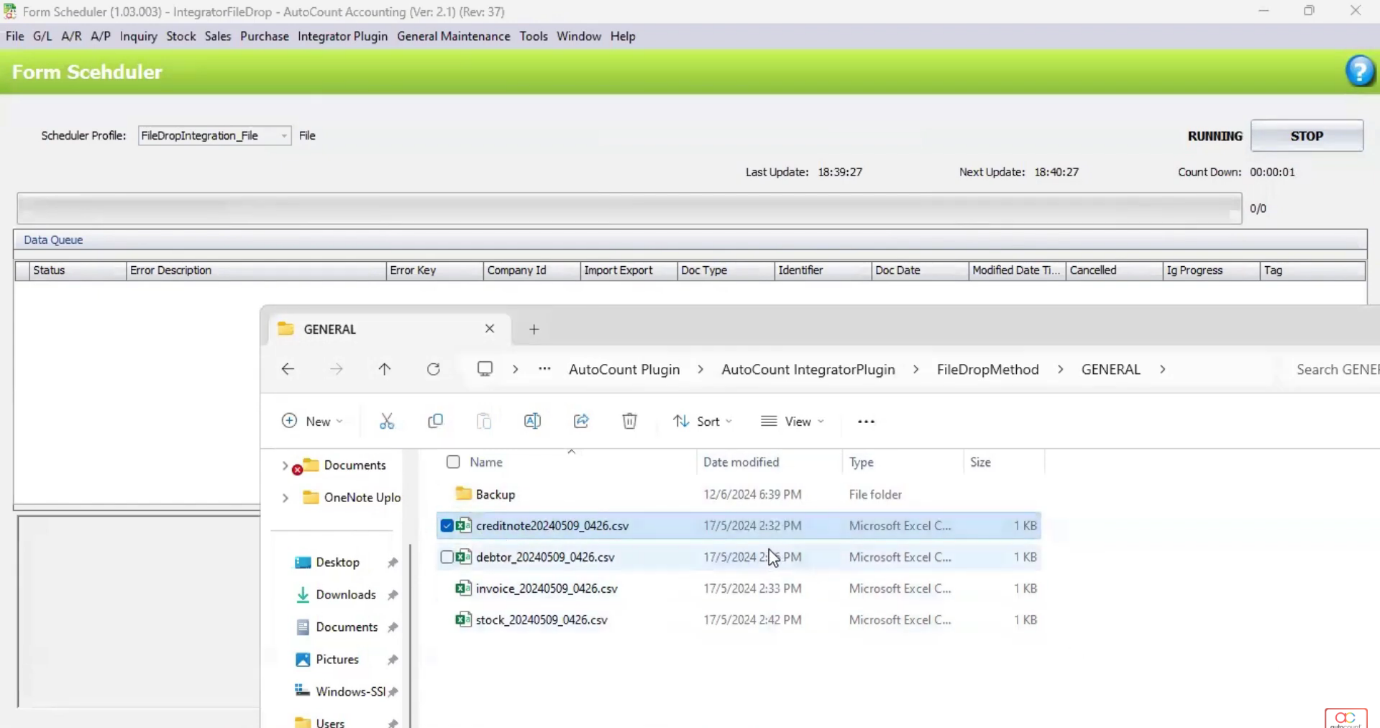
4. Run and Test the Integration
Enable the Scheduler to run the import process at set intervals.
- Test by dropping sample CSV/Excel files into the configured folder/FTP.
- Monitor the logs to ensure smooth operation and correct data transfer.
5. Connect with Third-Party Software
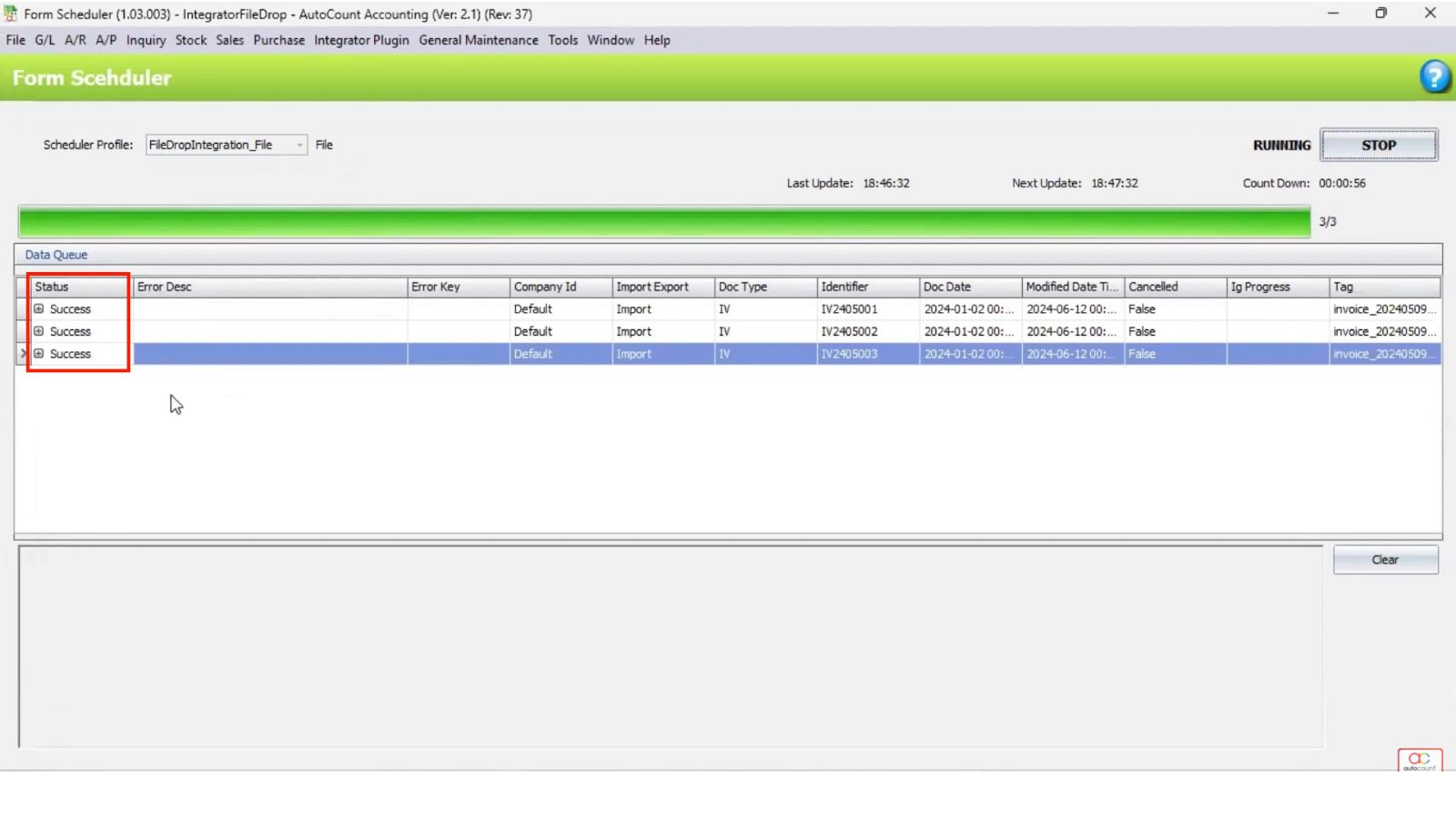
- Connect AutoCount with third-party systems using APIor File Drop methods to sync data automatically.
- Ensure that data (e.g., invoices, payments) is accurately reflected in AutoCount.
Benefits of AutoCount Integrator Plugin
Increased Efficiency
Automates data synchronization and repetitive tasks, significantly reducing the time spent on manual entry and improving overall workflow efficiency.
Improved Accuracy
Minimizes human errors by automating processes, ensuring data consistency across all systems and reducing the risk of discrepancies.
Enhanced Integration
Seamlessly connects AutoCount with other platforms, providing a unified system for smoother operations and better data management.
Cost and Time Savings
By streamlining processes and eliminating manual work, businesses can save time and reduce operational costs, leading to better resource allocation.
Conclusion
The AutoCount Integrator Plugin is a powerful tool that enhances business operations by automating data synchronization and streamlining workflows across various AutoCount modules and external systems. By improving accuracy, boosting efficiency, and enabling seamless integration, it reduces manual tasks and operational errors, ultimately saving time and costs. Perfect for businesses looking to optimize their processes, this plugin offers a flexible and scalable solution to improve overall performance, making it an invaluable asset for organizations of all sizes.
Frequently Asked Questions
How do I set up the AutoCount Integrator Plugin?
Create a profile, configure server details, and select your integration method (File Drop, API, or Direct Access).
Can I automate data synchronization with third-party software?
Yes, use File Drop or API to sync data automatically with third-party systems.
How do I troubleshoot import errors?
Check the Error Log, fix issues in the file, and re-import it. The plugin will process the corrected file.
Is it possible to schedule automatic imports?
Yes, enable the Scheduler to run imports at set intervals automatically.
Interested in Getting AutoCount for your Business?
Contact our sales team today to explore pricing options and get started with the perfect solution for you.