
-
AutoCount Accounting Features
-
- Approval Workflow
- Audit Trail
- Auto Save in Draft Folder
- AutoCount Contra Account
- AutoCount License Setting Guide
- Deposit Tracking & Management
- Documents Numbering Format
- Full Transfer and Partial Transfer
- Import Data to AutoCount Accounting Using Excel
- Informative Charts and Analytical Data
- Layout Customization
- Multi Pricing
- Sales and Services Tax
- Schedule Backup
- Search Lookup Edit
- View Documents Flow
- AutoCount Feature Stock Take
- Column Chooser
- Show Remaining (3) Collapse
-
AutoCount Cloud Accounting
-
AutoCount E-Invoice
-
AutoCount HRMS User Guide
-
AutoCount Modules
-
- Activity Stream
- Advanced Financial Report
- Advanced Item
- Advanced Multi-UOM
- Advanced Quotation Module
- Basic Multi-UOM
- Budget Module
- Consignment
- Filter By Salesman
- FOC Quantity
- Formula
- Item Batch
- Item Package
- Landing Cost
- Multi-Currency
- Multi-Dimensional Analysis
- Multi-Location
- Project Account
- Recurrence
- Remote Credit Control Module
- Stock Assembly
- User Defined Fields (UDF)
- AutoCount SST Hidden Functions
- AutoCount SST Submission - Service Tax
- AutoCount Scripting Module User Guide
- AutoCount Bonus Point Module User Guide
- Show Remaining (11) Collapse
-
AutoCount Plugins
-
- Fixed Assets Management
- Goldsmith
- TD Ordering Mobile Apps
- TD Stock Mobile Apps
- Universal Import Plugin
- DMS Import Plugin
- AutoCount Item Visibility Control
- AutoCount Easy Knock Off Plugin
- AutoCount Pick List Plugin User Guide
- AutoCount Agent Validation Plugin User Guide
- AutoCount Barcode Generator Plugin User Guide
- AutoCount Bill Remark Plugin User Guide
- AutoCount Easy Batch Number Entry Plugin User Guide
- AutoCount Recurring Invoice Plugin User Guide
- AutoCount Easy Photo 2.0 User Guide
- AutoCount Pain Tracker User Guide
- AutoCount Credit Memo Plugin User Guide
- AutoCount Daily Collection Summary Plugin
- AutoCount Lock Price Plugin
- Show Remaining (4) Collapse
-
- AutoCount Easy Recurrence Plugin
- AutoCount Recurring Billing Plugin
- Event Management System
- AutoCount To-Do List Plugin
- AutoCount AutoBank Reconciliation Plugin
- Intercompany Billing Plugin User Guide
- AutoCount Basket Plugin User Guide
- Lead Management 2.0 Plugin
- AutoCount Service Contract Plugin User Guide
- Autocount Repacking Plugin
- AutoCount Scale Barcode Plugin User Guide
- AutoCount Progressive Billing
- AutoCount Optical Plugin
- AutoCount Meter Reading Plugin User Guide
- AutoCount Car Tint Film Plugin
- AutoCount Leasing Plugin User Guide
- AutoCount Integrator Plugin
- AutoCount Procurement Planning Plugin
- Cage Management Plugin
- AutoCount Service Management Plugin User Guide
- AutoCount Vehicle Plugin
- Show Remaining (6) Collapse
-
-
Form Template
-
Report Template
-
- Advance Quotation
- Cash Sale
- Consignment
- Consignment Movement
- Credit Note
- Debit Note
- Delivery Order
- FOC Quantity Analysis By Document Report
- Invoice
- Item Package Sales Report
- Monthly Sales Analysis
- Outstanding Sales Order Listing
- Profit And Loss Of Documents
- Quotation
- Sales Agent Contribution Report
- Sales Order
- Top/Bottom Sales Ranking
- Show Remaining (2) Collapse
-
- Available Stock Status Report
- Expired Item Batch Listing
- Inventory Physical Worksheet
- Stock Adjustment
- Stock Aging Report
- Stock Assembly
- Stock Assembly Order
- Stock Balance By Location
- Stock Balance Report
- Stock Card Report
- Stock Disassembly
- Stock Issue
- Stock Item Profit Margin
- Stock Movement Report
- Stock Receive
- Stock Take
- Stock Transfer
- Stock Write Off
- Show Remaining (3) Collapse
AutoCount Plugin : Batch Transfer SODO Plugin
Understand The Batch Transfer SODO.
The AutoCount Batch Transfer SO/DO Plugin is designed for businesses that need to transfer multiple Sales Orders or Delivery Orders at one time. Sales Orders can be generated into Delivery Orders, while Delivery Orders can be generated into Invoices. The plugin also provides a Setting screen where users can control the transfer type, transfer method, and generated document status before processing.
What Is The Batch Transfer SODO Plugin?
The Batch Transfer SO/DO Plugin allows users to batch generate Delivery Orders from Sales Orders and batch generate Invoices from Delivery Orders. Users can configure the plugin settings, choose between full transfer or partial transfer, select one-to-one or many-to-one transfer method, click Inquiry, review the available records, tick the required documents or item lines, and click Generate. Once completed, AutoCount will create the related Delivery Order or Invoice based on the selected records and settings
Why You Should Use Batch Transfer SODO Plugin?
This plugin helps by:
- Transfer multiple Sales Orders to Delivery Orders without opening each Sales Order manually.
- Transfer multiple Delivery Orders to Invoices from one inquiry screen.
- Configure transfer type, transfer method, and document status based on your company workflow.
- Use full transfer when the whole document is ready to proceed.
- Use partial transfer when only selected item lines or quantities need to be transferred.
- Support one-to-one and many-to-one transfer methods for flexible document generation.
- Reduce repeated manual work, save processing time, and improve document transfer accuracy.
Key Features & Capabilities
Inquiry-Based Filtering
Find documents using filters such as document date, document number, debtor code, item code, and delivery date.
Posting Detail Control
Users can select posting date and posting document number format before generating the new document.
Batch Sales Order To Delivery Order
Easily generate Delivery Orders from selected Sales Orders in one screen.
Batch Delivery Order To Invoice
Generate Invoices from selected Delivery Orders quickly and accurately.
Setting-Based Transfer Control
Users can configure how the transfer should work before processing, including transfer type, transfer method, and document status.
Full Transfer & Partial Transfer Support
Full Transfer allows users to generate the next document using the whole selected document. Partial Transfer allows users to transfer selected item lines or quantities only.
One To One & Many To One Transfer Method
One To One generates separate documents based on each selected document. Many To One allows multiple selected documents to be combined into one new document where applicable.
Document Status Control
Generated documents can follow the selected document status, such as Draft or Approved, based on the plugin setting.
Who This Plugin is For ?
Operations Teams
Helps streamline daily document processing, reduce repeated work, and keep Sales Order, Delivery Order, and Invoice flow more organized
Sales Admin Teams
Useful for teams that need to process many Sales Orders into Delivery Orders daily.
Warehouse & Delivery Teams
Helps users prepare Delivery Orders from selected Sales Orders faster and with fewer manual steps.
Billing & Accounts Teams
Suitable for users who need to generate Invoices from Delivery Orders in batches.
Wholesale & Distribution Businesses
Ideal for businesses with high transaction volume where many customer orders are transferred into delivery and billing documents.
How AutoCount Batch Transfer SODO Plugin Works
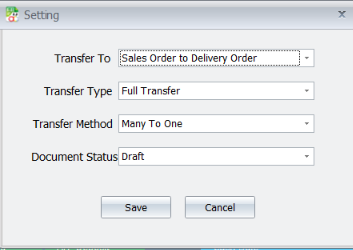
1. Configure Plugin Settings
Go to Batch Transfer SO/DO > Setting
Select:
- Transfer To: Sales Order to Delivery Order
- Transfer Type: Full Transfer or Partial Transfer
- Transfer Method: One To One or Many To One
- Document Status: Draft
Click Save.
Important:
Check the setting before transfer, because it controls how the new document will be generated.
2. Creating Sales Order Document
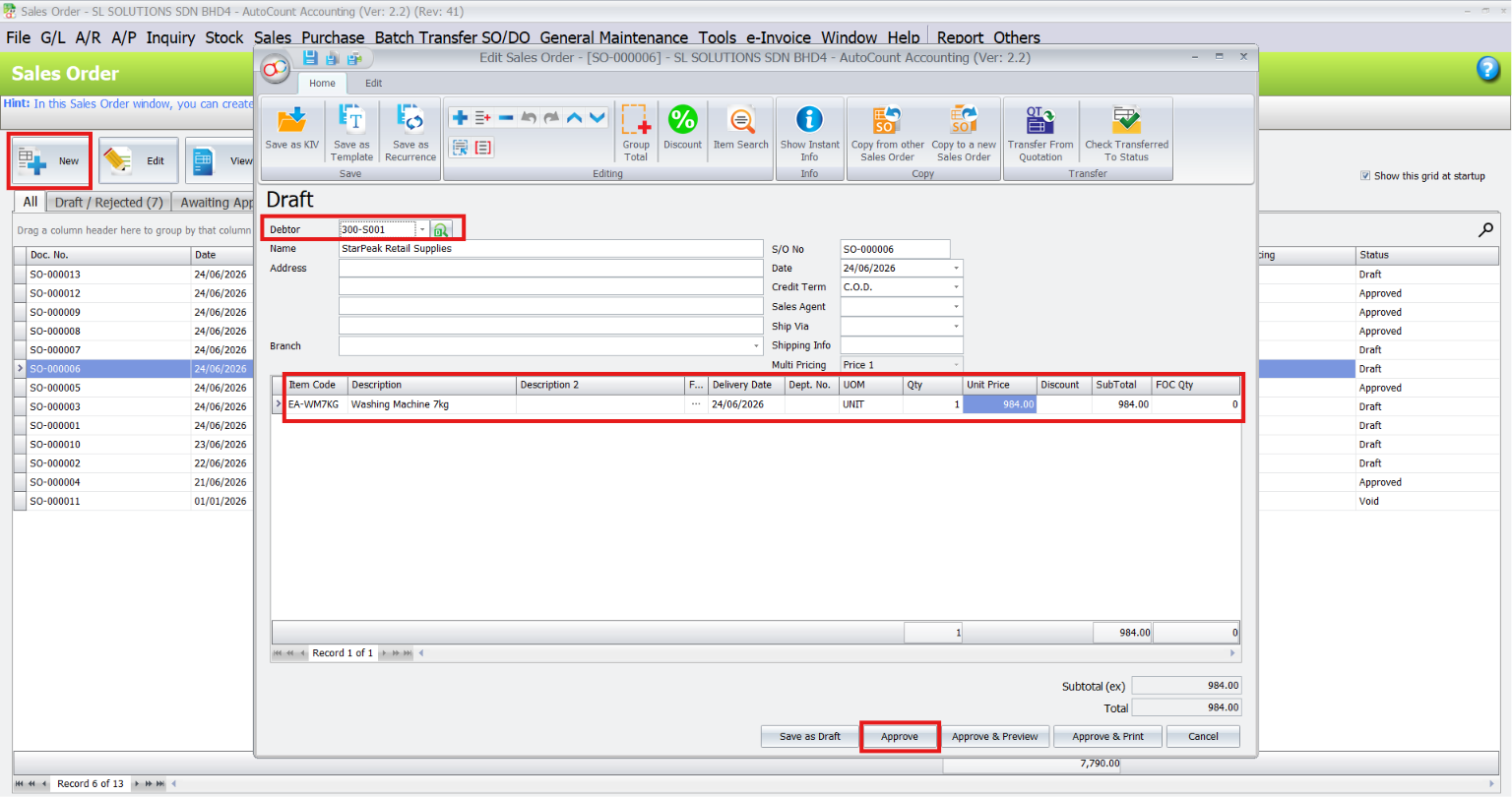
Create the Sales Order first before using the batch transfer function
- Go to Sales > Sales Order
- Click New
- Select the Debtor
- Add the item, quantity, unit price, and other required details
- Save or Approve the Sales Order
The Sales Order will become the source document for generating Delivery Order.
3. Batch Transfer Sales Order to Delivery Order
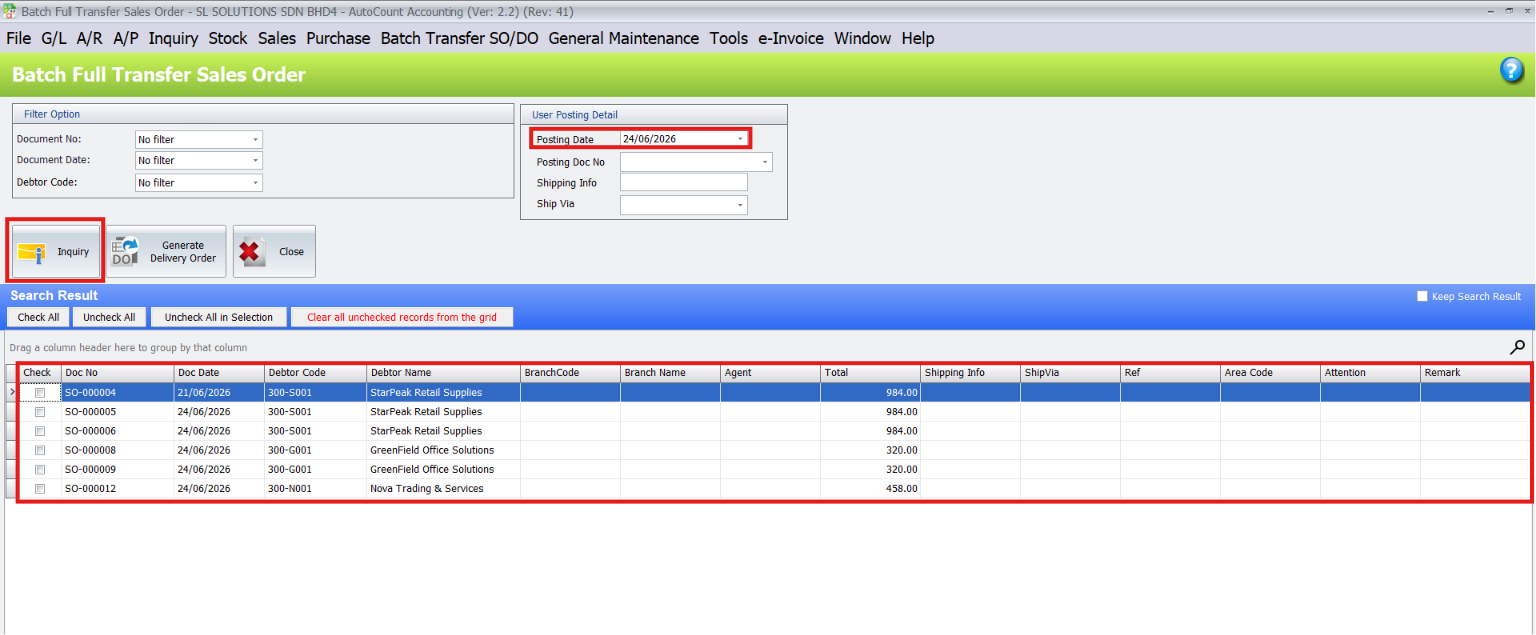
Use the Batch Transfer Sales Order screen to search and generate Delivery Orders.
- Go to Batch Transfer SO/DO > Batch Transfer Sales Order
- Select optional filters such as Document No, Document Date, or Debtor Code
- Select the Posting Date
- Click Inquiry to display available Sales Orders
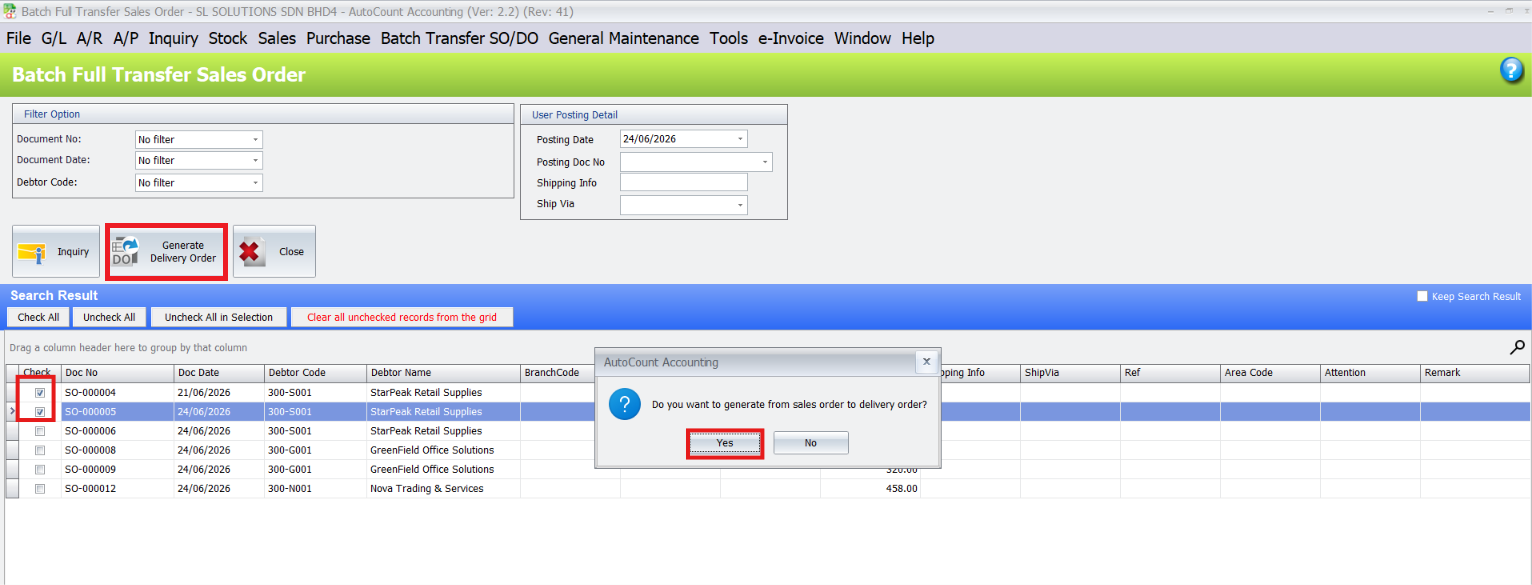
- Tick the Sales Orders that you want to transfer
- Click Generate Delivery Order
- Click Yes when AutoCount asks for confirmation
AutoCount will generate the Delivery Order based on the selected Sales Orders.
Pro Tip
Use filters when there are many Sales Orders. This helps you find the correct customer documents faster and reduces the chance of selecting the wrong order.
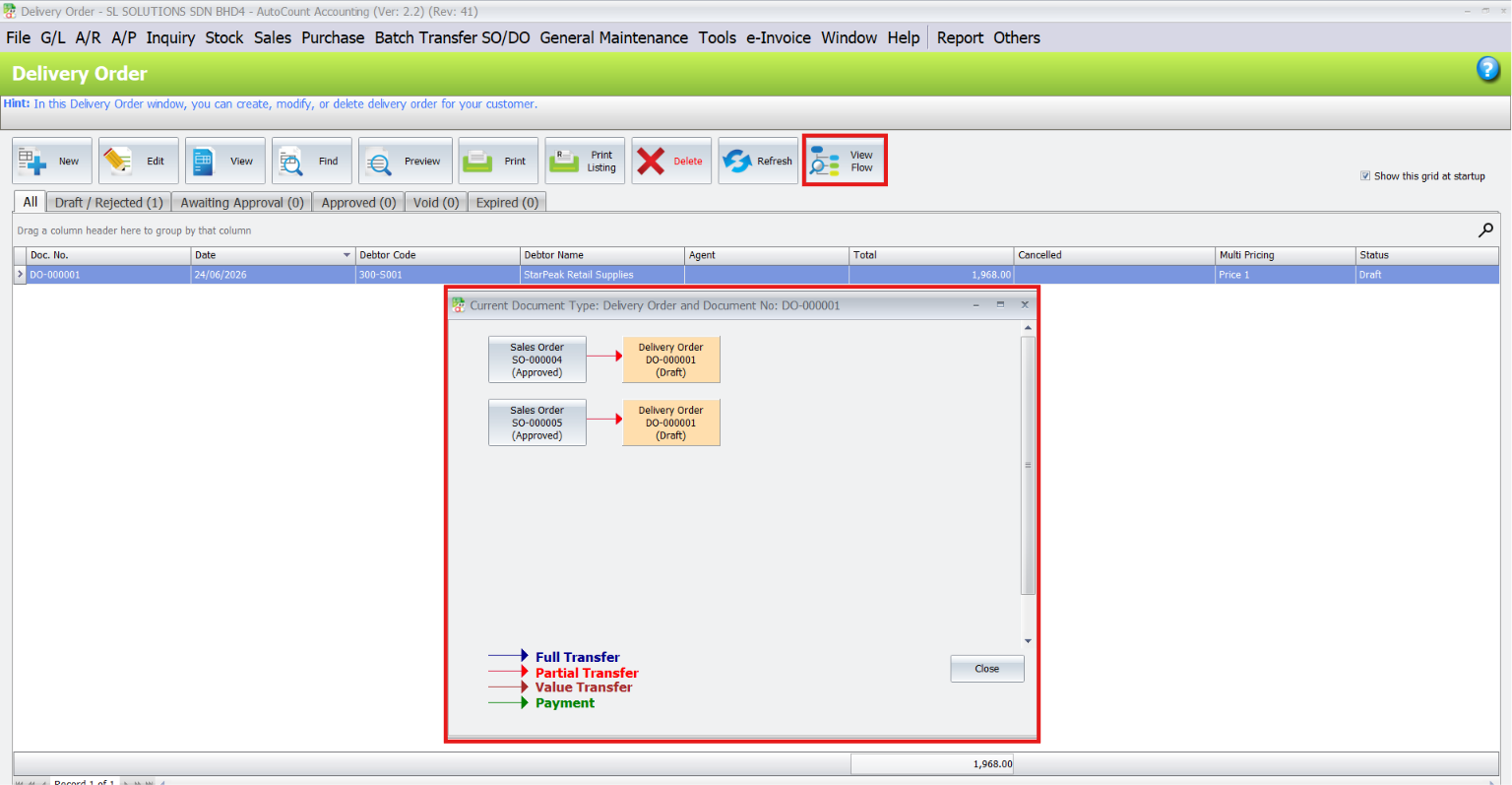
4. Checking Generated Delivery Order
- Go to Sales > Delivery Order
- Find the generated Delivery Order
- Check the debtor, item details, quantity, unit price, and total amount
Click View Flow to confirm the Delivery Order was generated from the selected Sales Order
The document flow will show the Sales Order linked to the generated Delivery Order.
5. Approving Delivery Order
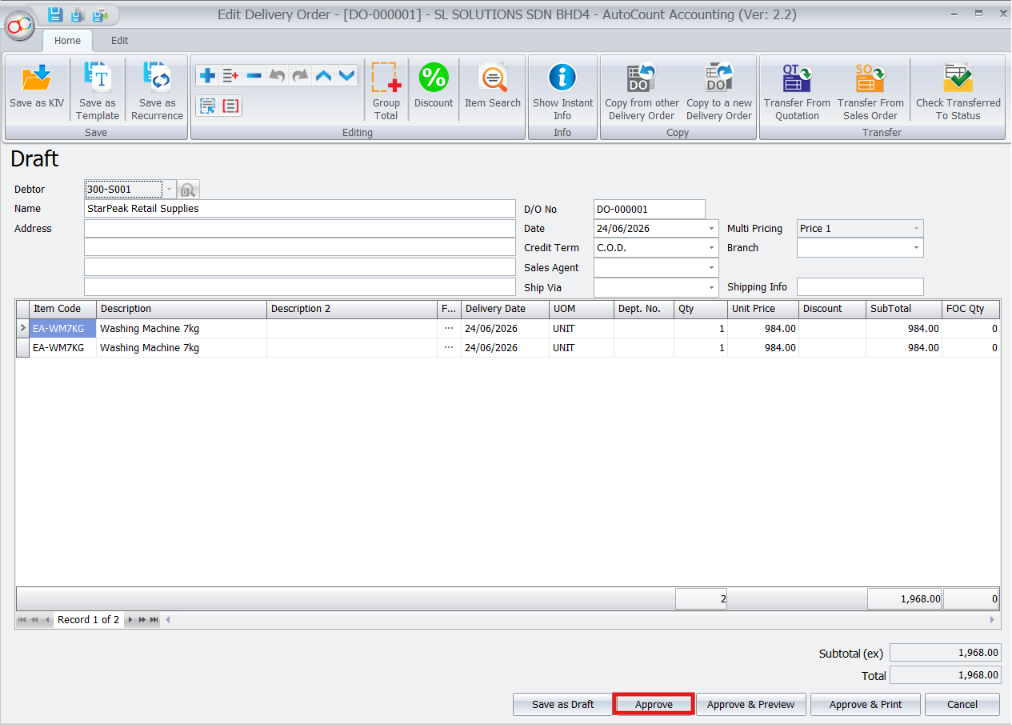
If the generated Delivery Order is saved as Draft, open the document and approve it when ready.
- Open the related Delivery Order
- Check the item lines and document details
- Click Approve
This prepares the Delivery Order for the next transfer process.
6. Batch Transfer Delivery Order to Invoice
- Go to Batch Transfer SO/DO > Batch Transfer Delivery Order
- Select optional filters such as Document No, Document Date, or Debtor Code
- Select the Posting Date
- Click Inquiry to display available Delivery Orders
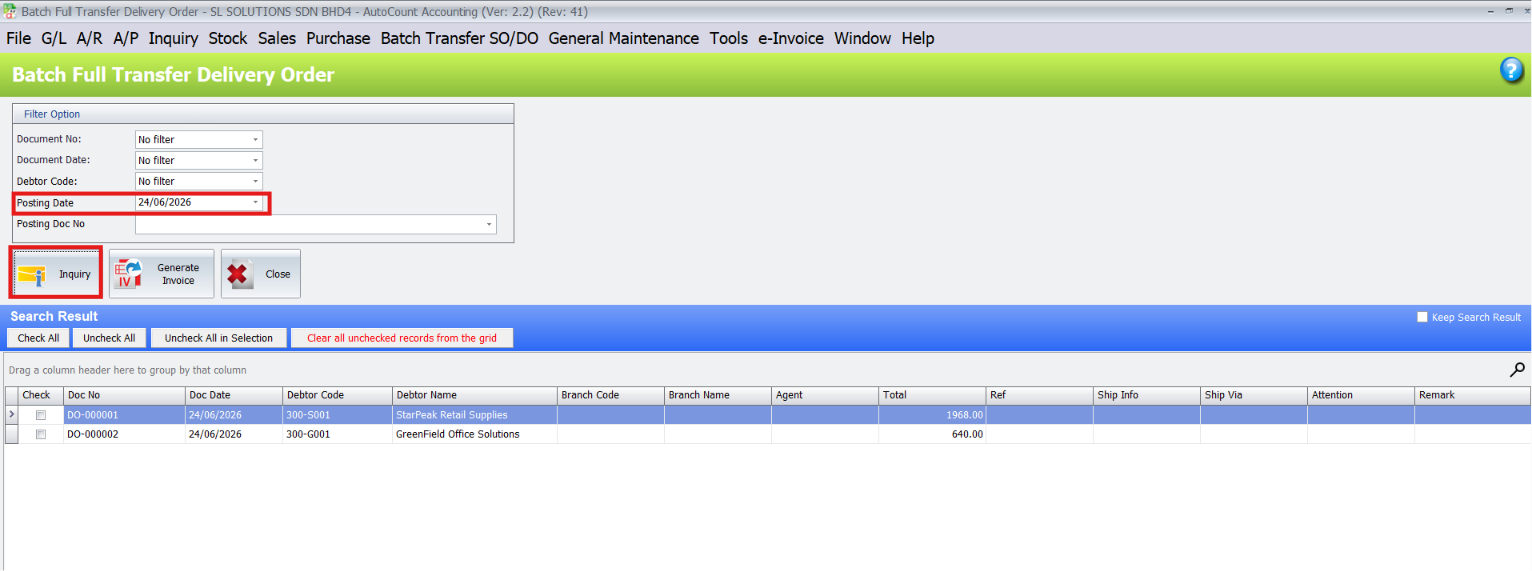
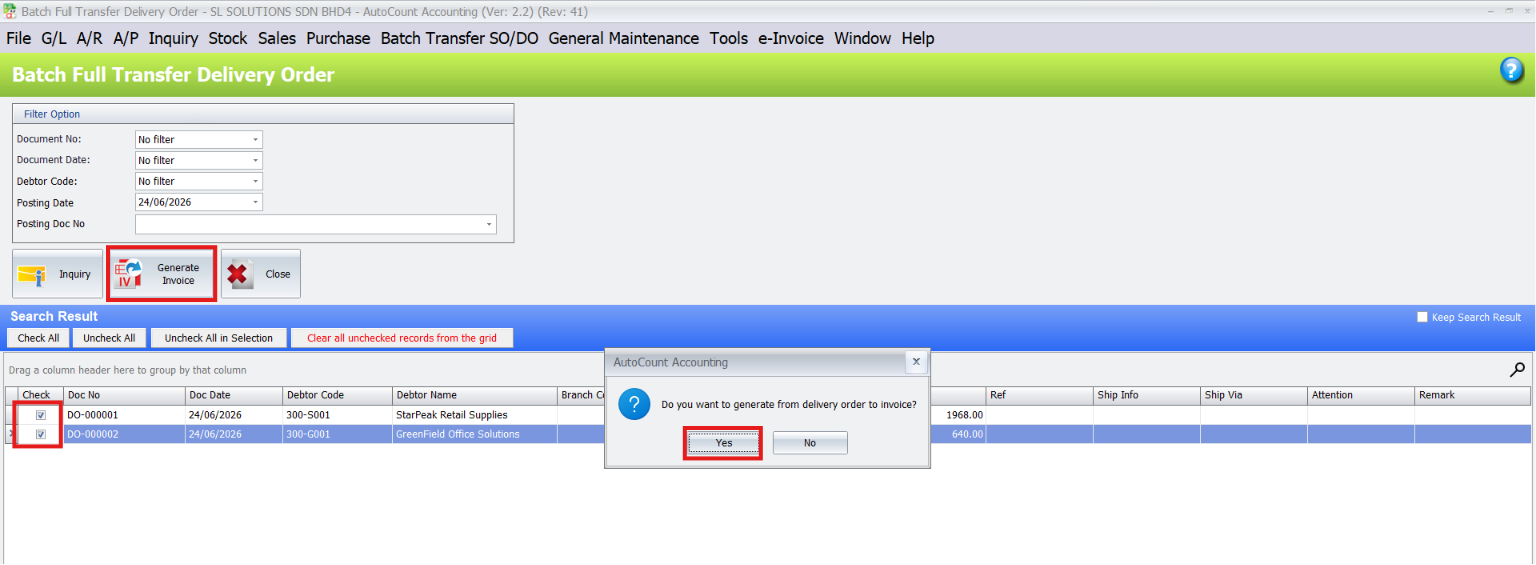
- Tick the Delivery Orders that you want to transfer
- Click Generate Invoice
- Click Yes when AutoCount asks for confirmation
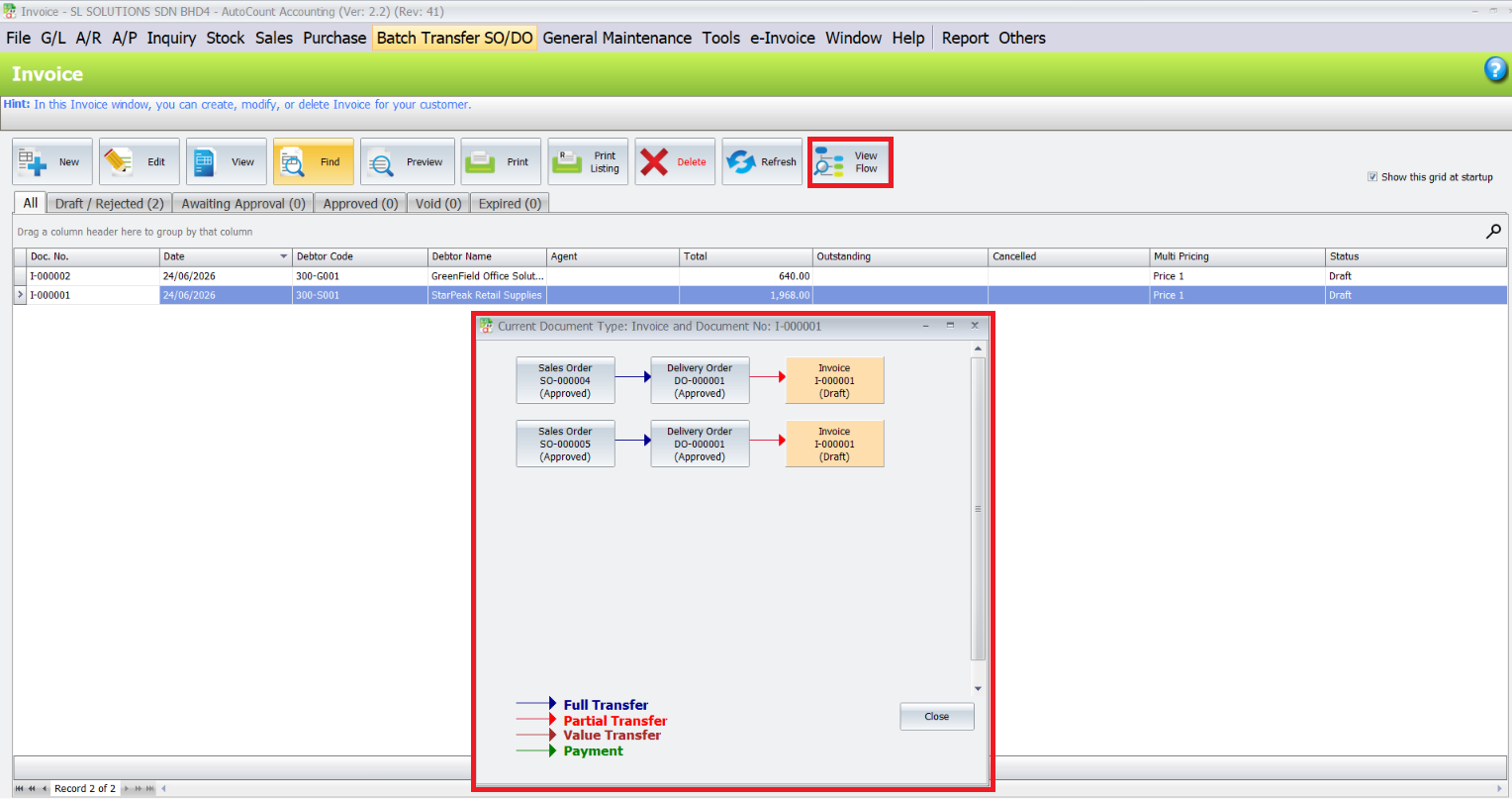
7. Checking Generated Invoice
- Go to Sales > Invoice
- Find the generated Invoice
- Check the debtor, item details, quantity, unit price, and total amount
- Click View Flow to confirm the full document chain
The document flow will show:
Sales Order > Delivery Order > Invoice
Pro Tip
Always check the Posting Date and Posting Doc No before clicking Generate. If the document does not appear immediately, refresh the document list or reopen the inquiry screen.
Benefits of using Batch Transfer SODO Plugin
Increased Efficiency
Generate Delivery Orders from Sales Orders and Invoices from Delivery Orders in batches from one screen, without opening each document manually.
Better Accuracy
Selected documents and item lines are transferred based on AutoCount document flow, helping reduce manual key-in mistakes.
Time Saving
Process multiple Sales Orders or Delivery Orders at once, making daily sales, delivery, and billing work much faster.
Flexible Transfer Control
Supports Full Transfer, Partial Transfer, One To One, and Many To One options, so users can transfer documents based on actual business needs.
Conclusion
The AutoCount Batch Transfer SO/DO Plugin helps businesses process sales documents faster by generating Delivery Orders from Sales Orders and Invoices from Delivery Orders. With flexible transfer settings, it reduces manual work, improves accuracy, and keeps the document flow organized inside AutoCount.
Ready to Transform to AutoCount ?
Stop letting manual weighing and pricing slow you down and introduce errors. The AutoCount Batch Transfer SO/DO Plugin provides the automation, accuracy, and seamless integration you need to manage your weighed goods professionally and efficiently.