
-
AutoCount Accounting Features
-
- Approval Workflow
- Audit Trail
- Auto Save in Draft Folder
- AutoCount Contra Account
- AutoCount License Setting Guide
- Deposit Tracking & Management
- Documents Numbering Format
- Full Transfer and Partial Transfer
- Import Data to AutoCount Accounting Using Excel
- Informative Charts and Analytical Data
- Layout Customization
- Multi Pricing
- Sales and Services Tax
- Schedule Backup
- Search Lookup Edit
- View Documents Flow
- AutoCount Feature Stock Take
- Column Chooser
- Show Remaining (3) Collapse
-
AutoCount Cloud Accounting
-
AutoCount E-Invoice
-
AutoCount HRMS User Guide
-
AutoCount Modules
-
- Activity Stream
- Advanced Financial Report
- Advanced Item
- Advanced Multi-UOM
- Advanced Quotation Module
- Basic Multi-UOM
- Budget Module
- Consignment
- Filter By Salesman
- FOC Quantity
- Formula
- Item Batch
- Item Package
- Landing Cost
- Multi-Currency
- Multi-Dimensional Analysis
- Multi-Location
- Project Account
- Recurrence
- Remote Credit Control Module
- Stock Assembly
- User Defined Fields (UDF)
- AutoCount SST Hidden Functions
- AutoCount SST Submission - Service Tax
- AutoCount Scripting Module User Guide
- AutoCount Bonus Point Module User Guide
- Show Remaining (11) Collapse
-
AutoCount Plugins
-
- Fixed Assets Management
- Goldsmith
- TD Ordering Mobile Apps
- TD Stock Mobile Apps
- Universal Import Plugin
- DMS Import Plugin
- AutoCount Item Visibility Control
- AutoCount Easy Knock Off Plugin
- AutoCount Pick List Plugin User Guide
- AutoCount Agent Validation Plugin User Guide
- AutoCount Barcode Generator Plugin User Guide
- AutoCount Bill Remark Plugin User Guide
- AutoCount Easy Batch Number Entry Plugin User Guide
- AutoCount Recurring Invoice Plugin User Guide
- AutoCount Easy Photo 2.0 User Guide
- AutoCount Pain Tracker User Guide
- AutoCount Credit Memo Plugin User Guide
- AutoCount Daily Collection Summary Plugin
- AutoCount Lock Price Plugin
- Show Remaining (4) Collapse
-
- AutoCount Easy Recurrence Plugin
- AutoCount Recurring Billing Plugin
- Event Management System
- AutoCount To-Do List Plugin
- AutoCount AutoBank Reconciliation Plugin
- Intercompany Billing Plugin User Guide
- AutoCount Basket Plugin User Guide
- Lead Management 2.0 Plugin
- AutoCount Service Contract Plugin User Guide
- Autocount Repacking Plugin
- AutoCount Scale Barcode Plugin User Guide
- AutoCount Progressive Billing
- AutoCount Optical Plugin
- AutoCount Meter Reading Plugin User Guide
- AutoCount Car Tint Film Plugin
- AutoCount Leasing Plugin User Guide
- AutoCount Integrator Plugin
- AutoCount Procurement Planning Plugin
- Cage Management Plugin
- AutoCount Service Management Plugin User Guide
- AutoCount Vehicle Plugin
- Show Remaining (6) Collapse
-
-
Form Template
-
Report Template
-
- Advance Quotation
- Cash Sale
- Consignment
- Consignment Movement
- Credit Note
- Debit Note
- Delivery Order
- FOC Quantity Analysis By Document Report
- Invoice
- Item Package Sales Report
- Monthly Sales Analysis
- Outstanding Sales Order Listing
- Profit And Loss Of Documents
- Quotation
- Sales Agent Contribution Report
- Sales Order
- Top/Bottom Sales Ranking
- Show Remaining (2) Collapse
-
- Available Stock Status Report
- Expired Item Batch Listing
- Inventory Physical Worksheet
- Stock Adjustment
- Stock Aging Report
- Stock Assembly
- Stock Assembly Order
- Stock Balance By Location
- Stock Balance Report
- Stock Card Report
- Stock Disassembly
- Stock Issue
- Stock Item Profit Margin
- Stock Movement Report
- Stock Receive
- Stock Take
- Stock Transfer
- Stock Write Off
- Show Remaining (3) Collapse
AutoCount Plugin : Fruit Basket Plugin
What Is The Fruit Basket Plugin?
The Fruit Basket Plugin is designed for fruit wholesalers who need to manage reusable baskets by basket type. The main purpose of this plugin is to track Big Basket and Small Basket separately for each customer or supplier. It records basket movement such as Bakul B Out, Bakul K Out, Bakul B In, Bakul K In, adjustment, and carry forward balance. This helps businesses know exactly how many big baskets and small baskets are still outstanding.
Why You Should Use Fruit Basket Plugin?
Fruit wholesalers often use more than one basket size during daily delivery. If Big Basket and Small Basket are recorded together manually, it can be difficult to know the correct outstanding balance for each type.
The Fruit Basket Plugin helps users record both basket types directly inside AutoCount sales and purchase documents. It reduces manual tracking, improves basket return accuracy, and helps users check customer or supplier basket balances more clearly.
AutoCount Fruit Basket Plugin Video Guide
Watch this video guide to see the AutoCount Fruit Basket Plugin in action. You’ll learn how it automatically tracks basket movements and quantities during sales and purchase transactions, how to set up basket balances in AutoCount, and how the basket update and reporting features help you manage reusable baskets across different documents and users.
- Fruit Basket Plugin (EN)
Fruit Basket Plugin Setup
Automatically perform basket tracking and balance calculations
- Fruit Basket Plugin (CN)
水果篮插件安装设置
自动追踪篮子数量并计算余额
Key Features & Capabilities
Big Basket And Small Basket Tracking
Track two basket types separately, such as Bakul B and Bakul K.
Separate Basket Balance
Maintain separate balance for Big Basket and Small Basket in debtor and creditor records.
Basket Report
Preview or print basket reports showing Big Basket, Small Basket, basket out, basket in, adjustment, and final balance.
Document Basket Tracking
Record basket movement in supported documents such as Invoice, Delivery Order, Cash Sale, Credit Note, Goods Received Note, Purchase Invoice, Cash Purchase, and Purchase Return.
Auto Quantity Calculation
Calculate item quantity based on Big Basket, Small Basket, and KGPerCtn.
Basket Update
Update returned baskets or adjustment values after a document has been saved.
How AutoCount Fruit Basket Plugin Works
1. Basket Settings
Set up the main basket calculation option before using the plugin.
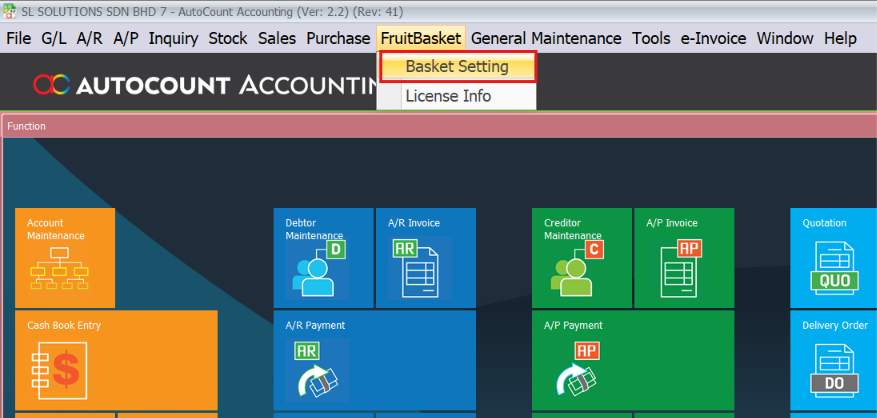
- Go to FruitBasket > Basket Setting.
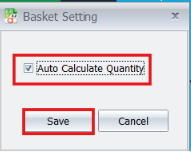
- Tick Auto Calculate Quantity.
- Click Save.
- When Auto Calculate Quantity is enabled, the system can calculate Qty from basket quantity and KGPerCtn.
Example:
- Bakul B Out = 5
- Bakul K Out = 2
- KGPerCtn = 10
- Qty = (5 + 2) x 10
- Qty = 70
This helps users avoid manual quantity calculation during invoice or purchase entry.
2. Maintain Debtor Basket Balance
Set the customer’s starting basket balance before creating transactions.
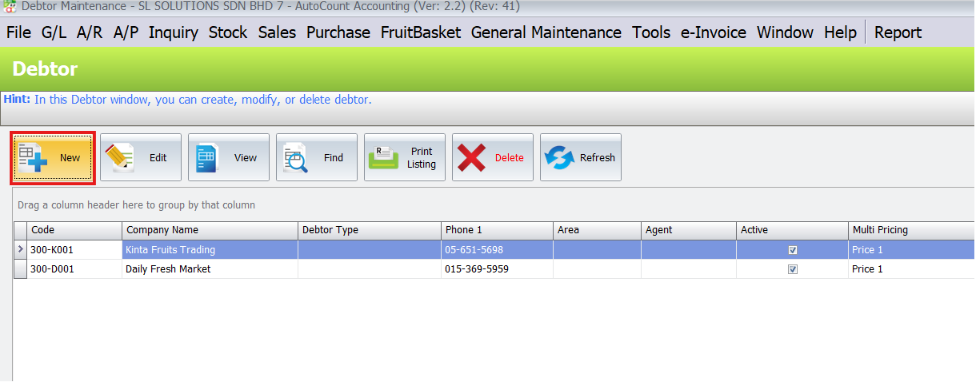
- Go to A/R > Debtor Maintenance.
- Click New or edit an existing debtor.
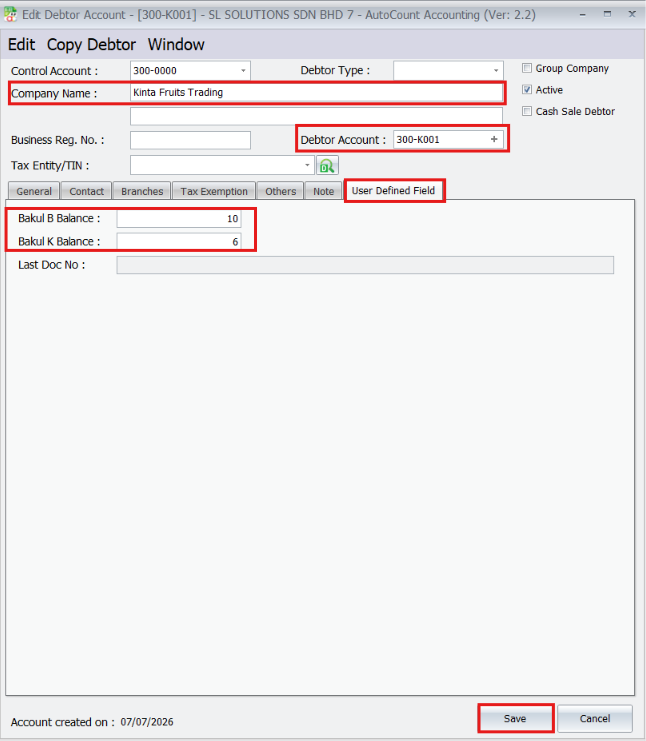
- Enter the Debtor Account and Company Name.
- Open the User Defined Field tab.
Enter the opening basket balance:
- Bakul B Balance
- Bakul K Balance
These values become the customer’s starting basket balance.
3. Maintain Creditor Basket Balance
Set the supplier’s starting basket balance before using purchase documents.
- Go to A/P > Creditor Maintenance.
- Click New or edit an existing creditor.
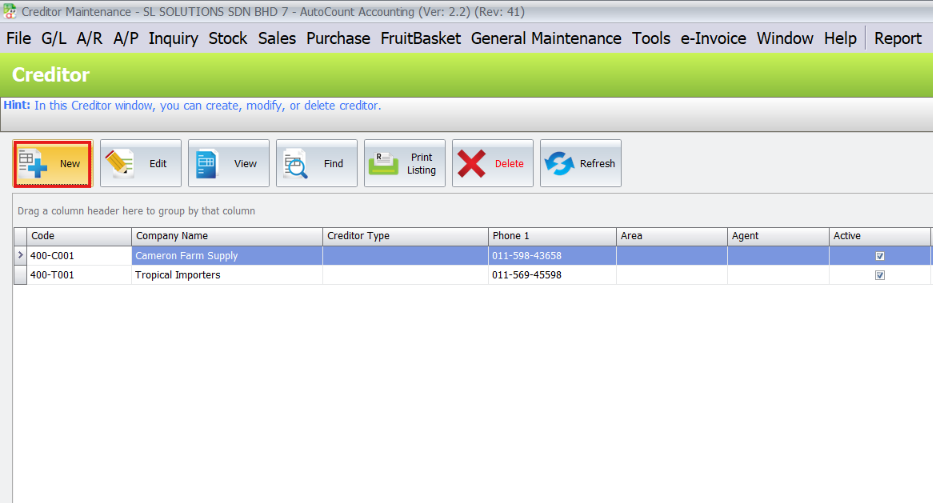
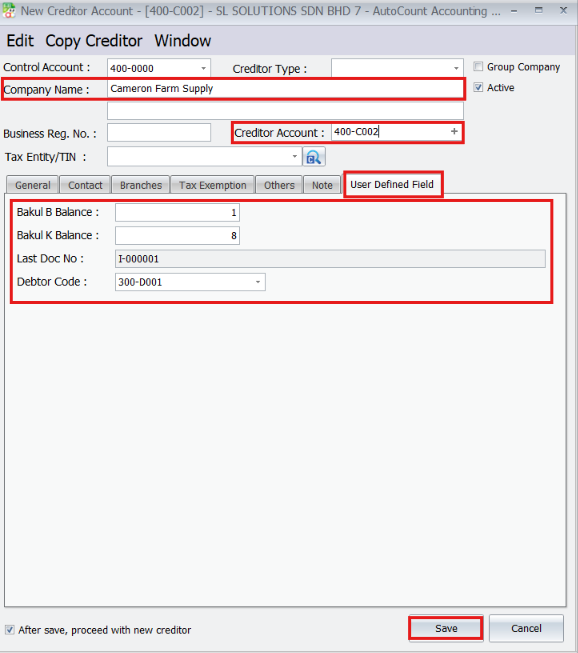
- Enter the Creditor Account and Company Name.
- Open the User Defined Field tab.
Enter the basket information:
- Bakul B Balance
- Bakul K Balance
Debtor Code, if this supplier is linked to a debtor account
- Click Save.
4. Create Invoice with Basket Info
Use the invoice screen to record item sales and basket movement.
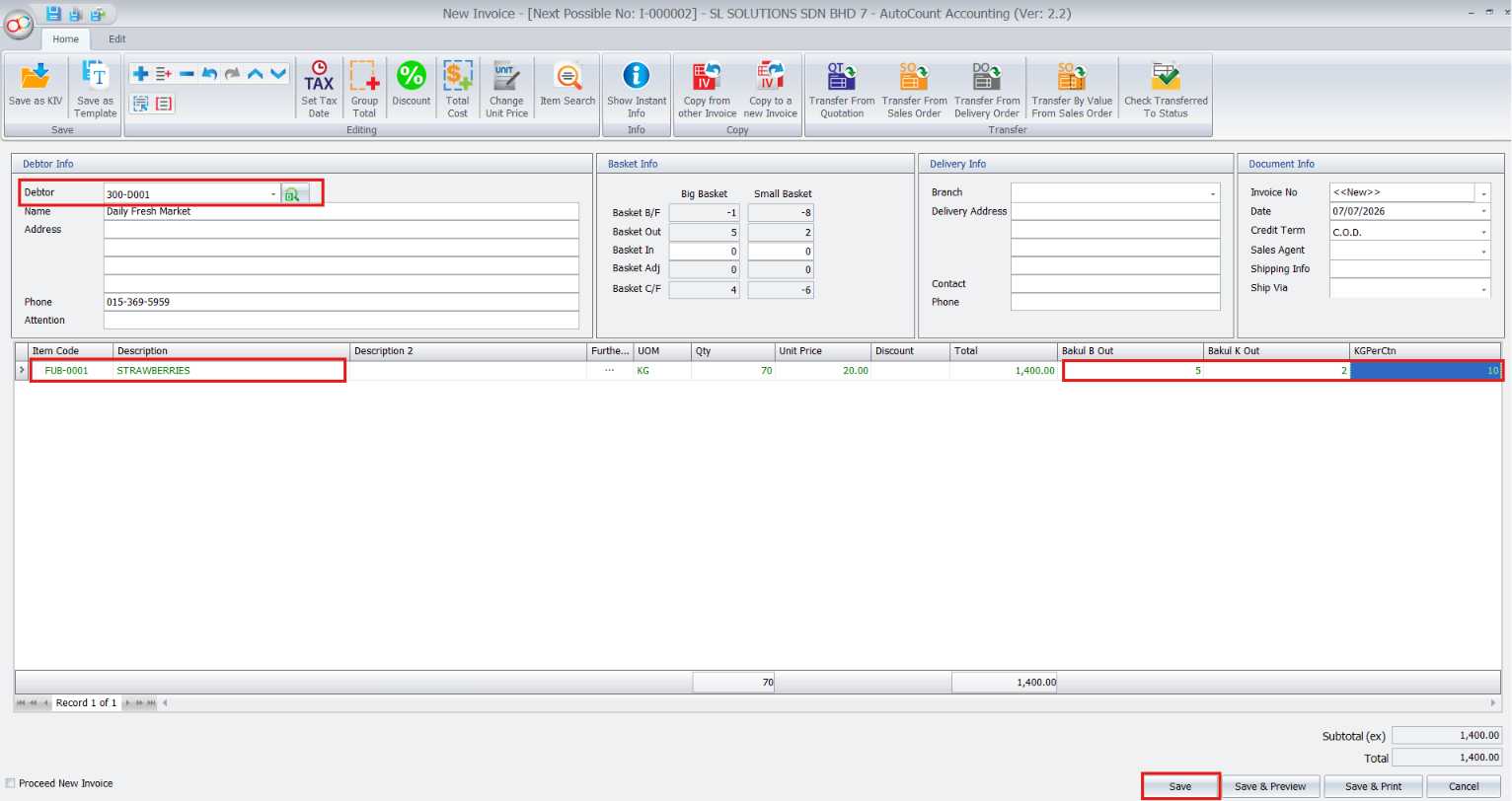
- Go to Sales > Invoice > New.
- Select the Debtor.
- The system will display the Basket Info section. Add the item line.
Enter the basket fields in the item grid:
- Bakul B Out
- Bakul K Out
- KGPerCtn
If Auto Calculate Quantity is enabled, the system calculates Qty automatically based on basket out quantity and KGPerCtn.
The Basket Info section shows:
- Basket B/F
- Basket Out
- Basket In
- Basket Adj
- Basket C/F
After checking the document, click Save.
The Basket C/F becomes the latest basket balance for the debtor or creditor.
Important:
For sales documents such as Invoice, Delivery Order, Cash Sale, and Credit Note, the basket balance is calculated as:
Basket C/F = Basket B/F + Basket Out – Basket In + Basket Adj
5. Use Basket Update
Use Basket Update when baskets are returned or adjusted after the document is saved.
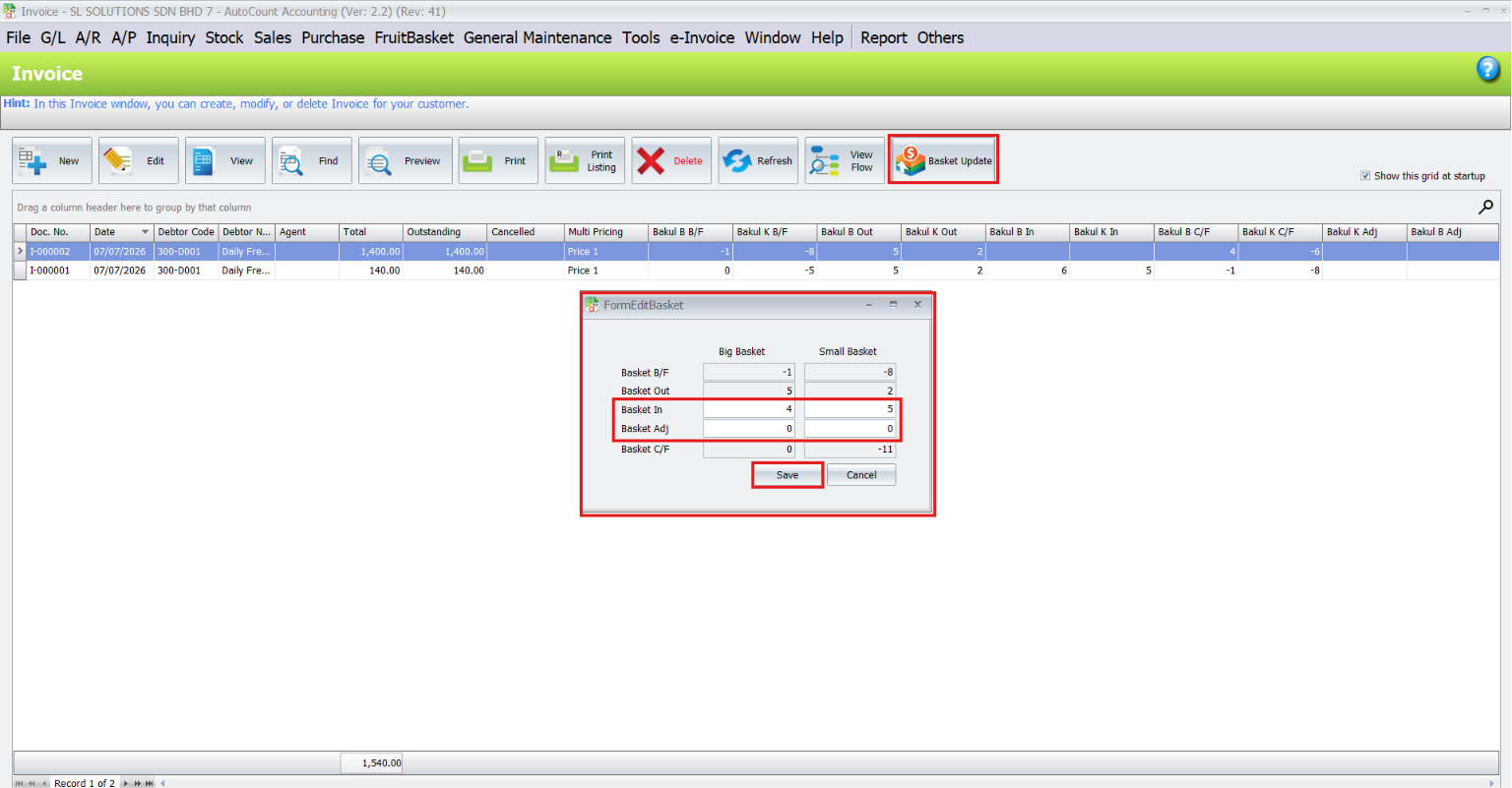
- Open the document listing screen, such as Invoice.
- Select the saved document.
- Click Basket Update.
- The FormEditBasket window will open.
- Check the Big Basket and Small Basket columns.
Update the allowed fields, such as:
- Basket In
- Basket Adj
Click Save.
The system recalculates Basket C/F after the update.
Note:
If the document is not the latest basket document for that debtor or creditor, some fields may become read-only to protect the basket balance sequence.
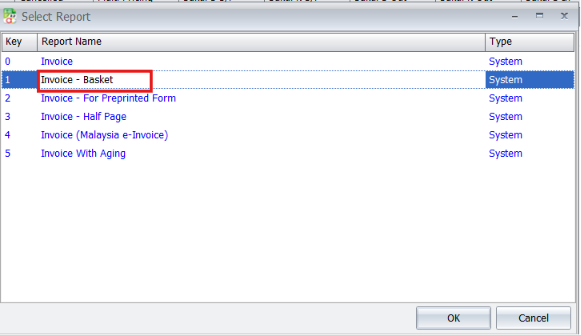
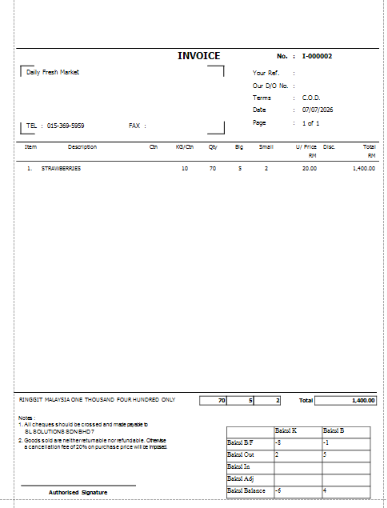
6. Preview Basket Report
The report shows invoice details together with the basket summary.
The report includes item details, total amount, and basket balance information, so customers can confirm how many baskets are still outstanding.
Who This Plugin is For ?
Fruit Wholesalers
If your business sells fruits using reusable baskets, this plugin helps track how many baskets are sent out, returned, adjusted, and still outstanding.
Businesses That Use Big And Small Baskets
If your company handles different basket types, such as Big Basket and Small Basket, the plugin helps record both balances separately for each customer or supplier.
Businesses That Need Accurate Basket Return Records
This plugin helps reduce missing return records by updating basket in, basket out, adjustment, and carry forward balance directly inside AutoCount documents.
Businesses That Want Cleaner Customer And Supplier Basket Records
The plugin keeps basket balances inside Debtor Maintenance, Creditor Maintenance, and transaction documents, making it easier for sales, purchasing, and accounts teams to check records.
Businesses With High Daily Basket Movement
If your team processes many invoices, delivery orders, purchases, or returns with baskets every day, this plugin saves time and reduces manual tracking mistakes.
Core Benefits of the Fruit Basket Plugin
Clear Basket Reporting
Print reports that show basket movement and outstanding balance clearly.
Better Basket Type Control
Track Big Basket and Small Basket separately instead of combining all baskets into one balance.
More Accurate Return Records
Record returned baskets by basket type, reducing mistakes during return checking.
Cleaner Customer And Supplier Records
Maintain basket balances directly in AutoCount debtor and creditor records.
Faster Daily Entry
Auto Calculate Quantity helps users calculate item quantity from basket quantity and KGPerCtn.
Conclusion
The AutoCount Fruit Basket Plugin is useful for fruit wholesalers that need to manage different basket sizes. It helps users track Big Basket and Small Basket separately, record basket movement in AutoCount documents, update returns, and print clear basket reports.
Ready to Transform to AutoCount ?
Stop letting manual weighing and pricing slow you down and introduce errors. The AutoCount Fruit Basket Plugin provides the automation, accuracy, and seamless integration you need to manage your weighed goods professionally and efficiently.