
-
AutoCount Accounting Features
-
- Approval Workflow
- Audit Trail
- Auto Save in Draft Folder
- AutoCount Contra Account
- AutoCount License Setting Guide
- Deposit Tracking & Management
- Documents Numbering Format
- Full Transfer and Partial Transfer
- Import Data to AutoCount Accounting Using Excel
- Informative Charts and Analytical Data
- Layout Customization
- Multi Pricing
- Sales and Services Tax
- Schedule Backup
- Search Lookup Edit
- View Documents Flow
- AutoCount Feature Stock Take
- Column Chooser
- Show Remaining (3) Collapse
-
AutoCount Cloud Accounting
-
AutoCount E-Invoice
-
AutoCount HRMS User Guide
-
AutoCount Modules
-
- Activity Stream
- Advanced Financial Report
- Advanced Item
- Advanced Multi-UOM
- Advanced Quotation Module
- Basic Multi-UOM
- Budget Module
- Consignment
- Filter By Salesman
- FOC Quantity
- Formula
- Item Batch
- Item Package
- Landing Cost
- Multi-Currency
- Multi-Dimensional Analysis
- Multi-Location
- Project Account
- Recurrence
- Remote Credit Control Module
- Stock Assembly
- User Defined Fields (UDF)
- AutoCount SST Hidden Functions
- AutoCount SST Submission - Service Tax
- AutoCount Scripting Module User Guide
- AutoCount Bonus Point Module User Guide
- AutoCount Service Management Plugin User Guide
- Show Remaining (12) Collapse
-
AutoCount Plugins
-
- Fixed Assets Management
- Goldsmith
- TD Ordering Mobile Apps
- TD Stock Mobile Apps
- Universal Import Plugin
- DMS Import Plugin
- AutoCount Pick List Plugin User Guide
- AutoCount Credit Memo Plugin User Guide
- AutoCount Lock Price Plugin
- AutoCount Progressive Billing
- AutoCount Easy Recurrence Plugin
- Batch Update Unit Price Plugin
- AutoCount Production order
- AutoCount Car Tint Film Plugin
-
- Event Management System
- AutoCount To-Do List Plugin
- AutoCount AutoBank Reconciliation Plugin
- Intercompany Billing Plugin User Guide
- Lead Management 2.0 Plugin
- AutoCount Service Contract Plugin User Guide
- AutoCount Optical Plugin
- AutoCount Integrator Plugin
- AutoCount Procurement Planning Plugin
- Cage Management Plugin
- AutoCount Vehicle Plugin
- AutoCount Agent Validation Plugin User Guide
- AutoCount Barcode Generator Plugin User Guide
- AutoCount Easy Batch Number Entry Plugin User Guide
- Warranty 2.0 Plugin
- AutoCount Easy Photo 2.0 User Guide
- AutoCount Recurring Invoice Plugin User Guide
- AutoCount Scale Barcode Plugin User Guide
- AutoCount Recurrence Late Interest Plugin
- AutoCount Item Visibility Control
- AutoCount Bill Remark Plugin User Guide
- AutoCount Pain Tracker User Guide
- AutoCount Easy Payment
- AutoCount Easy Deposit Plugin
- AutoCount Easy Knock Off Plugin
- AutoCount Daily Collection Summary Plugin
- Timber Log Plugins
- Batch Transfer SODO Plugin
- AutoCount Vege Basket Plugin Guide
- AutoCount Fruit Basket Plugin Guide
- Referral Management Plugin
- AutoCount Migrator Plugin
- AutoCount Email&WhatsApp Plugin
- AutoCount Multi Company Knock Off Plugin
- AutoCount Advance Aging Format Plugin
- AutoCount Payment Request Plugin
- AutoCount Vehicle Master Plugin
- AutoCount Advance Deposit Plugin
- AutoCount IC Checker Plugin
- AutoCount RMA Plugin
- Show Remaining (25) Collapse
-
-
Form Template
-
Report Template
-
- Advance Quotation
- Cash Sale
- Consignment
- Consignment Movement
- Credit Note
- Debit Note
- Delivery Order
- FOC Quantity Analysis By Document Report
- Invoice
- Item Package Sales Report
- Monthly Sales Analysis
- Outstanding Sales Order Listing
- Profit And Loss Of Documents
- Quotation
- Sales Agent Contribution Report
- Sales Order
- Top/Bottom Sales Ranking
- Show Remaining (2) Collapse
-
- Available Stock Status Report
- Expired Item Batch Listing
- Inventory Physical Worksheet
- Stock Adjustment
- Stock Aging Report
- Stock Assembly
- Stock Assembly Order
- Stock Balance By Location
- Stock Balance Report
- Stock Card Report
- Stock Disassembly
- Stock Issue
- Stock Item Profit Margin
- Stock Movement Report
- Stock Receive
- Stock Take
- Stock Transfer
- Stock Write Off
- Show Remaining (3) Collapse
-
B2B ORDERING
-
AutoCount AI Agent
AutoCount Accounting: Multi-Pricing
Introduction to AutoCount Multi-Pricing
AutoCount Multi-Pricing is a robust feature within the AutoCount software suite, designed to enhance business pricing strategies by allowing the management of multiple price levels. This functionality is essential for businesses that need to cater to diverse customer segments, adjust prices dynamically, or implement complex pricing structures. This feature ensures that businesses can remain competitive and responsive in a fast-paced market by providing the tools necessary to manage and adjust pricing with precision.
AutoCount Multi-Pricing Video Guide
- AutoCount Multi-Pricing (EN)
Multi-Pricing Setup
Integration & Multi-Pricing Setup
- AutoCount Multi-Pricing (CN)
多重定价设置
集成与多定价设置
Setting Up AutoCount Multi-Pricing
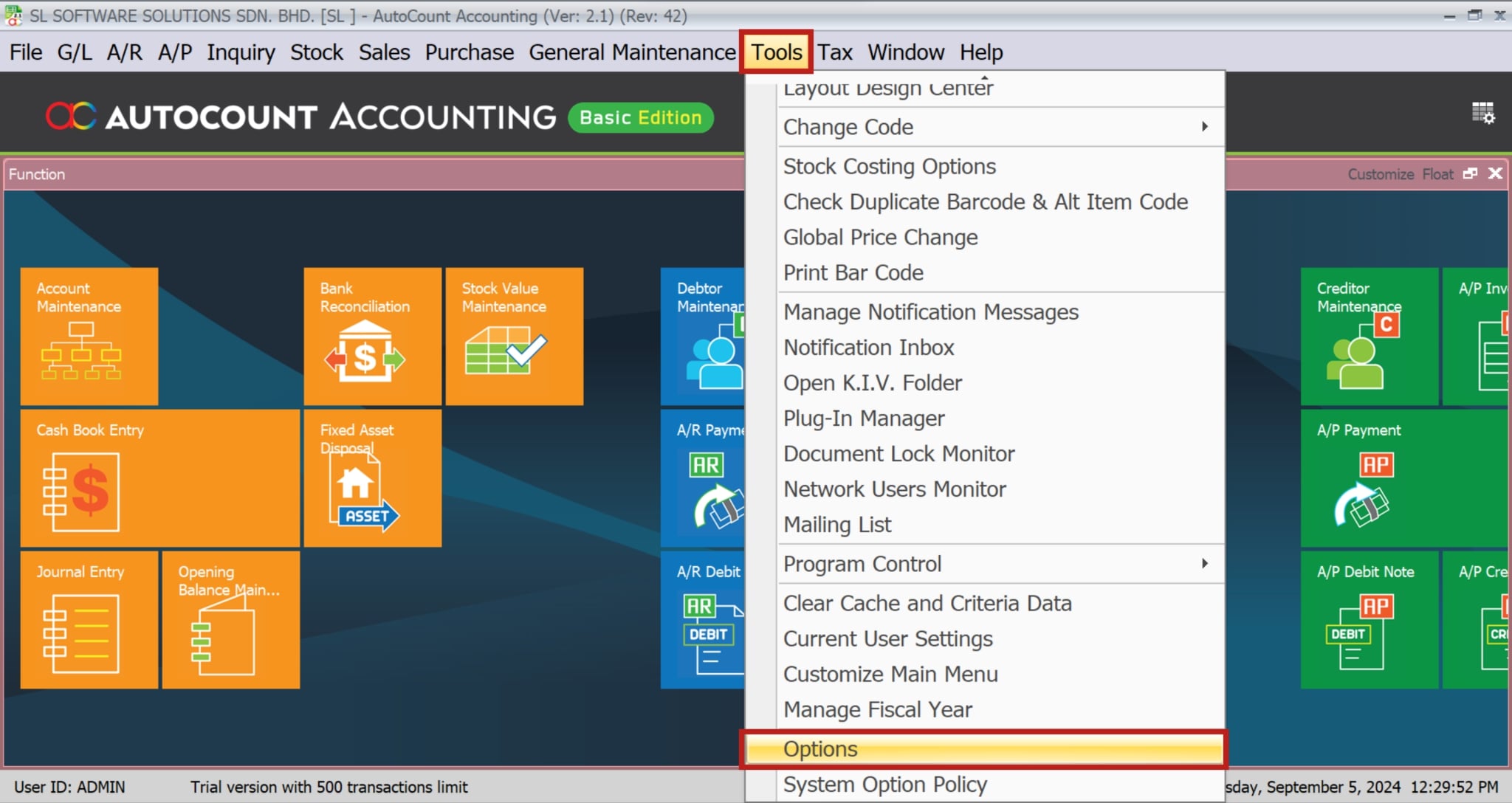
To set up AutoCount Multi-Pricing, you must first enable the feature by navigating to the Tools menu, selecting Options, and then activating Multi-Pricing under the Invoicing section. Once enabled, you can configure multiple price levels to align with your business’s pricing strategy, ensuring that different price points are assigned to various customer categories for consistent and streamlined sales transactions.

Applying Markup and Markdown in AutoCount
AutoCount Custom Pricing Feature makes it easy to adjust prices with markups or markdowns. To clarify, markups help increase prices to keep profits steady. On the other hand, markdowns are great for promotions or clearing stock. You can quickly see how these changes affect your profits, which is useful for staying competitive.
1. Allow Markup & Mark Down

2. Enable markup function


3. Monitor Multi Price Profit Margin after mark down

Multi-Pricing for Debtors in AutoCount
AutoCount’s custom pricing feature can be tailored specifically for different debtors, allowing businesses to offer customized pricing based on customer history, loyalty, or purchasing volume. To assign a specific price level to a debtor, users can edit the debtor’s profile and select the appropriate Pricing option. As a result, this functionality is particularly valuable for businesses that want to reward loyal customers with better prices or offer bulk discounts to high-volume buyers. Therefore, by managing debtor-specific pricing through AutoCount, businesses can enhance customer relationships and optimize revenue.
1. Edit Debtor => Go to Others tab => Select Multi-Pricing for those debtor

2. Test it in a new invoice

3.Automatic capture price 2 on sales documents

Customizing AutoCount Multi-Pricing Options
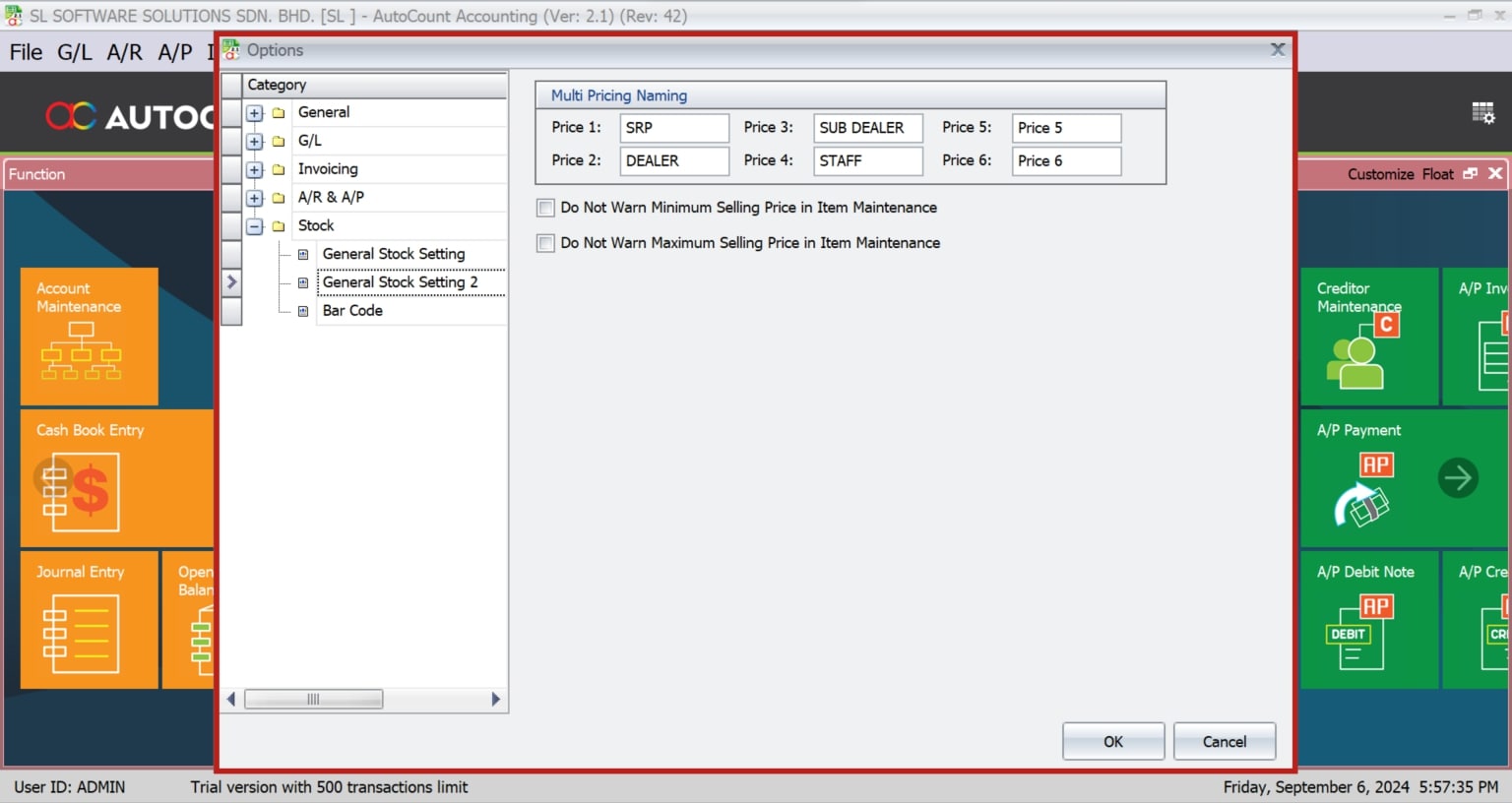
AutoCount provides flexibility in customizing the Pricing options to better suit the business’s needs. For example, users can rename the pricing levels to more intuitive labels that align with the company’s branding or operational terms. This customization is done through the General Stock Setting, where users can update the Pricing names. Additionally, businesses can choose to allow changes to Pricing levels on individual documents, providing greater flexibility when dealing with special cases or negotiations. This level of customization ensures that the pricing strategy remains adaptable and responsive to the business’s evolving needs.

AutoCount Multi-Pricing Use Cases
AutoCount’s adaptable feature allows businesses to implement flexible pricing strategies across different industries, such as retail, wholesale, and manufacturing. By offering multiple price levels, businesses can optimize their pricing based on factors like customer segments, order volumes, or product categories, ultimately enhancing customer satisfaction and operational efficiency.
Retail
Industry
Retailers can use AutoCount’s Custom Pricing feature to manage discounts for bulk purchases or offer special prices for loyal customers. For instance, a retailer may have a standard price for regular customers but offer lower rates for those purchasing in larger quantities or as part of a loyalty program.
Wholesale Industry
Wholesalers can apply different pricing tiers based on the volume of orders placed. Larger orders may be rewarded with lower pricing, ensuring that high-volume buyers receive more competitive rates, thus incentivizing bigger purchases and enhancing long-term relationships with clients.
Manufacturing Industry
Manufacturers can use the feature to set different prices for various product lines or customer segments, allowing them to offer customized pricing that aligns with the specific needs of their clients, whether they are purchasing raw materials or finished goods.
Best Practices for AutoCount Multi-Pricing
Conduct Regular Audits
Ensure that the pricing structure stays aligned with business goals and market conditions.
Train Staff
Proper training guarantees that everyone involved understands how to effectively use the Multi-Pricing feature.
Monitor Profit Margins
Regularly track price changes and their impact on profit margins, and adjust pricing strategies accordingly to maintain profitability.
Advanced AutoCount Multi-Pricing Features
AutoCount’s Custom Pricing feature offers advanced options for businesses looking to refine and customize their pricing strategies. With its flexible and detailed control over pricing, businesses can adjust pricing models according to specific documents or transactions, enabling them to meet complex and evolving needs. These features empower businesses to adapt pricing based on market conditions, ensuring maximum profitability.
Securing AutoCount Multi-Pricing Data
Protecting pricing data is critical to maintaining consistent practices and preventing unauthorized adjustments. AutoCount provides robust security features, such as user permissions, to safeguard sensitive pricing information. This ensures only authorized personnel have access to change pricing, reducing the risk of errors or fraud.
User Permissions for Pricing Adjustments
Admins can assign specific permissions to users, controlling who can adjust pricing data, thus keeping sensitive information secure.
Protecting Sensitive Pricing Information
By securing access to pricing information, businesses can prevent unauthorized changes that might lead to inconsistencies or losses.
Integration of Multi-Pricing with AutoCount
AutoCount Custom Pricing feature integrates smoothly with other modules, ensuring consistency and accuracy across the business’s operations. From inventory control to invoicing, this integration helps streamline processes, improving data accuracy and overall efficiency. Leveraging these cross-module capabilities leads to more cohesive pricing management.
Support and Training for AutoCount Users
To get the most out of AutoCount’s Custom Pricing feature , businesses should take advantage of available support and training. AutoCount provides numerous resources, such as manuals and tutorials, along with customer support, helping businesses fully optimize their use of this feature. Proper training ensures users can implement more effective pricing strategies for better results.
- Accessing AutoCount Training Resources: Businesses can utilize AutoCount’s manuals, tutorials, and other materials to learn the full capabilities of the feature.
- Utilizing Support for Multi-Pricing Issues: Access to AutoCount’s customer support ensures quick troubleshooting and solutions for any issues.
Conclusion
AutoCount Multi-Pricing is a powerful tool that can significantly enhance a business’s ability to manage and optimize its pricing strategies. By offering multiple price levels, customizable options, and seamless integration with other modules, this feature helps businesses remain competitive and responsive in today’s dynamic market environment. Implementing this feature can lead to improved customer satisfaction, better profit margins, and a more streamlined business process.
Frequently Asked Questions
How many price levels can I use in AutoCount Multi-Pricing?
In AutoCount Version 2.0 and above, you can use up to six different price levels. In Version 1.9, you are limited to just two.
What is the difference between markup and markdown in AutoCount Multi-Pricing?
Markup involves increasing the base price of a product by a certain percentage to maintain profit margins, while markdown reduces the price for promotions, sales, or clearing out stock.
Can I customize the names of price levels in AutoCount Multi-Pricing?
Yes, AutoCount allows you to rename the price levels to better suit your business needs.
How does AutoCount handle automatic price capture in Multi-Pricing?
AutoCount automatically applies the correct price level based on the debtor’s settings in sales documents, reducing the need for manual input and minimizing errors.
What should I do if the Multi-Pricing feature isn’t working correctly?
Double-check your configuration settings to ensure everything is set up correctly. If issues persist, consult AutoCount’s support resources or contact their customer support for assistance.
How can I secure Multi-Pricing data in AutoCount?
You can secure Multi-Pricing data by setting user permissions within AutoCount, ensuring that only authorized personnel can access or modify Item pricing information.
Interested in Getting AutoCount for your Business?
Contact our sales team today to explore pricing options and get started with the perfect solution for you.