
Need Help?
-
AutoCount Accounting Features
-
- Approval Workflow
- Audit Trail
- Auto Save in Draft Folder
- AutoCount Contra Account
- AutoCount License Setting Guide
- Deposit Tracking & Management
- Documents Numbering Format
- Full Transfer and Partial Transfer
- Import Data to AutoCount Accounting Using Excel
- Informative Charts and Analytical Data
- Layout Customization
- Multi Pricing
- Sales and Services Tax
- Schedule Backup
- Search Lookup Edit
- View Documents Flow
- AutoCount Feature Stock Take
- Column Chooser
- Show Remaining (3) Collapse
-
AutoCount Cloud Accounting
-
AutoCount E-Invoice
-
AutoCount HRMS User Guide
-
AutoCount Modules
-
- Activity Stream
- Advanced Financial Report
- Advanced Item
- Advanced Multi-UOM
- Advanced Quotation Module
- Basic Multi-UOM
- Budget Module
- Consignment
- Filter By Salesman
- FOC Quantity
- Formula
- Item Batch
- Item Package
- Landing Cost
- Multi-Currency
- Multi-Dimensional Analysis
- Multi-Location
- Project Account
- Recurrence
- Remote Credit Control Module
- Stock Assembly
- User Defined Fields (UDF)
- AutoCount SST Hidden Functions
- AutoCount SST Submission - Service Tax
- AutoCount Scripting Module User Guide
- AutoCount Bonus Point Module User Guide
- AutoCount Service Management Plugin User Guide
- Show Remaining (12) Collapse
-
AutoCount Plugins
-
- Fixed Assets Management
- Goldsmith
- TD Ordering Mobile Apps
- TD Stock Mobile Apps
- Universal Import Plugin
- DMS Import Plugin
- AutoCount Pick List Plugin User Guide
- AutoCount Credit Memo Plugin User Guide
- AutoCount Lock Price Plugin
- AutoCount Progressive Billing
- AutoCount Easy Recurrence Plugin
- Batch Update Unit Price Plugin
- AutoCount Production order
- AutoCount Car Tint Film Plugin
-
- Event Management System
- AutoCount To-Do List Plugin
- AutoCount AutoBank Reconciliation Plugin
- Intercompany Billing Plugin User Guide
- Lead Management 2.0 Plugin
- AutoCount Service Contract Plugin User Guide
- AutoCount Optical Plugin
- AutoCount Integrator Plugin
- AutoCount Procurement Planning Plugin
- Cage Management Plugin
- AutoCount Vehicle Plugin
- AutoCount Agent Validation Plugin User Guide
- AutoCount Barcode Generator Plugin User Guide
- AutoCount Easy Batch Number Entry Plugin User Guide
- Warranty 2.0 Plugin
- AutoCount Easy Photo 2.0 User Guide
- AutoCount Recurring Invoice Plugin User Guide
- AutoCount Scale Barcode Plugin User Guide
- AutoCount Recurrence Late Interest Plugin
- AutoCount Item Visibility Control
- AutoCount Bill Remark Plugin User Guide
- AutoCount Pain Tracker User Guide
- AutoCount Easy Payment
- AutoCount Easy Deposit Plugin
- AutoCount Easy Knock Off Plugin
- AutoCount Daily Collection Summary Plugin
- Timber Log Plugins
- Batch Transfer SODO Plugin
- AutoCount Vege Basket Plugin Guide
- AutoCount Fruit Basket Plugin Guide
- Referral Management Plugin
- AutoCount Migrator Plugin
- AutoCount Email & WhatsApp Plugin
- AutoCount Multi Company Knock Off Plugin
- AutoCount Advance Aging Format Plugin
- AutoCount Payment Request Plugin
- AutoCount Vehicle Master Plugin
- AutoCount Advance Deposit Plugin
- AutoCount IC Checker Plugin
- AutoCount RMA Plugin
- AutoCount Historical Outstanding DO Listing Plugin
- AutoCount Project Department Visibility Control Plugin
- AutoCount MRP Order Plugin
- AutoCount GridToExcel Plugin
- AutoCount Stock Availability Report Plugin
- AutoCount Batch Transfer SO DO Plugin
- AutoCount Centralized Kitchen Management Plugin
- SL AutoCount API
- AutoCount InterCompany Billing Plugin
- AutoCount Sales Commission Plugin
- AutoCount Advanced Credit Term Plugin
- AutoCount Advanced Stock Assembly Plugin
- AutoCount Shipment Plugin
- AutoCount Tour Plugin
- AutoCount Smart Analysis
- AutoCount Rental Management
- Show Remaining (41) Collapse
-
-
Form Template
-
Report Template
-
- Advance Quotation
- Cash Sale
- Consignment
- Consignment Movement
- Credit Note
- Debit Note
- Delivery Order
- FOC Quantity Analysis By Document Report
- Invoice
- Item Package Sales Report
- Monthly Sales Analysis
- Outstanding Sales Order Listing
- Profit And Loss Of Documents
- Quotation
- Sales Agent Contribution Report
- Sales Order
- Top/Bottom Sales Ranking
- Show Remaining (2) Collapse
-
- Available Stock Status Report
- Expired Item Batch Listing
- Inventory Physical Worksheet
- Stock Adjustment
- Stock Aging Report
- Stock Assembly
- Stock Assembly Order
- Stock Balance By Location
- Stock Balance Report
- Stock Card Report
- Stock Disassembly
- Stock Issue
- Stock Item Profit Margin
- Stock Movement Report
- Stock Receive
- Stock Take
- Stock Transfer
- Stock Write Off
- Show Remaining (3) Collapse
-
B2B ORDERING
-
AutoCount AI Agent
B2B Ordering Mobile Ordering Guide
Introduction to B2B Mobile Ordering
B2B Mobile Ordering allows registered business customers to browse products assigned to their accounts and place orders through a web browser. It is a responsive web application that can be accessed using a phone, tablet or desktop computer. This guide explains how customers access Mobile Ordering, find products, review product information, select the required UOM and quantity, use repeat-order shortcuts, review the shopping cart, complete checkout, and review submitted orders.
How to Place an Order
1. Access Mobile Ordering
Open the Mobile Ordering link supplied by the company and access the ordering page using an authorised customer account.
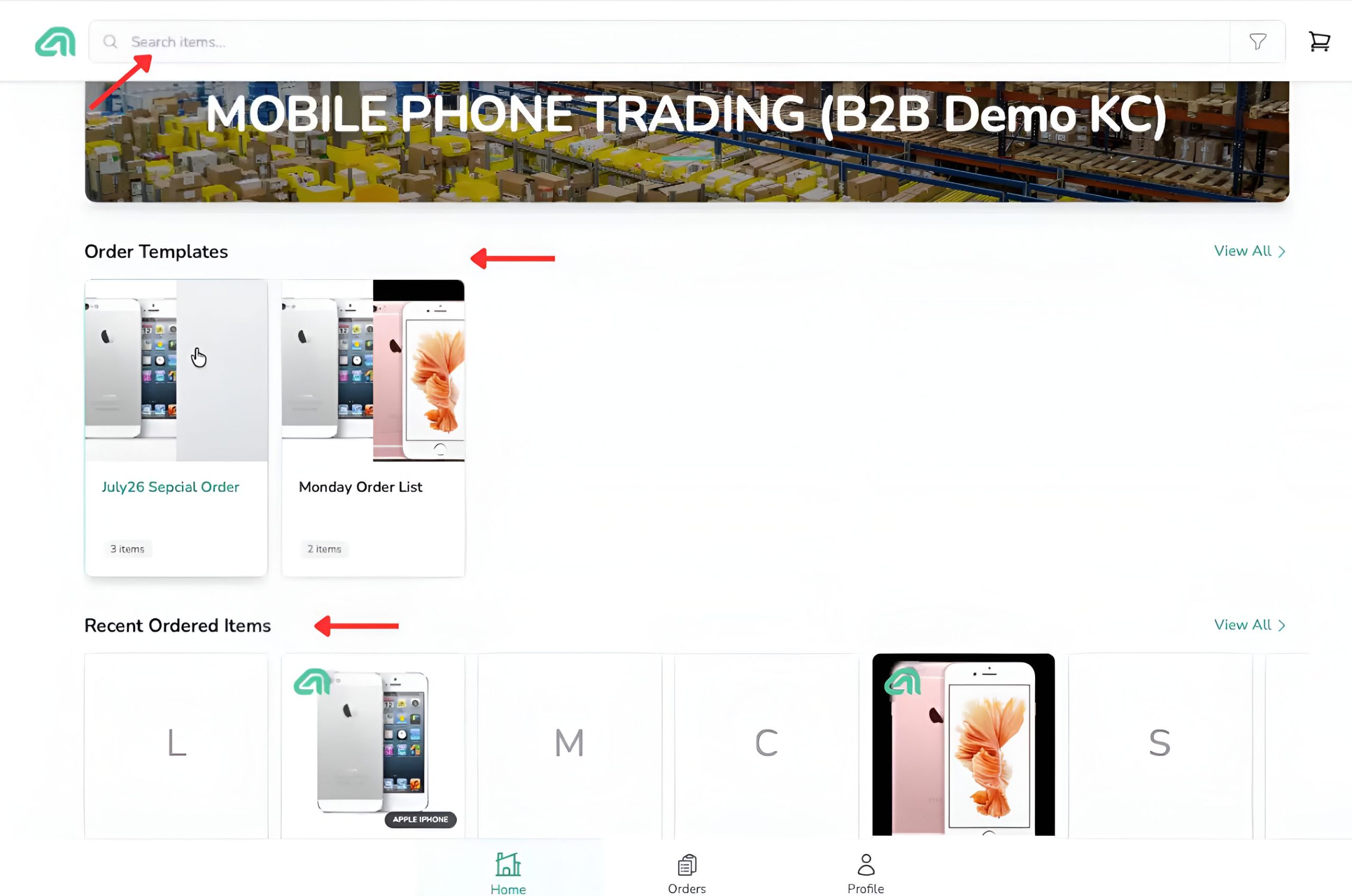
2. Find Products
Use the Search items field to search for a product by name.
You can also find products through:
- Recent Ordered Items
- Order Templates
- The Items section
- The full product catalogue
- Available product filters
Select the relevant product to open its details page.
3. View Product Details
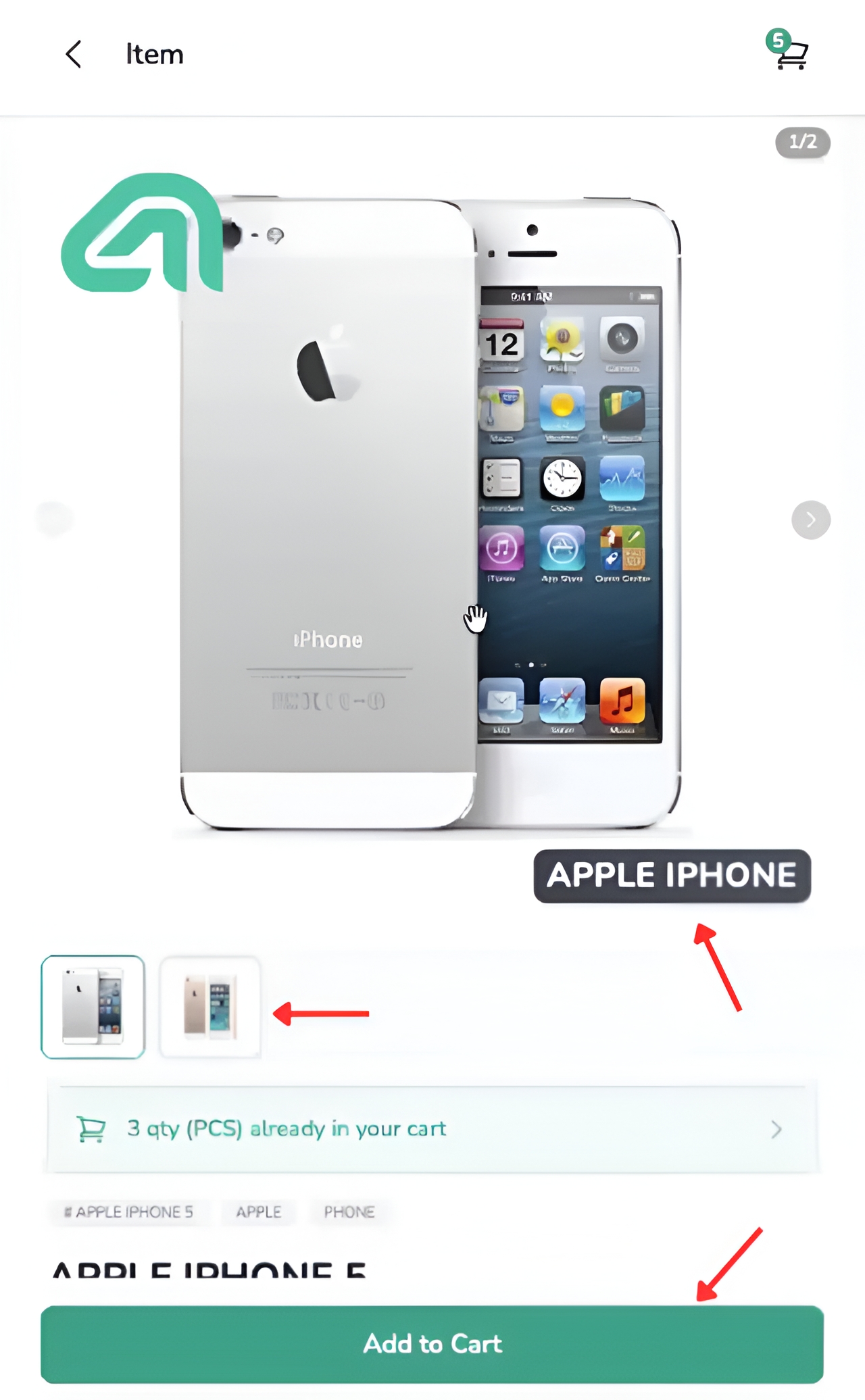
Open a product to review the information available for that item.
Depending on the product setup, the page may display:
- Product image
- Multiple image thumbnails
- Product code
- Product name
- Product category or group
- Price
- Stock status
- Available UOMs
- Quantity controls
- Add to Cart button
Review the product information before selecting a UOM and quantity.
4. Select the UOM and Quantity
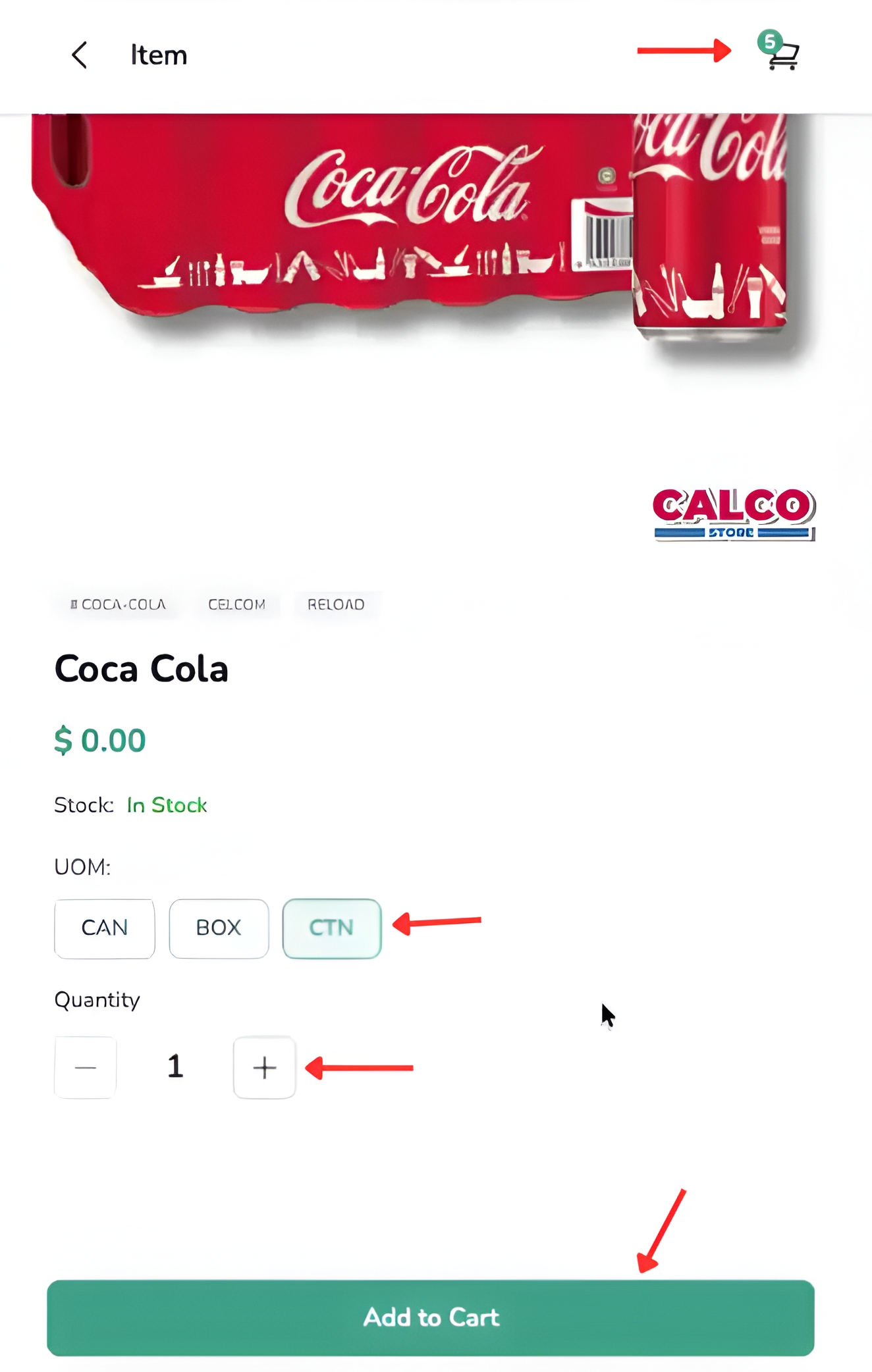
Select the required Unit of Measurement, or UOM, before confirming the quantity.
Available UOM options may include:
- PCS — pieces
- CAN — cans
- BOX — boxes
- CTN — cartons
Before adding the product to the cart:
- Confirm the correct UOM
- Enter the required quantity
- Check whether the quantity represents pieces, boxes, cartons or another configured unit
- Select Add to Cart
5. Use Recent Ordered Items
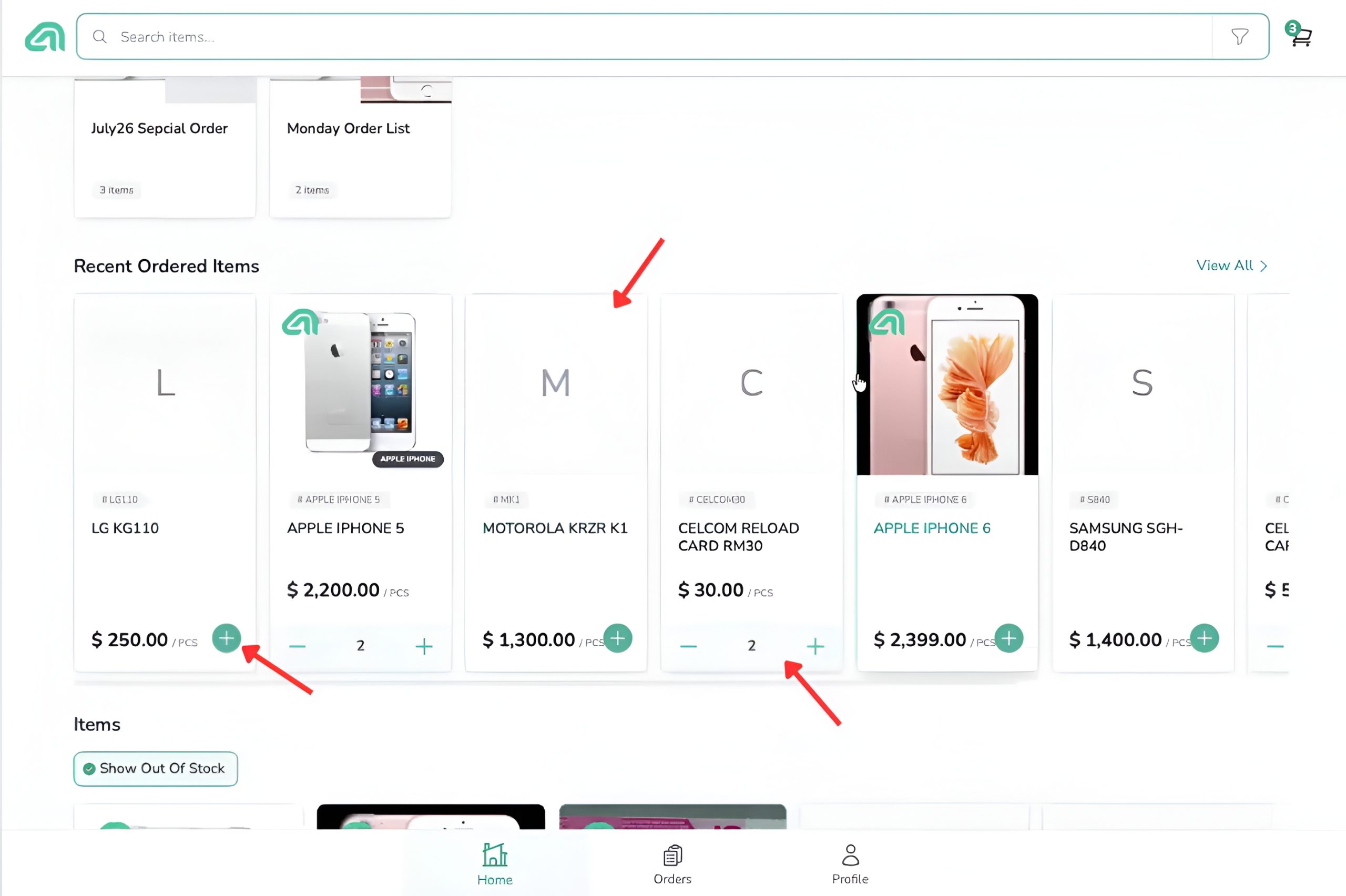
The Recent Ordered Items section displays products that the customer ordered previously.
To reorder a product:
- Locate the required product
- Review the displayed price and UOM
- Increase or decrease the quantity
- Add the required quantity to the current cart
This section is useful when the customer frequently purchases the same products.
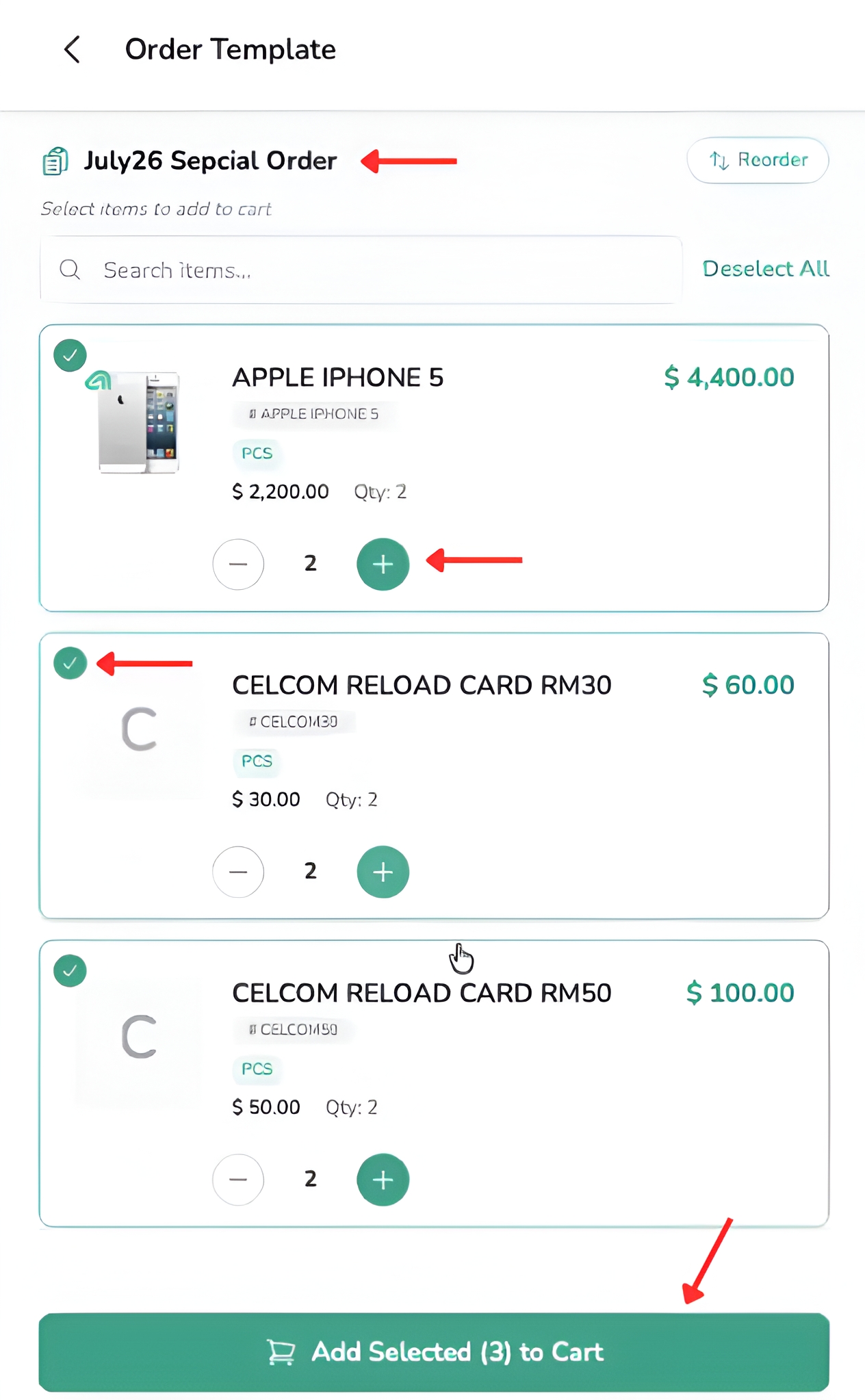
6. Use an Order Template
An Order Template contains a saved list of products that are ordered regularly.
The template may be:
- Prepared by the supplier through the B2B Ordering backend
- Created for a specific customer
- Created by the customer, when the function is available
To use an Order Template:
- Open the required template
- Review the listed products
- Select or deselect products
- Increase or decrease the quantities
- Confirm the selected items
- Select Add Selected to Cart
Examples of Order Template usage include:
- Weekly stock replenishment
- Regular restaurant supplies
- Branch restocking
- Seasonal product orders
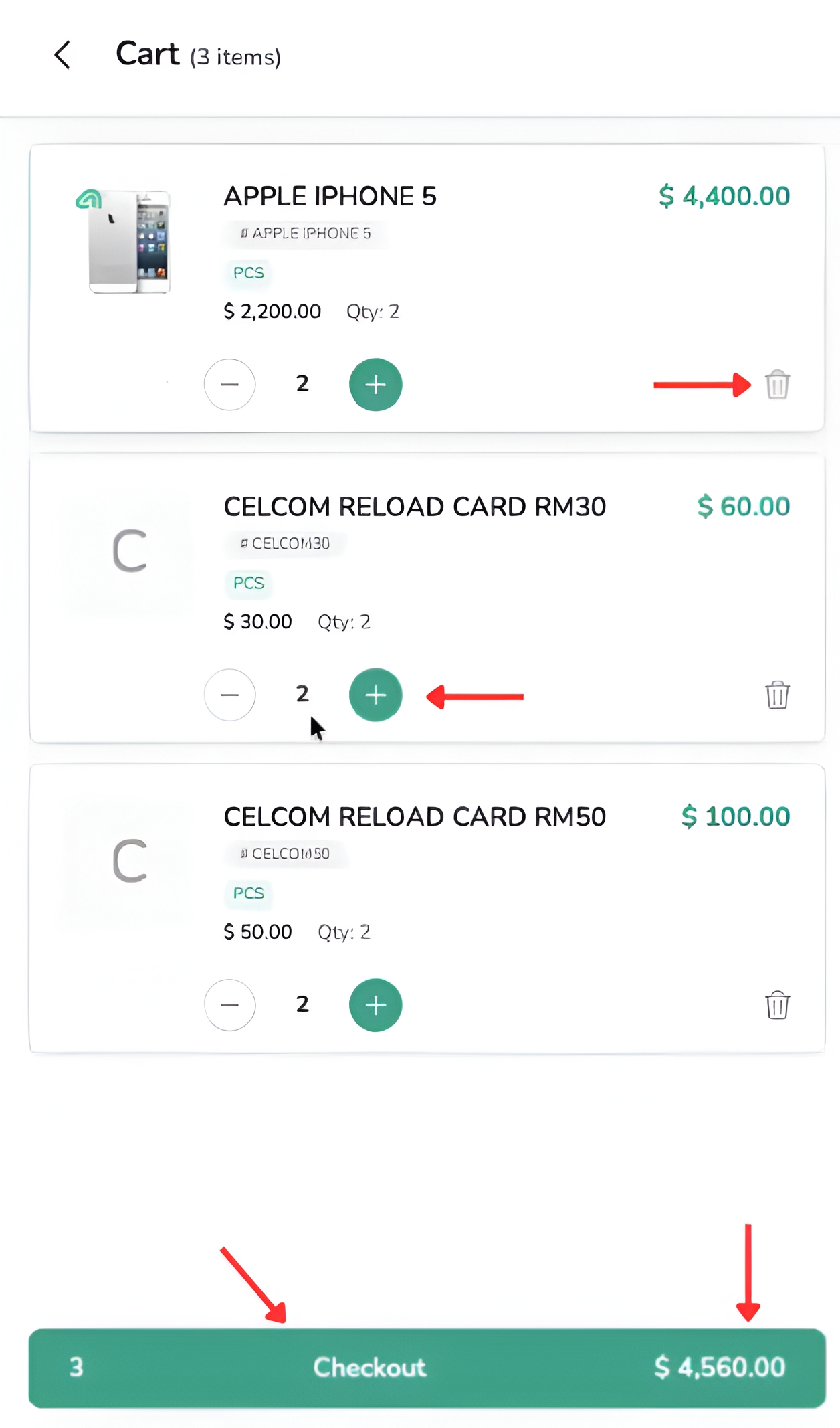
7. Review the Shopping Cart
Open Cart before proceeding to checkout.
Review the following information:
- Product names
- Selected quantities
- Displayed prices
- Item totals
- Final cart total
The shopping cart allows the customer to:
- Increase a product quantity
- Decrease a product quantity
- Remove an unwanted item
- Review the total amount
- Select Checkout
Correct any product or quantity errors before continuing.
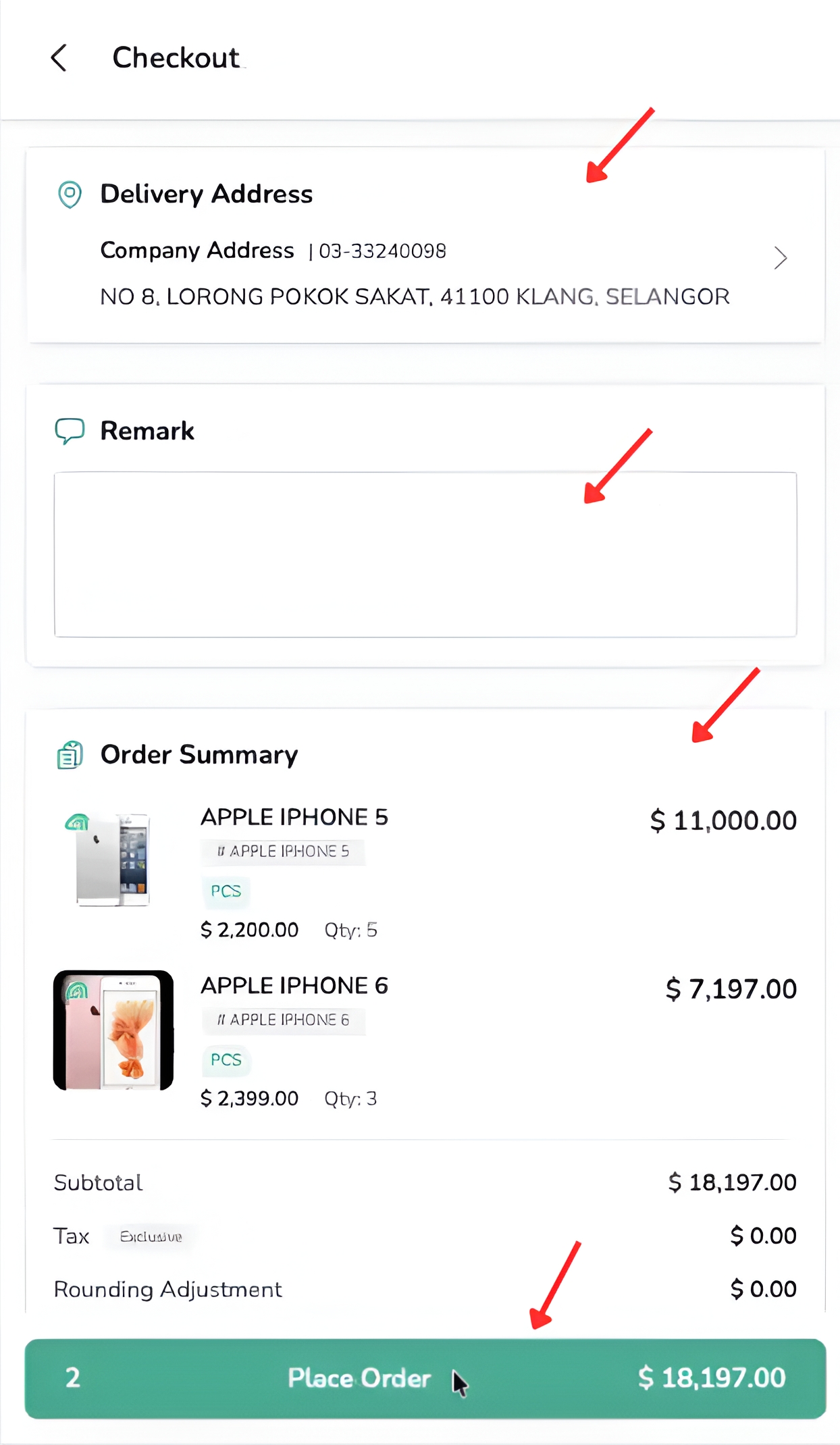
8. Complete Checkout
The Checkout page allows the customer to perform a final order review before submission.
Review the following details:
- Delivery Address
- Company Address displayed under Delivery Address
- Ordered products
- Product quantities
- Product prices
- Subtotal
- Tax
- Rounding Adjustment
- Final total
The customer may also enter a Remark when additional information is required, such as:
- Delivery instructions
- Internal reference information
- Special order notes
Where applicable, customers linked to multiple companies, branches, outlets or debtor accounts may need to select the correct account during checkout.
Before submitting the order:
- Confirm the delivery address
- Check all products and quantities
- Review the final total
- Enter a remark when required
- Select Place Order
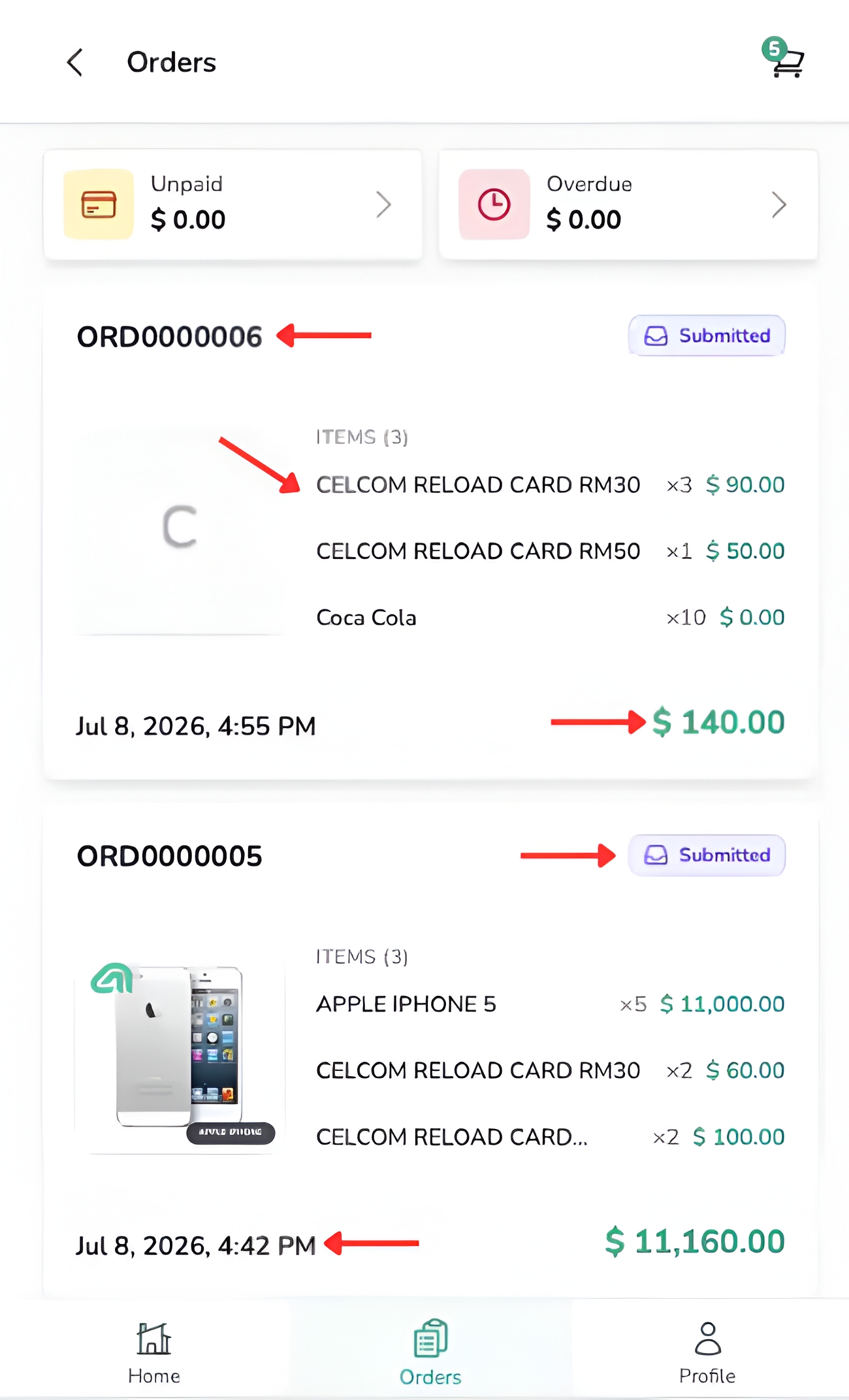
9. Review the Submitted Order
After the customer selects Place Order, the order enters the AutoCount B2B Ordering workflow.
Submitted orders can be reviewed from the Orders page.
The order information may include:
- Order number
- Submitted status
- Product summary
- Product quantities
- Order date and time
- Total amount
The customer should verify that:
- The order appears on the Orders page
- The status is displayed correctly
- The products and quantities are accurate
- The total amount matches the submitted order
Authorised staff can then process the order according to the company’s configured workflow. Depending on the settings, the transaction may later be processed as a Sales Order or Sales Invoice.
Conclusion
B2B Mobile Ordering provides registered customers with a complete browser-based ordering process, from finding products and selecting the correct UOM to reviewing the cart and completing checkout. Customers can also use Recent Ordered Items and Order Templates to prepare repeat orders more efficiently.
After an order is submitted, it can be reviewed from the Orders page together with its order number, status, product summary, date and total amount. The order will then continue through the company’s configured AutoCount B2B Ordering workflow for further review and processing by authorised staff.
Frequently Asked Questions
Is AutoCount B2B Mobile Ordering a downloadable mobile app?
No. It is a responsive web ordering application accessed through a browser using a phone, tablet or desktop computer.
Why can I not see a particular product?
The products displayed depend on the catalogue assigned to the customer account. Contact the supplier if a required product is not available.
How can I reorder a product that I purchased previously?
Open Recent Ordered Items, locate the required product, adjust the quantity and add it to the current cart.
What is an Order Template?
An Order Template is a saved list of products that are ordered regularly. Open the template, select the required products, adjust their quantities and add them to the cart.
What should I check before placing an order?
Check the selected products, UOMs, quantities, prices, delivery address, order total and any required remark before selecting Place Order.
Need Help with TD B2B Mobile Ordering?
Having trouble accessing Mobile Ordering, finding a product or selecting the correct delivery address? Contact your supplier or AutoCount support representative for assistance.
Table Of Content