
-
AutoCount Accounting Features
-
- Approval Workflow
- Audit Trail
- Auto Save in Draft Folder
- AutoCount Contra Account
- AutoCount Feature Stock Take
- AutoCount License Setting Guide
- Column Chooser
- Deposit Tracking & Management
- Documents Numbering Format
- Full Transfer and Partial Transfer
- Import Data to AutoCount Accounting Using Excel
- Informative Charts and Analytical Data
- Layout Customization
- Multi Pricing
- Sales and Services Tax
- Schedule Backup
- Search Lookup Edit
- View Documents Flow
- Show Remaining (3) Collapse
-
AutoCount Cloud Accounting
-
AutoCount E-Invoice
- AutoCount E-Invoicing Tutorial
- E-Invoice Guide and Preparation for AutoCount Users
- Employee Handbook Template for E-Invoicing
- How E-Invoice Works in AutoCount Accounting?
- How to Enable and Submit SVDP e-Invoices in AutoCount 2.0
- How to Use AutoCount Accounting for LHDN e-Invoice
- What is E-Invoicing?
-
AutoCount Payroll & HRMS
-
- Coming soon
-
- Coming soon
-
AutoCount Modules
-
- Activity Stream
- Advanced Financial Report
- Advanced Item
- Advanced Multi-UOM
- Advanced Quotation Module
- AutoCount Bonus Point Module User Guide
- AutoCount Scripting Module User Guide
- AutoCount Service Management Plugin User Guide
- AutoCount SST Hidden Functions
- AutoCount SST Submission - Service Tax
- Basic Multi-UOM
- Budget Module
- Consignment
- Filter By Salesman
- FOC Quantity
- Formula
- Item Batch
- Item Package
- Landing Cost
- Multi-Currency
- Multi-Dimensional Analysis
- Multi-Location
- Project Account
- Recurrence
- Remote Credit Control Module
- Stock Assembly
- User Defined Fields (UDF)
- Show Remaining (12) Collapse
-
AutoCount Plugins
-
- AutoCount Car Tint Film Plugin
- AutoCount Credit Memo Plugin User Guide
- AutoCount Easy Recurrence Plugin
- AutoCount Lock Price Plugin
- AutoCount Pick List Plugin User Guide
- AutoCount Production order
- AutoCount Progressive Billing
- Batch Update Unit Price Plugin
- DMS Import Plugin
- Fixed Assets Management
- Goldsmith
- TD Ordering Mobile Apps
- TD Stock Mobile Apps
- Universal Import Plugin
-
- AutoCount Advance Aging Format Plugin
- AutoCount Advance Deposit Plugin
- AutoCount Advanced Credit Term Plugin User Guide
- AutoCount Advanced Stock Assembly Plugin User Guide
- AutoCount Agent Validation Plugin User Guide
- AutoCount AutoBank Reconciliation Plugin User Guide
- AutoCount Barcode Generator Plugin User Guide
- AutoCount Batch Transfer SO DO Plugin
- AutoCount Bill Remark Plugin User Guide
- AutoCount Cage Management Plugin User Guide
- AutoCount Centralized Kitchen Management Plugin
- AutoCount Daily Collection Summary Plugin User Guide
- AutoCount Easy Batch Number Entry Plugin User Guide
- AutoCount Easy Deposit Plugin User Guide
- AutoCount Easy Knock Off Plugin
- AutoCount Easy Payment Plugin User Guide
- AutoCount Easy Photo 2.0 User Guide
- AutoCount Email & WhatsApp Plugin User Guide
- AutoCount Event Management System Plugin User Guide
- AutoCount Fruit Basket Plugin Guide
- AutoCount GridToExcel Plugin
- AutoCount Historical Outstanding DO Listing Plugin
- AutoCount IC Checker Plugin
- AutoCount Integrator Plugin
- AutoCount InterCompany Billing Plugin
- AutoCount Item Visibility Control Plugin User Guide
- AutoCount Migrator Plugin
- AutoCount MRP Order Plugin
- AutoCount Multi Company Knock Off Plugin
- AutoCount Optical Plugin
- AutoCount Pain Tracker Plugin User Guide
- AutoCount Payment Request Plugin
- AutoCount Procurement Planning Plugin User Guide
- AutoCount Project Department Visibility Control Plugin
- AutoCount Recurrence Late Interest Plugin
- AutoCount Recurring Invoice Plugin User Guide
- AutoCount Referral Management Plugin User Guide
- AutoCount Rental Management
- AutoCount RMA Plugin
- AutoCount Sales Commission Plugin
- AutoCount Scale Barcode Plugin User Guide
- AutoCount Service Contract Plugin User Guide
- AutoCount Shipment Plugin User Guide
- AutoCount Smart Analysis Plugin User Guide
- AutoCount Stock Availability Report Plugin
- AutoCount Timber Log Plugin User Guide
- AutoCount To-Do List Plugin User Guide
- AutoCount Tour Plugin User Guide
- AutoCount Vege Basket Plugin User Guide
- AutoCount Vehicle Master Plugin User Guide
- AutoCount Vehicle Plugin
- AutoCount Warranty 2.0 Plugin User Guide
- Batch Transfer SODO Plugin
- Intercompany Billing Plugin User Guide
- Lead Management 2.0 Plugin
- SL AutoCount API
- AutoCount Smart Dashboard Plugin User Guide
- Show Remaining (42) Collapse
-
-
Form Template
-
Report Template
-
- Advance Quotation
- Cash Sale
- Consignment
- Consignment Movement
- Credit Note
- Debit Note
- Delivery Order
- FOC Quantity Analysis By Document Report
- Invoice
- Item Package Sales Report
- Monthly Sales Analysis
- Outstanding Sales Order Listing
- Profit And Loss Of Documents
- Quotation
- Sales Agent Contribution Report
- Sales Order
- Top/Bottom Sales Ranking
- Show Remaining (2) Collapse
-
- Available Stock Status Report
- Expired Item Batch Listing
- Inventory Physical Worksheet
- Stock Adjustment
- Stock Aging Report
- Stock Assembly
- Stock Assembly Order
- Stock Balance By Location
- Stock Balance Report
- Stock Card Report
- Stock Disassembly
- Stock Issue
- Stock Item Profit Margin
- Stock Movement Report
- Stock Receive
- Stock Take
- Stock Transfer
- Stock Write Off
- Show Remaining (3) Collapse
-
B2B ORDERING
-
AutoCount AI Agent
-
AutoCount FAQ & Troubleshooting
- How to Add New User ID in AutoCount Accounting (Step-by-Step Guide)
- How to Add or Edit Company Header in AutoCount
- How to Add the Account Number Column in AutoCount
- How to Adjust Decimal Places in AutoCount
- How to Change Default Document Numbering Format for OR and PV in AutoCount
- How to Disable e-Invoice in AutoCount
- How to Switch to Default Workspace in AutoCount
- How to Turn Off Smart App Control in Windows 11 for AutoCount
-
AutoCount F&B
-
- How to Accept or Reject QR Orders in AutoCount F&B POS
- How to Connect AutoCount POS Backend to QR Ordering Using an API Key
- How to Create a Restaurant in AutoCount QR Ordering Backend
- How to Customize AutoCount QR Ordering Customer View and Operating Hours
- How to Print and Test AutoCount F&B Table QR Codes
- How to Publish Menu Items to AutoCount F&B QR Ordering
- How to Set Up AutoCount F&B QR Ordering: Complete Guide
- How to Set Up Table QR Codes in AutoCount F&B
-
-
AutoCount Unicart Integration
- How Customer, Supplier and Order Field Mapping Works
- How Does a SiteGiant iSKU Map to an AutoCount Item Code?
- How Does the System Check Duplicate iSKU Mapping?
- How Is the Stock Sync Quantity Calculated?
- How Shipping, Discounts, Vouchers and Marketplace Charges Post to AutoCount?
- How Should a New AutoCount Item and SiteGiant iSKU Be Created?
- How SiteGiant Members and Bonus Points Sync with AutoCount POS
- How SiteGiant Orders Sync to AutoCount: Manual or Automatic
- How SiteGiant Purchase Flow Posts to AutoCount GRN
- How to Auto Sync AutoCount Price & Cost to SiteGiant Inventory
- How to Choose the Stock Master in SiteGiant and AutoCount
- How to Connect SiteGiant ERP to AutoCount and Confirm the Connection
- How to Handle Cancelled, Returned or Refunded Online Orders?
- How to Handle Fulfilled by Shopee Stock in AutoCount
- How to Handle SiteGiant Bundle / KIT Items
- How to Map Different UOMs for the Same Item?
- How to Reconcile Marketplace Settlements Using Bulk Knock Off
- How to Set the Posting Rules for Each Sales Channel
- How to Sync Stock from AutoCount to SiteGiant: Manual or Automatic
- Show Remaining (4) Collapse
AutoCount Item Visibility Control Plugin User Guide
Follow the workflows below to assign access rights, create stock items, configure item visibility, and test user restrictions in documents and reports.
On this page
1. Access Rights
Before using the Item Visibility Control Plugin, ensure that the required access rights have been granted to the appropriate users or user groups.
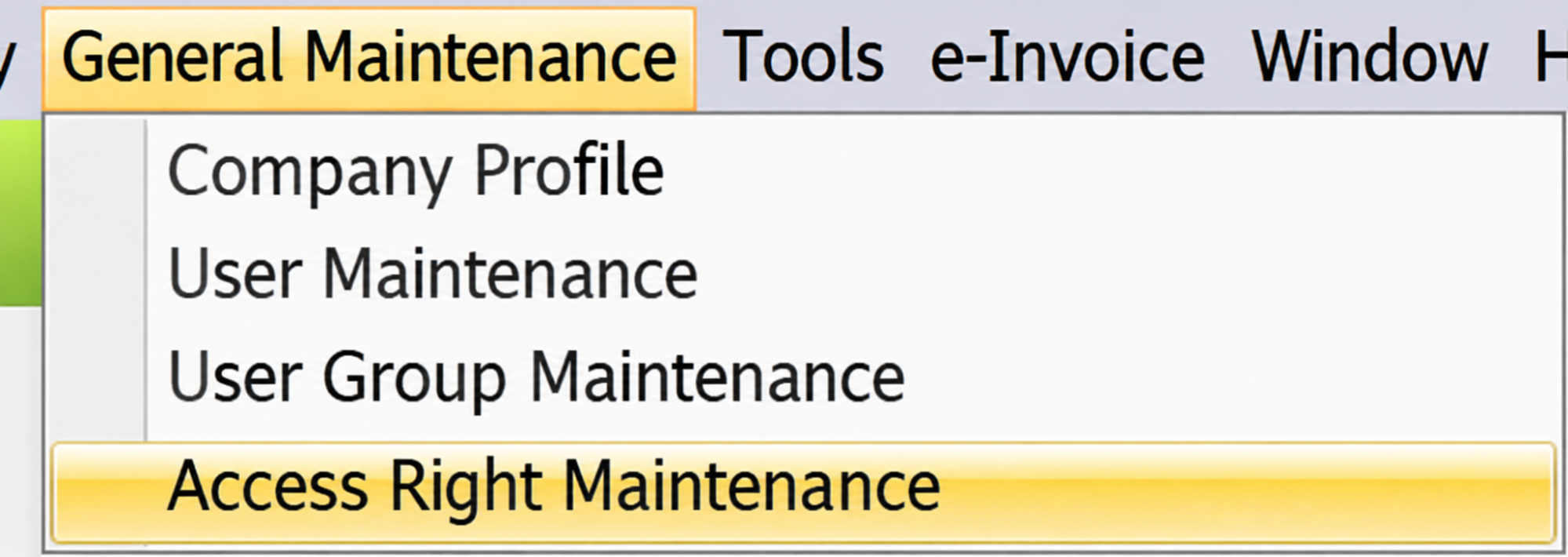
- Go to General Maintenance > Access Right Maintenance.
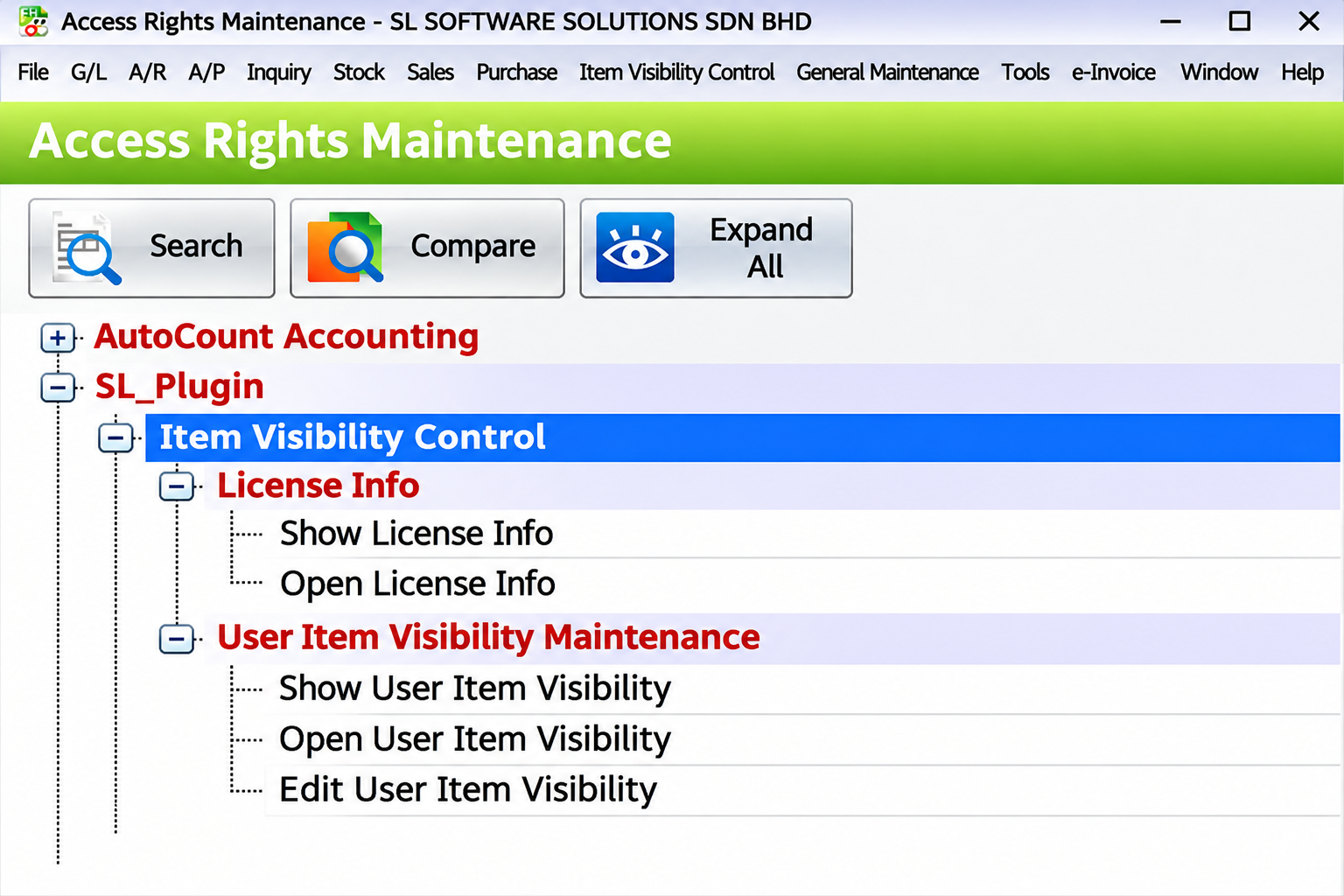
- Expand the relevant plugin section and locate Item Visibility Control.
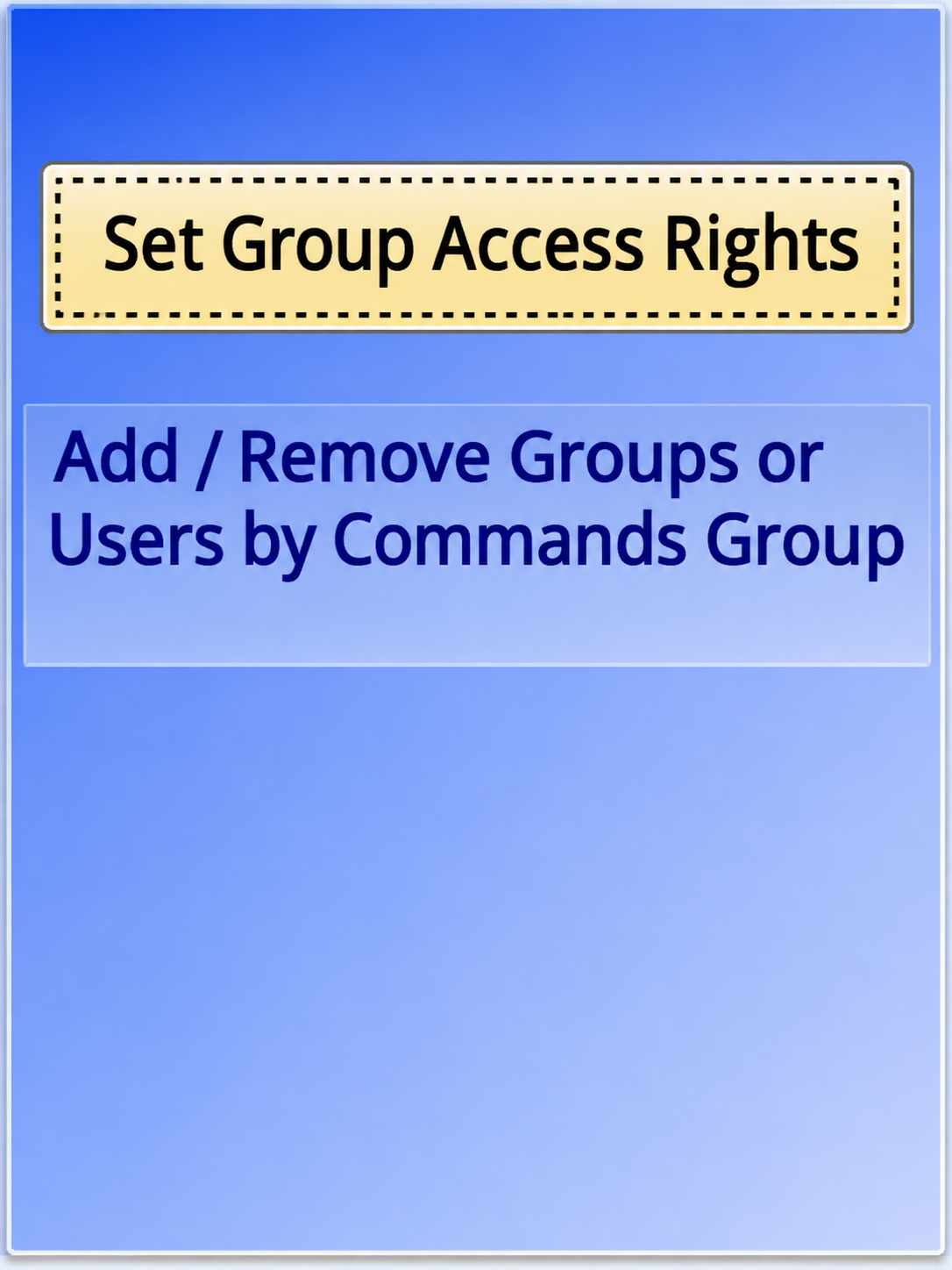
- Click Set Group Access Rights.
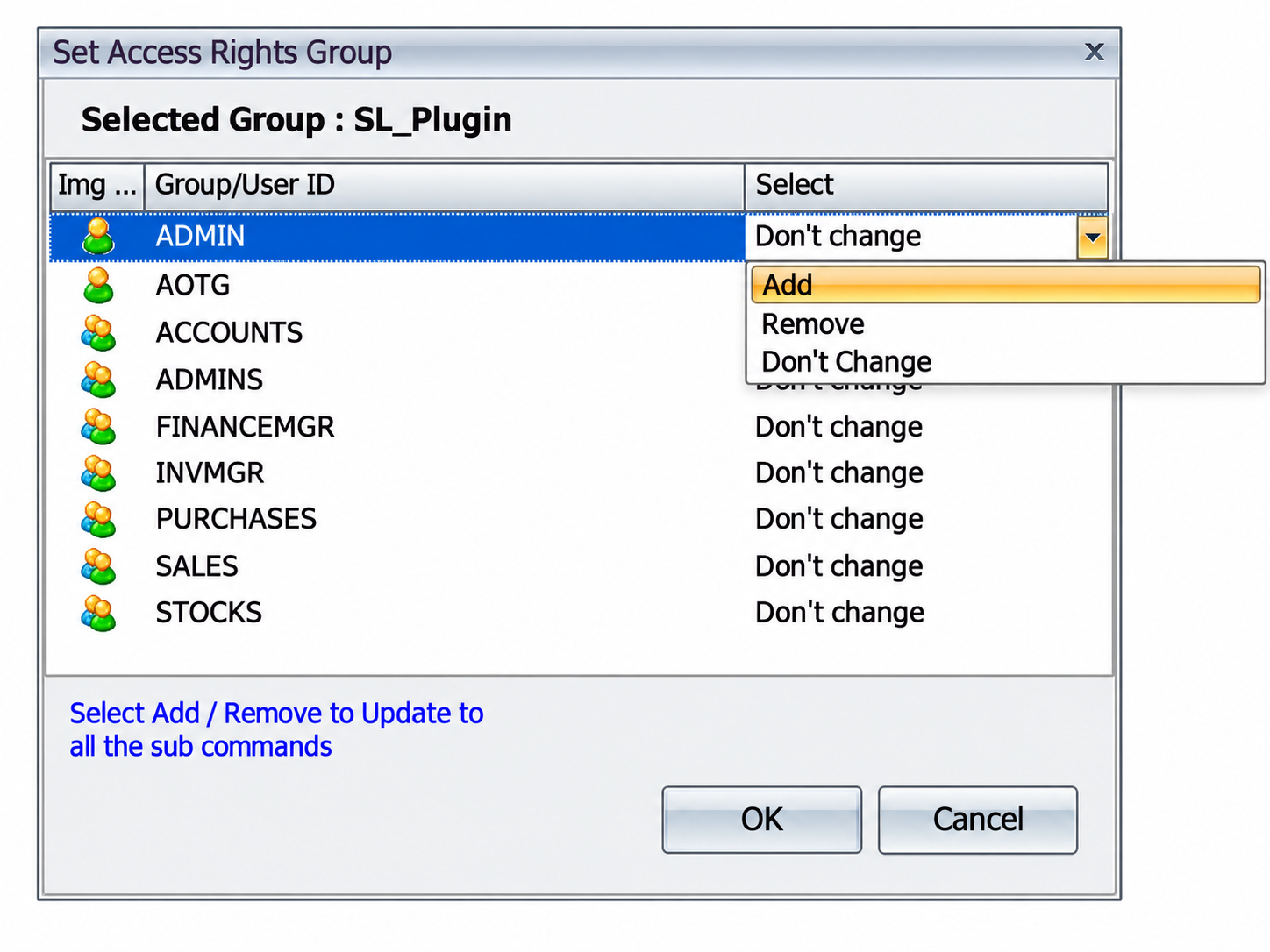
- Select the relevant user group, example; Admin. Change the permission from Don’t Change to Add. Click OK.
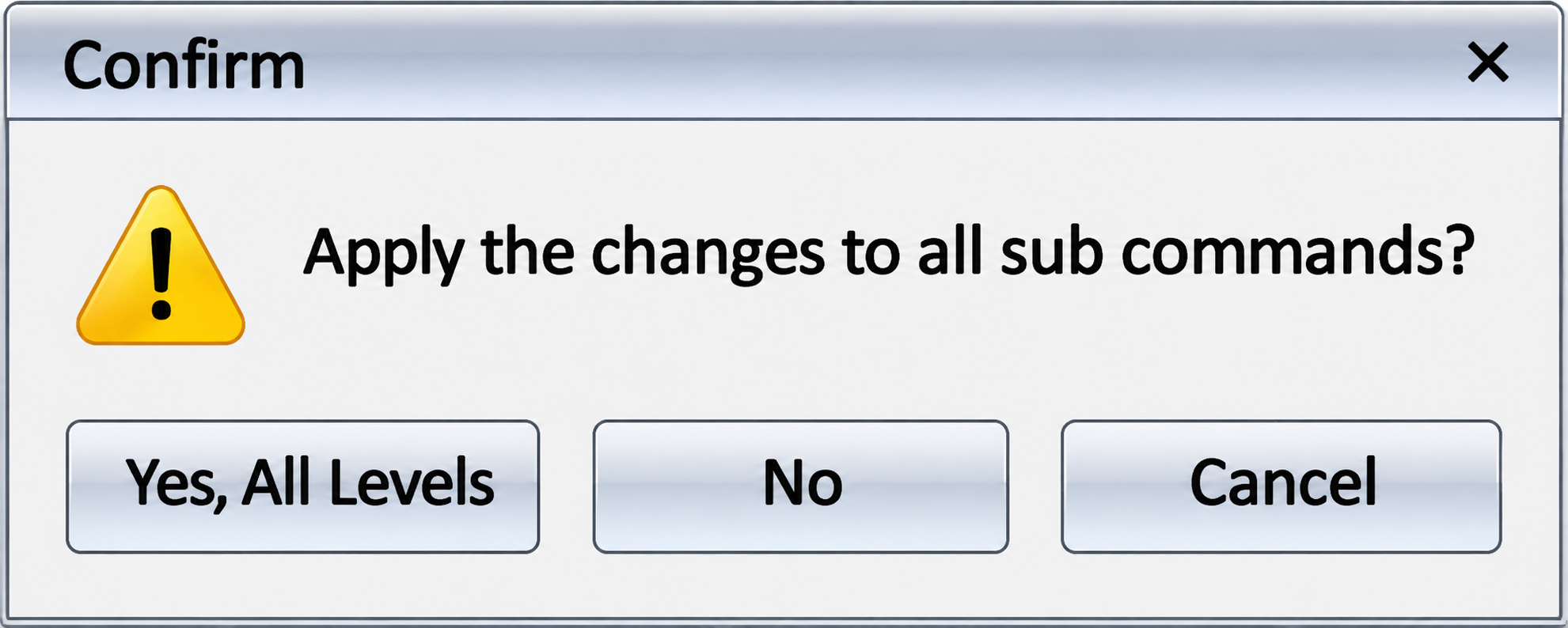
- Click Yes, All Levels to apply the permissions to all sub-commands, where applicable.
2. Stock Item Maintenance
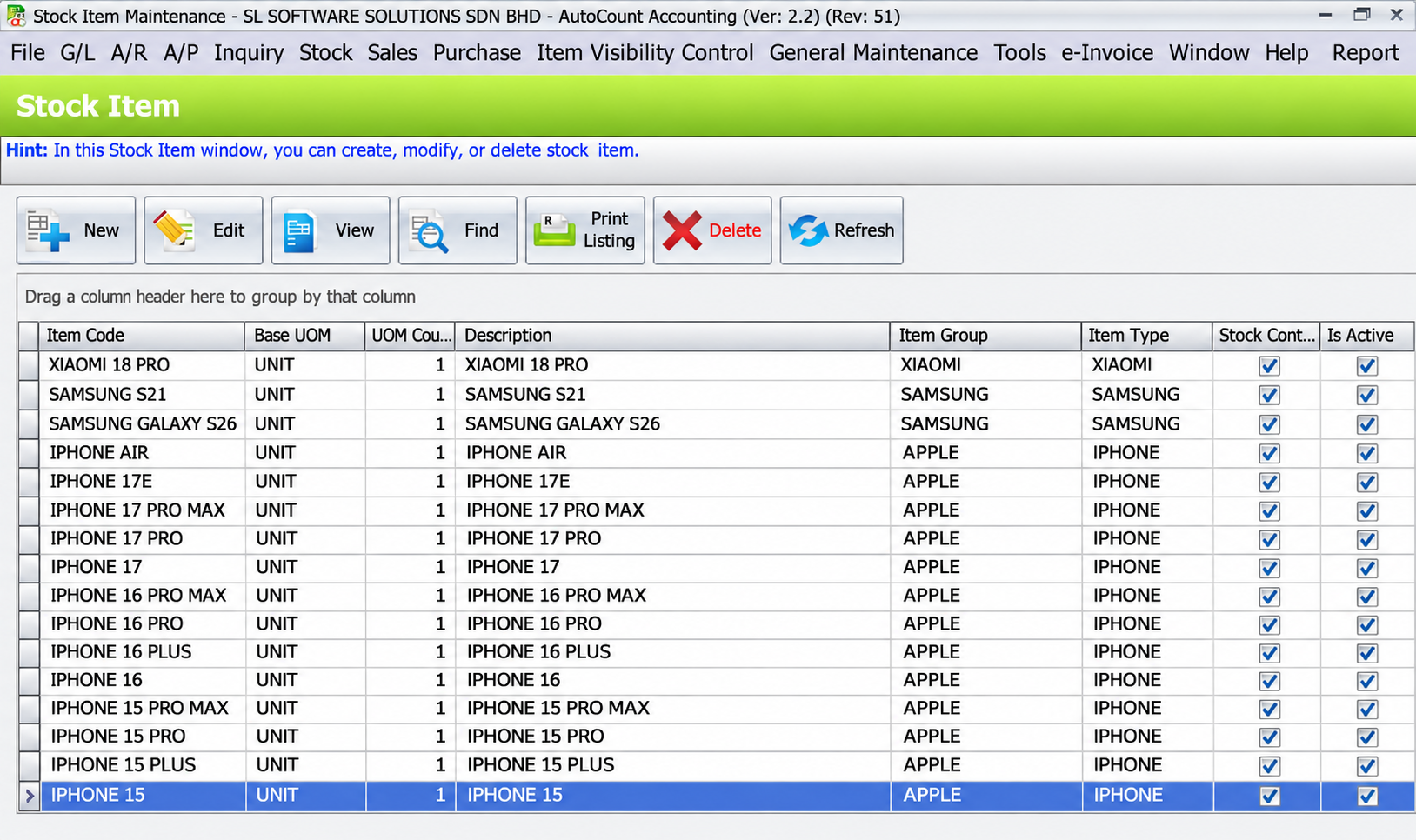
Before configuring “Item Visibility Control,” please ensure that you have created stock items under “Stock > Stock Item Maintenance.” If no stock items exist in “Stock Item Maintenance,” the list of stock items in “Item Visibility Control” will be empty, making it impossible to select any items. Below are the steps for “Stock Item Maintenance.”
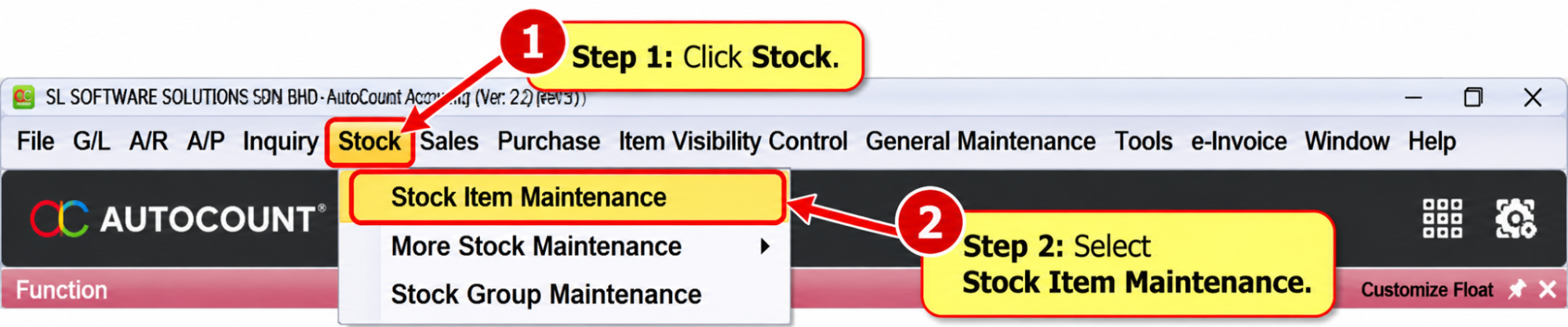
- Go to Stock > Stock Item Maintenance.
- Click New to create a stock item, enter the required item information, and click Save.
- Ensure that all created stock items appear in the list before configuring Item Visibility Control.
3. Item Visibility Control
The Item Visibility Control Plugin allows administrators to manage which stock items users can view or select in AutoCount.
Restrictions can be applied to selected documents and reports, allowing businesses to control item visibility based on individual user settings.
3.1 Access User Item Visibility Maintenance
- Go to Item Visibility Control > User Item Visibility Maintenance.

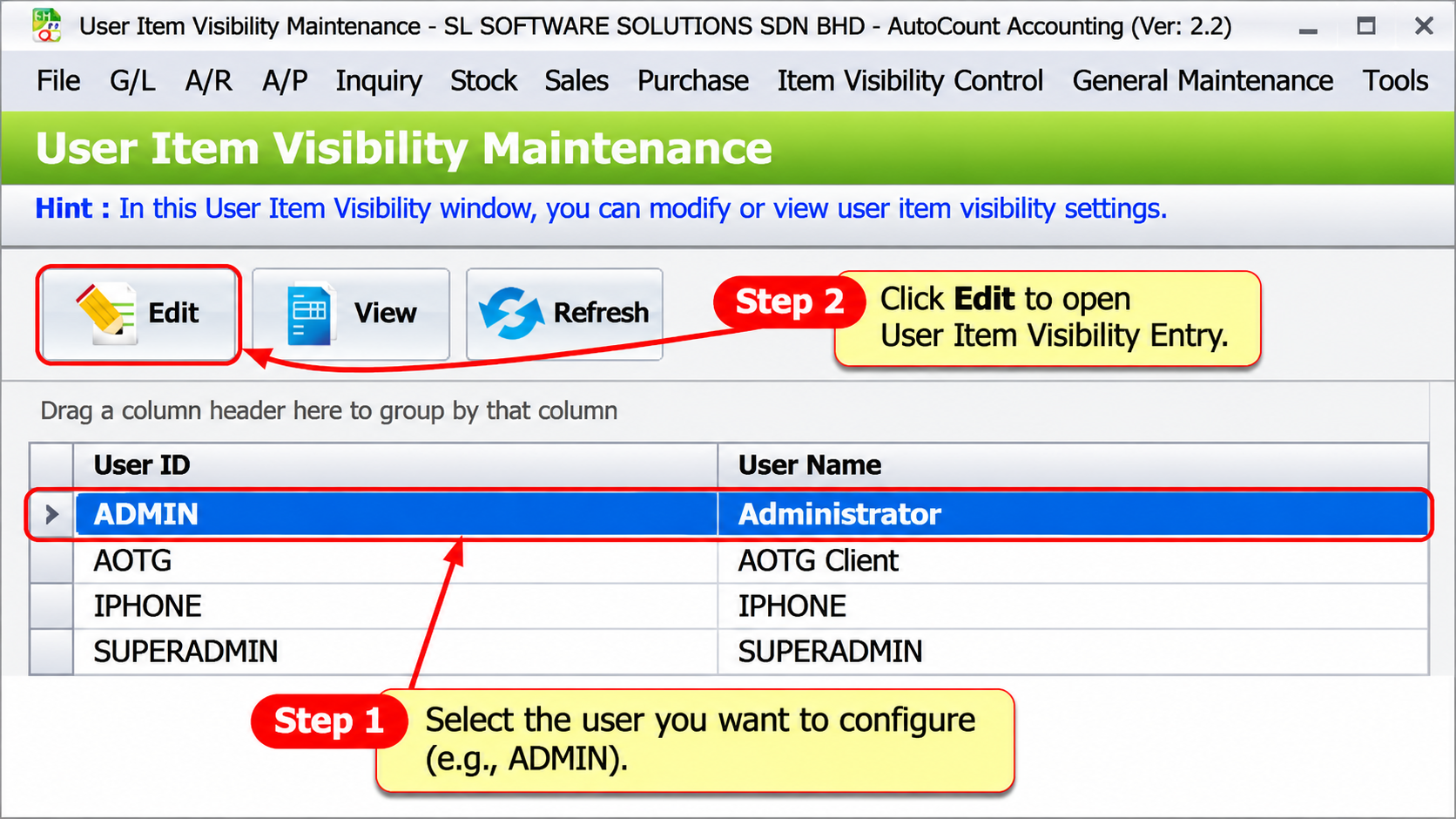
- The user list and Item Visibility Preview will be displayed. Select the user you want to configure (e.g., ADMIN), then click Edit to open User Item Visibility Entry.
- Note: The user list is based on the users created in AutoCount User Maintenance. Each existing user will appear in User Item Visibility Maintenance for individual item visibility configuration.
3.2 User Item Visibility Entry
- Select or enter an Item Template (e.g., IPHONE) and fill in the Description to identify the template.
Item Template: Allows administrators to group selected stock items under a template, such as IPHONE, for easier item visibility management.
- Under Filter Option > Stock Item, tick the stock items that users are allowed to view and select.
- Under Document Option, tick the documents where item visibility restrictions should apply (e.g., Purchase Invoice).
- Under Report, tick the reports where item visibility restrictions should apply (e.g., Stock Card).
- Click Save to apply the item visibility settings.
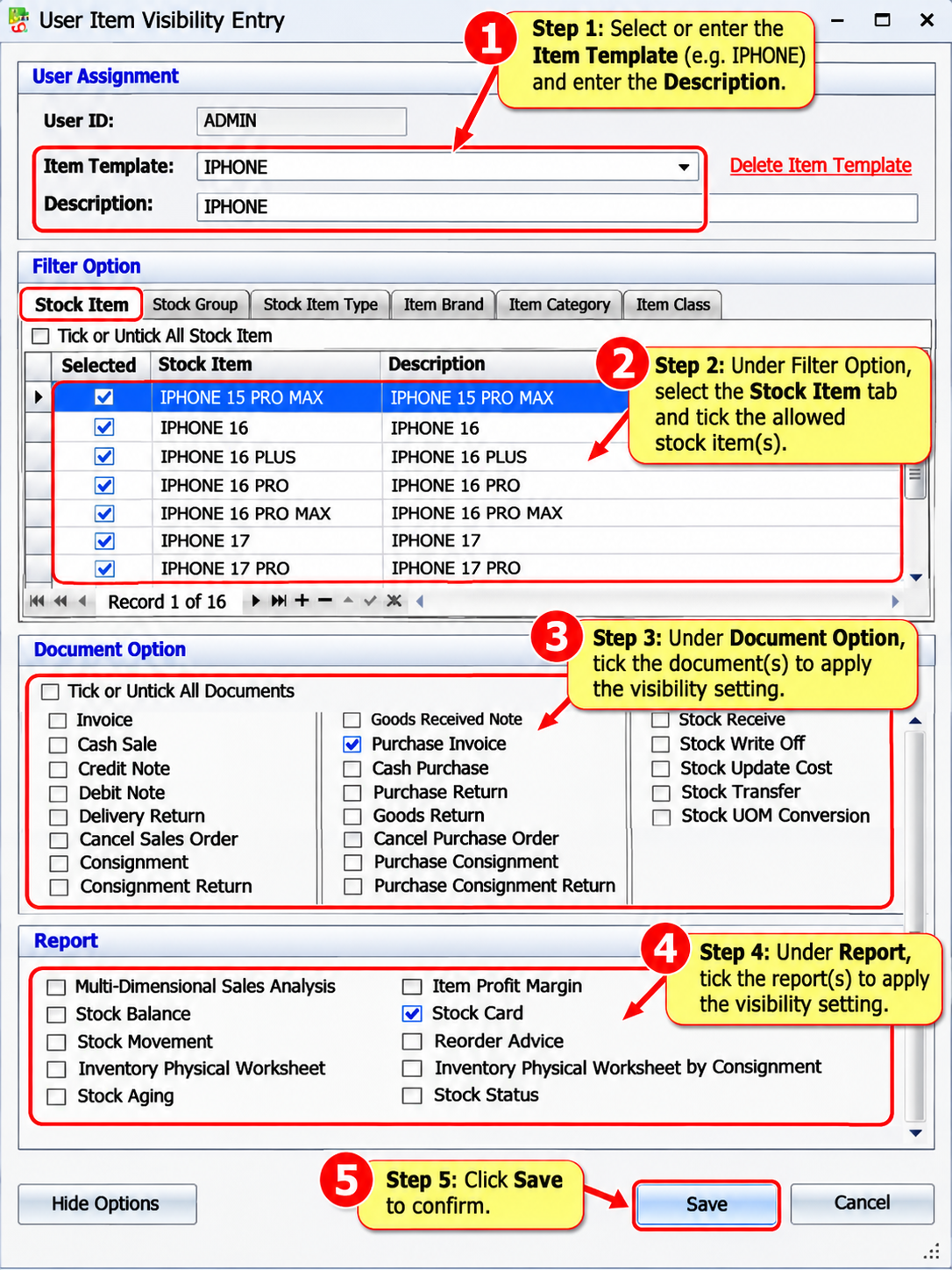
- Checked Documents and Reports: Item visibility restrictions will apply to the selected documents and reports, displaying only the allowed stock items.
- Unchecked Documents and Reports: Item visibility restrictions will not apply, so all stock items can be viewed without this additional filtering, subject to the user’s existing AutoCount access rights.
4. Log In as Restricted User
4.1 Purchase Invoice – ADMIN vs. SUPERADMIN
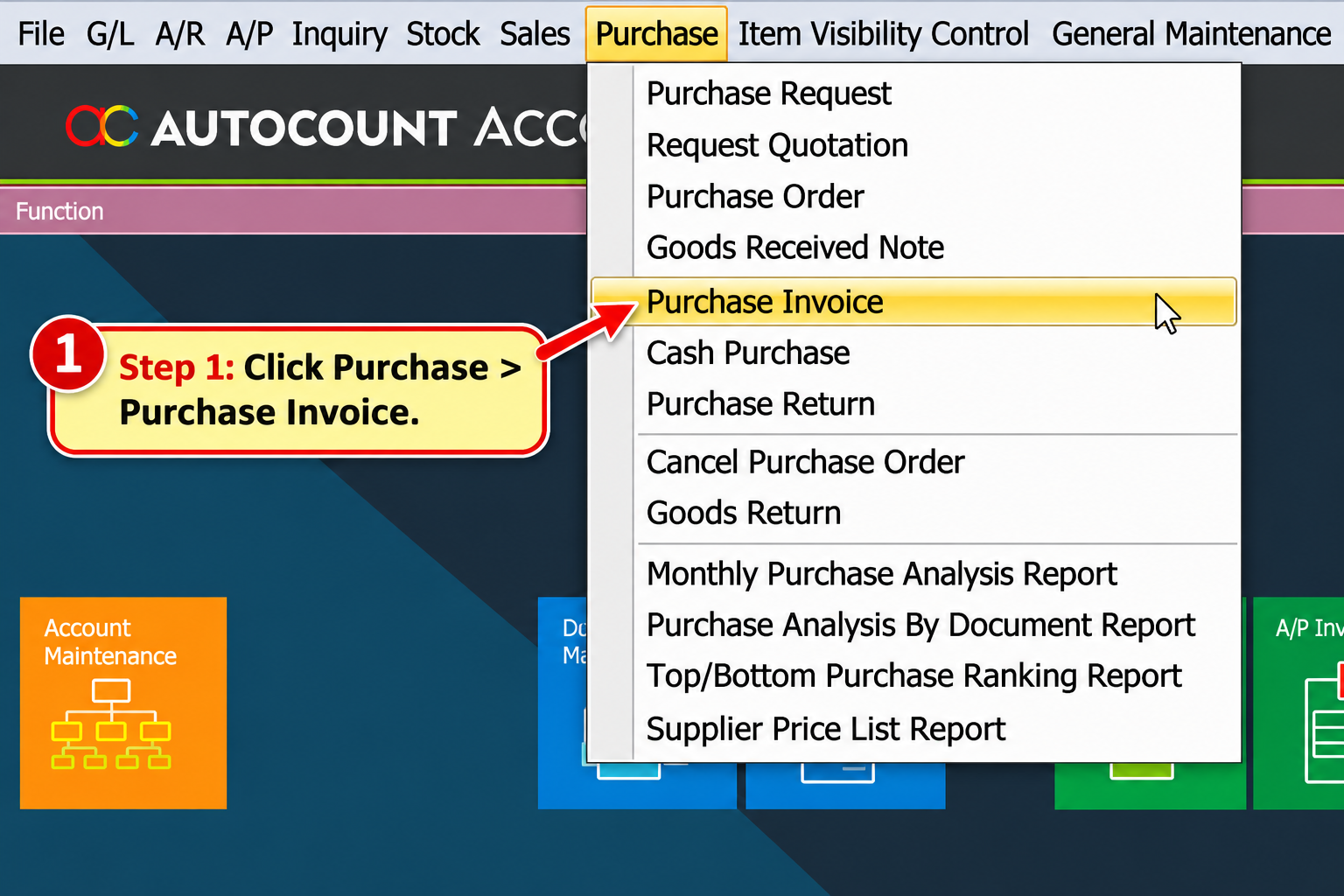
- Go to Purchase > Purchase Invoice and click New.
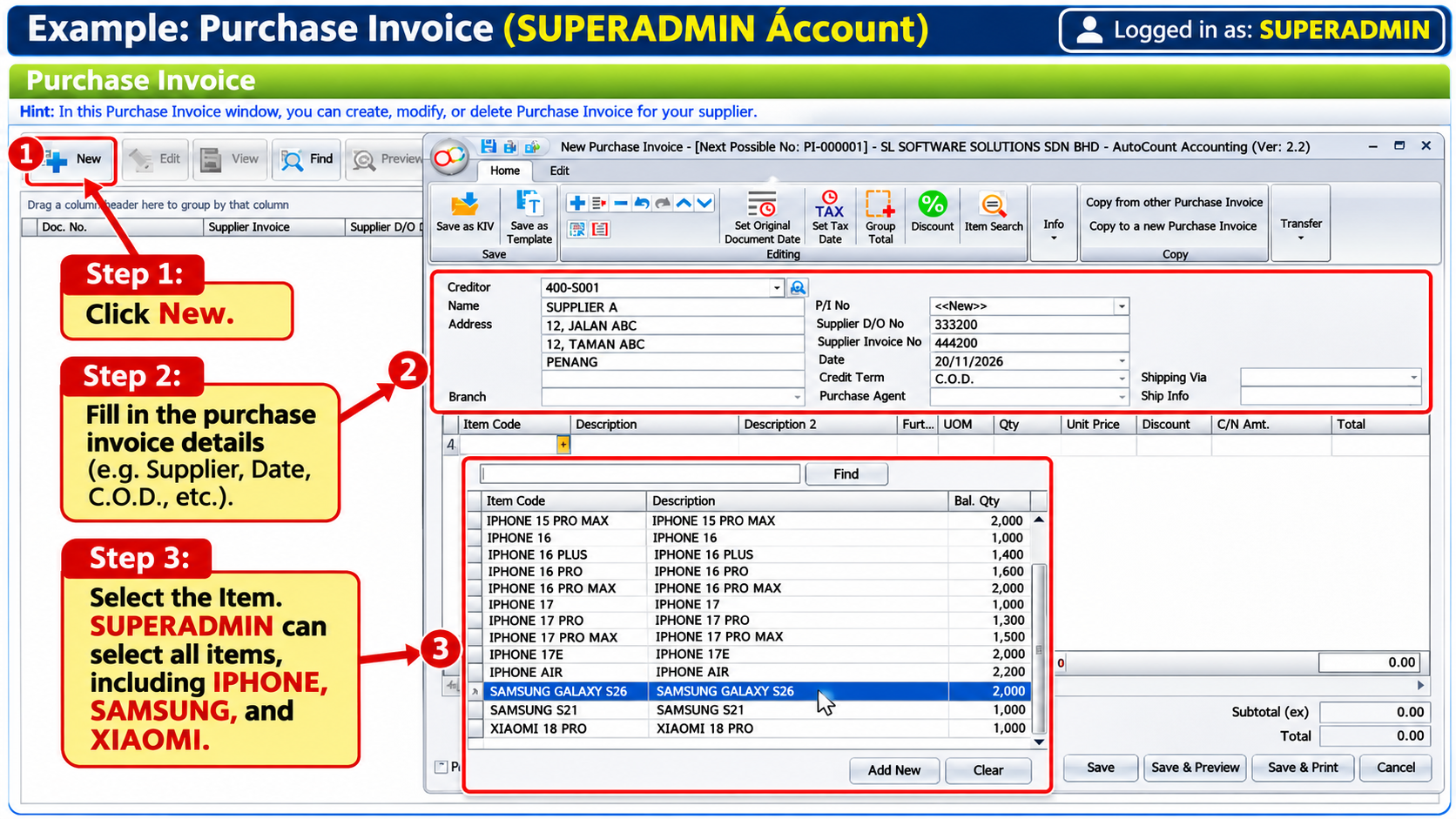
- Fill in the required supplier and purchase invoice details, then select a stock item.
- All stock items, including IPHONE, SAMSUNG, and XIAOMI, are available for selection because the SUPERADMIN account has no item visibility restrictions.
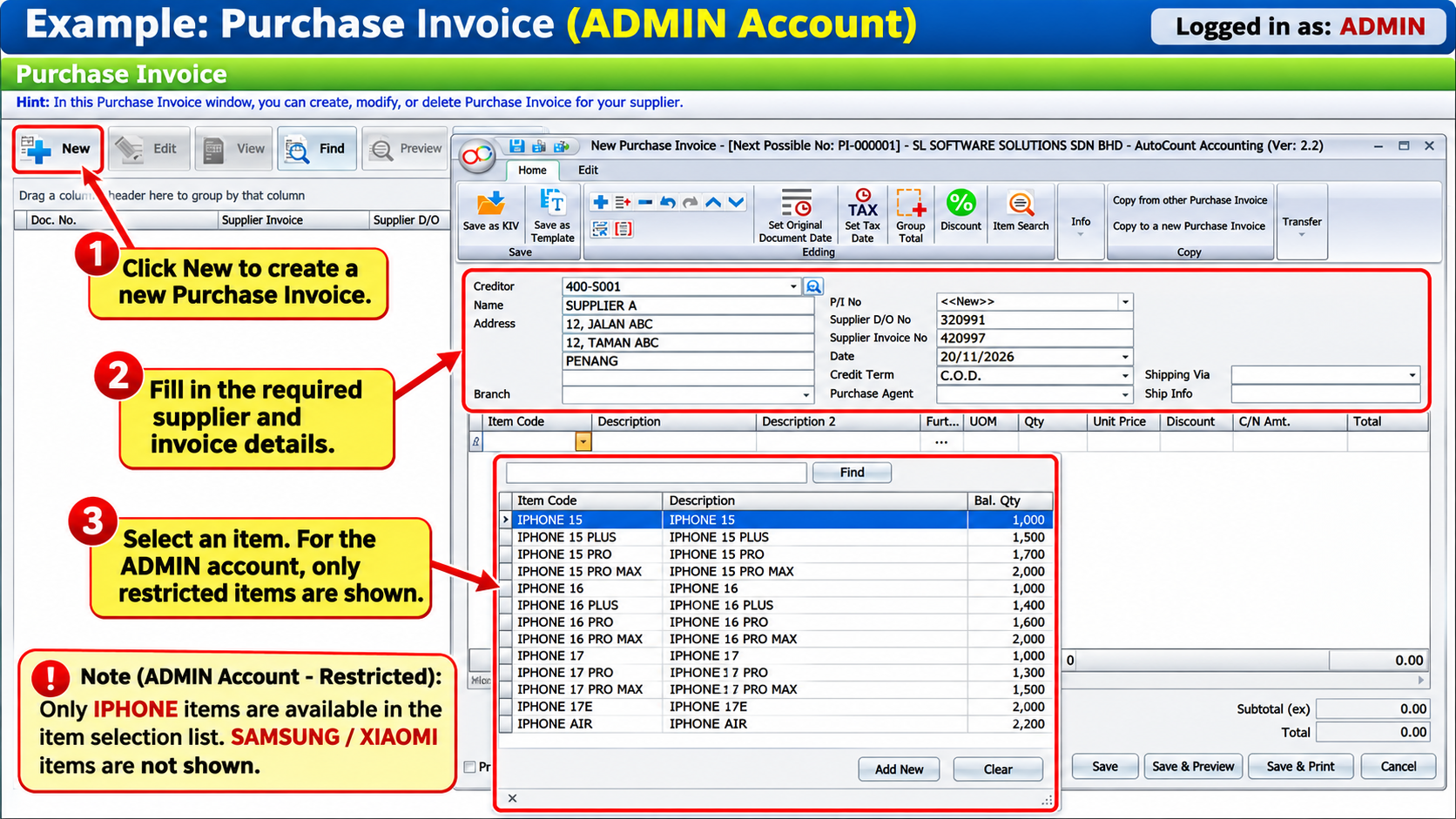
- Only IPHONE items are available for selection because the administrator has applied item visibility restrictions to Purchase Invoice for the ADMIN account. SAMSUNG and XIAOMI items are hidden.
4.2 Stock Card Report – Restricted Items
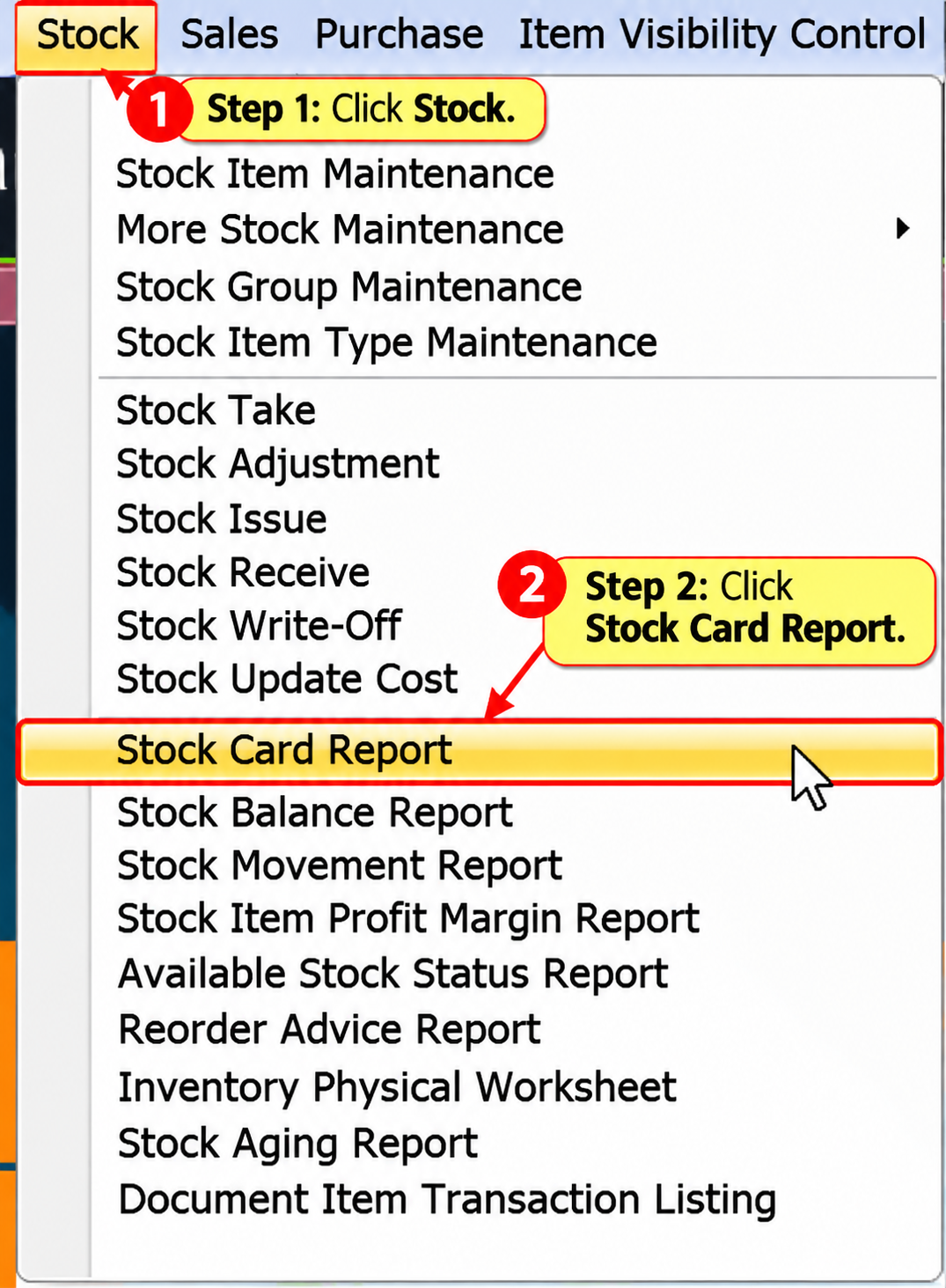
- Go to Stock > Stock Card Report.
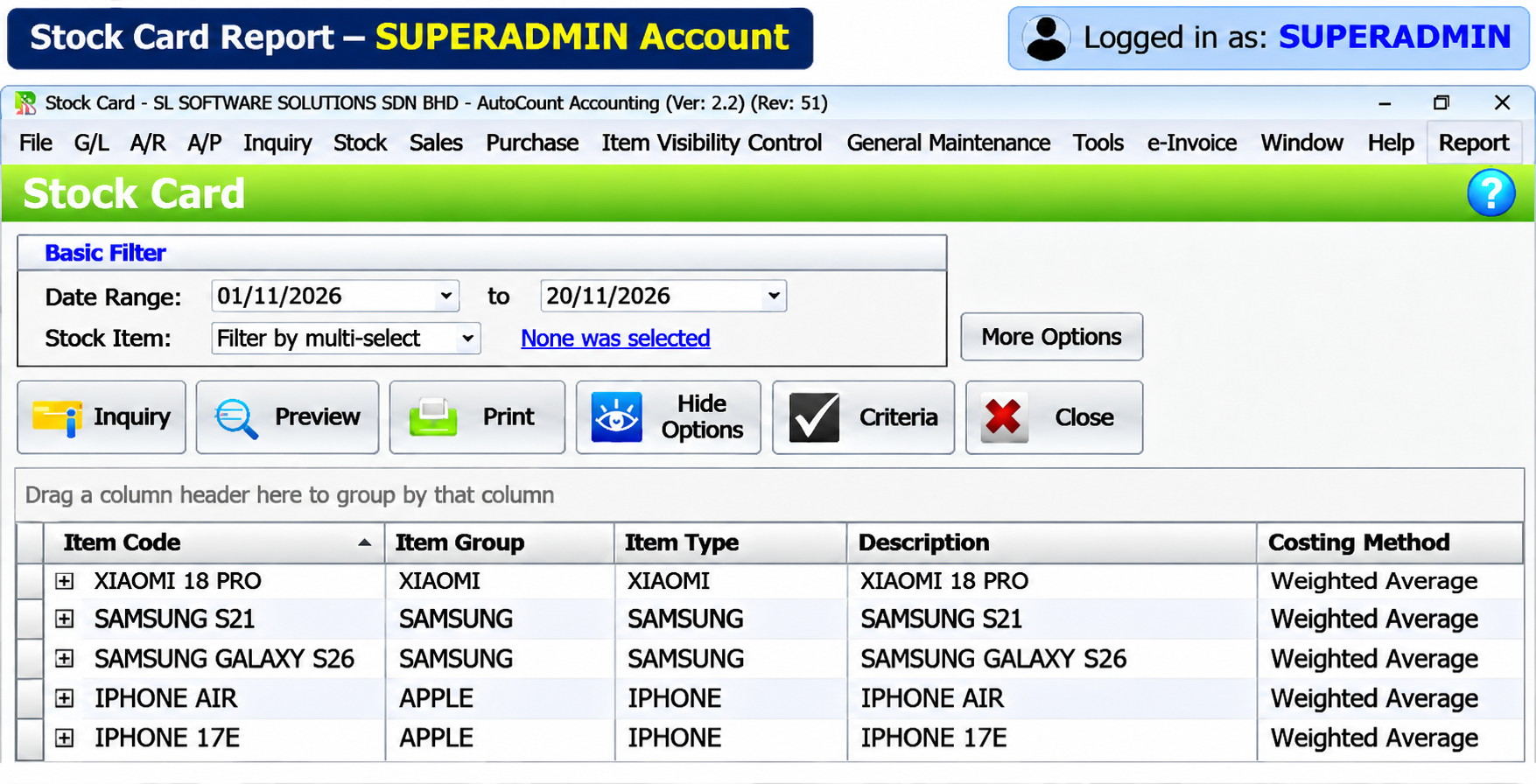
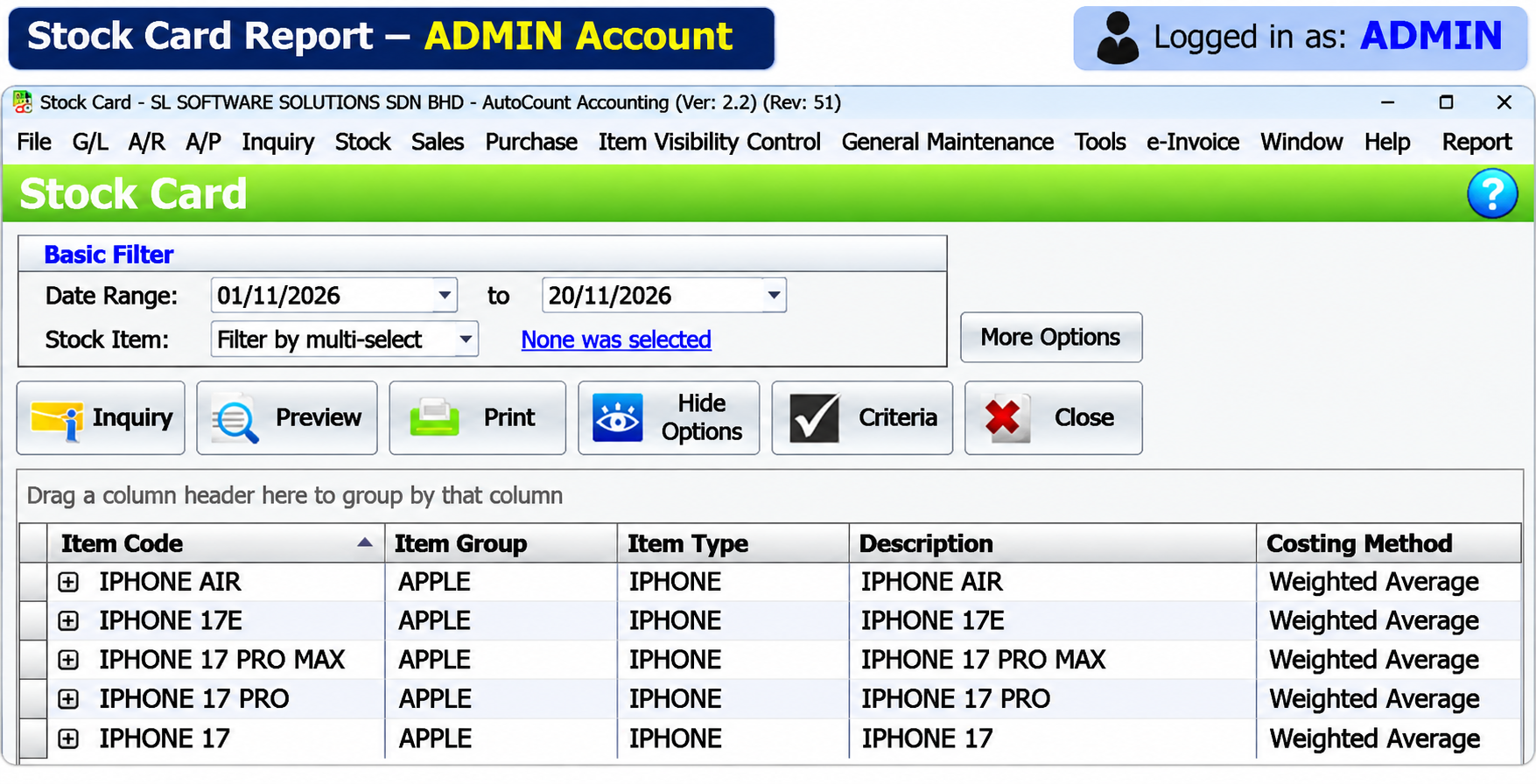
- Click Inquiry to display the stock item data.
- Only the allowed IPHONE items will be displayed, including their stock quantities and costs.
- SAMSUNG and XIAOMI items are hidden because they were not selected in the user’s item visibility settings.
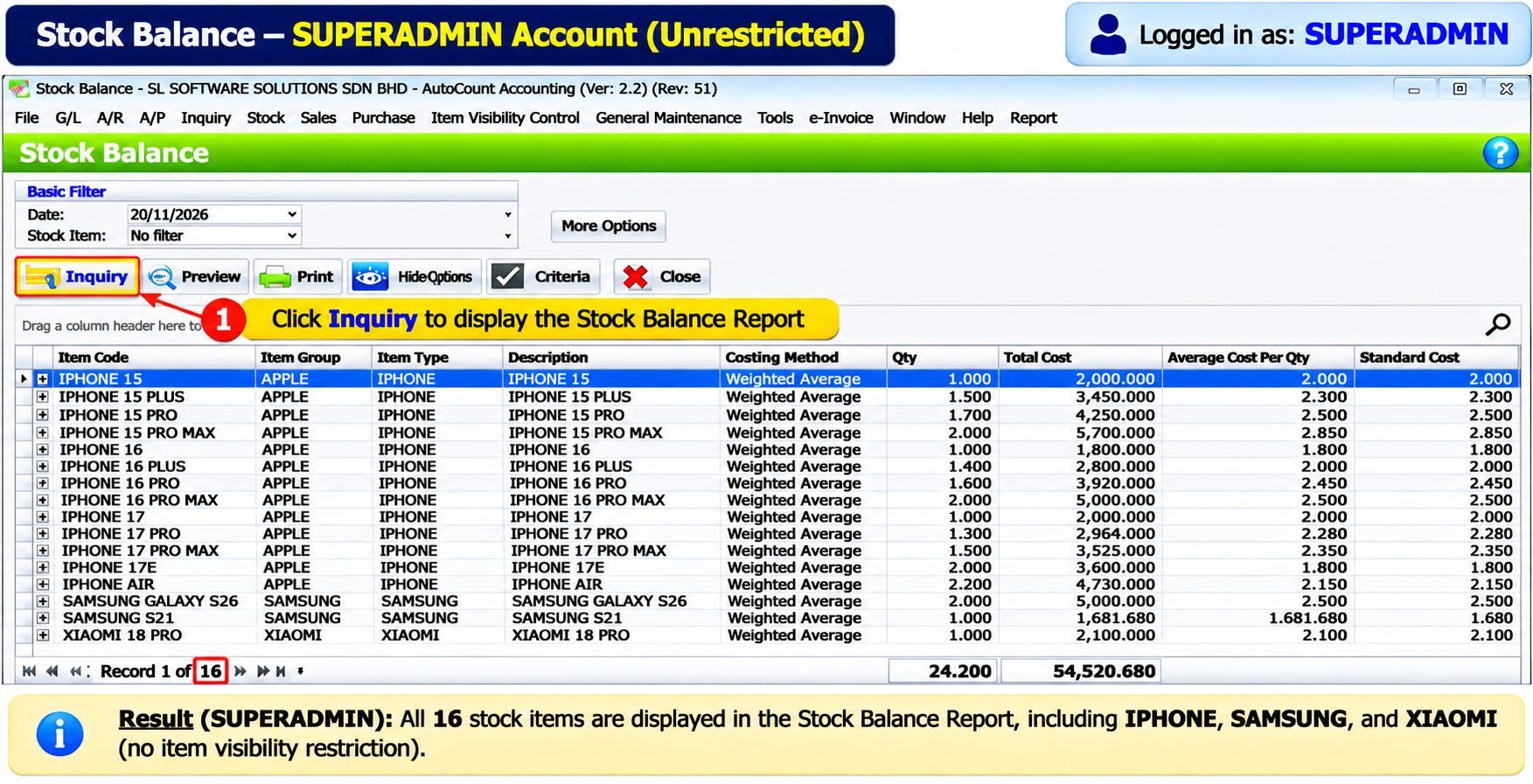
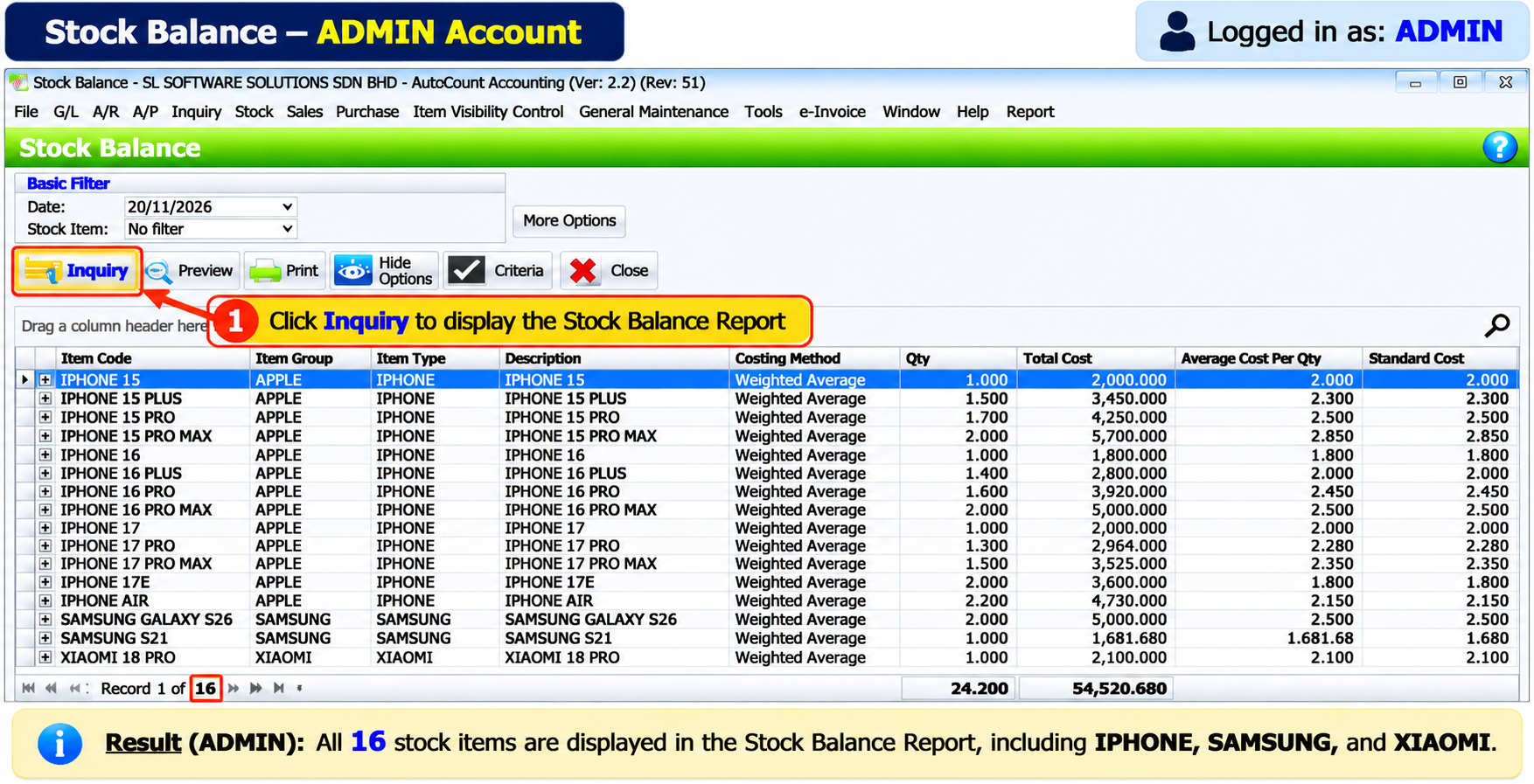
4.3 Stock Balance Report – Unrestricted Items
- Go to Stock > Stock Balance Report using the restricted user account (ADMIN).
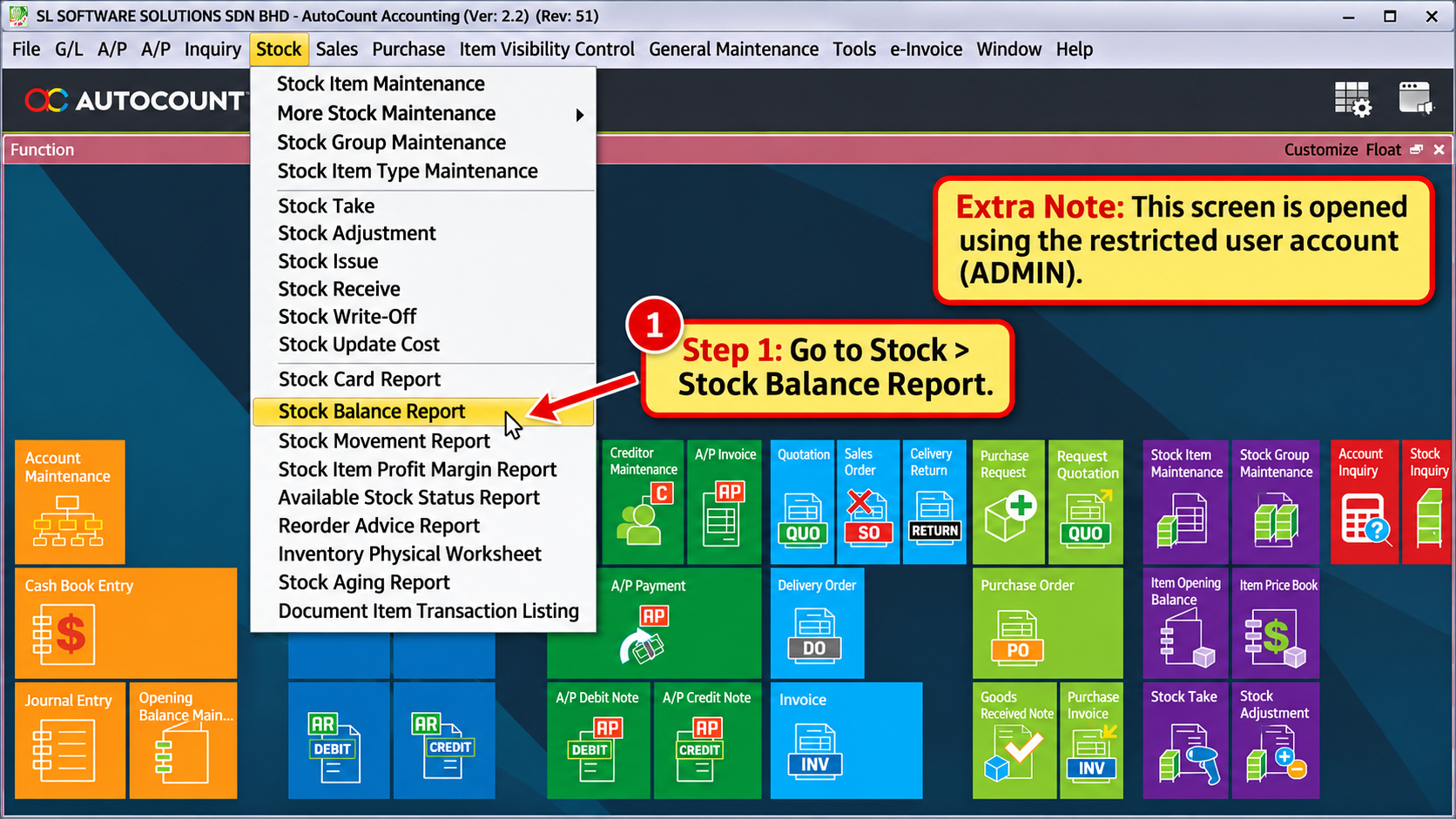
- Click Inquiry to display the stock balance data.
- Both ADMIN and SUPERADMIN can view all 16 stock items, including IPHONE, SAMSUNG, and XIAOMI, because Stock Balance was not selected for item visibility filtering.
Frequently asked questions
Will this plugin affect existing data?
No — it applies visibility filters without altering underlying item or transaction data.
Does it work with core AutoCount modules?
Yes — it works with Sales, Purchase, Inventory, and Reporting modules. For specialized modules, consult your dealer.
Are there limits on how many scopes I can create?
No — you can define as many item scopes as required to align with your business structure.
Can one product be included in multiple scopes?
Yes — this allows flexible combinations of access across roles.
What happens if a scope is removed?
Users previously assigned to the deleted scope will no longer have access to the items defined by that scope. Reassign or adjust scopes as needed to maintain continuity.
Will performance be impacted?
The plugin operates at the database query level, so performance effects are minimal.
Can I export/import scope configurations?
Not currently — configuration is managed manually per company file.
What if a user has multiple scopes?
The visible item set is the combined union of all assigned scopes.
Related resources and technical support
Continue exploring AutoCount or get assistance with the steps in this guide.
Explore Item Visibility Control Plugin
Review the features and business workflows supported by AutoCount Item Visibility Control Plugin.
Browse the Knowledge Base
Find practical instructions for other AutoCount functions, modules and plugins.
TECHNICAL SUPPORT
Need help with Item Visibility Control Plugin?
Send the details below so our team can understand the issue and review the relevant workflow.
Have these details ready
- AutoCount and Item Visibility Control Plugin versions
- Function or screen being used
- Relevant document number
- Exact error message
Before sharing a screenshot: hide customer, financial and personal details.