
-
AutoCount Accounting Features
-
- Approval Workflow
- Audit Trail
- Auto Save in Draft Folder
- AutoCount Contra Account
- AutoCount Feature Stock Take
- AutoCount License Setting Guide
- Column Chooser
- Deposit Tracking & Management
- Documents Numbering Format
- Full Transfer and Partial Transfer
- Import Data to AutoCount Accounting Using Excel
- Informative Charts and Analytical Data
- Layout Customization
- Multi Pricing
- Sales and Services Tax
- Schedule Backup
- Search Lookup Edit
- View Documents Flow
- Show Remaining (3) Collapse
-
AutoCount Cloud Accounting
-
AutoCount E-Invoice
- AutoCount E-Invoicing Tutorial
- E-Invoice Guide and Preparation for AutoCount Users
- Employee Handbook Template for E-Invoicing
- How E-Invoice Works in AutoCount Accounting?
- How to Enable and Submit SVDP e-Invoices in AutoCount 2.0
- How to Use AutoCount Accounting for LHDN e-Invoice
- What is E-Invoicing?
-
AutoCount Payroll & HRMS
-
- Coming soon
-
- Coming soon
-
AutoCount Modules
-
- Activity Stream
- Advanced Financial Report
- Advanced Item
- Advanced Multi-UOM
- Advanced Quotation Module
- AutoCount Bonus Point Module User Guide
- AutoCount Scripting Module User Guide
- AutoCount Service Management Plugin User Guide
- AutoCount SST Hidden Functions
- AutoCount SST Submission - Service Tax
- Basic Multi-UOM
- Budget Module
- Consignment
- Filter By Salesman
- FOC Quantity
- Formula
- Item Batch
- Item Package
- Landing Cost
- Multi-Currency
- Multi-Dimensional Analysis
- Multi-Location
- Project Account
- Recurrence
- Remote Credit Control Module
- Stock Assembly
- User Defined Fields (UDF)
- Show Remaining (12) Collapse
-
AutoCount Plugins
-
- AutoCount Car Tint Film Plugin
- AutoCount Credit Memo Plugin User Guide
- AutoCount Easy Recurrence Plugin
- AutoCount Lock Price Plugin
- AutoCount Pick List Plugin User Guide
- AutoCount Production order
- AutoCount Progressive Billing
- Batch Update Unit Price Plugin
- DMS Import Plugin
- Fixed Assets Management
- Goldsmith
- TD Ordering Mobile Apps
- TD Stock Mobile Apps
- Universal Import Plugin
-
- AutoCount Advance Aging Format Plugin
- AutoCount Advance Deposit Plugin
- AutoCount Advanced Credit Term Plugin User Guide
- AutoCount Advanced Stock Assembly Plugin User Guide
- AutoCount Agent Validation Plugin User Guide
- AutoCount AutoBank Reconciliation Plugin User Guide
- AutoCount Barcode Generator Plugin User Guide
- AutoCount Batch Transfer SO DO Plugin
- AutoCount Bill Remark Plugin User Guide
- AutoCount Cage Management Plugin User Guide
- AutoCount Centralized Kitchen Management Plugin
- AutoCount Daily Collection Summary Plugin User Guide
- AutoCount Easy Batch Number Entry Plugin User Guide
- AutoCount Easy Deposit Plugin User Guide
- AutoCount Easy Knock Off Plugin
- AutoCount Easy Payment Plugin User Guide
- AutoCount Easy Photo 2.0 User Guide
- AutoCount Email & WhatsApp Plugin User Guide
- AutoCount Event Management System Plugin User Guide
- AutoCount Fruit Basket Plugin Guide
- AutoCount GridToExcel Plugin
- AutoCount Historical Outstanding DO Listing Plugin
- AutoCount IC Checker Plugin
- AutoCount Integrator Plugin
- AutoCount InterCompany Billing Plugin
- AutoCount Item Visibility Control Plugin User Guide
- AutoCount Migrator Plugin
- AutoCount MRP Order Plugin
- AutoCount Multi Company Knock Off Plugin
- AutoCount Optical Plugin
- AutoCount Pain Tracker Plugin User Guide
- AutoCount Payment Request Plugin
- AutoCount Procurement Planning Plugin User Guide
- AutoCount Project Department Visibility Control Plugin
- AutoCount Recurrence Late Interest Plugin
- AutoCount Recurring Invoice Plugin User Guide
- AutoCount Referral Management Plugin User Guide
- AutoCount Rental Management
- AutoCount RMA Plugin
- AutoCount Sales Commission Plugin
- AutoCount Scale Barcode Plugin User Guide
- AutoCount Service Contract Plugin User Guide
- AutoCount Shipment Plugin User Guide
- AutoCount Smart Analysis Plugin User Guide
- AutoCount Stock Availability Report Plugin
- AutoCount Timber Log Plugin User Guide
- AutoCount To-Do List Plugin User Guide
- AutoCount Tour Plugin User Guide
- AutoCount Vege Basket Plugin User Guide
- AutoCount Vehicle Master Plugin User Guide
- AutoCount Vehicle Plugin
- AutoCount Warranty 2.0 Plugin User Guide
- Batch Transfer SODO Plugin
- Intercompany Billing Plugin User Guide
- Lead Management 2.0 Plugin
- SL AutoCount API
- AutoCount Smart Dashboard Plugin User Guide
- Show Remaining (42) Collapse
-
-
Form Template
-
Report Template
-
- Advance Quotation
- Cash Sale
- Consignment
- Consignment Movement
- Credit Note
- Debit Note
- Delivery Order
- FOC Quantity Analysis By Document Report
- Invoice
- Item Package Sales Report
- Monthly Sales Analysis
- Outstanding Sales Order Listing
- Profit And Loss Of Documents
- Quotation
- Sales Agent Contribution Report
- Sales Order
- Top/Bottom Sales Ranking
- Show Remaining (2) Collapse
-
- Available Stock Status Report
- Expired Item Batch Listing
- Inventory Physical Worksheet
- Stock Adjustment
- Stock Aging Report
- Stock Assembly
- Stock Assembly Order
- Stock Balance By Location
- Stock Balance Report
- Stock Card Report
- Stock Disassembly
- Stock Issue
- Stock Item Profit Margin
- Stock Movement Report
- Stock Receive
- Stock Take
- Stock Transfer
- Stock Write Off
- Show Remaining (3) Collapse
-
B2B ORDERING
-
AutoCount AI Agent
-
AutoCount FAQ & Troubleshooting
- How to Add New User ID in AutoCount Accounting (Step-by-Step Guide)
- How to Add or Edit Company Header in AutoCount
- How to Add the Account Number Column in AutoCount
- How to Adjust Decimal Places in AutoCount
- How to Change Default Document Numbering Format for OR and PV in AutoCount
- How to Disable e-Invoice in AutoCount
- How to Switch to Default Workspace in AutoCount
- How to Turn Off Smart App Control in Windows 11 for AutoCount
-
AutoCount F&B
-
- How to Accept or Reject QR Orders in AutoCount F&B POS
- How to Connect AutoCount POS Backend to QR Ordering Using an API Key
- How to Create a Restaurant in AutoCount QR Ordering Backend
- How to Customize AutoCount QR Ordering Customer View and Operating Hours
- How to Print and Test AutoCount F&B Table QR Codes
- How to Publish Menu Items to AutoCount F&B QR Ordering
- How to Set Up AutoCount F&B QR Ordering: Complete Guide
- How to Set Up Table QR Codes in AutoCount F&B
-
-
AutoCount Unicart Integration
- How Customer, Supplier and Order Field Mapping Works
- How Does a SiteGiant iSKU Map to an AutoCount Item Code?
- How Does the System Check Duplicate iSKU Mapping?
- How Is the Stock Sync Quantity Calculated?
- How Shipping, Discounts, Vouchers and Marketplace Charges Post to AutoCount?
- How Should a New AutoCount Item and SiteGiant iSKU Be Created?
- How SiteGiant Members and Bonus Points Sync with AutoCount POS
- How SiteGiant Orders Sync to AutoCount: Manual or Automatic
- How SiteGiant Purchase Flow Posts to AutoCount GRN
- How to Auto Sync AutoCount Price & Cost to SiteGiant Inventory
- How to Choose the Stock Master in SiteGiant and AutoCount
- How to Connect SiteGiant ERP to AutoCount and Confirm the Connection
- How to Handle Cancelled, Returned or Refunded Online Orders?
- How to Handle Fulfilled by Shopee Stock in AutoCount
- How to Handle SiteGiant Bundle / KIT Items
- How to Map Different UOMs for the Same Item?
- How to Reconcile Marketplace Settlements Using Bulk Knock Off
- How to Set the Posting Rules for Each Sales Channel
- How to Sync Stock from AutoCount to SiteGiant: Manual or Automatic
- Show Remaining (4) Collapse
AutoCount Car Tint Film Plugin for Tint and PPF Shops
(EN) AutoCount Car Tint Film Plugin Video Guide
Why Use the AutoCount Car Tint Film Plugin?
Precision in Documentation
Eliminates guesswork by maintaining accurate records of tinted window unit quantities for every car type.
Inventory Accuracy
Automatically calculates and deducts stock (film/coating) based on the vehicle’s specific dimensions.
Streamlined Billing
Integrates vehicle information directly into the invoicing system for a professional and transparent customer experience.
Consistency
Preset "Default Coatings" ensure that every job meets your business's quality standards without manual data entry.
Who This Plugin is For?
Car Tinting Specialists looking to track film wastage and usage.
Paint Protection Film (PPF) Centers needing to manage high-value material stock.
Automotive Service Centers that offer coating and window treatment as part of their service package.
Key Features & Capabilities
Car Type & Measurement Maintenance
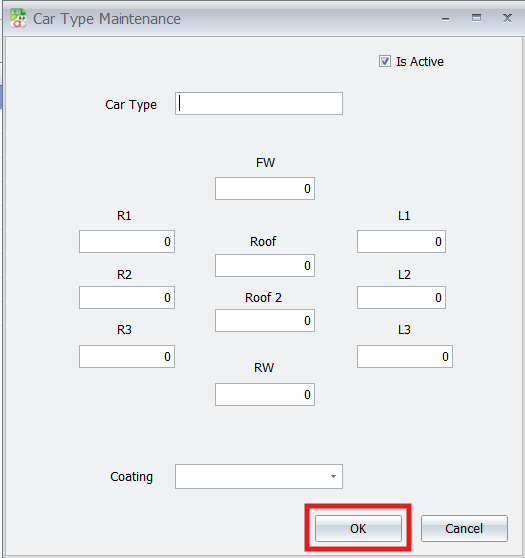
This is the core setup where you define vehicle categories (like SUV, Sedan, Coupe) and their window film measurements. Once configured, the system knows how much material to use for each car model.
Intelligent Stock Deduction ("Is Tinted" Attribute)
When a stock item is marked “Is Tinted,” the plugin links it to the vehicle’s measurements and automatically calculates material use during sales, updating inventory accurately and eliminating manual errors.
Automated Industry Documentation
The system creates professional outputs like Job Order Forms (with car layout diagrams) and Product Warranty Cards that connect the specific film used to the customer’s vehicle
Step-by-Step Configuration
1. Car Type Maintenance
- Define Vehicle Measurements: Go to CarTintFilm > Car Type Maintenance to input the specific window unit quantities for different car models (e.g., “BMW”).
- Set Default Coatings: Standardize your process by selecting a default coating type for each specific vehicle model.
Pro Tip:
If you need to update measurements for a newer car model, simply edit the existing Car Type record. Any future invoices using this template will reflect the updated unit requirements immediately.
2. Stock Item Configuration
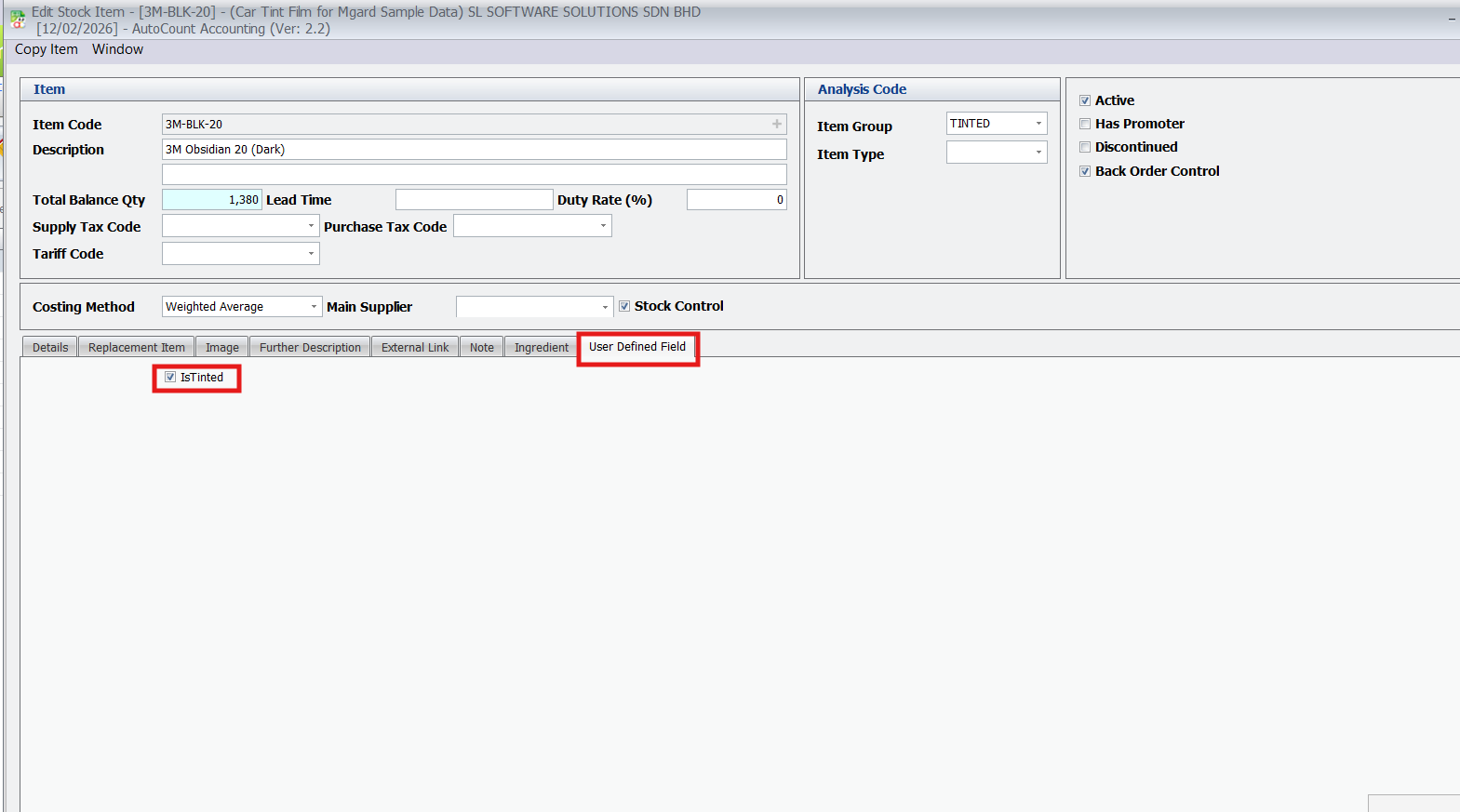
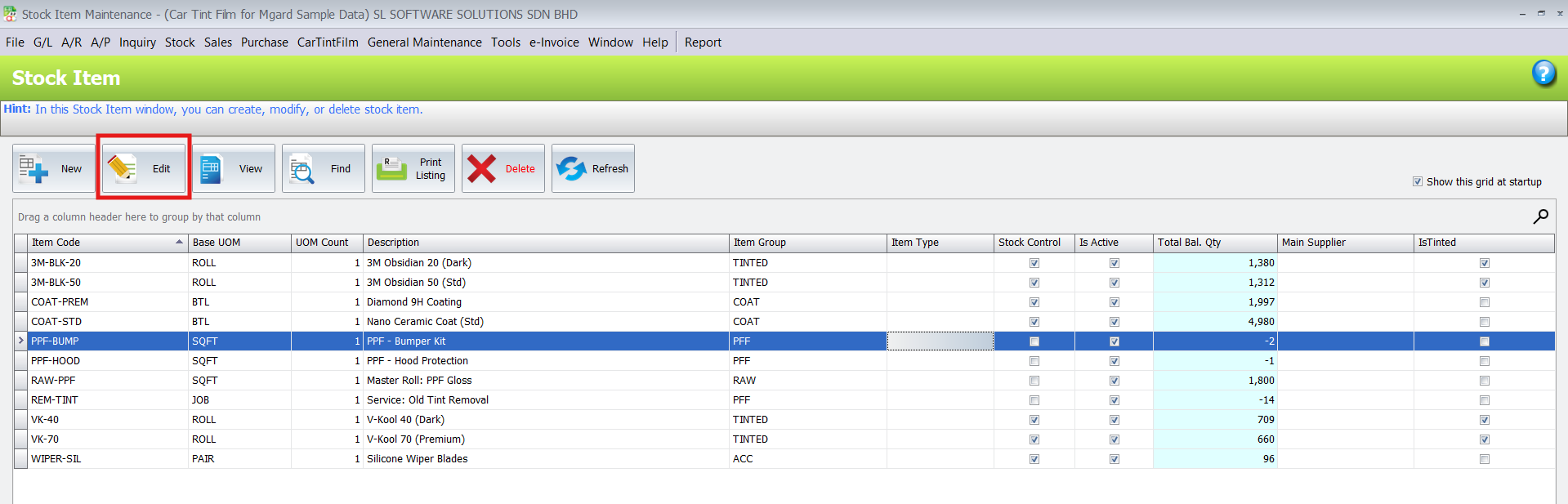
- Enable Tinted Items: Navigate to Stock > Stock Item Maintenance, select your tint film, and tick the “Is Tinted” checkbox in the User Defined Field tab.
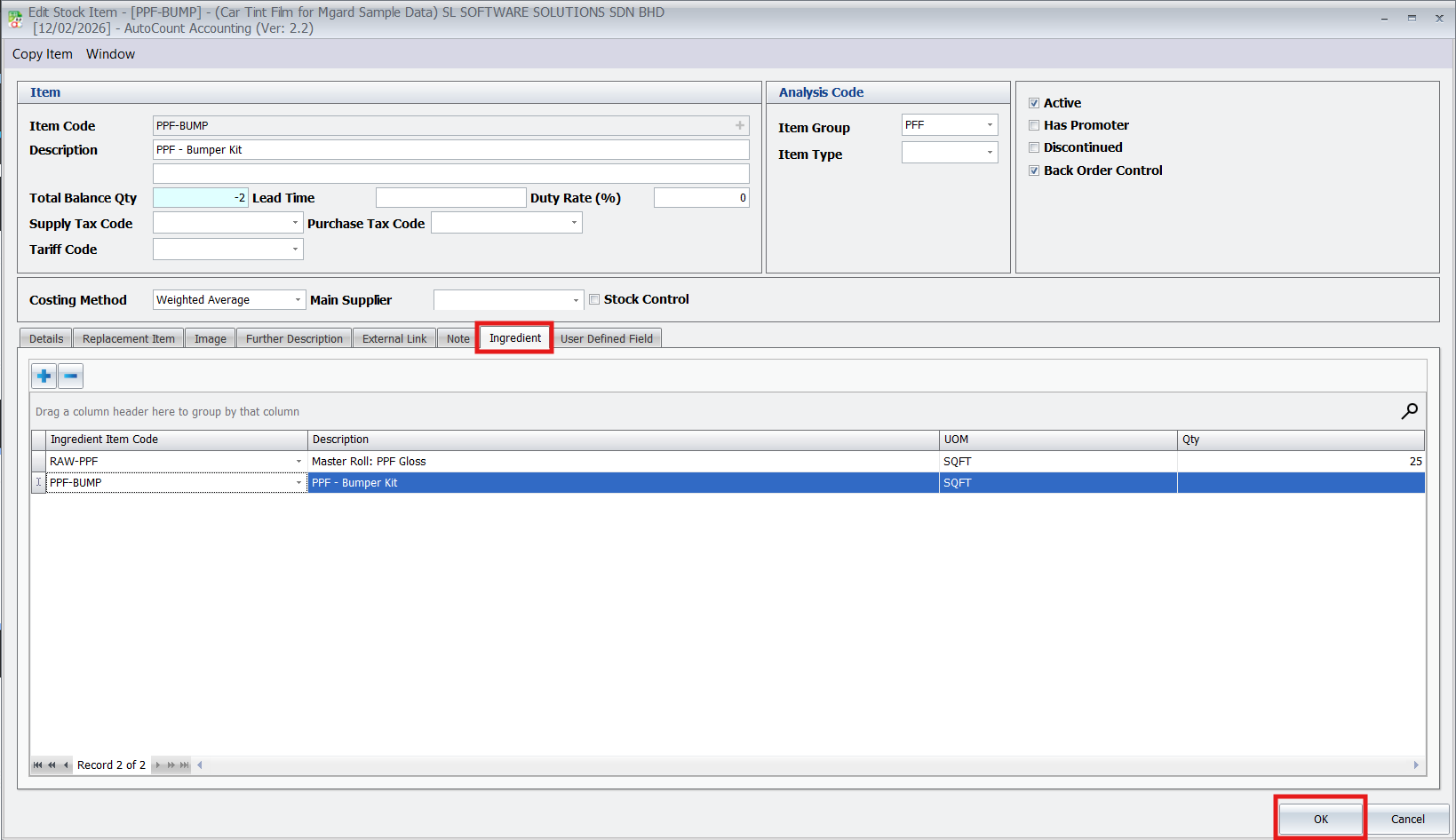
- Configure PPF Ingredients: For Paint Protection Film, use the “Ingredient” tab to set the square footage (Qty) for specific parts like door knobs or bumpers.
Pro Tip:
Enabling “IsTinted” allows the system to recognize that this item should trigger the automatic unit calculation based on the vehicle type during a transaction.
3. Printing or Generating Outputs
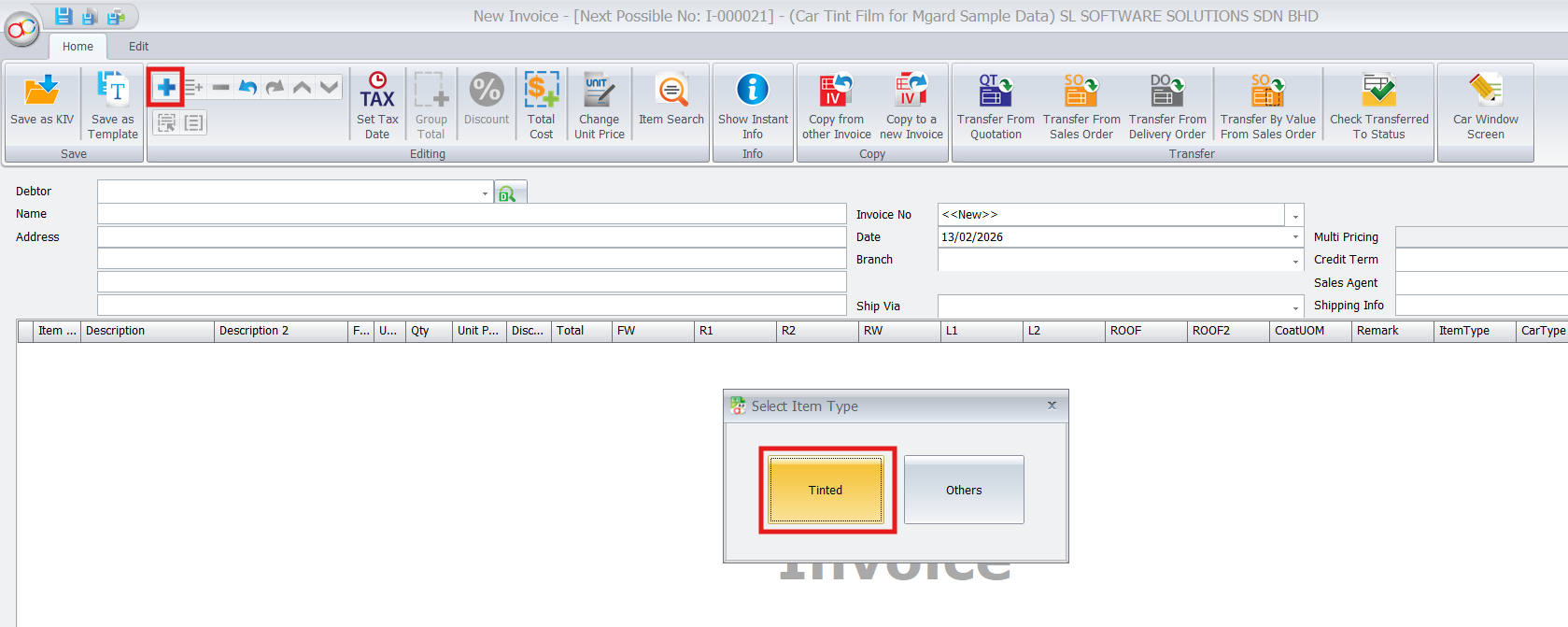
Capture Vehicle Details: In the Sales > Invoice, enter the customer and vehicle information (Chassis No, Car Model).
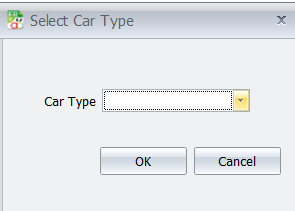
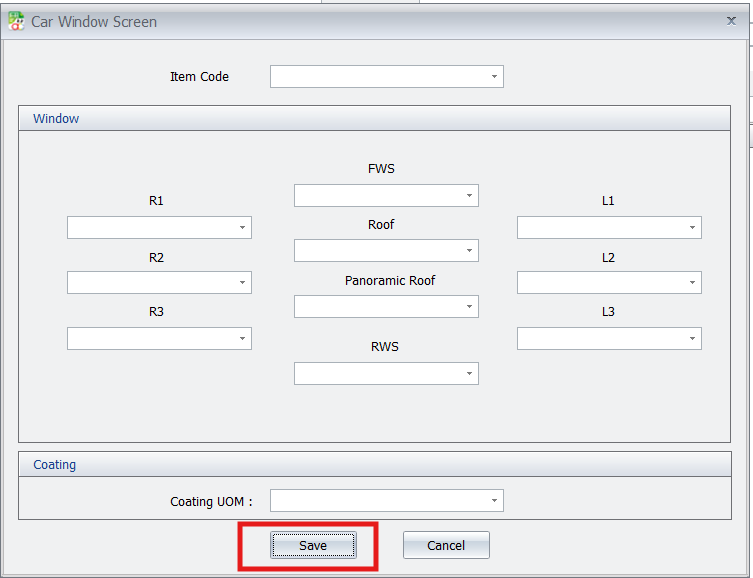
Configure Windows: Click the “Tinted” button to open the Car Window Screen. Select the car type and assign specific film brands to each window (e.g., FWS, R1, RWS).
Pro Tip:
If a specific tint package isn’t pre-configured in your stock, you can manually key in the unit price and cost directly within the configuration screen.
4. PPF Invoicing
Select PPF Parts: For paint protection services, click the “Others” button in the invoice grid to choose specific PPF Item Codes.
Set Costs: Ensure the cost value for each selected PPF item is accurate to maintain correct profit margins.
Pro Tip:
Use the “Others” button specifically for non-window film items like door handle cups, headlamps, or bonnet protection.
5. Generating Specialized Reports
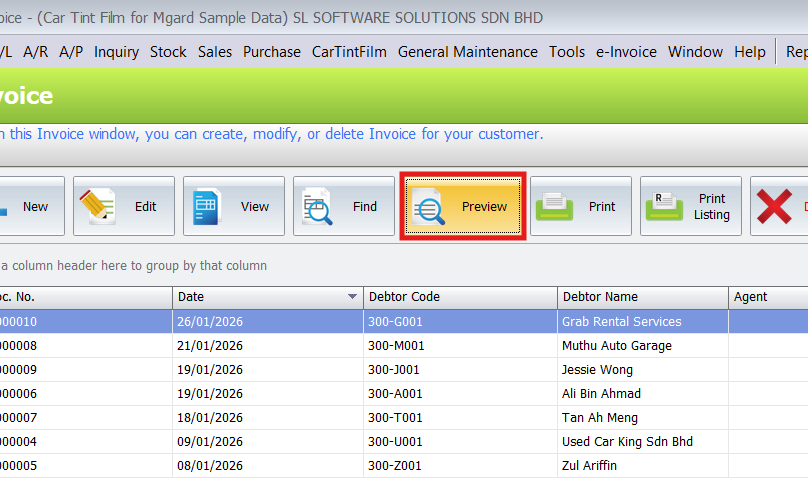
- Professional Documentation: Use the “Preview” button in the Invoice screen to select from specialized formats like the Job Order Form or Product Warranty Card.
- Visual Job Orders: The Job Order Form includes item info and car layout images to help your technicians visualize the work required.
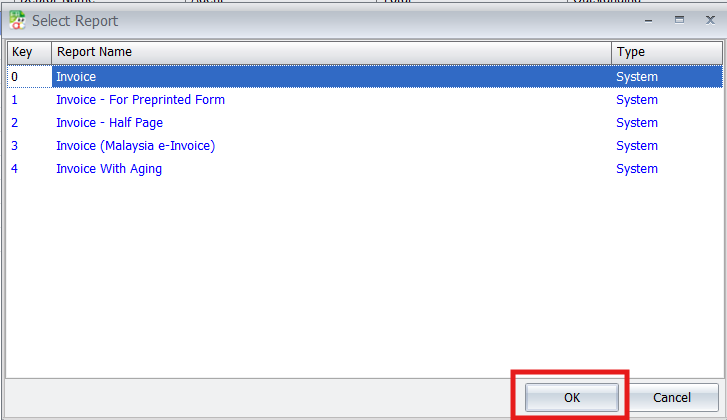
Pro Tip:
Always print the “Invoice – Client Copy” for your customers as it includes the full breakdown of which film was applied to which window.
6. Monitoring Stock Balance
Track Inventory Levels: Visit Stock > Stock Balance Report to view real-time levels of your tint films (measured in units/length), PPF, and coatings.
Multi-Location Tracking: Monitor stock levels across different branches or HQ to ensure you never run out of popular film types.
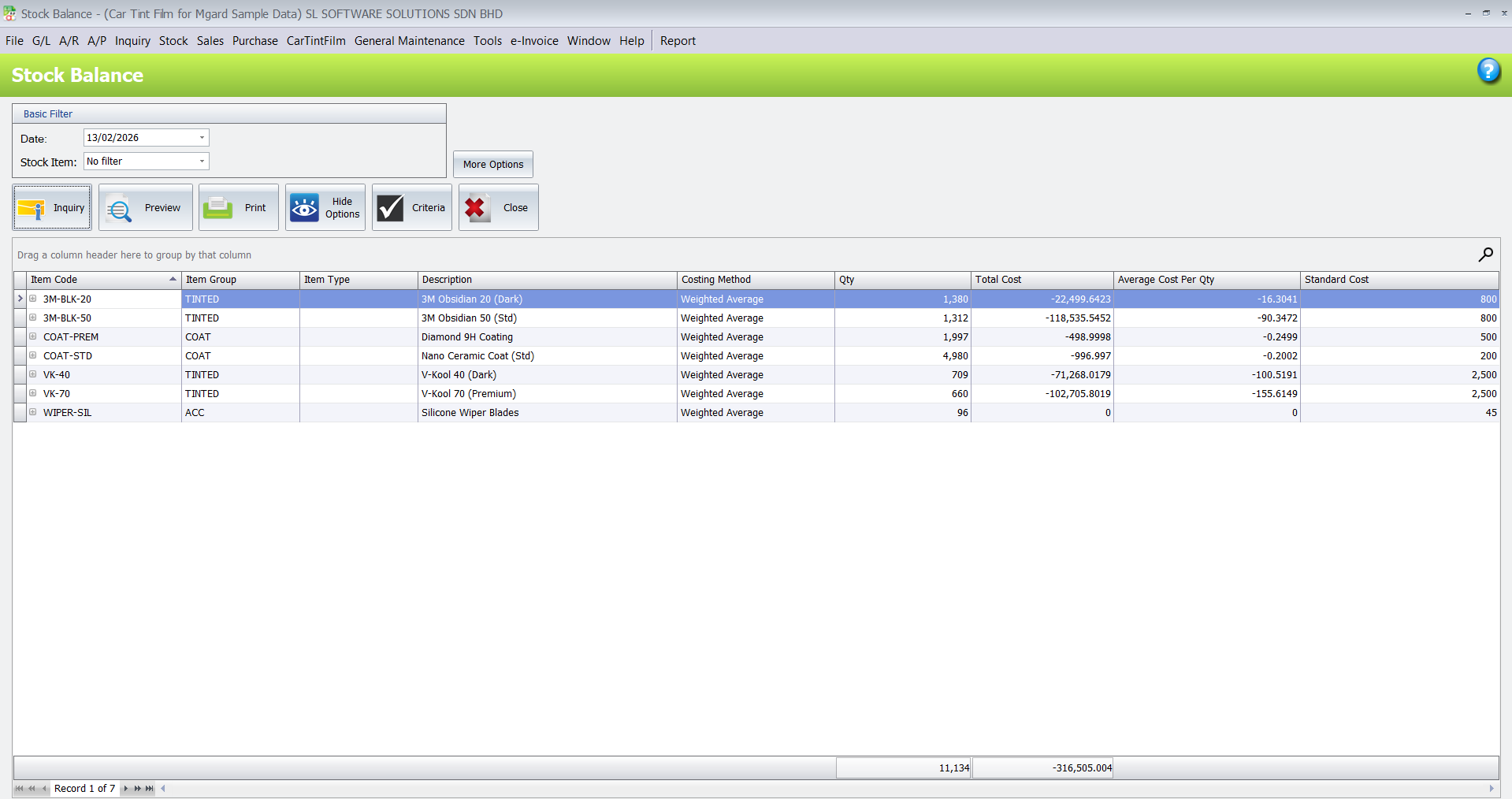
Pro Tip:
Regularly check your “Smallest Bal. Qty” to identify which films are running low and need reordering.
Benefits of the Car Tint Film Plugin
Conclusion
The AutoCount Car Tint Plugin simplifies specialized automotive management, making it an invaluable tool for tinting businesses of all sizes. Whether managing a small workshop or a large service center, the plugin ensures tasks are organized, stock is accurate, and productivity is optimized.
Frequently Asked Questions
Can I set different window measurements for different car models?
Does the plugin support Paint Protection Film (PPF)?
Can I handle different UOMs for coatings?
es. When configuring the Car Window Screen during invoicing, you can select the preferred Coating UOM (e.g., Litre or ML) to ensure accurate usage tracking
How do I know if the plugin is installed correctly?
Check your top menu bar in AutoCount; you should see a specific menu labeled “CarTintFilm”.
Interested in Getting AutoCount for your Business?
Contact our sales team today to explore pricing options and get started with the perfect solution for you.