
-
AutoCount Accounting Features
-
- Approval Workflow
- Audit Trail
- Auto Save in Draft Folder
- AutoCount Contra Account
- AutoCount Feature Stock Take
- AutoCount License Setting Guide
- Column Chooser
- Deposit Tracking & Management
- Documents Numbering Format
- Full Transfer and Partial Transfer
- Import Data to AutoCount Accounting Using Excel
- Informative Charts and Analytical Data
- Layout Customization
- Multi Pricing
- Sales and Services Tax
- Schedule Backup
- Search Lookup Edit
- View Documents Flow
- Show Remaining (3) Collapse
-
AutoCount Cloud Accounting
-
AutoCount E-Invoice
- AutoCount E-Invoicing Tutorial
- E-Invoice Guide and Preparation for AutoCount Users
- Employee Handbook Template for E-Invoicing
- How E-Invoice Works in AutoCount Accounting?
- How to Use AutoCount Accounting for LHDN e-Invoice
- What is E-Invoicing?
- How to Enable and Submit SVDP e-Invoices in AutoCount 2.0
-
AutoCount HRMS User Guide
-
- Coming soon
-
- Coming soon
-
AutoCount Modules
-
- Activity Stream
- Advanced Financial Report
- Advanced Item
- Advanced Multi-UOM
- Advanced Quotation Module
- AutoCount Bonus Point Module User Guide
- AutoCount Scripting Module User Guide
- AutoCount Service Management Plugin User Guide
- AutoCount SST Hidden Functions
- AutoCount SST Submission - Service Tax
- Basic Multi-UOM
- Budget Module
- Consignment
- Filter By Salesman
- FOC Quantity
- Formula
- Item Batch
- Item Package
- Landing Cost
- Multi-Currency
- Multi-Dimensional Analysis
- Multi-Location
- Project Account
- Recurrence
- Remote Credit Control Module
- Stock Assembly
- User Defined Fields (UDF)
- Show Remaining (12) Collapse
-
AutoCount Plugins
-
- AutoCount Car Tint Film Plugin
- AutoCount Credit Memo Plugin User Guide
- AutoCount Easy Recurrence Plugin
- AutoCount Lock Price Plugin
- AutoCount Pick List Plugin User Guide
- AutoCount Production order
- AutoCount Progressive Billing
- Batch Update Unit Price Plugin
- DMS Import Plugin
- Fixed Assets Management
- Goldsmith
- TD Ordering Mobile Apps
- TD Stock Mobile Apps
- Universal Import Plugin
-
- AutoCount Advanced Credit Term Plugin User Guide
- AutoCount Advance Aging Format Plugin
- AutoCount Advance Deposit Plugin
- AutoCount Advanced Stock Assembly Plugin User Guide
- AutoCount Agent Validation Plugin User Guide
- AutoCount AutoBank Reconciliation Plugin User Guide
- AutoCount Barcode Generator Plugin User Guide
- AutoCount Batch Transfer SO DO Plugin
- AutoCount Bill Remark Plugin User Guide
- AutoCount Centralized Kitchen Management Plugin
- AutoCount Daily Collection Summary Plugin User Guide
- AutoCount Easy Batch Number Entry Plugin User Guide
- AutoCount Easy Deposit Plugin User Guide
- AutoCount Easy Knock Off Plugin
- AutoCount Easy Payment Plugin User Guide
- AutoCount Easy Photo 2.0 User Guide
- AutoCount Email & WhatsApp Plugin User Guide
- AutoCount Fruit Basket Plugin Guide
- AutoCount GridToExcel Plugin
- AutoCount Historical Outstanding DO Listing Plugin
- AutoCount IC Checker Plugin
- AutoCount Integrator Plugin
- AutoCount InterCompany Billing Plugin
- AutoCount Item Visibility Control Plugin User Guide
- AutoCount Migrator Plugin
- AutoCount MRP Order Plugin
- AutoCount Multi Company Knock Off Plugin
- AutoCount Optical Plugin
- AutoCount Pain Tracker Plugin User Guide
- AutoCount Payment Request Plugin
- AutoCount Procurement Planning Plugin User Guide
- AutoCount Project Department Visibility Control Plugin
- AutoCount Recurrence Late Interest Plugin
- AutoCount Recurring Invoice Plugin User Guide
- AutoCount Rental Management
- AutoCount RMA Plugin
- AutoCount Sales Commission Plugin
- AutoCount Scale Barcode Plugin User Guide
- AutoCount Service Contract Plugin User Guide
- AutoCount Shipment Plugin User Guide
- AutoCount Smart Analysis Plugin User Guide
- AutoCount Stock Availability Report Plugin
- AutoCount To-Do List Plugin User Guide
- AutoCount Tour Plugin User Guide
- AutoCount Vege Basket Plugin User Guide
- AutoCount Vehicle Master Plugin User Guide
- AutoCount Vehicle Plugin
- Batch Transfer SODO Plugin
- AutoCount Cage Management Plugin User Guide
- AutoCount Event Management System Plugin User Guide
- Intercompany Billing Plugin User Guide
- Lead Management 2.0 Plugin
- AutoCount Referral Management Plugin User Guide
- SL AutoCount API
- AutoCount Timber Log Plugin User Guide
- AutoCount Warranty 2.0 Plugin User Guide
- Show Remaining (41) Collapse
-
-
Form Template
-
Report Template
-
- Advance Quotation
- Cash Sale
- Consignment
- Consignment Movement
- Credit Note
- Debit Note
- Delivery Order
- FOC Quantity Analysis By Document Report
- Invoice
- Item Package Sales Report
- Monthly Sales Analysis
- Outstanding Sales Order Listing
- Profit And Loss Of Documents
- Quotation
- Sales Agent Contribution Report
- Sales Order
- Top/Bottom Sales Ranking
- Show Remaining (2) Collapse
-
- Available Stock Status Report
- Expired Item Batch Listing
- Inventory Physical Worksheet
- Stock Adjustment
- Stock Aging Report
- Stock Assembly
- Stock Assembly Order
- Stock Balance By Location
- Stock Balance Report
- Stock Card Report
- Stock Disassembly
- Stock Issue
- Stock Item Profit Margin
- Stock Movement Report
- Stock Receive
- Stock Take
- Stock Transfer
- Stock Write Off
- Show Remaining (3) Collapse
-
B2B ORDERING
-
AutoCount AI Agent
-
AutoCount FAQ & Troubleshooting
- Coming soon
AutoCount HRMS Rule Maintenance and Default Rule Setup Guide
Use AutoCount HRMS Rule Maintenance to connect shifts with attendance rules, then choose a Default Rule for employees without a specific or scheduled shift. This guide is for HR and attendance administrators.
Quick path: Human Resources → Shift & Rule → Rule Maintenance → +Add Rule.
In this guide: Before you begin · Create a rule · Set the Default Rule · Check results · FAQs
Before you begin
Prepare the shifts you want to use in Shift Maintenance. Agree on working days, lateness, early departures, overtime and permitted clocking methods.
For an existing rule, record its current settings before making changes. Changing a default can affect employees who rely on that fallback, so check a suitable employee and date after saving.
Three separate tasks: Shift Maintenance defines hours; Rule Maintenance defines attendance conditions; Shift Schedule assigns employee schedules.
How to create a rule in AutoCount HRMS
1. Open Rule Maintenance
Go to Human Resources → Shift & Rule → Rule Maintenance, then click +Add Rule. The screenshots use the Human Resource menu label.
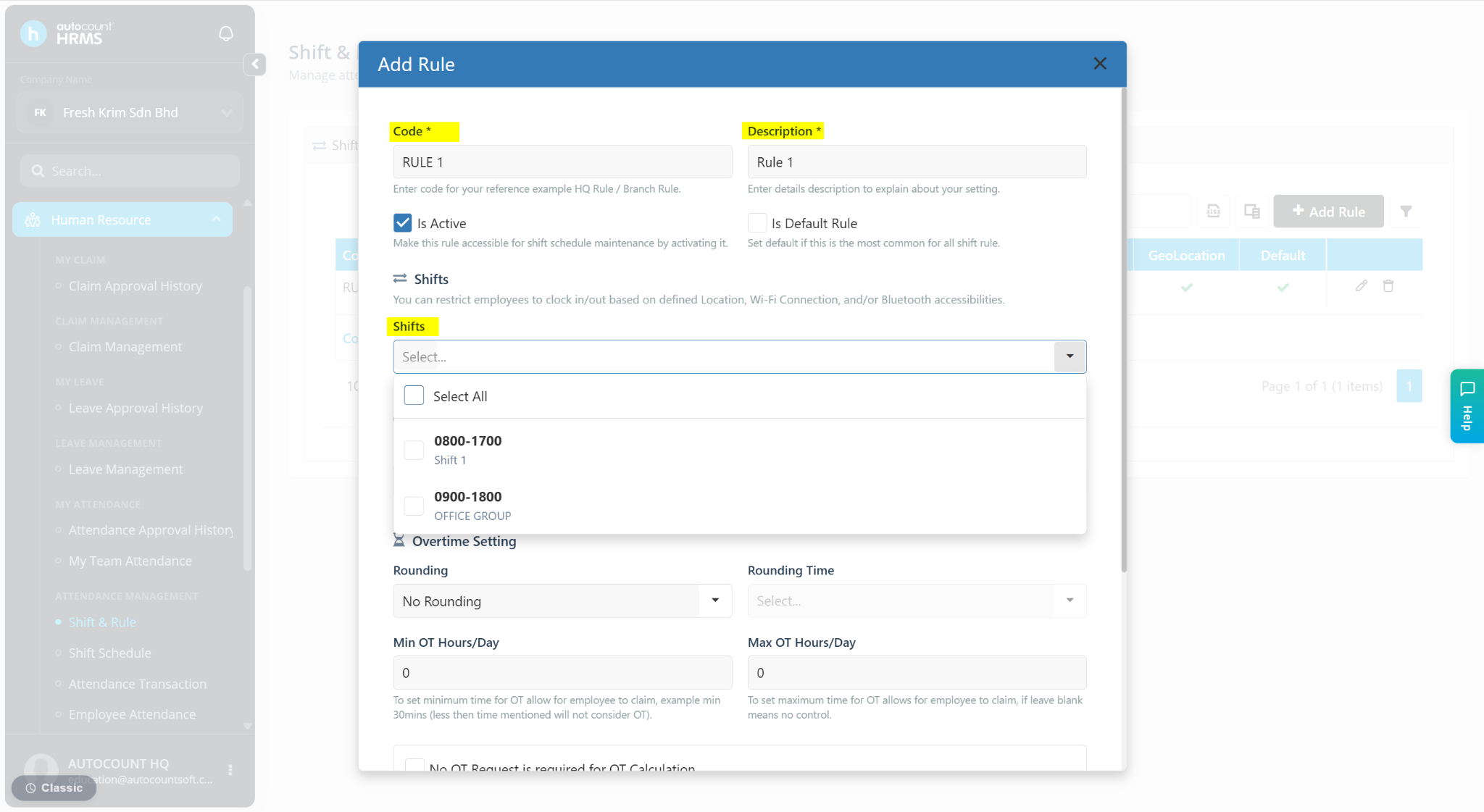
2. Enter the details and select shifts
Enter a Code and Description that identify the rule. Under Shifts, select the shifts to include. The form’s Is Active option makes the rule available for shift schedule maintenance.
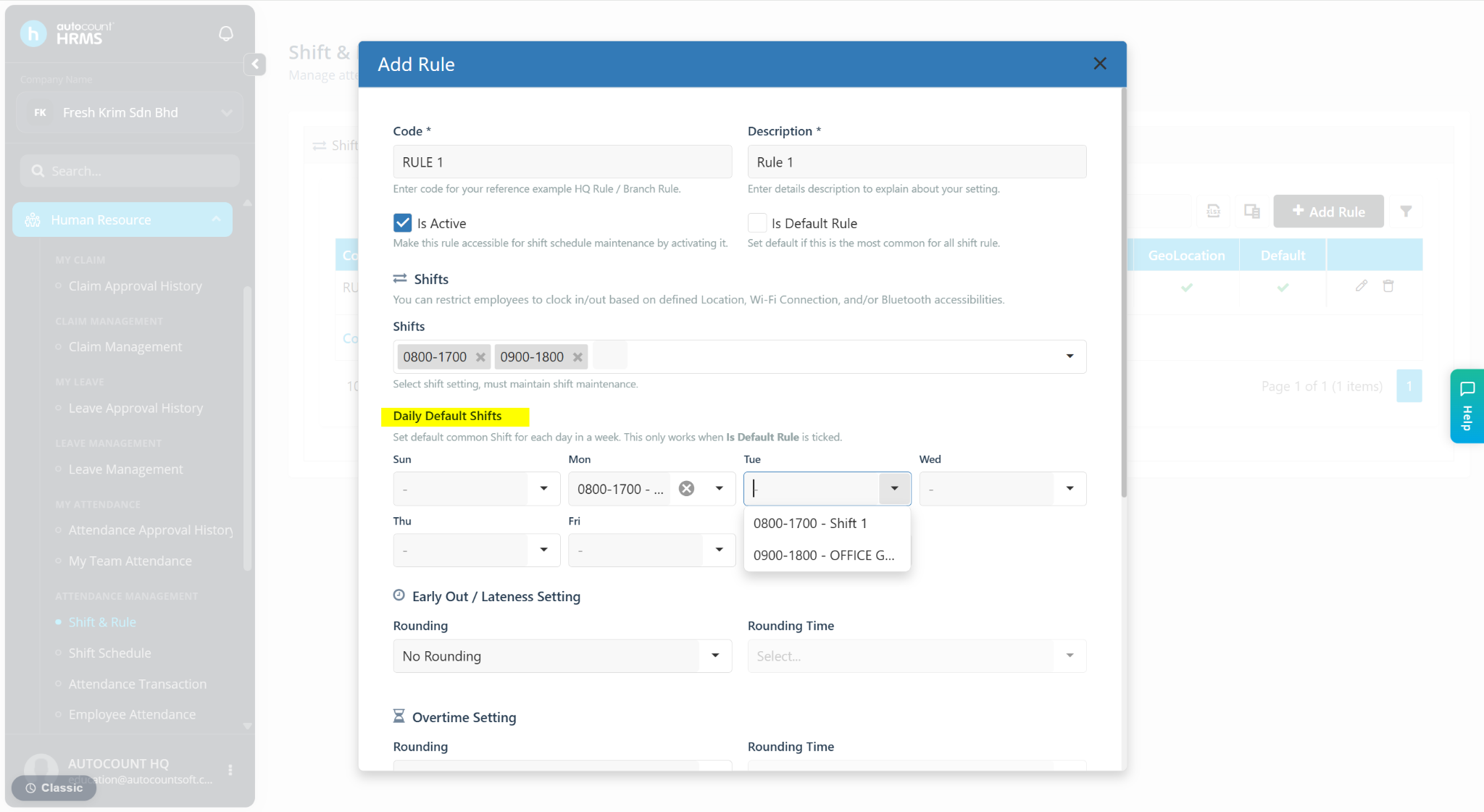
3. Review daily defaults and attendance settings
Under Daily Default Shifts, choose the usual shift for the relevant weekdays if this rule will serve as the default. The form states that these weekday defaults work only when Is Default Rule is ticked.
Review Early Out / Lateness Setting and Overtime Setting against your policy. Avoid copying example values without checking their effect on your staff.
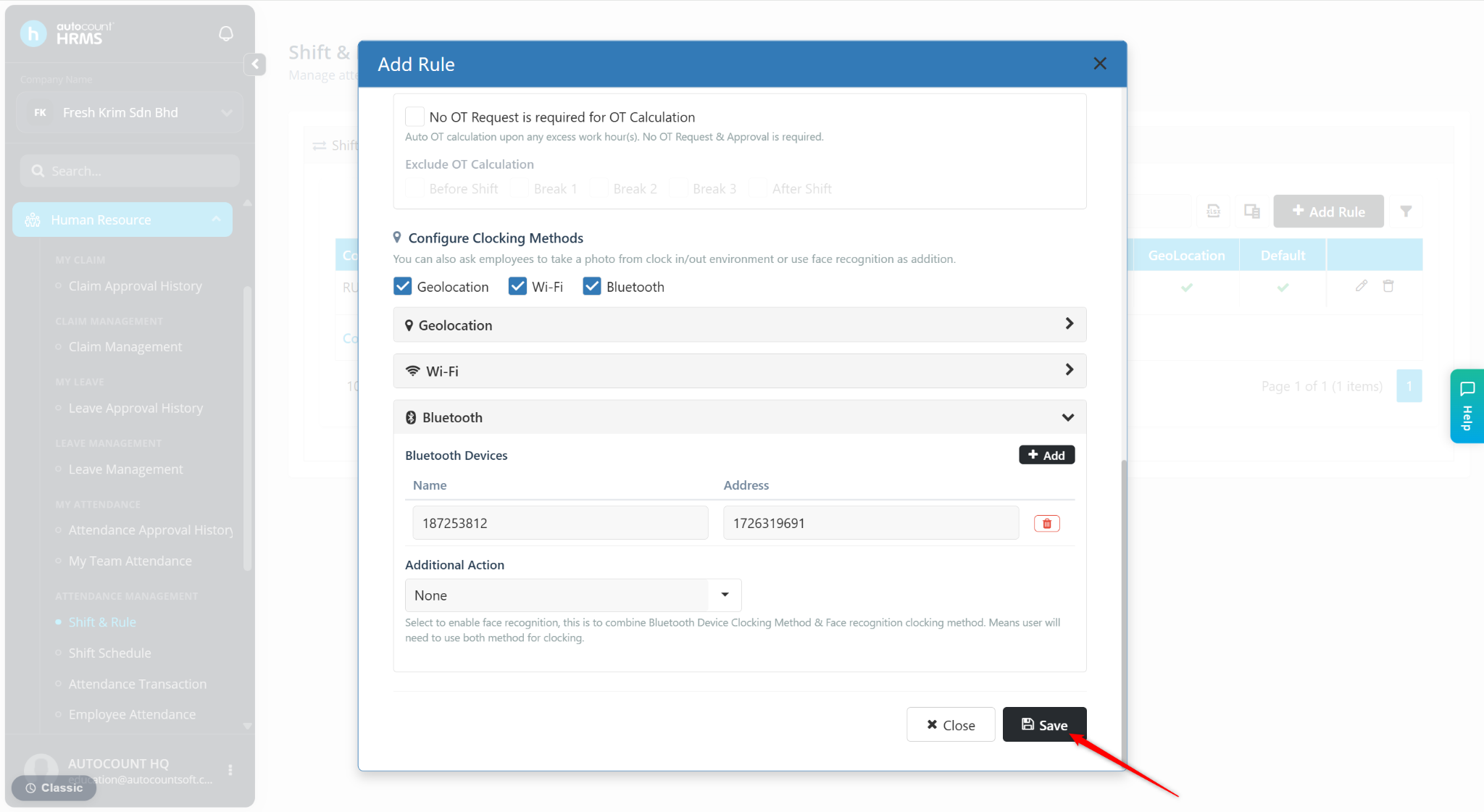
4. Configure clocking methods
Under Configure Clocking Methods, set the methods required by your policy:
- Geolocation: configure the permitted address and range, using Get Location to locate the address.
- Wi-Fi: add the approved network’s Name and Mac Address.
- Bluetooth: add the device Name and Address.
Select an Additional Action where required. For the full method-specific steps, see the official Rule Maintenance documentation.
5. Save the rule
Review the selected shifts and clocking settings, then click Save. Reopen the rule to check that the intended values were retained.
How to set the Default Rule
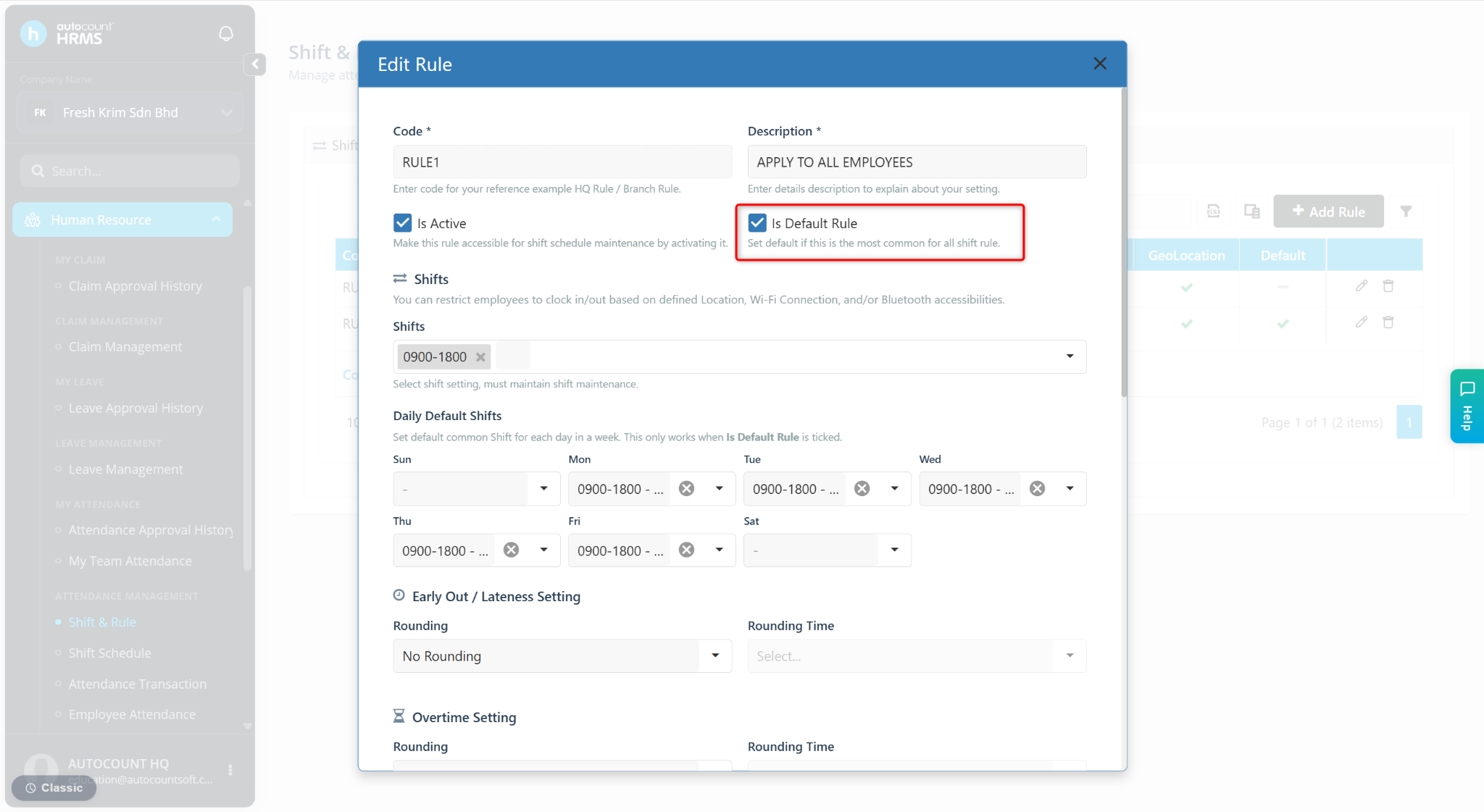
The Default Rule supplies a fallback working schedule when an employee has no specific shift assigned and is not included in a shift schedule.
- Return to Human Resources → Shift & Rule → Rule Maintenance.
- Find the intended rule and click its pencil icon.
- Tick Is Default Rule.
- Review Daily Default Shifts for the relevant weekdays, then save the rule.
Important: The default is a fallback. Check specific employee schedules before expecting it to apply.
Check the results and troubleshoot
- Reopen the saved rule and verify its shifts, active status and attendance settings.
- For a default rule, confirm Is Default Rule remains selected and the weekday shifts are correct.
- Check an employee without a specific or scheduled shift, and review the relevant attendance date.
- Test the intended clocking method before relying on the rule for routine attendance.
If a shift is unavailable
Check that it exists in Shift Maintenance, then review the rule’s Shifts selection.
If the default does not apply as expected
Check whether the employee already has a specific shift or an entry in Shift Schedule. Then review Is Default Rule and the weekday defaults.
If clocking is rejected
Compare the configured location, network or Bluetooth device details with those used by the employee. These are diagnostic checks; unresolved errors require the exact error message and attendance context.
Frequently asked questions
How is Rule Maintenance different from Shift Maintenance?
Shift Maintenance defines shift hours. Rule Maintenance groups applicable shifts with attendance settings such as clocking methods and overtime controls. Shift Schedule assigns employee schedules.
When does AutoCount HRMS use the Default Rule?
The official guide describes it as the fallback when an employee has no specific shift assigned and is not included in a shift schedule. Check individual assignments before expecting the default to apply.
Is Daily Default Shifts the same as Is Default Rule?
No. Is Default Rule marks the rule as the default. Daily Default Shifts selects the usual shift for each weekday within that rule; the form states that these weekday defaults work only when Is Default Rule is ticked.
Do I need to enable every clocking method?
Configure the methods required by your attendance policy. The form offers Geolocation, Wi-Fi and Bluetooth settings. Check the permitted locations, network details or device addresses before testing employee clocking.
Related guides
For product information, explore AutoCount e-Attendance.
Sources: AutoCount Rule Maintenance and Default Rule. Software screenshots: Auto Count Sdn Bhd. Instructions checked against these sources on 15 November 2026; interface labels may vary.
Need help setting up your attendance rules?
Contact SL Software Solutions for assistance with Rule Maintenance, Default Rule and employee shift schedules.
For troubleshooting, prepare the rule code, affected date, exact error and a screenshot with personal data hidden.