
-
AutoCount Accounting Features
-
- Approval Workflow
- Audit Trail
- Auto Save in Draft Folder
- AutoCount Contra Account
- AutoCount License Setting Guide
- Deposit Tracking & Management
- Documents Numbering Format
- Full Transfer and Partial Transfer
- Import Data to AutoCount Accounting Using Excel
- Informative Charts and Analytical Data
- Layout Customization
- Multi Pricing
- Sales and Services Tax
- Schedule Backup
- Search Lookup Edit
- View Documents Flow
- AutoCount Feature Stock Take
- Column Chooser
- Show Remaining (3) Collapse
-
AutoCount Cloud Accounting
-
AutoCount E-Invoice
-
AutoCount HRMS User Guide
-
AutoCount Modules
-
- Activity Stream
- Advanced Financial Report
- Advanced Item
- Advanced Multi-UOM
- Advanced Quotation Module
- Basic Multi-UOM
- Budget Module
- Consignment
- Filter By Salesman
- FOC Quantity
- Formula
- Item Batch
- Item Package
- Landing Cost
- Multi-Currency
- Multi-Dimensional Analysis
- Multi-Location
- Project Account
- Recurrence
- Remote Credit Control Module
- Stock Assembly
- User Defined Fields (UDF)
- AutoCount SST Hidden Functions
- AutoCount SST Submission - Service Tax
- AutoCount Scripting Module User Guide
- AutoCount Bonus Point Module User Guide
- AutoCount Service Management Plugin User Guide
- Show Remaining (12) Collapse
-
AutoCount Plugins
-
- Fixed Assets Management
- Goldsmith
- TD Ordering Mobile Apps
- TD Stock Mobile Apps
- Universal Import Plugin
- DMS Import Plugin
- AutoCount Pick List Plugin User Guide
- AutoCount Credit Memo Plugin User Guide
- AutoCount Lock Price Plugin
- AutoCount Progressive Billing
- AutoCount Easy Recurrence Plugin
- Batch Update Unit Price Plugin
- AutoCount Production order
- AutoCount Car Tint Film Plugin
-
- Event Management System
- AutoCount To-Do List Plugin
- AutoCount AutoBank Reconciliation Plugin
- Intercompany Billing Plugin User Guide
- Lead Management 2.0 Plugin
- AutoCount Service Contract Plugin User Guide
- AutoCount Optical Plugin
- AutoCount Integrator Plugin
- AutoCount Procurement Planning Plugin
- Cage Management Plugin
- AutoCount Vehicle Plugin
- AutoCount Agent Validation Plugin User Guide
- AutoCount Barcode Generator Plugin User Guide
- AutoCount Easy Batch Number Entry Plugin User Guide
- Warranty 2.0 Plugin
- AutoCount Easy Photo 2.0 User Guide
- AutoCount Recurring Invoice Plugin User Guide
- AutoCount Scale Barcode Plugin User Guide
- AutoCount Recurrence Late Interest Plugin
- AutoCount Item Visibility Control
- AutoCount Bill Remark Plugin User Guide
- AutoCount Pain Tracker User Guide
- AutoCount Easy Payment
- AutoCount Easy Deposit Plugin
- AutoCount Easy Knock Off Plugin
- AutoCount Daily Collection Summary Plugin
- Timber Log Plugins
- Batch Transfer SODO Plugin
- AutoCount Vege Basket Plugin Guide
- AutoCount Fruit Basket Plugin Guide
- Referral Management Plugin
- AutoCount Migrator Plugin
- AutoCount Email & WhatsApp Plugin
- AutoCount Multi Company Knock Off Plugin
- AutoCount Advance Aging Format Plugin
- AutoCount Payment Request Plugin
- AutoCount Vehicle Master Plugin
- AutoCount Advance Deposit Plugin
- AutoCount IC Checker Plugin
- AutoCount RMA Plugin
- AutoCount Historical Outstanding DO Listing Plugin
- AutoCount Project Department Visibility Control Plugin
- AutoCount MRP Order Plugin
- AutoCount GridToExcel Plugin
- AutoCount Stock Availability Report Plugin
- AutoCount Batch Transfer SO DO Plugin
- AutoCount Centralized Kitchen Management Plugin
- SL AutoCount API
- AutoCount InterCompany Billing Plugin
- AutoCount Sales Commission Plugin
- Advanced Credit Term Management Software for AutoCount
- AutoCount Advanced Stock Assembly Plugin
- AutoCount Shipment Plugin
- AutoCount Tour Plugin
- AutoCount Smart Analysis
- AutoCount Rental Management
- Show Remaining (41) Collapse
-
-
Form Template
-
Report Template
-
- Advance Quotation
- Cash Sale
- Consignment
- Consignment Movement
- Credit Note
- Debit Note
- Delivery Order
- FOC Quantity Analysis By Document Report
- Invoice
- Item Package Sales Report
- Monthly Sales Analysis
- Outstanding Sales Order Listing
- Profit And Loss Of Documents
- Quotation
- Sales Agent Contribution Report
- Sales Order
- Top/Bottom Sales Ranking
- Show Remaining (2) Collapse
-
- Available Stock Status Report
- Expired Item Batch Listing
- Inventory Physical Worksheet
- Stock Adjustment
- Stock Aging Report
- Stock Assembly
- Stock Assembly Order
- Stock Balance By Location
- Stock Balance Report
- Stock Card Report
- Stock Disassembly
- Stock Issue
- Stock Item Profit Margin
- Stock Movement Report
- Stock Receive
- Stock Take
- Stock Transfer
- Stock Write Off
- Show Remaining (3) Collapse
-
B2B ORDERING
-
AutoCount AI Agent
AutoCount Historical Outstanding DO Listing Plugin User Guide
What Is AutoCount Historical Outstanding DO Listing Plugin?
The AutoCount Historical Outstanding DO Listing Plugin is designed to help businesses track outstanding Delivery Orders (DOs), identify unbilled transactions, and review historical delivery order information within AutoCount Accounting. For businesses processing numerous deliveries, determining which Delivery Orders remained uninvoiced at a particular date can be challenging, especially when records have changed over time. With features such as Historical Cut-Off Date Reporting, Outstanding Delivery Order Analysis, Advanced Filtering, Multi-Level Grouping and Sorting, and Customizable Report Layouts, the Historical Outstanding DO Listing Plugin helps businesses review outstanding delivery transactions more efficiently. By providing visibility into outstanding Delivery Order quantities and values as of a selected historical date, businesses can improve document checking, support reconciliation, and maintain better control over their sales documentation.
Why Use AutoCount Historical Outstanding DO Listing Plugin?
Businesses handling frequent Delivery Orders may need to review outstanding transactions from previous accounting periods.
Without historical reporting, identifying unbilled Delivery Orders and checking outstanding quantities can require additional manual work.
The Historical Outstanding DO Listing Plugin helps businesses overcome these challenges through more organized reporting.
Track Historical Outstanding Delivery Orders
Review Delivery Orders that remained outstanding as of a selected historical date to support sales document monitoring.
Identify Unbilled Delivery Transactions
Review outstanding Delivery Order quantities and values to identify deliveries that require further invoicing checks.
Simplify Outstanding DO Analysis
Filter and group outstanding Delivery Order information according to customers, sales agents, items, locations, and other relevant criteria.
Improve Reporting and Reconciliation
Generate detailed historical reports to support transaction verification, accounting reconciliation, and management review.
Key Features of AutoCount Historical Outstanding DO Listing Plugin
Historical Cut-Off Date Reporting
Generate outstanding Delivery Order listings based on a selected historical date to review unbilled transactions for the required period.
Advanced Delivery Order Filtering
Narrow down outstanding Delivery Order records using document, customer, sales agent, item, location, batch, and other available filters.
Flexible Grouping and Sorting
Organize outstanding Delivery Order information using different grouping and sorting criteria for more structured reporting.
Customizable Report Output
Preview, print, export, and customize report layouts according to the available report functions and user permissions.
Who Should Use AutoCount Pain Tracker Plugin?
Wholesale & Distribution Businesses
Ideal for businesses handling frequent Delivery Orders that require monitoring of outstanding or uninvoiced delivery transactions.
Accounts & Billing Teams
Helps accounting personnel identify outstanding Delivery Orders and review transactions that may require further billing checks.
Sales & Operations Teams
Useful for teams monitoring Delivery Order activity across different customers, sales agents, items, and operating locations.
Finance Managers & Auditors
Supports historical transaction review, outstanding document analysis, and reconciliation of delivery-related information.
How AutoCount Historical Outstanding DO Listing Plugin Works
A. Access Rights
An administrator assigns access rights in AutoCount before a user can open or output the Historical
Outstanding Delivery Order Detail Listing.
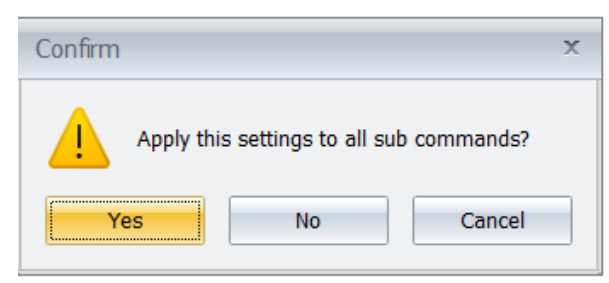
1. Open Access Rights and expand SL Plug-Ins > Historical Outstanding DO Listing.

2. Assign Show and Open Historical Outstanding Delivery Order Detail Listing to users who need to run
the inquiry.
3. Assign Preview, Print, and Export Historical Outstanding Delivery Order Detail Listing only when the
user needs the related output action.

4. Save the access-right changes. Without Show access, the listing is not available to the user.
B. Run Historical Outstanding Delivery Order Detail Listing
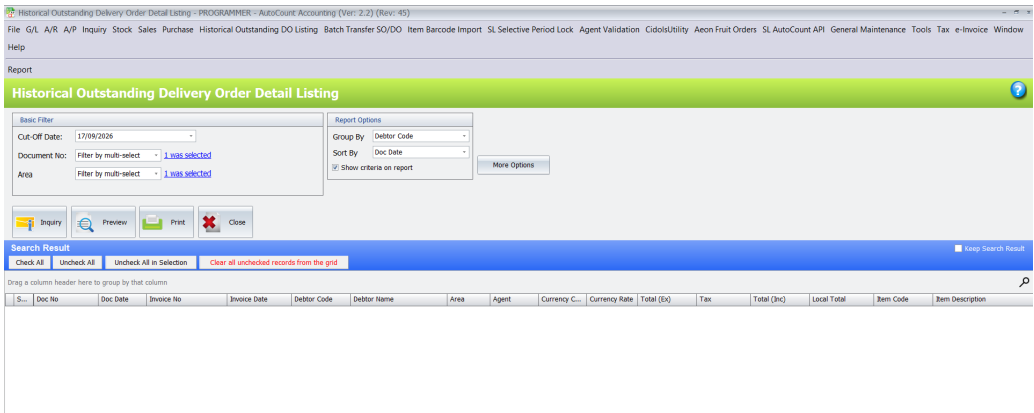
This listing shows Delivery Order detail outstanding at the selected cut-off date. The Cut-Off Date is
required and defaults to the current date.
B.1 Set basic filters
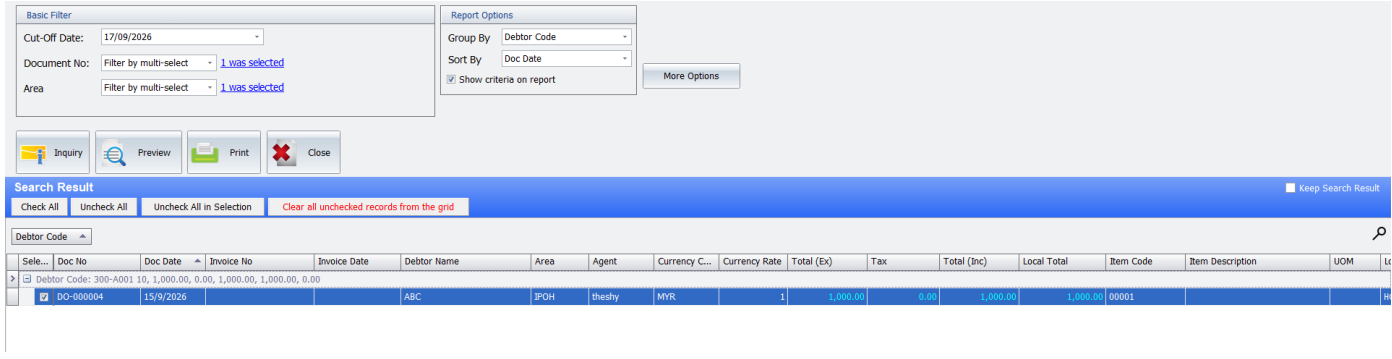
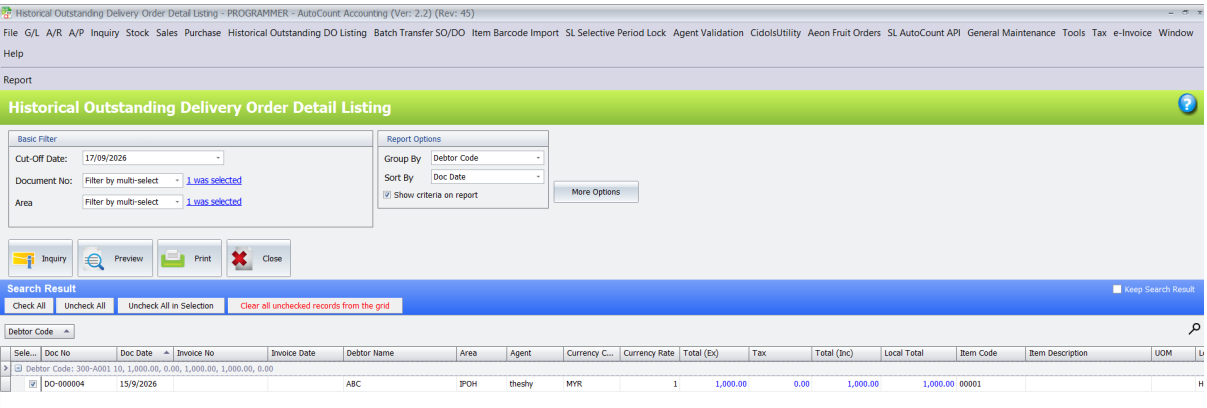
1. Open Historical Outstanding DO Listing > Historical Outstanding Delivery Order Detail Listing.

2. Set Cut-Off Date to the date for which outstanding quantities and values are required.
3. Use Document No to limit the result to selected Delivery Orders.
4. Use Area to limit the result to the selected areas.
5. Choose Group By and Sort By. Grouping is available by None, Debtor Code, Area, Agent,
Currency Code, Doc Date, Month, Year, Item Code, Location, or Proj No.
6. Select Show criteria on report when the chosen filters must be printed on the report.
B.2 Set more filter options
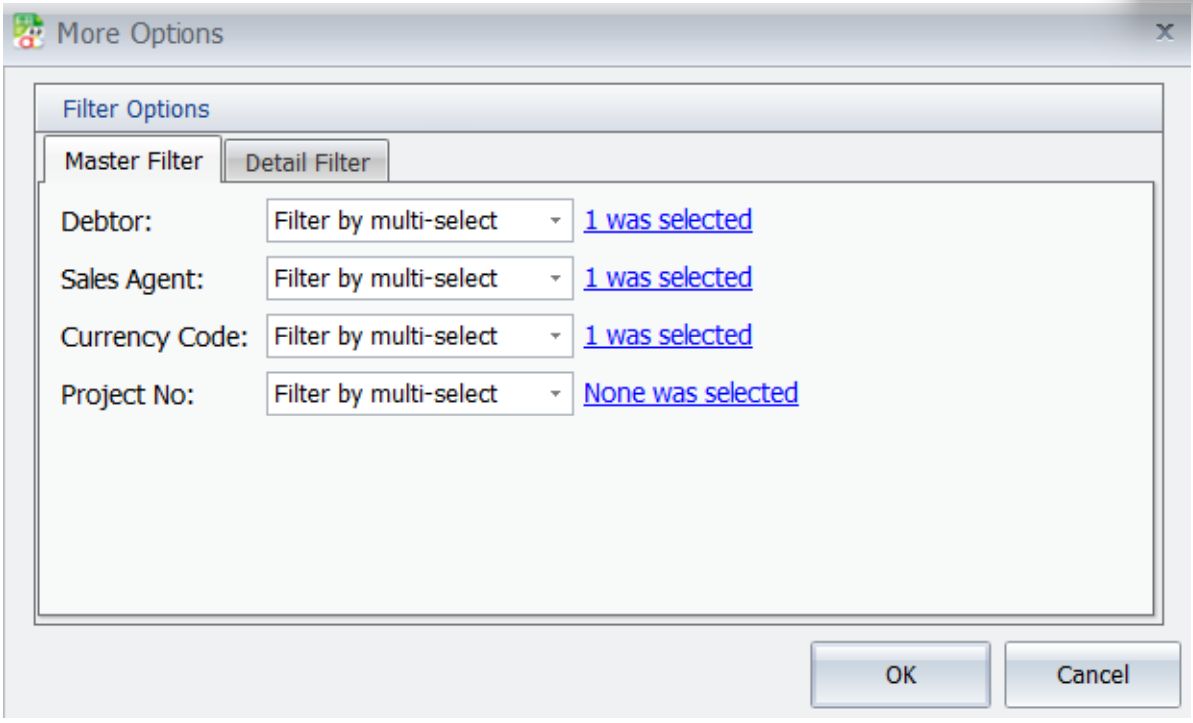
5. Click More Options.
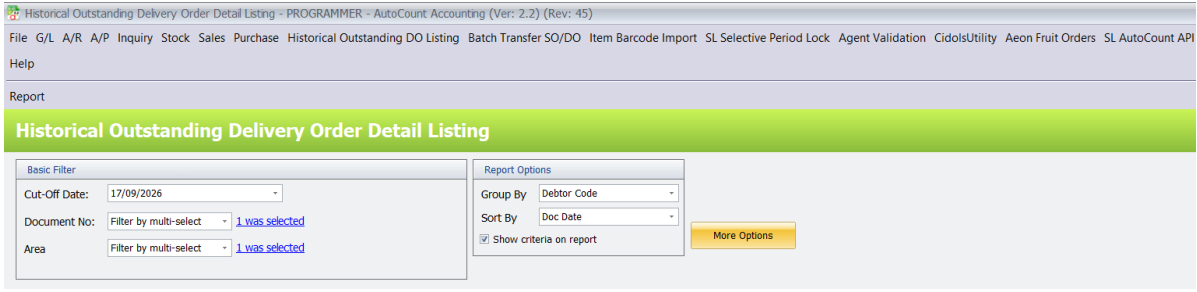
6. On Master Filter, select Debtor, Sales Agent, Currency Code, or Project No as needed.
7. On Detail Filter, select Item, Location, or Batch No as needed.
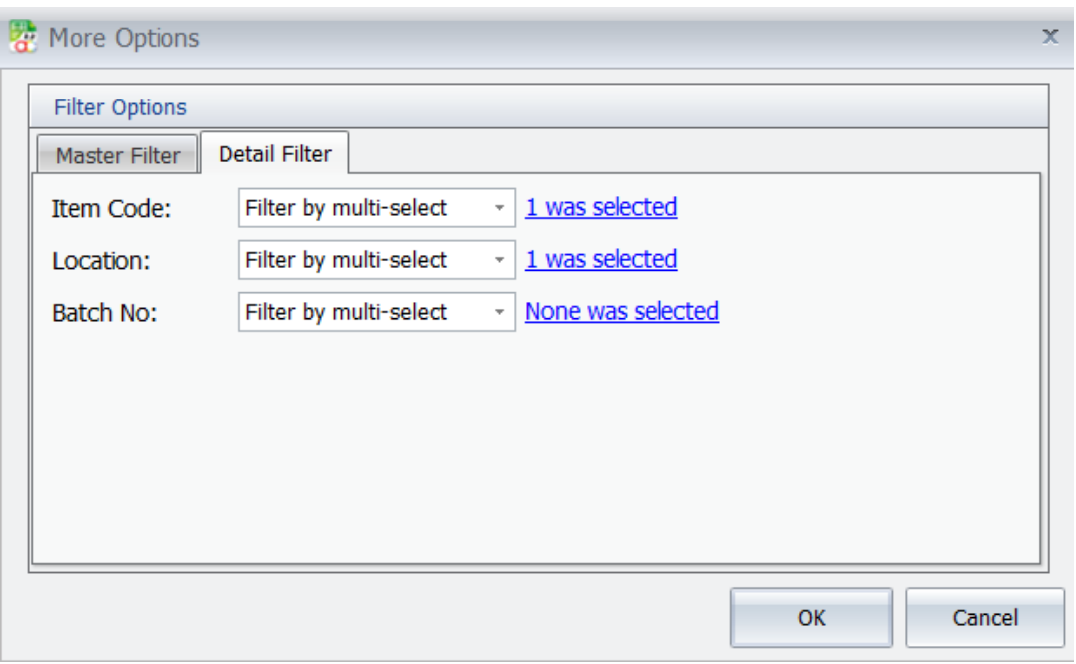
8. Click OK to apply the additional filters.
C. Preview Print or Export the Report
Preview, Print, and Export are available only when the corresponding access rights are granted.
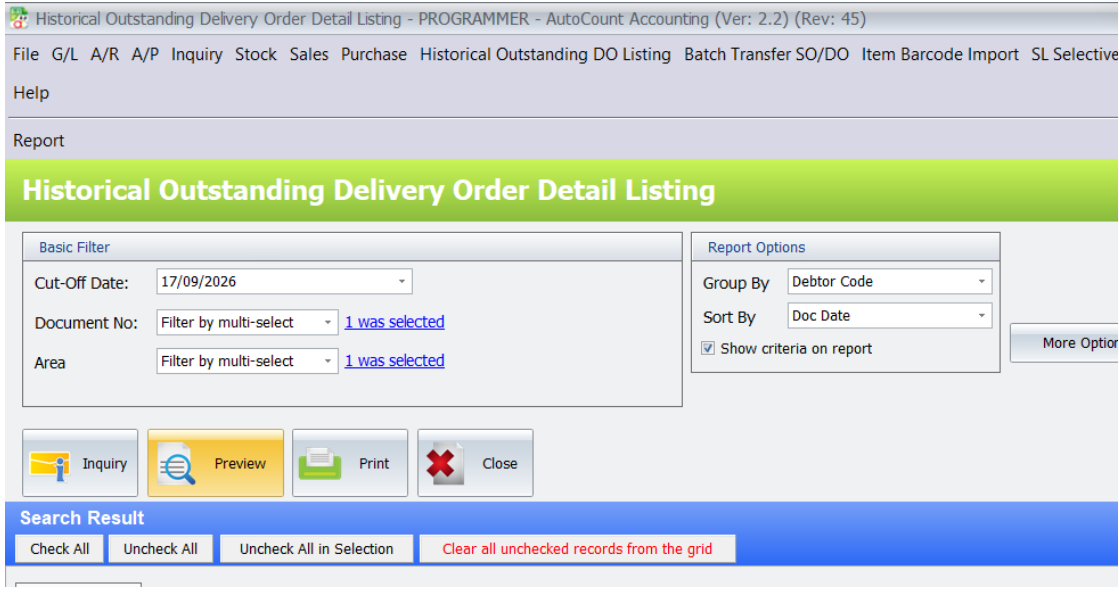
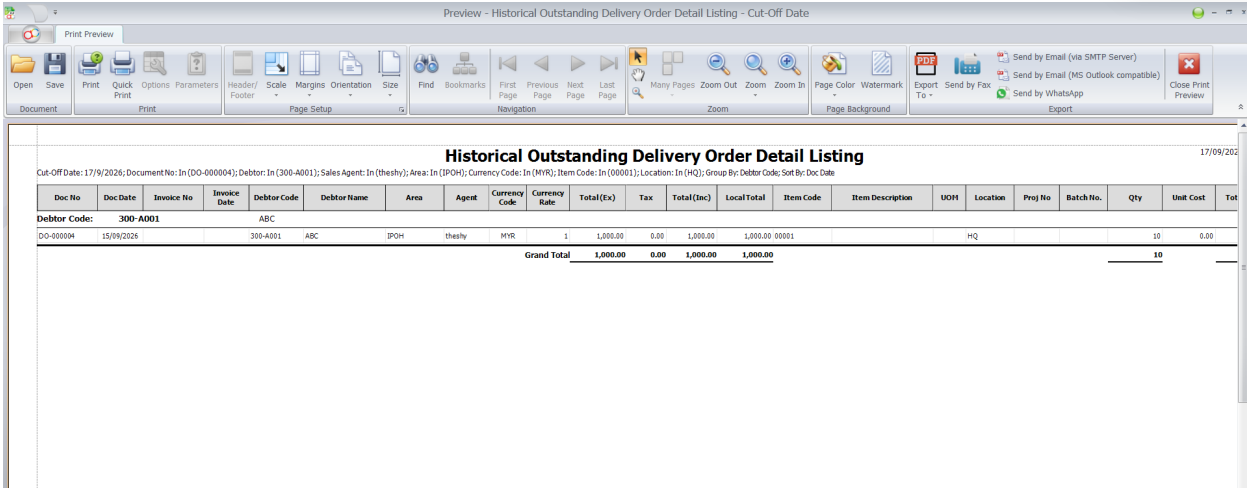
9. After running Inquiry, click Preview to view the Historical Outstanding Delivery Order Detail Listing
report.
10. Click Print to send the report to the configured printer.
11. Use the report export action to create an output file in the required format.
12. Check Show criteria on report before previewing or printing when the report must include the selected
cut-off date, filters, grouping, and sorting.
D. Design the Report
The Report menu shows Design Historical Outstanding Delivery Order Detail Listing Report only to users
who have the report-design access right.
13. Open the listing screen and select Report > Design Historical Outstanding Delivery Order Detail
Listing Report.

14. Make the required layout changes in the report designer.
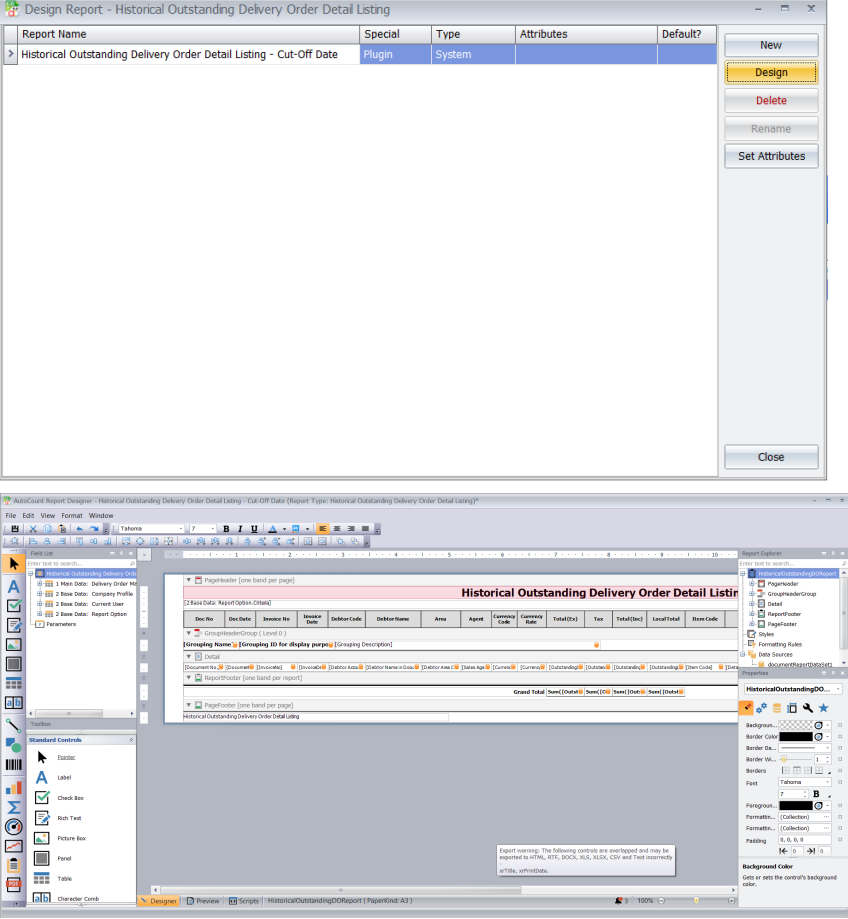
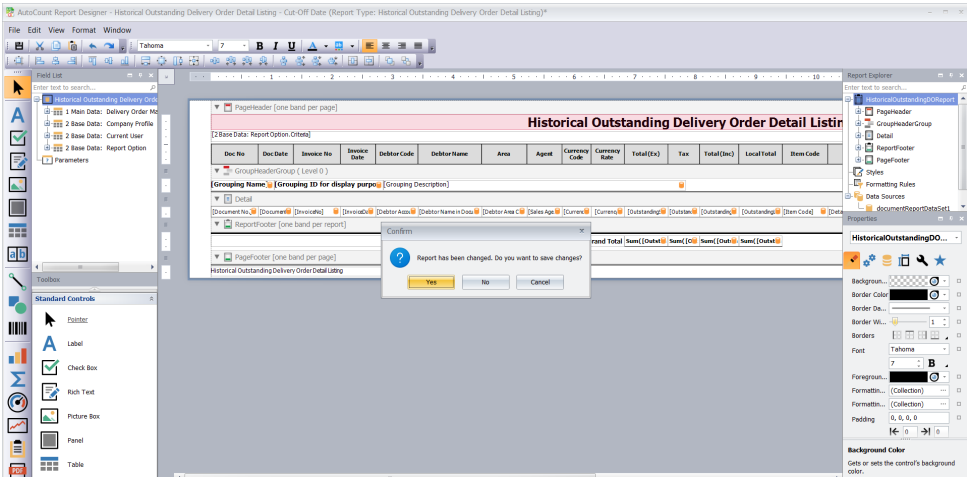
15. Save the report design and run Inquiry followed by Preview to review the result.
Benefits of Using the Historical Outstanding DO Listing Plugin
Better Historical Delivery Visibility
Review outstanding Delivery Orders as of selected historical dates to maintain clearer visibility into earlier unbilled transactions.
More Efficient Billing Checks
Identify outstanding Delivery Order quantities and values to support more organized invoice verification and follow-up.
Flexible Business Reporting
Analyze historical Delivery Order information using relevant filters, grouping options, and customizable report layouts.
Improved Reporting Control
Manage report access, printing, exporting, and layout design permissions to support controlled reporting processes.
Conclusion
The AutoCount Historical Outstanding DO Listing Plugin provides businesses with a practical solution for reviewing unbilled Delivery Orders and analyzing outstanding delivery transactions from previous reporting periods.
By combining historical cut-off date reporting, detailed outstanding quantity and value information, advanced filtering, flexible grouping, and customizable reporting, businesses can reduce manual checking and maintain better visibility into delivery-related transactions.
For distributors, accounting teams, sales departments, and finance managers, the Historical Outstanding DO Listing Plugin helps establish a more organized approach to historical delivery order reporting and reconciliation.
Frequently Asked Questions
What is the AutoCount Historical Outstanding DO Listing Plugin?
The AutoCount Historical Outstanding DO Listing Plugin is an add-on for AutoCount Accounting that helps businesses generate detailed reports of Delivery Orders that remained outstanding or uninvoiced as of a selected historical cut-off date.
How does the Historical Outstanding DO Listing Plugin help businesses?
The plugin helps businesses identify historical outstanding Delivery Orders, review unbilled quantities and values, and prepare reports for transaction checking and accounting reconciliation.
Can the plugin generate reports for previous dates?
Yes. The plugin allows users to select a historical Cut-Off Date to review outstanding Delivery Order information associated with that reporting date.
Can businesses filter outstanding Delivery Orders by customer or sales agent?
Yes. The plugin supports filtering by Debtor, Sales Agent, Document No, Area, Currency Code, Project No, Item, Location, and Batch No, according to the available filtering options.
Can the plugin group outstanding Delivery Orders by different categories?
Yes. The plugin supports grouping by criteria such as Debtor Code, Area, Sales Agent, Currency Code, Document Date, Month, Year, Item Code, Location, and Project Number.
Can users print or export historical outstanding Delivery Order reports?
Yes. Authorized users can preview, print, and export reports using the plugin’s available reporting functions.
Start Tracking Your Historical Outstanding Delivery Orders Today!
Managing outstanding Delivery Orders from previous accounting periods should not require unnecessary manual checking.
With the AutoCount Historical Outstanding DO Listing Plugin, your business can review historical unbilled Delivery Orders, analyze outstanding quantities and values, and generate detailed reports for more efficient transaction checking.
Looking for a better way to monitor historical outstanding Delivery Orders?
Contact SL Software Solutions Sdn. Bhd. to learn how the Historical Outstanding DO Listing Plugin can support your business reporting and reconciliation needs.
Outstanding Delivery Order Report for Historical Month-End Clarity
Review what remained unbilled at a selected cut-off date, even when invoices were issued later. Bring historical DO quantities and values into a clearer reconciliation workflow.
What was unbilled then?
Today’s outstanding list answers a different question
A Delivery Order may have been unbilled at month-end and invoiced a few days later. By the time you review the current outstanding position, it may no longer appear as outstanding.
AutoCount Historical Outstanding DO Listing Plugin helps you review the quantities and values that were outstanding at your chosen historical cut-off date.
Delivered in September. Invoiced in October.
The historical report supports reconciliation of delivered but unbilled transactions. It does not replace your accounting review or automatically generate Sales Invoices.
Less manual reconstruction. Clearer historical records.
Earlier outstanding positions are hard to reconstruct
Review the selected historical cut-off rather than relying only on current status.
Reconciliation needs quantities and values
Examine the detail behind previously unbilled deliveries.
Customer reviews need a focused view
Filter and group relevant deliveries by debtor and sales dimensions.
Reports need the right inventory detail
Narrow the review by item, inventory location or batch.
Ten features for historical delivery reporting
Keep the reporting period, outstanding detail and relevant business dimensions in view.
Historical outstanding Delivery Order tracking
Review Delivery Order details that remained unbilled at a selected historical cut-off date, including deliveries subsequently invoiced. This provides a prior-period perspective alongside your current billing position.
The date changes the question
Outstanding quantity & value reporting
Review both the quantities and corresponding values that remained outstanding at the reporting cut-off. Use the detail listing to support delivery-to-invoice reconciliation and billing follow-up.
An outstanding quantity example
Customer & debtor-based analysis
Filter the historical listing for selected debtor accounts and group the results by customer. Review relevant deliveries without working through every customer record.
Focus on the customer
Sales Agent & Area reporting
Filter by Sales Agent and Area, and organise the listing around the relevant sales dimensions. Help teams examine how outstanding deliveries are distributed across sales responsibilities.
Review the relevant sales segment
Item, Location & Batch Number filtering
Narrow the report by Item Code, inventory Location and Batch Number. These filters help isolate relevant historical delivery details for product, warehouse or batch investigations.
Narrow the delivery records
Multi-dimensional grouping & sorting
Choose a non-grouped listing or group by Debtor Code, Area, Sales Agent, Currency Code, Document Date, Month, Year, Item Code, Location or Project Number. Sorting options help organise the resulting information.
Different views of the same records
Project & currency-based reporting
Filter historical outstanding deliveries by Project Number and Currency Code, with relevant grouping options. Keep a selected project or currency in focus during the review.
Keep the reporting scope clear
Customisable report layouts
Authorised users can maintain suitable layouts through the built-in report designer. Adapt the presentation of customer information, Delivery Order details and outstanding quantities to internal reporting needs.
Presentation that fits your review
Report preview, printing & export
Preview, print and export historical outstanding delivery information, subject to user permissions. Selected criteria can be included in the printed report to make its reporting scope clearer.
A report with context
Role-based reporting access rights
Assign permissions for showing and opening the listing, report preview, printing, exporting and report design. Separate everyday reporting access from report customisation responsibilities.
Permissions for reporting actions
Need to explain a previous month’s unbilled deliveries?
Discuss your reporting cut-off, filters and reconciliation needs.
September deliveries, reviewed after October invoicing
An electrical distributor needs to understand its unbilled position at 30 September 2026.
RM500,000 in Delivery Orders
September deliveries are recorded, with RM420,000 invoiced by the reporting cut-off.
Some deliveries are billed in October
The current outstanding position changes as subsequent invoicing takes place.
RM80,000 unbilled at cut-off
Review the historical position at 30 September, then analyse by customer and other relevant dimensions.
A dedicated historical schedule supports the accounts team’s reconciliation without relying entirely on manually reconstructing the earlier delivery-to-invoice position. All amounts are illustrative.
For businesses that deliver first and invoice later
Wholesale, trading & distribution
Review high volumes of historical outstanding deliveries by customer, product and location.
Building materials & project suppliers
Focus reconciliation on relevant customers, areas and projects.
Manufacturing & hardware businesses
Review the historical delivery and billing position for goods supplied before invoicing.
Get help matching the report to your workflow
An authorised AutoCount dealer in Malaysia providing consultation, implementation, training and technical assistance.
Reporting consultation
Discuss cut-off reporting, reconciliation and required dimensions.
Implementation
Assess applicable arrangements for your AutoCount environment.
Employee training
Help employees understand the relevant reporting workflow.
Technical assistance
Usage and troubleshooting support under the applicable service arrangement.
Before choosing your outstanding Delivery Order report
What is a historical outstanding Delivery Order report?
It shows DO details that remained unbilled at a selected historical cut-off date. This can differ from today’s outstanding position when invoices have been issued after the cut-off.
Can it review earlier months after the DO has been invoiced?
Yes. The documented historical cut-off reporting allows authorised users to evaluate quantities and values outstanding at the chosen date, including deliveries subsequently invoiced.
Does it report both quantities and values?
Yes. The detailed listing provides historical outstanding quantity and value information to support delivery-to-invoice reconciliation.
Which filters are available?
Documented filters include debtor, Sales Agent, Area, Item Code, inventory Location, Batch Number, Project Number and Currency Code.
Can it group by customer, month or project?
Yes. Grouping dimensions include Debtor Code, Area, Sales Agent, Currency Code, Document Date, Month, Year, Item Code, Location and Project Number. A non-grouped listing and sorting options are also available.
Can users customise, print or export the report?
Yes, subject to permissions. The documented functions include report design, preview, printing and export. Selected criteria can also be included in the printed report.
Does the plugin automatically create invoices or complete reconciliation?
Automatic Sales Invoice generation is not an established feature. The plugin provides historical reporting and analysis to support your company’s accounting review and reconciliation procedures.
What about access, compatibility and pricing?
Access rights cover showing/opening the listing, preview, print, export and report design. Compatibility depends on AutoCount and plugin versions, modules and licensing. Contact SL Software Solutions for assessment, current quotation information and a demonstration.
See the unbilled delivery position at the date that matters.
Tell us how you review Delivery Orders and subsequent invoicing. We’ll help assess whether Historical Outstanding DO Listing fits your reporting needs.
014-967 2631 · autocountsystem@gmail.com