
-
AutoCount Accounting Features
-
- Approval Workflow
- Audit Trail
- Auto Save in Draft Folder
- AutoCount Contra Account
- AutoCount License Setting Guide
- Deposit Tracking & Management
- Documents Numbering Format
- Full Transfer and Partial Transfer
- Import Data to AutoCount Accounting Using Excel
- Informative Charts and Analytical Data
- Layout Customization
- Multi Pricing
- Sales and Services Tax
- Schedule Backup
- Search Lookup Edit
- View Documents Flow
- AutoCount Feature Stock Take
- Column Chooser
- Show Remaining (3) Collapse
-
AutoCount Cloud Accounting
-
AutoCount E-Invoice
-
AutoCount HRMS User Guide
-
AutoCount Modules
-
- Activity Stream
- Advanced Financial Report
- Advanced Item
- Advanced Multi-UOM
- Advanced Quotation Module
- Basic Multi-UOM
- Budget Module
- Consignment
- Filter By Salesman
- FOC Quantity
- Formula
- Item Batch
- Item Package
- Landing Cost
- Multi-Currency
- Multi-Dimensional Analysis
- Multi-Location
- Project Account
- Recurrence
- Remote Credit Control Module
- Stock Assembly
- User Defined Fields (UDF)
- AutoCount SST Hidden Functions
- AutoCount SST Submission - Service Tax
- AutoCount Scripting Module User Guide
- AutoCount Bonus Point Module User Guide
- AutoCount Service Management Plugin User Guide
- Show Remaining (12) Collapse
-
AutoCount Plugins
-
- Fixed Assets Management
- Goldsmith
- TD Ordering Mobile Apps
- TD Stock Mobile Apps
- Universal Import Plugin
- DMS Import Plugin
- AutoCount Pick List Plugin User Guide
- AutoCount Credit Memo Plugin User Guide
- AutoCount Lock Price Plugin
- AutoCount Progressive Billing
- AutoCount Easy Recurrence Plugin
- Batch Update Unit Price Plugin
- AutoCount Production order
- AutoCount Car Tint Film Plugin
-
- Event Management System
- AutoCount To-Do List Plugin
- AutoCount AutoBank Reconciliation Plugin
- Intercompany Billing Plugin User Guide
- Lead Management 2.0 Plugin
- AutoCount Service Contract Plugin User Guide
- AutoCount Optical Plugin
- AutoCount Integrator Plugin
- AutoCount Procurement Planning Plugin
- Cage Management Plugin
- AutoCount Vehicle Plugin
- AutoCount Agent Validation Plugin User Guide
- AutoCount Barcode Generator Plugin User Guide
- AutoCount Easy Batch Number Entry Plugin User Guide
- Warranty 2.0 Plugin
- AutoCount Easy Photo 2.0 User Guide
- AutoCount Recurring Invoice Plugin User Guide
- AutoCount Scale Barcode Plugin User Guide
- AutoCount Recurrence Late Interest Plugin
- AutoCount Item Visibility Control
- AutoCount Bill Remark Plugin User Guide
- AutoCount Pain Tracker User Guide
- AutoCount Easy Payment
- AutoCount Easy Deposit Plugin
- AutoCount Easy Knock Off Plugin
- AutoCount Daily Collection Summary Plugin
- Timber Log Plugins
- Batch Transfer SODO Plugin
- AutoCount Vege Basket Plugin Guide
- AutoCount Fruit Basket Plugin Guide
- Referral Management Plugin
- AutoCount Migrator Plugin
- AutoCount Email & WhatsApp Plugin
- AutoCount Multi Company Knock Off Plugin
- AutoCount Advance Aging Format Plugin
- AutoCount Payment Request Plugin
- AutoCount Vehicle Master Plugin
- AutoCount Advance Deposit Plugin
- AutoCount IC Checker Plugin
- AutoCount RMA Plugin
- AutoCount Historical Outstanding DO Listing Plugin
- AutoCount Project Department Visibility Control Plugin
- AutoCount MRP Order Plugin
- AutoCount GridToExcel Plugin
- AutoCount Stock Availability Report Plugin
- AutoCount Batch Transfer SO DO Plugin
- AutoCount Centralized Kitchen Management Plugin
- SL AutoCount API
- AutoCount InterCompany Billing Plugin
- AutoCount Sales Commission Plugin
- AutoCount Advanced Credit Term Plugin
- AutoCount Advanced Stock Assembly Plugin
- AutoCount Shipment Plugin
- AutoCount Tour Plugin
- AutoCount Smart Analysis
- AutoCount Rental Management
- Show Remaining (41) Collapse
-
-
Form Template
-
Report Template
-
- Advance Quotation
- Cash Sale
- Consignment
- Consignment Movement
- Credit Note
- Debit Note
- Delivery Order
- FOC Quantity Analysis By Document Report
- Invoice
- Item Package Sales Report
- Monthly Sales Analysis
- Outstanding Sales Order Listing
- Profit And Loss Of Documents
- Quotation
- Sales Agent Contribution Report
- Sales Order
- Top/Bottom Sales Ranking
- Show Remaining (2) Collapse
-
- Available Stock Status Report
- Expired Item Batch Listing
- Inventory Physical Worksheet
- Stock Adjustment
- Stock Aging Report
- Stock Assembly
- Stock Assembly Order
- Stock Balance By Location
- Stock Balance Report
- Stock Card Report
- Stock Disassembly
- Stock Issue
- Stock Item Profit Margin
- Stock Movement Report
- Stock Receive
- Stock Take
- Stock Transfer
- Stock Write Off
- Show Remaining (3) Collapse
-
B2B ORDERING
-
AutoCount AI Agent
AutoCount Payment Request Plugin User Guide
What Is AutoCount Payment Request Plugin?
The AutoCount Payment Request Plugin helps businesses organize outstanding customer Invoices and Debit Notes into formal payment requests within AutoCount Accounting. With features such as Payment Request Creation, Billing Note Generation, Payment Status Tracking, A/R Payment Transfer, and Outstanding Balance Updates, businesses can manage customer collection activities more efficiently. For companies looking for payment request software, this plugin reduces manual follow-ups, simplifies payment recording, and improves visibility over outstanding receivables.
Why Use AutoCount Payment Request Plugin?
Managing outstanding customer payments manually can lead to missed follow-ups, duplicated collection work, and difficulty tracking payment progress.
The AutoCount Payment Request Plugin provides a structured way to organize payment requests and monitor outstanding customer balances.
Simplify Customer Payment Requests
Consolidate selected outstanding customer Invoices and Debit Notes into formal payment requests for easier collection management.
Improve Payment Collection Tracking
Monitor awaiting, partially paid, and fully paid requests to identify outstanding customer payments more easily.
Reduce Manual Payment Processing
Transfer eligible payment requests into AutoCount A/R Payments without repeatedly selecting the same outstanding documents.
Maintain Better Financial Control
Manage payment requests, outstanding balances, document changes, and user permissions through a controlled accounting workflow.
Key Features of the AutoCount Payment Request Plugin
Consolidated Payment Request Creation
Combine selected outstanding customer Invoices and Debit Notes into one Payment Request with the relevant payment information.
Professional Billing Note Generation
Preview, print, or export Payment Request reports to provide customers with clear information about outstanding amounts.
A/R Payment Transfer & Balance Updates
Transfer eligible Payment Requests into AutoCount A/R Payments and maintain updated payment and outstanding balance information.
Payment Status Monitoring & Access Control
Track pending, partially paid, completed, and voided requests while controlling employee access through user permissions.
Who Should Use AutoCount Payment Request Plugin?
Businesses Offering Credit Terms
Ideal for companies that issue customer Invoices on credit and require a structured process for requesting payment.
Accounts Receivable & Credit Control Teams
Suitable for accounting personnel responsible for managing outstanding customer invoices and collection follow-ups.
Wholesale & Distribution Companies
Useful for businesses handling numerous customer transactions that need to combine several outstanding documents into payment requests.
Finance Managers & SME Owners
Helps decision-makers monitor customer payment progress and maintain better visibility over outstanding receivables.
How AutoCount Payment Request Plugin Works
A. Access Rights
Administrators control which Payment Request functions each user or user group can use.
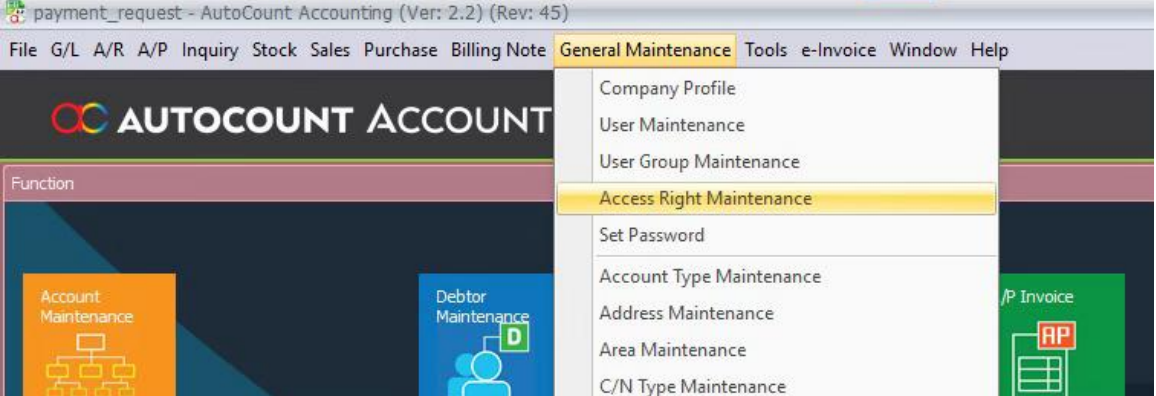
1. Open General Maintenance > Access Right Maintenance.
2. Select the user or user group, then expand SL Plug-In > Payment Request.
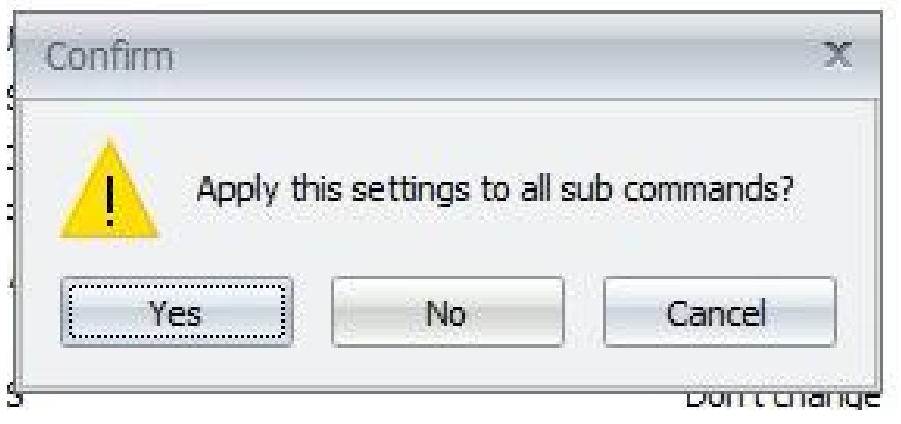
3. Enable only the required rights: Preview Report, Print Report, Export Report, Create Payment Request, View Payment Request, Edit Payment Request, Delete Payment Request, Void Payment Request, Transfer Payment Request to A/R Payment, and Show License Control.
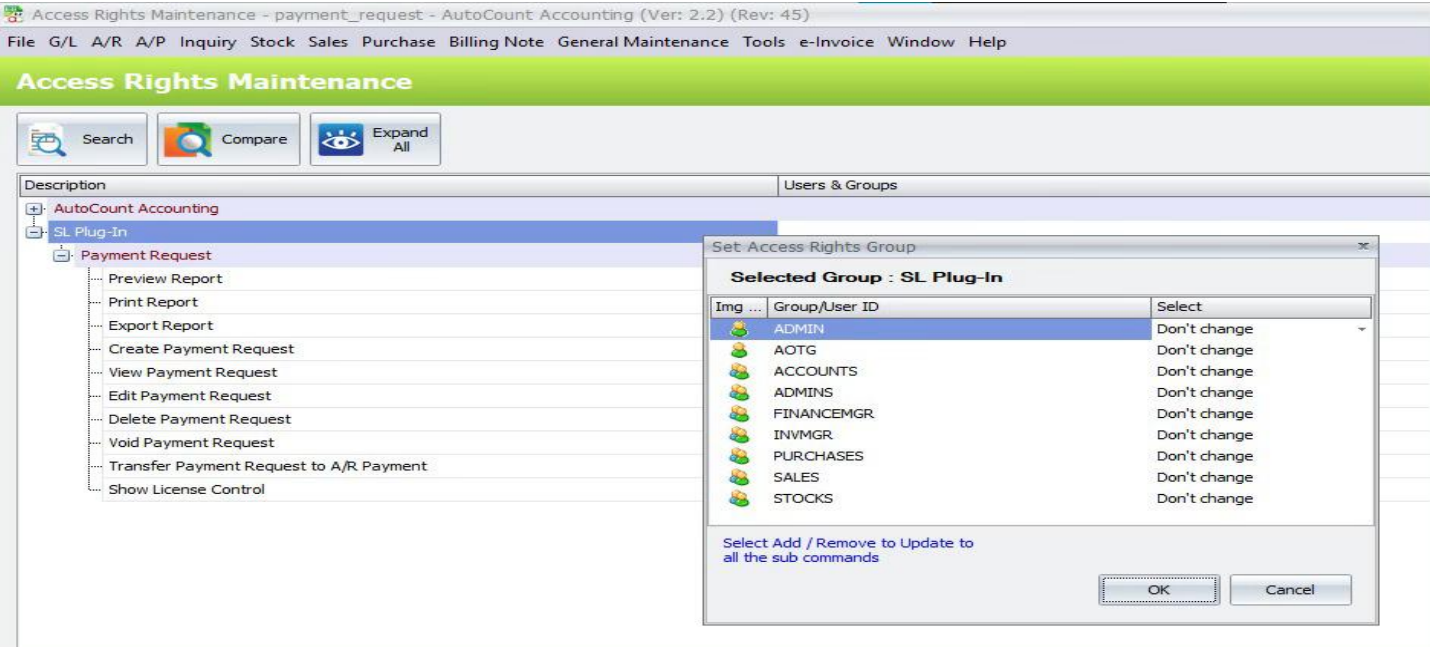
4. Save the access-right changes.
B. Payment Request Listing
The Payment Request listing is used to create, review and manage customer payment requests.
1. Open A/R > Payment Request.
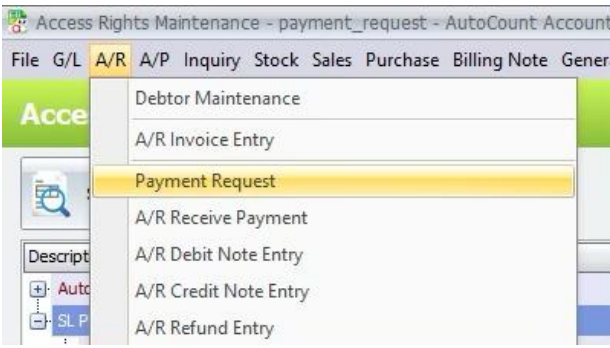
2. Use All to review all Payment Request records.
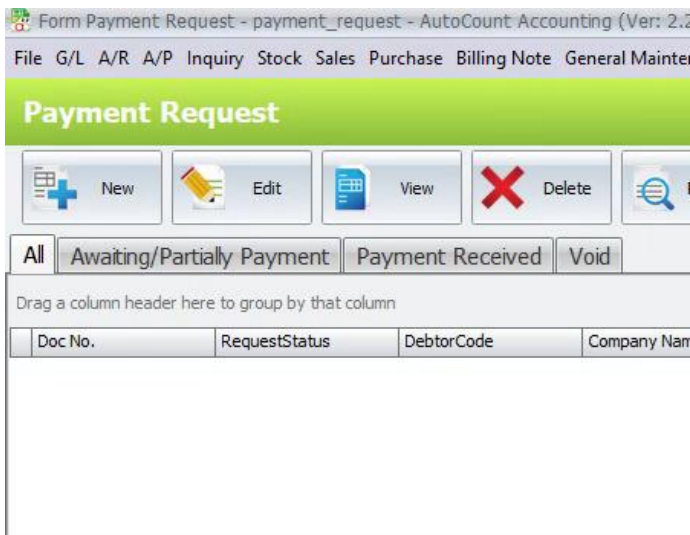
3. Use Awaiting/Partially Payment for active requests, Payment Received for completed requests, andVoid for cancelled requests.
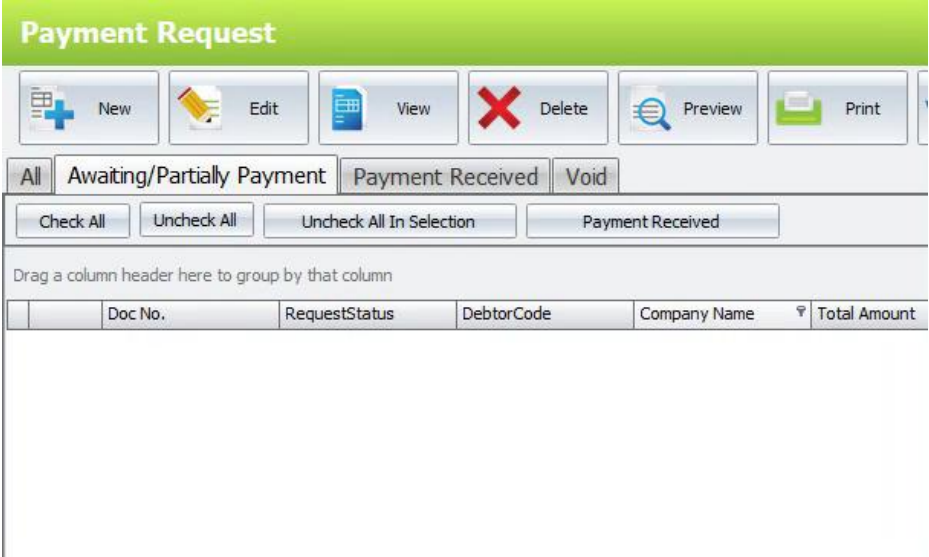
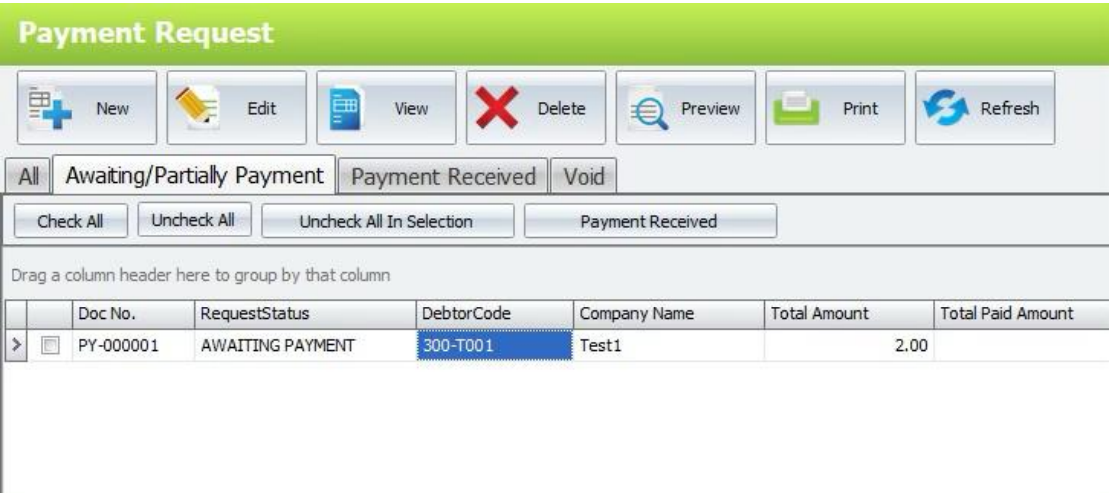
4. Select a row and use Edit, View, Delete, Preview, Print or Refresh as required.
Keyboard shortcuts: Insert = New, F2 = Edit, F12 = View, Delete = Delete, F5 = Refresh, F8 = Preview, F7= Print, and Esc = Close.
C. Create Payment Request
Create a Payment Request by selecting a debtor and the outstanding A/R documents that shouldbeincluded in the request.
1. Open A/R > Payment Request and click New.
2. Under Debtor Info, select the Debtor Code. Review the debtor name and address shown by thesystem.
3. Under Document Info, review the Date and document number. Enter Remark 1 to Remark 4 whenneeded.
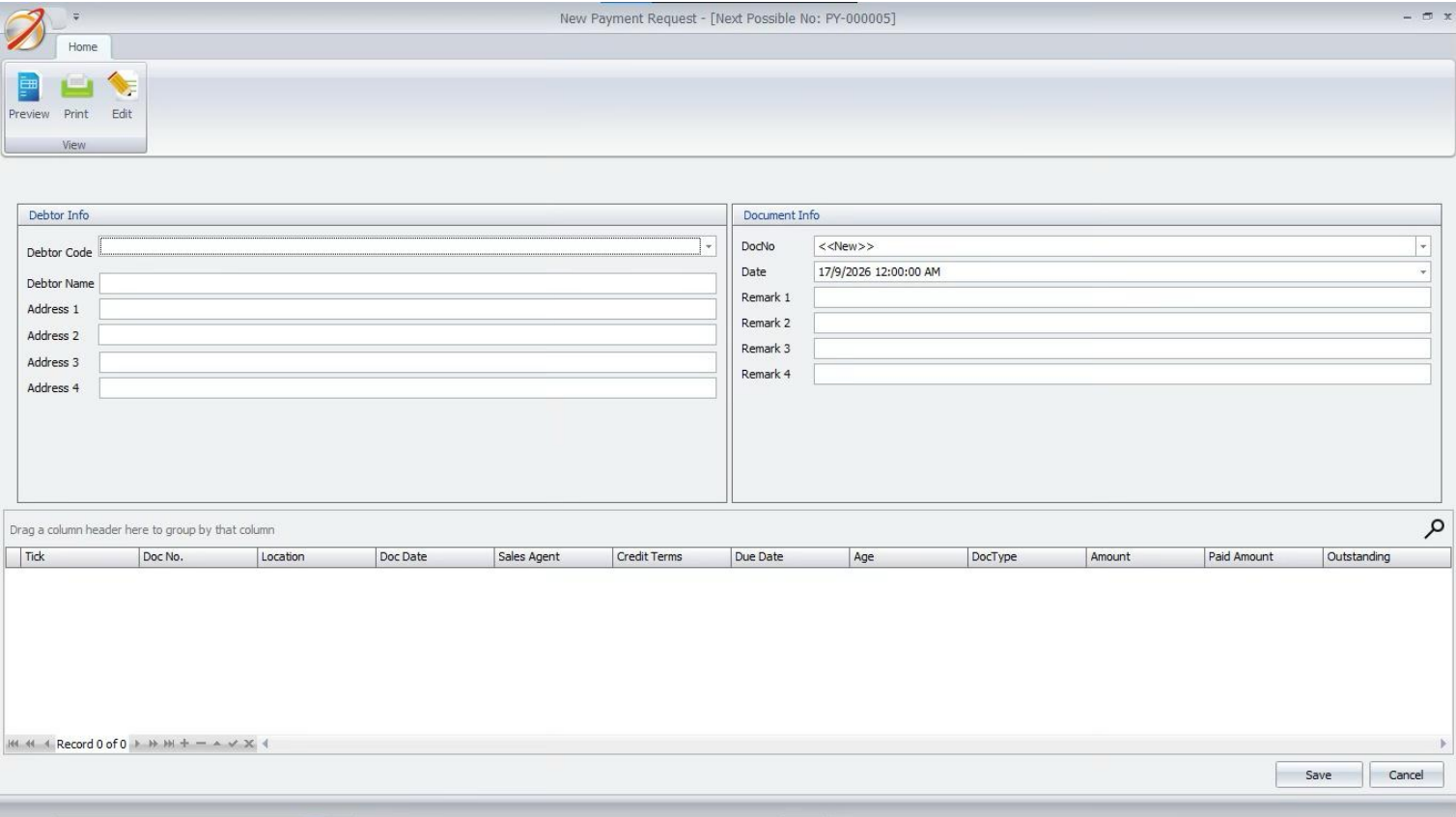
4. Review the outstanding documents loaded for the selected debtor. The list may show InvoiceandDebit
Note documents with their outstanding amount and due information.
5. Tick the document rows to include in this Payment Request.
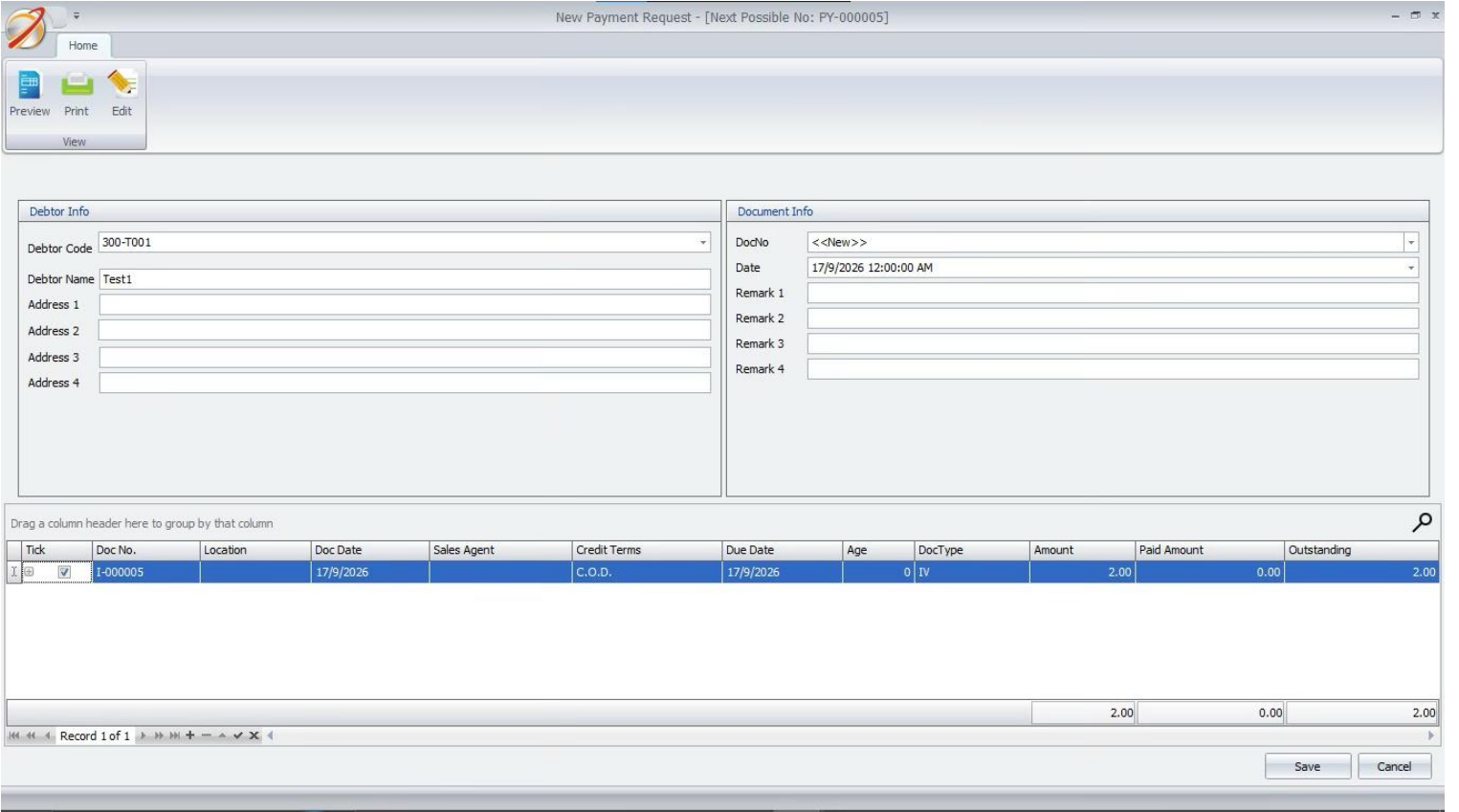
6. Click Save. The request is saved with AWAITING PAYMENT status.
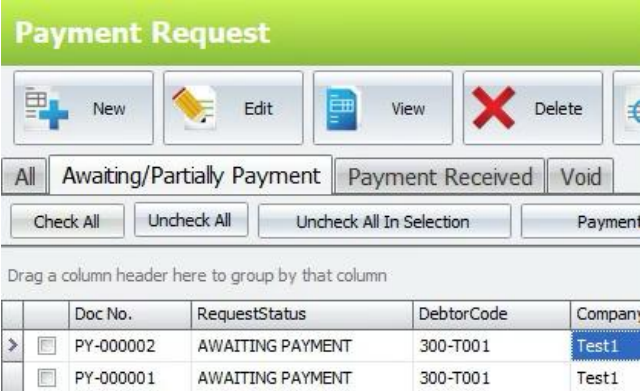
D. View and Edit Payment Request
Use View to review a saved request and Edit to change an active request when editing is allowed.
1. Open A/R > Payment Request and select the required record.
2. Click View or press F12 to open the Payment Request in view mode.
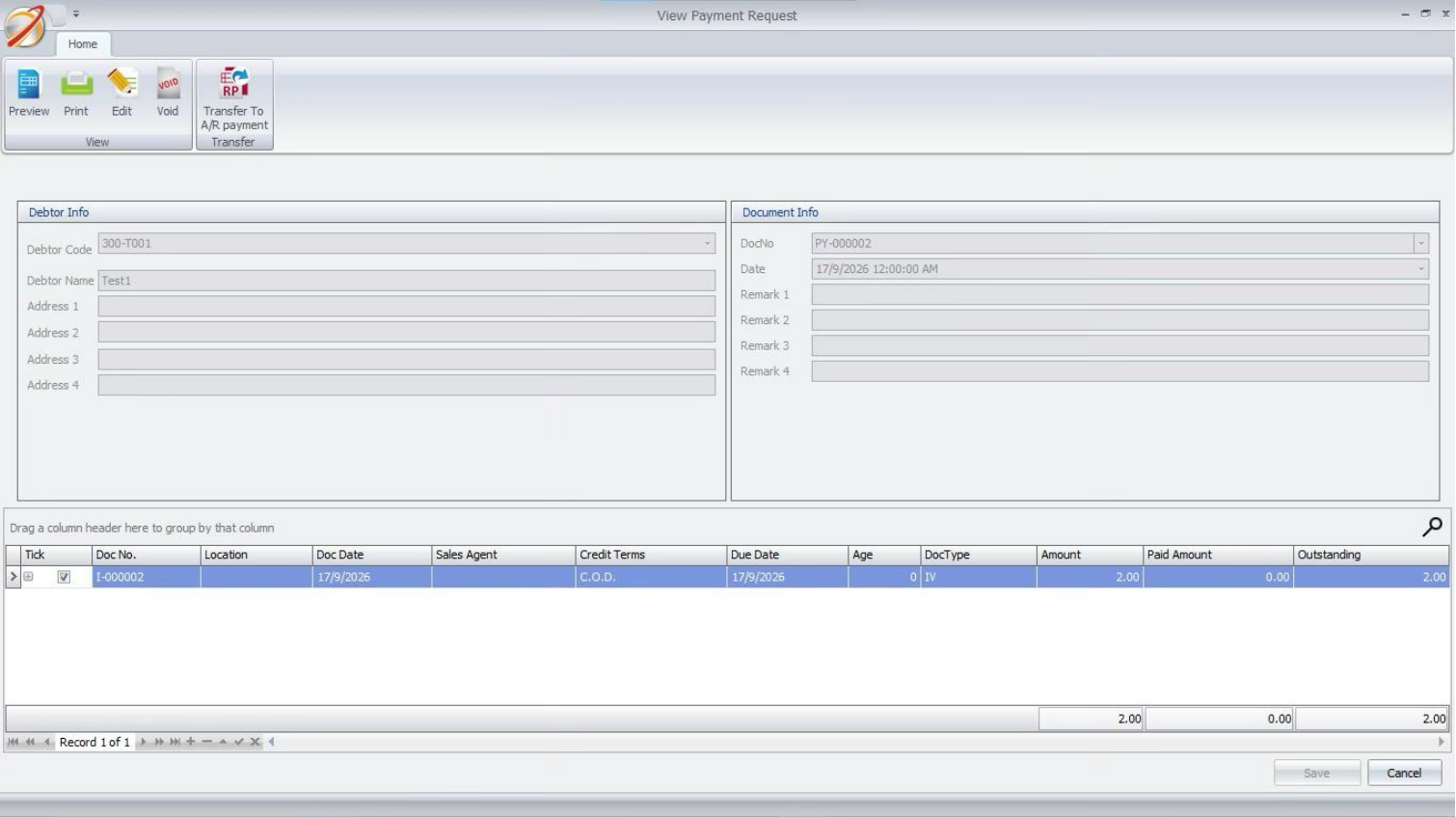
4. To change an open request, click Edit or press F2.
5. Update the Date, debtor information, remarks or document selection as allowed by the current request
state, then click Save.
The original Doc No and Debtor Code stay fixed in Edit mode. When an active linked A/RPayment exists,
the outstanding-document grid is read-only.
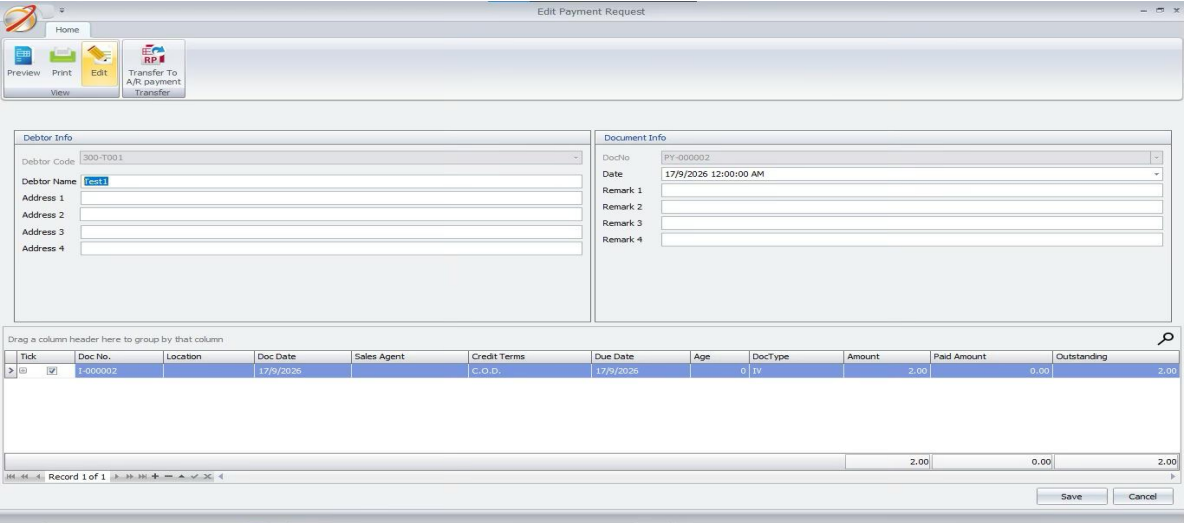
E. Delete and Void Payment Request
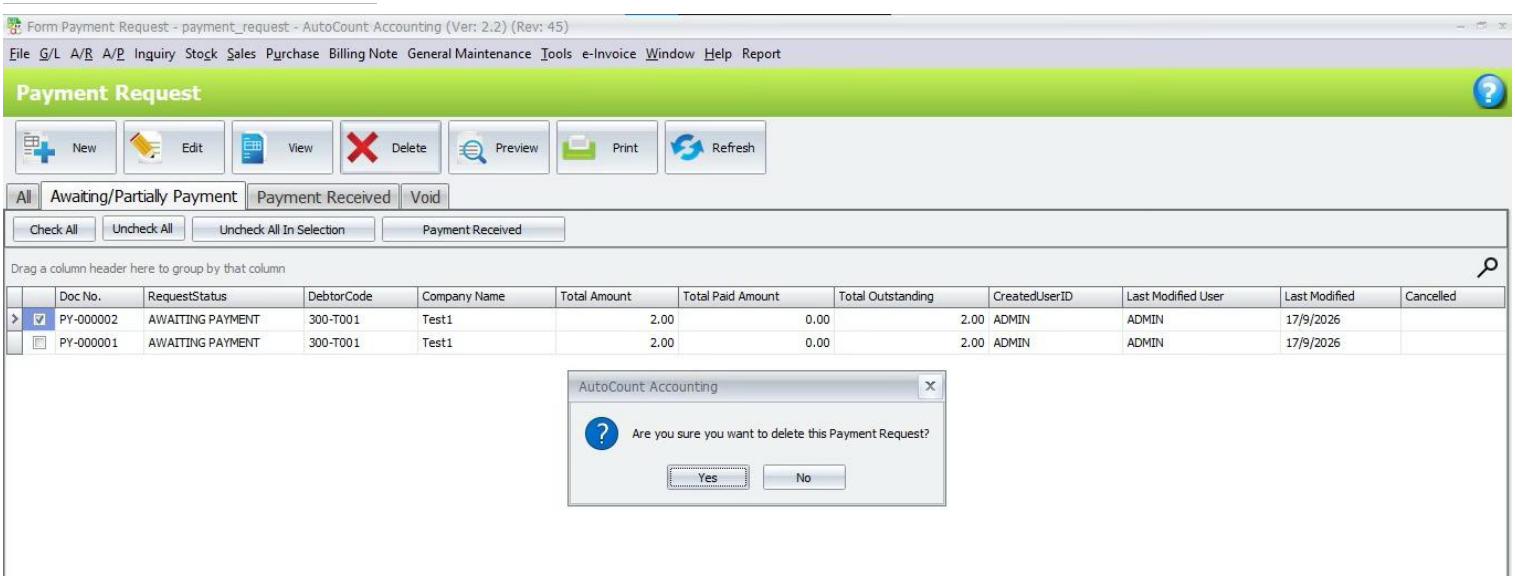
Delete Payment Request
1. Select the Payment Request from the listing.
2. Click Delete or press the Delete key.
3. Confirm the delete message. The record is removed when deletion is allowed and the user has DeletePayment Request access.
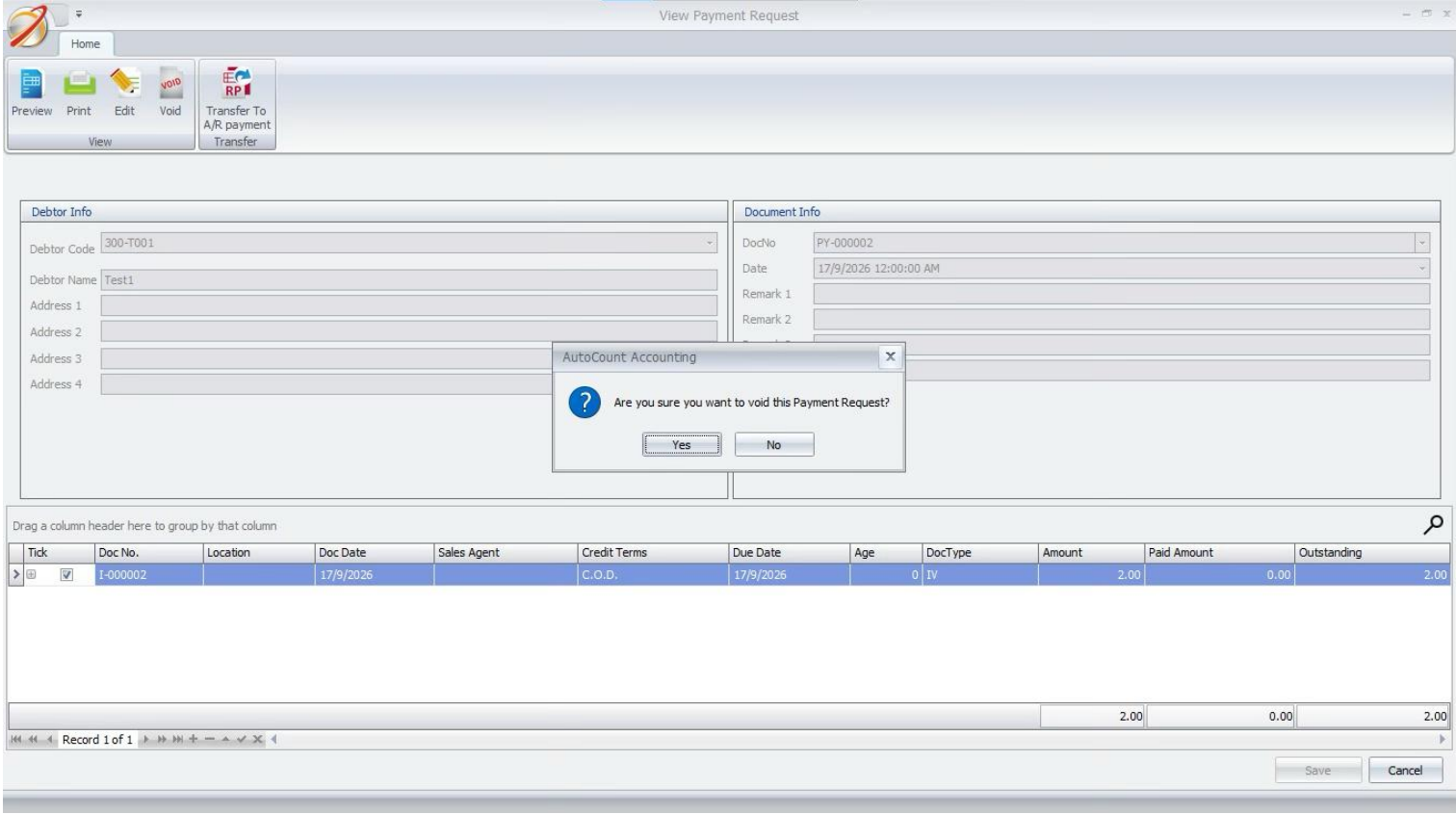
Void Payment Request
1. Select the Payment Request and click View.
2. On the Home ribbon, click Void and confirm the message.
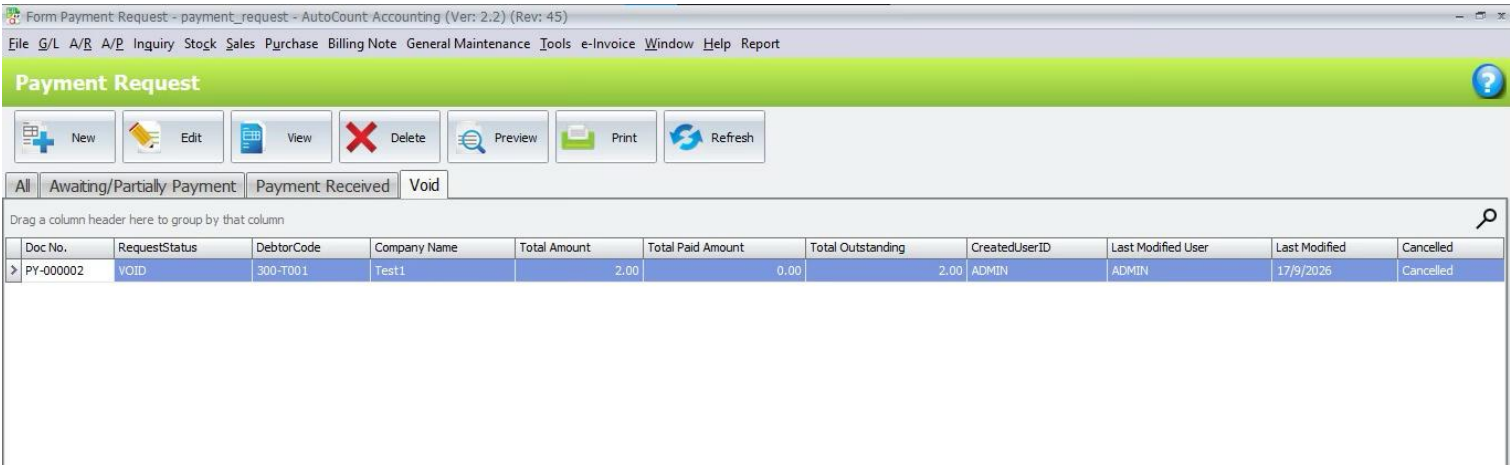
3. The request appears under the Void tab and Transfer To A/R payment is no longer available.
F. Preview and Print Payment Request
Preview and Print output the Payment Request report for the selected document.
1. Open A/R > Payment Request and select the required Payment Request.
2. Click Preview or press F8 to open the report preview.
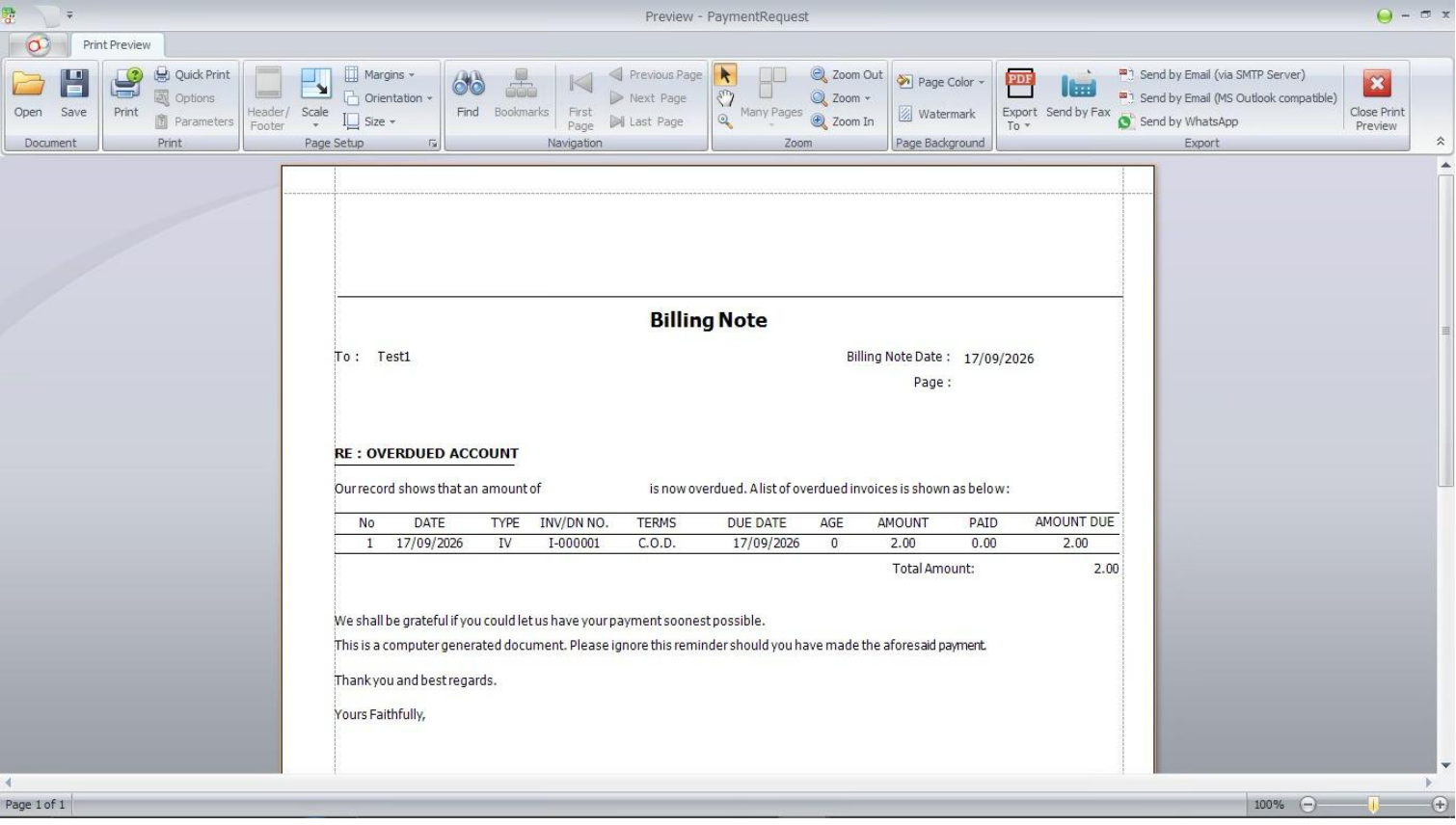
3. Review the report. Export from the report viewer follows the Export Report access right.
4. Click Print or press F7 to send the report to the selected printer.
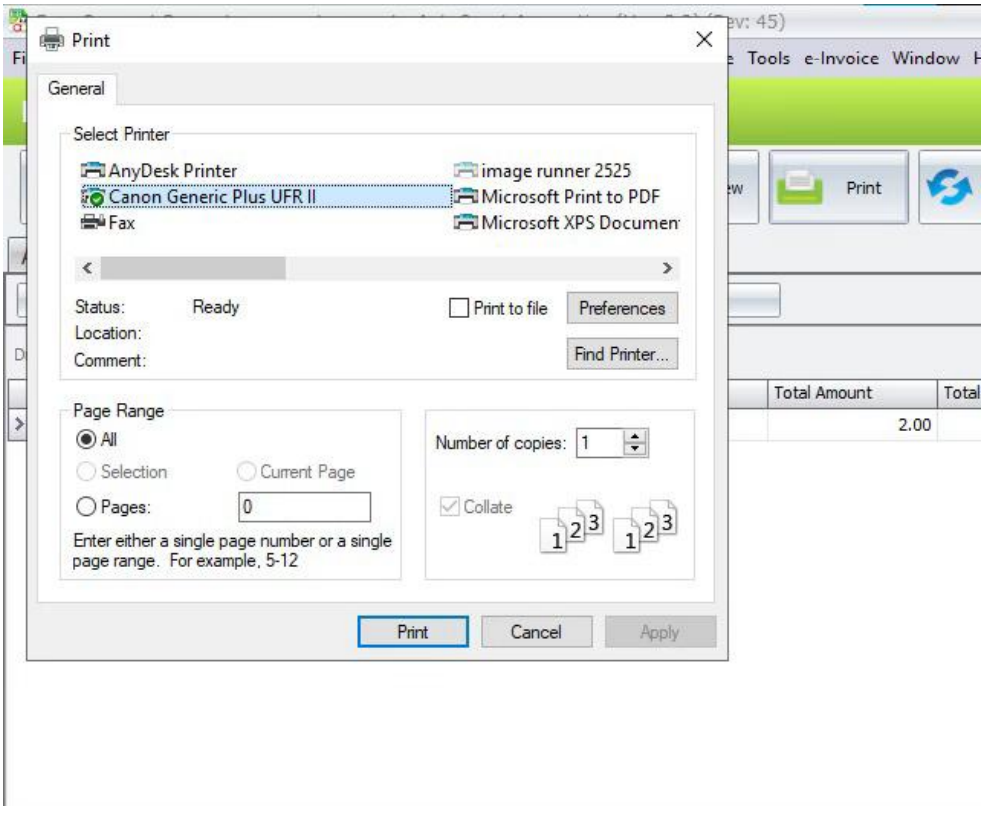
G. Transfer Payment Request to A/R Payment
Payment Requests with AWAITING PAYMENT or PARTIALLY PAYMENT status can be transferredtoAutoCount A/R Payment.
Transfer One Payment Request
1. Open an AWAITING PAYMENT or PARTIALLY PAYMENT request in View or Edit mode.
2. On the Home ribbon, click Transfer To A/R payment.
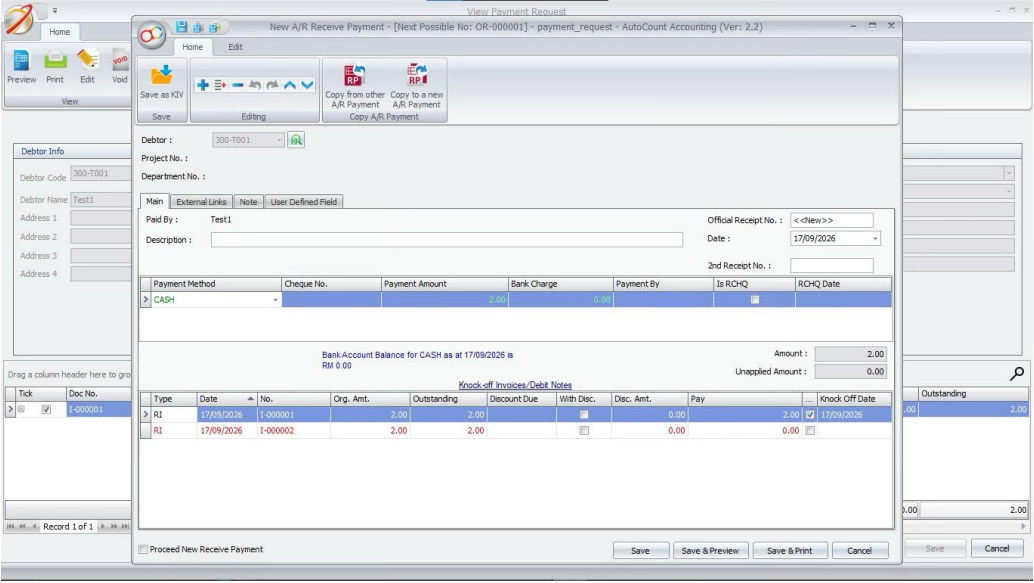
3. Review the A/R Payment screen, including payment amount and knock-off details.
4. Save the A/R Payment using the normal AutoCount A/R Payment flow.
Transfer Multiple Payment Requests
1. Open A/R > Payment Request and select the Awaiting/Partially Payment tab.
2. Tick the Payment Requests to process. Use Check All when required.
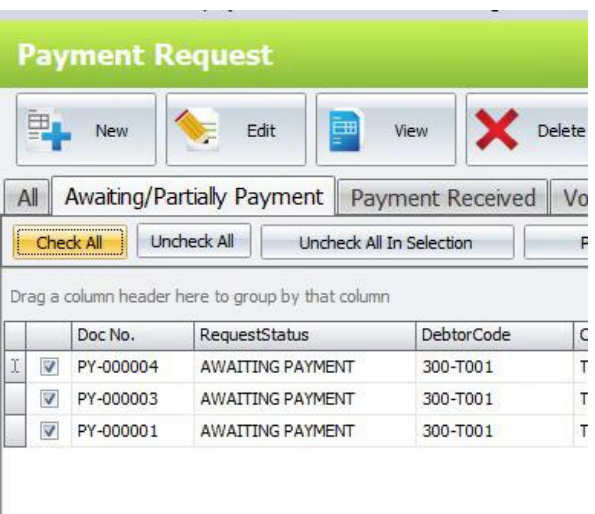
3. Click Payment Received and confirm the number of selected Payment Requests.
4. Complete the A/R Payment forms opened for the selected requests. The Payment Request statusupdates after the linked payment is saved.
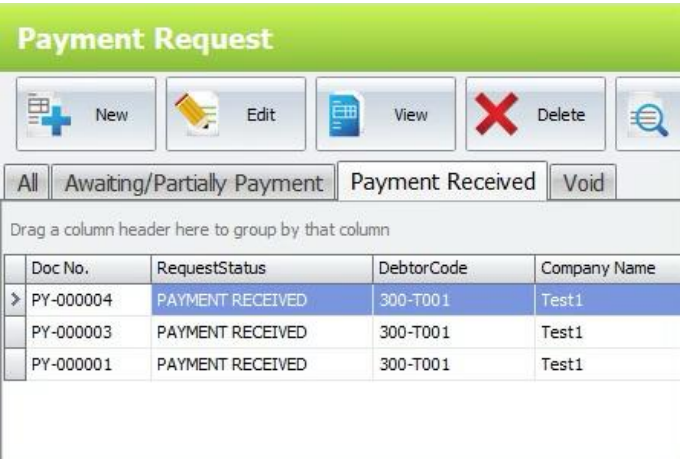
H. Payment Request Status and Tabs
The Payment Request list separates records by payment status so users can follow up open requestsandreview completed or cancelled requests.
• All – shows all Payment Request records.
• Awaiting/Partially Payment – shows active requests with AWAITING PAYMENT or PARTIALLYPAYMENT status.
• Payment Received – shows requests with PAYMENT RECEIVED status.
• Void – shows Payment Requests with the cancelled flag.
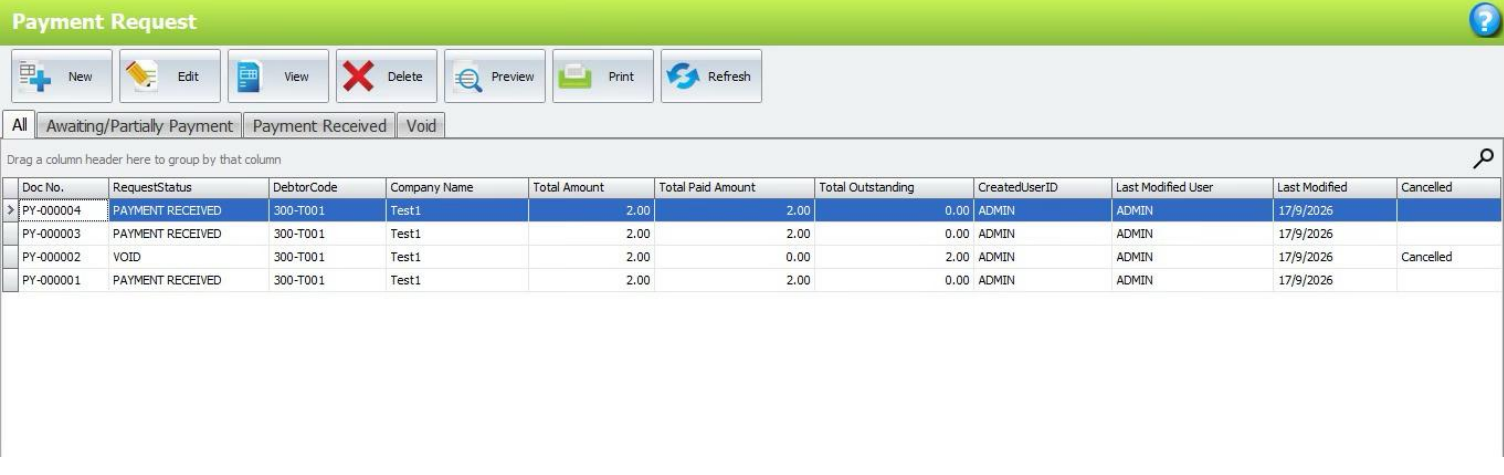
• AWAITING PAYMENT – no linked payment amount has been received.
• PARTIALLY PAYMENT – some payment has been received and an amount is still outstanding.
• PAYMENT RECEIVED – the Payment Request is fully paid.
• SOURCE INVOICE CANCELLED – a linked source Invoice was voided and the Payment Request iscancelled.
If a linked A/R Payment is deleted, the plugin recalculates the Payment Request and can reopenit basedon the remaining paid and outstanding amounts.
Benefits of AutoCount Payment Request Plugin
More Organized Collection Management
Maintain customer payment requests in one listing with clear document information and payment statuses.
Faster Accounts Receivable Processing
Reduce repetitive work by transferring eligible Payment Requests into AutoCount A/R Payments.
Better Customer Payment Visibility
Monitor requested amounts, partial payments, and outstanding balances to support more effective collection follow-ups.
Improved Financial Record Control
Maintain linked payment information, document changes, and user permissions through a structured accounting workflow.
Conclusion
The AutoCount Payment Request Plugin provides businesses with a practical solution for organizing customer payment requests and managing outstanding receivables within AutoCount Accounting.
By combining outstanding document selection, billing note generation, payment status tracking, A/R Payment transfers, and linked balance updates, businesses can reduce manual work and improve collection management.
For companies looking for payment request software, this plugin helps establish a more organized and controlled process for managing customer payment requests.
Frequently Asked Questions
How does payment request software help businesses?
Payment request software helps businesses organize collection requests, identify outstanding balances, monitor payment progress, and reduce repetitive administrative work.
Can the plugin combine multiple outstanding Invoices into one Payment Request?
Yes. Users can select multiple eligible outstanding Invoices from the same debtor and include them in a single Payment Request.
Does the plugin support A/R Debit Notes?
Yes. Eligible outstanding A/R Debit Notes can also be included when preparing a Payment Request.
Can businesses generate billing notes for customers?
Yes. The plugin supports previewing, printing, and exporting the Payment Request report for use as a billing note.
Does the plugin automatically send billing notes to customers?
Automatic delivery is not a documented feature of the Payment Request Plugin. Users can prepare the billing note and share it through their company’s existing communication methods.
Can businesses track partially paid Payment Requests?
Yes. The plugin supports partial payment tracking and shows the relevant outstanding balance.
Simplify Your Customer Payment Requests Today!
Still managing outstanding customer payments through scattered documents and manual follow-ups?
With the AutoCount Payment Request Plugin, your business can consolidate outstanding Invoices, prepare billing notes, monitor payment statuses, and transfer eligible requests into A/R Payments more efficiently.
Whether you’re managing credit sales, customer collections, or accounts receivable, this solution helps create a clearer and more organized payment request workflow.
Looking for payment request software that works with AutoCount Accounting?
Contact SL Software Solutions Sdn. Bhd. to discover how the AutoCount Payment Request Plugin can support your customer collection and receivables management.