
-
AutoCount Accounting Features
-
- Approval Workflow
- Audit Trail
- Auto Save in Draft Folder
- AutoCount Contra Account
- AutoCount License Setting Guide
- Deposit Tracking & Management
- Documents Numbering Format
- Full Transfer and Partial Transfer
- Import Data to AutoCount Accounting Using Excel
- Informative Charts and Analytical Data
- Layout Customization
- Multi Pricing
- Sales and Services Tax
- Schedule Backup
- Search Lookup Edit
- View Documents Flow
- AutoCount Feature Stock Take
- Column Chooser
- Show Remaining (3) Collapse
-
AutoCount Cloud Accounting
-
AutoCount E-Invoice
-
AutoCount HRMS User Guide
-
AutoCount Modules
-
- Activity Stream
- Advanced Financial Report
- Advanced Item
- Advanced Multi-UOM
- Advanced Quotation Module
- Basic Multi-UOM
- Budget Module
- Consignment
- Filter By Salesman
- FOC Quantity
- Formula
- Item Batch
- Item Package
- Landing Cost
- Multi-Currency
- Multi-Dimensional Analysis
- Multi-Location
- Project Account
- Recurrence
- Remote Credit Control Module
- Stock Assembly
- User Defined Fields (UDF)
- AutoCount SST Hidden Functions
- AutoCount SST Submission - Service Tax
- AutoCount Scripting Module User Guide
- AutoCount Bonus Point Module User Guide
- AutoCount Service Management Plugin User Guide
- Show Remaining (12) Collapse
-
AutoCount Plugins
-
- Fixed Assets Management
- Goldsmith
- TD Ordering Mobile Apps
- TD Stock Mobile Apps
- Universal Import Plugin
- DMS Import Plugin
- AutoCount Pick List Plugin User Guide
- AutoCount Credit Memo Plugin User Guide
- AutoCount Lock Price Plugin
- AutoCount Progressive Billing
- AutoCount Easy Recurrence Plugin
- Batch Update Unit Price Plugin
- AutoCount Production order
- AutoCount Car Tint Film Plugin
-
- Event Management System
- AutoCount To-Do List Plugin
- AutoCount AutoBank Reconciliation Plugin
- Intercompany Billing Plugin User Guide
- Lead Management 2.0 Plugin
- AutoCount Service Contract Plugin User Guide
- AutoCount Optical Plugin
- AutoCount Integrator Plugin
- AutoCount Procurement Planning Plugin
- Cage Management Plugin
- AutoCount Vehicle Plugin
- AutoCount Agent Validation Plugin User Guide
- AutoCount Barcode Generator Plugin User Guide
- AutoCount Easy Batch Number Entry Plugin User Guide
- Warranty 2.0 Plugin
- AutoCount Easy Photo 2.0 User Guide
- AutoCount Recurring Invoice Plugin User Guide
- AutoCount Scale Barcode Plugin User Guide
- AutoCount Recurrence Late Interest Plugin
- AutoCount Item Visibility Control
- AutoCount Bill Remark Plugin User Guide
- AutoCount Pain Tracker User Guide
- AutoCount Easy Payment
- AutoCount Easy Deposit Plugin
- AutoCount Easy Knock Off Plugin
- AutoCount Daily Collection Summary Plugin
- Timber Log Plugins
- Batch Transfer SODO Plugin
- AutoCount Vege Basket Plugin Guide
- AutoCount Fruit Basket Plugin Guide
- Referral Management Plugin
- AutoCount Migrator Plugin
- AutoCount Email & WhatsApp Plugin
- AutoCount Multi Company Knock Off Plugin
- AutoCount Advance Aging Format Plugin
- AutoCount Payment Request Plugin
- AutoCount Vehicle Master Plugin
- AutoCount Advance Deposit Plugin
- AutoCount IC Checker Plugin
- AutoCount RMA Plugin
- AutoCount Historical Outstanding DO Listing Plugin
- AutoCount Project Department Visibility Control Plugin
- AutoCount MRP Order Plugin
- AutoCount GridToExcel Plugin
- AutoCount Stock Availability Report Plugin
- AutoCount Batch Transfer SO DO Plugin
- AutoCount Centralized Kitchen Management Plugin
- SL AutoCount API
- AutoCount InterCompany Billing Plugin
- AutoCount Sales Commission Plugin
- Advanced Credit Term Management Software for AutoCount
- AutoCount Advanced Stock Assembly Plugin
- AutoCount Shipment Plugin
- AutoCount Tour Plugin
- AutoCount Smart Analysis
- AutoCount Rental Management
- Show Remaining (41) Collapse
-
-
Form Template
-
Report Template
-
- Advance Quotation
- Cash Sale
- Consignment
- Consignment Movement
- Credit Note
- Debit Note
- Delivery Order
- FOC Quantity Analysis By Document Report
- Invoice
- Item Package Sales Report
- Monthly Sales Analysis
- Outstanding Sales Order Listing
- Profit And Loss Of Documents
- Quotation
- Sales Agent Contribution Report
- Sales Order
- Top/Bottom Sales Ranking
- Show Remaining (2) Collapse
-
- Available Stock Status Report
- Expired Item Batch Listing
- Inventory Physical Worksheet
- Stock Adjustment
- Stock Aging Report
- Stock Assembly
- Stock Assembly Order
- Stock Balance By Location
- Stock Balance Report
- Stock Card Report
- Stock Disassembly
- Stock Issue
- Stock Item Profit Margin
- Stock Movement Report
- Stock Receive
- Stock Take
- Stock Transfer
- Stock Write Off
- Show Remaining (3) Collapse
-
B2B ORDERING
-
AutoCount AI Agent
AutoCount Web API User Guide
Understanding SL AutoCount API
SL AutoCount API bridges external systems and AutoCount Accounting by providing a standardized, high-performance RESTful API service powered by a dedicated Windows service and companion app. Businesses can securely read and write core master data, automate sales and purchase document workflows, handle payment knock-offs, query real-time stock balances and movements, track e-invoice lifecycle states, and access extensive financial reporting endpoints through role-based access control and API key authentication.
Benefits of Using the SL AutoCount API
Standardizes external integrations with over 600 comprehensive RESTful endpoints
Automates end-to-end sales, purchase, and stock document workflows
Enables real-time querying of inventory balances, movements, and pricing
Tracks e-invoice lifecycles, submission statuses, and QR validation metadata
Secures data transactions with dual API keys and role-based access control
How SL AutoCount API Works
A. Getting Started
SL AutoCount API uses a Windows service and tray manager together with an AutoCount companion app. Completetheinstallation first, then configure the API connection before using the dashboard, logs, or supported API routes.
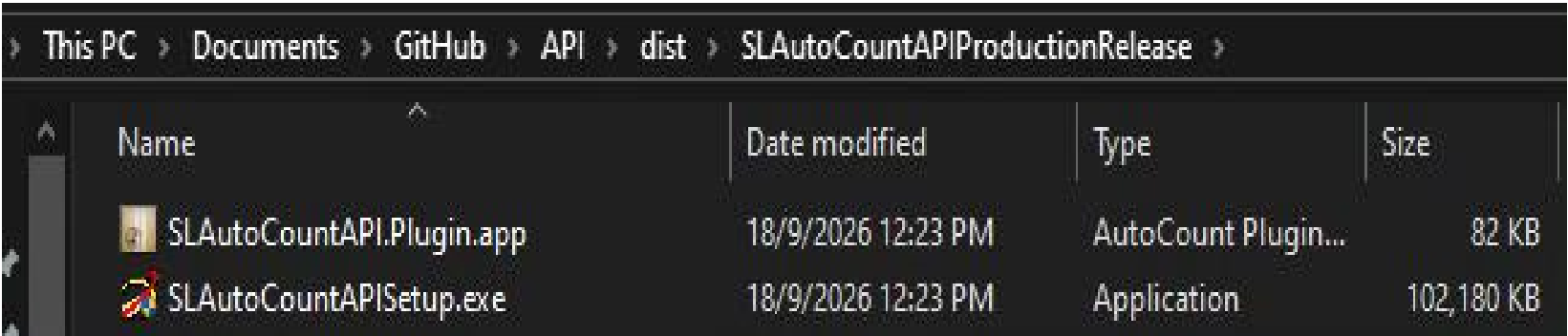
A.1 Files required
• SLAutoCountAPISetup.exe
• SLAutoCountAPI.Plugin.app
Keep both files together during installation. The setup EXE installs the Windows service and tray components. The.appfile is installed separately inside AutoCount.
A.2 Before you start
• Use the AutoCount server or customer PC where the local API service should run.
• Use a Windows account that can approve Administrator prompts.
• Confirm AutoCount Accounting 2.2 is installed.
• Confirm .NET Framework 4.8.1 is installed.
• Keep the SQL Server, AutoCount login, API key, company key, and license details ready for configuration.
B. Install SL AutoCount API
Use SLAutoCountAPISetup.exe to install the SL AutoCount API Windows service and tray manager.
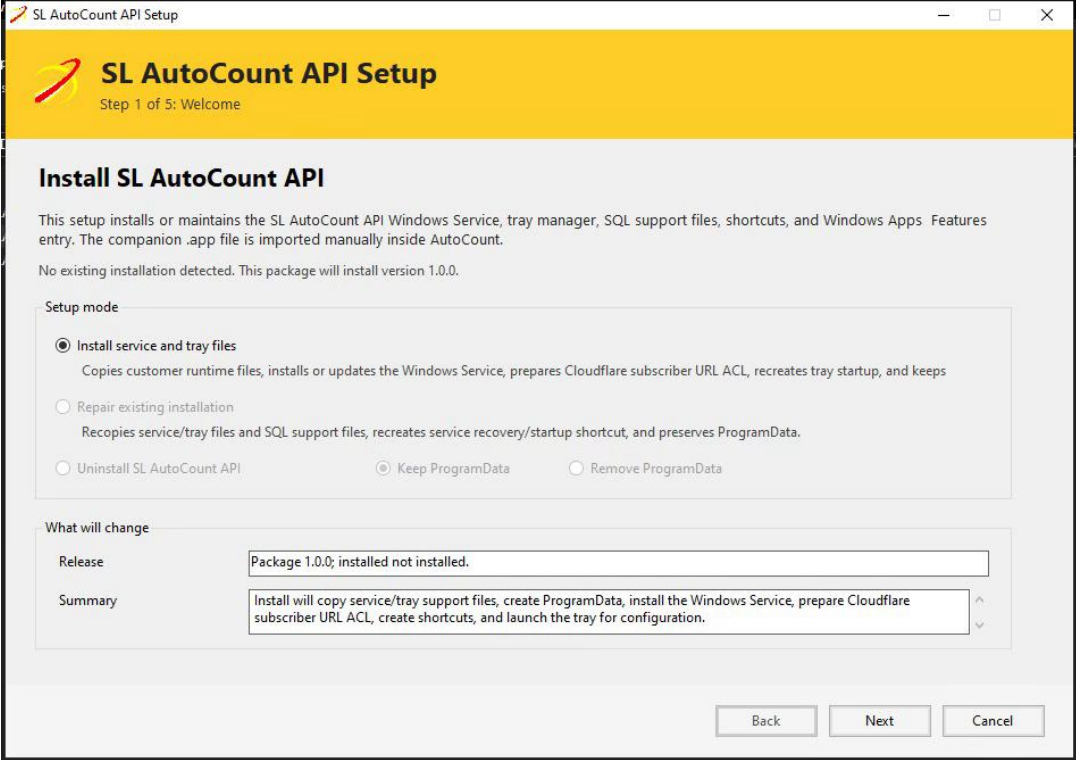
B.1 Run the Setup Wizard
1. Right-click SLAutoCountAPISetup.exe.
2. Click Run as administrator.
3. When the SL AutoCount API Setup wizard opens, choose Install / Update service and tray files.
B.2 Accept Terms and Conditions
1. For a first-time installation, read the Terms and Conditions.
2. Select I have read and agree to the Terms and Conditions.
3. Continue to the next step.

B.3 Complete the Preflight check
1. Wait for the Preflight checklist to finish.
2. Review the checklist status. Continue when the required checks are ready.
3. If the wizard shows a blocked item, correct that item before continuing. The Preflight screen can show OK, Warning, or Blocked status for installation checks such as .NET Framework, AutoCount, and port 8016.

B.4 Install the service and tray files
1. Continue from the Preflight screen.
2. Wait while the setup installs or updates the required service and tray files.
3. Do not close the wizard while installation is in progress.

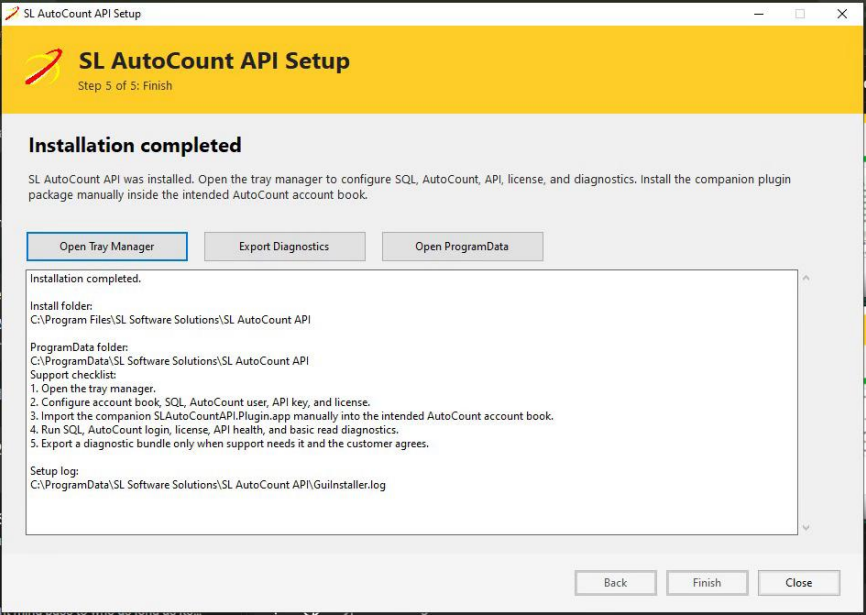
B.5 Finish the installation
1. When the Finish screen shows that installation completed, click Open Tray Manager.
2. Continue with the customer API configuration in the tray manager.
3. Keep the wizard closed after setup is completed.
C. Install SL AutoCount API Companion (.app)
SLAutoCountAPI.Plugin.app is the AutoCount companion package. It is installed manually in the intended AutoCount
account book and is not installed by the Setup Wizard.
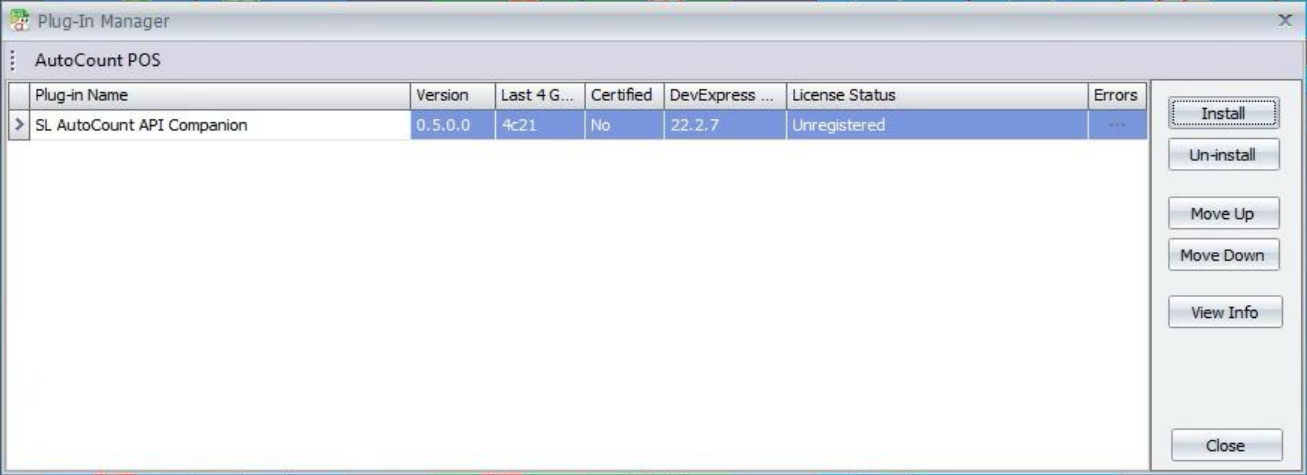
C.1 Install the companion app
1. Open AutoCount Accounting and log in to the intended account book.
2. Use the AutoCount app/plugin installation function to import SLAutoCountAPI.Plugin.app.
3. Complete the app installation for the current account book.
4. Restart or reopen AutoCount if the system requests it.
C.2 Confirm the companion menu
1. Open AutoCount after the app is installed.
2. Confirm the SL AutoCount API menu is available.
3. Open Plugin Settings before using the dashboard or sync functions.

Frequently Asked Questions
What does the SL AutoCount API do?
It provides a standardized RESTful API backend to connect external platforms (e-commerce, CRM, WMS, POS) directly with AutoCount Accounting for seamless data synchronization.
Why should I use the SL AutoCount API?
It automates manual document processing, eliminates duplicate entry errors, provides real-time visibility into stock and finances, and scales business workflows securely.
What components are required to install the API?
Installation requires running the SLAutoCountAPISetup.exe installer for the Windows service/tray manager and importing the companion SLAutoCountAPI.Plugin.app package inside your target AutoCount account book.
What authentication method does the API use?
The canonical routes require header authentication using X-API-Key and X-Company-Key. Compatibility routes also support bearer tokens and app ID headers for legacy parity.
What modules and documents are supported?
The API supports over 600 endpoints spanning Master Data, Sales & Purchase documents, AR/AP knock-offs, General Ledger journal entries, Stock transactions, E-Invoicing, and financial reporting.
Can the API handle E-Invoice status and QR validation?
Yes, dedicated E-Invoice endpoints allow reading submission statuses, retrieving validation links, extracting QR metadata, and refreshing compliance states directly from AutoCount.
Start Connecting With SL AutoCount API Today!
This API solution enables us to connect external platforms directly to AutoCount Accounting through high-performance RESTful endpoints, automating sales, purchase, inventory, and financial synchronization. We can efficiently eliminate manual data entry, streamline order processing, track real-time e-invoice lifecycles, and protect backend database integrity through secure API key authentication and role-based access control.