
-
AutoCount Accounting Features
-
- Approval Workflow
- Audit Trail
- Auto Save in Draft Folder
- AutoCount Contra Account
- AutoCount License Setting Guide
- Deposit Tracking & Management
- Documents Numbering Format
- Full Transfer and Partial Transfer
- Import Data to AutoCount Accounting Using Excel
- Informative Charts and Analytical Data
- Layout Customization
- Multi Pricing
- Sales and Services Tax
- Schedule Backup
- Search Lookup Edit
- View Documents Flow
- AutoCount Feature Stock Take
- Column Chooser
- Show Remaining (3) Collapse
-
AutoCount Cloud Accounting
-
AutoCount E-Invoice
-
AutoCount HRMS User Guide
-
AutoCount Modules
-
- Activity Stream
- Advanced Financial Report
- Advanced Item
- Advanced Multi-UOM
- Advanced Quotation Module
- Basic Multi-UOM
- Budget Module
- Consignment
- Filter By Salesman
- FOC Quantity
- Formula
- Item Batch
- Item Package
- Landing Cost
- Multi-Currency
- Multi-Dimensional Analysis
- Multi-Location
- Project Account
- Recurrence
- Remote Credit Control Module
- Stock Assembly
- User Defined Fields (UDF)
- AutoCount SST Hidden Functions
- AutoCount SST Submission - Service Tax
- AutoCount Scripting Module User Guide
- AutoCount Bonus Point Module User Guide
- AutoCount Service Management Plugin User Guide
- Show Remaining (12) Collapse
-
AutoCount Plugins
-
- Fixed Assets Management
- Goldsmith
- TD Ordering Mobile Apps
- TD Stock Mobile Apps
- Universal Import Plugin
- DMS Import Plugin
- AutoCount Pick List Plugin User Guide
- AutoCount Credit Memo Plugin User Guide
- AutoCount Lock Price Plugin
- AutoCount Progressive Billing
- AutoCount Easy Recurrence Plugin
- Batch Update Unit Price Plugin
- AutoCount Production order
- AutoCount Car Tint Film Plugin
-
- Event Management System
- AutoCount To-Do List Plugin
- AutoCount AutoBank Reconciliation Plugin
- Intercompany Billing Plugin User Guide
- Lead Management 2.0 Plugin
- AutoCount Service Contract Plugin User Guide
- AutoCount Optical Plugin
- AutoCount Integrator Plugin
- AutoCount Procurement Planning Plugin
- Cage Management Plugin
- AutoCount Vehicle Plugin
- AutoCount Agent Validation Plugin User Guide
- AutoCount Barcode Generator Plugin User Guide
- AutoCount Easy Batch Number Entry Plugin User Guide
- Warranty 2.0 Plugin
- AutoCount Easy Photo 2.0 User Guide
- AutoCount Recurring Invoice Plugin User Guide
- AutoCount Scale Barcode Plugin User Guide
- AutoCount Recurrence Late Interest Plugin
- AutoCount Item Visibility Control
- AutoCount Bill Remark Plugin User Guide
- AutoCount Pain Tracker User Guide
- AutoCount Easy Payment
- AutoCount Easy Deposit Plugin
- AutoCount Easy Knock Off Plugin
- AutoCount Daily Collection Summary Plugin
- Timber Log Plugins
- Batch Transfer SODO Plugin
- AutoCount Vege Basket Plugin Guide
- AutoCount Fruit Basket Plugin Guide
- Referral Management Plugin
- AutoCount Migrator Plugin
- AutoCount Email & WhatsApp Plugin
- AutoCount Multi Company Knock Off Plugin
- AutoCount Advance Aging Format Plugin
- AutoCount Payment Request Plugin
- AutoCount Vehicle Master Plugin
- AutoCount Advance Deposit Plugin
- AutoCount IC Checker Plugin
- AutoCount RMA Plugin
- AutoCount Historical Outstanding DO Listing Plugin
- AutoCount Project Department Visibility Control Plugin
- AutoCount MRP Order Plugin
- AutoCount GridToExcel Plugin
- AutoCount Stock Availability Report Plugin
- AutoCount Batch Transfer SO DO Plugin
- AutoCount Centralized Kitchen Management Plugin
- SL AutoCount API
- AutoCount InterCompany Billing Plugin
- AutoCount Sales Commission Plugin
- Advanced Credit Term Management Software for AutoCount
- AutoCount Advanced Stock Assembly Plugin
- AutoCount Shipment Plugin
- AutoCount Tour Plugin
- AutoCount Smart Analysis
- AutoCount Rental Management
- Show Remaining (41) Collapse
-
-
Form Template
-
Report Template
-
- Advance Quotation
- Cash Sale
- Consignment
- Consignment Movement
- Credit Note
- Debit Note
- Delivery Order
- FOC Quantity Analysis By Document Report
- Invoice
- Item Package Sales Report
- Monthly Sales Analysis
- Outstanding Sales Order Listing
- Profit And Loss Of Documents
- Quotation
- Sales Agent Contribution Report
- Sales Order
- Top/Bottom Sales Ranking
- Show Remaining (2) Collapse
-
- Available Stock Status Report
- Expired Item Batch Listing
- Inventory Physical Worksheet
- Stock Adjustment
- Stock Aging Report
- Stock Assembly
- Stock Assembly Order
- Stock Balance By Location
- Stock Balance Report
- Stock Card Report
- Stock Disassembly
- Stock Issue
- Stock Item Profit Margin
- Stock Movement Report
- Stock Receive
- Stock Take
- Stock Transfer
- Stock Write Off
- Show Remaining (3) Collapse
-
B2B ORDERING
-
AutoCount AI Agent
AutoCount Multi Company Knock Off Plugin User Guide
What is AutoCount Multi Company Knock Off Plugin?
The AutoCount Multi Company Knock Off Plugin helps businesses manage customer payments and knock off outstanding A/R invoices across multiple connected AutoCount account books. With features such as Multi-Company Payment Processing, Intercompany Account Book Connections, Outstanding Invoice Inquiries, Cross-Company Payment Tracking, and Access Control, businesses can simplify receivables management. The Multi Company Knock Off Plugin reduces repetitive work and provides better visibility into outstanding customer invoices across different company databases.
AutoCount Multi Company Knock Off Plugin Video Guide
- AutoCount Multi Company Knock Off Plugin (EN)
Multi Company Knock off Plugin Setup
- AutoCount Multi Company Knock Off Plugin (CN)
多公司核销插件设置
Why Use AutoCount Multi Company Knock Off Plugin?
Managing customer payments across multiple companies can be time-consuming when each business operates a separate AutoCount account book.
The AutoCount Multi Company Knock Off Plugin simplifies cross-company payment processing and provides a more organized way to review outstanding receivables.
Simplify Multi-Company Payment Processing
Process eligible customer payment knock-offs across connected company account books through a centralized payment workflow.
Reduce Repetitive Accounting Work
Minimize repeated payment entry and manual checking when settling outstanding A/R documents across different companies.
Improve Outstanding Invoice Visibility
Review outstanding A/R invoices from multiple connected account books through combined inquiry results.
Maintain Better Payment Control
Manage account book connections, payment records, and administrative access through controlled system functions.
Key Features of AutoCount Multi Company Knock Off Plugin
Multi-Company A/R Payment Knock-Off
Knock off eligible outstanding A/R invoices and debit notes across connected AutoCount account books through a multi-company payment entry.
Connected Account Book Management
Link selected company account books, maintain the relevant payment methods, and verify connection status.
Cross-Company Invoice Inquiry
View outstanding A/R invoices and Invoice Listings across connected account books with source database identification.
Payment Tracking & Access Control
Manage source and target payment relationships while restricting access to sensitive account book configuration functions.
Who Should Use AutoCount Multi Company Knock Off Plugin?
Multi-Company Business Groups
Ideal for organizations operating multiple companies that maintain separate AutoCount account books and handle customer payments across entities.
Accounting & Finance Departments
Suitable for accounting teams responsible for processing payments and matching outstanding receivables across different company databases.
Accounts Receivable & Credit Control Teams
Helps employees review outstanding customer invoices and monitor receivables across connected account books.
Finance Managers & Group Administrators
Useful for personnel overseeing multi-company receivables, payment processing procedures, and account book access permissions.
How AutoCount Multi Company Knock Off Plugin Works
A. Access Rights
Administrators control visibility and opening of the plugin license screen and the Intercompany Account
Book Setting screen.
1. Open Access Rights and expand SL Plug-In > Multi Company Knock Off Plug-In.
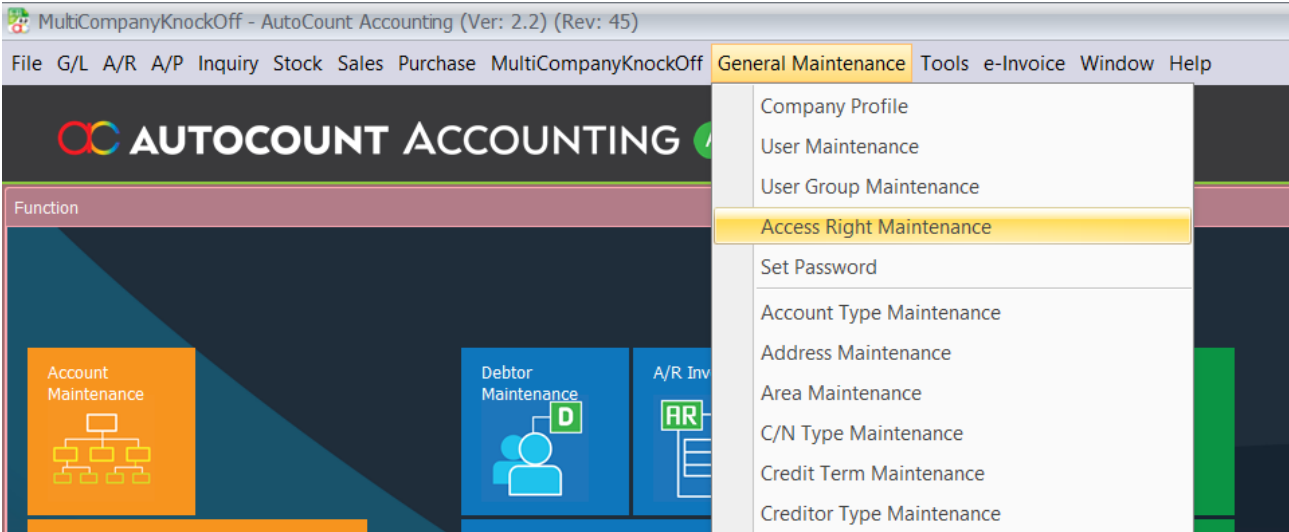
2. Assign Show and Open License Status only to users who need to view the plugin license information.
3. Assign Show and Open Intercompany Account Book Setting only to users who maintain the connected
account books.
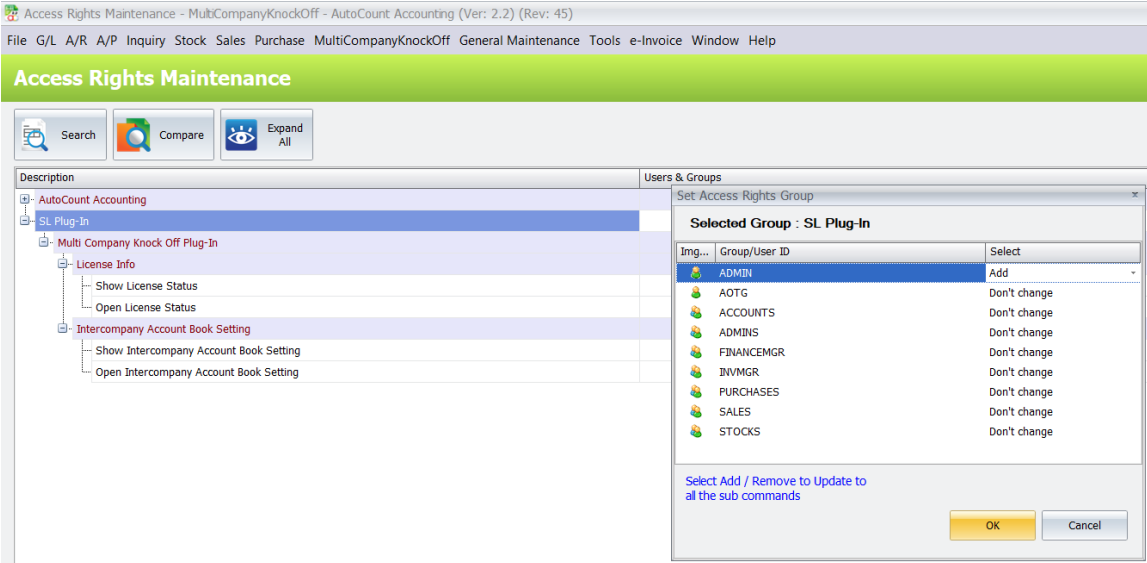
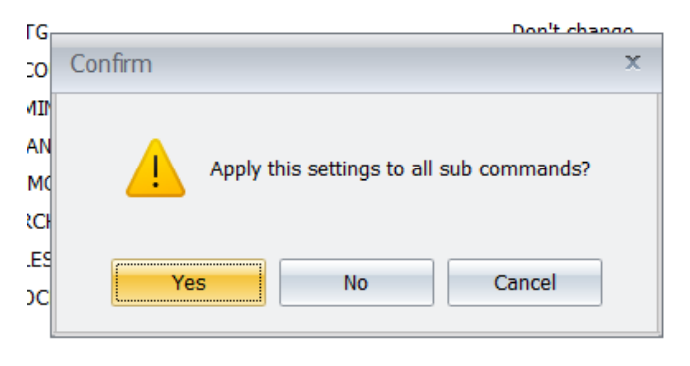
4. Save the access-right changes.
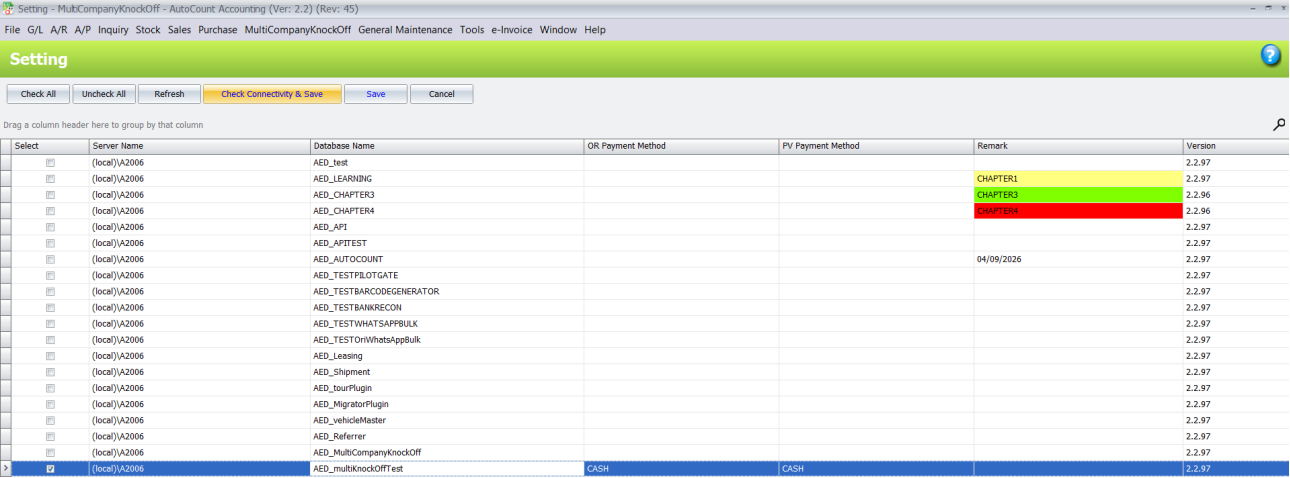
B. Intercompany Account Book Setting
Intercompany Account Book Setting selects the account books that participate in multi-company payment
processing and records the payment methods used for each side.
1. Open MultiCompanyKnockOff > Intercompany Account Book Setting.
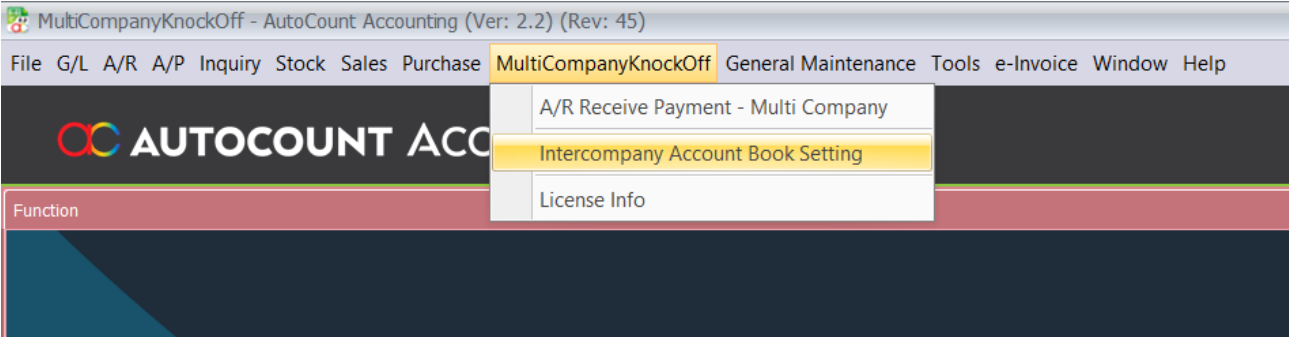
2. Select each target account book to include. The current account book cannot be newly selected from
this screen.
3. Click Check Connectivity and Save to test the selected targets. Review the Status column for
Connected or Failed.
4. Correct a failed target or payment method, then save the setting.
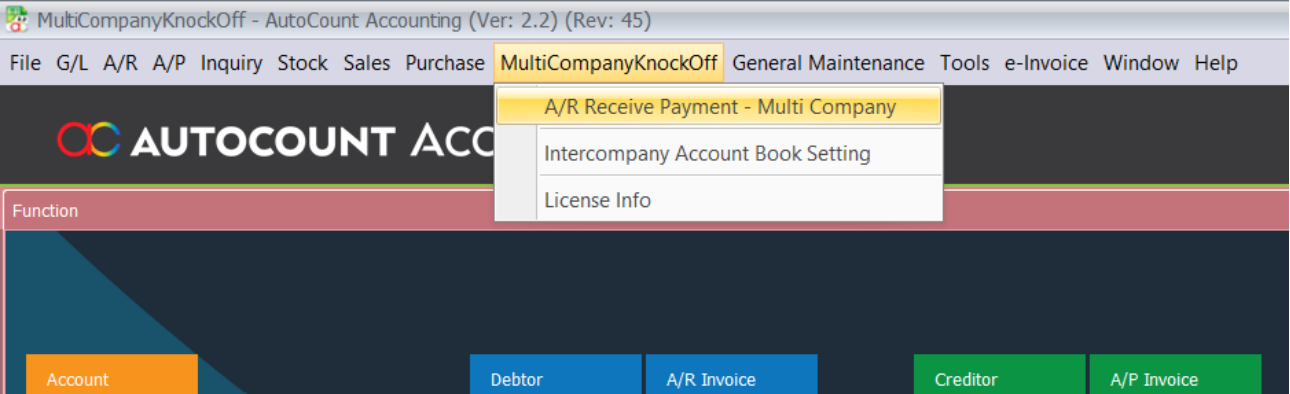
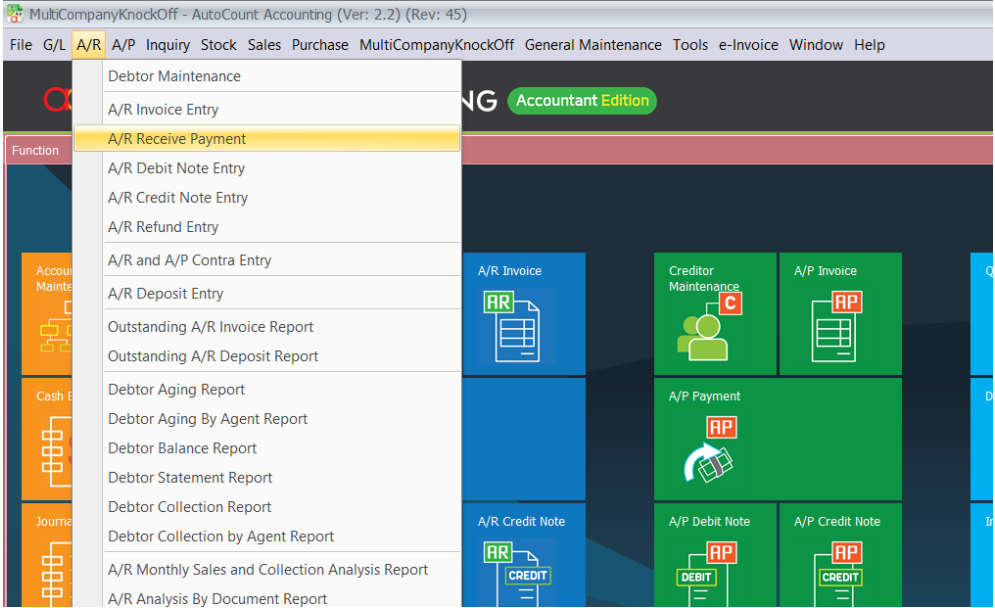
C. AR Receive Payment Multi Company
A/R Receive Payment – Multi Company creates or opens a payment that can knock off balances across
the configured account books.
1. Open MultiCompanyKnockOff > A/R Receive Payment – Multi Company.
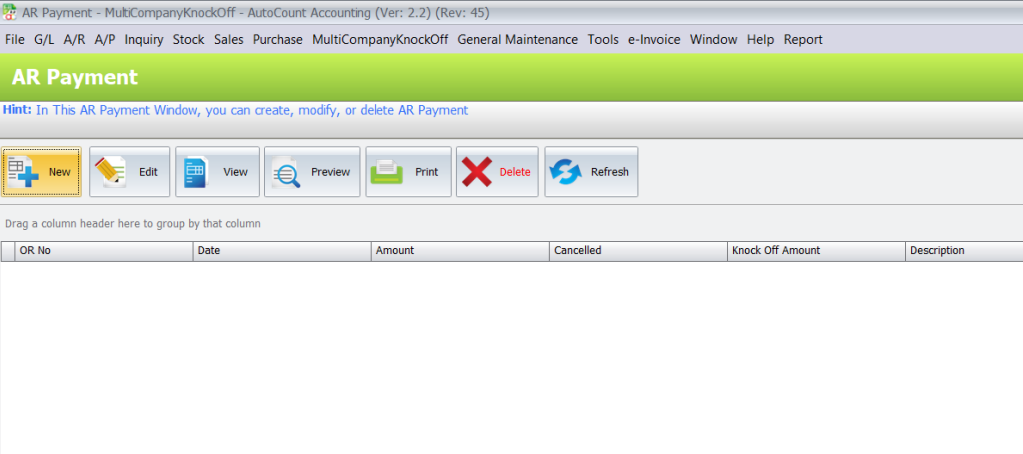
2. Create a new payment or select an existing payment record to open.
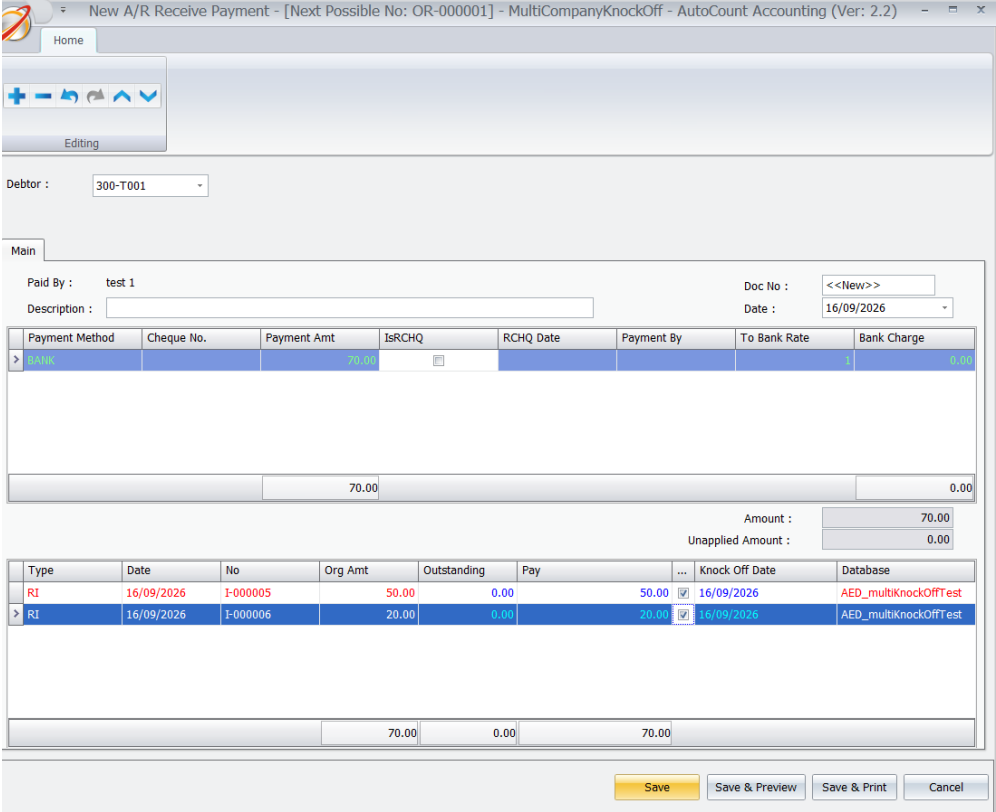
3. Enter the payment header and payment detail information required by the A/R Receive Payment
screen.
4. Select the documents to knock off, including documents from a configured target account book when
applicable.
5. Save the payment. The plugin records the completed target payment or refund information for each
connected account book.
D. Edit Source and Target Payments
The MultiCompanyKnockOff command identifies whether an A/R Payment can be managed locally or is
controlled by another source account book.
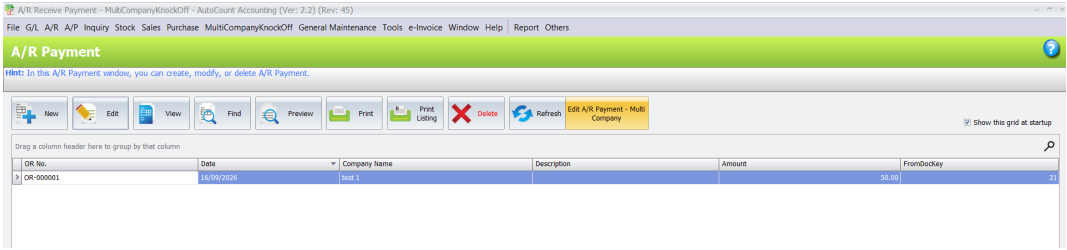
1. Open the standard A/R Receive Payment listing and select the required payment.
2. Review the Multi Company command. Depending on the selected record, it displays Create A/R
Payment – Multi Company, Edit A/R Payment – Multi Company, or Edit in Source Account Book.
3. Use Create or Edit A/R Payment – Multi Company for locally controlled records.
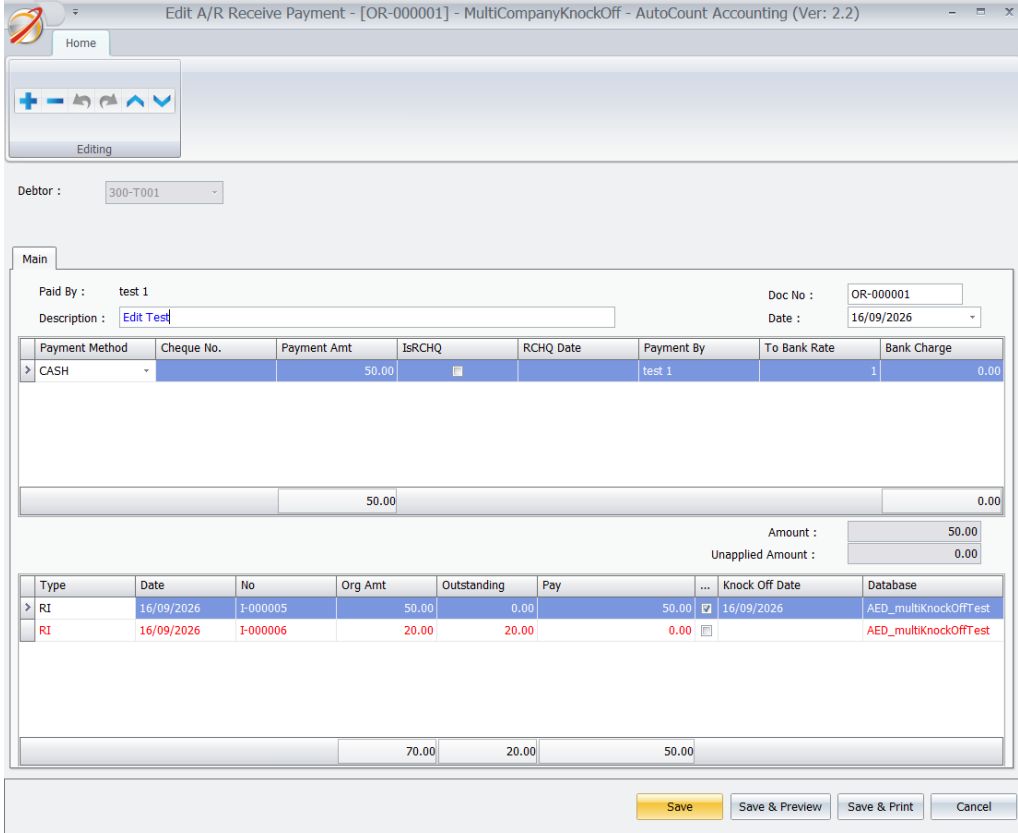
4. If Edit in Source Account Book is displayed, open the source account book to modify the original
Multi Company payment.
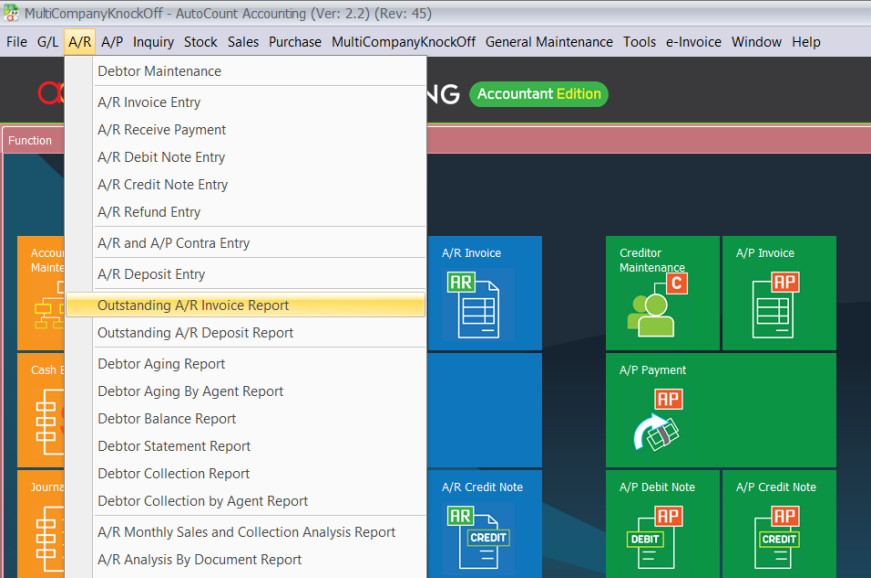
E. Outstanding A R Invoice Across Account Books
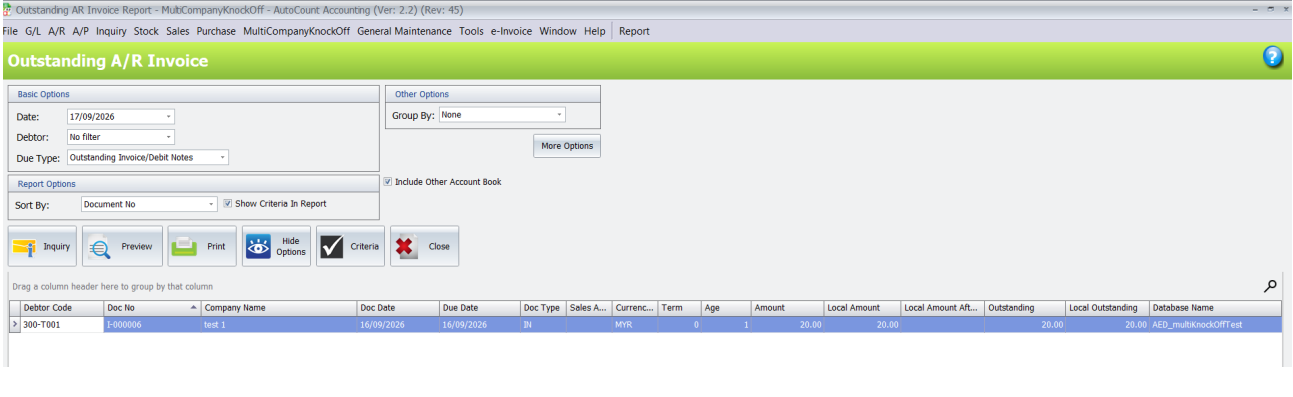
Outstanding A/R Invoice can include balances from the selected intercompany account books and
identifies the source database.
1. Open the standard Outstanding A/R Invoice inquiry.
2. Select Include Other Account Book.
3. Set the normal outstanding-invoice criteria and click Inquiry.
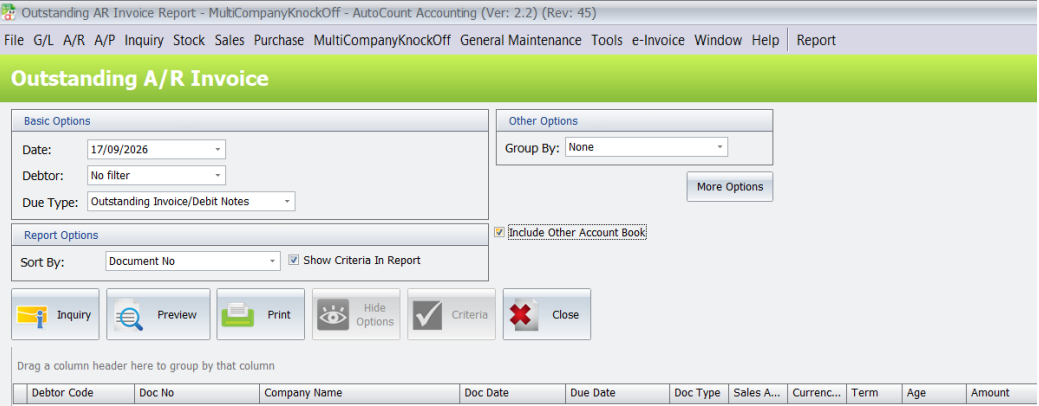
4. Review the Database Name column to identify the account book that supplied each result row.
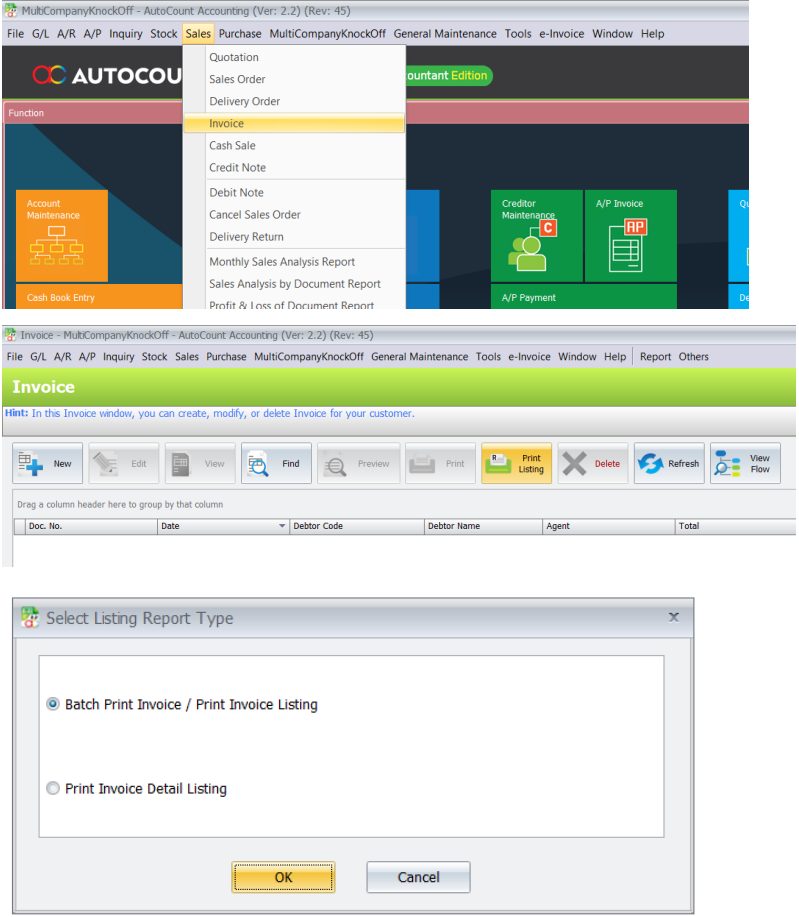
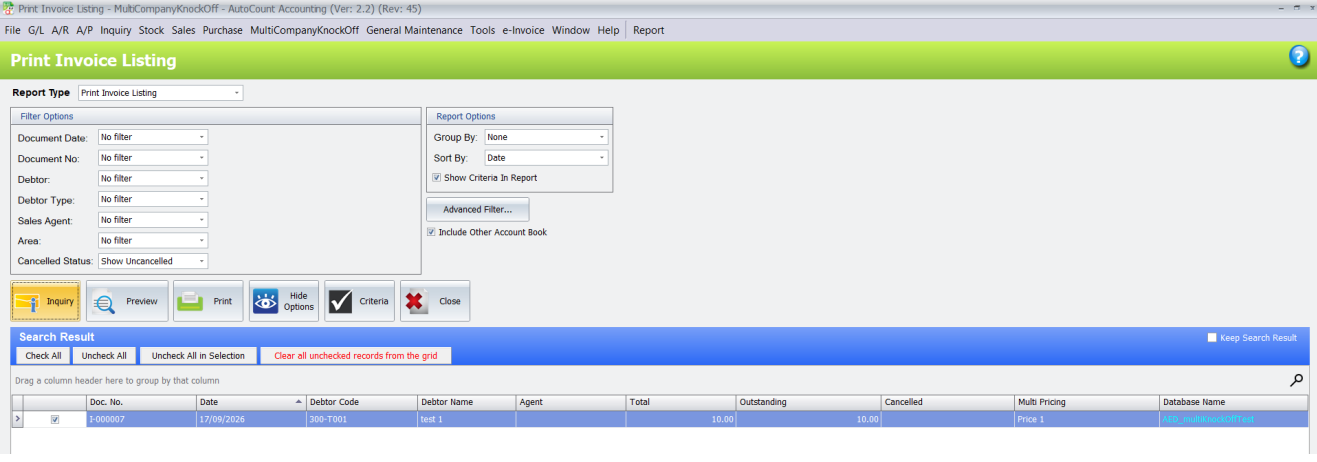
F. Invoice Listing Across Account Books
Invoice Listing can combine invoice results from the current and selected intercompany account books.
1. Open the standard Invoice Listing screen.
2. Select Include Other Account Book.
3. Set the required listing criteria and click Inquiry.
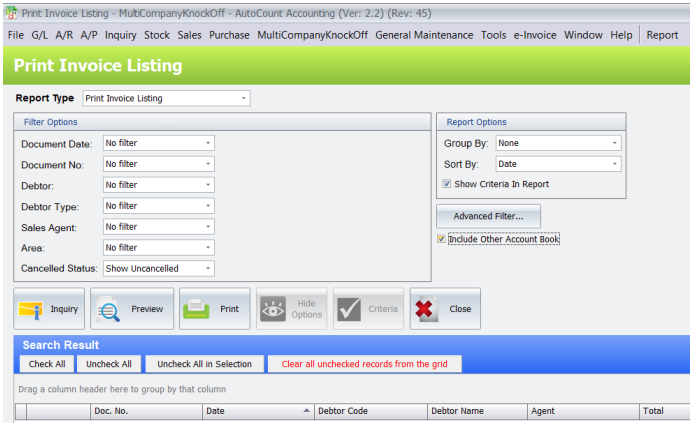
4. Review the Database Name column in the result grid to identify each invoice source account book.
Benefits of AutoCount Multi Company Knock Off Plugin
Faster Cross-Company Payment Settlement
Process eligible payment knock-offs across connected AutoCount account books through a more centralized workflow.
Reduced Repetitive Accounting Work
Minimize repeated payment preparation and manual invoice checking across different company databases.
Improved Multi-Company Receivables Visibility
Review outstanding A/R invoices and invoice listings across connected companies with clear source database identification.
Better Payment Record Control
Maintain source and target payment relationships while managing account book settings through authorized access.
Conclusion
The AutoCount Multi Company Knock Off Plugin provides businesses with a practical solution for managing customer payment knock-offs and reviewing outstanding receivables across multiple AutoCount account books.
By combining connected account book management, multi-company A/R payment processing, source-controlled payment records, and combined invoice inquiries, businesses can reduce repetitive work and maintain better visibility over cross-company receivables.
For organizations managing several companies, the Multi Company Knock Off Plugin helps simplify payment processing and improve coordination between finance teams.
Frequently Asked Questions
What does Multi-Company Knock-Off mean?
Multi-company knock-off refers to matching eligible customer payment amounts against outstanding A/R documents held in different connected company account books through a supported multi-company payment workflow.
Can the plugin process payments across multiple AutoCount databases?
Yes. The plugin supports multi-company A/R payment processing across selected connected AutoCount account books.
Can the plugin knock off invoices from another ccompany?
Yes. Authorized users can select eligible outstanding A/R documents from a configured target account book through the multi-company payment function.
Does the plugin support A/R Debit Notes?
The documented multi-company payment workflow includes eligible outstanding A/R invoices and debit notes.
Can businesses connect multiple AutoCount account books?
Yes. Administrators can configure selected target account books through Intercompany Account Book Setting.
How does the plugin check account book connections?
The plugin provides Check Connectivity & Save, which displays Connected or Failed statuses for configured targets.
Simplify Your Multi-Company Payment Processing Today!
Still switching between multiple AutoCount databases to review outstanding invoices and process customer payments?
With the AutoCount Multi Company Knock Off Plugin, your business can connect selected account books, process eligible cross-company A/R payment knock-offs, and review outstanding invoices more efficiently.
Reduce repetitive accounting work and gain better visibility over receivables across participating companies.
Looking for a multi company knock off plugin that works with AutoCount Accounting?
Contact SL Software Solutions Sdn. Bhd. to discover how the AutoCount Multi Company Knock Off Plugin can support your finance operations.