
How to Handle SiteGiant Bundle / KIT Items
Implementation steps, settings and original screenshots from the SiteGiant ERP–AutoCount integration guide.
How to Handle SiteGiant Bundle / KIT Items
The correct mapping depends on whether AutoCount Item Package is used and whether individual KIT costing and item details are required.
Example KIT Scenario
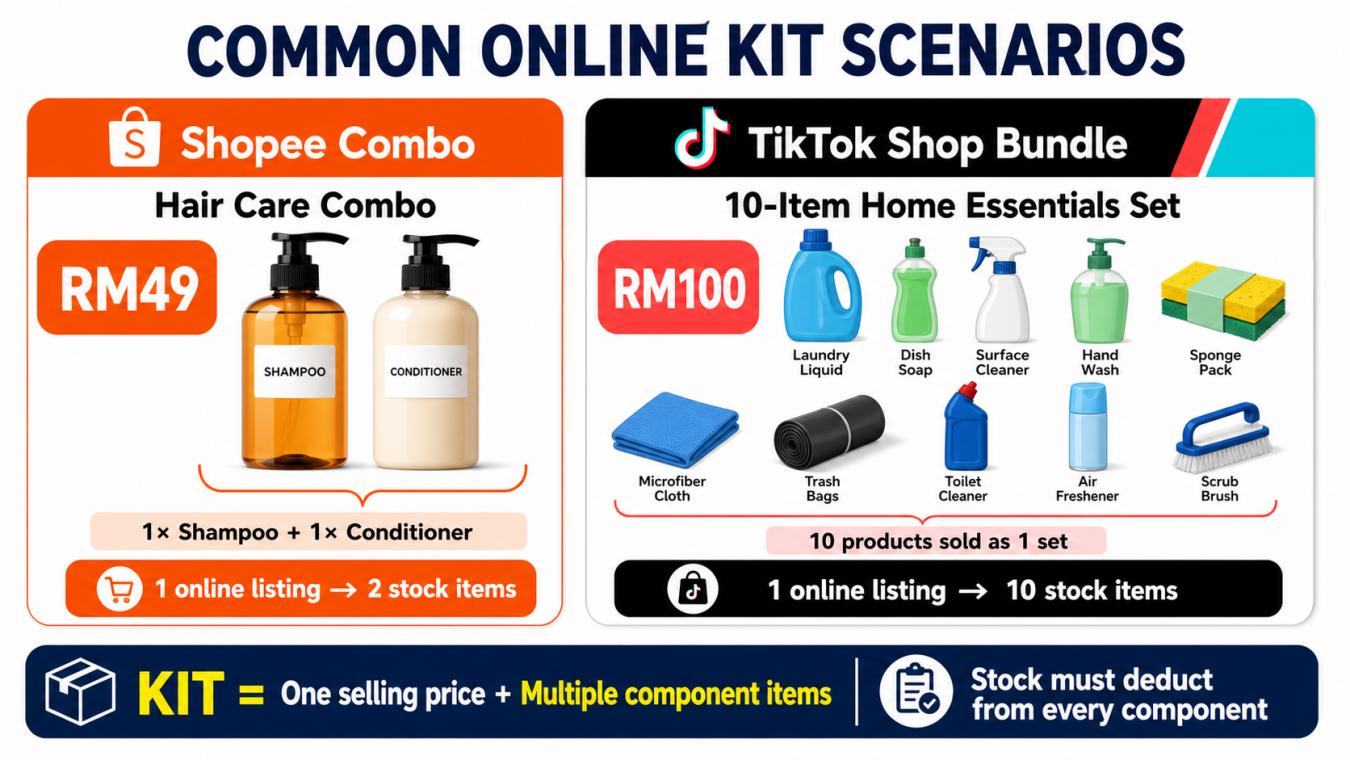
A SiteGiant KIT can be a single selling price with multiple component items, or a grouped listing with its own package information. Decide whether AutoCount needs only the KIT line or needs individual items and costing before selecting the mapping method.
| AutoCount setup | Main KIT mapping | Priority |
|---|---|---|
| Without Item Package module | AutoCount Item Code | Custom Mapping → Easy Mapping → Default Item |
| With Item Package module | AutoCount Package Code | Custom Mapping → Easy Mapping → Default Package |
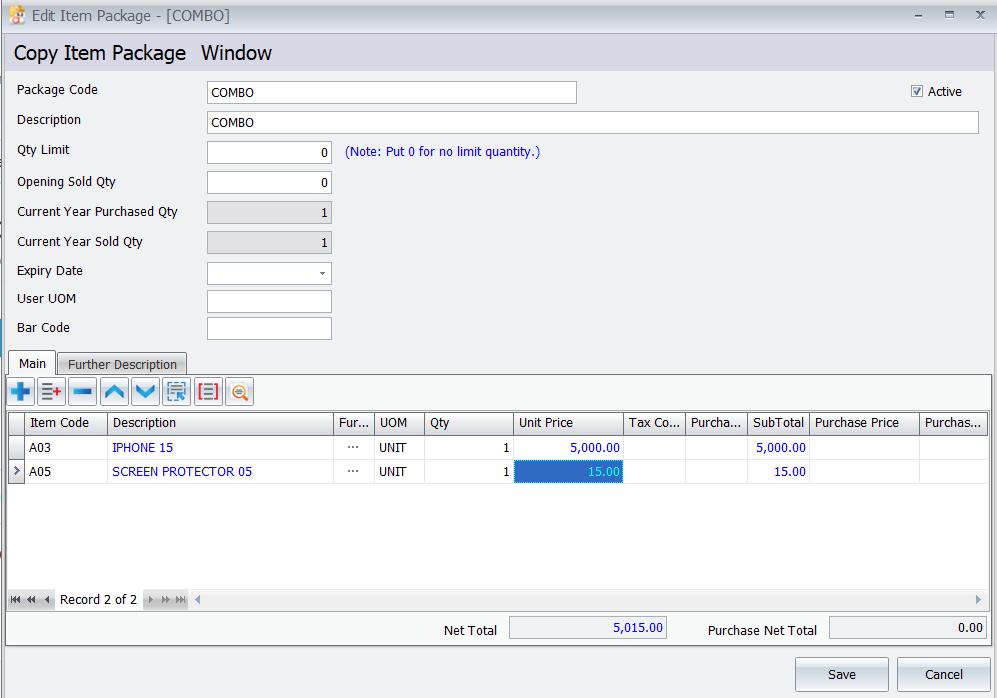
If AutoCount does not require KIT costing and margin, map the KIT to an Item Code or Default Item. If costing, margin and individual details are required, use the AutoCount Item Package module and a Package Code.
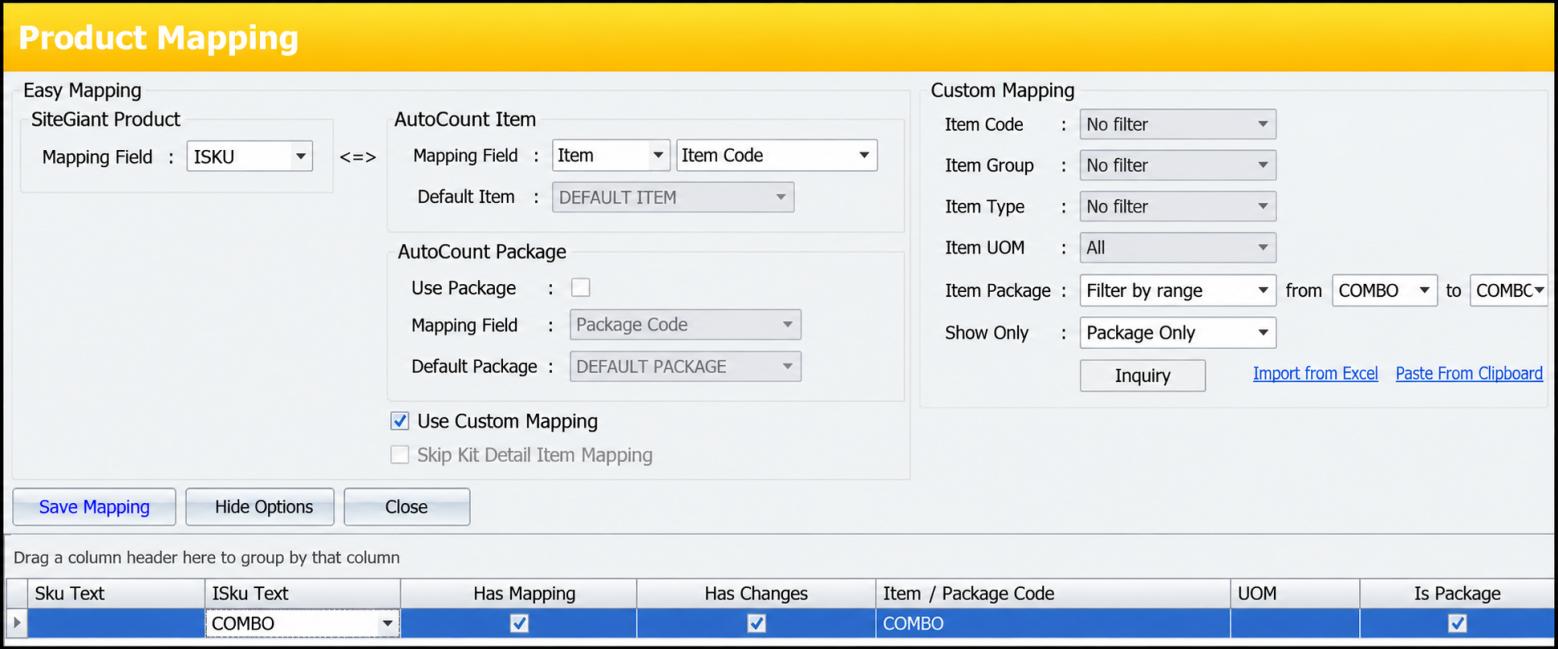
Mapping priority: Custom Mapping → Easy Mapping → Default. An old Custom Mapping can take priority over the intended Package Code.
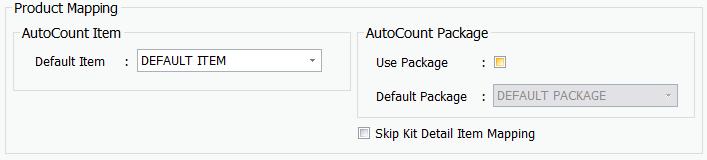
Option 1 — Without Item Package module
Option 2 — With Item Package module
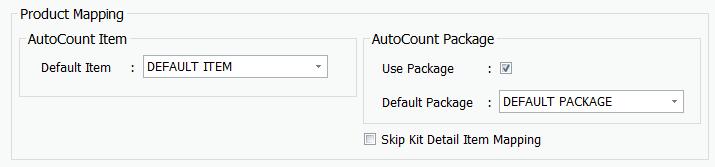

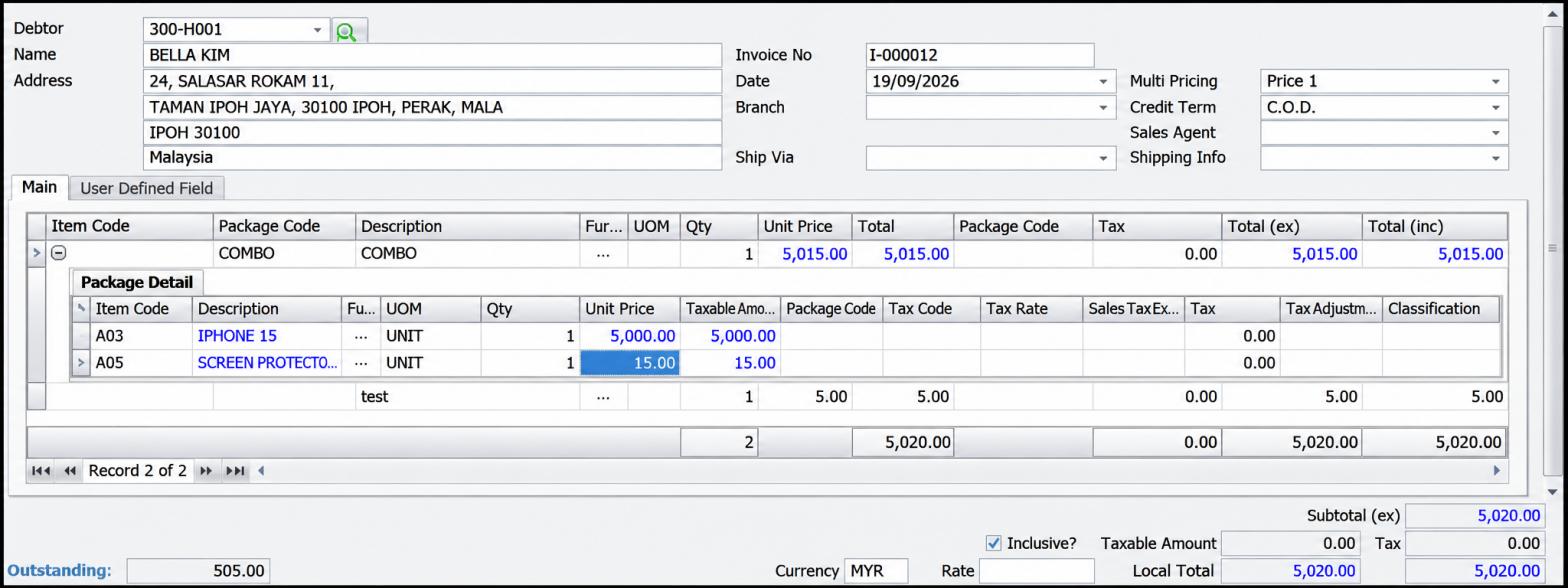
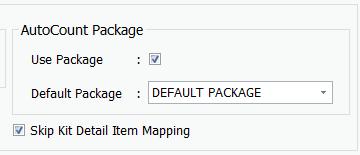
What does “Skip KIT Detail Item Mapping” do?
Use Skip KIT Detail Item Mapping only when AutoCount needs the main KIT line but does not need the individual item details.
- Only the main KIT line is shown.
- Individual items inside the KIT are not shown.
- Individual-item stock is not updated in AutoCount.

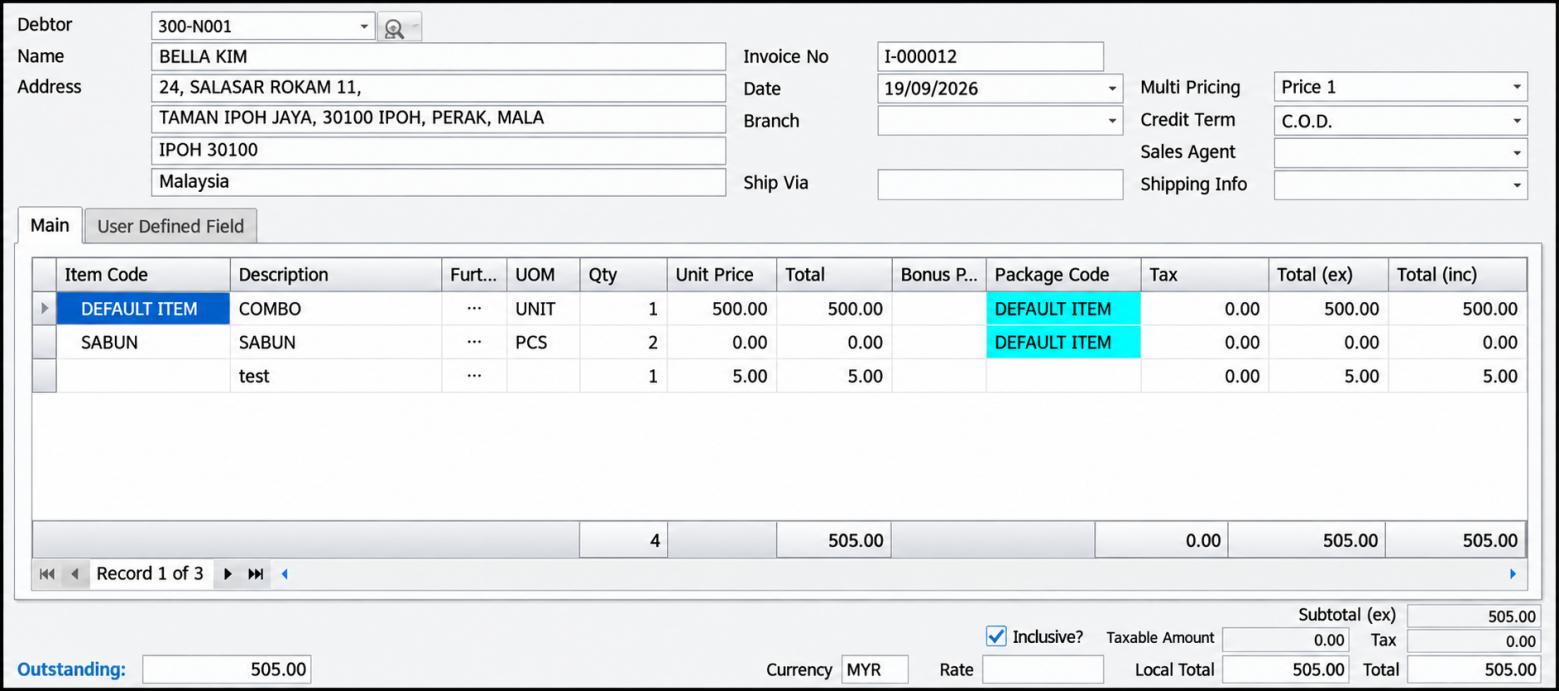
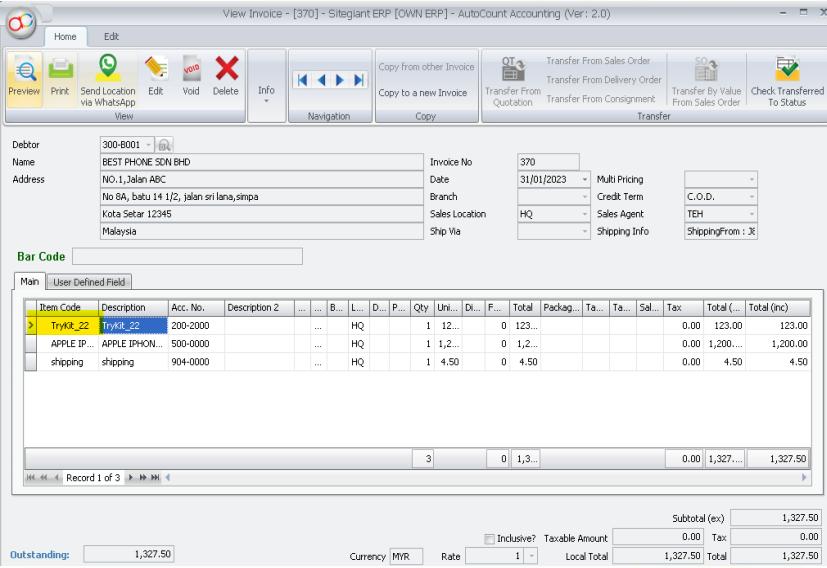
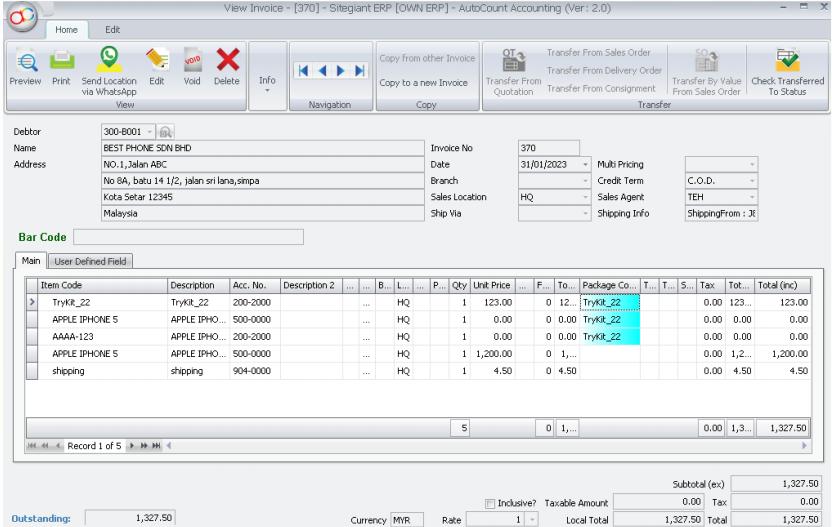
When the option is unticked and Item Package is not used, the PDF states that KIT detail items share the main KIT iSKU, only component quantities are shown, and the main KIT holds the total price while the individual item prices are zero.
| Problem | Check / correction |
|---|---|
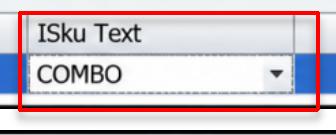
| Default Item or Default Package appears | Check the main KIT iSKU mapping. |
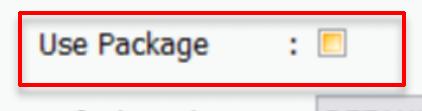
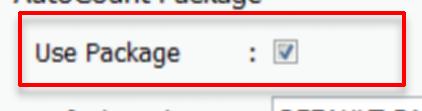
| Item Code used instead of Package Code | Tick Use Package Code and remove old Item Code Custom Mapping. |
| Individual item missing or wrong | Check the SiteGiant KIT contents and each component’s Item Code and UOM. |
| Incorrect KIT quantity, cost or margin | Check the AutoCount Item Package items, quantities and values. |
| Only main KIT line appears | Check Skip KIT Detail Item Mapping. |
- The KIT uses the correct AutoCount Item Code or Package Code.
- All required individual items are mapped to the correct Item Code and UOM.
- The Item Package shows the correct items and quantities when the module is used.
- No old Custom Mapping overrides the selected setup.
- If KIT details are skipped, only the main KIT line is shown.