
How Does a SiteGiant iSKU Map to an AutoCount Item Code?
Choose Default Item, Easy Mapping or Custom Mapping to connect a SiteGiant iSKU with the correct AutoCount Item Code and UOM.
Use this topic to decide how a SiteGiant iSKU should be linked to an AutoCount Item Code and UOM. It explains when to use Default Item, Easy Mapping or Custom Mapping, and how the system checks these mapping options.
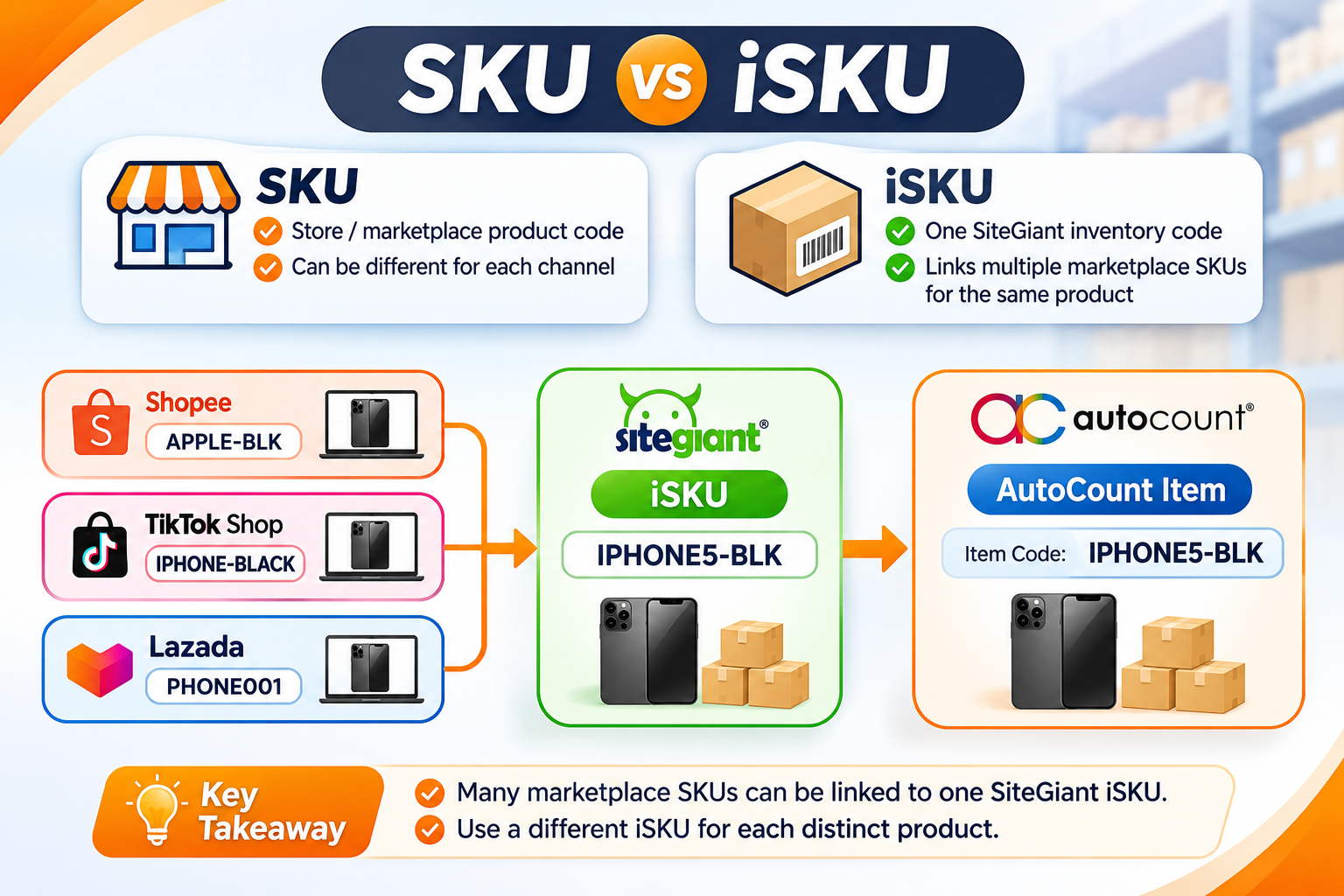
Additional Note — SKU and iSKU
- SKU is the product code used in a marketplace or sales channel.
- iSKU is the main product code used in SiteGiant.
- Different marketplace SKUs for the same product can be linked to one SiteGiant iSKU.
- For product mapping, use the SiteGiant iSKU to link the product to the correct AutoCount Item Code and UOM.
Mapping Options
| Option | Use When | System Result |
|---|---|---|
| Default Item | Individual item details are not required in AutoCount. | The iSKU uses the selected Default Item. |
| Easy Mapping | The SiteGiant iSKU and AutoCount Item Code are exactly the same. | The system matches them automatically. |
| Custom Mapping | The codes are different, the iSKU is too long, or a specific UOM is required. | The iSKU is manually linked to the correct Item Code and UOM. |
System Logic
The system checks the mapping in this order:
Custom Mapping → Easy Mapping → Default Item
- A saved Custom Mapping is used first.
- If there is no Custom Mapping, the system checks whether the iSKU matches an AutoCount Item Code.
- If no match is found, the Default Item is used.
Which Option Should Be Used?
| Client Requirement | Mapping Option |
|---|---|
| Individual item details are not required in AutoCount. | Default Item |
| Individual item details are required, and the SiteGiant iSKU is the same as the AutoCount Item Code. | Easy Mapping |
| Individual item details are required, but the codes are different or a specific UOM must be selected. | Custom Mapping |
When to Use Custom Mapping
Use Custom Mapping when:
- AutoCount already has existing Item Codes that must be maintained.
- The iSKU and AutoCount Item Code are different.
- The iSKU is too long or unsuitable as an AutoCount Item Code.
- The product uses multiple UOMs or requires a specific UOM mapping.
A. Default Item
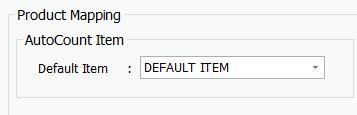
- Create an AutoCount Stock Item to use as the Default Item.
- Go to Unicart+ → General Setting → General.
- Under Product Mapping, select the Default Item and click Save.
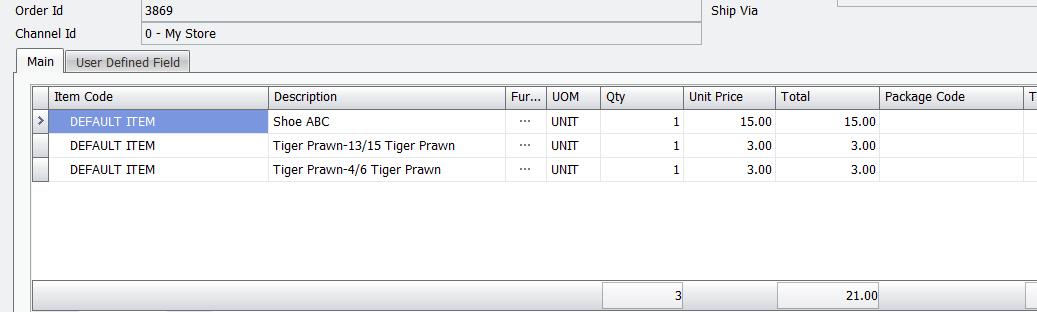
Any iSKU without Custom or Easy Mapping will use this item.
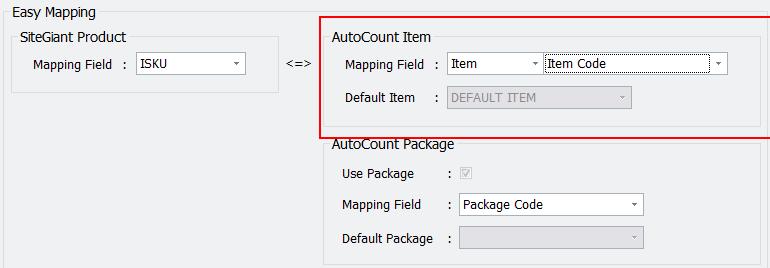
B. Easy Mapping
- Go to Unicart+ → Product Mapping → Product Mapping.
- Set SiteGiant Product Mapping Field: iSKU and AutoCount Item Mapping Field: Item → Item Code.
- Click Save Mapping.
C. Custom Mapping
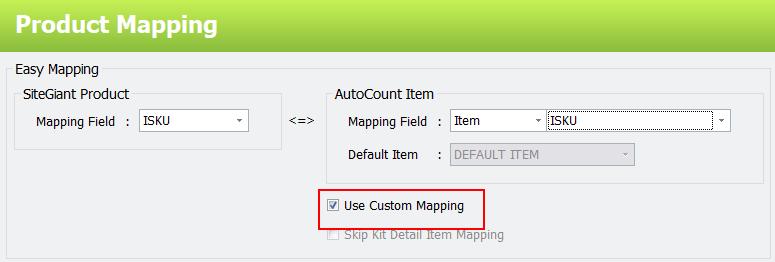
- Go to Unicart+ → Product Mapping → Product Mapping.
- Select iSKU and tick Use Custom Mapping.
- Click Inquiry and find the correct AutoCount Item Code and UOM.
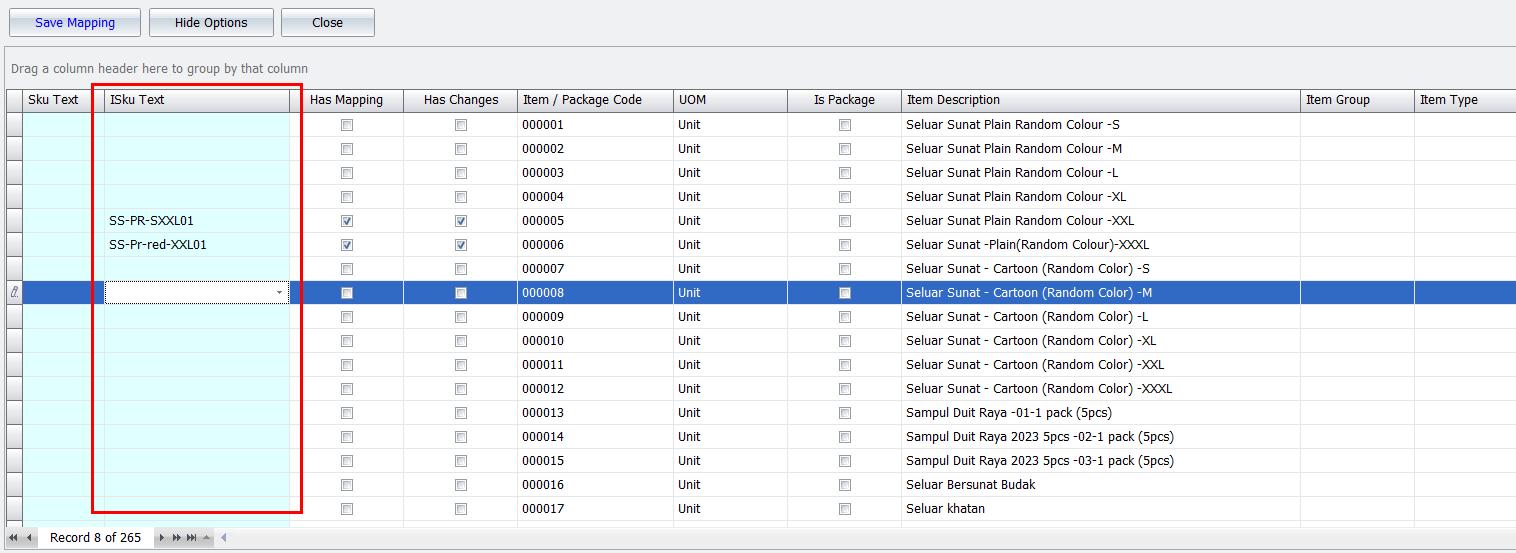
- Enter the SiteGiant iSKU in iSKU Text.
- Click Save Mapping.
For bulk mapping: Export the inquiry result to Excel, complete the iSKU Text column, then use Import From Excel or Paste From Clipboard. Save the mapping after importing.
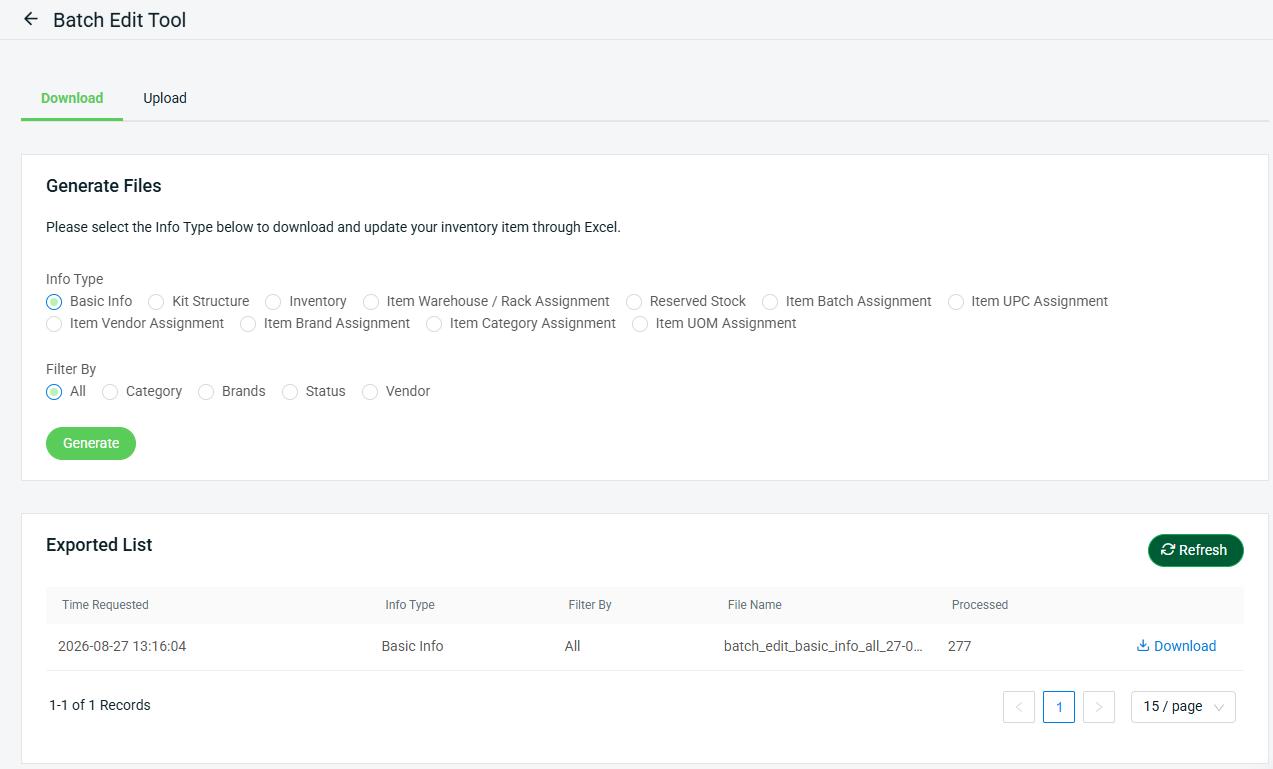
Optional — Export the SiteGiant Product List
Go to SiteGiant → Inventory → All Inventory Items → Bulk Tools → Batch Edit. Select Basic Info and All, generate the file, then download it to obtain the iSKU list.

Expected Result
- The selected mapping method is saved.
- Each mapped iSKU links to the correct AutoCount Item Code and UOM.
- The Default Item is used only when individual mapping is not required.
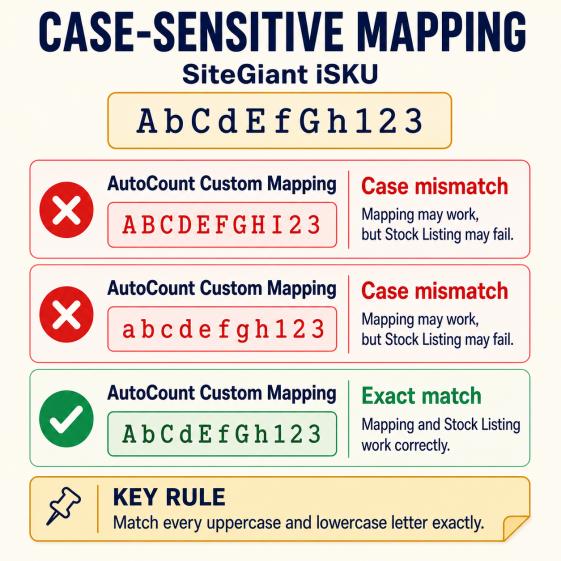
- The iSKU letter case matches SiteGiant exactly.
Troubleshooting / Common Errors
| Issue | What to Do |
|---|---|
| Default Item appears unexpectedly | Check whether Custom Mapping is missing or the iSKU and AutoCount Item Code do not match exactly. |
| Wrong Item Code or UOM is used | Check for an old or incorrect Custom Mapping. Custom Mapping overrides Easy Mapping. |
| Mapping cannot be saved | Check whether the same iSKU has already been mapped to another Item Code or UOM. Resolve the duplicate first. |
| Mapping is not recognized in Stock Listing | Check that the iSKU uses exactly the same uppercase and lowercase letters as SiteGiant. |