
How to Handle Cancelled, Returned or Refunded Online Orders?
Implementation steps, settings and original screenshots from the SiteGiant ERP–AutoCount integration guide.
Situation & Action Guide
Use this topic when a SiteGiant order is Cancelled, Returned, Lost or Damaged, or Refunded after processing.
| Situation | What to Do |
|---|---|
| No AutoCount Invoice exists | No Credit Note is required. |
| Invoice exists but order is Pending / not completed | Wait for latest order status. Do not create a CN yet. |
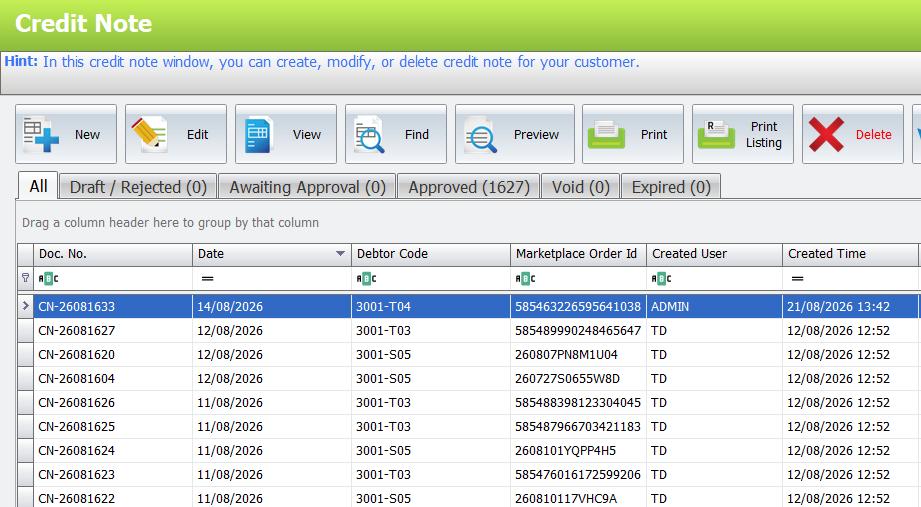
| Invoice exists + Manual Pull Order + becomes Cancelled / Returned / Lost or Damaged | Create Credit Note manually. |
| Invoice exists + Auto Pull Order + becomes Cancelled / Returned / Lost or Damaged | The system can create Credit Note automatically when Auto post to AutoCount Credit Note is enabled. |
| Marketplace shows refund but SiteGiant status does not change | Check refund and create Credit Note manually. |
| Credit Note already exists | Do not create another Credit Note. |
Questions to Ask the Client
- Has the order already been posted to an AutoCount Invoice?
- What is the latest SiteGiant order status?
- Does a Credit Note already exist for this Order ID?
Check Order ID → Check Invoice → Check SiteGiant Status → Manual / Auto Credit Note → Check Stock → Verify
A. Manual Credit Note
For Manual Pull Order:
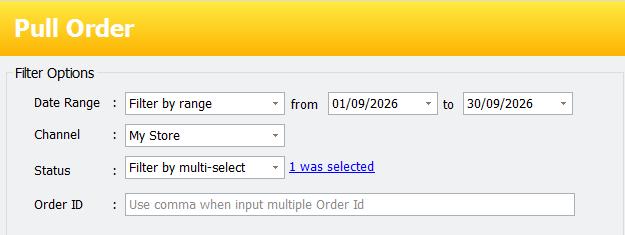
- Go to Unicart+ → Pull Order.
- Enter the required Date Range / Channel / Order ID.
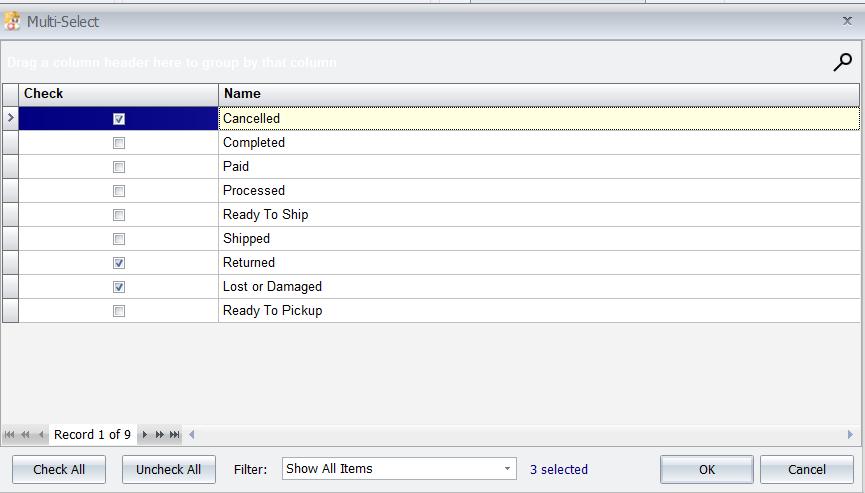
- Under Status, select the required status: Cancelled, Returned, or Lost or Damaged.
- Click Inquiry.
- Confirm the latest order status before creating the Credit Note.
When checking cancelled or returned orders, apply the Status filter. Without the required status selected, the transaction may not appear in Pull Order.

B. Automatic Credit Note
- Go to Unicart+ → Automation → Service Settings.
- Under Pull Order, enable Auto post to AutoCount Credit Note.
- Maintain Sync Interval and Cut-Off Date for Credit Note.
- Make sure the Unicart+ service is Running.
The system can automatically create a Credit Note only when the order has already been posted to AutoCount and its SiteGiant status changes to Cancelled, Returned, or Lost or Damaged.
Orders before the Cut-Off Date for Credit Note will not automatically create a Credit Note.
Stock Return Status
| SiteGiant Status | Stock Treatment |
|---|---|
| Cancelled | Return to stock |
| Returned | Return to stock |
| Lost or Damaged | Do not return to stock |
For a manually created Credit Note, always confirm the actual stock condition before saving.
C. Marketplace Refund
If a marketplace refund occurs but the SiteGiant status does not change to Cancelled, Returned or Lost or Damaged, Auto Credit Note cannot process it based on SiteGiant status.
- Confirm the refund at the Marketplace.
- Find the original AutoCount Invoice.
- If handling the refund directly, process the Credit Note manually.
- If discovered during Bulk Knock Off / settlement checking, follow Topic 17 instead.
Troubleshooting / Common Errors
| Issue | What to Do |
|---|---|
| Cancelled order has no CN | Check whether Invoice was created first. No Invoice = no CN required. |
| Automatic CN not created | Check SiteGiant status, Auto Credit Note setting, Cut-Off Date, Sync Interval and service. |
| Marketplace refunded but no CN | Check whether SiteGiant status changed. If not, process CN manually. |
| Wrong stock returned | Compare returned order details in SiteGiant with AutoCount CN. |
| Duplicate CN | Search Order ID and original Invoice before creating another CN. |
| Order is still pending | Wait for the order / settlement status to update. |
| Partial return incorrect | Check actual returned item, quantity and refund amount. |