
How SiteGiant Orders Sync to AutoCount: Manual or Automatic
Implementation steps, settings and original screenshots from the SiteGiant ERP–AutoCount integration guide.
Use Unicart+ → Pull Order to select and post SiteGiant orders to AutoCount Invoice; alternatively configure the automatic service.
| Option | Use When | How It Works |
|---|---|---|
| Pull Order | Staff review/select orders before posting. | Pull Order → Inquiry → Select Order → Confirm. |
| Auto Pull Order | Automatically check new orders. | Service uses Sync Interval and Cutoff Date; may auto-post invoice when enabled. |
Auto Pull Order can run without automatic invoice posting; Auto post to AutoCount Invoice requires AutoCount API Module.
Questions to Ask the Client
- Which Channel should pull orders?
- What starting date?
- Post manually or automatically?
Check Channel & Product Mapping → Pull Order → Inquiry → Using Default Item Code = 0 → Confirm → Check AutoCount Invoice → Set Auto Pull Order if needed
A. Pull Order
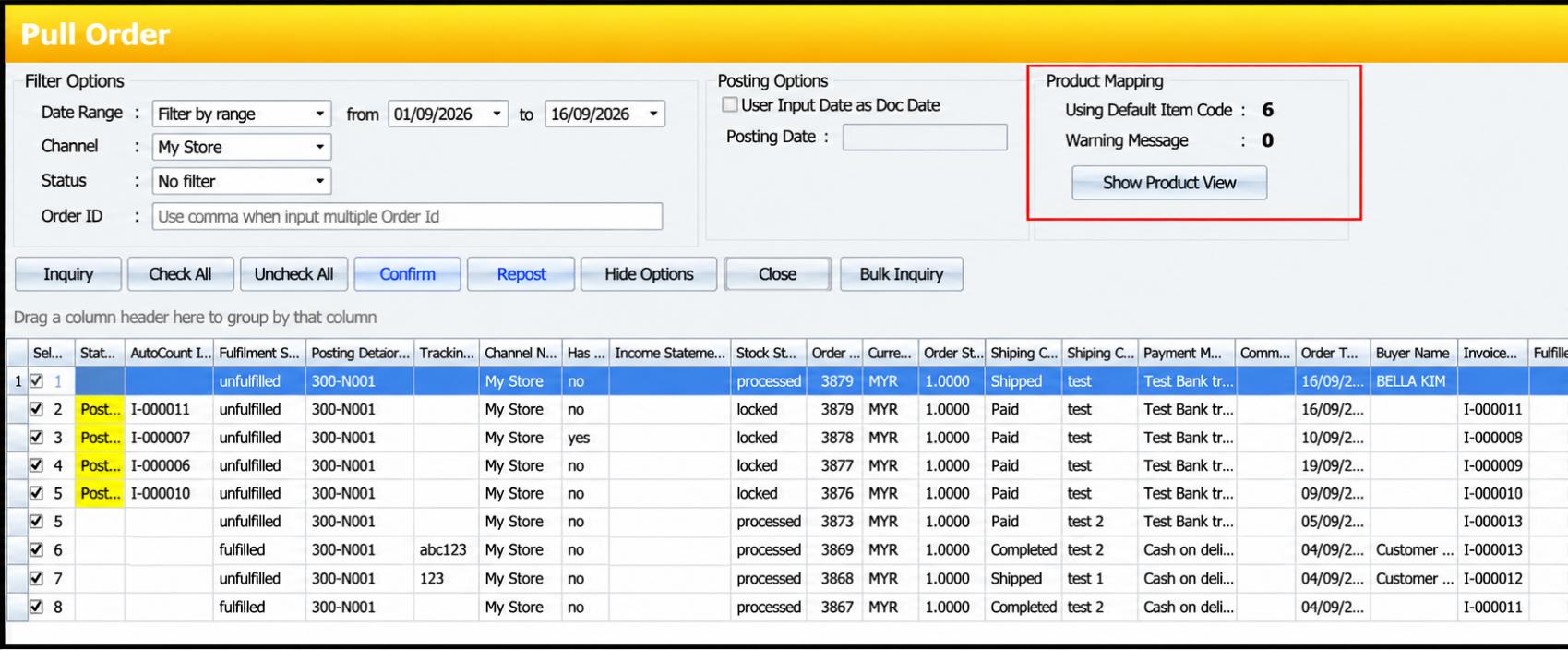
- Open Unicart+ → Pull Order.
- Under Date Range, choose Filter by range and dates. Avoid No Filter because it retrieves all orders.
- Choose the Channel; leave blank only for all channels.
- Choose Status: No Filter for normal valid orders, or Filter by multi-select for selected statuses.
- Enter Order ID if required; multiple IDs can be separated with commas.
- Click Inquiry.
- Ensure Using Default Item Code = 0.
- If not 0, click Show Product View and correct unmapped Item / Package first.
- Select order and click Confirm.
- Check created AutoCount Invoice.
Do not post when Using Default Item Code is not 0. Correct Product Mapping first.
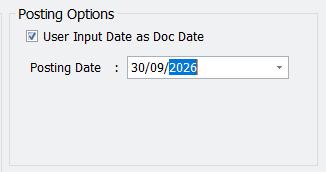
Posting Date Option
Example scenario: Use this when a delayed order must be recorded in the current accounting period.
When User Input Date as Doc. Date is ticked, AutoCount Invoice Date follows selected Posting Date rather than SiteGiant Order Time. PDF example: order date 5/10/2026, Posting Date 30/09/2026, AutoCount Invoice Date 30/09/2026. Confirm with the accounts team before posting.
B. Auto Pull Order
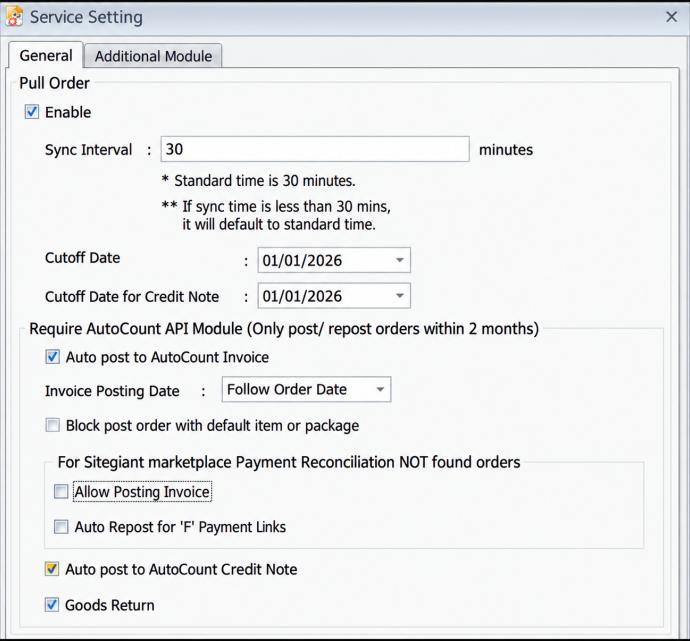
- Go to Unicart+ → Automation → Service Settings.
- Under Pull Order, tick Enable.
- Set Sync Interval and Cutoff Date.
- If automatic invoice creation is needed, tick Auto post to AutoCount Invoice (AutoCount API Module required).
- Click Save.
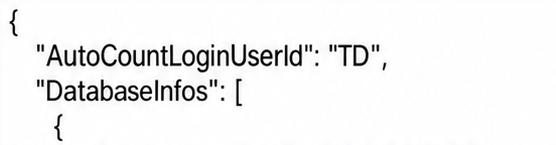
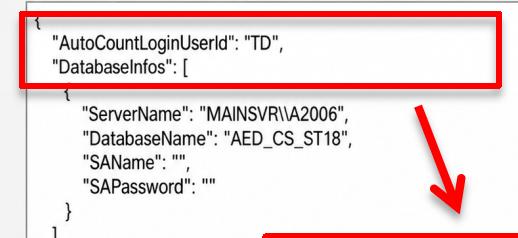
- Prepare a dedicated AutoCount user, e.g. TD User, with access rights.
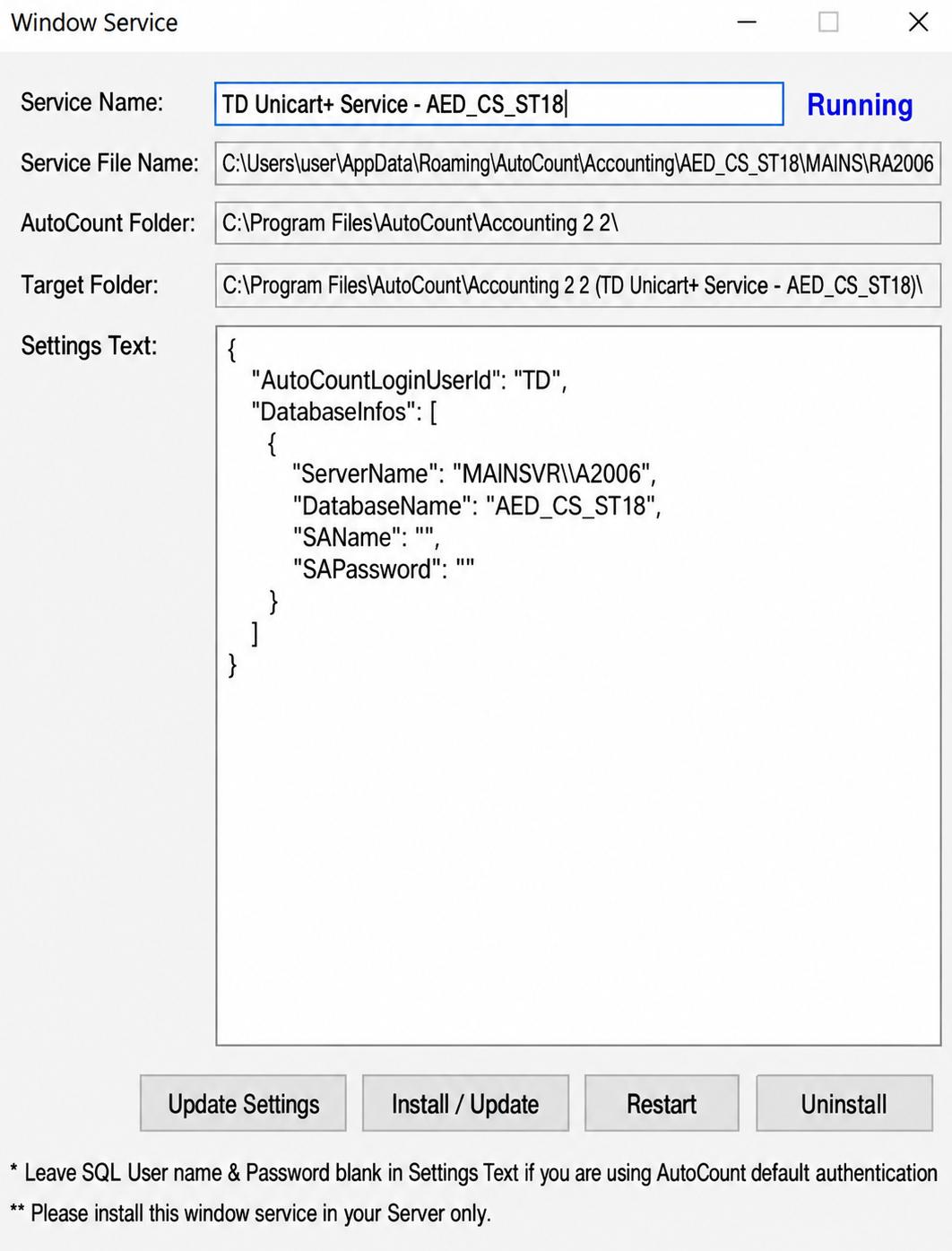
- On Server PC, open Automation → Install Service.
- Maintain TD User for service.
- Click Install / Update.
- Check service status Running.
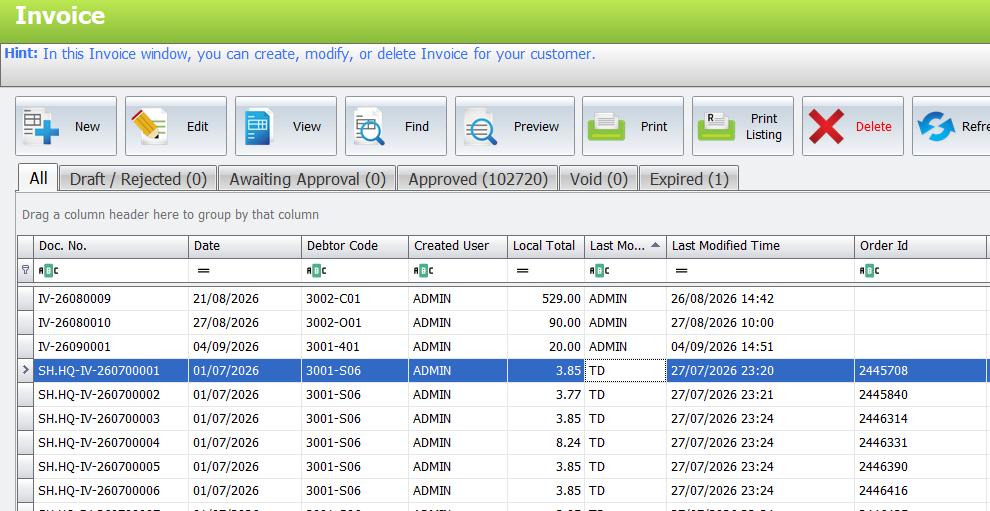
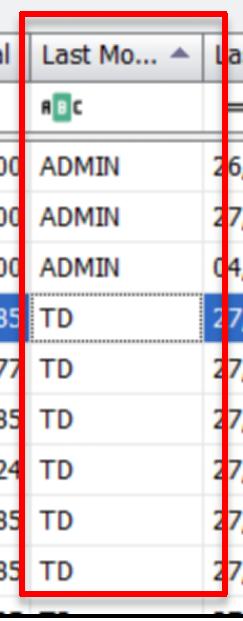
- After first auto-post, verify creator of AutoCount Invoice is TD User.
Why Use TD User?
This distinguishes automatically posted invoices from manual invoices.
Manual Pull Order creator = Normal AutoCount User. Auto Pull Order + Auto Post creator = TD User.
Each channel needs a successful manual order-sync test before Automatic Order Sync. For new automation, allow the first 30-minute synchronization interval to complete before judging the service.
When to Use Repost
Common examples: Summary Code was corrected or added; Product Mapping was corrected; or other posting settings were corrected and need to be applied to the posted order.
Repost only when the order was already posted and setup has been corrected, such as Summary Codes, Product Mapping or other posting settings. Order not posted → Confirm. Already posted and corrected → Repost.
Steps to Repost
- Go to Unicart+ → Pull Order.
- Enter Date Range, Channel or Order ID.
- Click Inquiry.
- Find already-posted order.
- Confirm corrections were made.
- Select the order.
- Click Repost.
- Check AutoCount Invoice and confirm corrections.
Troubleshooting / Common Errors
| Issue | What to Do |
|---|---|
| Order missing | Check Date Range, Channel, Status, Order ID and Inquiry. |
| Using Default Item Code not 0 | Correct mapping through Show Product View before posting. |
| Auto Pull Order not detecting order | Check Sync Interval, Cutoff Date and service Running. |
| Automatic Invoice not created | Check Auto post, AutoCount API Module and service. |
| TD User cannot create invoice | Check active user and required access rights. |
| Possible duplicate invoice | Search Order ID in AutoCount before retrying. |
| Manual works but Auto fails | Check Auto Pull Order, TD User, Windows Service; update/restart if required. |