
How Shipping, Discounts, Vouchers and Marketplace Charges Post to AutoCount?
Implementation steps, settings and original screenshots from the SiteGiant ERP–AutoCount integration guide.
Use this topic to control how shipping, discounts, vouchers and marketplace charges are posted into the AutoCount Invoice. There are two ways to get the charges: SiteGiant Summary Code for buyer-side charges received from the order, and Marketplace Summary Code for more complete buyer and seller fees from Shopee, TikTok or Lazada.
| Option | When to Use | What It Covers |
|---|---|---|
| SiteGiant Summary Code | Normal buyer-side order charges needed. | Shipping, Voucher, Discount, Adjustment and other buyer-side charges. |
| Marketplace Summary Code | Marketplace seller fees also needed. | Marketplace buyer/seller charges such as commission and service fees. |
Some marketplace data may include charges already received from SiteGiant. Exclude the overlapping SiteGiant Summary Code for that channel to prevent duplicate posting.
Questions to Ask the Client
- Which charges must appear in the AutoCount Invoice?
- Are Shopee, TikTok or Lazada seller fees needed?
- Which AutoCount Item Code and Account No. should be assigned?
Confirm Required Charges → Choose Source → Maintain Item Code / Account No. → Set Channel Rules → Save → Test Order → Check Invoice
Summary Code Function Guide
| Setting | Function | When to Use |
|---|---|---|
| Type | Select the source of the Summary Code. | Choose SiteGiant, Shopee, TikTok or Lazada. |
| Summary Code | The type of charge to post. | For example Shipping, Voucher, Discount, Commission or Service Fee. |
| Item Code | AutoCount Item Code used for the charge. | Use when the charge should post using a specific item. |
| Acc No. | AutoCount account used for the charge. | Select the account where the charge should be posted. |
| Classification | AutoCount e-Invoice Classification Code. | Select the correct classification code for e-Invoice. |
| Exclude All | Do not post this Summary Code. | Tick when the charge is not required. |
| Include Channels | Apply this row only to selected channels. | Use when the same Summary Code needs different Item Code or Acc No. for different channels. |
| Exclude Channels | Do not apply this row to selected channels. | Use when the charge should not post for certain channels. Marketplace setup may also update this automatically to prevent duplicate posting. |
| Minus | Reverse the amount sign. | Use when the charge needs to post as a negative amount. |
| Group | Combine Summary Codes into one invoice detail row. | Use when several Summary Codes post to the same account and should show as one row instead of separate rows. |
| Use “Shipping Carrier” | Replace the normal Shipping description with ‘shipping carrier’. | Tick when the client wants the invoice description to show ‘shipping carrier’ instead. |
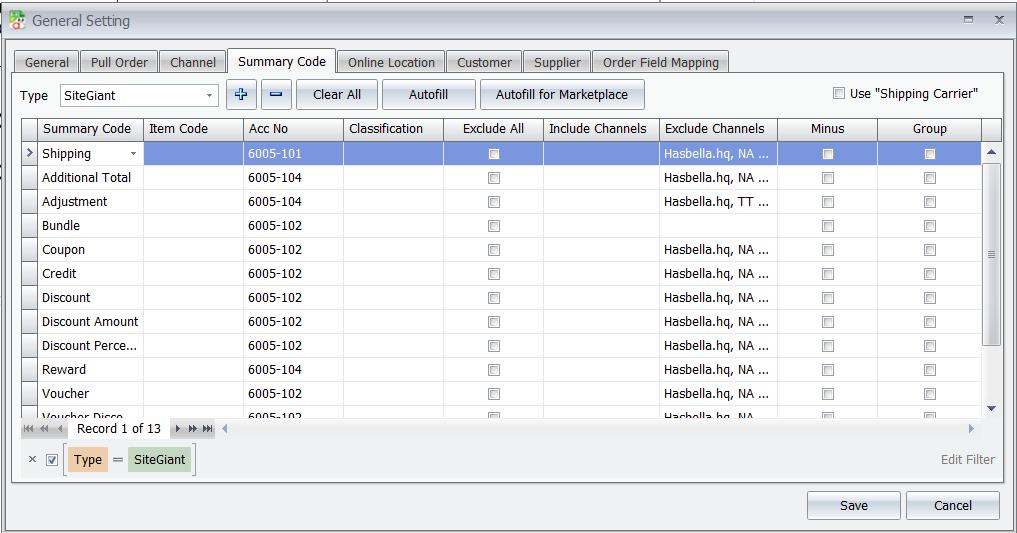
Option 1 — SiteGiant Order Charges
- Go to Unicart+ → General Settings → Summary Code.
- Click Autofill to load default SiteGiant Summary Codes.
- Keep charges required by the client.
- Maintain Item Code, Account No. and channel rules if needed.
- Click Save.
- Pull a test order and check AutoCount Invoice.
Option 2 — Marketplace Fees and Charges
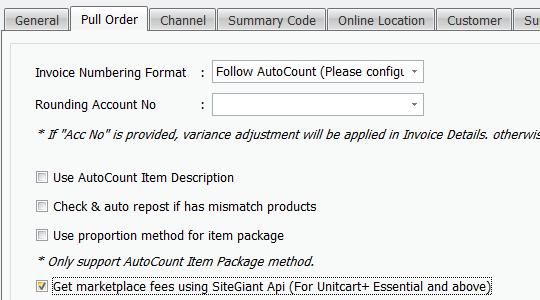
Requires Unicart+ Essential or above.
- Enable Get Marketplace Fees Using SiteGiant API.
- Go to General Settings → Channel and select the correct marketplace under e-Commerce.
- Go to General Settings → Summary Code.
- Click Autofill → Autofill for Marketplace.
- Select Shopee, TikTok or Lazada.
- Maintain Item Code, Account No., Classification and channel rules.
- Exclude overlapping SiteGiant Summary Codes for the same channel.
- Click Save.
- After marketplace income statement is available, pull a test order and compare AutoCount Invoice with statement.
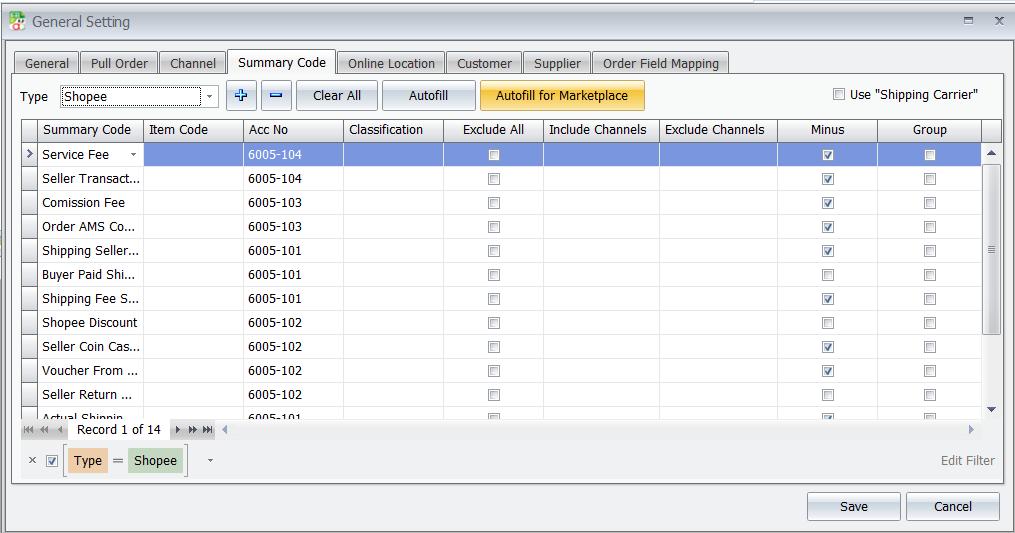
If absent after Autofill, manually add Platform Voucher or Platform Shipping Discount. Save and pull or repost the affected order.
Troubleshooting / Common Errors
| Issue | What to Do |
|---|---|
| Shipping, Voucher or Discount missing | Check Summary Code, Exclude All, Include Channels, Exclude Channels. |
| Duplicate charge | Check overlap between SiteGiant and Marketplace Summary Codes; use Exclude Channels. |
| Wrong Item Code / Account No. | Check Summary Code mapping for that channel. |
| Charge posted to wrong channel | Check Include Channels / Exclude Channels. |
| Marketplace seller fee missing | Check marketplace Type, fee setting and Summary Code. |
| Too many invoice detail rows | Check Group where codes use the same account. |
| Shipping description incorrect | Check Use “Shipping Carrier”. |
| Amount sign incorrect | Check Minus. |