
How Is the Stock Sync Quantity Calculated?
Implementation steps, settings and original screenshots from the SiteGiant ERP–AutoCount integration guide.
How Is the Stock Sync Quantity Calculated?
Use this topic to understand how Unicart+ decides the final stock quantity to sync from AutoCount to SiteGiant. An order may update in SiteGiant and AutoCount at different times. Unicart+ adjusts the quantity so the same order stock is not added or deducted twice.
Why Is the Stock Quantity Adjustment Required?
| Situation | What Could Happen | System Action |
|---|---|---|
| Order quantity already deducted in AutoCount but still locked in SiteGiant | The same quantity may be deducted twice. | Add Invoice Qty back temporarily. |
| SiteGiant released quantity but AutoCount has not deducted it | Too much stock may be sent to SiteGiant. | Deduct Unposted Qty temporarily. |
| No timing difference | No adjustment required. | Use AutoCount Balance Qty. |
Unicart+ (AutoCount) Quantity Definitions
| Quantity | Meaning |
|---|---|
| Balance Qty | Current stock balance shown in the AutoCount Stock Card. |
| Invoice Qty | Order quantity already deducted from AutoCount but still locked in SiteGiant. Added back temporarily to avoid double deduction. |
| Unposted Qty | Quantity released in SiteGiant but not yet deducted from AutoCount. Deducted temporarily from sync calculation. |
| Onhand Qty | Adjusted AutoCount quantity after adding Invoice Qty and deducting Unposted Qty. |
| Computed Sync Qty | Quantity calculated after applying stock-sync settings from Topic 08. |
| Sync Qty | Actual quantity sent to SiteGiant. Normally follows Computed Sync Qty unless changed manually. |
Unicart+ (SiteGiant) Quantity Definitions
| Quantity | Meaning |
|---|---|
| Stock On Hand | Current total stock recorded in the selected SiteGiant warehouse. |
| Sellable Stock | Quantity currently available for customers to purchase. |
| Locked Qty | Quantity reserved or locked by orders and currently unavailable for sale. |
| New Stock On Hand | Expected Stock On Hand after Sync Qty is sent to SiteGiant. |
| New Sellable Stock | Expected quantity available for sale after considering locked and non-sellable quantities. |
| Changes | Difference between the current Stock On Hand and New Stock On Hand. |
Example (as stated in the original PDF)
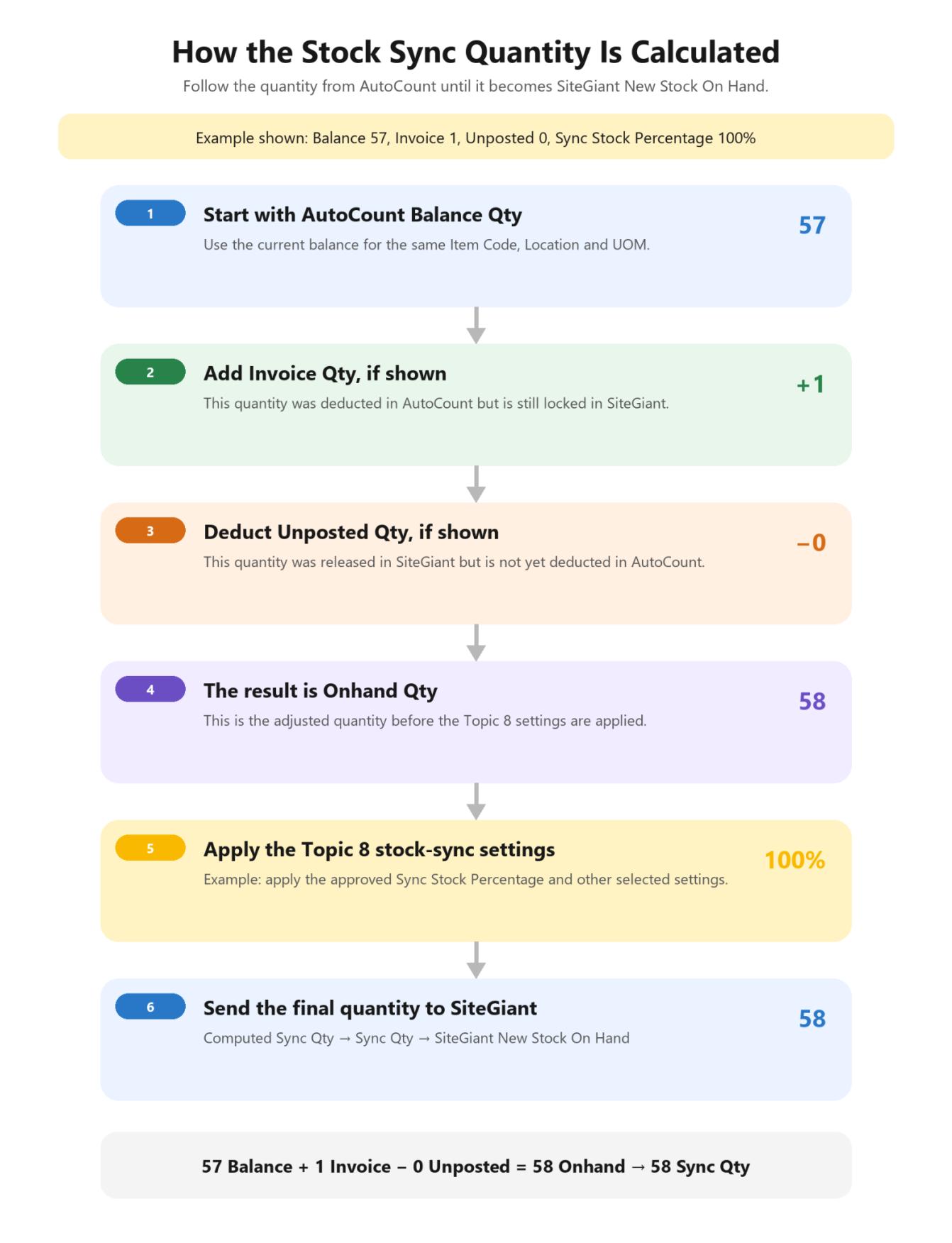
AutoCount Balance Qty is 57. An order quantity of 1 has already been deducted from AutoCount but SiteGiant still shows it as locked.
| Calculation | Quantity |
|---|---|
| AutoCount Balance Qty | 57 |
| Add: Invoice Qty | +1 |
| Deduct: Unposted Qty | 0 |
| Onhand Qty | 58 |
The PDF then states: if Sync Stock Percentage is 80%, Computed Sync Qty = 44, Sync Qty = 44 and SiteGiant New Stock On Hand = 44. PDF example: These figures are reproduced as stated in the original training guide.
The PDF also states that if SiteGiant has 1 Locked Qty and no other reserved or non-sellable quantity, New Sellable Stock will be 57.
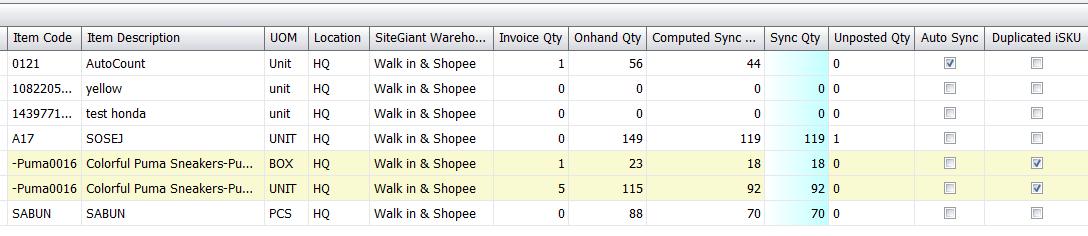
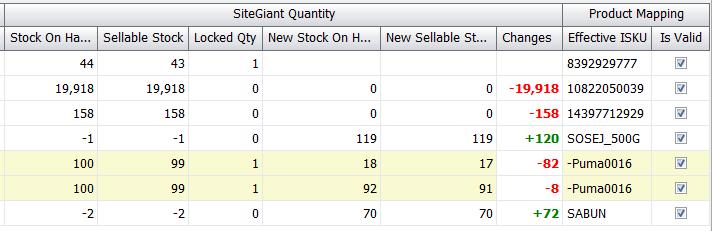


How to Verify the Quantity
Troubleshooting / Common Errors
| Issue | What to Do |
|---|---|
| Quantity is inaccurate during the first stock sync | Confirm that the client completed the stock take in AutoCount before synchronizing. |
| Stock Listing shows a data-expired message | Do not continue with the old quantity. Run Inquiry again before synchronizing. |
| AutoCount and SiteGiant quantities keep becoming different | Confirm stock adjustments are made in AutoCount only. Correct AutoCount quantity and synchronize again. |
| Unposted Qty is not updated because invoice is still Draft | Approve the AutoCount invoice, then run Inquiry again. |
| Unposted Qty is incorrect when using multiple locations | Check AutoCount Location to SiteGiant warehouse mapping. If correct but issue persists, confirm latest Unicart+ version. |
| Stock Listing quantity is much lower than expected | Use Filter Oversell Item to identify affected item. Check AutoCount balance, settings and pending documents before synchronizing. |