
How to Handle Fulfilled by Shopee Stock in AutoCount
Implementation steps, settings and original screenshots from the SiteGiant ERP–AutoCount integration guide.
Overview
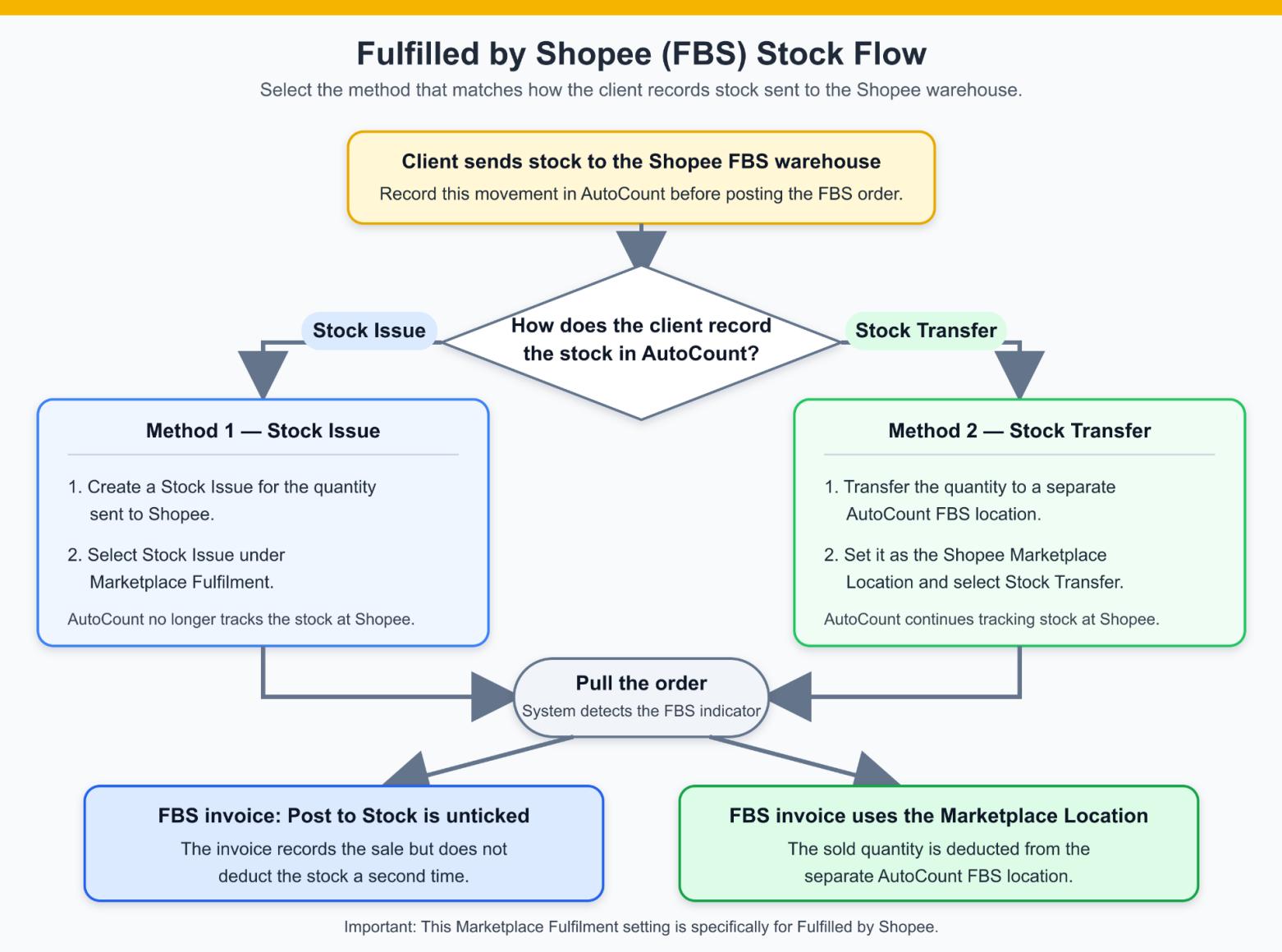
Use this topic only when the client has registered for and is using Fulfilled by Shopee (FBS) through SiteGiant. The client sends stock to the Shopee warehouse before it is sold. This stock movement must be recorded in AutoCount using either Stock Issue or Stock Transfer.
Unicart+ checks Fulfilled by Shopee status when pulling an order and applies the selected method during invoice posting so that stock is not deducted twice.
Questions to Ask the Client
- Has the client registered for and started using Fulfilled by Shopee?
- When stock is sent to Shopee, does the client use Stock Issue or Stock Transfer in AutoCount?
- If Stock Transfer is used, which AutoCount Location represents Shopee’s warehouse?
How Each Method Works
| Method | Use When | What the System Does |
|---|---|---|
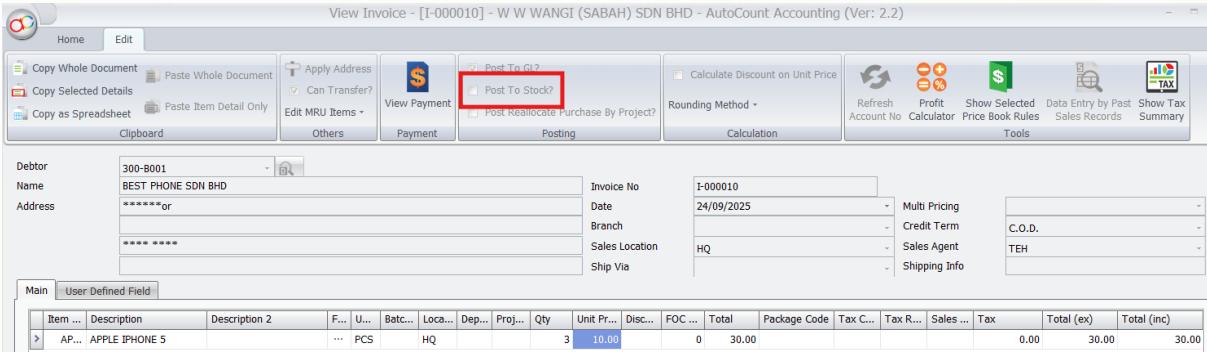
| Stock Issue | Stock is issued out from AutoCount when sent to Shopee. | Unicart+ automatically unticks Post to Stock on the FBS invoice; no second stock deduction. |
| Stock Transfer | Stock is kept under a separate AutoCount Location for Shopee warehouse. | FBS invoice deducts stock from configured Marketplace Location. |
Main Setup
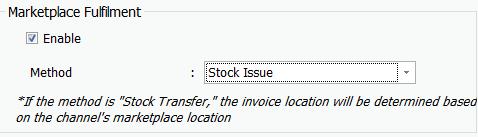
Option 1 — Stock Issue
Important Steps
Example: The client sends 100 PCS to Shopee. Stock Issue deducts 100 PCS from AutoCount. When Shopee sells 1 PCS, the FBS invoice does not deduct another 1 PCS. This prevents double stock deduction.
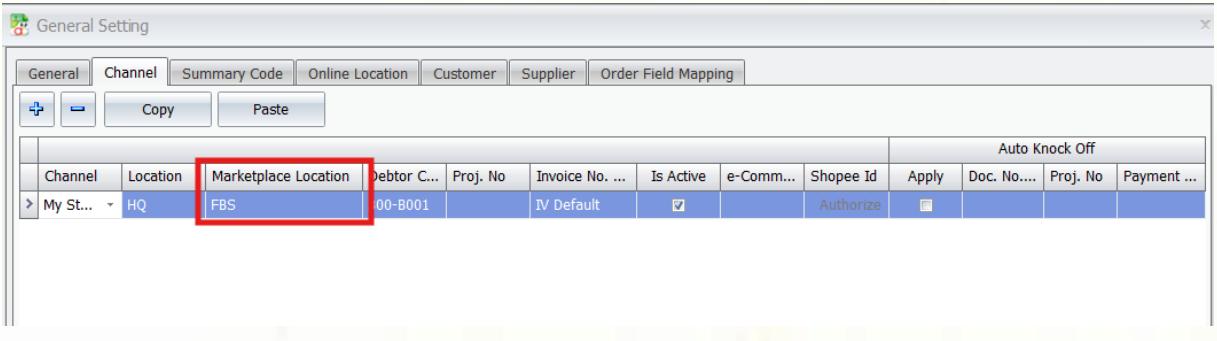
Option 2 — Stock Transfer
Additional Setup
Important Steps
Example: Client transfers 100 PCS from HQ to FBS location. HQ is reduced by 100 PCS; FBS receives 100 PCS. Shopee sells 1 PCS and invoice deducts 1 PCS from FBS, leaving FBS balance at 99 PCS.
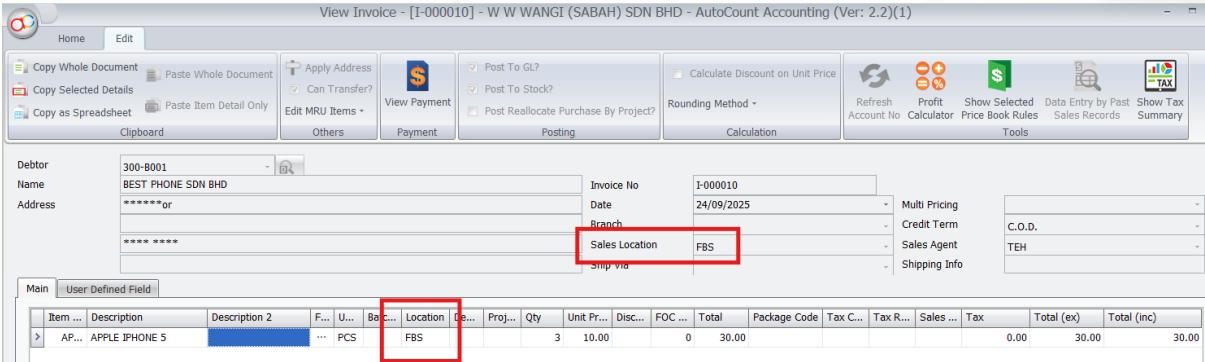
- Pull Order correctly identifies FBS orders.
- Under Stock Issue, Post to Stock is automatically unticked.
- Under Stock Transfer, invoice uses correct FBS Marketplace Location.
- The same stock quantity is not deducted twice.
Troubleshooting / Common Errors
| Issue | What to Do |
|---|---|
| FBS order is processed like a normal Shopee order | Confirm client joined FBS, Pull Order shows Fulfilled by Shopee, and Marketplace Fulfilment is enabled. |
| Stock is deducted twice under Stock Issue | Check Stock Issue method and that Post to Stock is automatically unticked. |
| Invoice deducts from normal location | Check Stock Transfer method and FBS Location under General Settings → Channel → Marketplace Location. |
| FBS Location becomes negative | Confirm Stock Transfer was completed before FBS sales posted and enough stock was transferred. |
| Quantity sent to Shopee does not match AutoCount | Compare actual quantity sent with Stock Issue/Transfer and correct AutoCount stock movement if needed. |
| Marketplace Fulfilment setting greyed out | Confirm licence supports function. Starter licence may disable it; check with dealer or HQ if required. |