
How to Reconcile Marketplace Settlements Using Bulk Knock Off
Implementation steps, settings and original screenshots from the SiteGiant ERP–AutoCount integration guide.
When to Do Bulk Knock Off
Bulk Knock Off compares the marketplace Statement Amount with the AutoCount Invoice Outstanding Amount. Proceed only when the marketplace settlement is available and the related AutoCount Invoice already exists.
Settlement commonly takes around 2 weeks or longer to process. Two weeks is a reference, not a fixed minimum.
Situation & Action Guide
| Result | Meaning | What to Do |
|---|---|---|
| Match | Statement Amount matches Invoice Outstanding Amount. | Confirm and complete Bulk Knock Off. |
| Not Match | Statement Amount and Invoice Outstanding Amount are different. | Check the reason before continuing. |
Questions to Ask the Client
- Has the marketplace already released the settlement?
- Does the related AutoCount Invoice already exist?
- If the result is Not Match, what caused the difference?
Detailed Steps — Bulk Knock Off
- Export the required settlement statement from the marketplace or SiteGiant.
- Open A/R Received Payment and select the correct Debtor.
- Click Bulk Knock Off and download the Bulk Knock Off Excel Template.
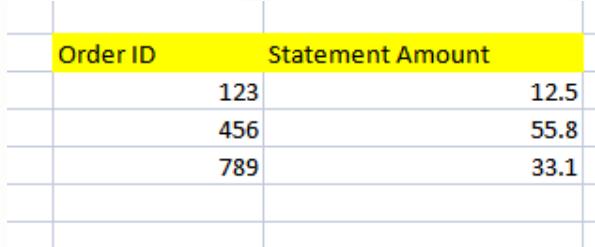
- Enter the required Order ID / Marketplace ID and Statement Amount in the template.
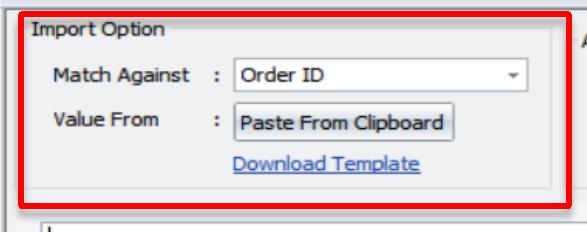
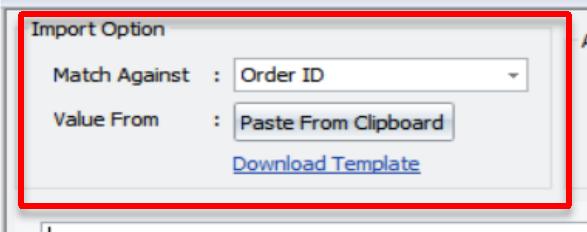
- In Bulk Knock Off, select Match Against → Order ID or Marketplace ID.
- Copy prepared records from the Excel template and click Paste from Clipboard.
- Check the result: Match → proceed; Not Match → check the reason first using the scenario guide below.
- Select the records that are ready and click Confirm.
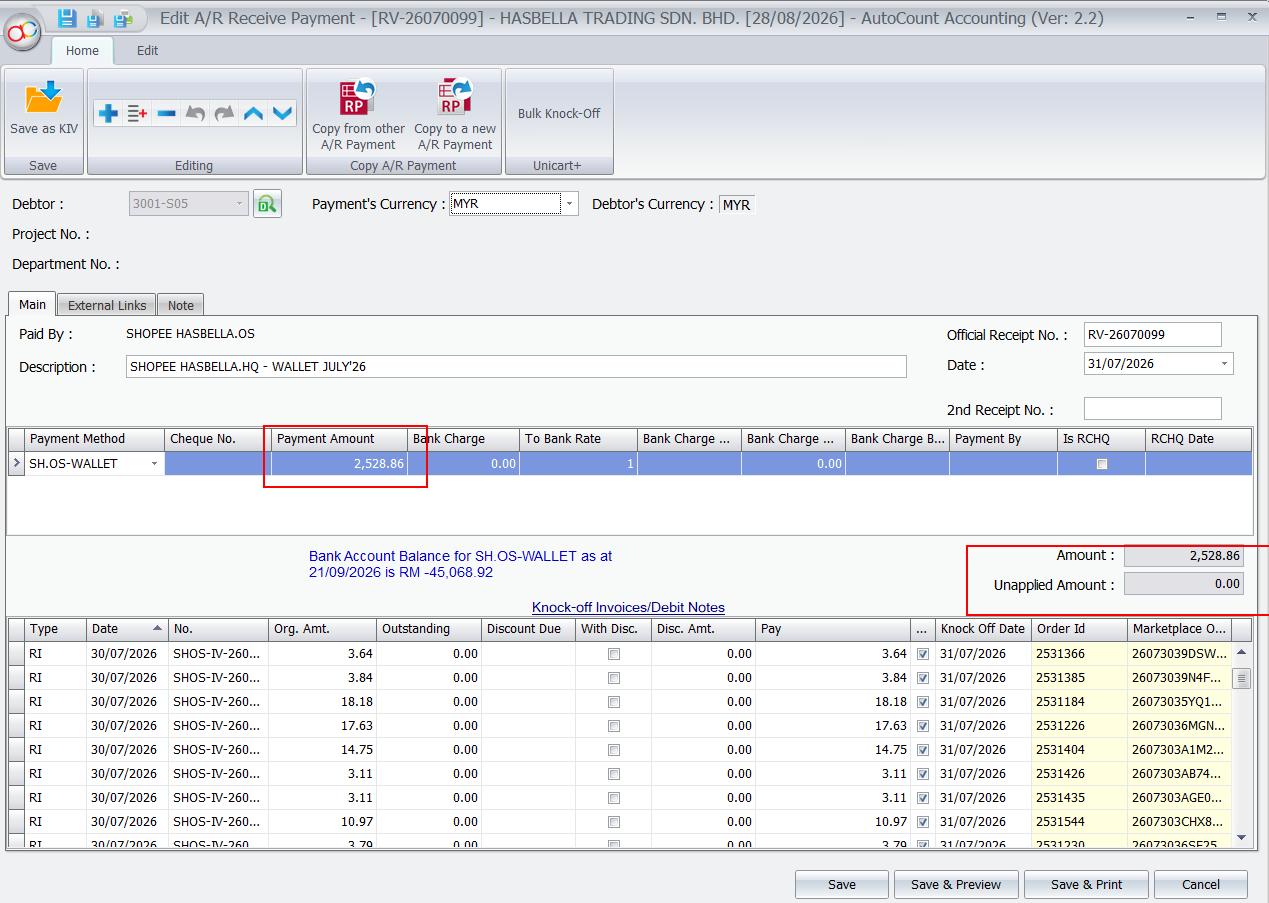
- Back in A/R Payment, select the correct Payment Method.
- Update Payment Amount = Unapplied Amount.
- Check the payment details and click Save.
- If prompted to create an A/R Credit Note, check the Not Match amount, account and related Invoice before saving the CN.
Bulk Knock Off screenshots — PDF page 62
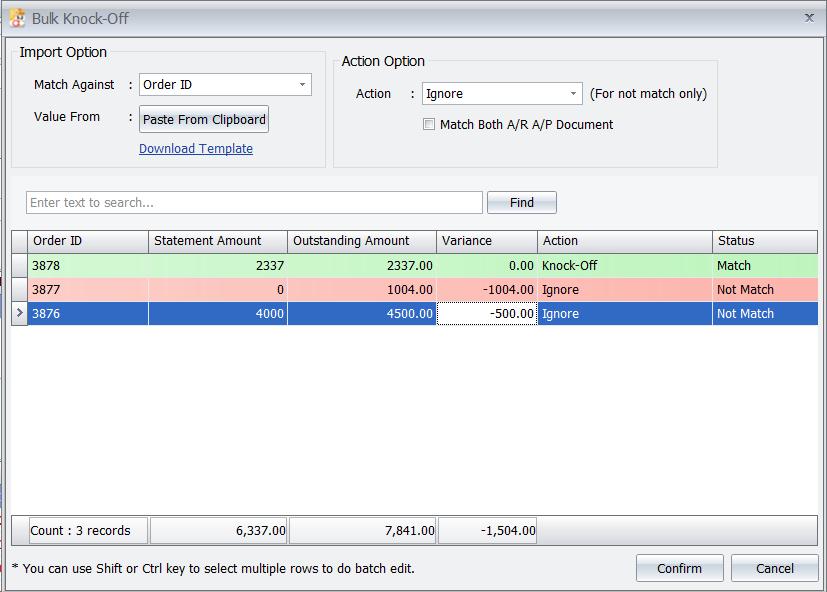
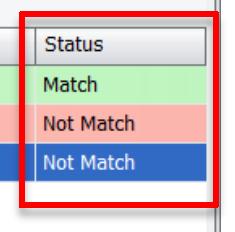
Bulk Knock Off screenshots — PDF page 63
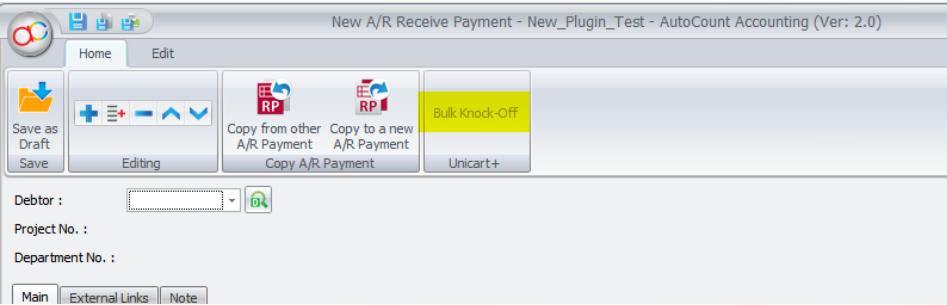
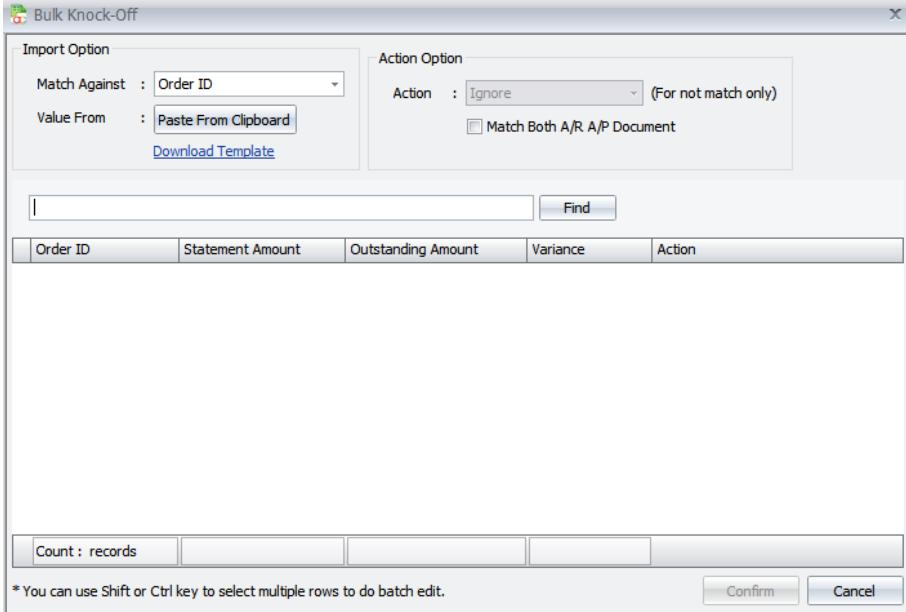
Bulk Knock Off screenshots — PDF page 64
How to Export the Income Statement
The original manual lists these guides for obtaining an income statement or viewing marketplace reconciliation details:
| Source | Guide Title in the PDF |
|---|---|
| Marketplace Seller Centre — Shopee, Lazada or TikTok | How To Retrieve Income Statement From Marketplaces |
| SiteGiant — Shopee | How To Use Shopee Payment Reconciliation |
| SiteGiant — Lazada | How To Use Lazada Payment Reconciliation |
| SiteGiant — TikTok | How To Use TikTok Payment Reconciliation |
How to Handle Not Match
When Bulk Knock Off shows Not Match, identify the reason before continuing.
| Not Match Situation | What Staff Should Do |
|---|---|
| Order / settlement still pending | Use Pull Order → Bulk Inquiry for the latest order. If still pending or incomplete, select Ignore and check later. |
| Cancelled / Returned / Lost or Damaged | Check the latest status in Pull Order and refer to Topic 16. Check whether a CN already exists. Do not create another CN. |
| Statement Amount = 0 / Marketplace Refund | Confirm the refund with the marketplace and check for an existing CN. If refund is confirmed and no CN exists: leave status Not Match → Confirm → save A/R Payment → process the prompted A/R CN. |
| Marketplace fee / charge missing | Check and correct Summary Code → Repost Order → run Bulk Knock Off again. |
| Other valid difference | Confirm reason and accounting treatment with client / accountant, select correct Not Match action, and process prompted A/R CN if required. |
| Reason unknown | Do not force knock off. Select Ignore and investigate first. |
Example Scenario — Marketplace Refund Not Updated to SiteGiant
| Order ID | Invoice Outstanding | Statement Amount | Status |
|---|---|---|---|
| ORD001 | RM100 | RM0 | Not Match |
| ORD002 | RM80 | RM0 | Not Match |
| ORD003 | RM120 | RM0 | Not Match |
How to Handle Negative Settlement
A negative settlement occurs when marketplace deductions for refunds, fees or other charges exceed the seller’s available settlement amount.
Important Steps
- Separate negative records from the settlement Excel file.
- Check each record in the marketplace to confirm whether it is a completed refund.
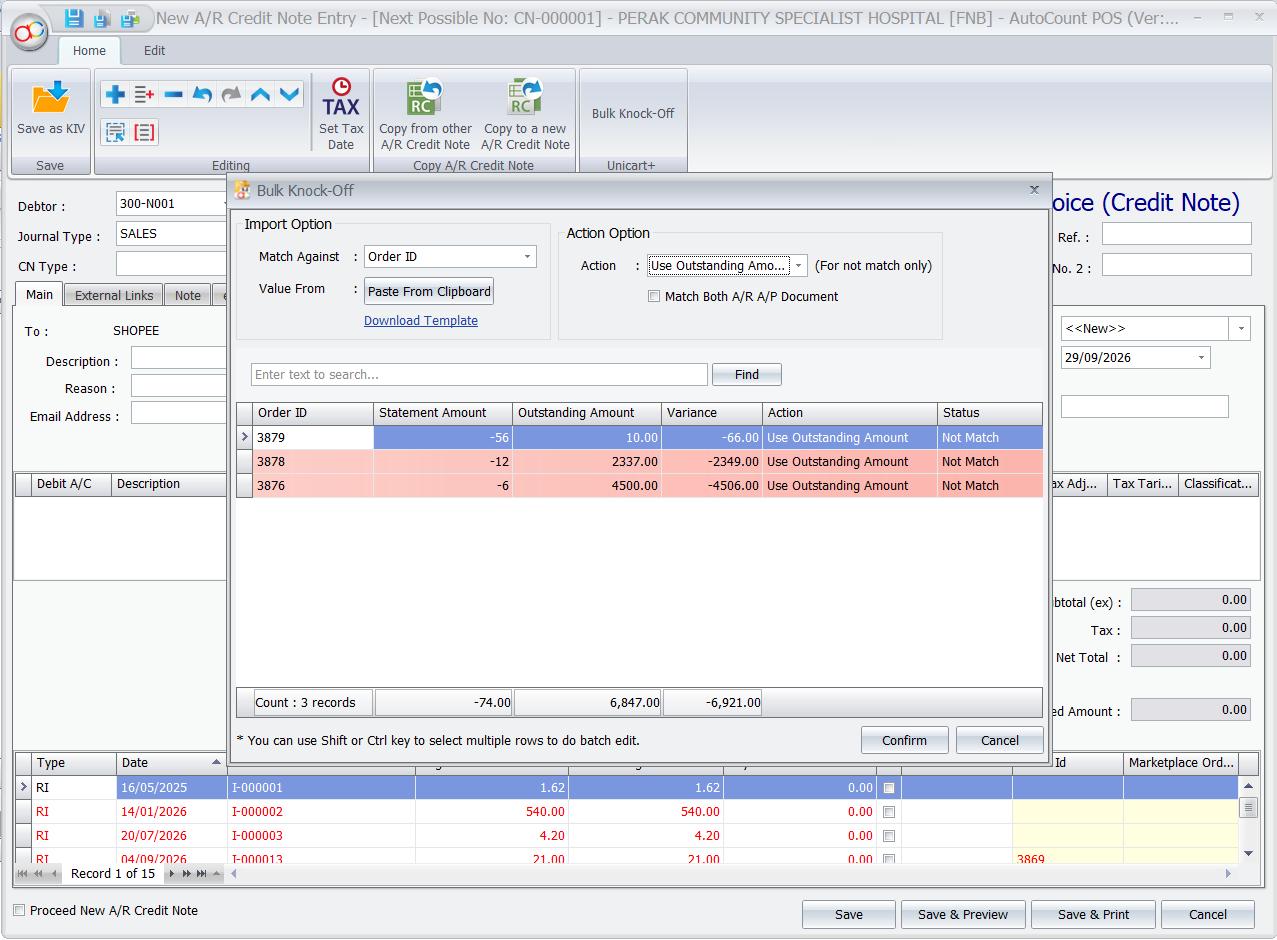
- For a confirmed refund, paste the separated Excel data into A/R Credit Note → Bulk Knock Off and set Action to Follow Outstanding Amount to process the full refund.
- After the full Invoice amount is refunded, check the remaining negative settlement amount. This represents extra marketplace fees or charges already deducted.
- Total the remaining negative amount and record it separately using a Payment Voucher or Journal Voucher as an expense.
Returned Item
Check whether the refunded item was returned and is still sellable.
| Returned Item Status | Action |
|---|---|
| Item is sellable | Record Stock In in the system used as the Stock Master. |
| Item is damaged, lost or not sellable | Do not record the item as sellable stock. |
AutoCount Stock Master: Record Stock In in AutoCount and synchronize the updated stock to SiteGiant.
SiteGiant Stock Master: Record Stock In in SiteGiant.

Additional Note — Auto Create CN for Not Match
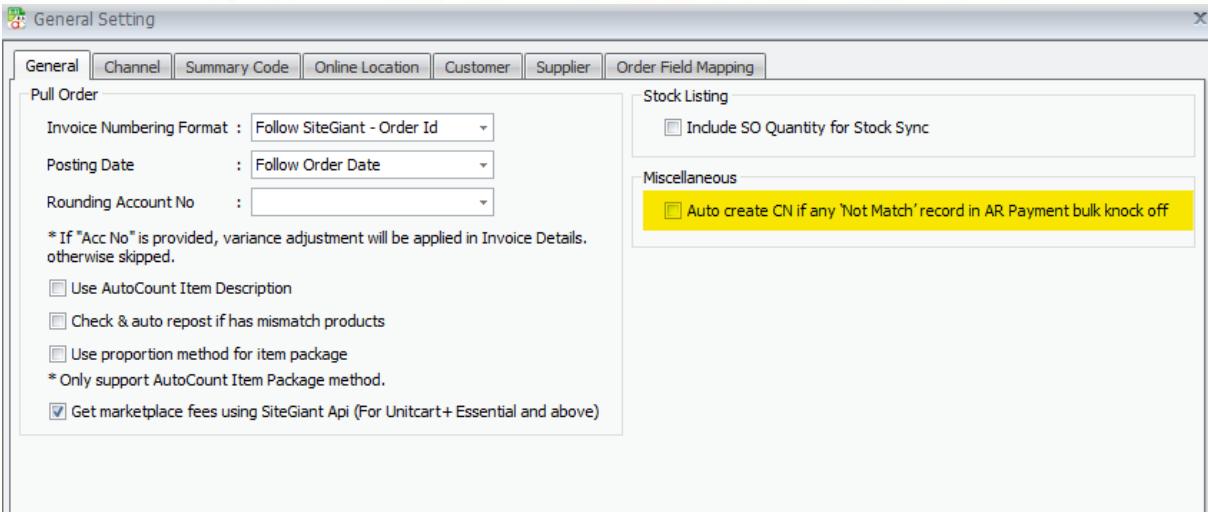
Go to Unicart+ → General Settings → General and enable Auto create CN if any ‘Not Match’ record in AR Payment bulk knock off.
When enabled, saving an A/R Payment containing Not Match records can open the A/R Credit Note screen for further checking and processing.
Troubleshooting / Common Errors
| Issue | What to Do |
|---|---|
| Bulk Knock Off cannot be clicked | Select Debtor first. If still unavailable, check user’s access rights. |
| Paste from Clipboard cannot match order | Check Order ID / Marketplace ID and Excel template. |
| A/R CN does not open after saving | Check that Auto create CN if any ‘Not Match’ is enabled. |
| A/R Payment cannot save / amount wrong | Check Payment Method and ensure Payment Amount = Unapplied Amount. |