
How SiteGiant Members and Bonus Points Sync with AutoCount POS
Implementation steps, settings and original screenshots from the SiteGiant ERP–AutoCount integration guide.
Use this topic when the client wants customers to use the same membership and bonus points between SiteGiant and AutoCount POS. Earned and redeemed points can synchronize between systems.
Questions to Ask the Client
- Does the client want to sync SiteGiant members and bonus points with AutoCount POS?
- Are existing members already created in AutoCount POS?
- Do the SiteGiant and AutoCount members have matching email or phone numbers?
Membership Scenario Guide
Customers can use the same membership in online orders and POS transactions. Earned and redeemed points can be synchronized between both systems.
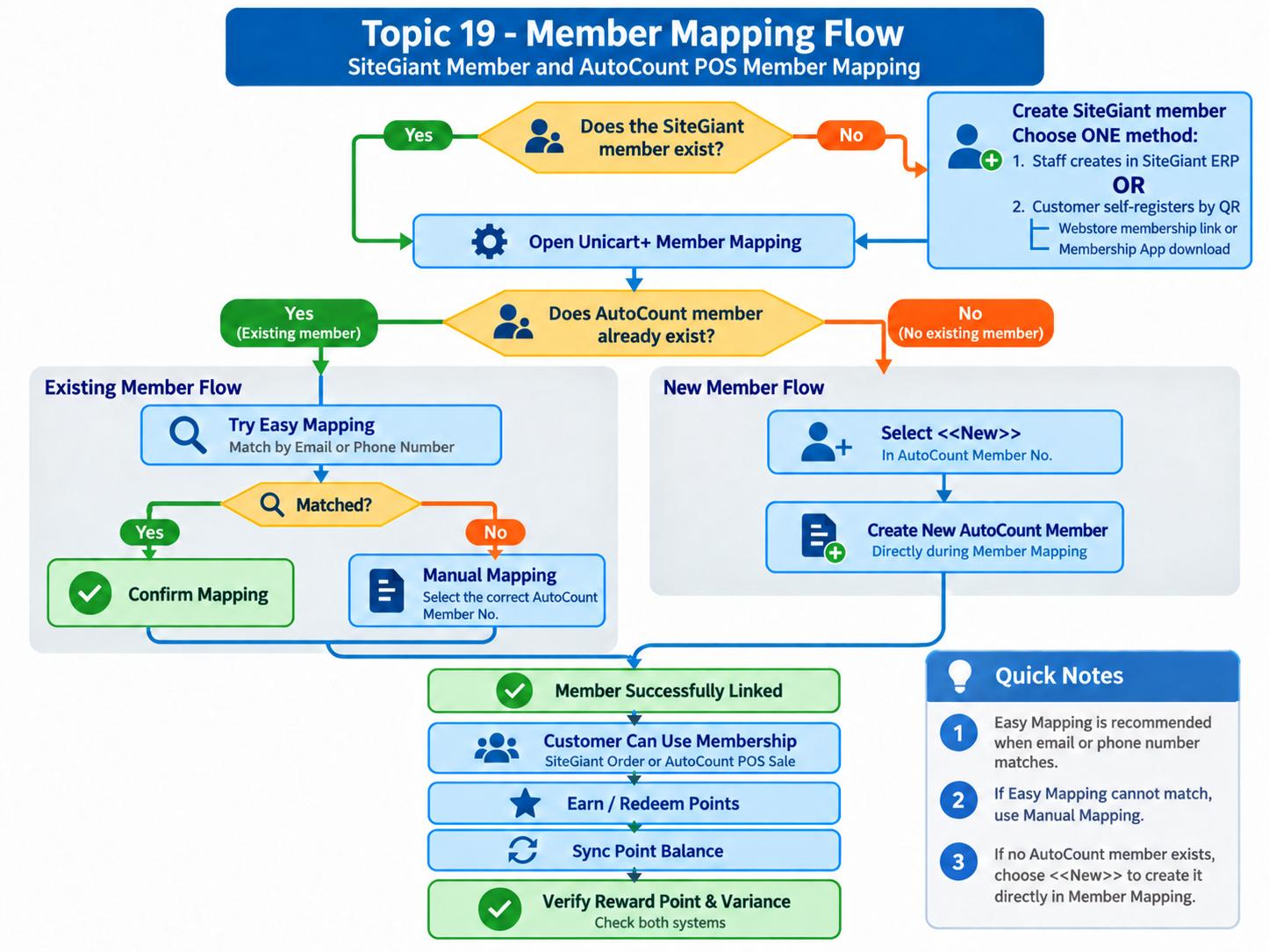
Check whether the SiteGiant member exists. If not, create it through SiteGiant ERP or customer self-registration. Open Unicart+ Member Mapping and check whether an AutoCount member already exists. For an existing member, use Easy Mapping by matching email or phone; if Easy Mapping does not match, choose Manual Mapping and select the existing member. If there is no AutoCount member, use <<New>> to create and link the member. After successful mapping, the customer can use membership and earn or redeem points. Verify the two point balances and Variance after synchronization.
Choose only one mapping method for each member.
A. Prepare the SiteGiant Member
Before starting, check that the AutoCount API Module and UDF Module are available.
- In SiteGiant → Customers → Points & Membership, enable Loyalty Points and the TechDevs integration channel, then save. This is a one-time setup.
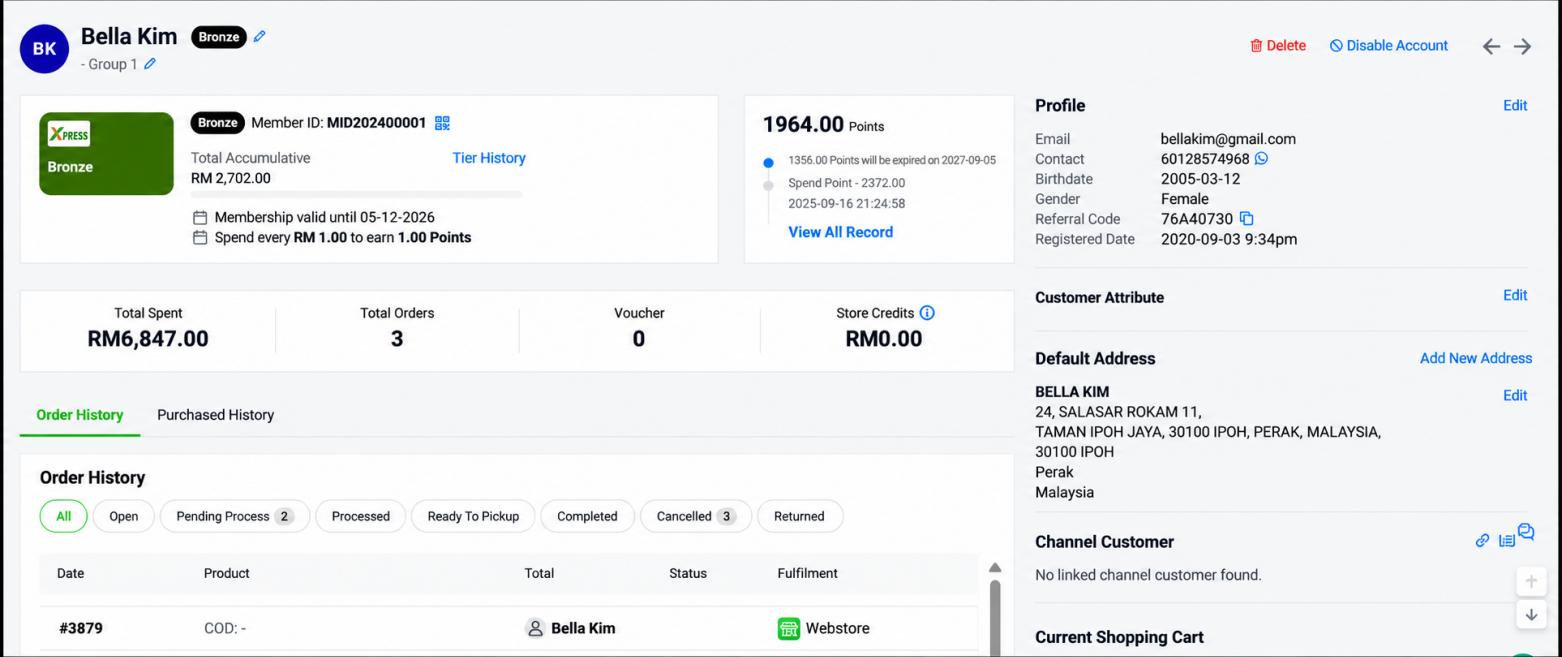
- Go to Customers → Members. Create the member in SiteGiant if it does not exist.
- Check the member’s active status, Membership ID, email, phone number and point balance.
Additional Note — How to Create New SiteGiant Members
New members can be created through different methods depending on the client’s membership setup.
| Option | Method | When to Use |
|---|---|---|
| Option 1 — Recommended | SiteGiant ERP → Customers → Members | Staff create the member directly in SiteGiant; continue to Member Mapping to link AutoCount POS. |
| Option 2 — Recommended | SiteGiant Webstore / Membership App | Generate the membership registration link or app QR code; customer scans and registers, creating a SiteGiant member; continue Member Mapping. |
| Option 3 | AutoCount POS Member Registration | Staff create member from AutoCount POS, then sync/map to SiteGiant if required. Not recommended as the main method; use SiteGiant as the primary member source where possible. |
B. Map the Member in AutoCount
Go to AutoCount POS Backend → Unicart+ → Member → Member Mapping and click Inquiry. Choose one mapping method for each member; do not complete all three for one member.
B1. Easy Mapping — Match Existing Members
Use when the member exists in both systems and email or phone number matches.
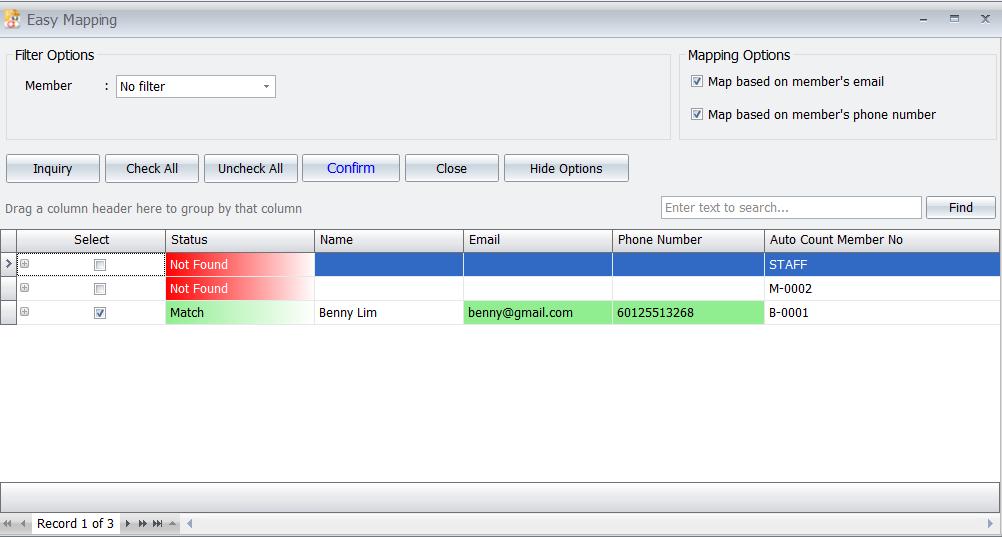
- Click Easy Mapping.
- Choose Map based on member’s email or Map based on member’s phone number, then click Inquiry.
- Check matched records are the same customer, select required records and click Confirm.
B2. Manual Mapping — Select an Existing Member
Use when AutoCount member already exists and staff select them manually, including when email or phone details differ.
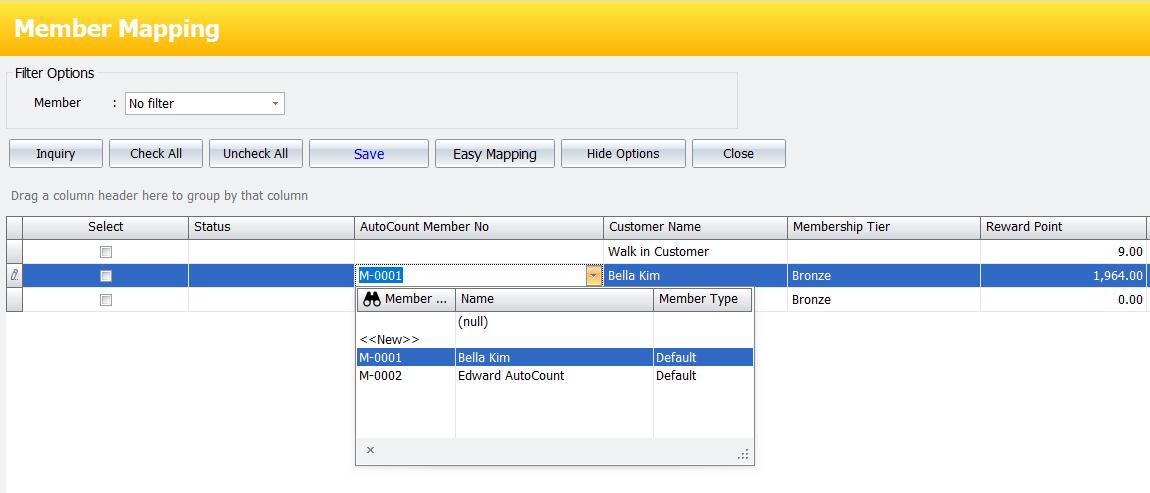
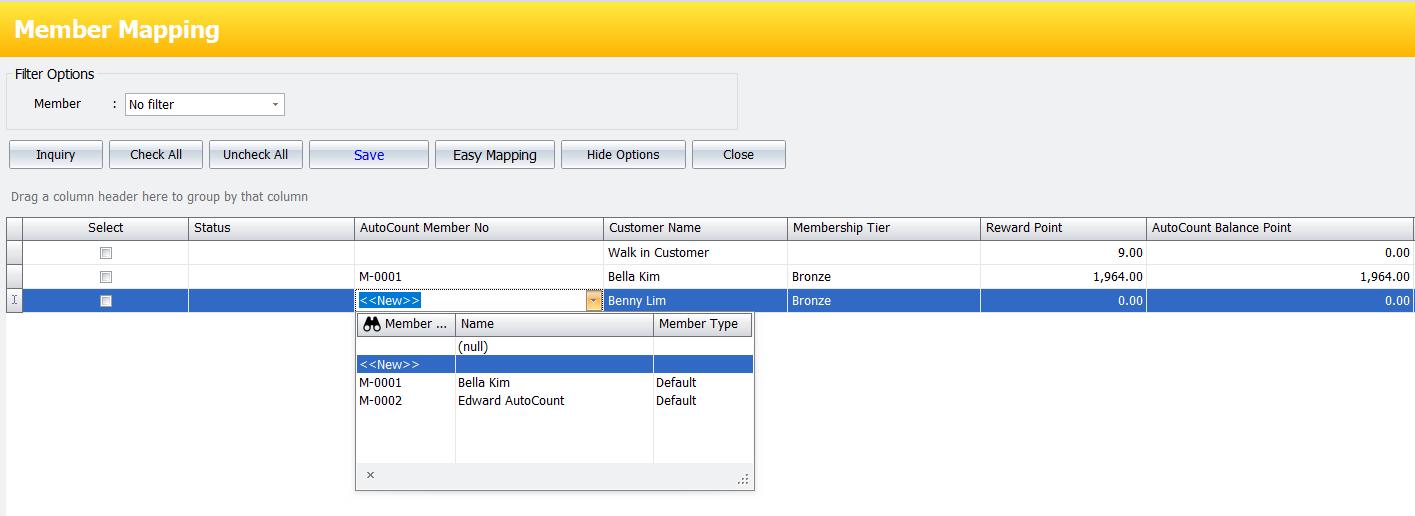
- Find the SiteGiant member in Member Mapping.
- Under AutoCount Member No., select the correct existing member.
- Check customer details and click Save.
B3. Create a New Member — Directly in Member Mapping
Use only if there is no existing AutoCount member.
- Find the SiteGiant member in Member Mapping.
- Under AutoCount Member No., select <<New>>.
- Click Save. The system creates and links the new AutoCount member directly.
C. Check the Mapping and Sync to POS
- Refresh Member Mapping and check the correct AutoCount Member No..
- Confirm Reward Point and AutoCount Balance Point match, with Variance = 0.
- Run Sync with Front End and confirm the member appears on the POS cashier screen.
Install the Unicart+ SiteGiant Member Plugin at Each POS Counter
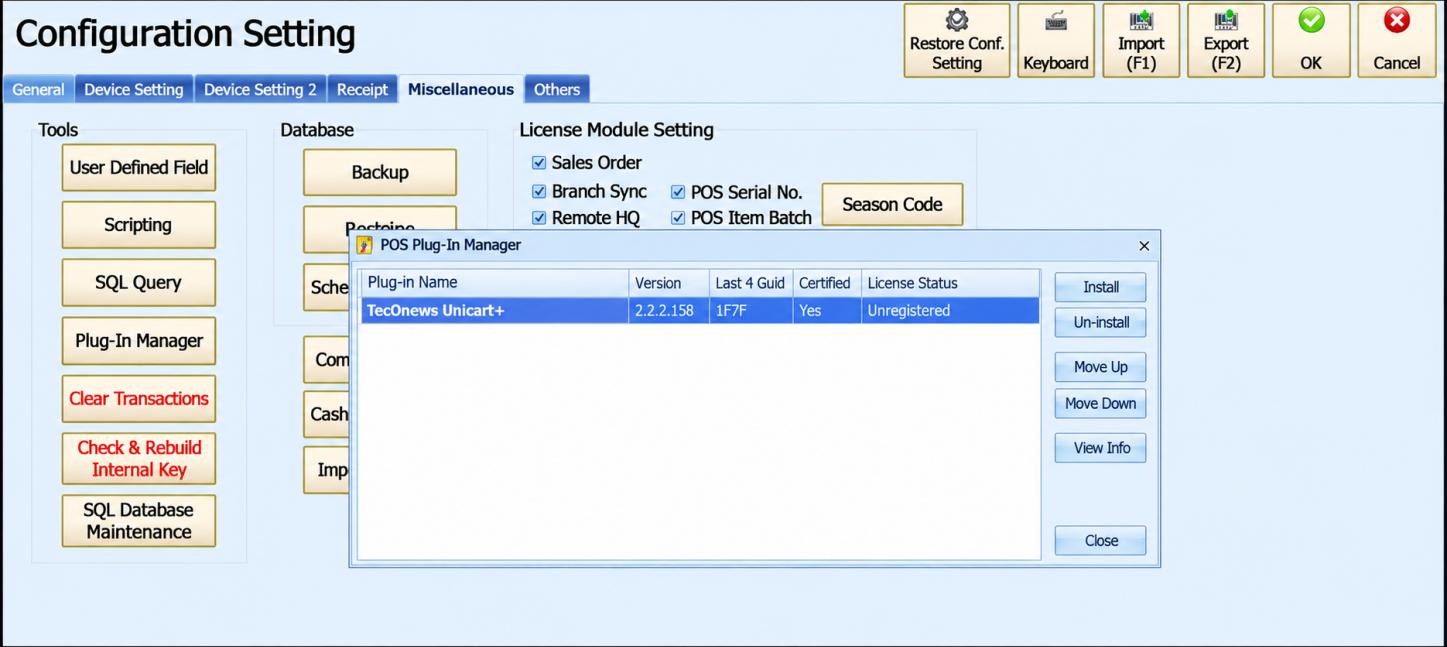
- Install the Unicart+ SiteGiant Member plugin at every participating AutoCount POS counter: Configuration Setting → Miscellaneous → Plug-In Manager → Install, then log in to POS again.
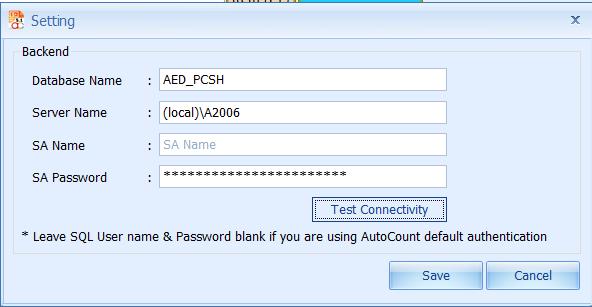
- Update the database information at Membership Setting.
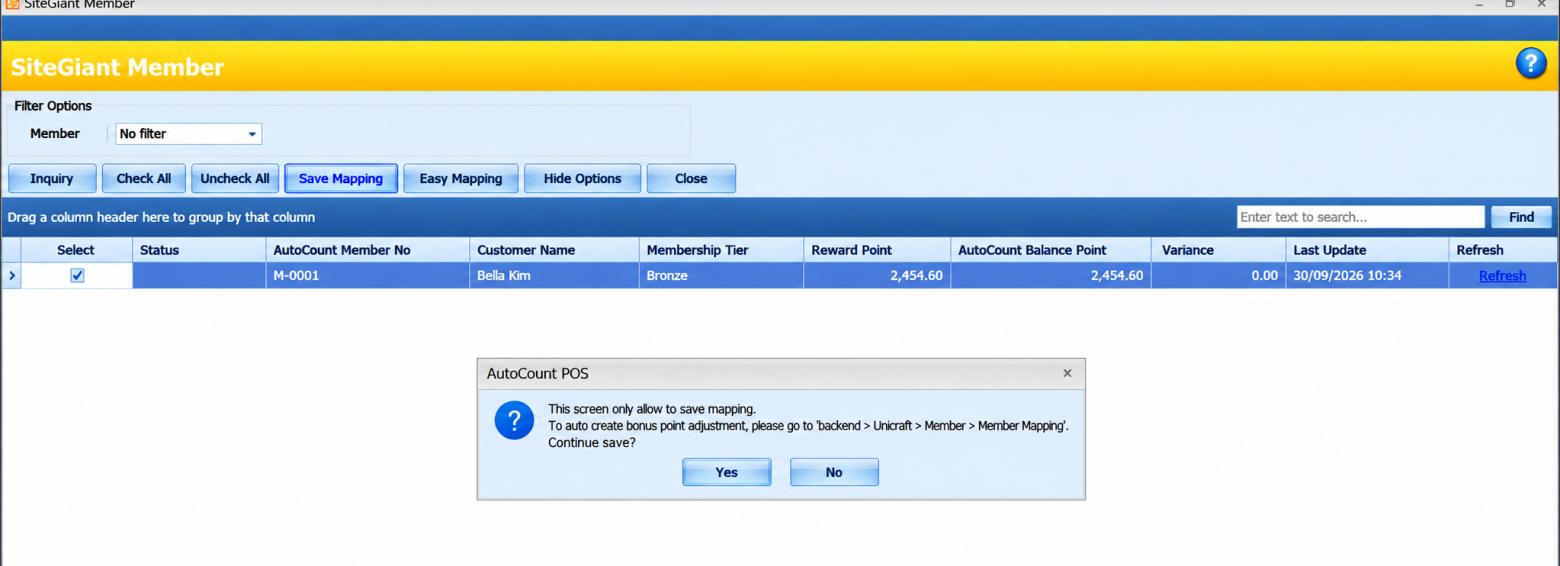
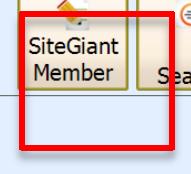
- SiteGiant Member Mapping is also available at AutoCount POS Frontend → Member → SiteGiant Member. Frontend can save mapping only; process any Bonus Point Adjustment in Backend → Unicart+ → Member Mapping.


D. Test Earn and Redeem Points
D1. Earn Points
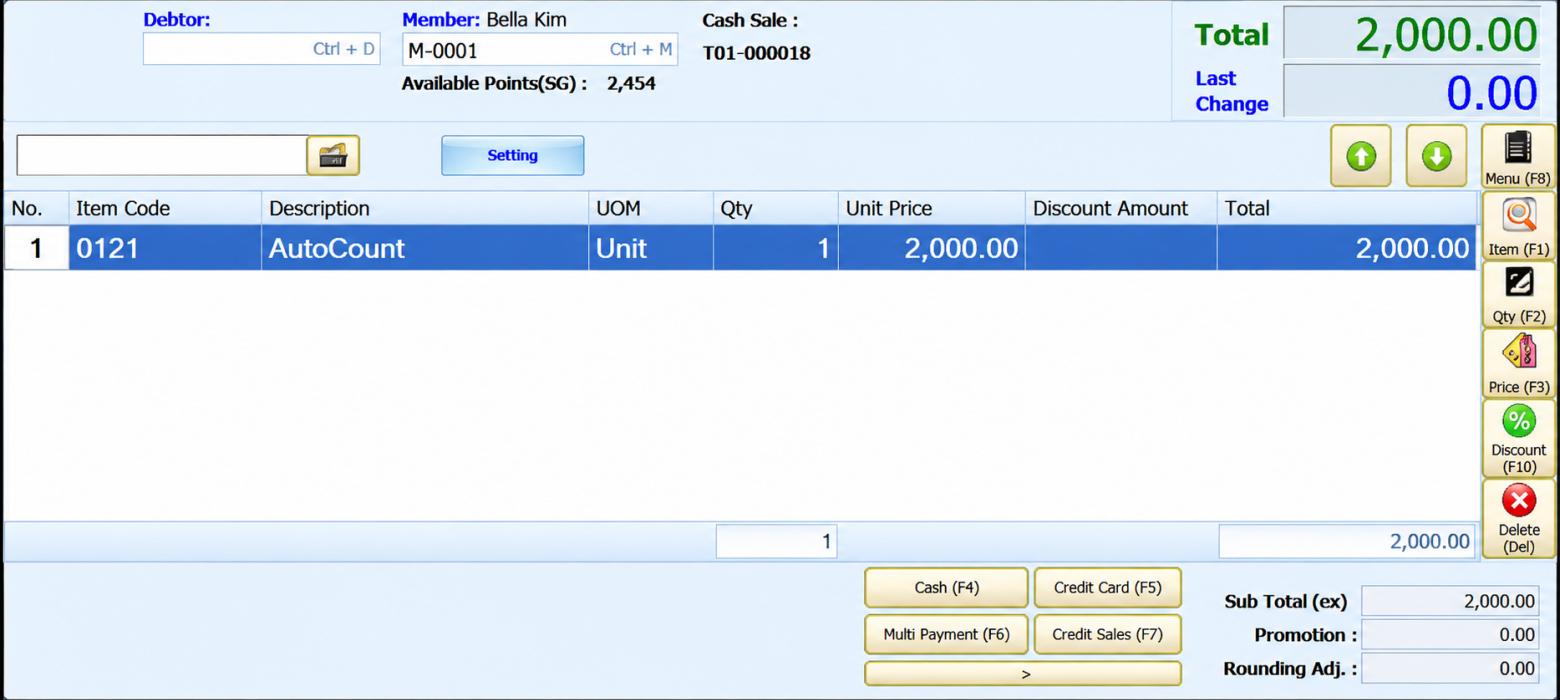
- At AutoCount POS Frontend, select the mapped member and check starting point balance.
- Complete a POS sale for that member.
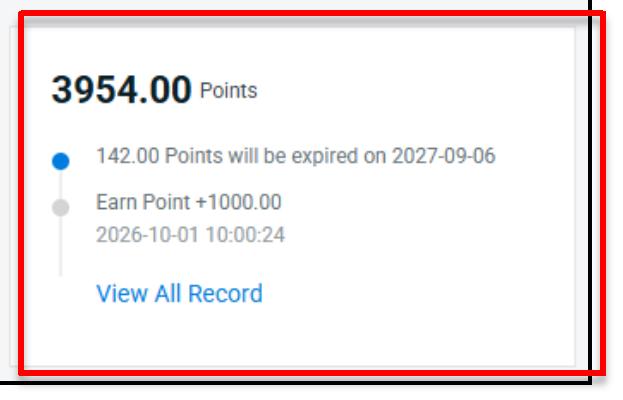
- Check member in SiteGiant ERP. Earned points update immediately after sale.
POS sale and member details — PDF page 77

Point-balance verification — PDF page 78
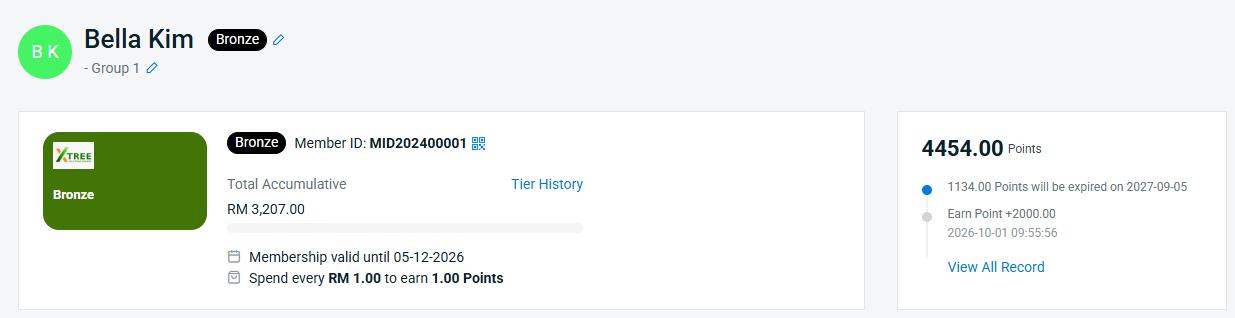
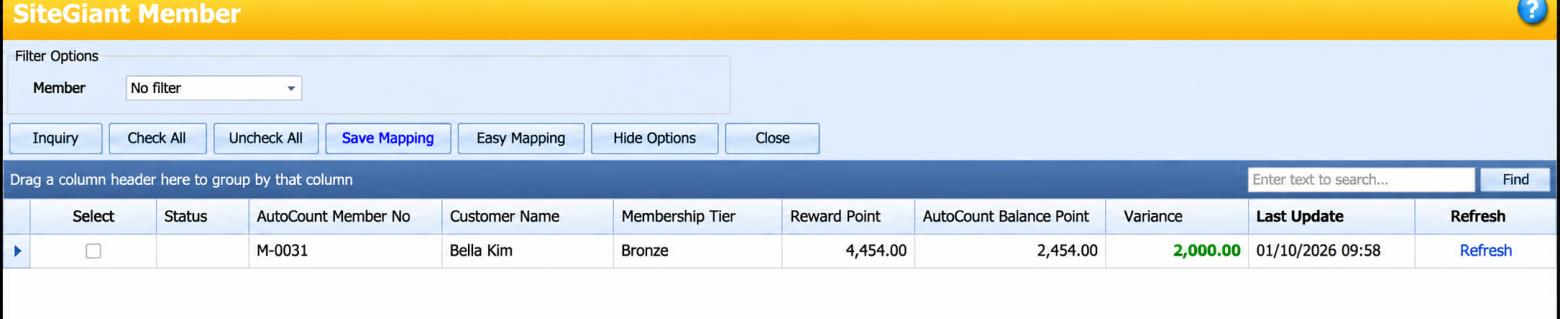
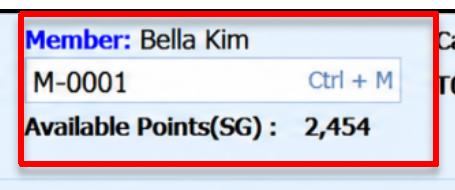
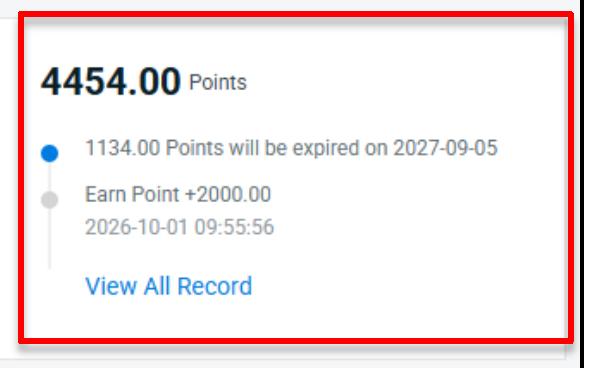
Review only: compare SiteGiant Reward Point with AutoCount Balance Point; Variance shows their difference.
D2. Redeem Points
- Start another POS sale with the same member.
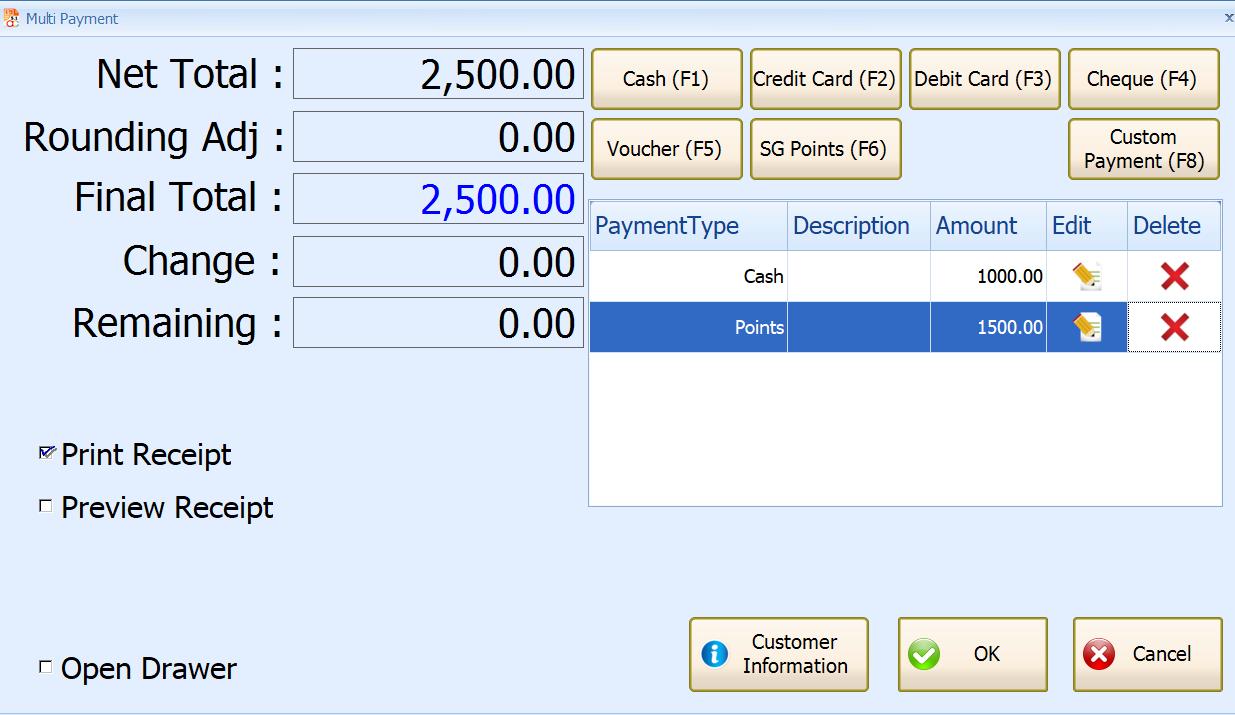
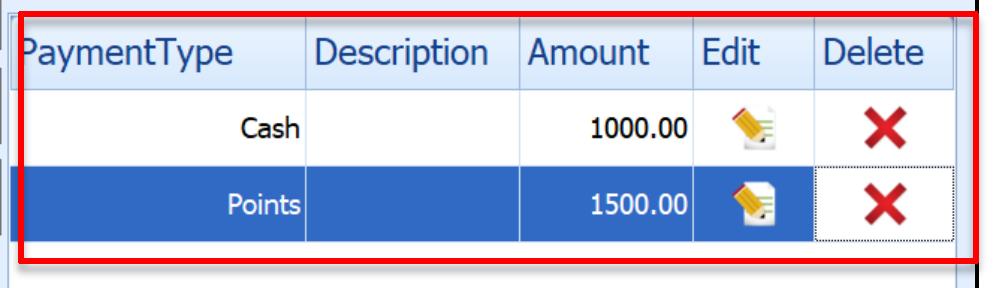
- At payment, select SG Points (F6) and enter points to redeem. Pay any remaining amount.
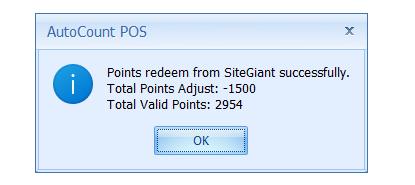
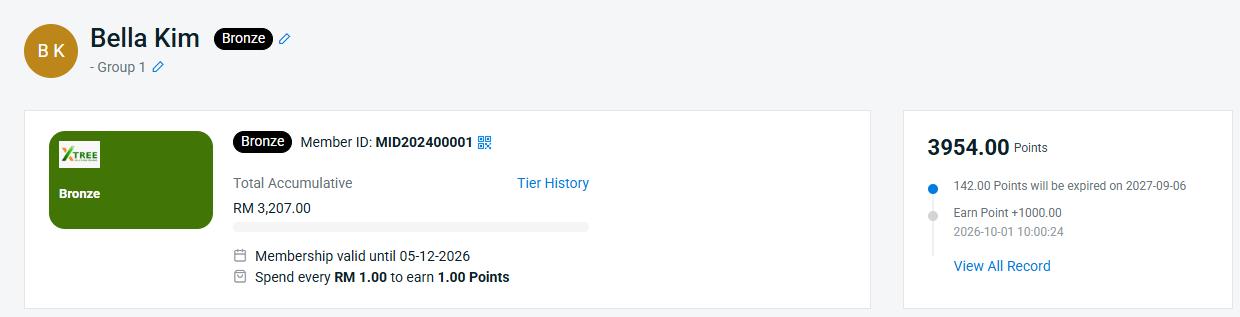
- Complete the sale. The success message confirms redemption; SiteGiant ERP point balance updates immediately.
E. Enable Auto Member Point Sync (One-Time Setup)
Enable Auto Sync after member mapping is complete and POS testing succeeds.
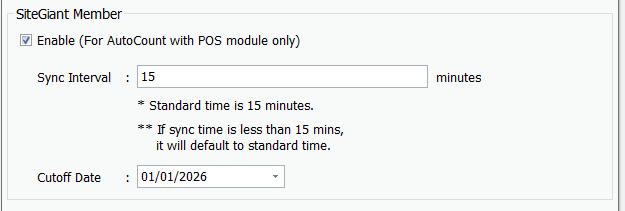
- Go to Unicart+ → Automation → Service Setting → Additional Module.
- Under SiteGiant Member, tick Enable and maintain Sync Interval and Cutoff Date.
- Click Save.
- Go to Unicart+ → Automation → Install Service.
- Click Install / Update and confirm the service is Running.
After Auto Sync is enabled, Earn Point and Redeem Point transactions synchronize automatically. No manual Sync Point is required in normal operation.
F. Point Sync Checking (When Required)
Only check manually if synchronization is pending or point balances differ.
F1. Pending Points from AutoCount to SiteGiant
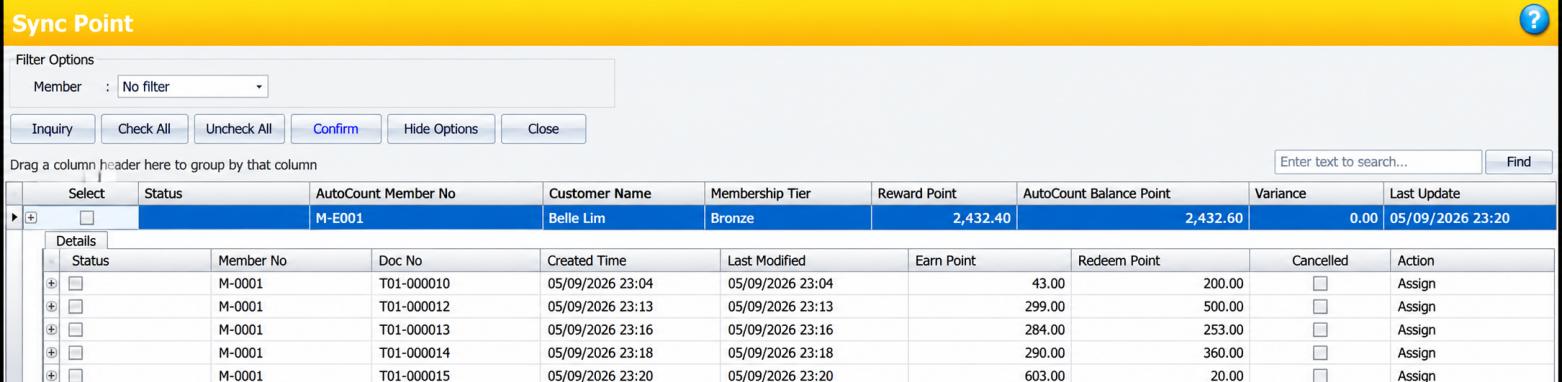
Go to Unicart+ → Member → Sync Point.
- Click Inquiry.
- Check pending point records.
- Select required records and click Confirm.
If no pending records appear, no action is required.

F2. Check Point Balance Difference
Go to AutoCount POS Backend → Unicart+ → Member → Member Mapping and check Reward Point (SiteGiant), AutoCount Balance Point and Variance.
If the SiteGiant balance is correct, confirm the update so AutoCount Balance Point follows SiteGiant.

Troubleshooting / Common Errors
| Issue | What to Do |
|---|---|
| SiteGiant member does not appear in Member Mapping | Check member exists and is active in SiteGiant; click Inquiry again and check internet connection. |
| Wrong AutoCount member mapped | Check SiteGiant member details and AutoCount Member No.; confirm the records belong to the same customer, then correct mapping. |
| Member unavailable in POS Frontend | Complete Member Mapping then run Sync with Front End. |
| SiteGiant and AutoCount points differ | Check Reward Point, AutoCount Balance Point and Variance. If SiteGiant is correct, confirm update to align AutoCount. |
| Pending points not synced to SiteGiant | Go to Unicart+ → Member → Sync Point, click Inquiry, and process pending records if any. |
| Auto Sync not working | Check SiteGiant Member Auto setting, Sync Interval, Cutoff Date and Running service. |