
-
AutoCount Accounting Features
-
- Approval Workflow
- Audit Trail
- Auto Save in Draft Folder
- AutoCount Contra Account
- AutoCount License Setting Guide
- Deposit Tracking & Management
- Documents Numbering Format
- Full Transfer and Partial Transfer
- Import Data to AutoCount Accounting Using Excel
- Informative Charts and Analytical Data
- Layout Customization
- Multi Pricing
- Sales and Services Tax
- Schedule Backup
- Search Lookup Edit
- View Documents Flow
- AutoCount Feature Stock Take
- Column Chooser
- Show Remaining (3) Collapse
-
AutoCount Cloud Accounting
-
AutoCount E-Invoice
-
AutoCount HRMS User Guide
-
AutoCount Modules
-
- Activity Stream
- Advanced Financial Report
- Advanced Item
- Advanced Multi-UOM
- Advanced Quotation Module
- Basic Multi-UOM
- Budget Module
- Consignment
- Filter By Salesman
- FOC Quantity
- Formula
- Item Batch
- Item Package
- Landing Cost
- Multi-Currency
- Multi-Dimensional Analysis
- Multi-Location
- Project Account
- Recurrence
- Remote Credit Control Module
- Stock Assembly
- User Defined Fields (UDF)
- AutoCount SST Hidden Functions
- AutoCount SST Submission - Service Tax
- AutoCount Scripting Module User Guide
- AutoCount Bonus Point Module User Guide
- AutoCount Service Management Plugin User Guide
- Show Remaining (12) Collapse
-
AutoCount Plugins
-
- Fixed Assets Management
- Goldsmith
- TD Ordering Mobile Apps
- TD Stock Mobile Apps
- Universal Import Plugin
- DMS Import Plugin
- AutoCount Pick List Plugin User Guide
- AutoCount Credit Memo Plugin User Guide
- AutoCount Lock Price Plugin
- AutoCount Progressive Billing
- AutoCount Easy Recurrence Plugin
- Batch Update Unit Price Plugin
- AutoCount Production order
- AutoCount Car Tint Film Plugin
-
- Event Management System
- AutoCount To-Do List Plugin
- AutoCount AutoBank Reconciliation Plugin
- Intercompany Billing Plugin User Guide
- Lead Management 2.0 Plugin
- AutoCount Service Contract Plugin User Guide
- AutoCount Optical Plugin
- AutoCount Integrator Plugin
- AutoCount Procurement Planning Plugin
- Cage Management Plugin
- AutoCount Vehicle Plugin
- AutoCount Agent Validation Plugin User Guide
- AutoCount Barcode Generator Plugin User Guide
- AutoCount Easy Batch Number Entry Plugin User Guide
- Warranty 2.0 Plugin
- AutoCount Easy Photo 2.0 User Guide
- AutoCount Recurring Invoice Plugin User Guide
- AutoCount Scale Barcode Plugin User Guide
- AutoCount Recurrence Late Interest Plugin
- AutoCount Item Visibility Control
- AutoCount Bill Remark Plugin User Guide
- AutoCount Pain Tracker User Guide
- AutoCount Easy Payment
- AutoCount Easy Deposit Plugin
- AutoCount Easy Knock Off Plugin
- AutoCount Daily Collection Summary Plugin
- Timber Log Plugins
- Batch Transfer SODO Plugin
- AutoCount Vege Basket Plugin Guide
- AutoCount Fruit Basket Plugin Guide
- Show Remaining (15) Collapse
-
-
Form Template
-
Report Template
-
- Advance Quotation
- Cash Sale
- Consignment
- Consignment Movement
- Credit Note
- Debit Note
- Delivery Order
- FOC Quantity Analysis By Document Report
- Invoice
- Item Package Sales Report
- Monthly Sales Analysis
- Outstanding Sales Order Listing
- Profit And Loss Of Documents
- Quotation
- Sales Agent Contribution Report
- Sales Order
- Top/Bottom Sales Ranking
- Show Remaining (2) Collapse
-
- Available Stock Status Report
- Expired Item Batch Listing
- Inventory Physical Worksheet
- Stock Adjustment
- Stock Aging Report
- Stock Assembly
- Stock Assembly Order
- Stock Balance By Location
- Stock Balance Report
- Stock Card Report
- Stock Disassembly
- Stock Issue
- Stock Item Profit Margin
- Stock Movement Report
- Stock Receive
- Stock Take
- Stock Transfer
- Stock Write Off
- Show Remaining (3) Collapse
-
B2B ORDERING
-
AutoCount AI Agent
Streamline Maintenance Operations Using The AutoCount Job Sheet Plugin For Manufacturing Firms
Introduction to the AutoCount Job Sheet Plugin
The AutoCount Job Sheet Plugin streamlines the management of job sheets, production planning, and subcontractor operations, helping service industries efficiently handle job sheets, production schedules, and subcontractor details. By integrating seamlessly with AutoCount, it ensures smooth data flow across systems, saving time, reducing errors, and improving overall operational efficiency. Ideal for businesses in manufacturing, maintenance, and field services, this plugin is perfect for those needing to manage subcontractors, customer job sheets, and production planning with ease.
Why You Should Use AutoCount Job Sheet Plugin?
This plugin offers a range of powerful features, from subcon maintenance to production planning and job sheet management, enabling you to save time, reduce errors, and improve overall operational efficiency. The integration with AutoCount ensures that all data—whether related to inventory, billing, or work orders—stays synchronized across your systems.
Key Features & Capabilities
Subcontractor Management
Easily add, update, and manage subcontractor details.
Production Scheduling
Plan and track customer production workflows efficiently.
Job Sheet Handling
Create, edit, and transfer job sheets between stages.
Code Updates
Quickly update subcontractor codes across all records.
Who Can Benefit from This Plugin?
Manufacturing Companies
Streamline production planning and job sheet management for better workflow coordination.
Service Providers
Manage subcontractors and job sheets for field services, ensuring efficient task tracking and completion.
Maintenance Companies
Optimize subcontractor handling and job scheduling for timely and accurate service delivery.
How AutoCount Job Sheet Plugin works
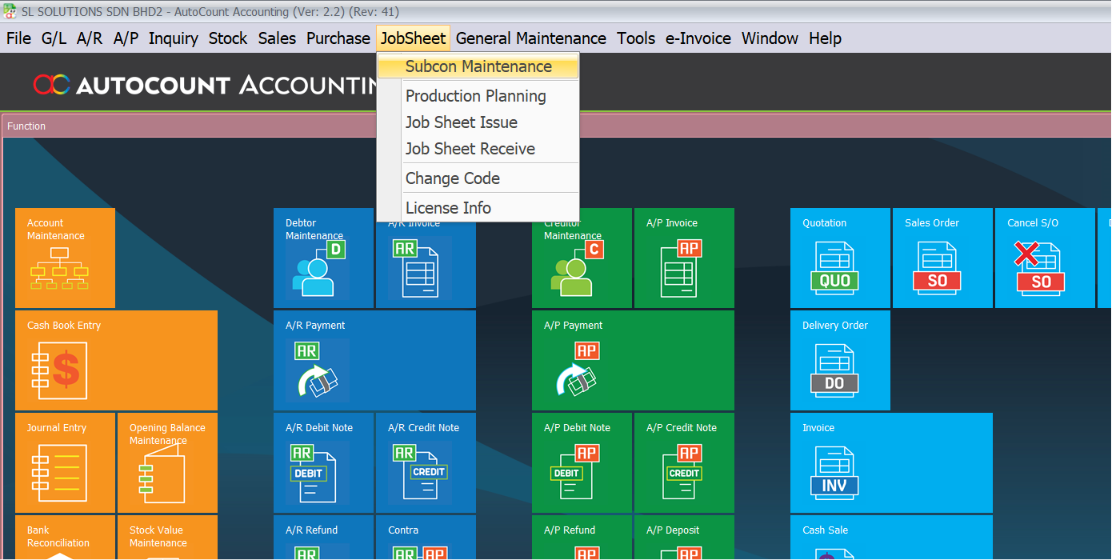
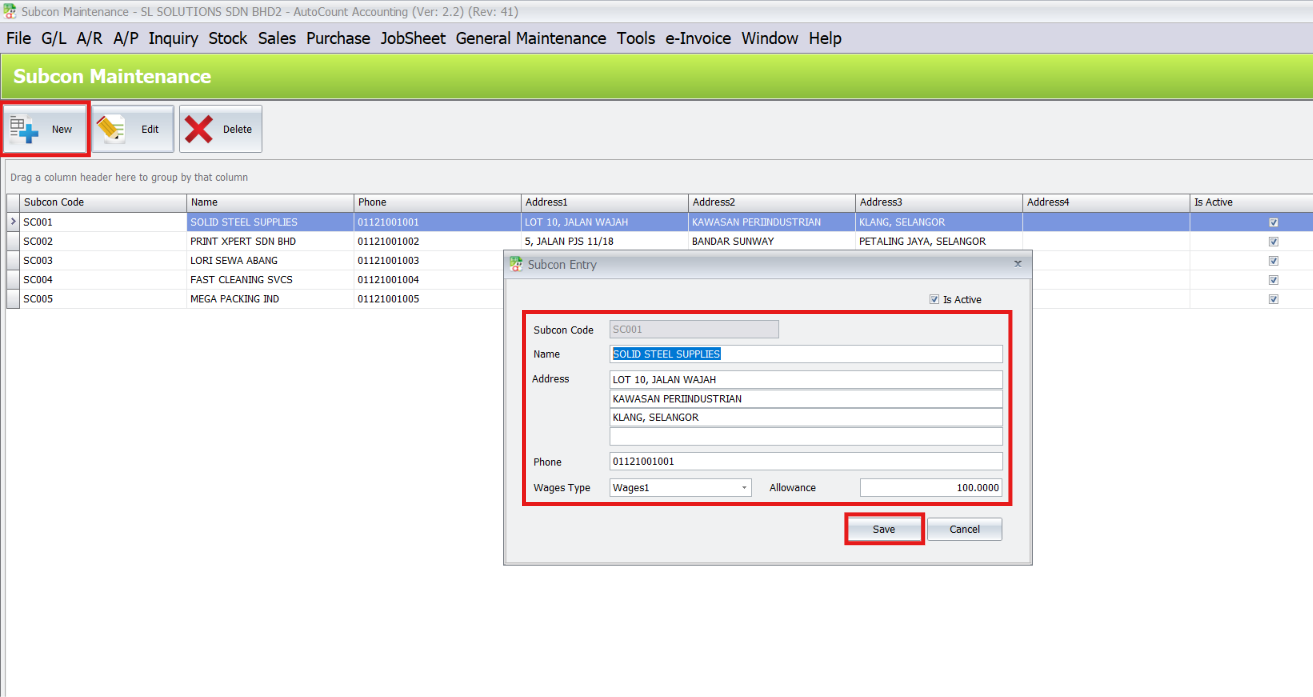
1. Subcon Maintenance
Create a Subcon: Navigate to the Subcon Maintenance tab. Click New, and fill in subcontractor details like name, contact information, and the services they provide.
Pro Tip:
Keep your subcon list updated regularly for easy management and quick job sheet generation.
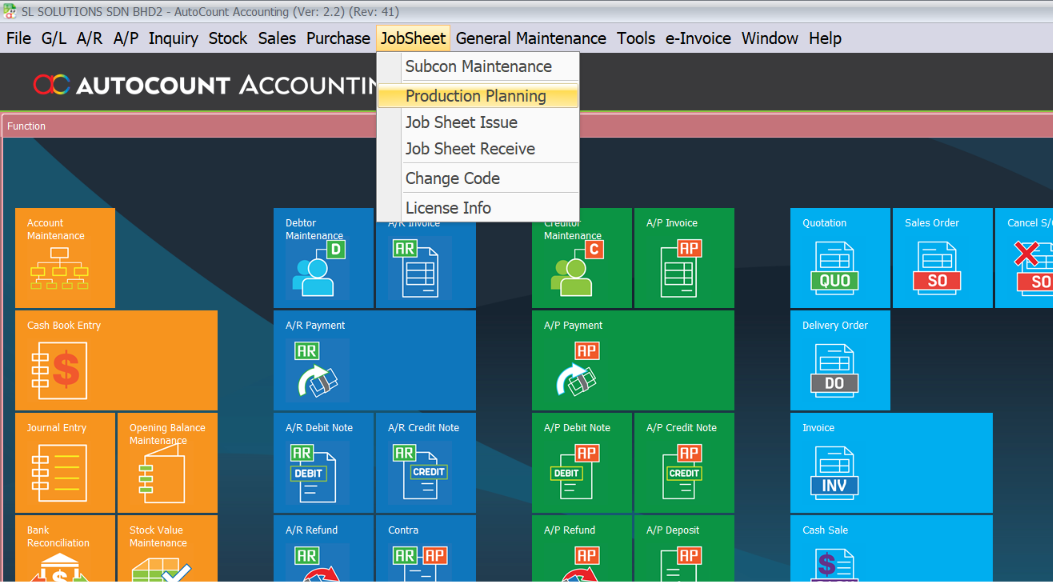
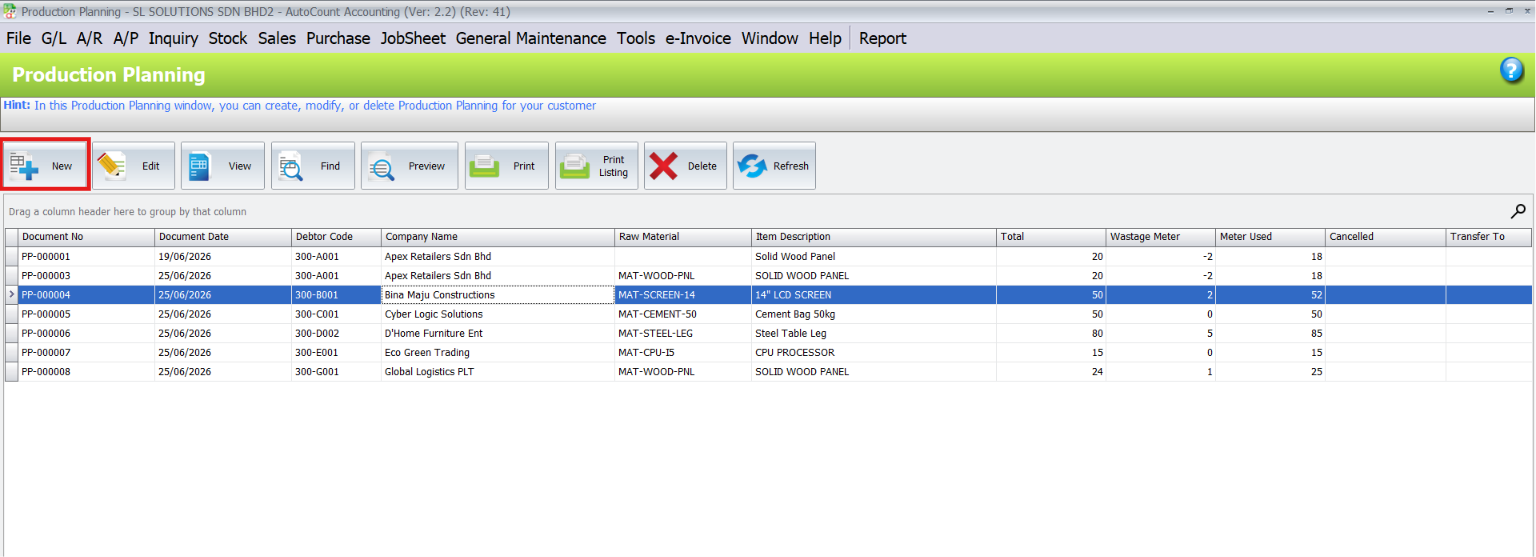
2. Production Planning
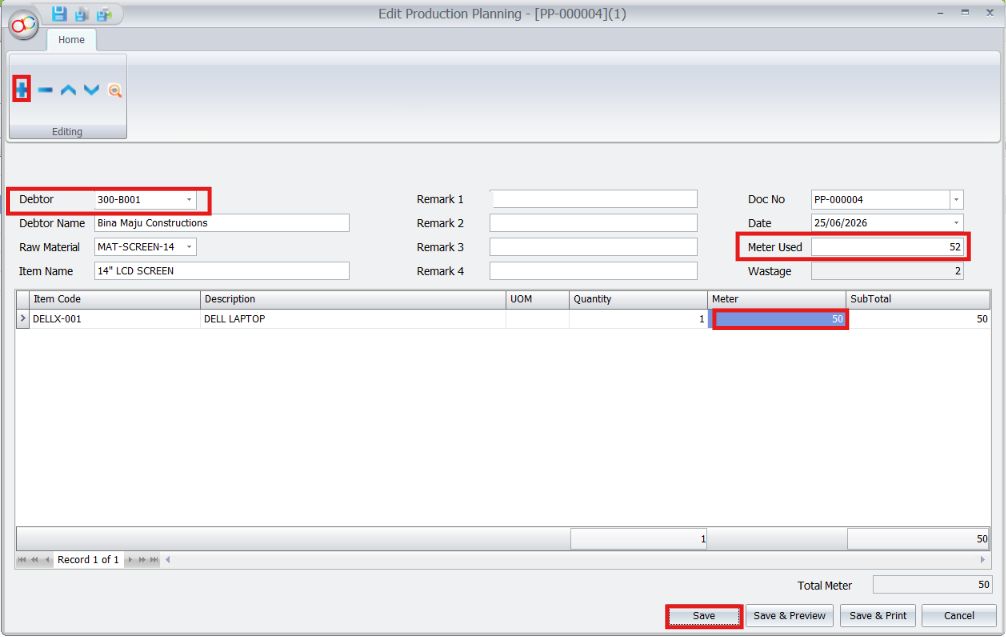
Create Production Planning: Go to the Production Planning tab. Click New, and enter the job details such as customer name, product type, and required production dates.
Pro Tip:
Regularly review your production plans to adjust for any changes in customer requirements or material availability. This helps keep the workflow organized.
3. Job Sheet Issue
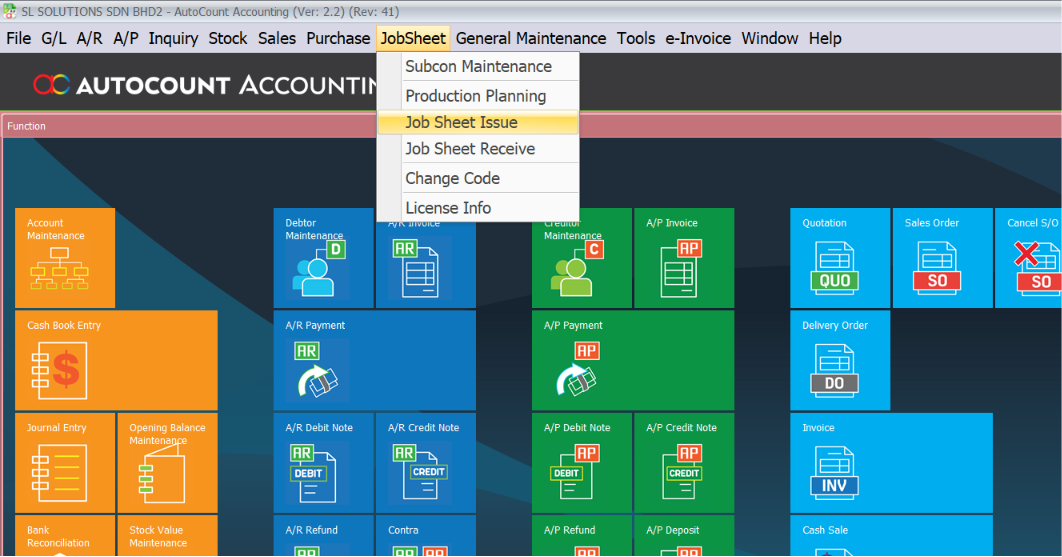
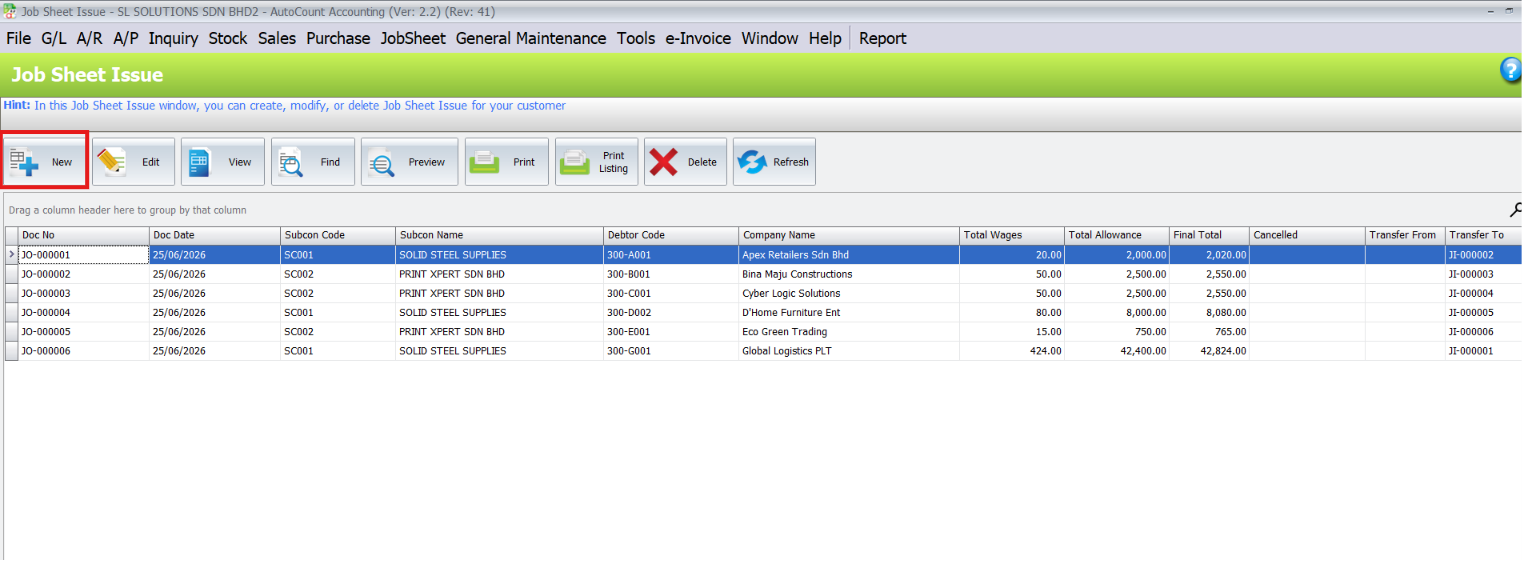
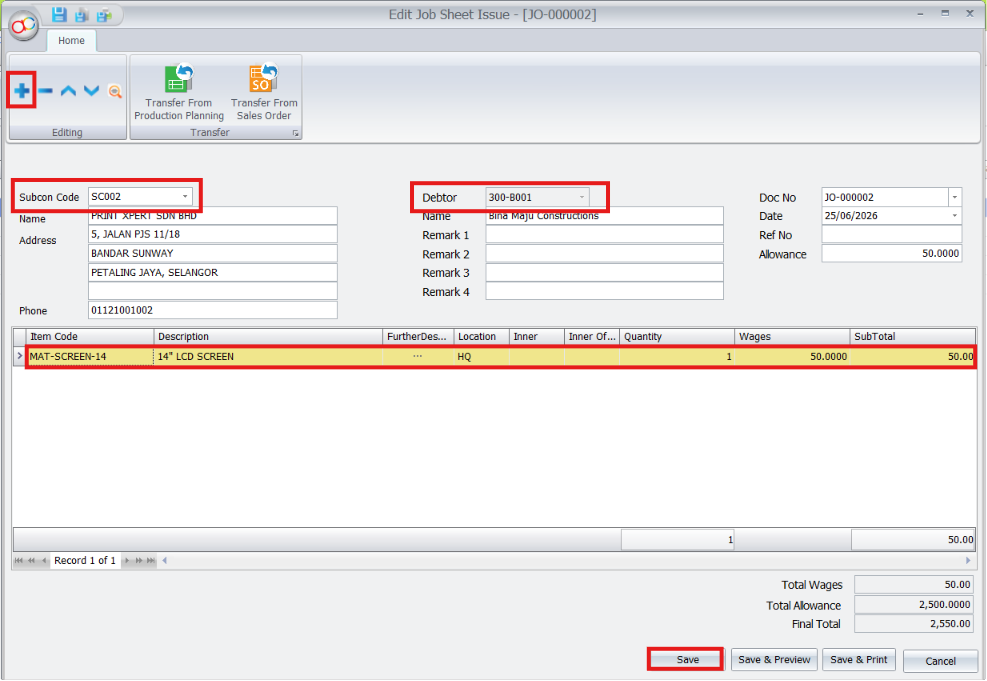
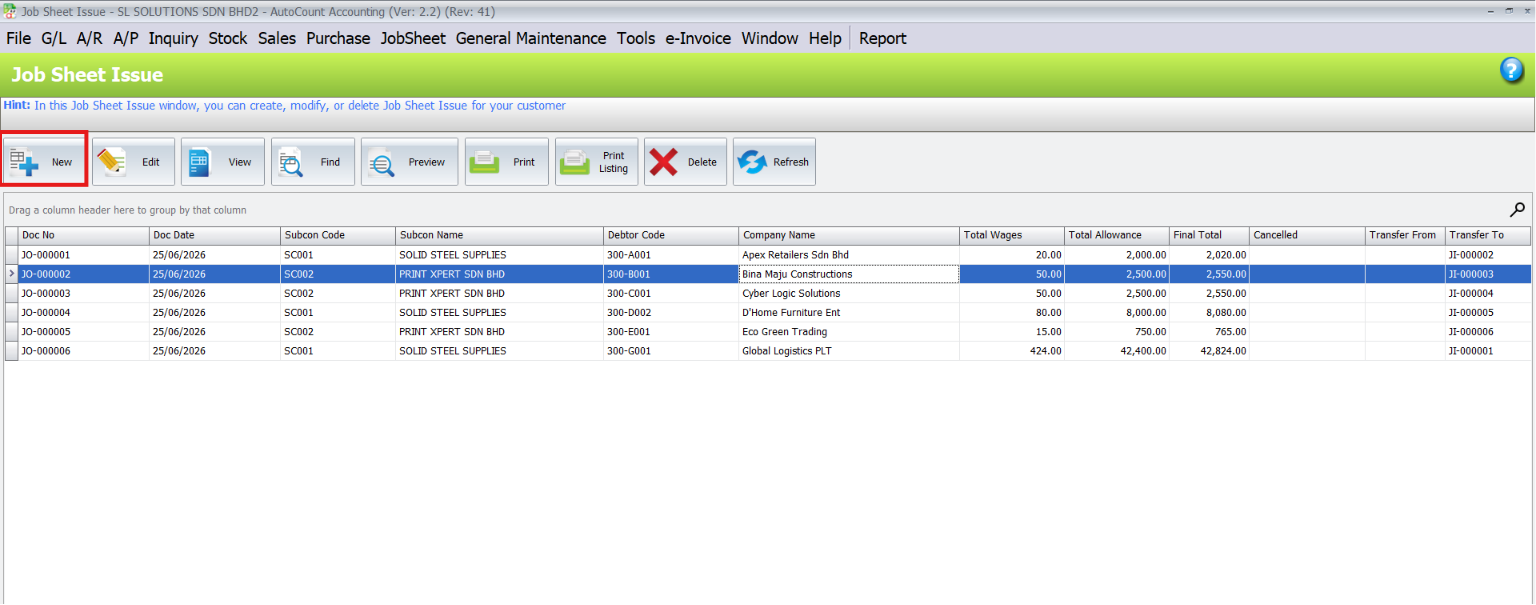
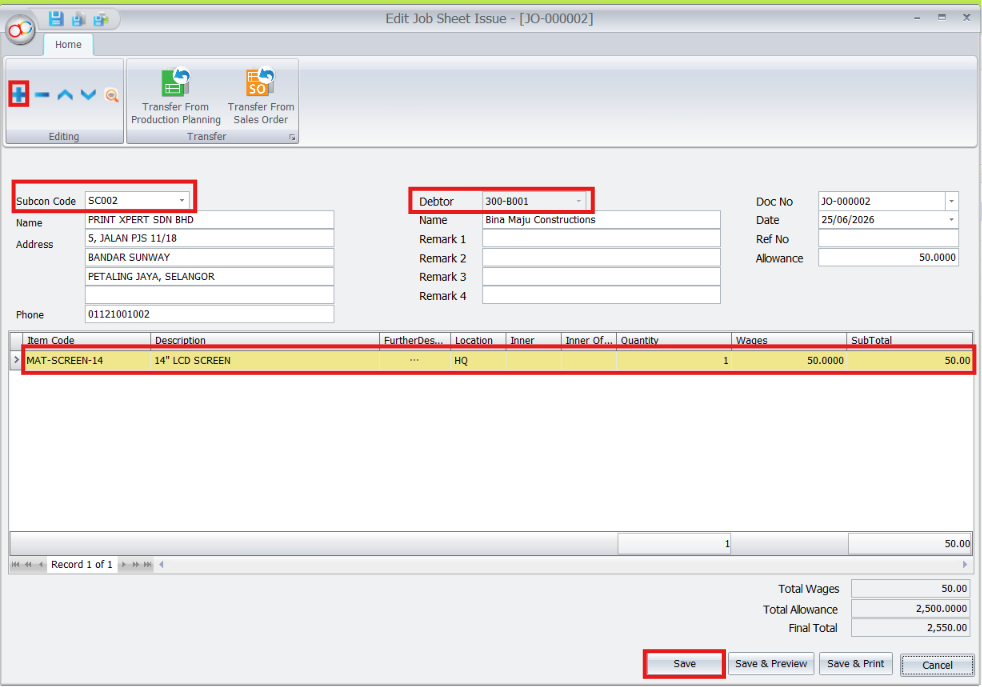
Create Job Sheet Issue: Go to the Job Sheet Issue section. Click New, and input customer details, job description, and assign the job to the relevant team or subcontractor.
Pro Tip:
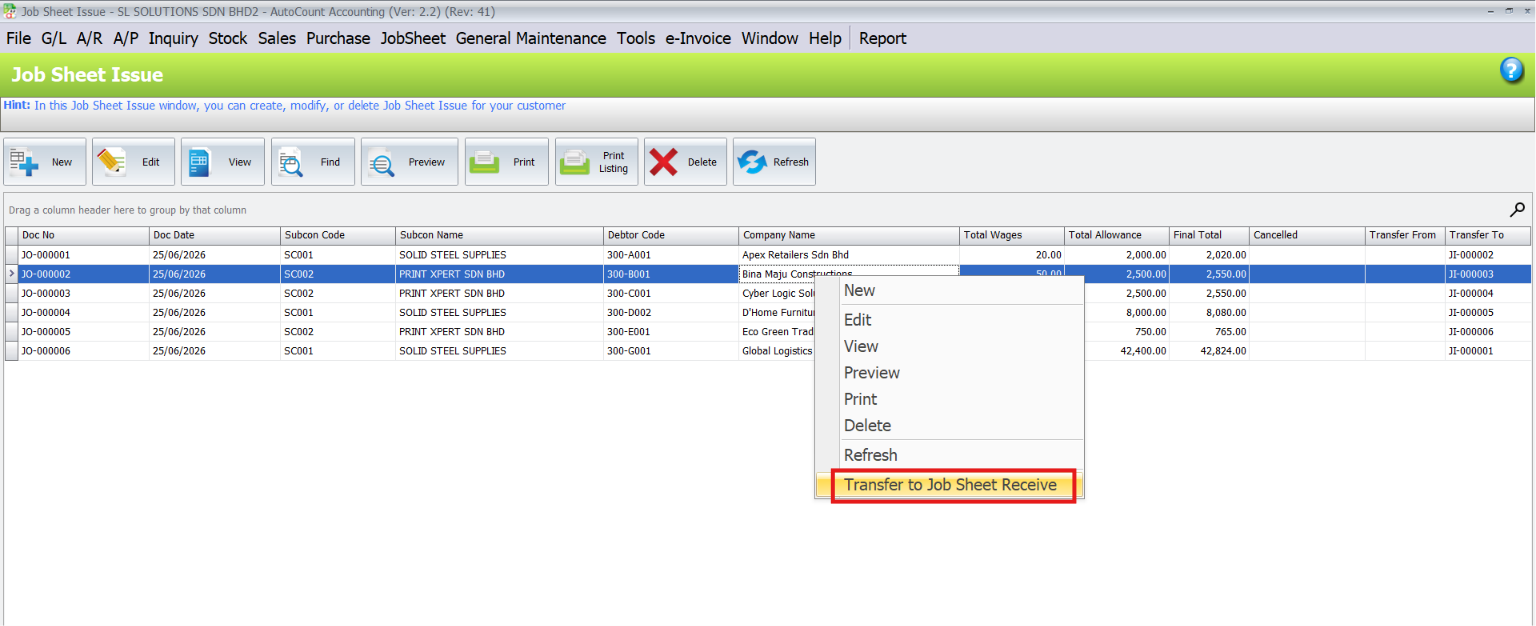
To streamline the transfer process, make sure your job sheet details are complete before transferring to Job Sheet Receive. This ensures all necessary information is passed along.
4. Job Sheet Receive
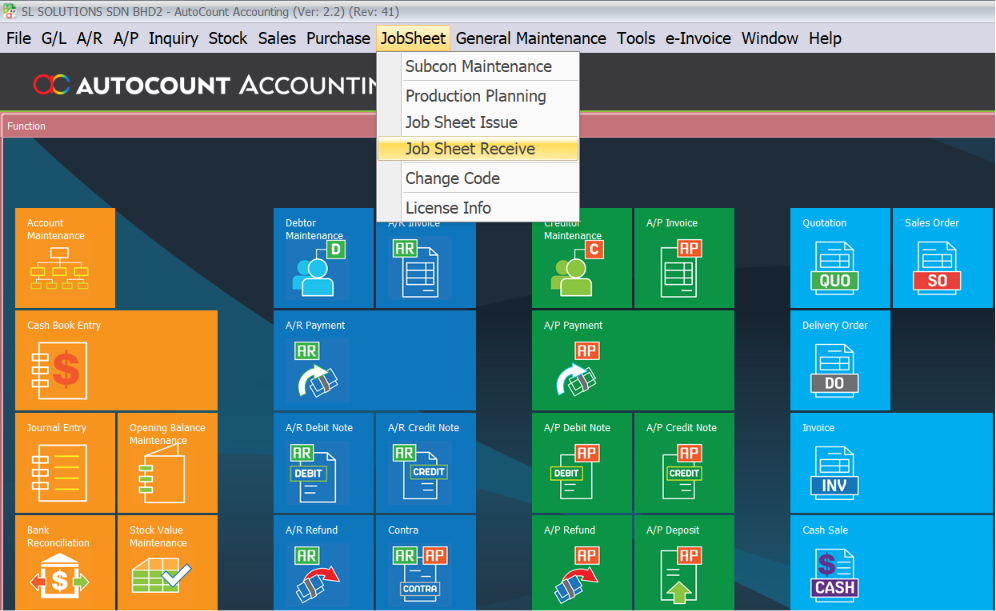
Create Job Sheet Receive: Navigate to the Job Sheet Receive section. Click New, and input customer details and job completion information.
Pro Tip:
Before making any changes to a job sheet, ensure that no critical data, such as invoicing or reporting, is linked to it. This will help maintain the accuracy of your reports and records.
5. Change Code
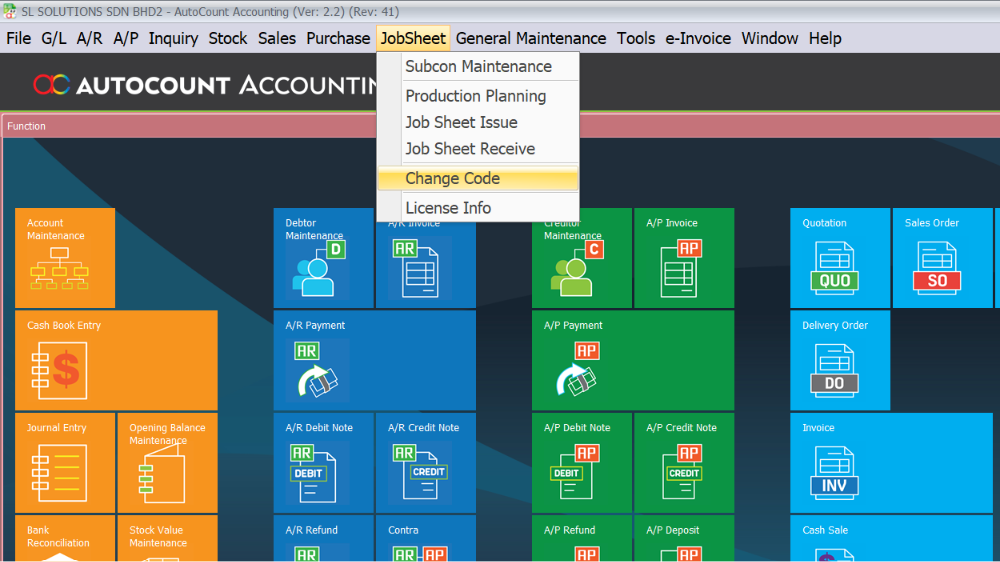
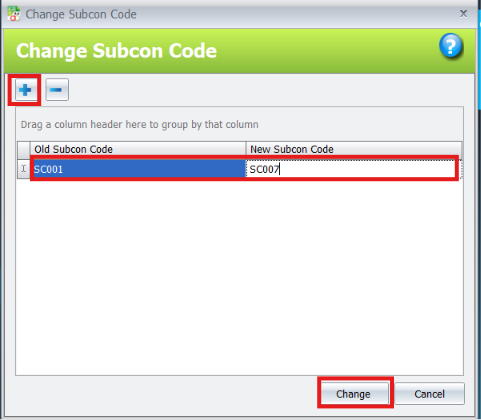
Changing Subcon Codes: If you need to update an old subcon code to a new one, go to the Change Code section. Click “+” to enter the old subcon code and the new subcon code. Click Change to automatically update all relevant records to reflect the new code.
Pro Tip:
It’s best to change subcon codes during a scheduled system update to minimize disruptions to your job sheet workflow. Make sure all records are reviewed after the change.
Core Benefits of Using Job Sheet Plugin
Improved Efficiency
Streamlines job sheet management, production planning, and subcontractor handling, reducing manual effort and saving time.
Enhanced Accuracy
Ensures accurate job tracking, reporting, and invoicing by maintaining consistent and up-to-date data across systems.
Seamless Integration
Integrates effortlessly with AutoCount, providing smooth data flow across various modules like inventory, accounting, and reporting.
Conclusion
The AutoCount Job Sheet Plugin simplifies the management of subcontractor details, production planning, and job sheets, making it easier for businesses to track and coordinate jobs seamlessly. By automating job assignments and streamlining the workflow, the plugin helps businesses improve the accuracy of their reporting and job tracking. With user-friendly features, it reduces the risk of errors, minimizes manual intervention, and ensures that all data is consistent across various operations. Whether it’s handling subcontractor details, planning production schedules, or managing job sheets, the plugin helps businesses save time, enhance operational efficiency, and maintain smooth, error-free workflows, ultimately leading to improved customer satisfaction and productivity.
Frequently Asked Questions
How do I add a new subcontractor in the plugin?
To add a subcontractor, navigate to the Subcon Maintenance section, click Add New, and enter the required details such as name, contact information, and service type.
Can I track the status of job sheets in real-time?
Yes, you can update and monitor the status of job sheets in real-time from the Job Sheet Issue and Job Sheet Receive sections, ensuring you stay informed about progress and completion.
How do I transfer a job sheet from Job Sheet Issue to Job Sheet Receive?
After the job is completed, simply click the Transfer to Job Sheet Receive button within the Job Sheet Issue section to move the job sheet details for further processing.
Can I update subcontractor codes across multiple job sheets?
Yes, the Change Code feature allows you to update subcontractor codes across all relevant job sheets, ensuring consistency throughout your records.
Interested in Getting AutoCount for your Business?
Contact our sales team today to explore pricing options and get started with the perfect solution for you.