
-
AutoCount Accounting Features
-
- Approval Workflow
- Audit Trail
- Auto Save in Draft Folder
- AutoCount Contra Account
- AutoCount License Setting Guide
- Deposit Tracking & Management
- Documents Numbering Format
- Full Transfer and Partial Transfer
- Import Data to AutoCount Accounting Using Excel
- Informative Charts and Analytical Data
- Layout Customization
- Multi Pricing
- Sales and Services Tax
- Schedule Backup
- Search Lookup Edit
- View Documents Flow
- AutoCount Feature Stock Take
- Column Chooser
- Show Remaining (3) Collapse
-
AutoCount Cloud Accounting
-
AutoCount E-Invoice
-
AutoCount HRMS User Guide
-
AutoCount Modules
-
- Activity Stream
- Advanced Financial Report
- Advanced Item
- Advanced Multi-UOM
- Advanced Quotation Module
- Basic Multi-UOM
- Budget Module
- Consignment
- Filter By Salesman
- FOC Quantity
- Formula
- Item Batch
- Item Package
- Landing Cost
- Multi-Currency
- Multi-Dimensional Analysis
- Multi-Location
- Project Account
- Recurrence
- Remote Credit Control Module
- Stock Assembly
- User Defined Fields (UDF)
- AutoCount SST Hidden Functions
- AutoCount SST Submission - Service Tax
- AutoCount Scripting Module User Guide
- AutoCount Bonus Point Module User Guide
- AutoCount Service Management Plugin User Guide
- Show Remaining (12) Collapse
-
AutoCount Plugins
-
- Fixed Assets Management
- Goldsmith
- TD Ordering Mobile Apps
- TD Stock Mobile Apps
- Universal Import Plugin
- DMS Import Plugin
- AutoCount Pick List Plugin User Guide
- AutoCount Credit Memo Plugin User Guide
- AutoCount Lock Price Plugin
- AutoCount Progressive Billing
- AutoCount Easy Recurrence Plugin
- Batch Update Unit Price Plugin
- AutoCount Production order
- AutoCount Car Tint Film Plugin
-
- Event Management System
- AutoCount To-Do List Plugin
- AutoCount AutoBank Reconciliation Plugin
- Intercompany Billing Plugin User Guide
- Lead Management 2.0 Plugin
- AutoCount Service Contract Plugin User Guide
- AutoCount Optical Plugin
- AutoCount Integrator Plugin
- AutoCount Procurement Planning Plugin
- Cage Management Plugin
- AutoCount Vehicle Plugin
- AutoCount Agent Validation Plugin User Guide
- AutoCount Barcode Generator Plugin User Guide
- AutoCount Easy Batch Number Entry Plugin User Guide
- Warranty 2.0 Plugin
- AutoCount Easy Photo 2.0 User Guide
- AutoCount Recurring Invoice Plugin User Guide
- AutoCount Scale Barcode Plugin User Guide
- AutoCount Recurrence Late Interest Plugin
- AutoCount Item Visibility Control
- AutoCount Bill Remark Plugin User Guide
- AutoCount Pain Tracker User Guide
- AutoCount Easy Payment
- AutoCount Easy Deposit Plugin
- AutoCount Easy Knock Off Plugin
- AutoCount Daily Collection Summary Plugin
- Timber Log Plugins
- Batch Transfer SODO Plugin
- AutoCount Vege Basket Plugin Guide
- AutoCount Fruit Basket Plugin Guide
- Referral Management Plugin
- AutoCount Migrator Plugin
- AutoCount Email & WhatsApp Plugin
- AutoCount Multi Company Knock Off Plugin
- AutoCount Advance Aging Format Plugin
- AutoCount Payment Request Plugin
- AutoCount Vehicle Master Plugin
- AutoCount Advance Deposit Plugin
- AutoCount IC Checker Plugin
- AutoCount RMA Plugin
- AutoCount Historical Outstanding DO Listing Plugin
- AutoCount Project Department Visibility Control Plugin
- AutoCount MRP Order Plugin
- AutoCount GridToExcel Plugin
- AutoCount Stock Availability Report Plugin
- AutoCount Batch Transfer SO DO Plugin
- AutoCount Centralized Kitchen Management Plugin
- SL AutoCount API
- AutoCount InterCompany Billing Plugin
- AutoCount Sales Commission Plugin
- Advanced Credit Term Management Software for AutoCount
- AutoCount Advanced Stock Assembly Plugin
- AutoCount Shipment Plugin
- AutoCount Tour Plugin
- AutoCount Smart Analysis
- AutoCount Rental Management
- Show Remaining (41) Collapse
-
-
Form Template
-
Report Template
-
- Advance Quotation
- Cash Sale
- Consignment
- Consignment Movement
- Credit Note
- Debit Note
- Delivery Order
- FOC Quantity Analysis By Document Report
- Invoice
- Item Package Sales Report
- Monthly Sales Analysis
- Outstanding Sales Order Listing
- Profit And Loss Of Documents
- Quotation
- Sales Agent Contribution Report
- Sales Order
- Top/Bottom Sales Ranking
- Show Remaining (2) Collapse
-
- Available Stock Status Report
- Expired Item Batch Listing
- Inventory Physical Worksheet
- Stock Adjustment
- Stock Aging Report
- Stock Assembly
- Stock Assembly Order
- Stock Balance By Location
- Stock Balance Report
- Stock Card Report
- Stock Disassembly
- Stock Issue
- Stock Item Profit Margin
- Stock Movement Report
- Stock Receive
- Stock Take
- Stock Transfer
- Stock Write Off
- Show Remaining (3) Collapse
-
B2B ORDERING
-
AutoCount AI Agent
AutoCount Advance Aging Format Plugin User Guide
What is AutoCount Advance Aging Format Plugin?
The AutoCount Advance Aging Format Plugin helps businesses customize Debtor and Creditor Aging Reports by selecting different aging calculation methods and reporting periods within AutoCount Accounting. With features such as Invoice Date Aging, Due Date Aging, Month-Based and Day-Based Formats, and Aging Comparison Tabs, businesses can analyze outstanding balances more effectively. The Advance Aging Format Plugin simplifies receivables and payables analysis, improves financial reporting flexibility, and supports better payment management decisions.
Why Use AutoCount Advance Aging Format Plugin?
Standard aging reports may not provide the flexibility businesses need when reviewing overdue payments or comparing outstanding balances.
The AutoCount Advance Aging Format Plugin allows finance teams to analyze aging information from different perspectives.
Flexible Aging Calculations
Analyze outstanding balances using Invoice Date, Due Date, or existing Debtor and Creditor aging settings.
Better Outstanding Payment Analysis
Understand customer and supplier balances through different aging periods to support collection and payment reviews.
Simplify Aging Report Comparisons
Compare Invoice Date and Due Date aging results through dedicated report tabs without manually preparing separate calculations.
Improve Financial Reporting Flexibility
Switch between day-based and month-based aging formats to prepare reports suited to different financial analysis requirements.
Key Features of AutoCount Advance Aging Format Plugin
Flexible Aging Basis Selection
Calculate outstanding balances using Debtor/Creditor Default, Invoice Date, or Due Date according to reporting requirements.
Customizable Aging Period Formats
Choose from available day-based and month-based aging formats to organize outstanding balances into suitable reporting periods.
Aging Comparison Tabs
Review complete aging results and switch between Invoice Date and Due Date tabs to compare outstanding balances.
Debtor & Creditor Aging Integration
Apply flexible aging calculation and reporting options to both customer receivables and supplier payables within AutoCount Accounting.
Who Should Use AutoCount Advance Aging Format Plugin?
Accounts Receivable & Credit Control Teams
Ideal for finance personnel monitoring outstanding customer balances, overdue invoices, and payment collection priorities.
Accounts Payable Departments
Suitable for employees reviewing outstanding supplier invoices and planning upcoming payment obligations.
Accountants & Finance Managers
Helps accounting professionals prepare flexible aging reports and analyze receivables and payables using different reporting perspectives.
SME Owners & Financial Decision-Makers
Useful for business owners who need clearer visibility into outstanding customer payments, supplier balances, and potential cash-flow pressures.
How AutoCount Advance Aging Format Plugin Works
A. Access Rights
The plugin registers its access rights under the SL Plug-In group. Grant the rights required for users who
need to view the license status or open the license registration screen.
1. Go to General Maintenance > Access Rights
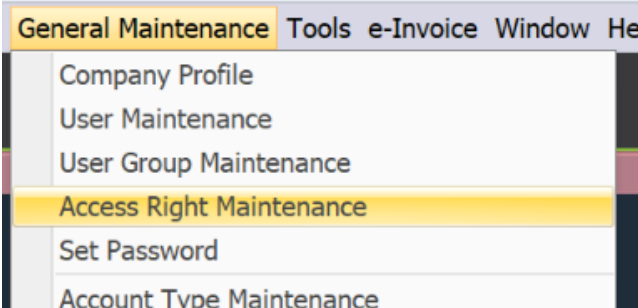
2. Expand the SL Plugins section and select AdvanceAgingFormat Plugin.
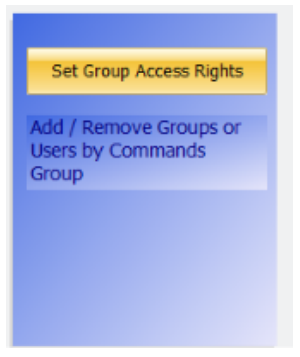
3. Click Set Group Access Rights.
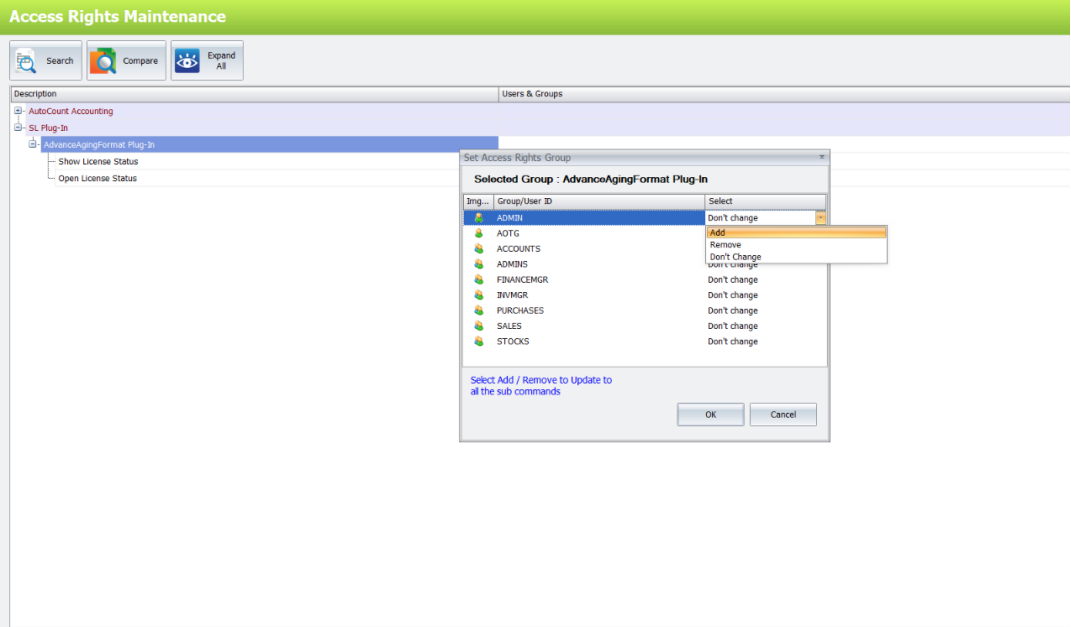
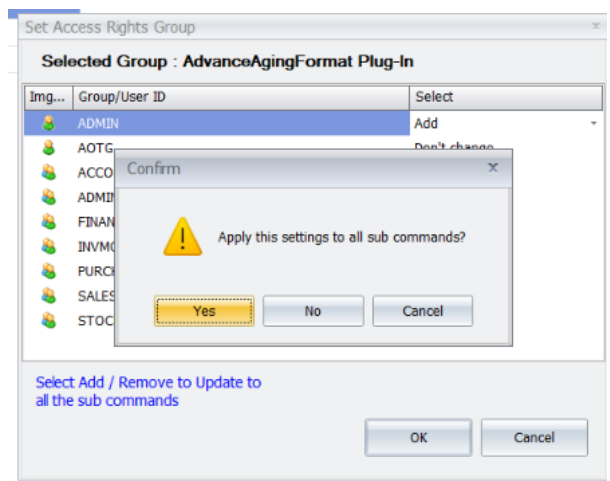
4. Select the relevant user group, example; Admin. Change the permission from Don’t Change
to Add. Click OK.
B. Debtor Aging
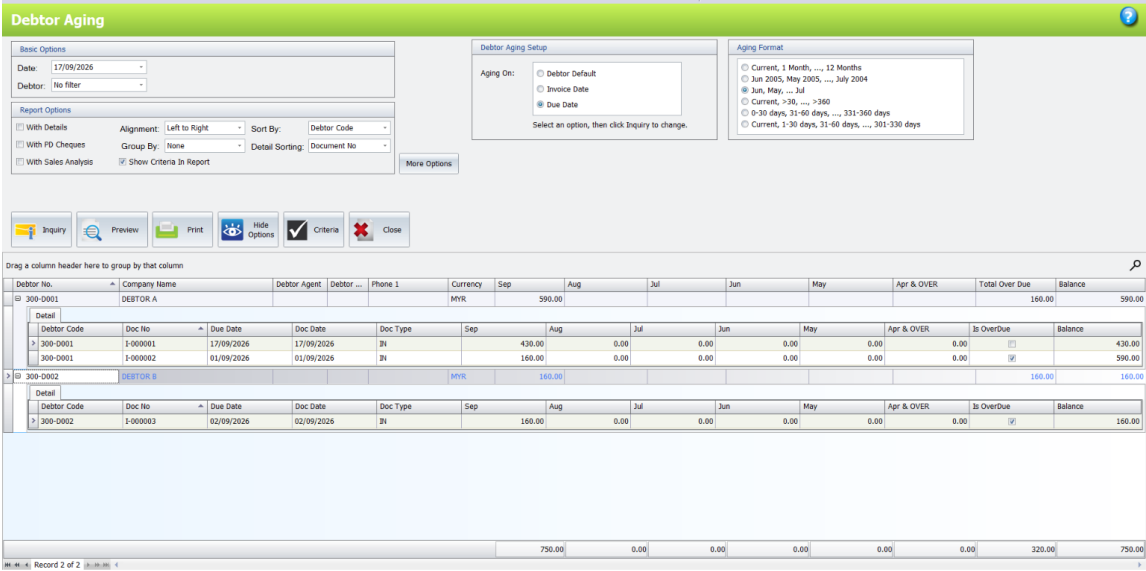
AdvanceAgingFormat extends the Debtor Aging inquiry with aging-basis selection, aging-format selection,
and comparison tabs. The selected choices are applied when the inquiry is refreshed.
B.1 Select the debtor aging basis
1. Open A/R > Debtor Aging Report
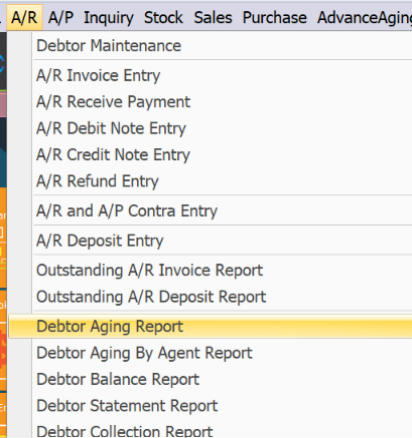
2. In Debtor Aging Setup, select Debtor Default, Invoice Date, or Due Date under Aging On.
Debtor Default: Uses the aging basis configured for each debtor in Debtor Maintenance.
Invoice Date: Calculates aging from the invoice date.
Due Date: Calculates aging from the invoice’s due date.
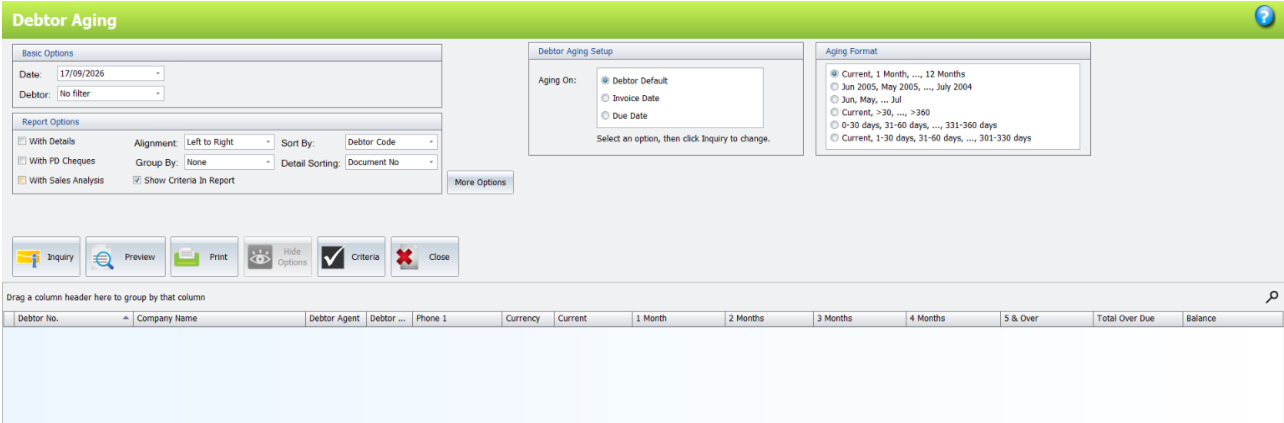
B.2 Select the debtor aging format
1. In the Aging Format group, select one of the available formats such as by month ranges or day
ranges.
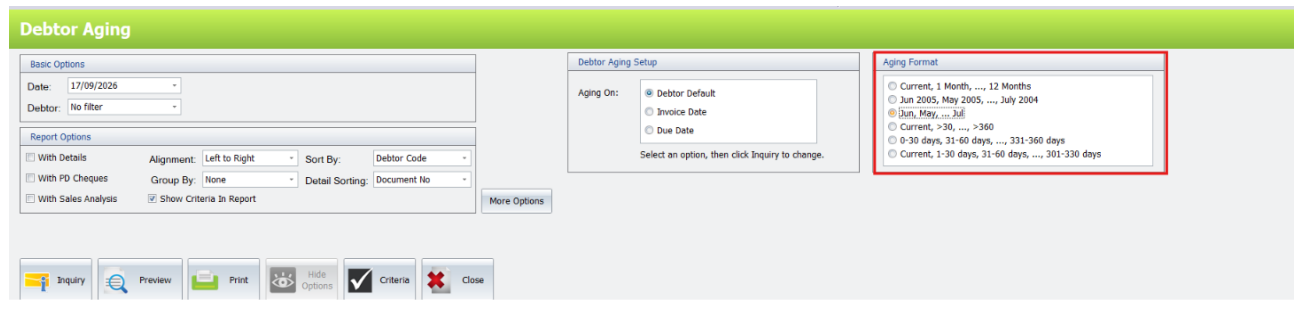
2. Click Inquiry to apply the selected format to the report columns. The selected format is saved
through the AutoCount AR setting flow.
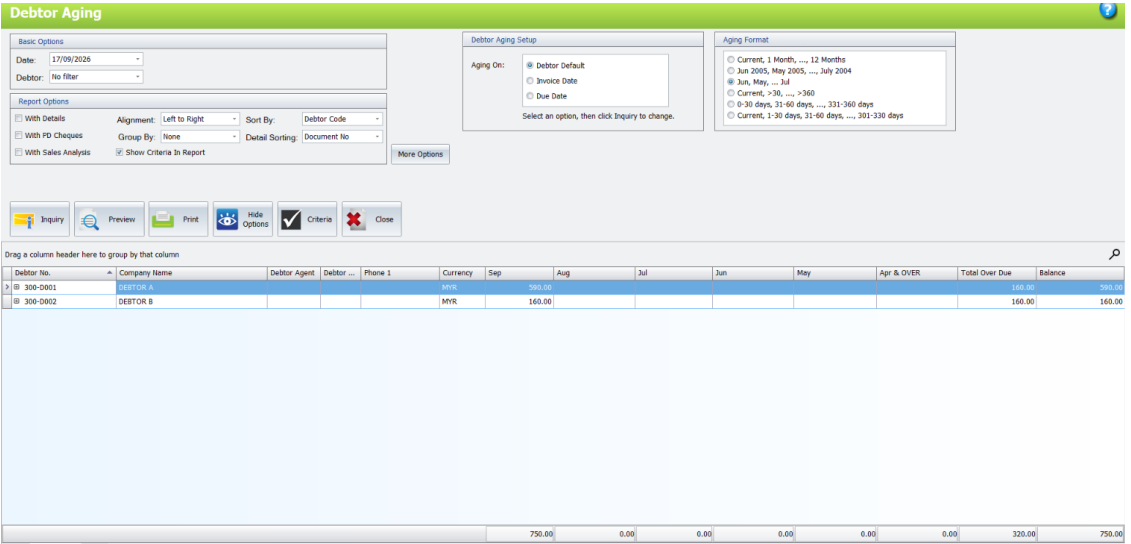
B.3 Review comparison tabs and details
1. Review the All tab for the complete result.
2. Select the Invoice Date tab or Due Date tab to review the same aging data using that basis.
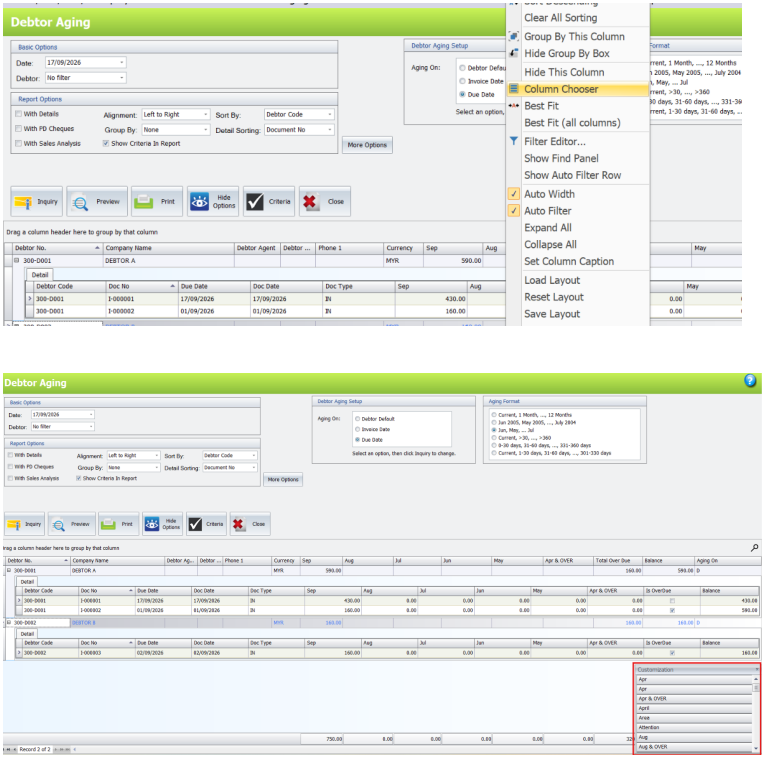
3. To change visible detail columns, right-click the detail grid header and select Column Chooser.
C. Creditor Aging
C.1 Select the creditor aging basis
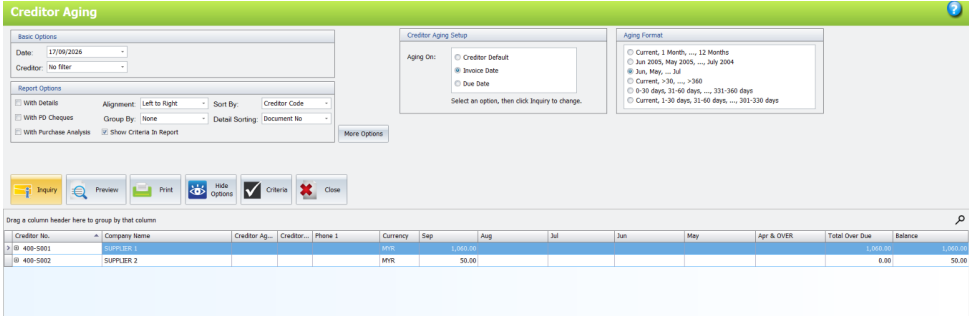
1. Open A/R > Creditor Aging Report
2. In Creditor Aging Setup, select Creditor Default, Invoice Date, or Due Date under Aging On.
3. Click Inquiry. The result grid and comparison tabs refresh using the selected aging basis.
C.2 Select the creditor aging format
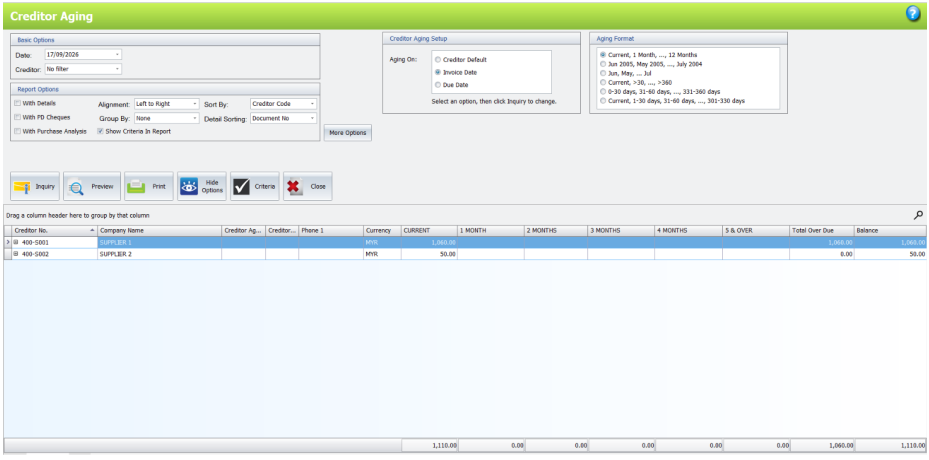
1. In the Aging Format group, select the required month-based or day-based format.
2. Click Inquiry to apply the selected format to the report columns.
Benefits of AutoCount Tour Plugin
Better Outstanding Balance Visibility
Analyze customer and supplier balances using Invoice Date, Due Date, or existing maintenance defaults for a more flexible financial view.
Improved Credit Control Decisions
Use different aging periods and calculation methods to support more informed customer payment follow-ups.
More Flexible Financial Reporting
Choose day-based or month-based aging formats to meet different reporting and management requirements.
Easier Receivables & Payables Analysis
Apply consistent aging analysis options to both Debtor and Creditor Aging Reports within AutoCount Accounting.
Conclusion
The AutoCount Advance Aging Format Plugin helps businesses analyze outstanding customer and supplier balances more effectively by extending the existing Debtor and Creditor Aging Reports.
With flexible aging calculation methods, day-based and month-based reporting formats, comparison tabs, and configurable detail views, accounting teams can review receivables and payables from multiple perspectives.
For businesses requiring better aging report flexibility, the Advance Aging Format Plugin provides a practical solution for supporting credit control, supplier payment planning, and financial reporting.
Frequently Asked Questions
What is an aging report?
An aging report is an accounting report that organizes outstanding customer or supplier balances into time periods to help businesses review unpaid invoices and payment obligations.
What is the difference between Debtor Aging and Creditor Aging?
Debtor Aging shows outstanding amounts owed by customers, while Creditor Aging shows outstanding amounts the business owes its suppliers.
What aging calculation methods does the pluging support?
The plugin supports Debtor/Creditor Default, Invoice Date, and Due Date aging calculation methods.
What is the difference between Invoice Date and Due Date aging?
Invoice Date aging measures the age of an invoice from its issue date, while Due Date aging measures the timing of an outstanding amount relative to its payment due date.
Can businesses switch between day-based and month-based aging reports?
Yes. The plugin allows users to select from available day-based and month-based Aging Format options.
Can users compare Invoice Date and Due Date aging?
Yes. The plugin provides dedicated Invoice Date and Due Date comparison tabs within the aging inquiry.
Improve Your Aging Report Analysis Today!
Need a better way to understand outstanding customer invoices and supplier payment obligations?
With the AutoCount Advance Aging Format Plugin, your accounting team can review aging balances using Invoice Date or Due Date, select different aging formats, and compare results within AutoCount Accounting.
Whether you’re managing customer collections, reviewing supplier payments, or preparing monthly financial reports, this plugin helps make aging analysis more flexible and informative.
Looking for a more flexible debtor and creditor aging report solution?
Contact SL Software Solutions Sdn. Bhd. to discover how the AutoCount Advance Aging Format Plugin can support your accounting and financial reporting needs.