
-
AutoCount Accounting Features
-
- Approval Workflow
- Audit Trail
- Auto Save in Draft Folder
- AutoCount Contra Account
- AutoCount License Setting Guide
- Deposit Tracking & Management
- Documents Numbering Format
- Full Transfer and Partial Transfer
- Import Data to AutoCount Accounting Using Excel
- Informative Charts and Analytical Data
- Layout Customization
- Multi Pricing
- Sales and Services Tax
- Schedule Backup
- Search Lookup Edit
- View Documents Flow
- AutoCount Feature Stock Take
- Column Chooser
- Show Remaining (3) Collapse
-
AutoCount Cloud Accounting
-
AutoCount E-Invoice
-
AutoCount HRMS User Guide
-
AutoCount Modules
-
- Activity Stream
- Advanced Financial Report
- Advanced Item
- Advanced Multi-UOM
- Advanced Quotation Module
- Basic Multi-UOM
- Budget Module
- Consignment
- Filter By Salesman
- FOC Quantity
- Formula
- Item Batch
- Item Package
- Landing Cost
- Multi-Currency
- Multi-Dimensional Analysis
- Multi-Location
- Project Account
- Recurrence
- Remote Credit Control Module
- Stock Assembly
- User Defined Fields (UDF)
- AutoCount SST Hidden Functions
- AutoCount SST Submission - Service Tax
- AutoCount Scripting Module User Guide
- AutoCount Bonus Point Module User Guide
- AutoCount Service Management Plugin User Guide
- Show Remaining (12) Collapse
-
AutoCount Plugins
-
- Fixed Assets Management
- Goldsmith
- TD Ordering Mobile Apps
- TD Stock Mobile Apps
- Universal Import Plugin
- DMS Import Plugin
- AutoCount Pick List Plugin User Guide
- AutoCount Credit Memo Plugin User Guide
- AutoCount Lock Price Plugin
- AutoCount Progressive Billing
- AutoCount Easy Recurrence Plugin
- Batch Update Unit Price Plugin
- AutoCount Production order
- AutoCount Car Tint Film Plugin
-
- Event Management System
- AutoCount To-Do List Plugin
- AutoCount AutoBank Reconciliation Plugin
- Intercompany Billing Plugin User Guide
- Lead Management 2.0 Plugin
- AutoCount Service Contract Plugin User Guide
- AutoCount Optical Plugin
- AutoCount Integrator Plugin
- AutoCount Procurement Planning Plugin
- Cage Management Plugin
- AutoCount Vehicle Plugin
- AutoCount Agent Validation Plugin User Guide
- AutoCount Barcode Generator Plugin User Guide
- AutoCount Easy Batch Number Entry Plugin User Guide
- Warranty 2.0 Plugin
- AutoCount Easy Photo 2.0 User Guide
- AutoCount Recurring Invoice Plugin User Guide
- AutoCount Scale Barcode Plugin User Guide
- AutoCount Recurrence Late Interest Plugin
- AutoCount Item Visibility Control
- AutoCount Bill Remark Plugin User Guide
- AutoCount Pain Tracker User Guide
- AutoCount Easy Payment
- AutoCount Easy Deposit Plugin
- AutoCount Easy Knock Off Plugin
- AutoCount Daily Collection Summary Plugin
- Timber Log Plugins
- Batch Transfer SODO Plugin
- AutoCount Vege Basket Plugin Guide
- AutoCount Fruit Basket Plugin Guide
- Referral Management Plugin
- AutoCount Migrator Plugin
- AutoCount Email & WhatsApp Plugin
- AutoCount Multi Company Knock Off Plugin
- AutoCount Advance Aging Format Plugin
- AutoCount Payment Request Plugin
- AutoCount Vehicle Master Plugin
- AutoCount Advance Deposit Plugin
- AutoCount IC Checker Plugin
- AutoCount RMA Plugin
- AutoCount Historical Outstanding DO Listing Plugin
- AutoCount Project Department Visibility Control Plugin
- AutoCount MRP Order Plugin
- AutoCount GridToExcel Plugin
- AutoCount Stock Availability Report Plugin
- AutoCount Batch Transfer SO DO Plugin
- AutoCount Centralized Kitchen Management Plugin
- SL AutoCount API
- AutoCount InterCompany Billing Plugin
- AutoCount Sales Commission Plugin
- Advanced Credit Term Management Software for AutoCount
- AutoCount Advanced Stock Assembly Plugin
- AutoCount Shipment Plugin
- AutoCount Tour Plugin
- AutoCount Smart Analysis
- AutoCount Rental Management
- Show Remaining (41) Collapse
-
-
Form Template
-
Report Template
-
- Advance Quotation
- Cash Sale
- Consignment
- Consignment Movement
- Credit Note
- Debit Note
- Delivery Order
- FOC Quantity Analysis By Document Report
- Invoice
- Item Package Sales Report
- Monthly Sales Analysis
- Outstanding Sales Order Listing
- Profit And Loss Of Documents
- Quotation
- Sales Agent Contribution Report
- Sales Order
- Top/Bottom Sales Ranking
- Show Remaining (2) Collapse
-
- Available Stock Status Report
- Expired Item Batch Listing
- Inventory Physical Worksheet
- Stock Adjustment
- Stock Aging Report
- Stock Assembly
- Stock Assembly Order
- Stock Balance By Location
- Stock Balance Report
- Stock Card Report
- Stock Disassembly
- Stock Issue
- Stock Item Profit Margin
- Stock Movement Report
- Stock Receive
- Stock Take
- Stock Transfer
- Stock Write Off
- Show Remaining (3) Collapse
-
B2B ORDERING
-
AutoCount AI Agent
Why Use AutoCount RMA Plugin?
Managing customer returns manually can lead to unauthorized returns, missing documents, inaccurate inventory records, and delays in customer credit processing.
The AutoCount RMA Plugin provides a more organized approach to managing product returns.
Improve Return Authorization Control
Ensure customer return requests are reviewed and approved by authorized personnel before proceeding with the return process.
Maintain Accurate Returned Stock Records
Record received quantities through linked Stock Receive documents to maintain consistent return and inventory information.
Simplify Credit Note Processing
Generate the appropriate Sales Credit Notes or A/R Credit Notes from received returns without repeatedly entering the same information.
Improve Return Status Visibility
Monitor pending approvals, partially received returns, completed returns, and outstanding quantities through organized status tracking.
Key Features of AutoCount RMA Plugin
RMA Request & Approval Management
Record customer return requests with item details, return quantities, reasons, and approval statuses before goods are received.
Returned Goods Receiving & Tracking
Manage delivery methods, courier or pickup information, received quantities, and partial receipts through linked Stock Receive records.
Sales & A/R Credit Note Generation
Create the appropriate Credit Note documents from eligible received RMA returns, including returns containing different transaction types.
Return Reporting & Access Control
Review RMA listings and outstanding quantities while controlling return processing functions through user permissions.
Who Should Use AutoCount RMA Plugin?
Trading & Distribution Businesses
Ideal for businesses handling frequent customer returns, incorrect deliveries, or returned merchandise across sales and warehouse operations.
Electronics & Hardware Suppliers
Suitable for suppliers that regularly process faulty, damaged, incorrect, or unwanted products returned by customers.
Customer Service & Sales Teams
Helps employees record return requests, review approval statuses, and coordinate return processing with warehouse and accounting teams.
Warehouse & Accounting Departments
Useful for personnel responsible for receiving returned goods, maintaining stock records, and preparing customer Credit Notes.
How AutoCount RMA Plugin Works
A. Access Rights
Administrators control which RMA functions each user or user group can use.
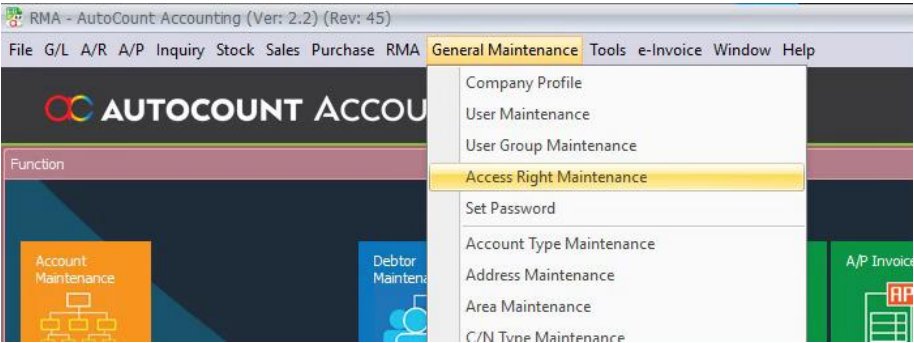
1.Open General Maintenance > Access Right Maintenance.
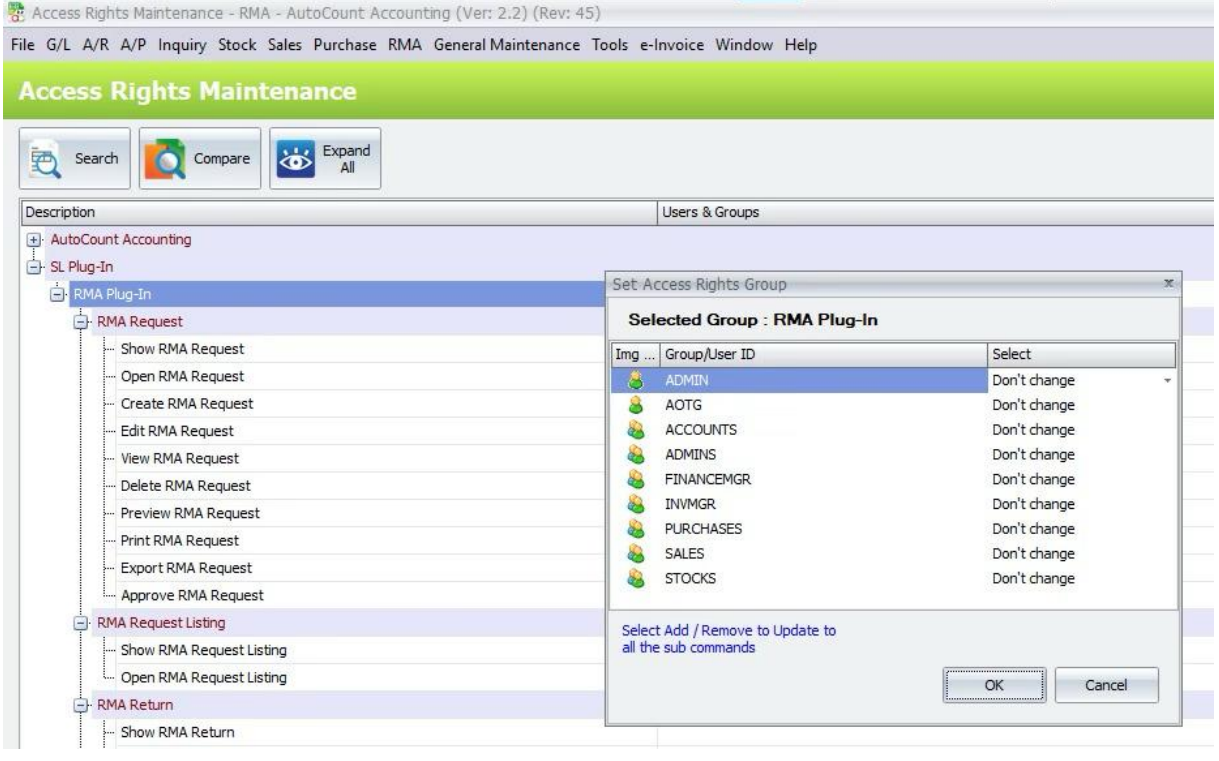
2.Select the user or user group, then expand SL Plug-In > RMA Plug-In.
3. Assign the required rights for RMA Request, RMA Request Listing, RMA Return and Delivery MethodMaintenance. Other available controls include Edit Qty/Price/Tax and Show License Status.
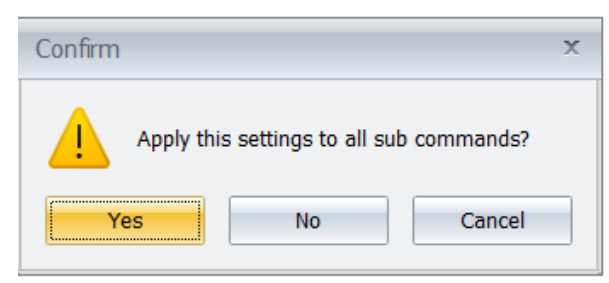
4. Save the access-right changes.
B. Delivery Method Maintenance
Delivery Method Maintenance keeps the delivery choices used during RMA return processing.
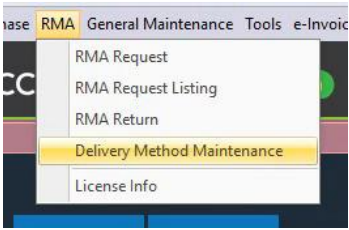
1. Open RMA > Delivery Method Maintenance.
2. Click New.
3. Enter Method, Description and Description 2. Tick Is Active when the method can be used.
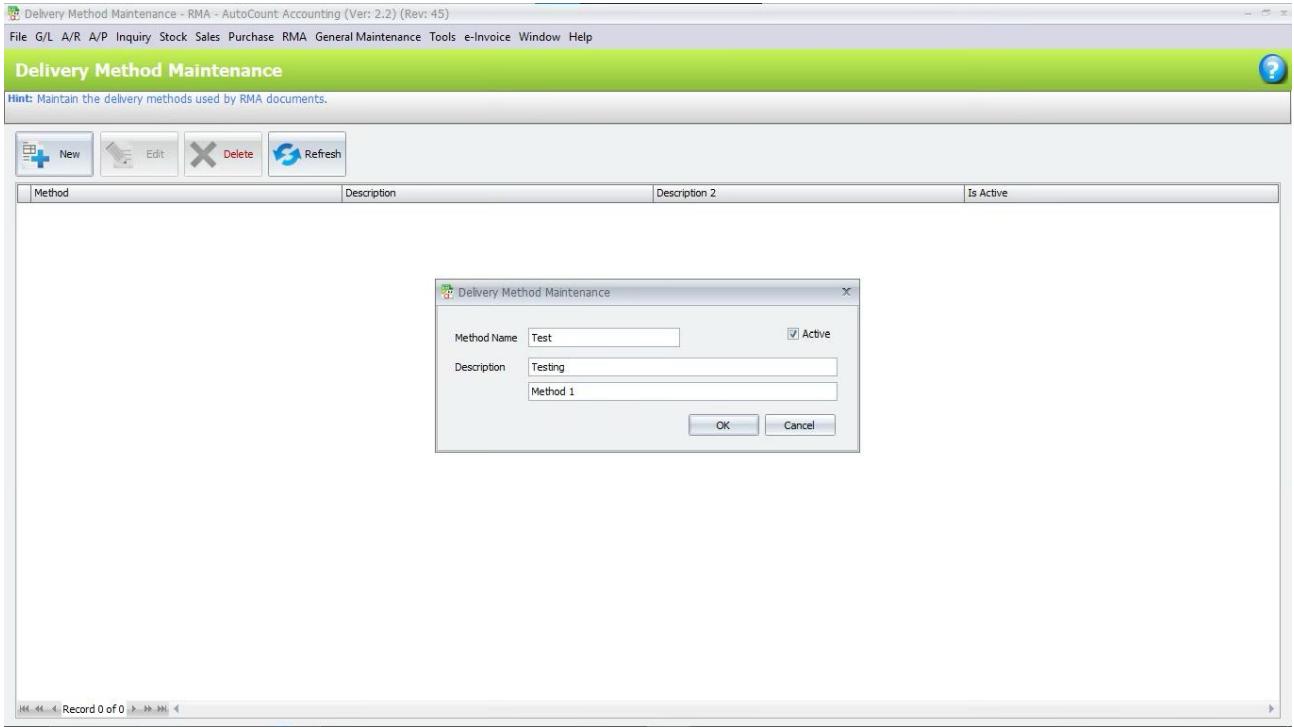
4. Click OK to save the delivery method.
5. Use Edit, Delete or Refresh when required.
C. RMA Request
RMA Request records a customer return request before the returned goods are received. 1. Open RMA > RMA Request and click New.
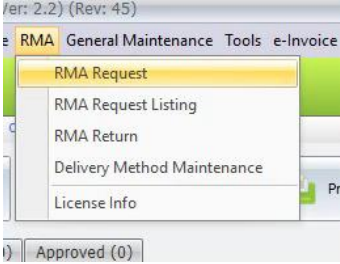
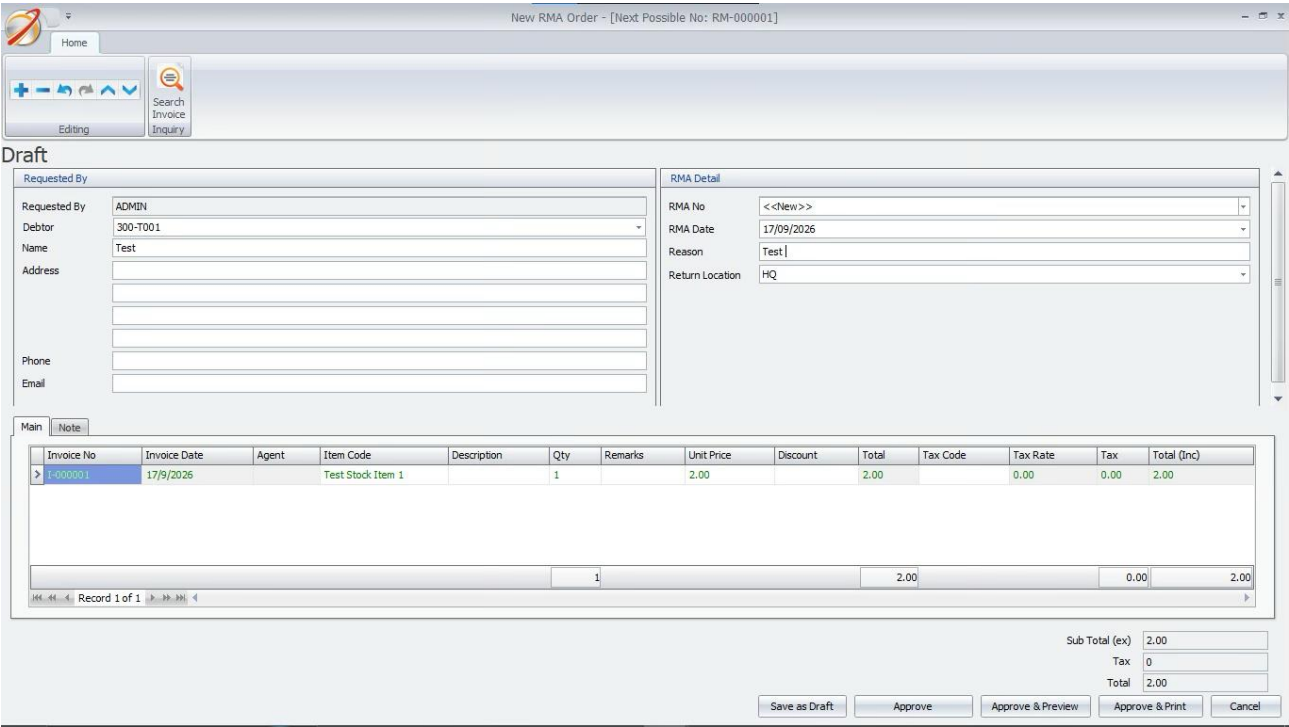
2. Select the Debtor Code. Use Inquiry to select related invoice lines when required.
3. Set the Return Location, Reason and Note.
4. Review the item lines and enter the Return Qty. Qty, price and tax editing follows the user accessright.
5. Click Save Draft. The request appears under Draft / Rejected.
D. RMA Request Approval
RMA Request uses Draft / Rejected, Awaiting Approval and Approved stages to control the approval flow.
1.Open RMA > RMA Request and select the Draft / Rejected tab.
2.Tick the required request. A user without Approve RMA Request access clicks Submit for Approval. Therequest moves to Awaiting Approval.
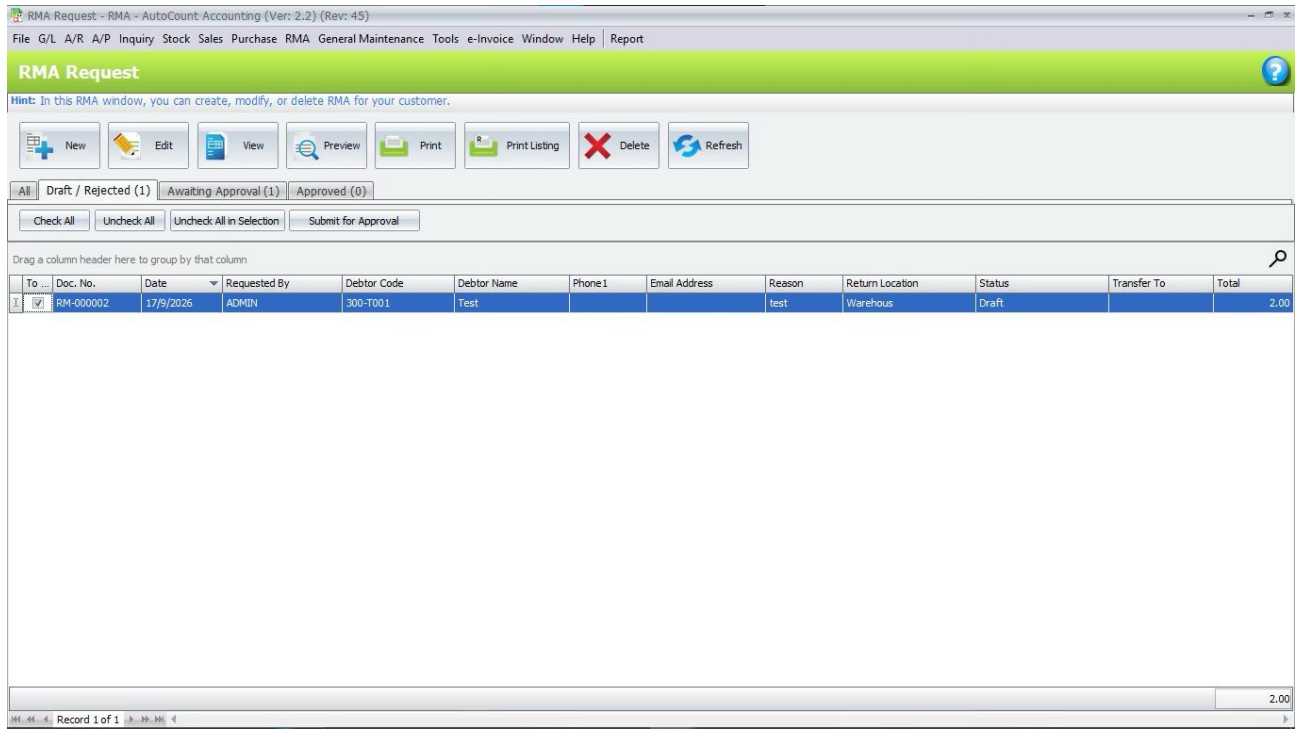
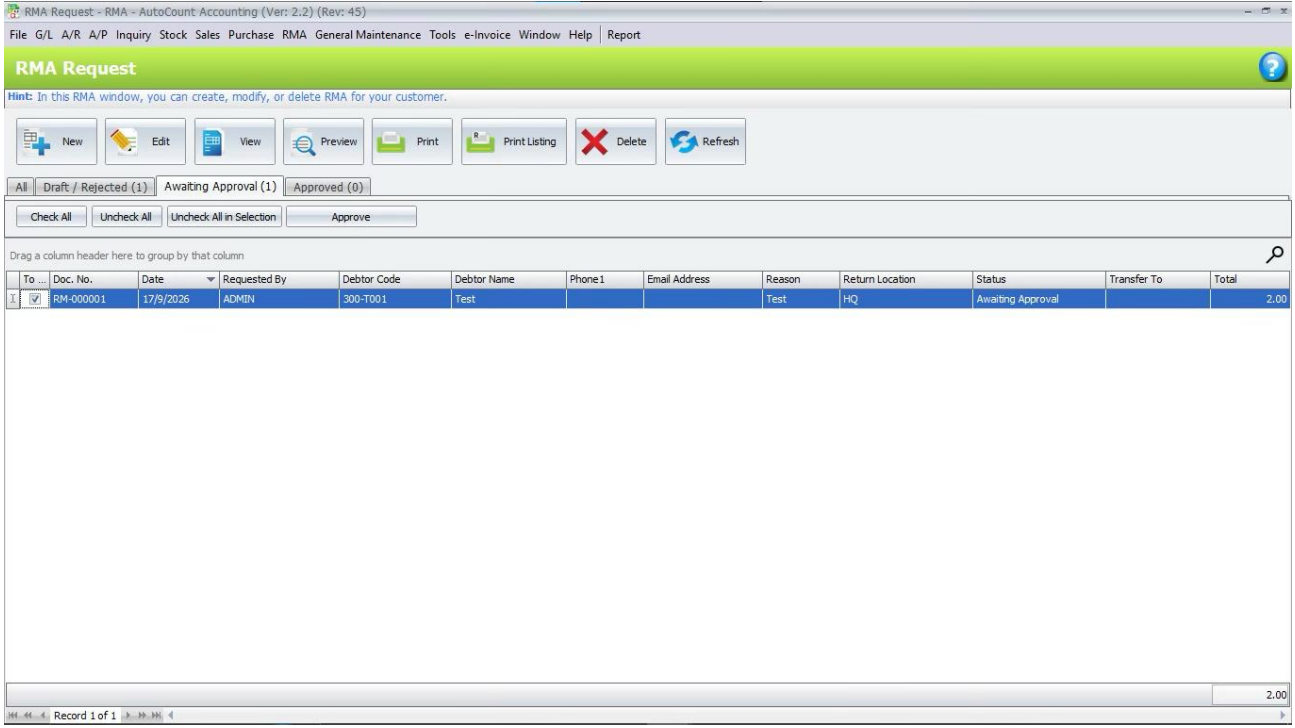
3.An approver opens the Awaiting Approval tab, ticks the required request and clicks Approve.
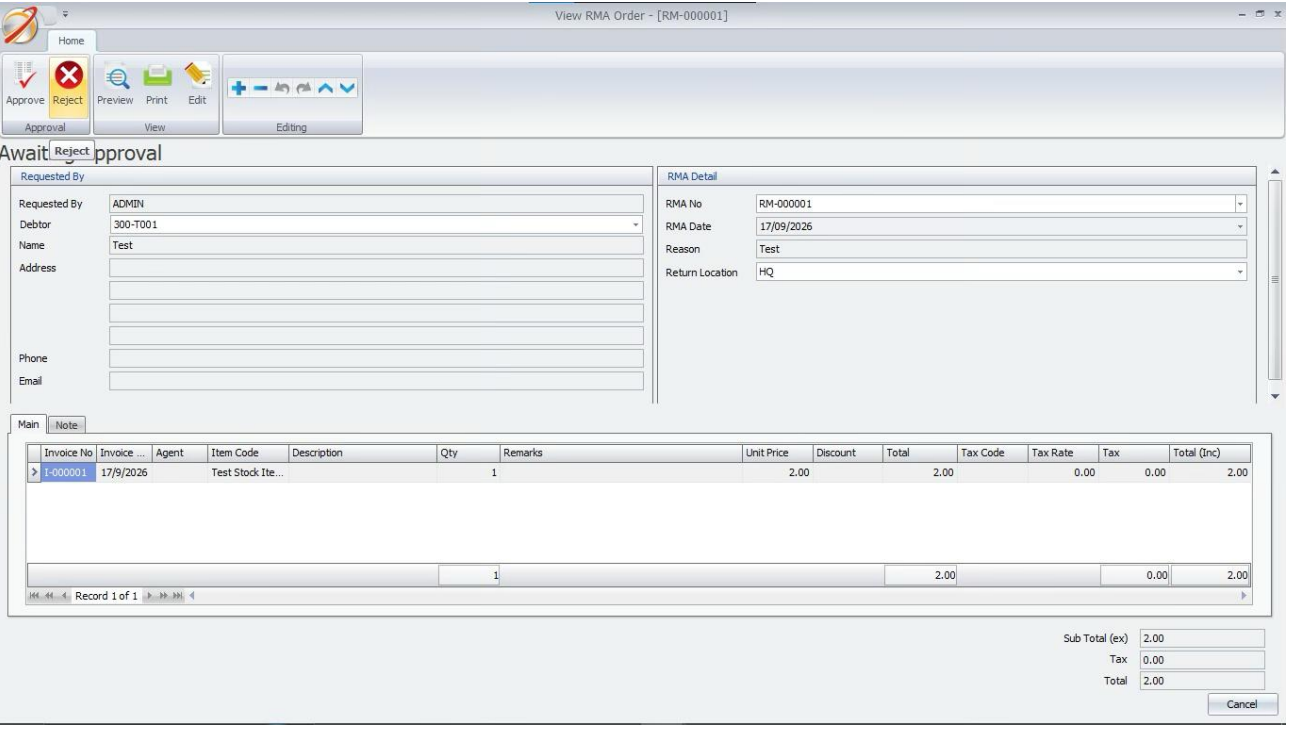
4.To reject a request, open the request and click Reject.
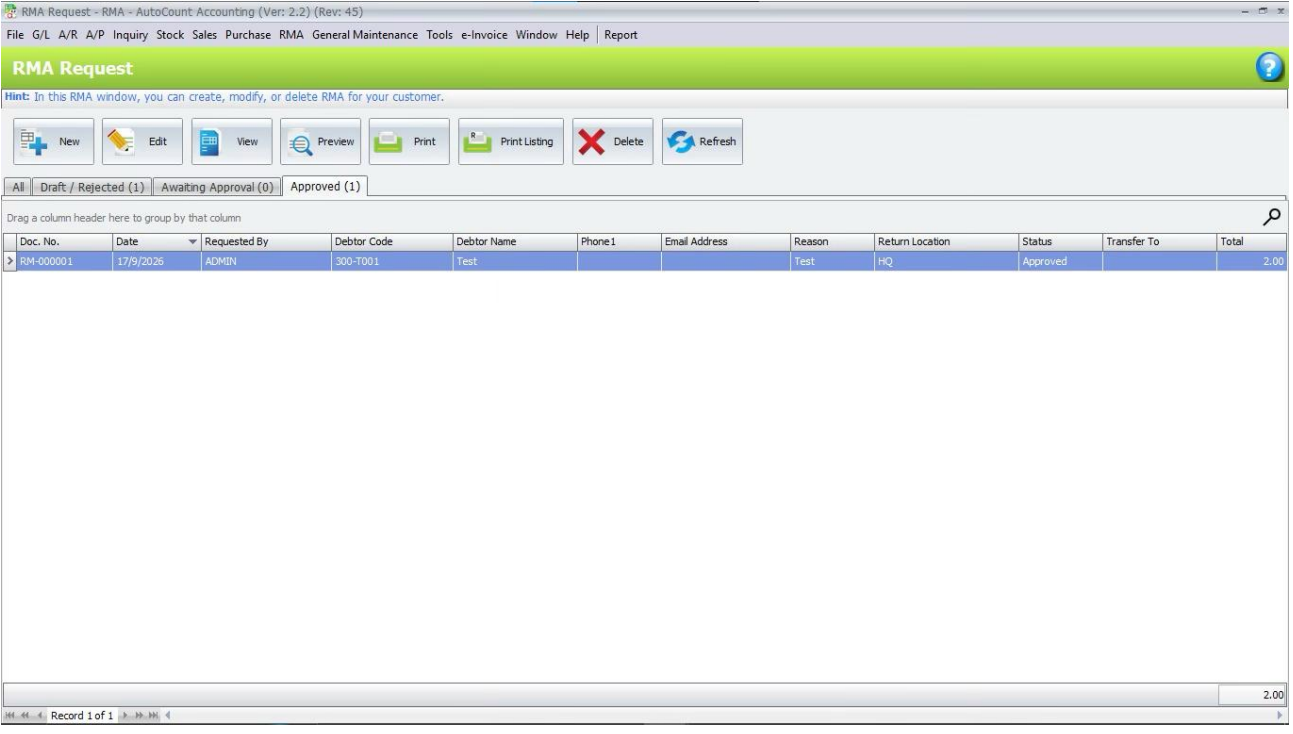
5.An approved request is ready for processing in RMA
Return.
E. RMA Request Listing
RMA Request Listing searches, previews and prints RMA request documents and listings.
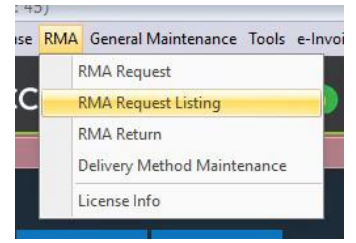
1. Open RMA > RMA Request Listing.
2. Set Document Date, Debtor, RMA Request, Request Status, Group By, Sort By and Report Typeasrequired.
3. Click Inquiry to load the results.
4. Tick the records to include.
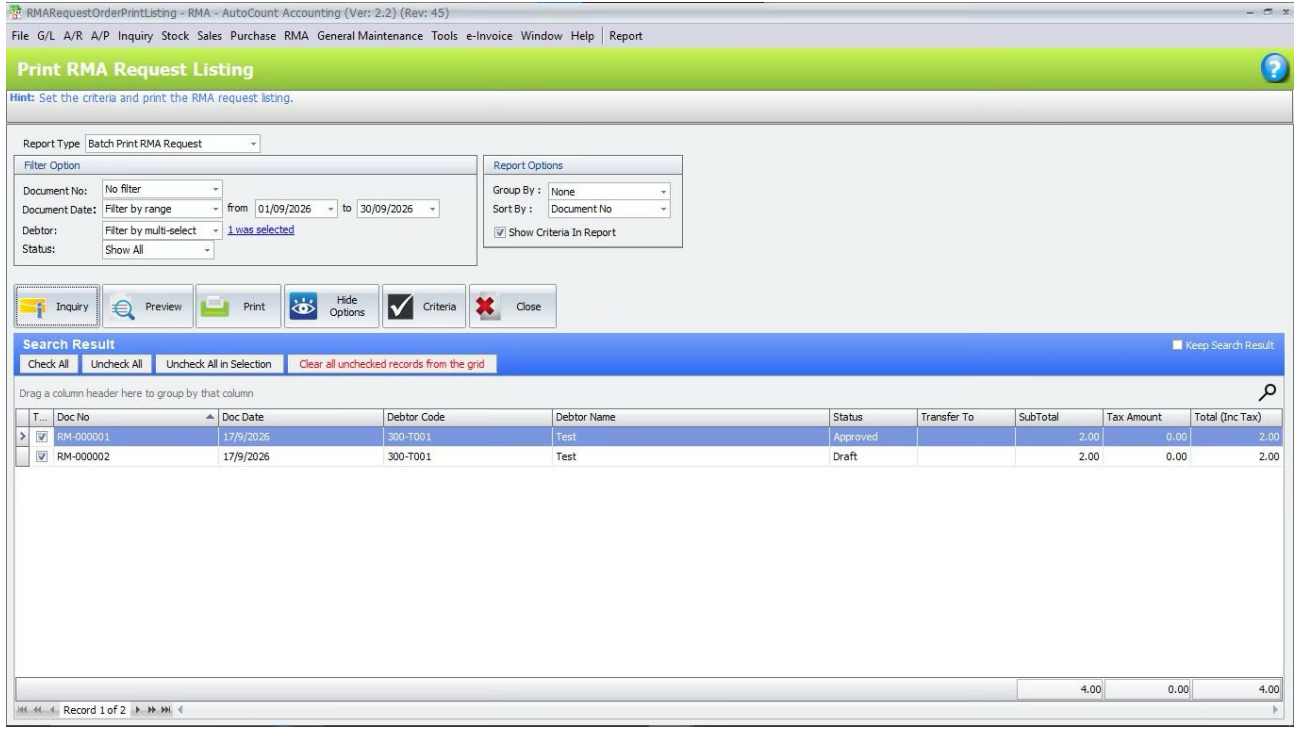
5. Choose Batch Print RMA Request or Print RMA Request Listing, then click Preview or
Print.
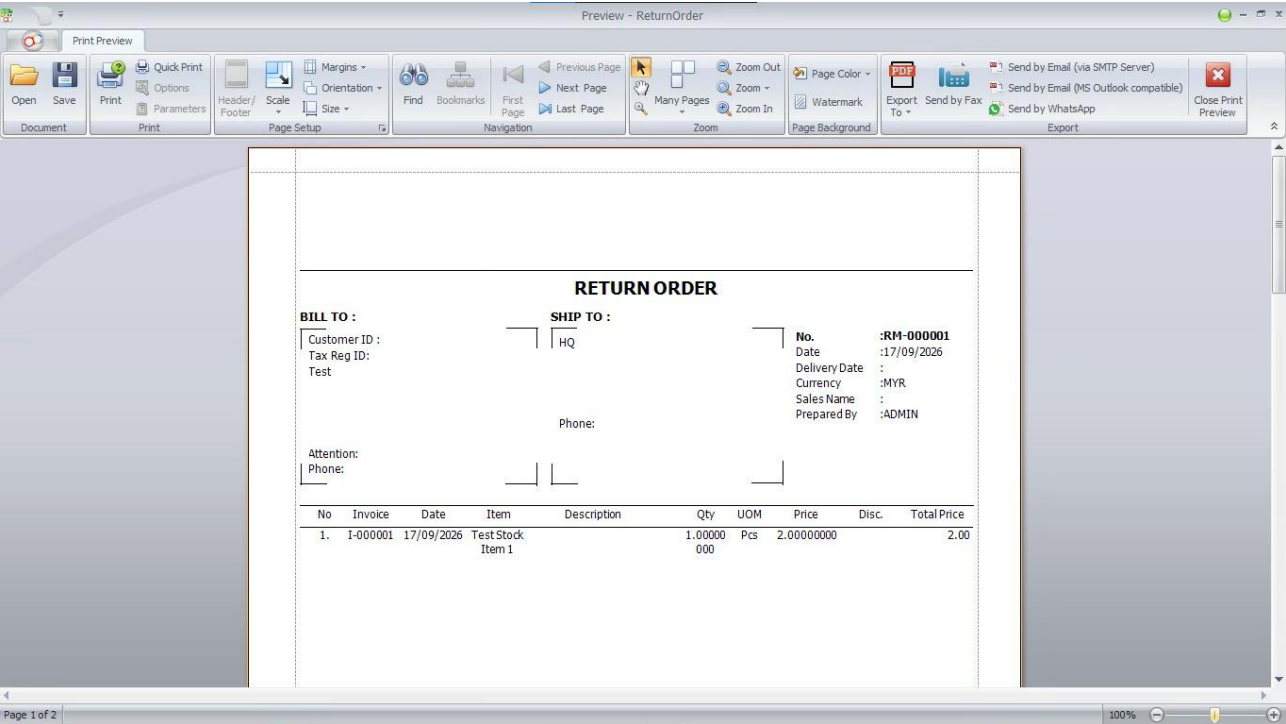
6. From the RMA Request screen, Print Listing also provides the RMA Request Detail Listing.
F. RMA Return
RMA Return handles the operational return process after a request is approved.
1. Open RMA > RMA Return.
2. Open the required Approved RMA request.
3. Select the Delivery Method and enter the pickup, courier or received details required for the return.
4. Review the Return Qty and Return Location before saving.
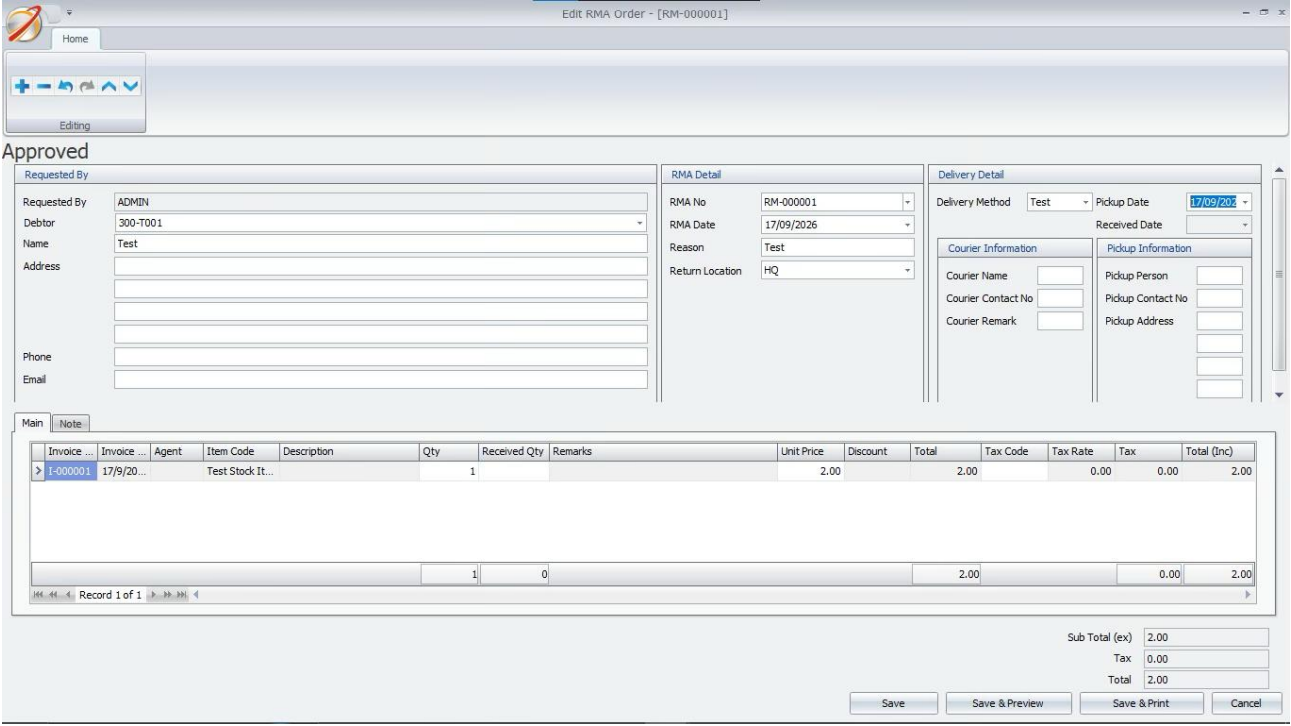
5. The return moves through Awaiting Received, Partially Received and Received as goods arereceived.
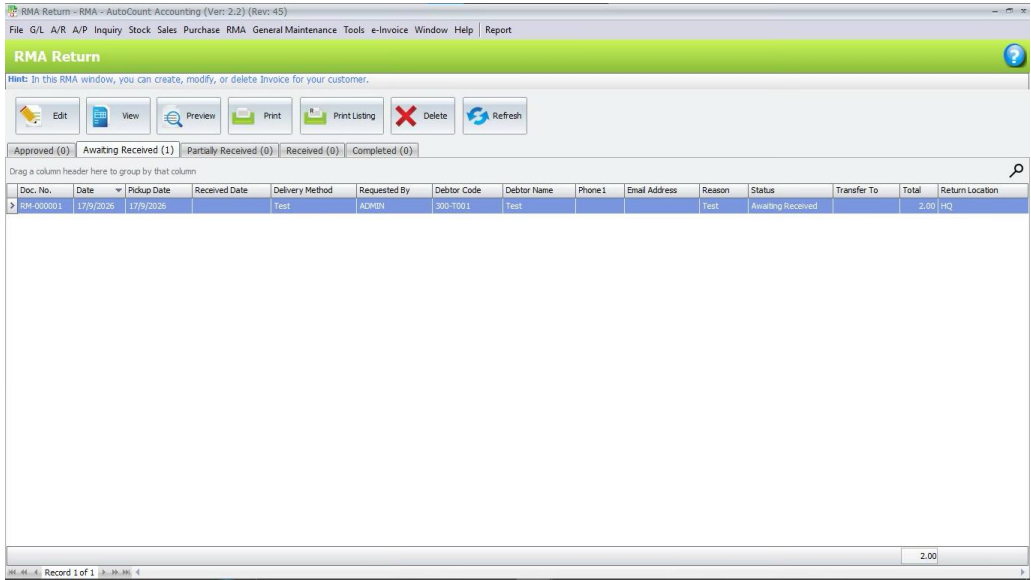
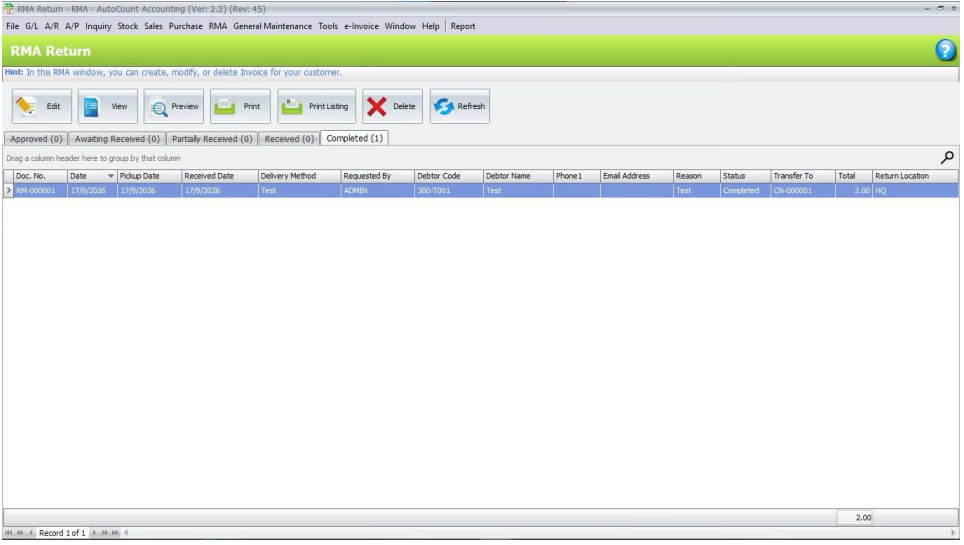
6. Completed contains RMA returns that have been transferred to credit note document(s).
G. Receive Returned Goods
Received Qty in RMA Return is synchronized with the linked Stock Receive document.
1. Open RMA > RMA Return and select an Awaiting Received or Partially Received RMA.
2. Click Edit and enter the Received Qty for each returned item. Record Condition or Remark whenthefields are available.
3. Click Save and confirm the message to create or update the linked Stock Receive.
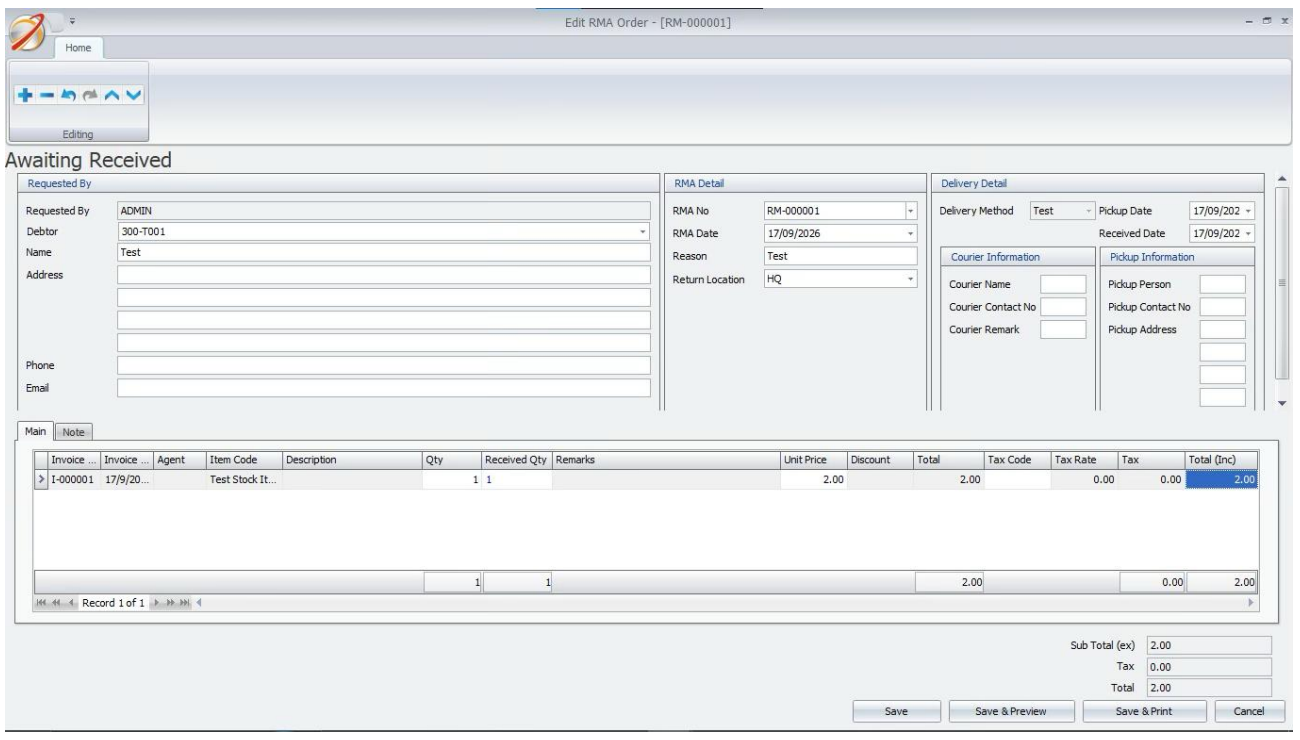
4. A partial receipt changes the status to Partially Received. When all Return Qty is received, thestatuschanges to Received.
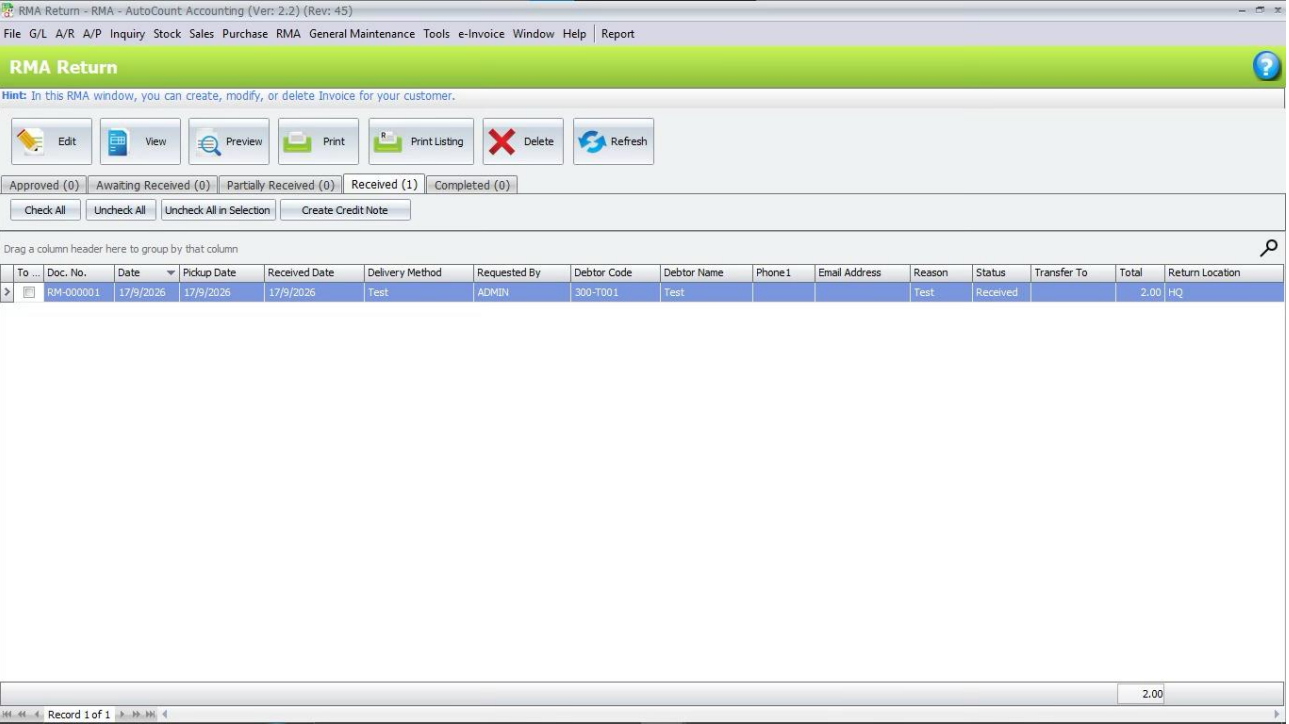
5. If a linked Stock Receive is later changed, deleted or cancelled, the RMA received quantities andstatusare recalculated.
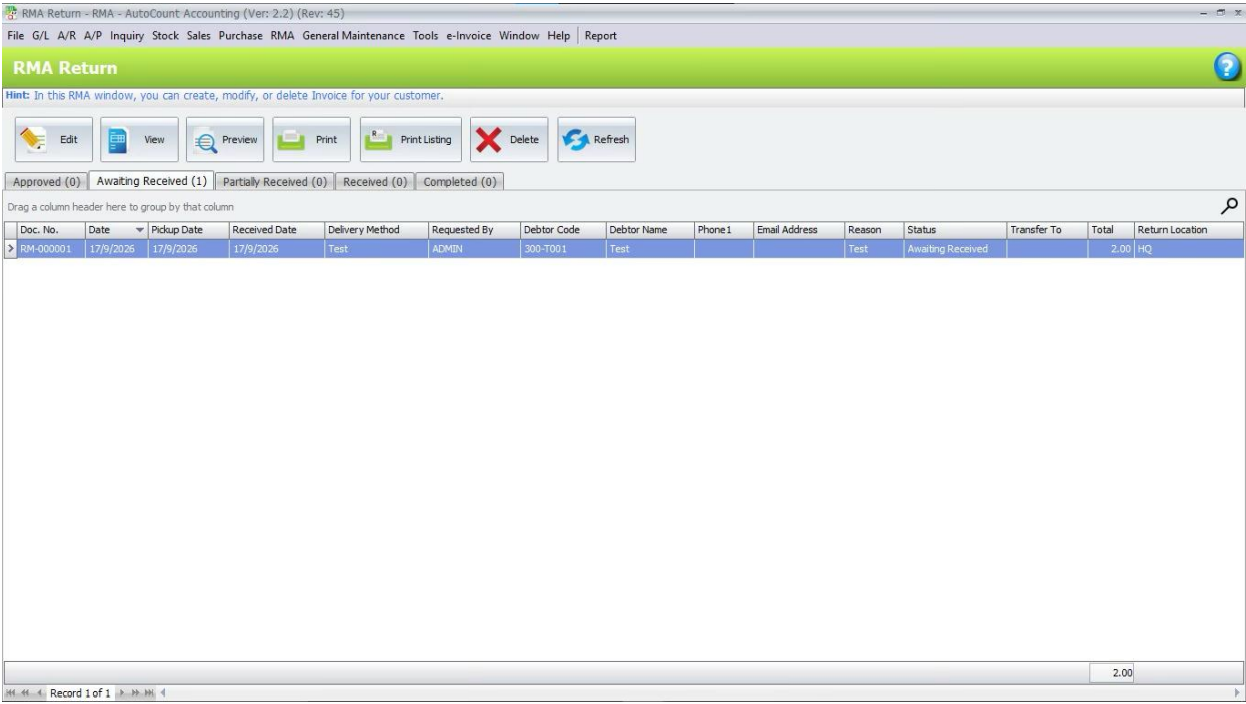
H. Create Credit Note
After an RMA reaches Received status, an authorized user can create the related credit note document.
1. Open RMA > RMA Return and select the Received tab.
2. Tick one or more received RMA documents, or open one received RMA.
3. Click Create Credit Note and confirm the action.
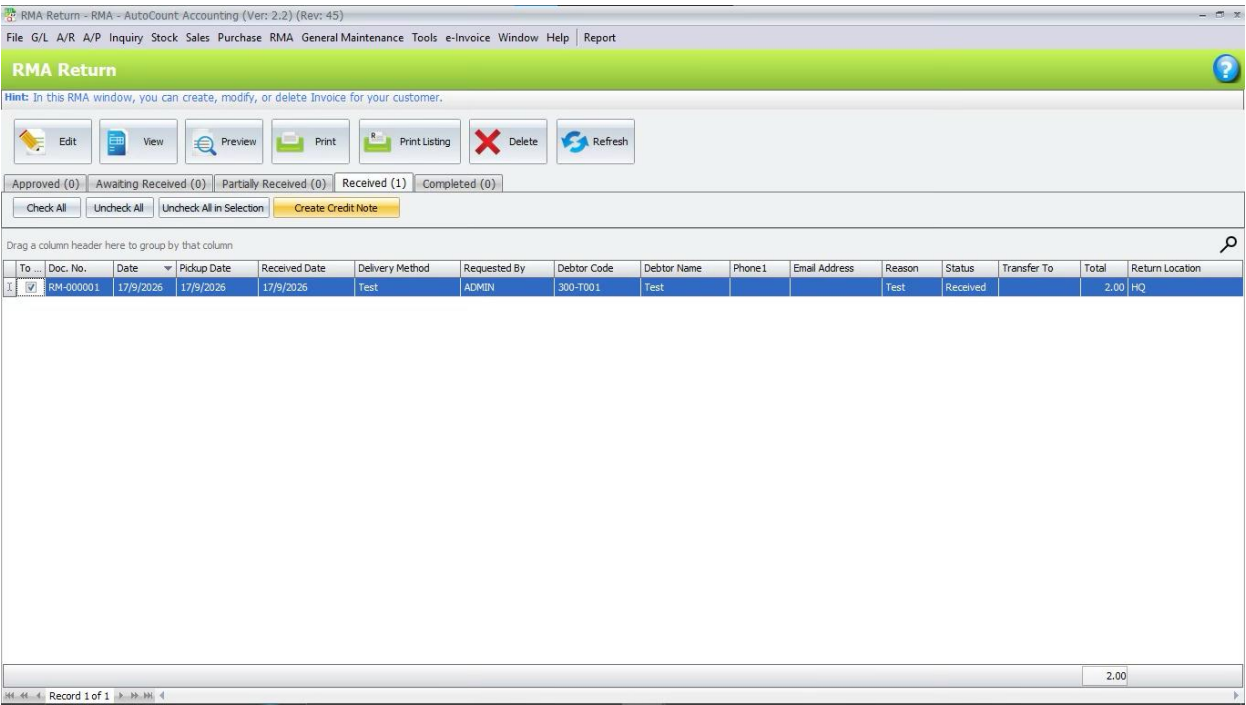
4. Invoice or item lines create a Sales Credit Note. Manual or account lines create an A/RCredit Note. Amixed RMA can create both documents.
5. After the credit note is created, the RMA changes to Completed and the created credit note document
number is shown.
H. Create Credit Note
Outstanding RMA Return Listing shows return quantities, received quantities and the remaining
outstanding quantities.
1. Open RMA > RMA Return and click Print Listing.
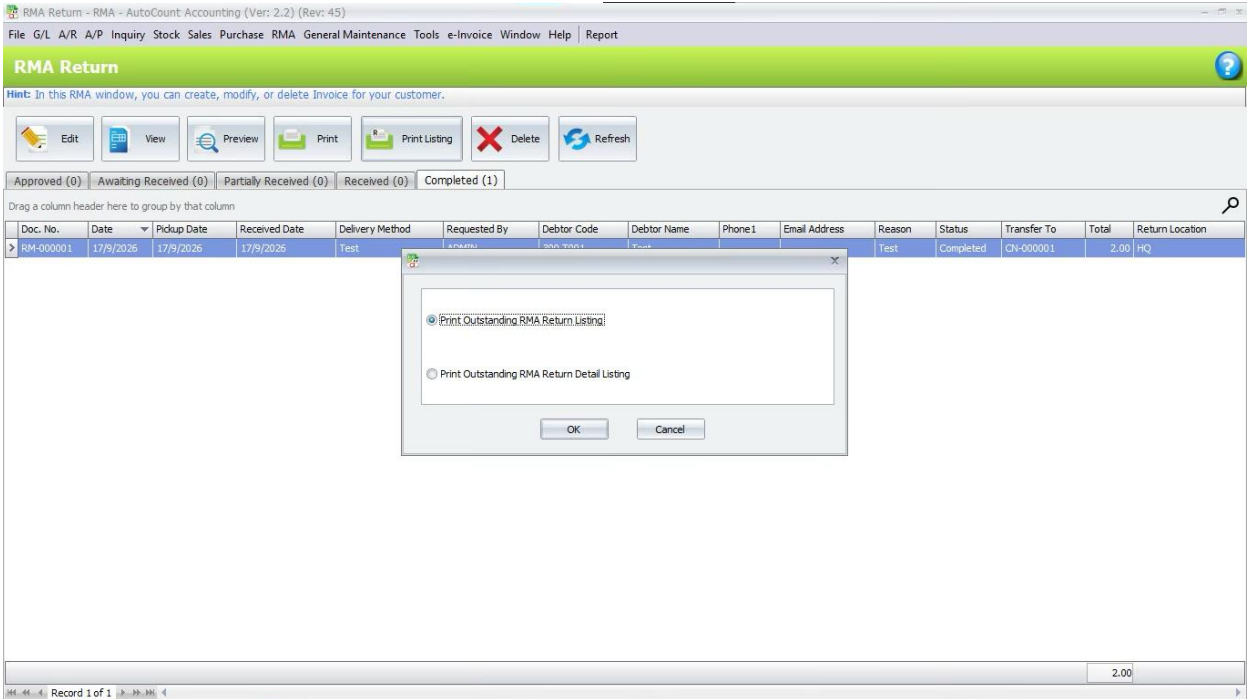
2. Choose Print Outstanding RMA Return Listing or Print Outstanding RMA Return Detail Listing.
3. Set Document Date, Debtor, RMA Request and Status. Select the required outstanding report option.
4. Click Inquiry.
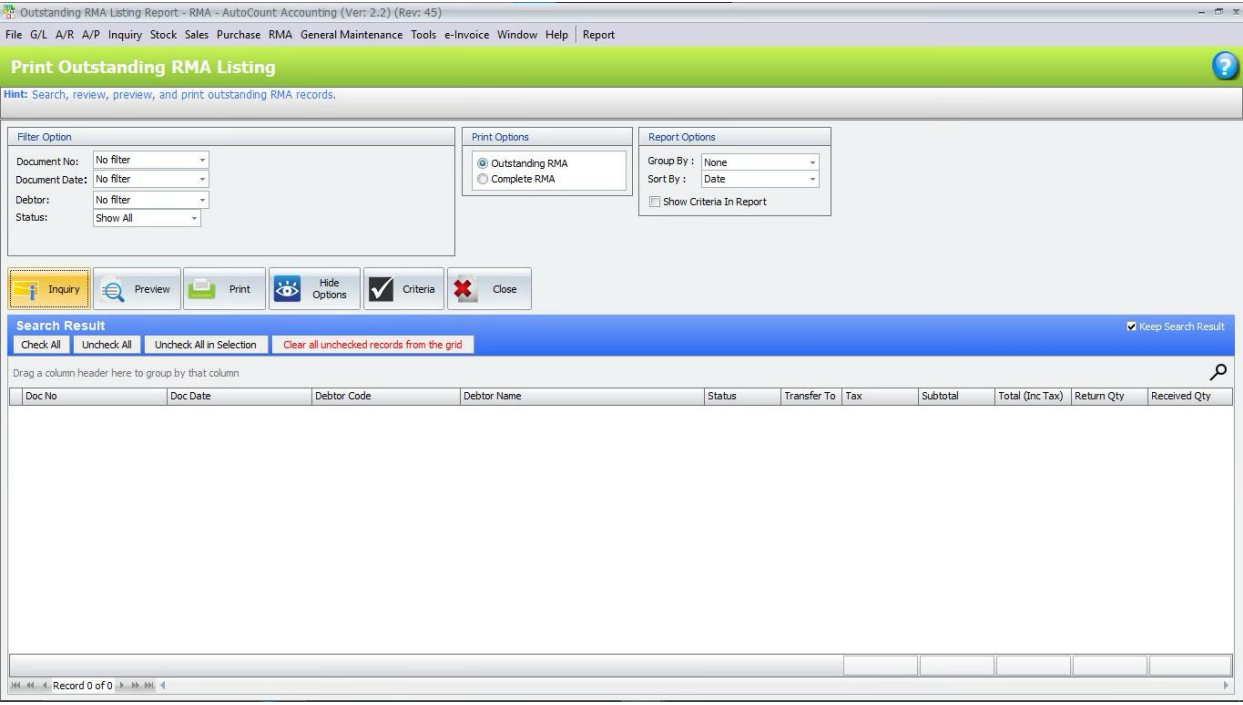
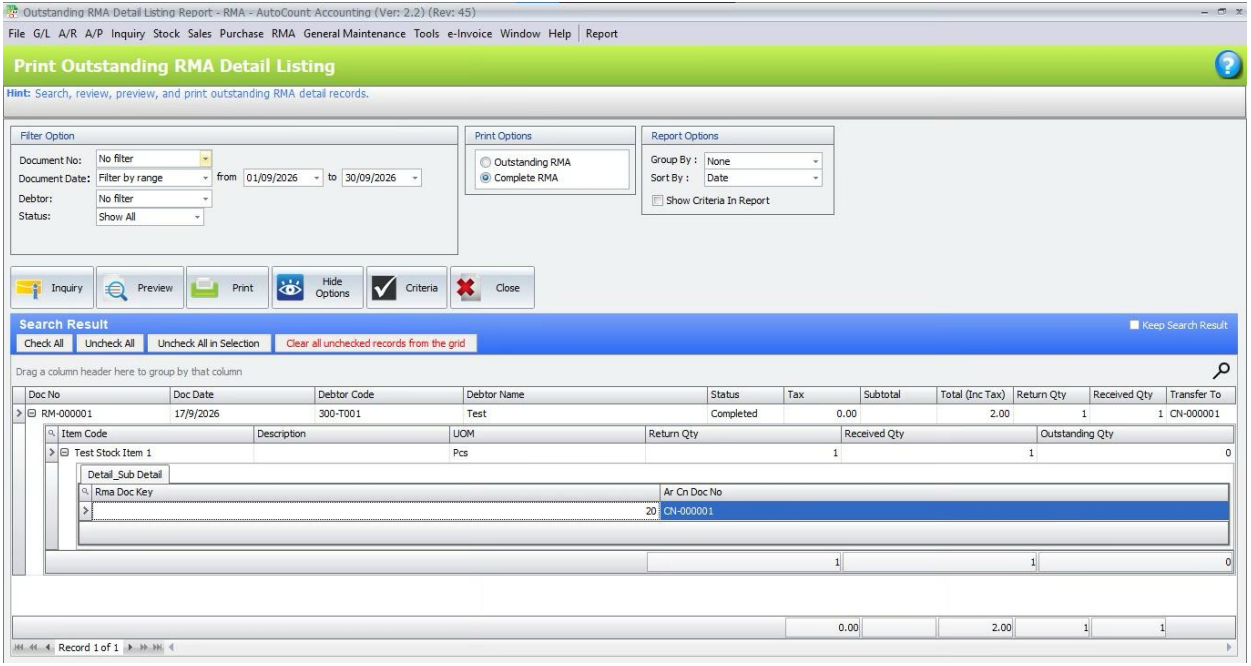
5. Expand a result to review Return Qty, Received Qty and Outstanding Qty.
6. Click Preview or Print to produce the selected report.
Benefits of AutoCount RMA Plugin
More Controlled Customer Returns
Maintain structured return requests and approval procedures to reduce unauthorized or poorly documented merchandise returns.
Better Inventory Record Accuracy
Connect received RMA quantities with Stock Receive documents to maintain more consistent return and stock information.
Faster Return Document Processing
Reduce repeated administrative work by generating applicable customer Credit Notes from eligible received RMA records.
Improved Return Traceability
Track return requests, approval stages, received quantities, outstanding balances, and linked Credit Note documents.
Conclusion
The AutoCount RMA Plugin provides businesses with a practical solution for managing customer merchandise returns within AutoCount Accounting.
By connecting return requests, approval workflows, goods receiving, stock records, Credit Note generation, and reporting, businesses can reduce manual processing and maintain better visibility over customer returns.
For companies looking for return merchandise authorization software, this plugin helps establish a more organized and controlled approach to return management.
Frequently Asked Questions
What does RMA stand for?
RMA stands for Return Merchandise Authorization. It refers to a controlled process for authorizing and managing the return of products from customers.
How does return merchandise authorization software help businesses?
Return merchandise authorization software helps businesses document customer return requests, manage approval decisions, record returned goods, and track the processing of customer returns more consistently.
Can the plugin link customer returns to original Sales Invoices?
Yes. Users can select relevant original Invoice item lines when preparing applicable RMA Requests.
Does the plugin support return approvals?
Yes. RMA Requests can move through Draft / Rejected, Awaiting Approval, and Approved stages. Approval is controlled by the relevant user permissions.
Can businesses record different return delivery methods?
Yes. The plugin includes Delivery Method Maintenance and supports recording applicable courier, pickup, and delivery information during RMA Return processing.
Does the plugin support partially received returns?
Yes. The RMA Return function supports partial receiving and tracks received and outstanding quantities.
Simplify Your Customer Return Management Today!
Still managing customer merchandise returns through emails, paperwork, and disconnected records?
With the AutoCount RMA Plugin, your business can organize return requests, manage approvals, record received goods, and prepare Credit Notes through a connected workflow.
Whether you operate a trading company, distribution business, or product supply operation, this solution helps improve return processing and coordination between departments.
Looking for return merchandise authorization software that integrates with AutoCount Accounting?
Contact SL Software Solutions Sdn. Bhd. to discover how the AutoCount RMA Plugin can support your customer returns management.