
-
AutoCount Accounting Features
-
- Approval Workflow
- Audit Trail
- Auto Save in Draft Folder
- AutoCount Contra Account
- AutoCount License Setting Guide
- Deposit Tracking & Management
- Documents Numbering Format
- Full Transfer and Partial Transfer
- Import Data to AutoCount Accounting Using Excel
- Informative Charts and Analytical Data
- Layout Customization
- Multi Pricing
- Sales and Services Tax
- Schedule Backup
- Search Lookup Edit
- View Documents Flow
- AutoCount Feature Stock Take
- Column Chooser
- Show Remaining (3) Collapse
-
AutoCount Cloud Accounting
-
AutoCount E-Invoice
-
AutoCount HRMS User Guide
-
AutoCount Modules
-
- Activity Stream
- Advanced Financial Report
- Advanced Item
- Advanced Multi-UOM
- Advanced Quotation Module
- Basic Multi-UOM
- Budget Module
- Consignment
- Filter By Salesman
- FOC Quantity
- Formula
- Item Batch
- Item Package
- Landing Cost
- Multi-Currency
- Multi-Dimensional Analysis
- Multi-Location
- Project Account
- Recurrence
- Remote Credit Control Module
- Stock Assembly
- User Defined Fields (UDF)
- AutoCount SST Hidden Functions
- AutoCount SST Submission - Service Tax
- AutoCount Scripting Module User Guide
- AutoCount Bonus Point Module User Guide
- AutoCount Service Management Plugin User Guide
- Show Remaining (12) Collapse
-
AutoCount Plugins
-
- Fixed Assets Management
- Goldsmith
- TD Ordering Mobile Apps
- TD Stock Mobile Apps
- Universal Import Plugin
- DMS Import Plugin
- AutoCount Pick List Plugin User Guide
- AutoCount Credit Memo Plugin User Guide
- AutoCount Lock Price Plugin
- AutoCount Progressive Billing
- AutoCount Easy Recurrence Plugin
- Batch Update Unit Price Plugin
- AutoCount Production order
- AutoCount Car Tint Film Plugin
-
- Event Management System
- AutoCount To-Do List Plugin
- AutoCount AutoBank Reconciliation Plugin
- Intercompany Billing Plugin User Guide
- Lead Management 2.0 Plugin
- AutoCount Service Contract Plugin User Guide
- AutoCount Optical Plugin
- AutoCount Integrator Plugin
- AutoCount Procurement Planning Plugin
- Cage Management Plugin
- AutoCount Vehicle Plugin
- AutoCount Agent Validation Plugin User Guide
- AutoCount Barcode Generator Plugin User Guide
- AutoCount Easy Batch Number Entry Plugin User Guide
- Warranty 2.0 Plugin
- AutoCount Easy Photo 2.0 User Guide
- AutoCount Recurring Invoice Plugin User Guide
- AutoCount Scale Barcode Plugin User Guide
- AutoCount Recurrence Late Interest Plugin
- AutoCount Item Visibility Control
- AutoCount Bill Remark Plugin User Guide
- AutoCount Pain Tracker User Guide
- AutoCount Easy Payment
- AutoCount Easy Deposit Plugin
- AutoCount Easy Knock Off Plugin
- AutoCount Daily Collection Summary Plugin
- Timber Log Plugins
- Batch Transfer SODO Plugin
- AutoCount Vege Basket Plugin Guide
- AutoCount Fruit Basket Plugin Guide
- Referral Management Plugin
- AutoCount Migrator Plugin
- AutoCount Email & WhatsApp Plugin
- AutoCount Multi Company Knock Off Plugin
- AutoCount Advance Aging Format Plugin
- AutoCount Payment Request Plugin
- AutoCount Vehicle Master Plugin
- AutoCount Advance Deposit Plugin
- AutoCount IC Checker Plugin
- AutoCount RMA Plugin
- AutoCount Historical Outstanding DO Listing Plugin
- AutoCount Project Department Visibility Control Plugin
- AutoCount MRP Order Plugin
- AutoCount GridToExcel Plugin
- AutoCount Stock Availability Report Plugin
- AutoCount Batch Transfer SO DO Plugin
- AutoCount Centralized Kitchen Management Plugin
- SL AutoCount API
- AutoCount InterCompany Billing Plugin
- AutoCount Sales Commission Plugin
- AutoCount Advanced Credit Term Plugin
- AutoCount Advanced Stock Assembly Plugin
- AutoCount Shipment Plugin
- AutoCount Tour Plugin
- AutoCount Smart Analysis
- AutoCount Rental Management
- Show Remaining (41) Collapse
-
-
Form Template
-
Report Template
-
- Advance Quotation
- Cash Sale
- Consignment
- Consignment Movement
- Credit Note
- Debit Note
- Delivery Order
- FOC Quantity Analysis By Document Report
- Invoice
- Item Package Sales Report
- Monthly Sales Analysis
- Outstanding Sales Order Listing
- Profit And Loss Of Documents
- Quotation
- Sales Agent Contribution Report
- Sales Order
- Top/Bottom Sales Ranking
- Show Remaining (2) Collapse
-
- Available Stock Status Report
- Expired Item Batch Listing
- Inventory Physical Worksheet
- Stock Adjustment
- Stock Aging Report
- Stock Assembly
- Stock Assembly Order
- Stock Balance By Location
- Stock Balance Report
- Stock Card Report
- Stock Disassembly
- Stock Issue
- Stock Item Profit Margin
- Stock Movement Report
- Stock Receive
- Stock Take
- Stock Transfer
- Stock Write Off
- Show Remaining (3) Collapse
-
B2B ORDERING
-
AutoCount AI Agent
AutoCount Tour Plugin User Guide
What is AutoCount Tour Plugin?
The AutoCount Tour Plugin helps travel agencies and tour operators record traveller details, booking deposits, payments and refunds in AutoCount Accounting. It also supports daily collection reports and matching available payments to outstanding invoices.
(EN) AutoCount Tour Video Guide
Why Use AutoCount Tour Plugin?
Travel agencies handle many travellers, deposits and payment changes. Keeping these records connected to accounting orders can be difficult.
Prevent Under-Collected Bookings
Apply minimum deposit checks on eligible orders so required payments are checked before saving.
Keep Traveller Information Organized
Keep passport information with Sales Orders instead of searching through separate traveller notes and files.
Simplify Payment and Refund Handling
Record customer and supplier payments or refunds while keeping each entry connected to its order.
Improve Daily Collection Tracking
Review collection records by date and location instead of checking individual receipts one by one.
Key Features of AutoCount Tour Plugin
Traveller Information Management
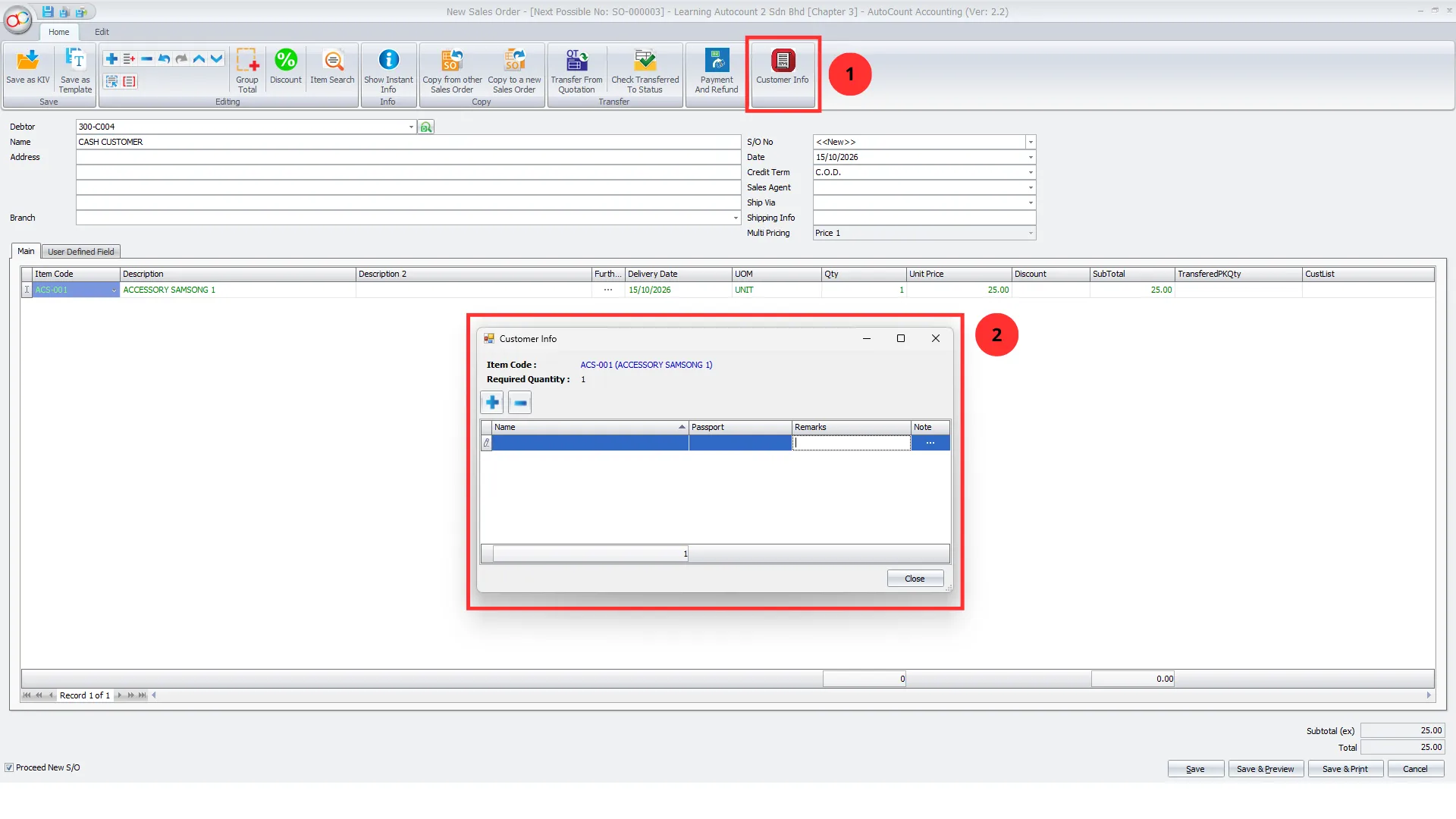
Enter traveller names, passport details, remarks and notes for each relevant Sales Order line.
Minimum Deposit Control
Check required deposits on Sales Orders and Purchase Orders when minimum payment checking is enabled.
Payment & Refund Processing
Create Official Receipts, Payment Vouchers and applicable refund documents from payments entered against orders.
Daily Collection & Payment Knock-Off
Preview daily collection reports and apply available payments against eligible outstanding invoices.
Who Should Use AutoCount Tour Plugin?
Travel Agency Teams
For agencies that maintain traveller details, collect booking deposits and handle customer refunds through AutoCount.
Tour Operator Teams
For operators managing supplier payments, customer receipts and travel-related Sales Orders or Purchase Orders.
Multi-Outlet Travel Businesses
For travel businesses that review daily collections across locations using the supported location reporting options.
Finance & Collection Teams
For accounts staff handling receipts, refunds, balances and unapplied payment matching during daily financial work.
How AutoCount Tour Plugin Works
The AutoCount Tour Plugin helps travel businesses manage traveller records, deposit requirements, payment transactions, and daily collections through a more organized workflow.
The following features demonstrate how the tour plugin supports travel-related financial operations.
Feature 1 — Organized Traveller & Passport Information
Businesses operating multiple related companies often need to record corresponding transactions in separate company databases.
The AutoCount Intercompany Billing Plugin supports generating target documents from eligible source transactions using configured intercompany mappings.
For example, a Sales Invoice recorded in one company may be transferred into a corresponding Purchase Invoice in another company, depending on the enabled document mapping.
The plugin also supports other configured document workflows, such as transferring Purchase Orders into corresponding Sales Orders.
This reduces repeated manual entry and helps maintain more consistent transaction information between related companies.
Pro Tip:
Review the required intercompany document workflows before implementation to ensure each transaction is transferred into the appropriate document type.
Feature 2 — Sales Order Minimum Deposit Control
Travel businesses often require customers to pay a deposit before confirming their bookings.
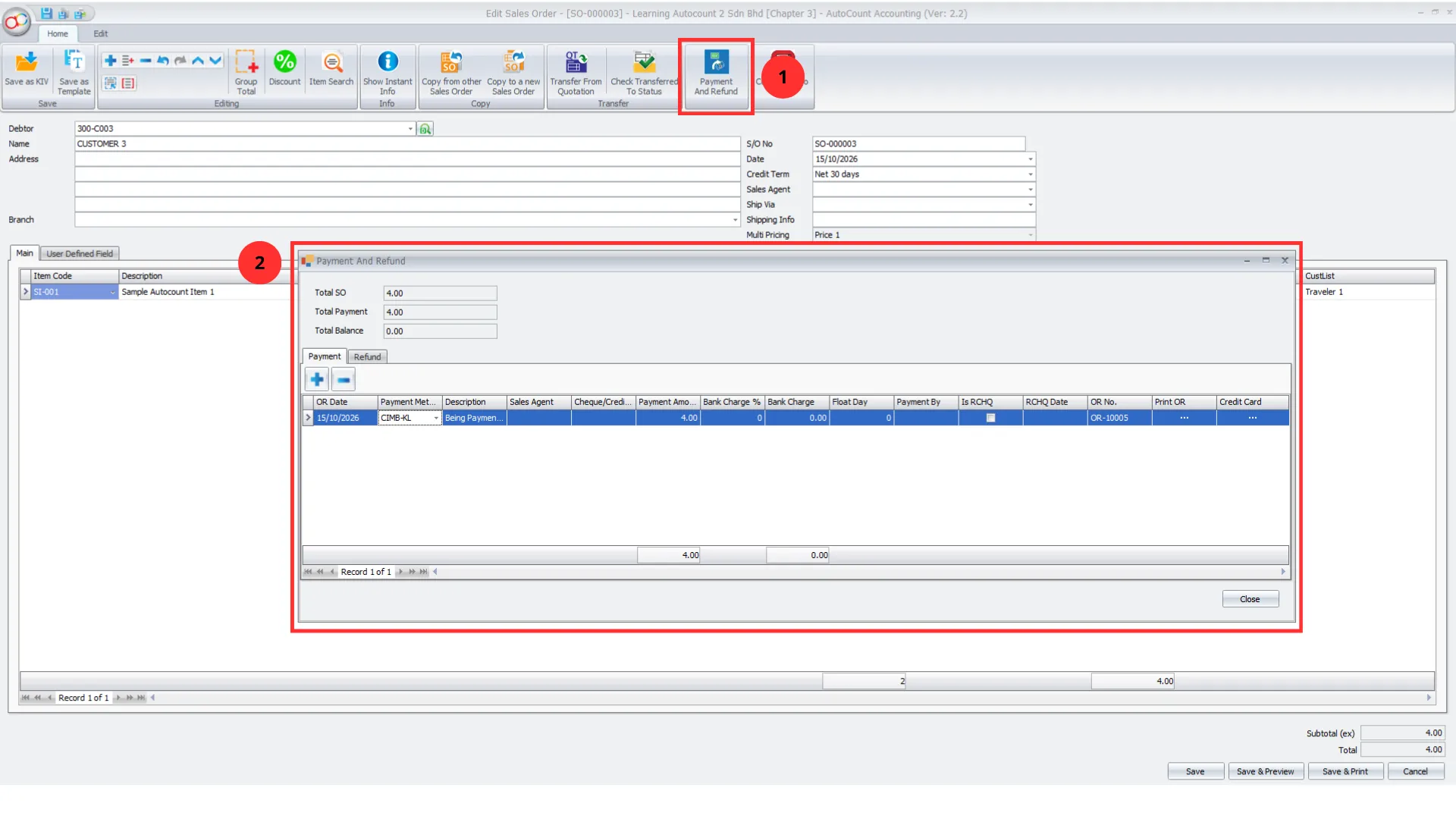
The AutoCount Tour Plugin supports minimum payment validation on Sales Orders, helping businesses maintain better control over required customer deposits.
The plugin displays Payment Amount and Balance Amount information, allowing staff to review recorded payments and outstanding balances.
When minimum payment checking is enabled, the system evaluates the required payment conditions before allowing the Sales Order to be saved.
The workflow also supports generating an Official Receipt for a recorded customer payment.
This helps businesses reduce the risk of processing bookings without the required deposit.
Pro Tip:
Establish clear customer deposit policies so booking staff can follow consistent payment requirements.
Feature 3 — Purchase Order Deposit Control
Travel agencies and tour operators may need to pay deposits to hotels, transport providers, and other suppliers before travel arrangements are confirmed.
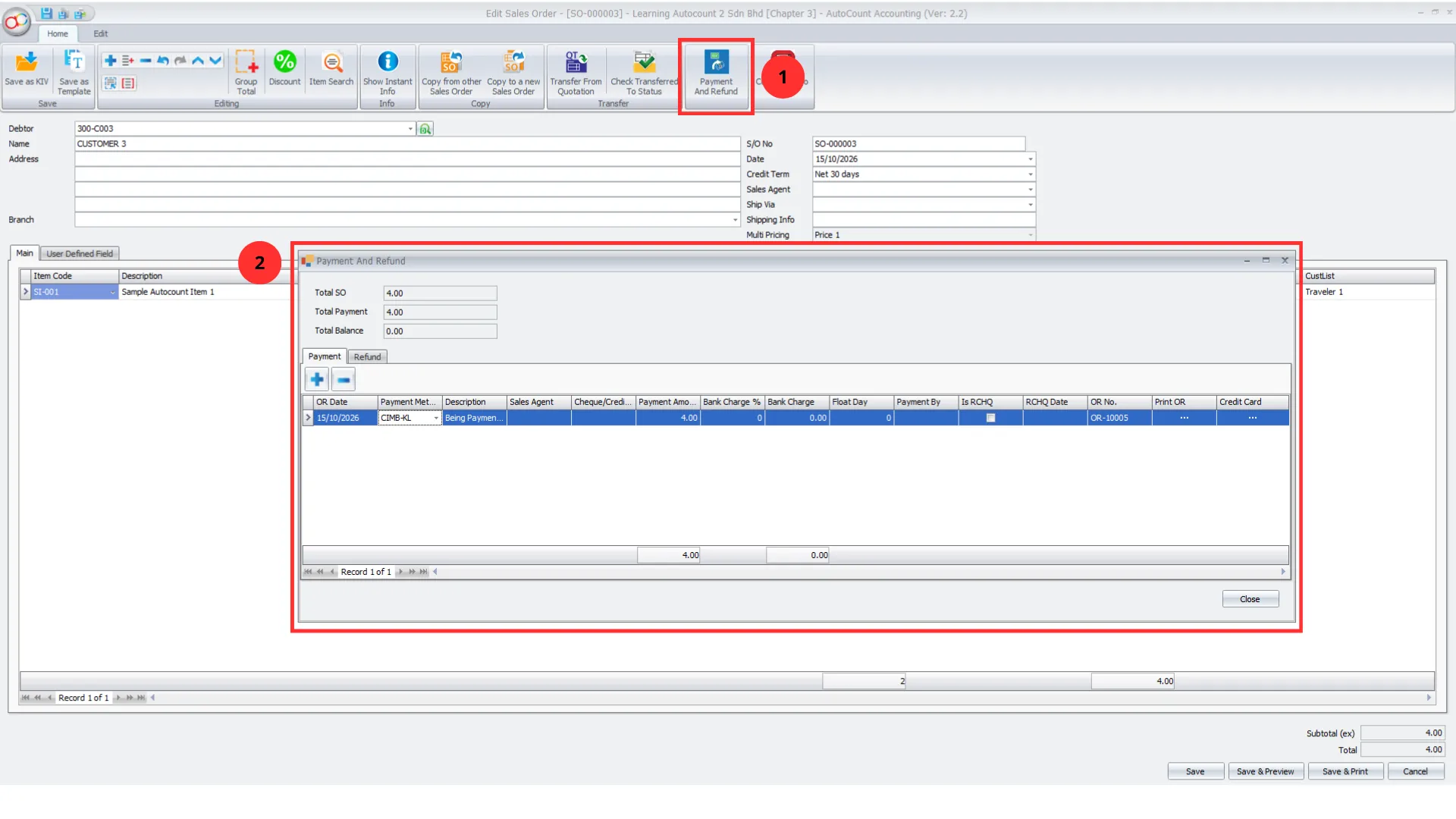
The AutoCount Tour Plugin supports minimum payment checking on Purchase Orders to help businesses manage these supplier-related commitments.
Users can review payment and balance information directly within Purchase Orders.
When Purchase Order minimum payment checking is enabled, the system validates the configured payment requirements before saving the relevant transaction.
This improves visibility of supplier payment commitments and supports more consistent financial control.
Pro Tip:
Monitor supplier deposit requirements carefully to avoid payment discrepancies and delays in travel arrangements.
Feature 4 — Integrated Customer & Supplier Payment and Refund Management
Travel businesses regularly handle customer deposits, supplier payments, cancellations, and refunds.
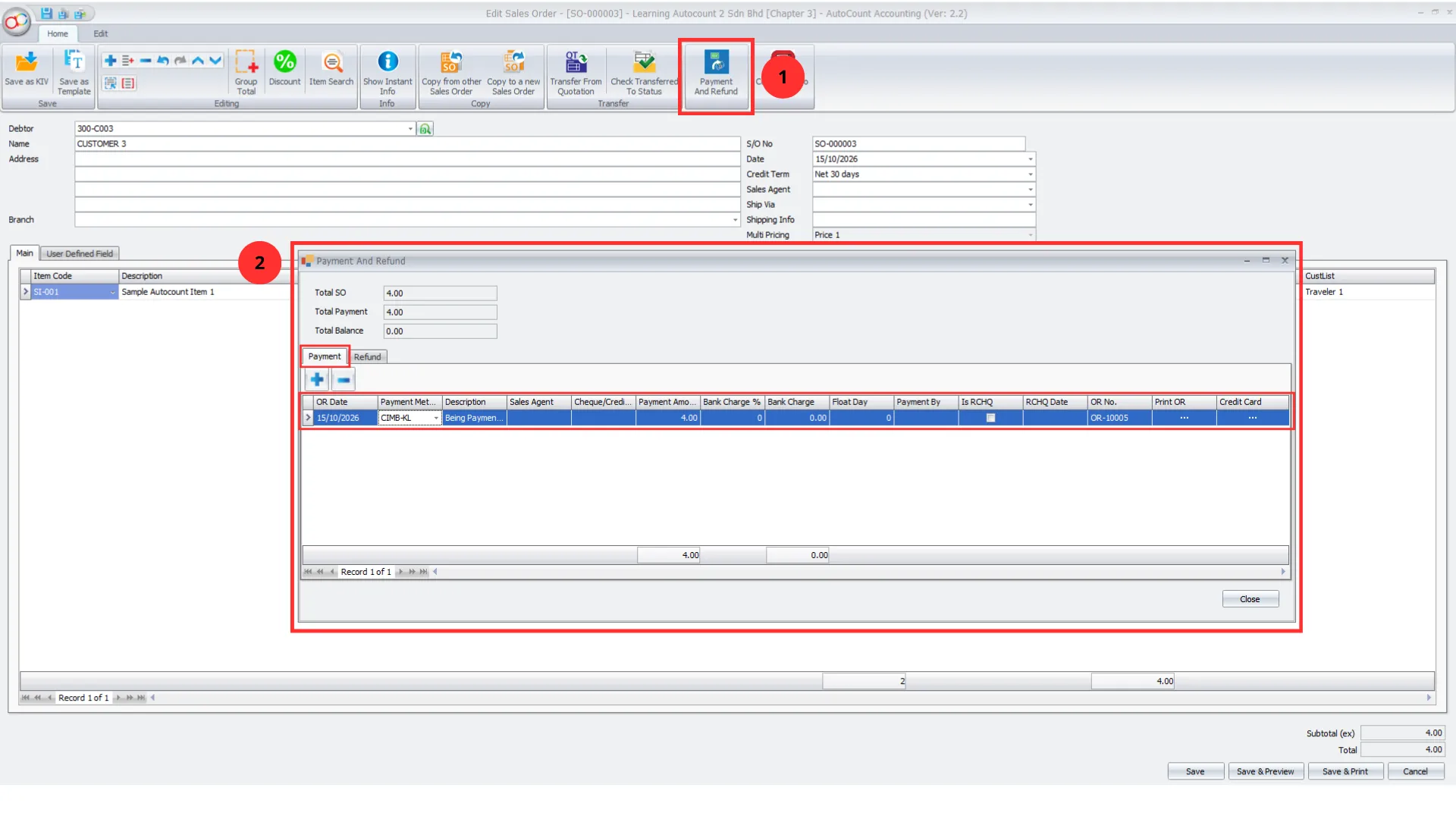
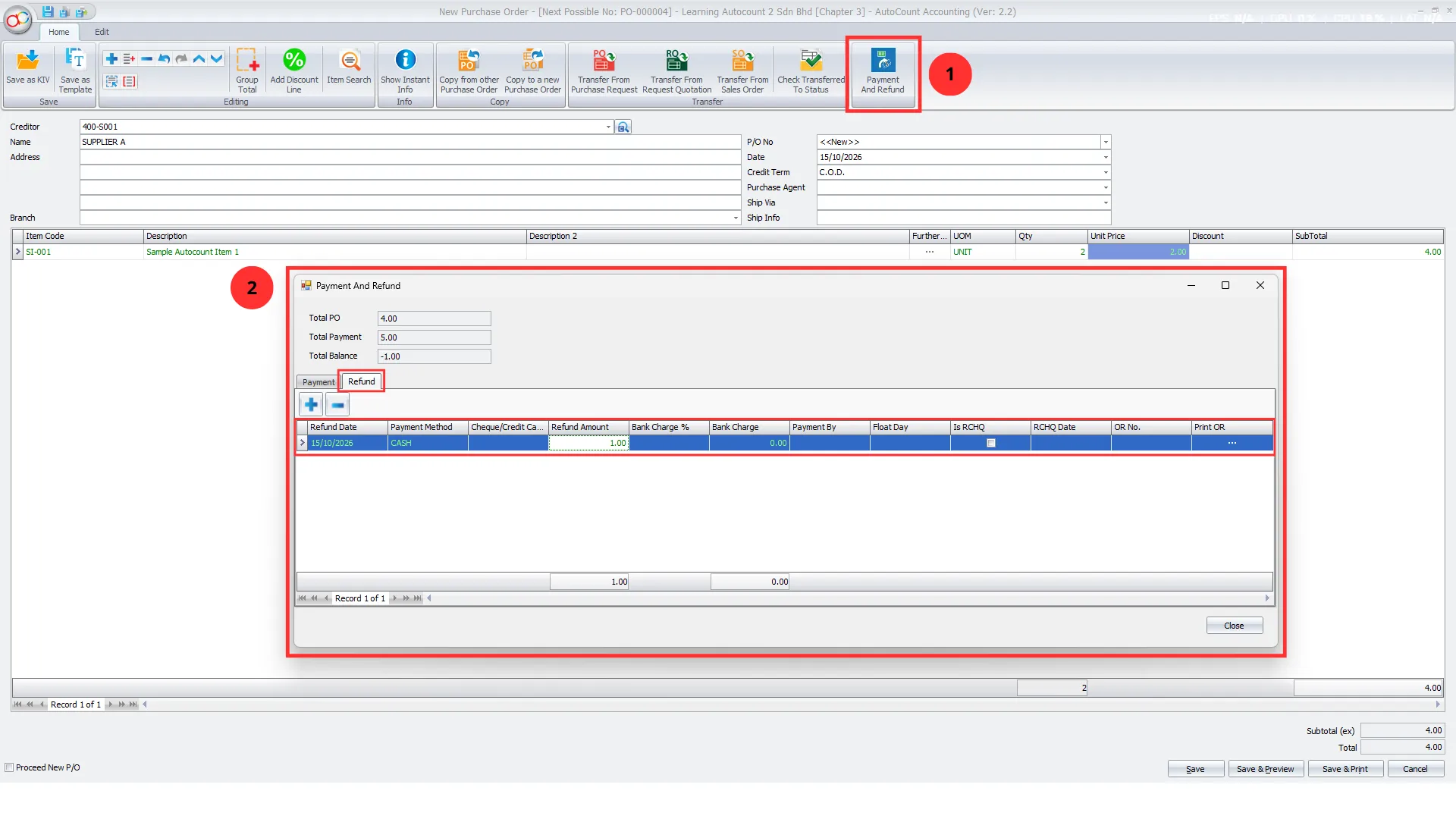
The AutoCount Tour Plugin provides Payment and Refund functions within Sales Orders and Purchase Orders.
For customer-related transactions, businesses can maintain payment and refund records associated with Sales Orders.
For supplier-related transactions, the plugin supports payment and refund handling associated with Purchase Orders.
The payment screens provide visibility into relevant order totals, payment amounts, and outstanding balances.
This allows businesses to manage financial activities more systematically while maintaining clearer connections between orders and their payment records.
Pro Tip:
Record refunds against the relevant transaction to maintain accurate financial records and simplify reconciliation.
Feature 5 — Daily Collection Reporting by Location
Monitoring customer collections is essential for travel businesses handling multiple transactions and operating across different outlets.
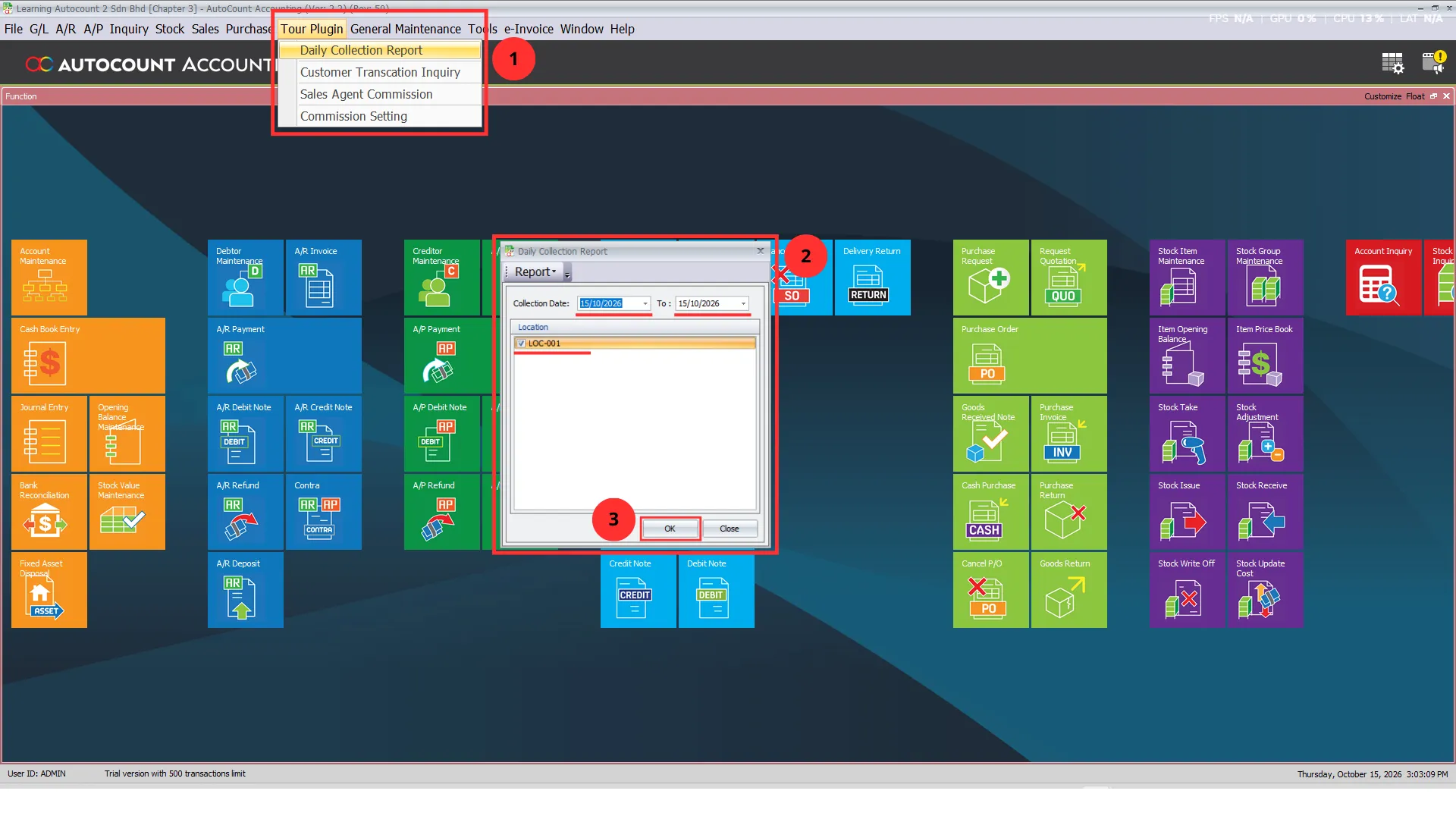
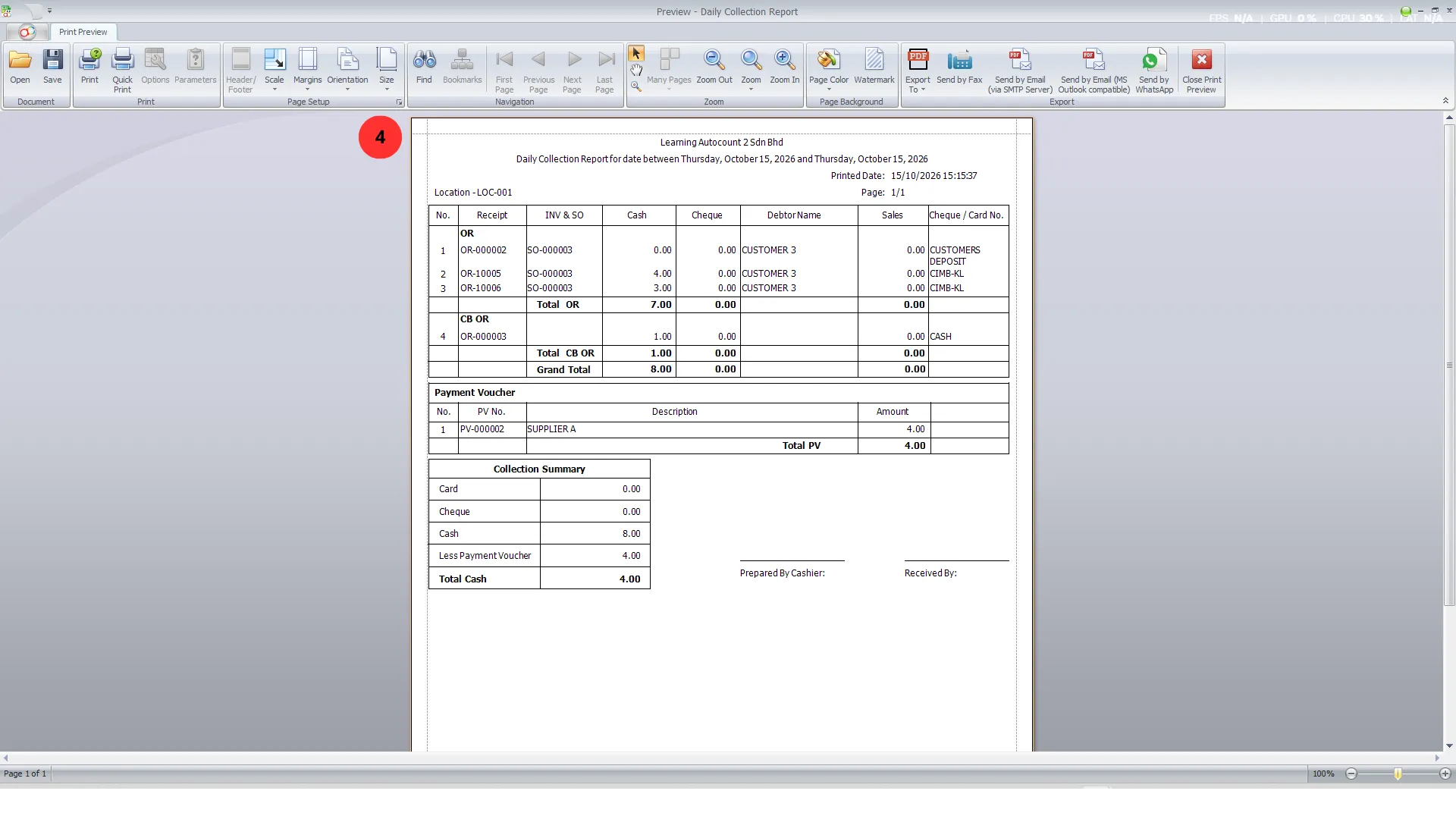
The AutoCount Tour Plugin includes a Daily Collection Report that helps businesses review collection activities within a selected date range.
The report supports location-based filtering, allowing businesses to examine collections associated with individual branches or outlets.
Where available, businesses can also use report formats that include outlet information for clearer collection analysis.
This helps finance teams and management monitor collection records and identify transactions that require further checking.
Pro Tip:
Assign access rights based on employee responsibilities and review permissions when staff roles change.
Feature 6 — Automatic Unapplied Payment Knock-Off
Travel businesses may receive customer deposits or make supplier payments before the corresponding invoices are finalized.
Without proper payment allocation, businesses can face difficulties identifying which payments remain unapplied.
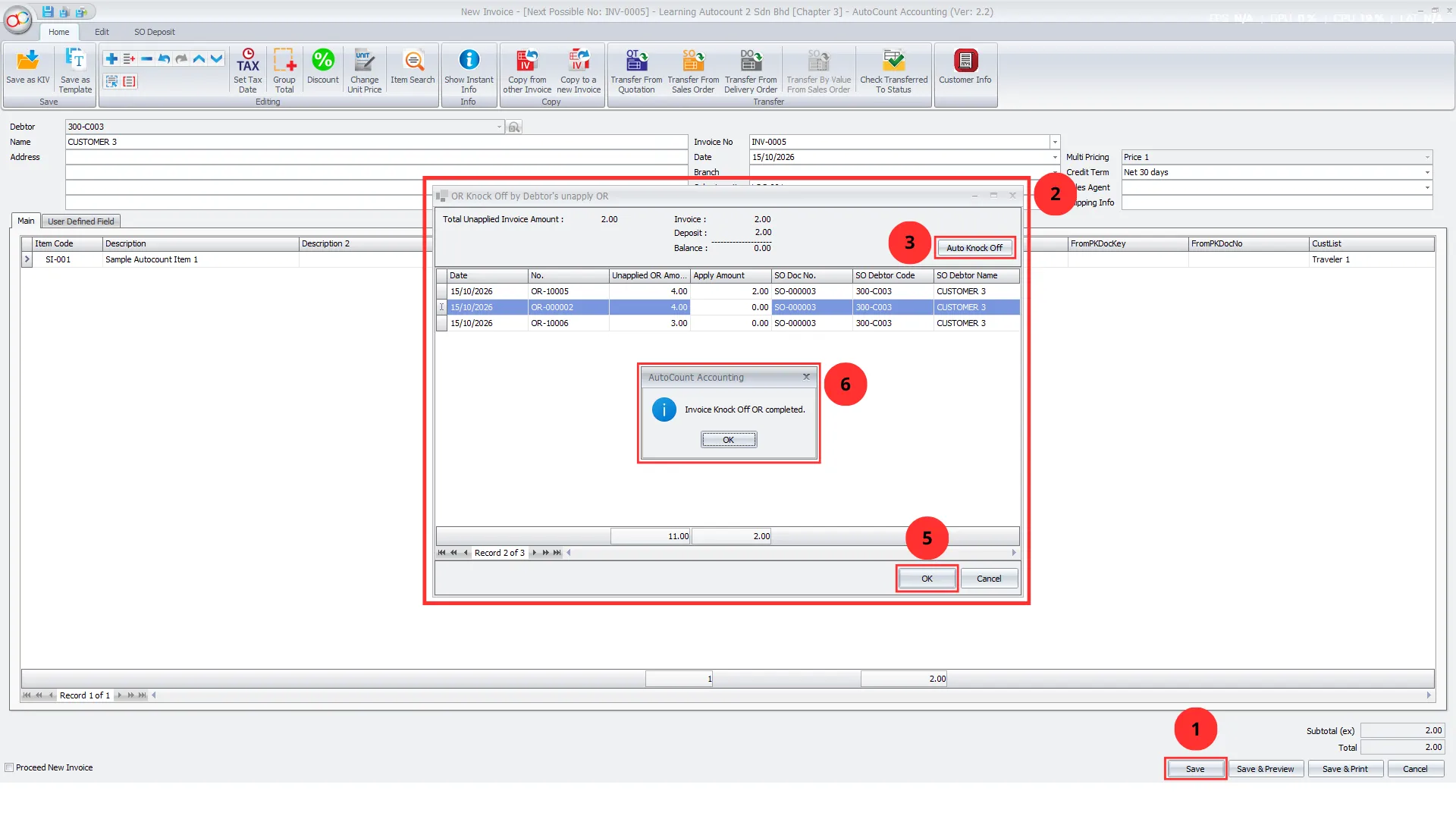
The AutoCount Tour Plugin supports allocating available unapplied receipts or payment vouchers against relevant invoices.
Users can review invoice amounts, available unapplied payments, and outstanding balances before allocating payments.
The Auto Knock Off function helps automatically allocate available amounts according to the applicable invoice and payment balances.
The system also prevents the applied amount from exceeding the available unapplied amount or invoice balance.
This reduces manual matching work and helps businesses maintain clearer payment allocation records.
Pro Tip:
Review unapplied payments regularly to ensure customer and supplier deposits are allocated to the correct invoices.
Feature 7— Role-Based Access and Financial Control
Travel businesses often have different employees responsible for bookings, payments, refunds, and financial reporting.
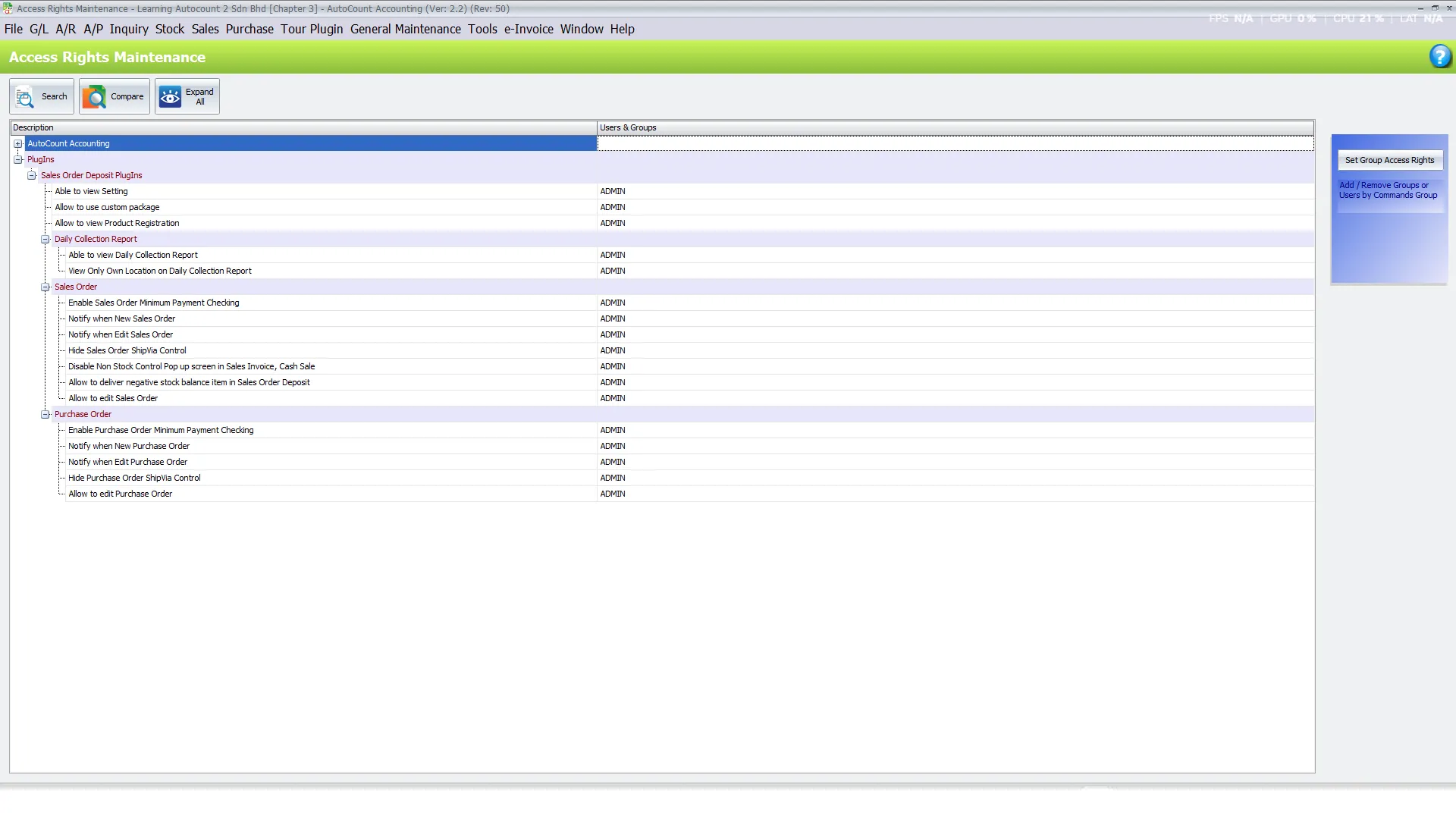
The AutoCount Tour Plugin supports access-right management to control which employees can use specific functions.
Businesses can manage permissions for Sales Order and Purchase Order activities, payment and refund functions, and Daily Collection Reports.
For organizations operating multiple branches, authorized users can also be restricted to viewing Daily Collection Reports associated with their assigned location.
This helps businesses maintain better control over sensitive financial information and reduces unauthorized access to important transaction functions.
Pro Tip:
Assign permissions according to each employee’s responsibilities and regularly review access rights as business roles change.
Benefits of AutoCount Tour Plugin
Better Traveller Record Management
Improved Deposit Control
Easier Payment & Refund Management
Creating receipts, vouchers and refunds from order entries reduces the need to prepare those documents separately.
Clearer Financial Visibility
Conclusion
The AutoCount Tour Plugin keeps traveller details and booking-related payments connected to Sales Orders and Purchase Orders. It supports travel businesses using AutoCount Accounting.
Daily collection reports and payment knock-off tools help accounts teams review transactions. Deposit checking and payment matching apply when their required conditions are met.
Frequently Asked Questions
What is the AutoCount Tour Plugin?
The AutoCount Tour Plugin helps travel agencies manage traveller information, deposits, customer and supplier payments, refunds and daily collections within AutoCount Accounting.
How does the Tour Plugin help travel agencies?
It links traveller records and booking-related payments with familiar AutoCount order and accounting documents. Staff can also review collections and available payment allocations.
Can the AutoCount Tour Plugin record traveller passport information?
Yes. Use Customer Info in the Sales Order to record names, passport details, remarks and notes for each traveller.
Does the Tour Plugin support minimum deposit checking?
Yes, when the relevant minimum payment checking right is enabled. The required deposit percentage must already be set up.
Can the Tour Plugin manage payments and refunds?
Yes. Payment And Refund entries can create Official Receipts, Payment Vouchers and refund documents, subject to AutoCount payment rights.
Does the Tour Plugin support automatic payment knock-off?
Yes, when an invoice has an outstanding balance and eligible unapplied payments exist. Auto Knock Off fills amounts for review before allocation.
Simplify Your Travel Business Operations Today!
Manage traveller records, booking payments and daily collections through the AutoCount Tour Plugin.
Contact SL Software Solutions Sdn. Bhd. to learn how the plugin supports your travel business.